
IS YOUR COMPUTER SLOW? RUN LIKE NEW
If they are not maintained, computers lose performance over time. Avast Cleanup Premium can help significantly improve the performance of your computer.
Sandbox - Getting Started
Windows
This article is about the Sandbox in Avast Premium Security. For information about the Avast One version of the Sandbox, refer to the following article: Avast One Sandbox - Getting Started.
Sandbox is a feature in the paid version of Avast Premium Security that allows you to browse the web or run applications in a virtual, safer environment that is isolated from the rest of your PC's system. This feature is useful when you want to run suspicious or untrusted applications, as it helps to mitigate potential risks.
Run applications in Sandbox
To run an application in Sandbox via the Sandbox screen in your Avast Premium Security:
- Open Avast Premium Security, then select Protection ▸ Sandbox.
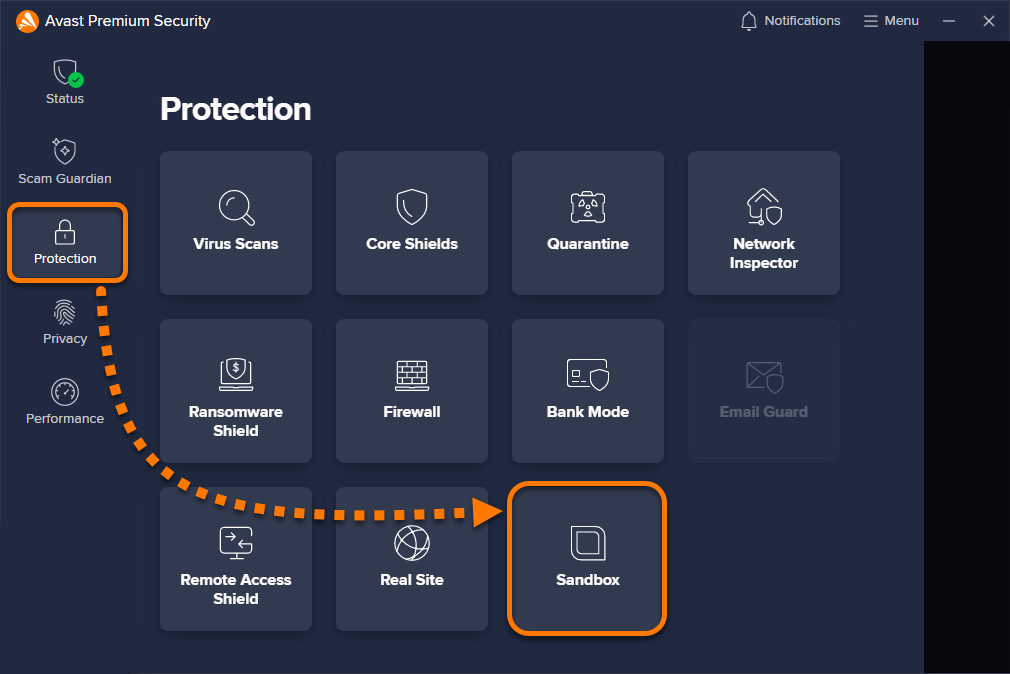
- Click Run App in Sandbox.
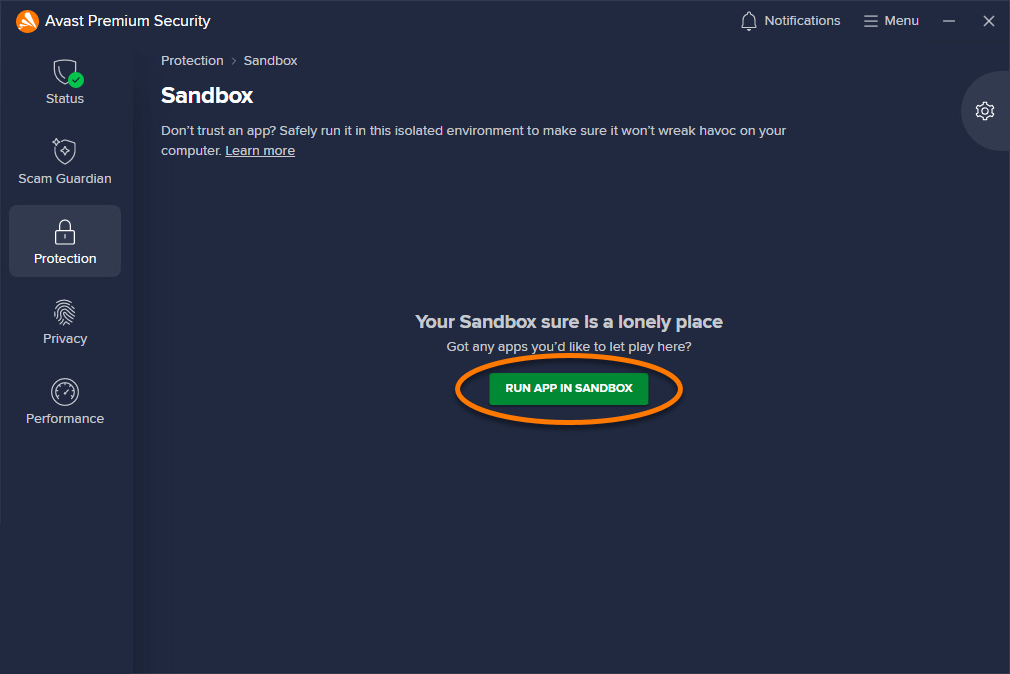
- Select the application file (.exe) and click Open.
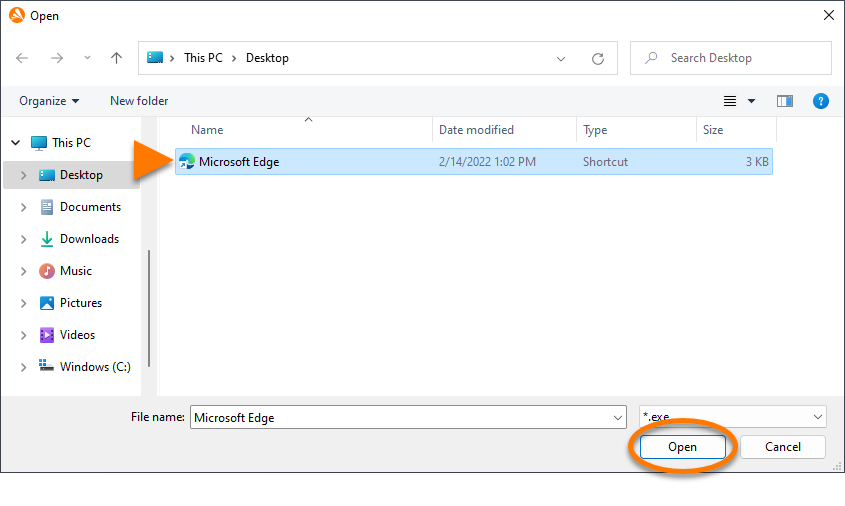
The application opens in a virtualized window indicated by a colored border and the label Avast Sandbox. To end the virtualized session, click the X icon in the top-right corner of the window to close the app.
To run an application in Sandbox directly from Windows, right-click the relevant .exe file and select Run in sandbox or Always run in sandbox from the context menu. You can enable or disable this option via your application settings.
Always run in Sandbox
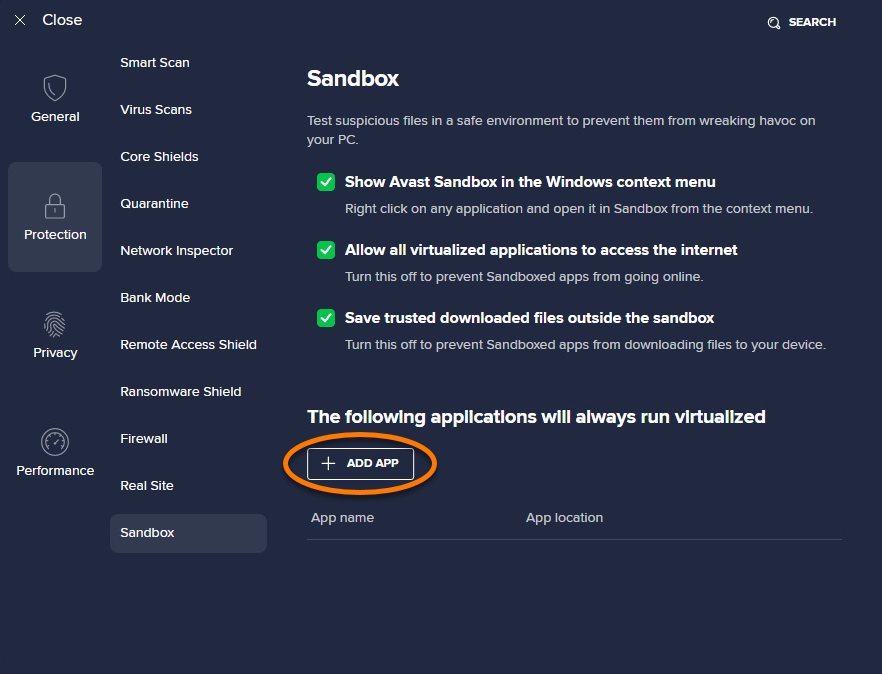
You can set up specific applications to always run in Sandbox:
- Open Avast Premium Security, then select Protection ▸ Sandbox.
- Click
 Settings (the gear icon) in the top-right corner of the screen.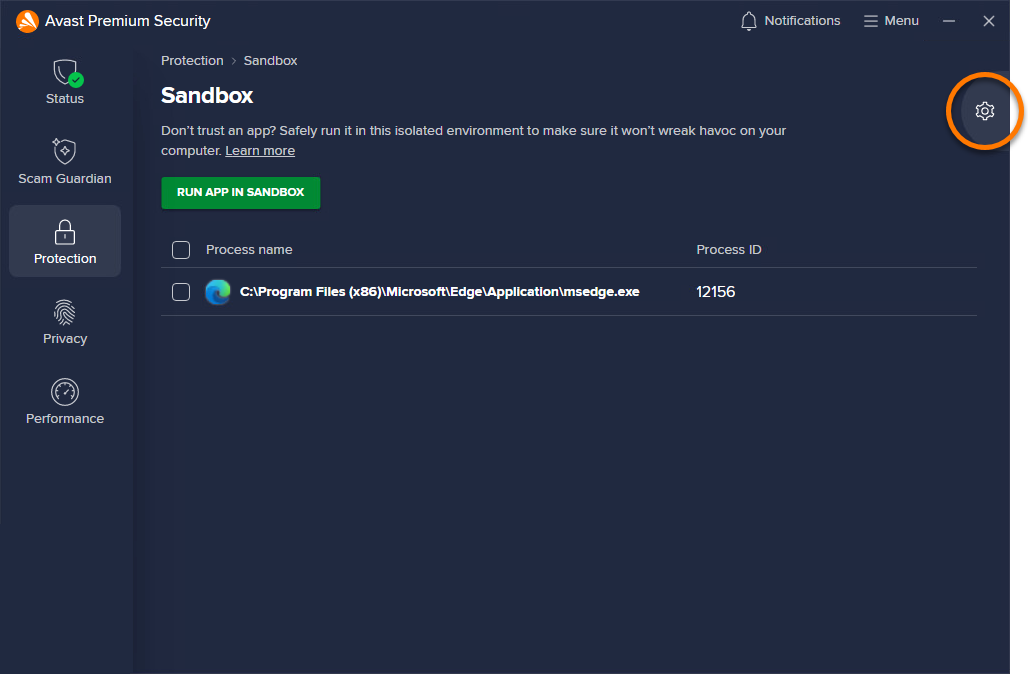
- Click + Add app.
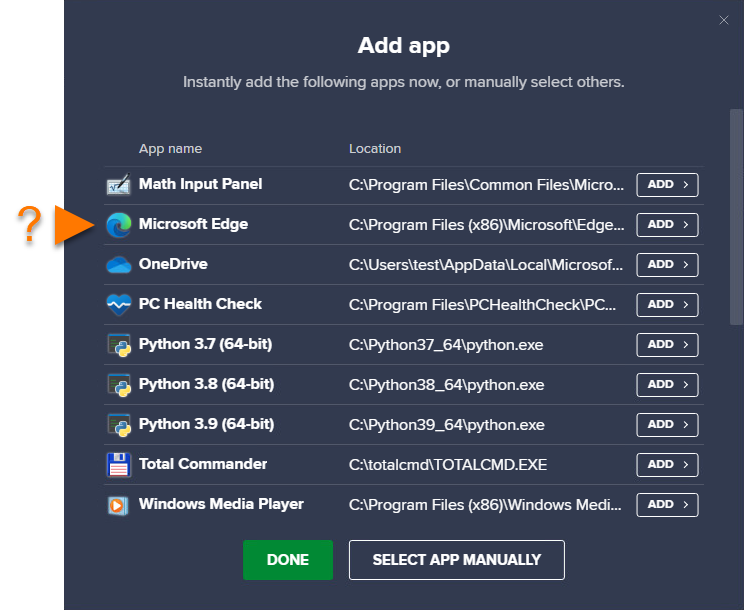
- Select an app using either of the methods below:
- Option A: Click an application in the list to instantly add it.
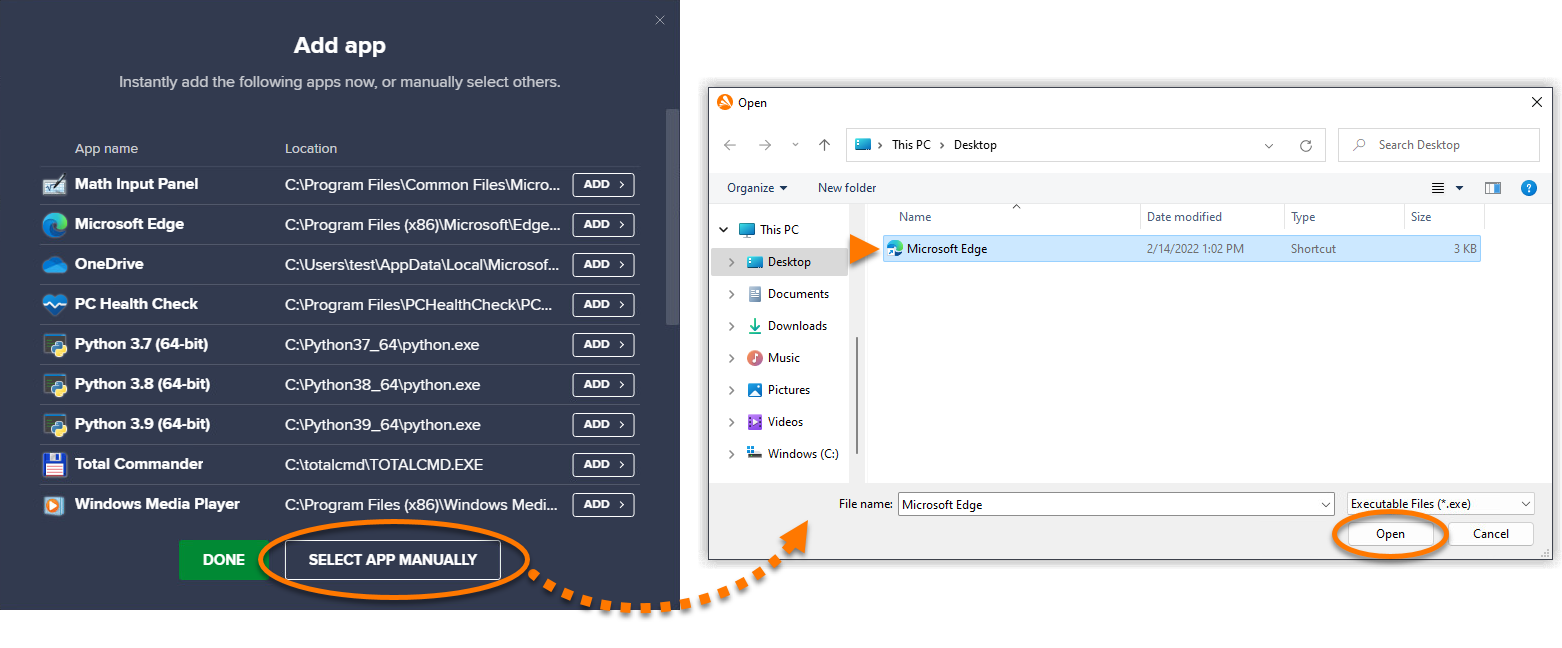
- Option B: Click Select app manually, then select the application and click Open.
- Option A: Click an application in the list to instantly add it.
The application will now automatically run in Sandbox every time you open the application.
To remove an app from the virtualization list, hover the cursor over the app's panel and click the
Xicon.

Manage Sandbox settings
To access Sandbox settings:
- Open Avast Premium Security, then select Protection ▸ Sandbox.
- Click Settings (the gear icon) in the top-right corner of the screen.
- The following options are enabled by default. To disable a setting, untick the box next to the relevant option:

- Show Avast Sandbox in the Windows context menu: Allows you to right-click an application icon and select Run in sandbox or Always run in sandbox. Disabling this option removes the Sandbox commands from the Windows context menu.
- Allow all virtualized applications to access the internet: Allows applications running in Sandbox to access the internet. Disabling this option stops applications from accessing the internet in Sandbox.
- Save trusted downloaded files outside the sandbox: When using a web browser in Sandbox, files that you download are saved to your PC, outside of the Sandbox environment. When enabled, this option allows you to keep the downloaded files after closing the Sandbox window. Disabling this option results in downloaded files being automatically deleted when you close the Sandbox session.
The settings are configured according to your preferences.
For information about advanced Sandbox settings, refer to the following article:
Was this article helpful?

Keep your online identity private!
Browse like no one’s watching with Avast anti-tracking software.