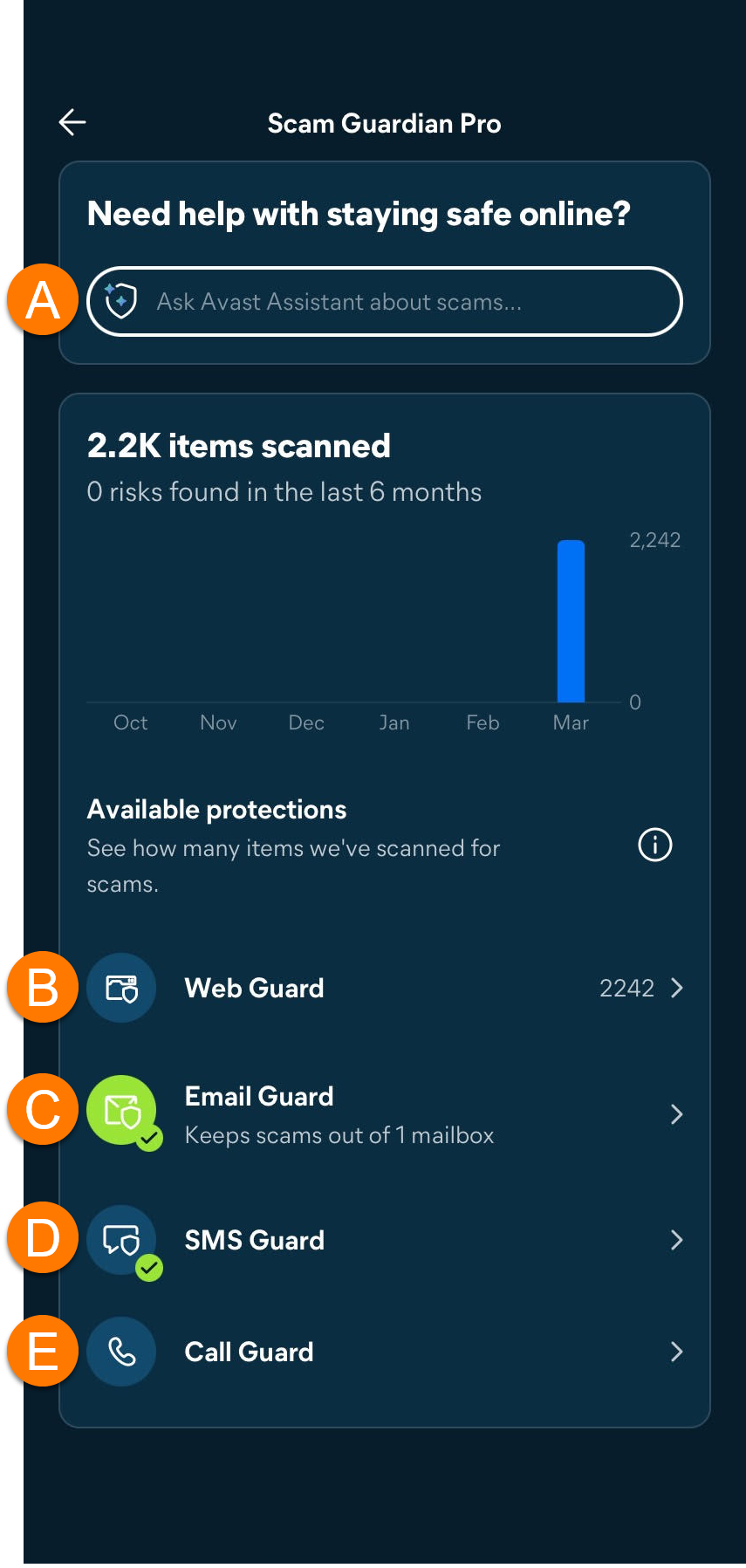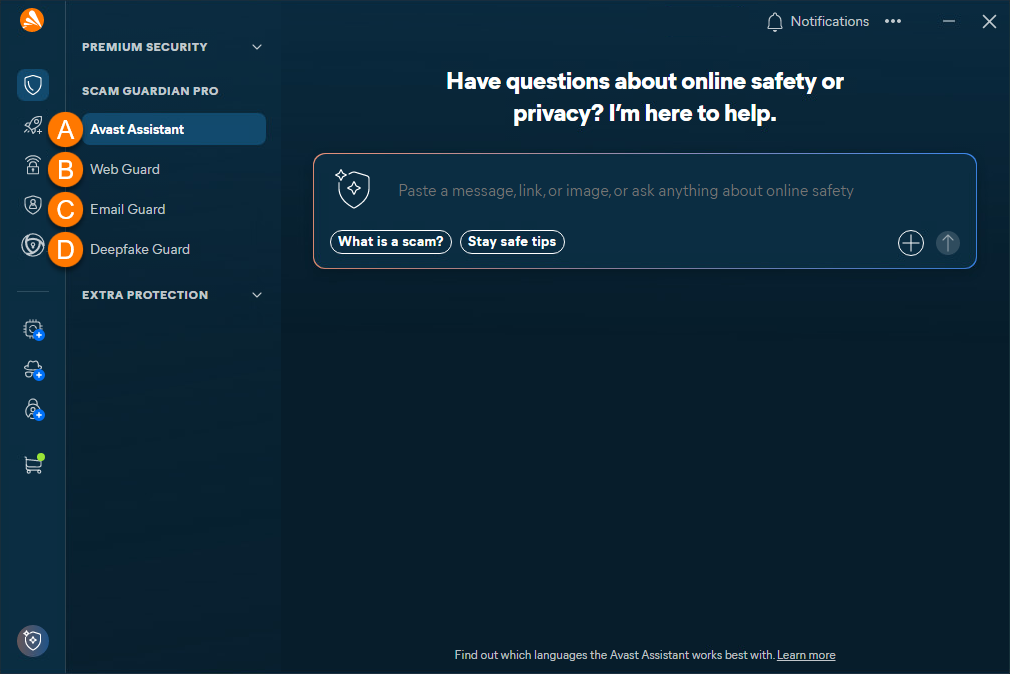

Scam Guardian Pro is a feature of Avast One Antivirus that provides users with the following tools to recognize and avoid online threats, improving digital security:
For a list of differences between the free version, Scam Guardian, and the paid version, Scam Guardian Pro, visit the following article: Scam Guardian Pro - FAQs.
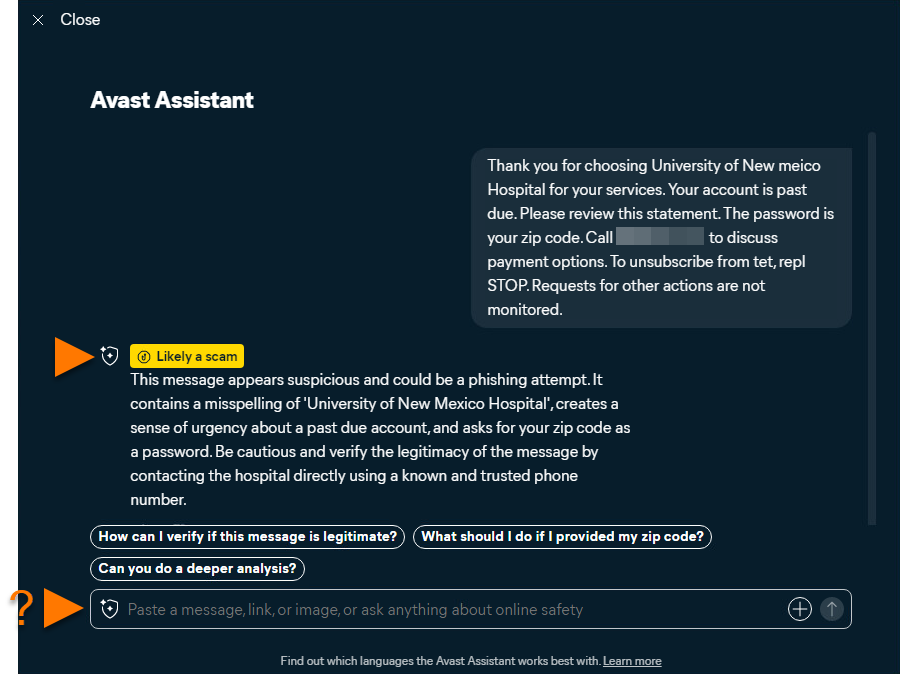
- Avast Assistant is an AI-powered cybersecurity assistant that analyzes texts, emails, and links for potential scams and cybersecurity concerns. It can also be used for any online safety related questions.
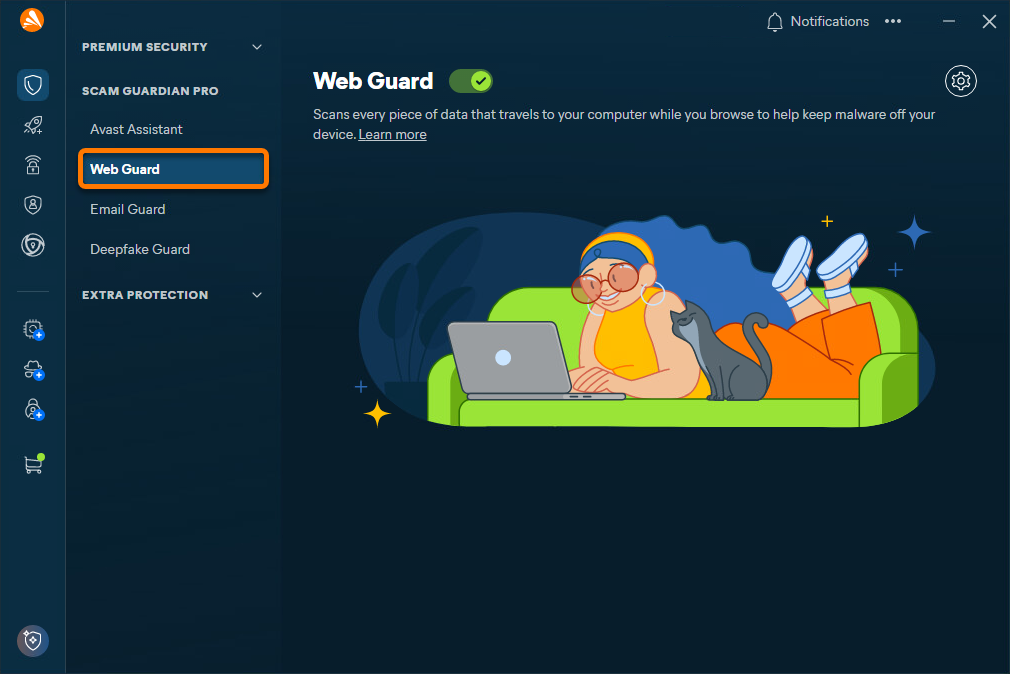
- Web Guard, formerly known as Web Shield, scans internet activity in real time to prevent malware from downloading onto devices and help you avoid suspicious websites.
- Email Guard, formerly known as Email Guardian, is a premium feature that scans incoming emails in your online email accounts, labeling received emails to indicate potential scam and phishing risks.
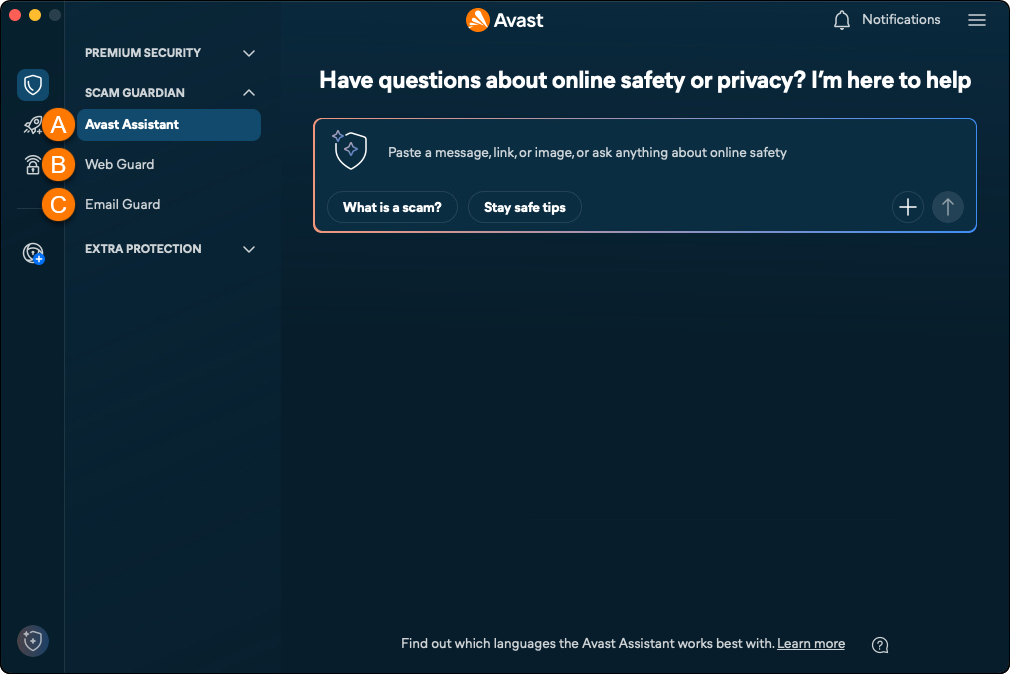
Refer to the sections below to learn how to use these features.
Use Avast Assistant
Avast Assistant is designed to work in all languages but currently performs best in the following: English, French, German, Japanese, and Spanish.
These languages were chosen based on factors such as user demand, the availability of cybersecurity threat data, and the linguistic complexity involved in scam detection. Language support is continuously expanding, with future updates expected to include additional languages as the system learns and evolves.
Avast Assistant is an AI-powered virtual support tool that helps users stay safe online. It analyzes text messages, emails, links, and images to detect potential scams, phishing attempts, and other cybersecurity threats. Aside from identifying suspicious content, the assistant provides practical guidance to help users understand and appropriately respond to safety concerns.
To use Avast Assistant, follow the steps below:
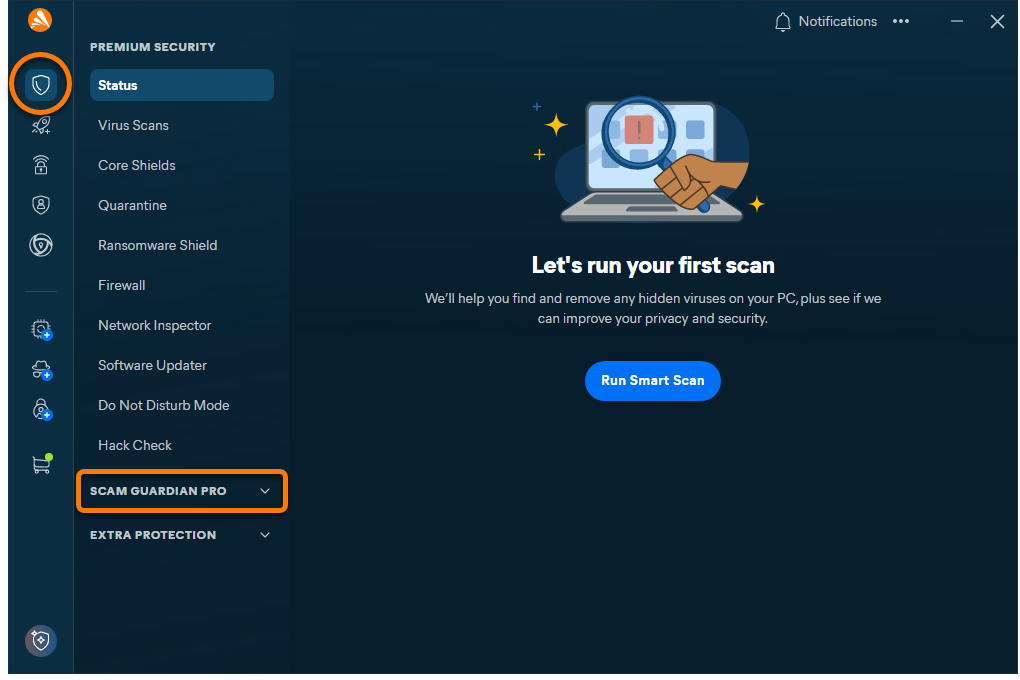
- Open Avast One, ensure Avast Premium Security is selected, and go to Scam Guardian.
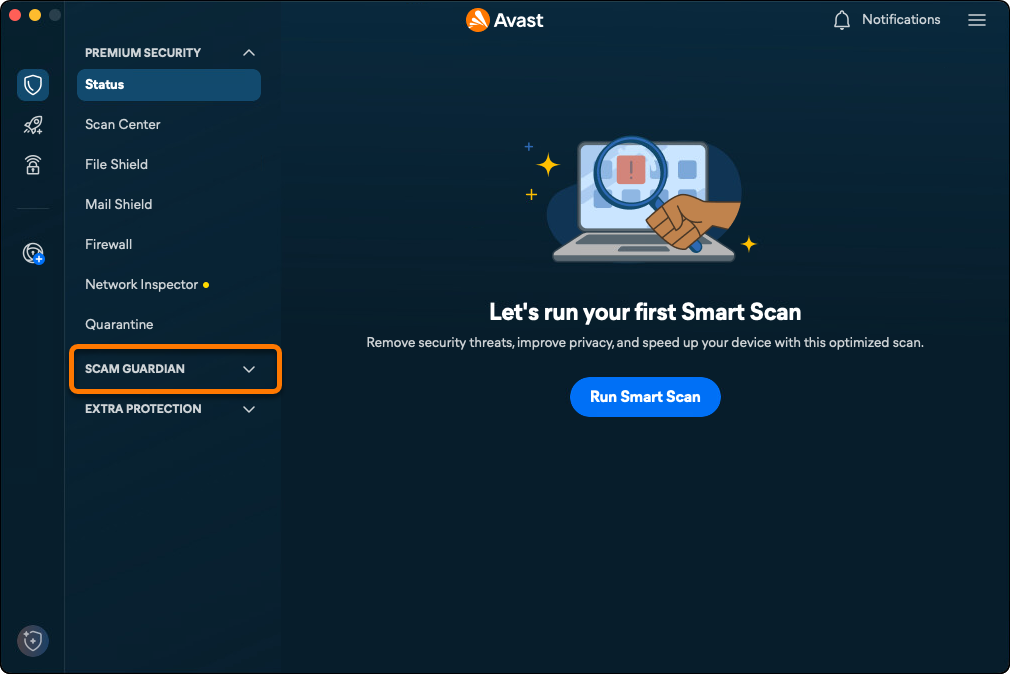
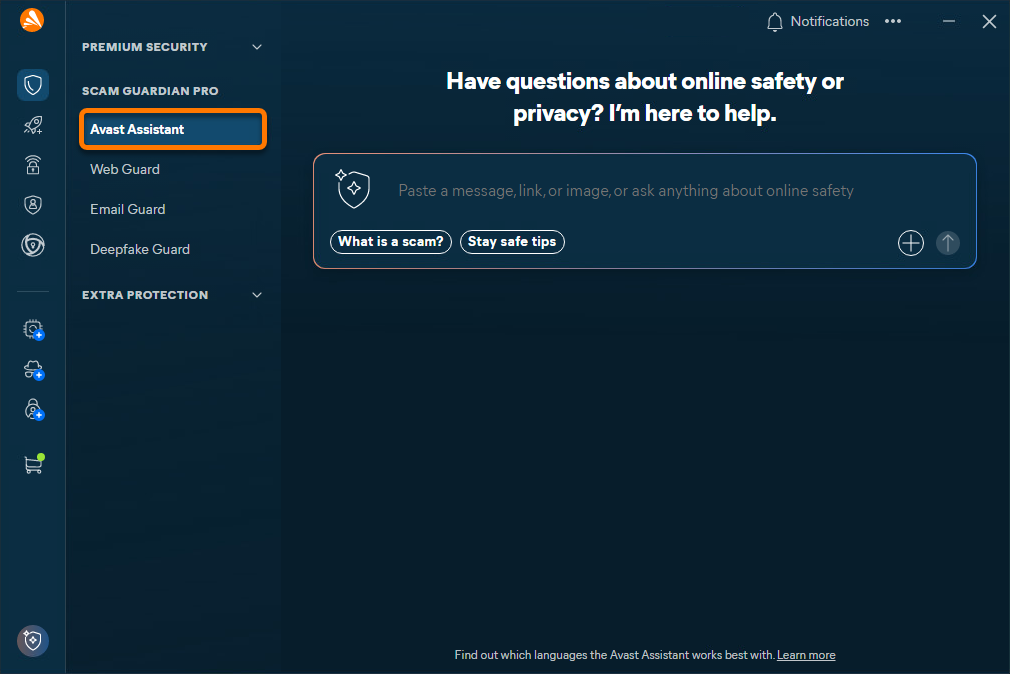
- Ensure that Avast Assistant is selected.
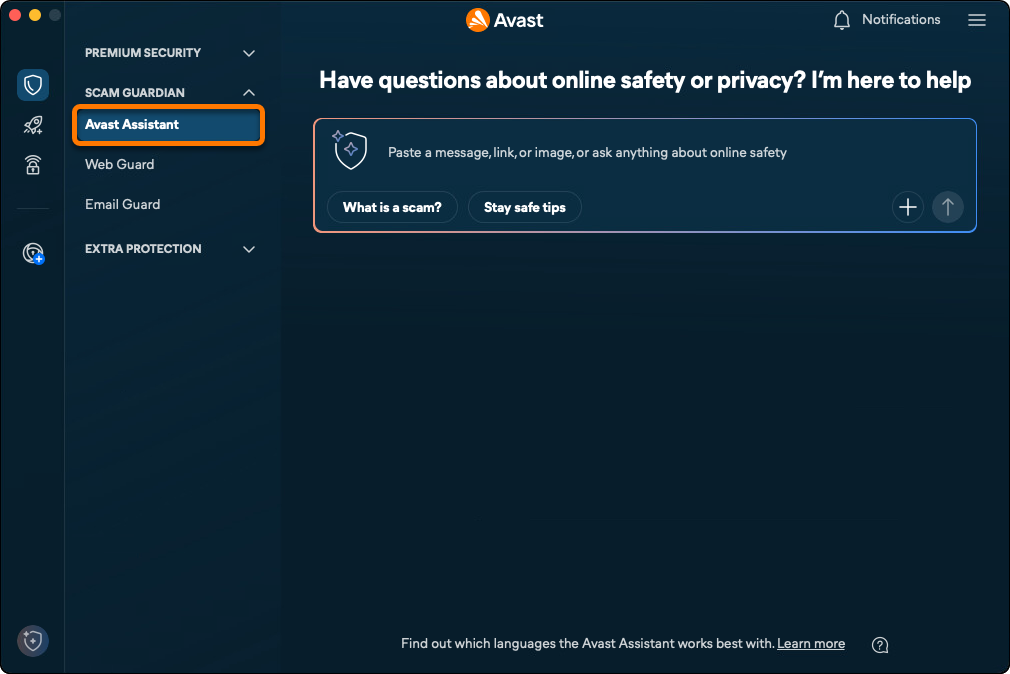
- In the Avast Assistant panel, you can:
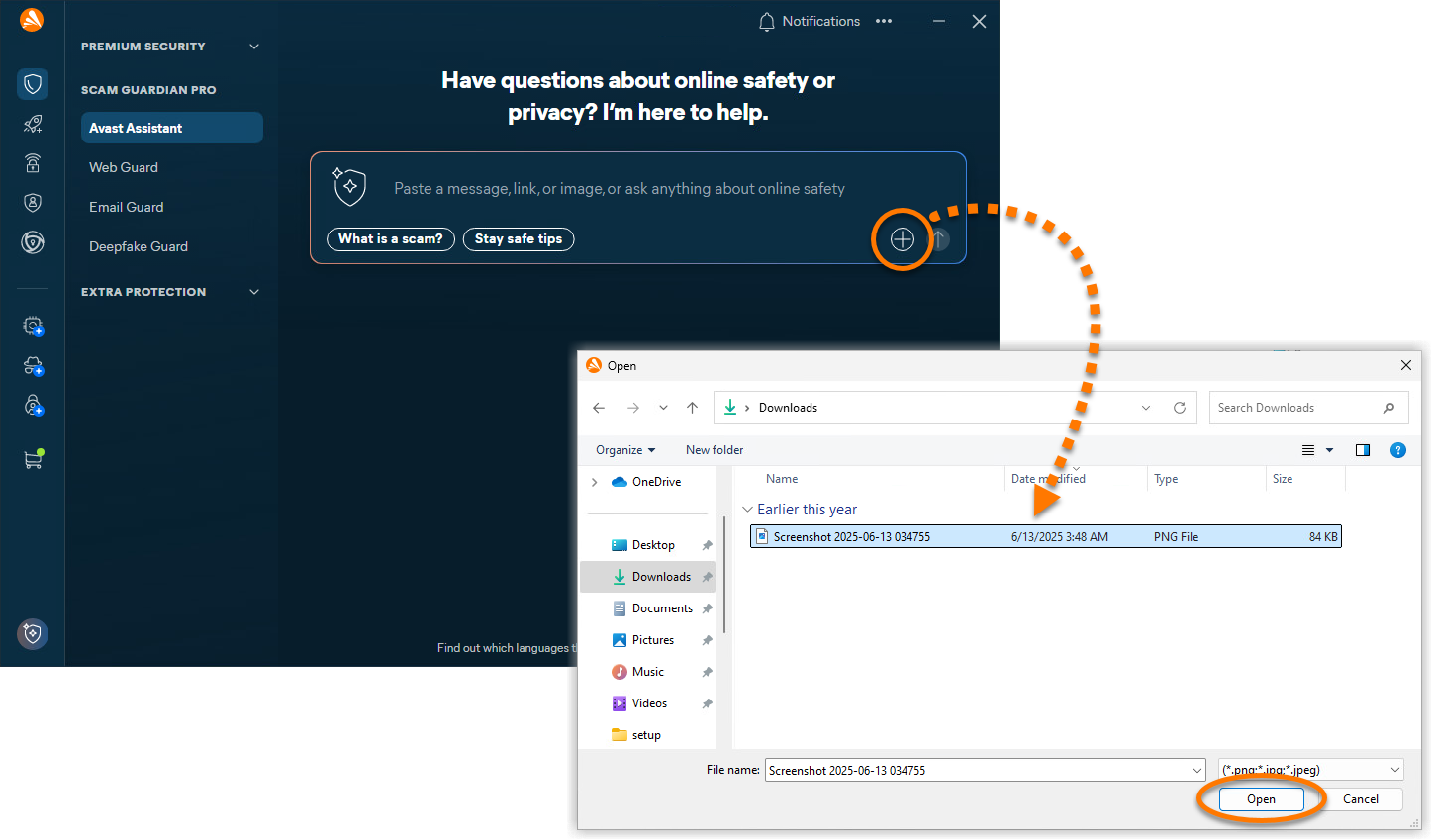
- Upload an image showing suspicious text, email, or webpage for analysis by Avast Assistant.
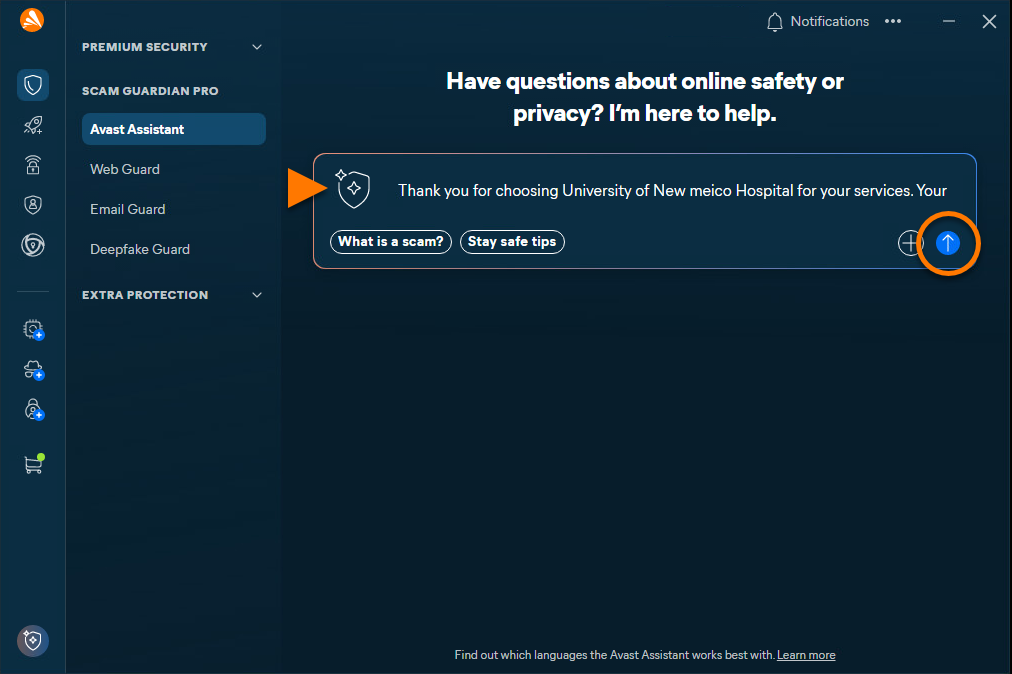
- Enter text from a suspicious email or message, or a suspect URL for analysis by Avast Assistant.
- Ask a question about any cybersecurity topic.
For more information about these options, refer to the sections below.
Upload an image to Avast Assistant
Supported image formats include PNG, JPG, and JPEG. The maximum file size limit is 5 MB.
- Click Upload (the
+icon). Locate the file on your device, then click Open.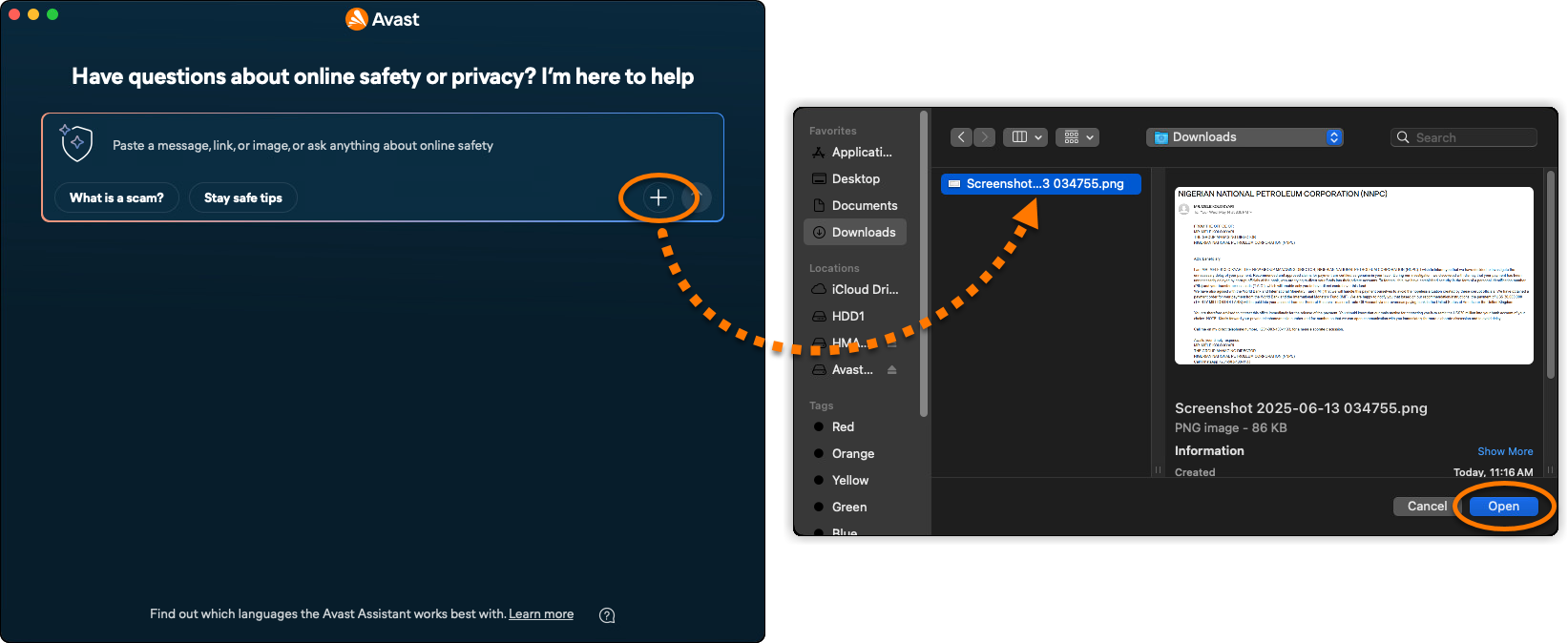
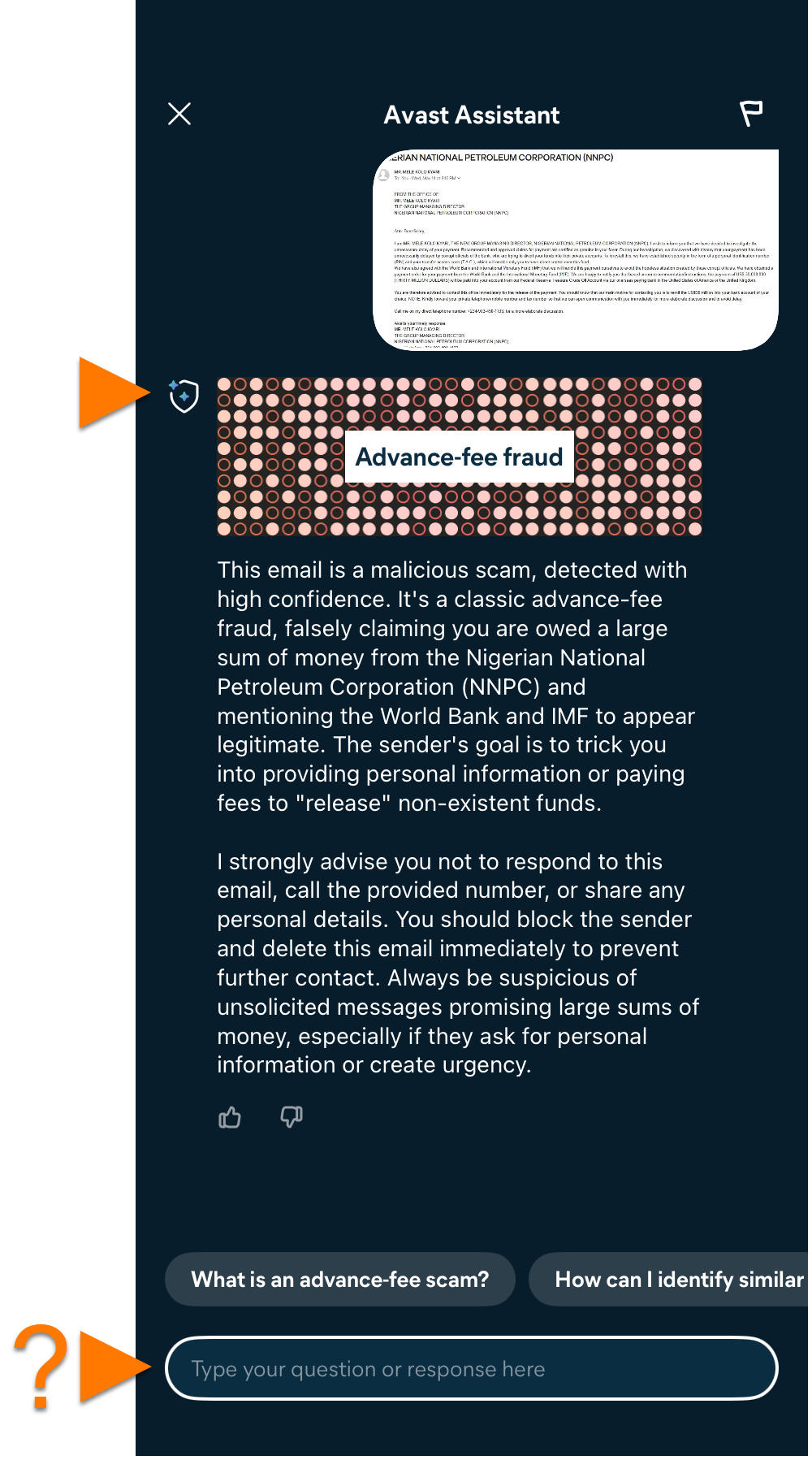
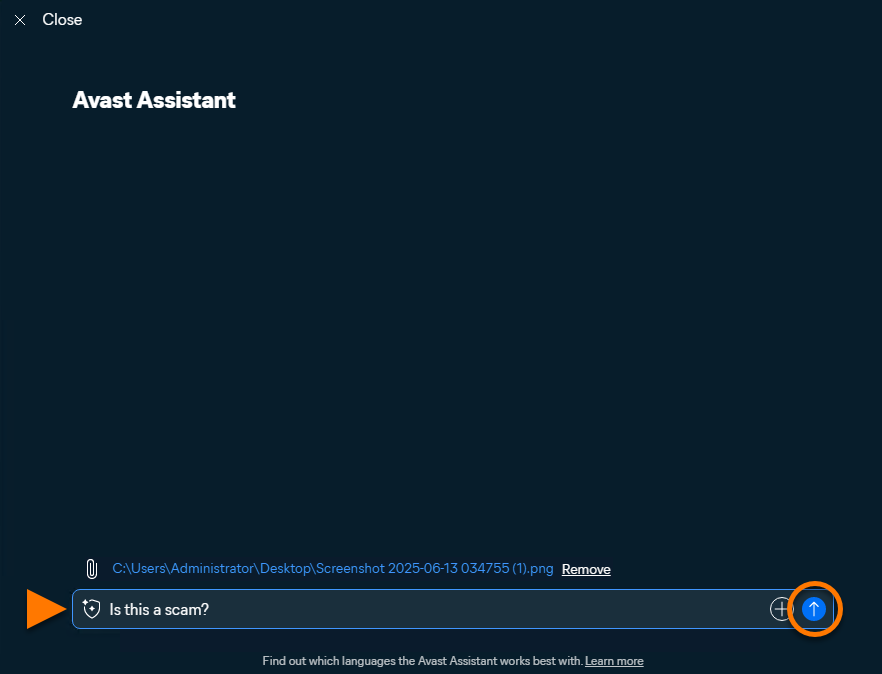
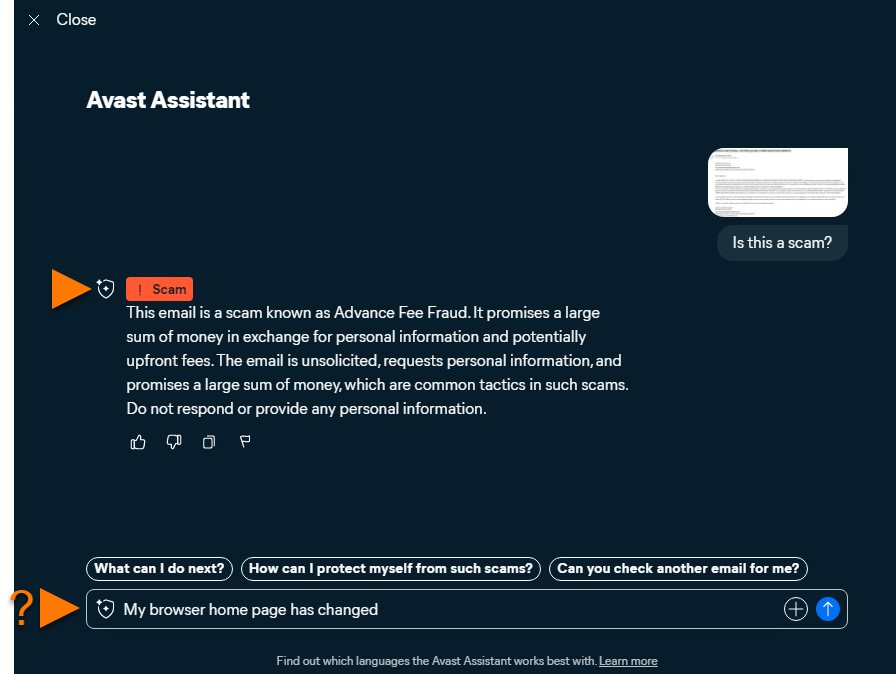
- Avast Assistant analyzes the submitted information. If a scam is detected, an explanation is provided along with advice on the next steps to take. You can continue asking further questions or uploading additional images in the same conversation.
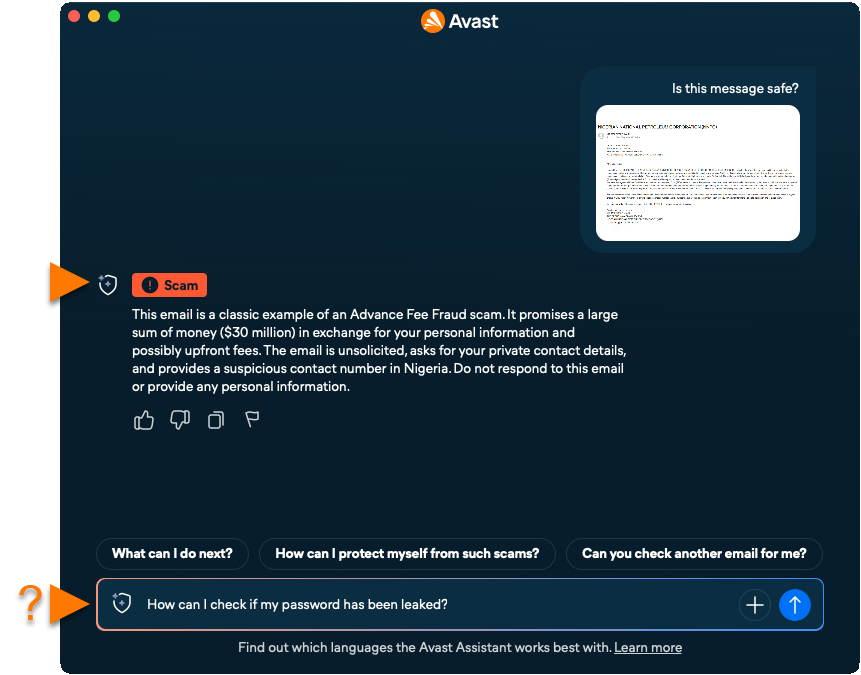
Paste text or ask a question
- Write your question or paste a suspicious message or a link in the Avast Assistant field, then click Submit (the arrow icon).
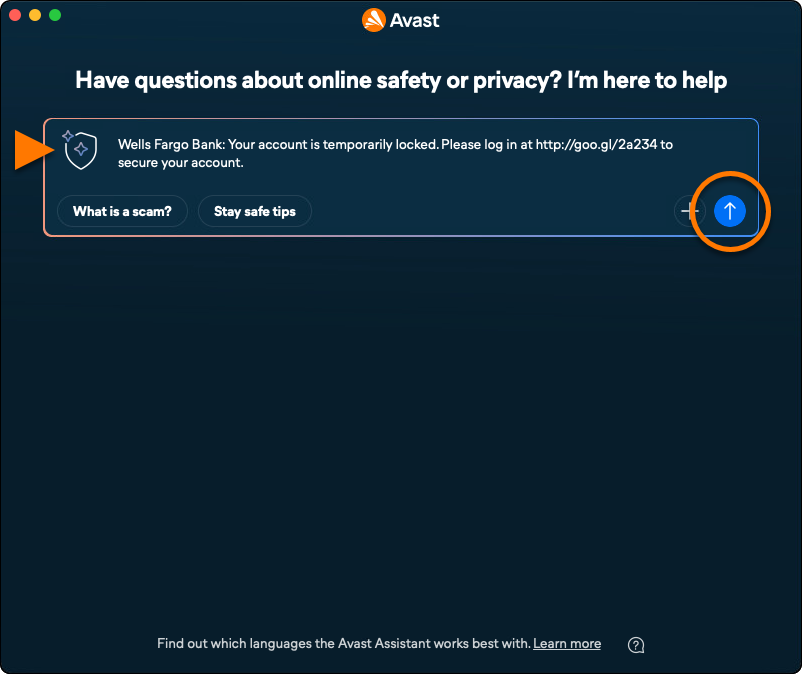
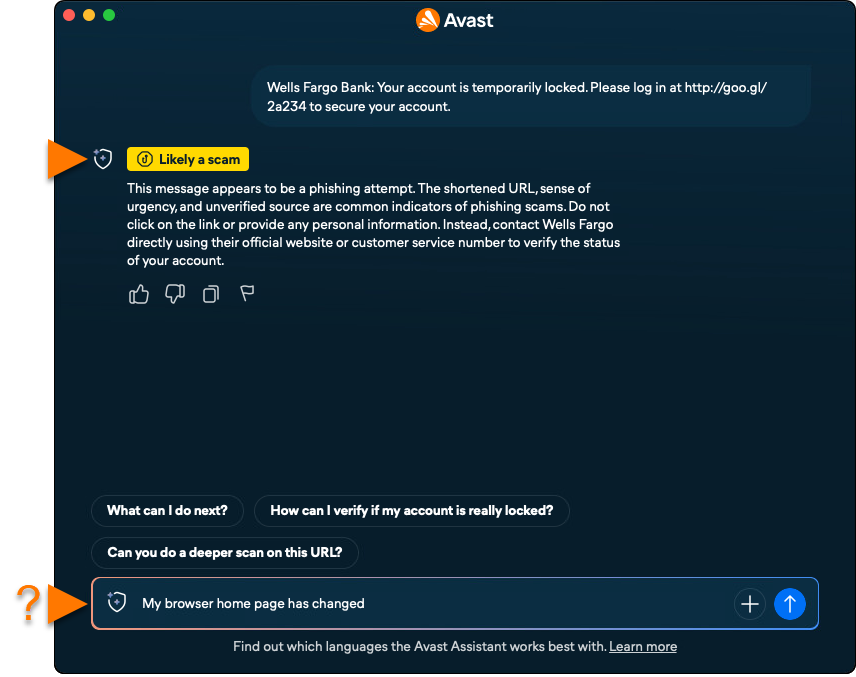
- Avast Assistant will provide an answer to your question or an analysis of the submitted text or link. You can continue asking further questions in the same conversation.
Use Web Guard
Web Guard is a core protection feature in Avast Antivirus that scans internet activity in real-time to block malware like malicious scripts and help you avoid suspicious websites. It is enabled by default to help ensure robust security. However, users can adjust settings for detection sensitivity and malware handling.
To access Web Guard, follow the steps below:
- Open Avast One, ensure Avast Premium Security is selected, and go to Scam Guardian.
- Select Web Guard.
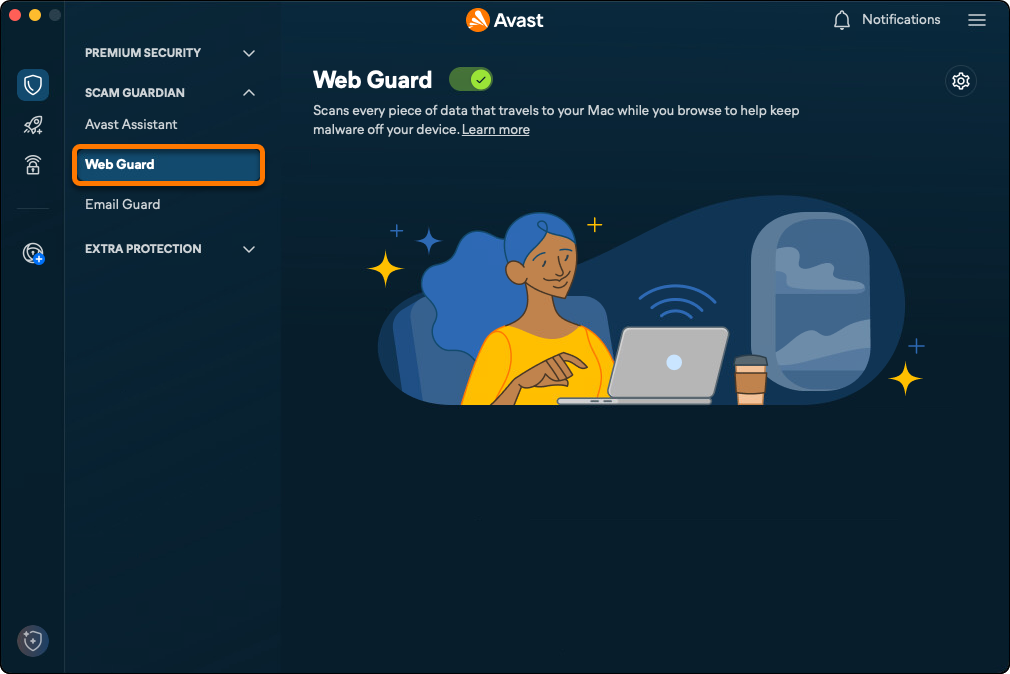
- By default, Web Guard is on. If needed, click the slider to turn it off.

To help ensure your security, we recommend keeping Web Guard enabled and only disabling it for temporary troubleshooting purposes.
To manage Web Guard settings:
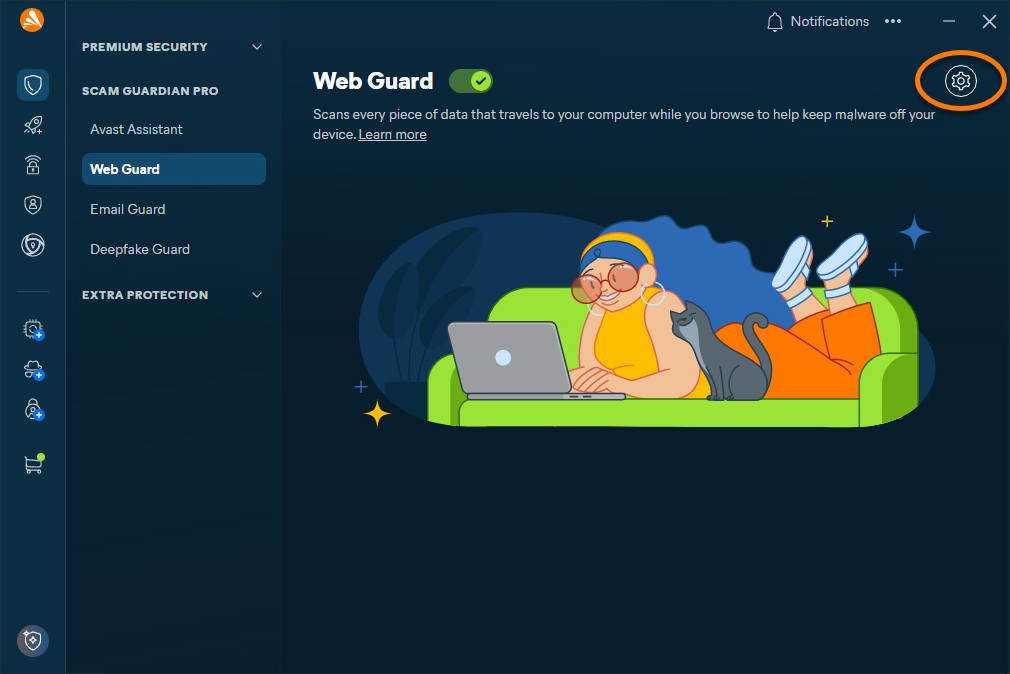
- Click Settings (the gear icon) on the Web Guard screen.
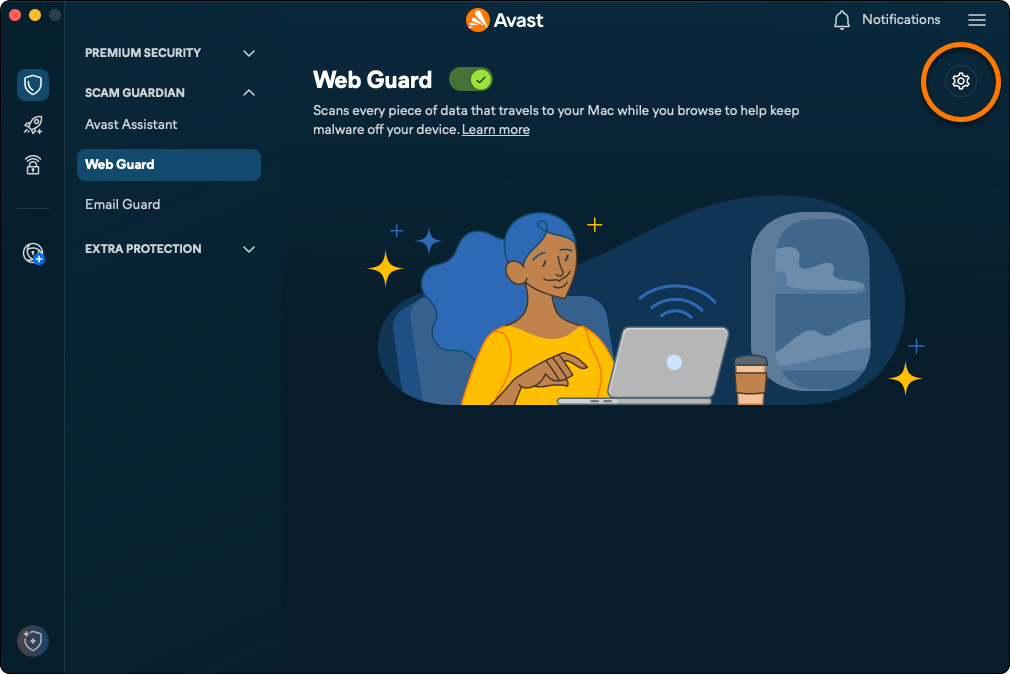
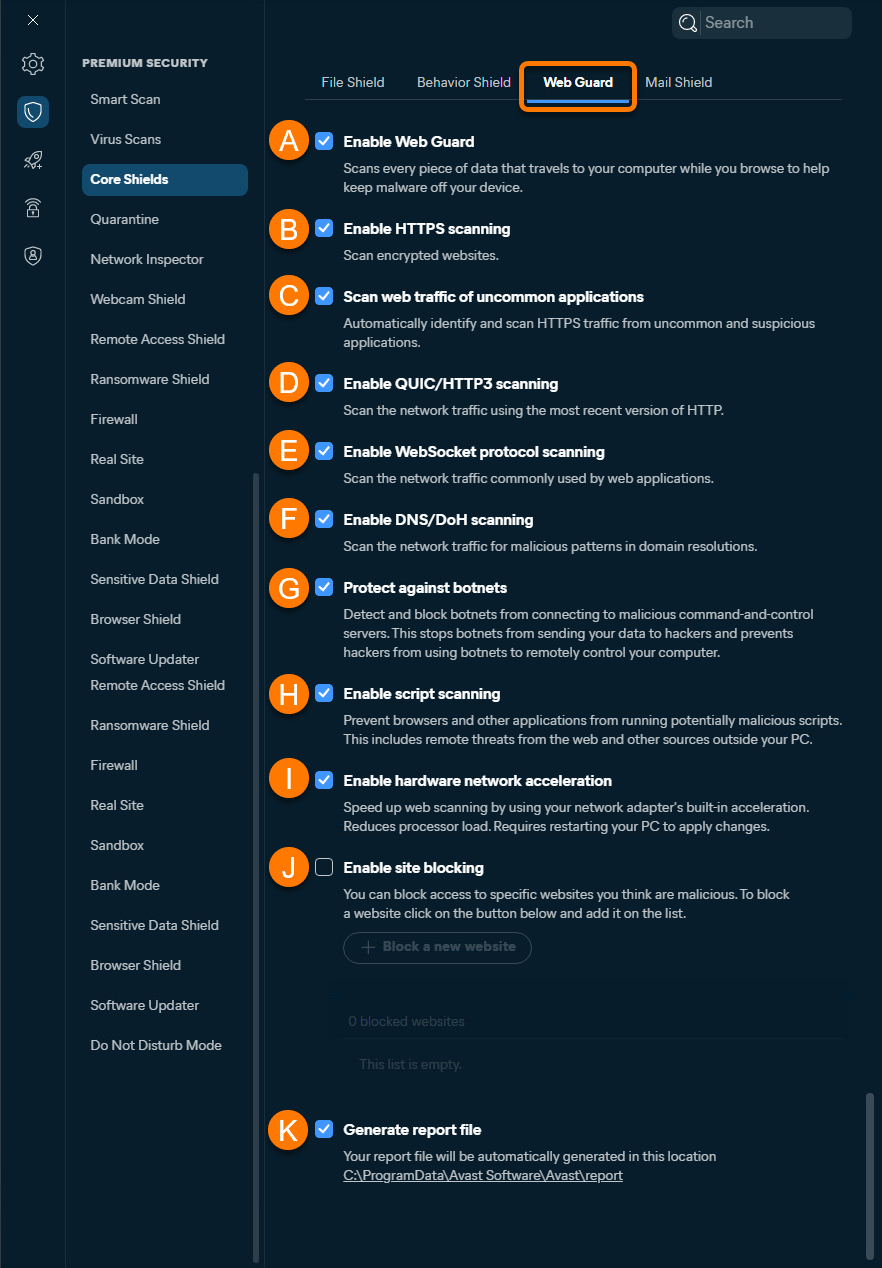
- Ensure that the Settings tab is selected, then optionally use the sliders to enable or disable the following settings:
- Notify me about potentially unwanted programs: When potentially unwanted programs (PUP) are detected, you are notified with an alert message.
- Scan for Tools: Tools are apps that can be used for accessing, controlling, or potentially harming computers.
- Verify suspicious URLs: Suspicious URLs are checked against Avast's list of reputable websites.
- Scan secure connections: HTTPS (secured) sites are scanned for malware as well as HTTP sites.
- Force downgrade HTTP3 (Recommended): Automatically downgrades all web traffic to HTTP2 or HTTP to scan for malicious code.
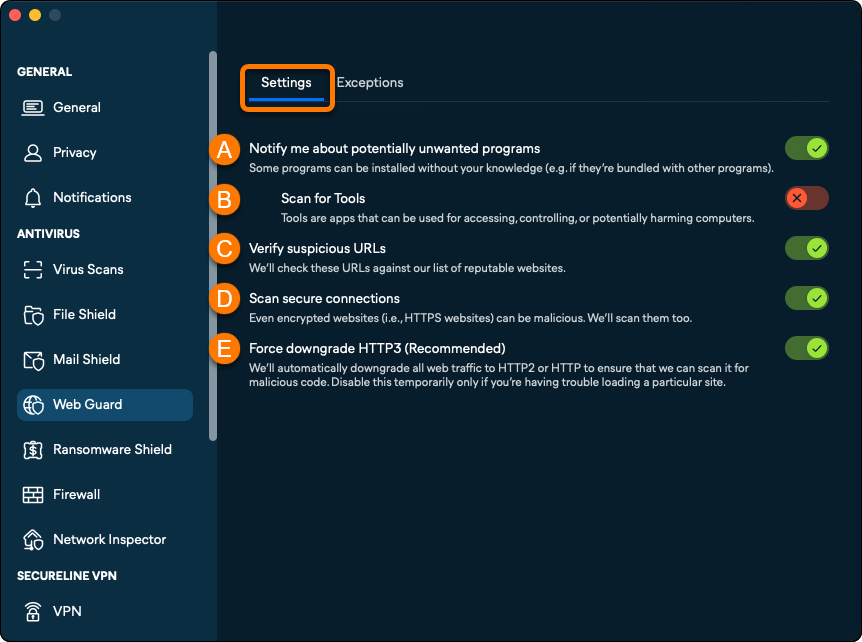
To exclude websites or domains from being scanned by Web Guard:
- Click Settings (the gear icon) on the Web Guard screen.
- Select the Exceptions tab, then click Add exceptions.
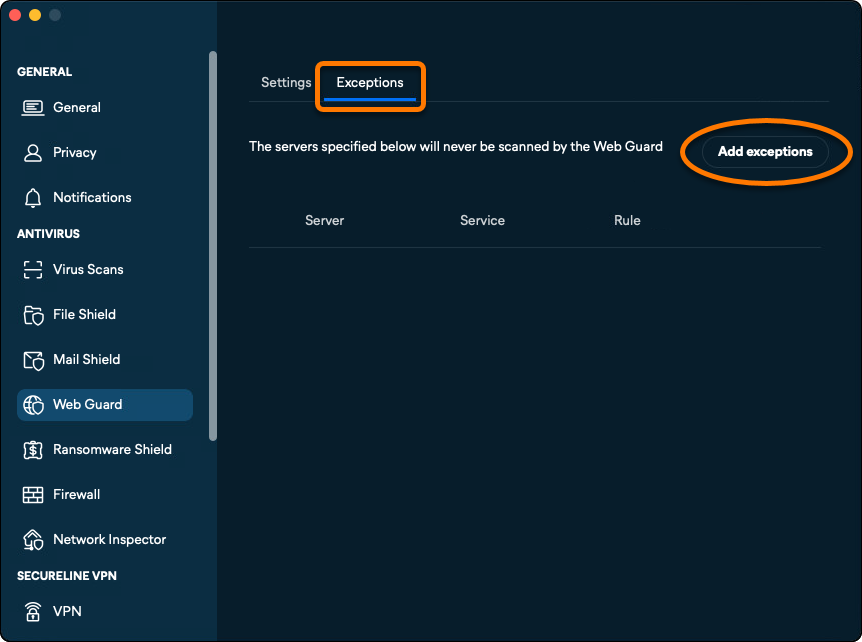
- Enter the URL of the website you want to exclude from being scanned and select the Web server services type, then click Add.
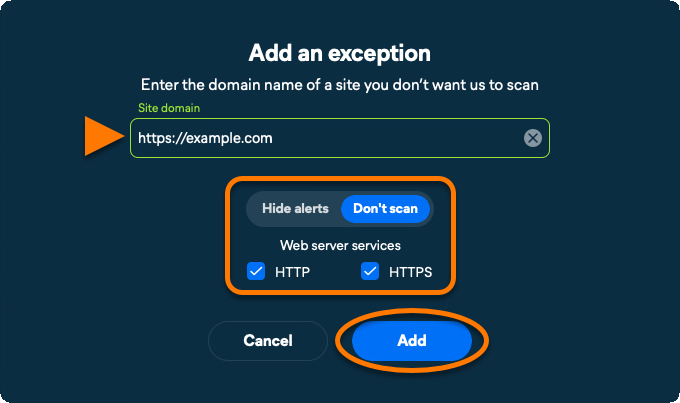
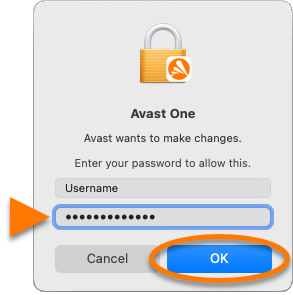
- If prompted, enter the password that you use when you start your Mac, then click OK to authorize the change.
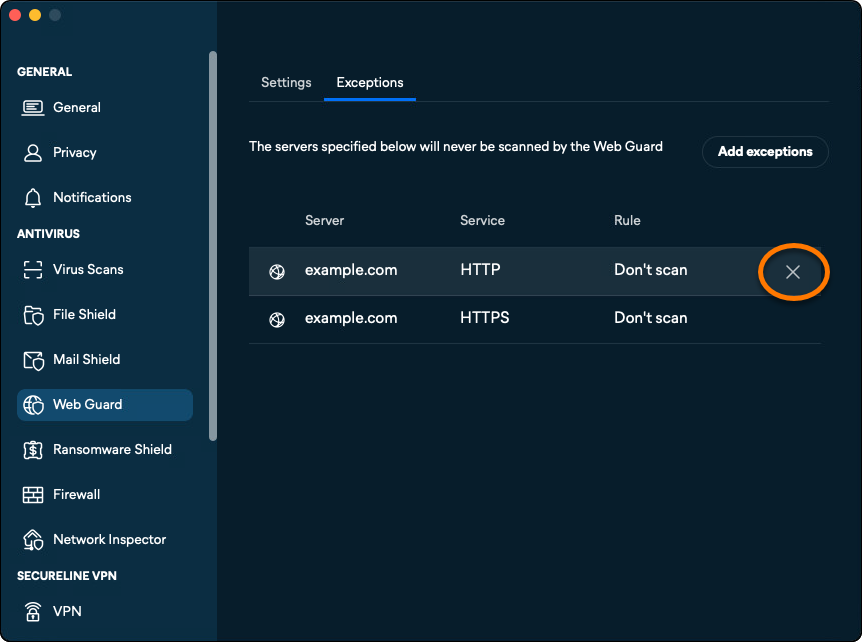
The website is added to the exceptions list.
To remove an excluded item, hover your cursor over the server panel in the exceptions list, then click the
Xicon.
Use Email Guard
Email Guard is a premium feature that requires a paid subscription.
Email Guard scans incoming emails and labels them as safe or unsafe to highlight potential scam and phishing threats. These labels are added directly in your online email account, enhancing your safety when checking emails on any device or browser. Refer to the following support articles for more information:
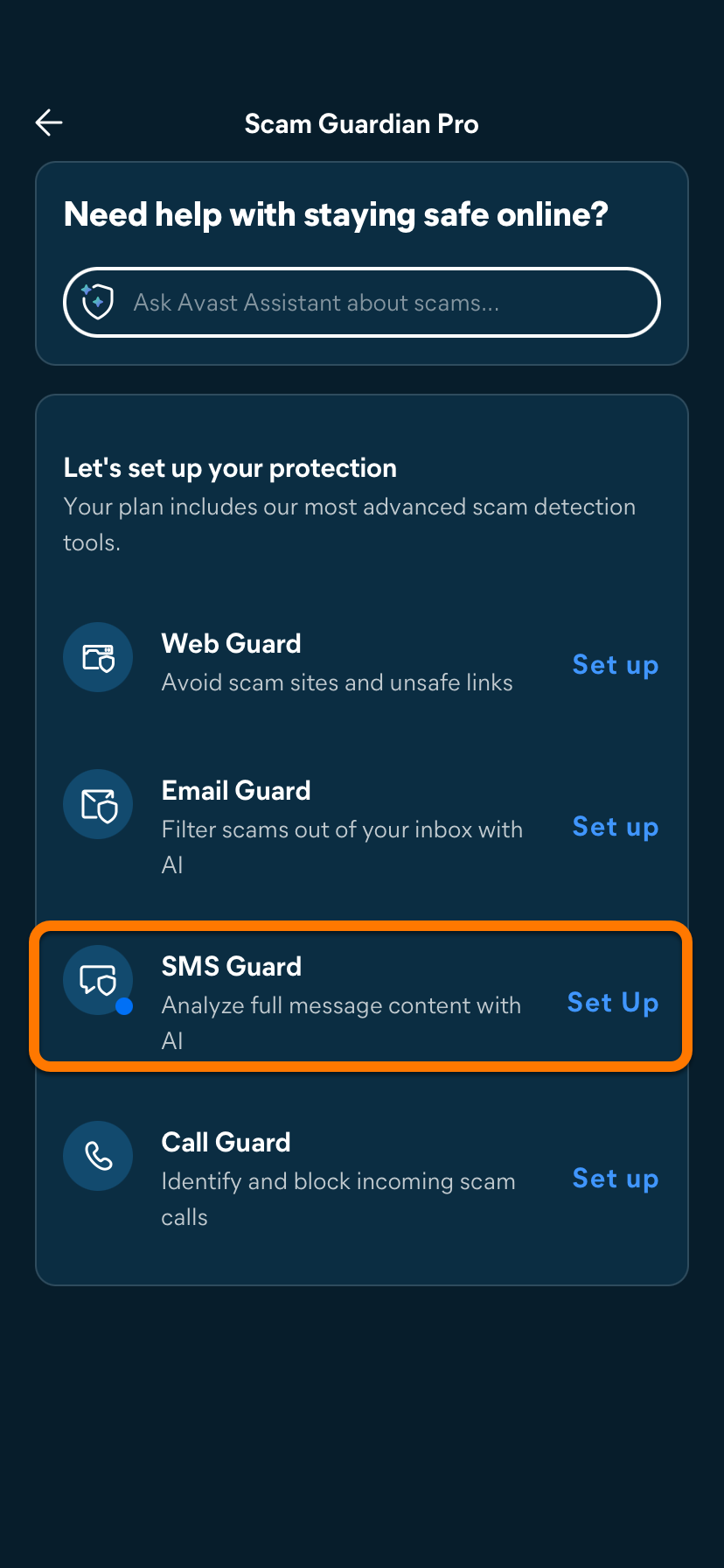
Scam Guardian Pro is a feature of Mobile Security that provides users with the following tools to recognize and avoid online threats, improving digital security:
For a list of differences between the free version, Scam Guardian, and the paid version, Scam Guardian Pro, visit the following article: Scam Guardian Pro - FAQs.
Refer to the sections below to learn how to use these features.
Use Avast Assistant
Avast Assistant is designed to work in all languages but currently performs best in the following: English, French, German, Japanese, and Spanish.
These languages were chosen based on factors such as user demand, the availability of cybersecurity threat data, and the linguistic complexity involved in scam detection. Language support is continuously expanding, with future updates expected to include additional languages as the system learns and evolves.
Avast Assistant is an AI-powered virtual support tool that helps users stay safe online. It analyzes text messages, emails, links, and images to detect potential scams, phishing attempts, and other cybersecurity threats. Aside from identifying suspicious content, the assistant provides practical guidance to help users understand and appropriately respond to safety concerns.
To use Avast Assistant, follow the steps below:
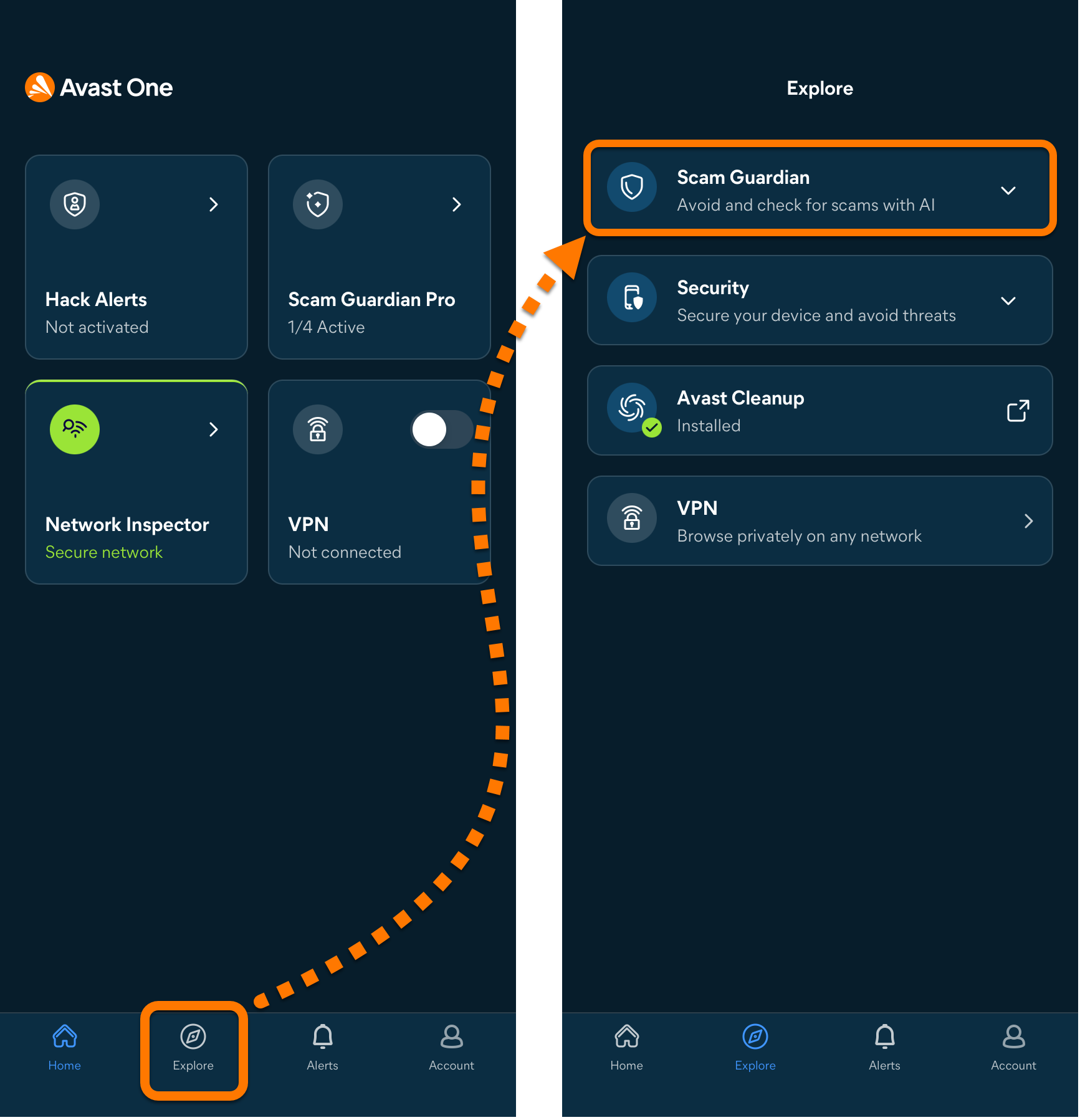
- Open Avast One and tap
 Explore ▸ Scam Guardian Pro.
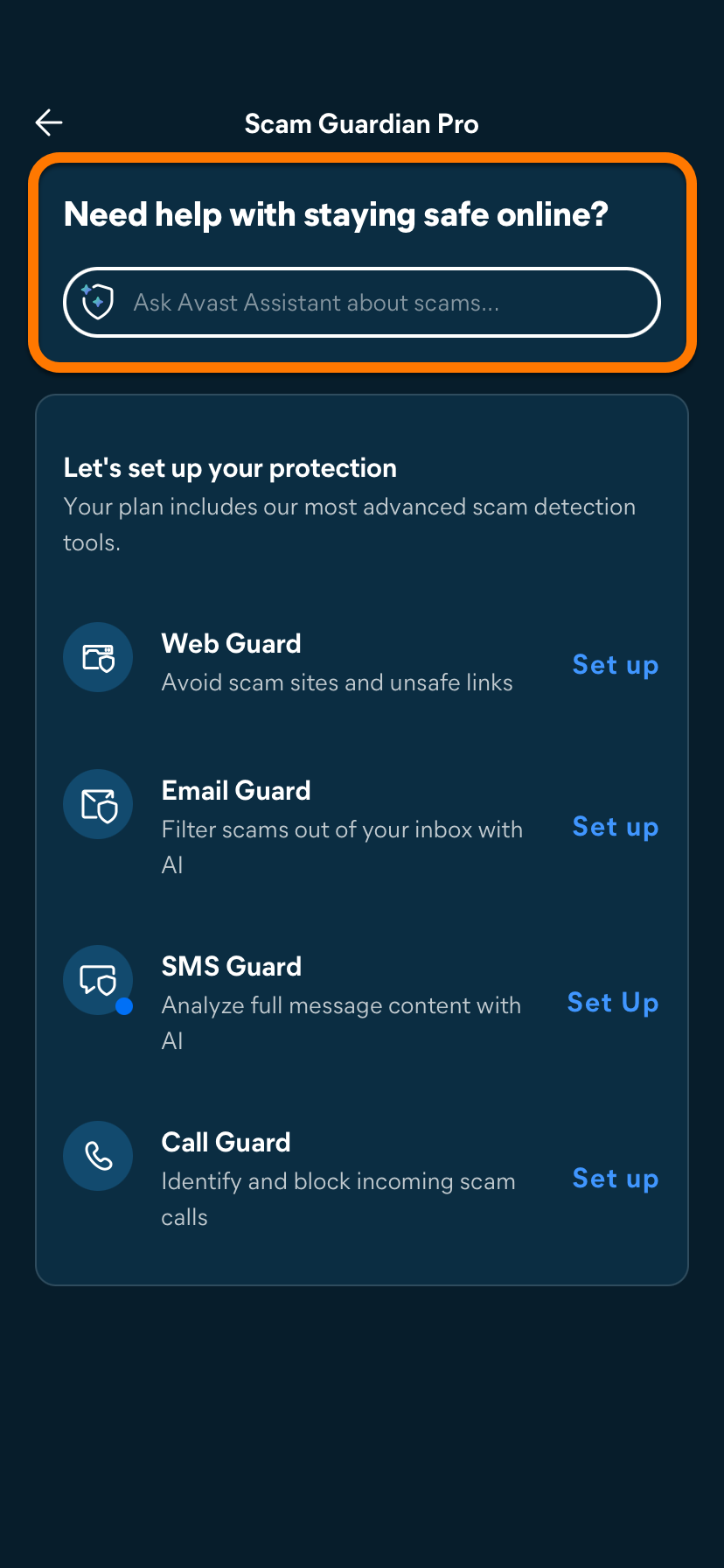
 - Tap the Avast Assistant panel at the top of the screen.
- In the Avast Assistant panel, you can:
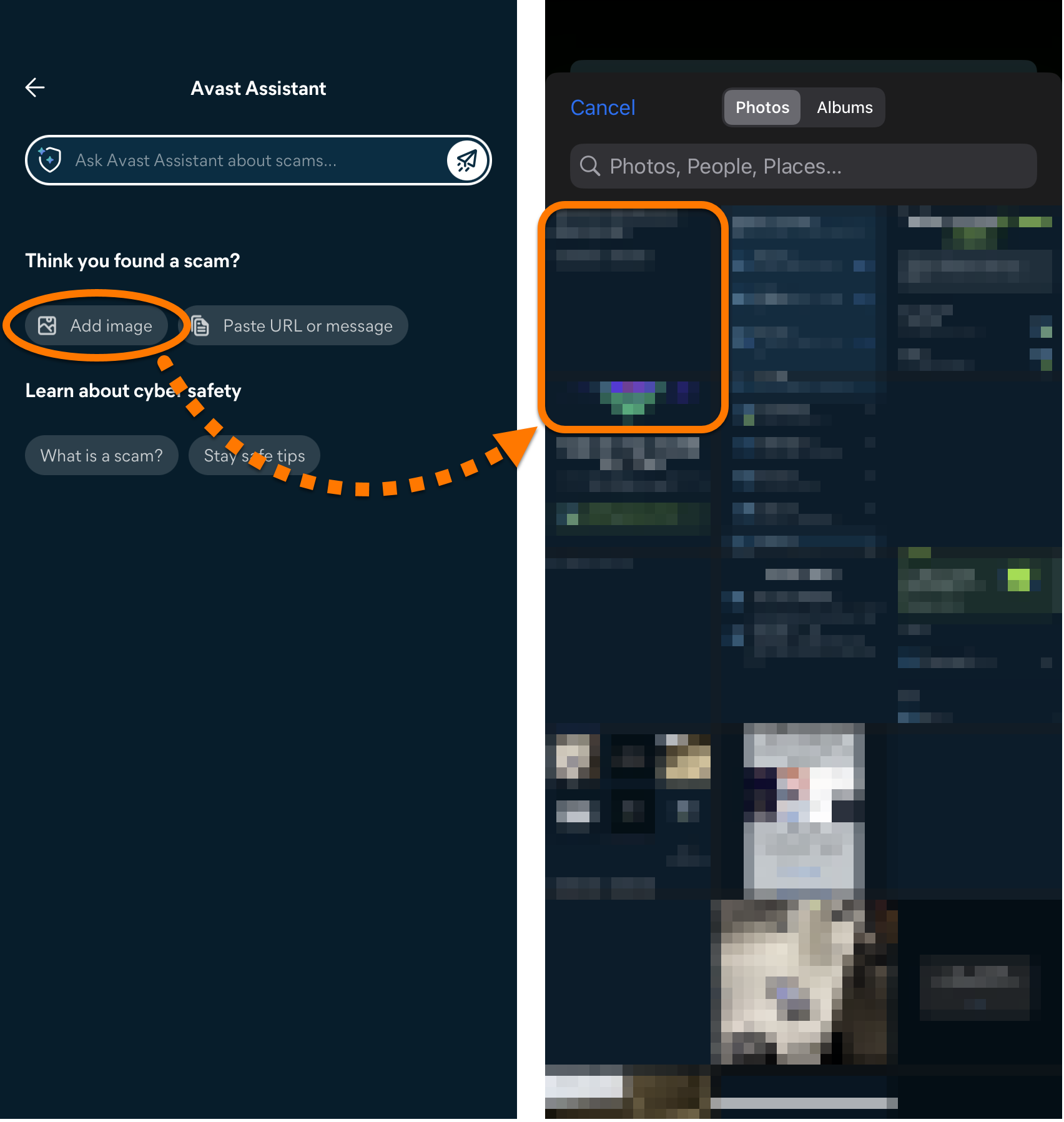
- Upload an image showing suspicious text, email, or webpage for analysis by Avast Assistant.
- Enter text from a suspicious email or message, or a suspect URL for analysis by Avast Assistant.
- Ask a question about any cybersecurity topic.
For more information about these options, refer to the sections below:
Upload an image to Avast Assistant
Paste text or ask a question
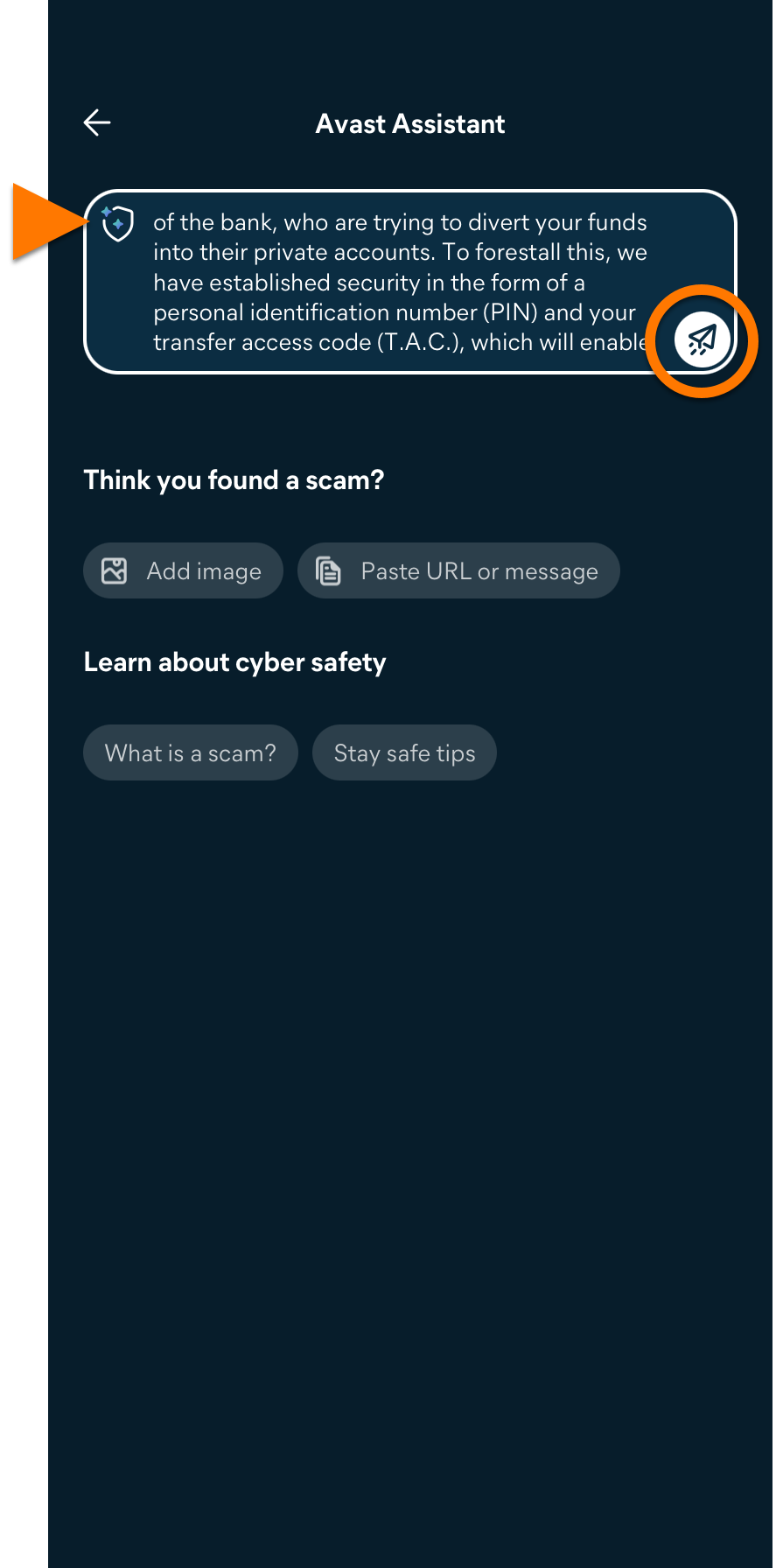
- Write your question or paste a suspicious message or a link in the Avast Assistant field, then tap the Submit icon.
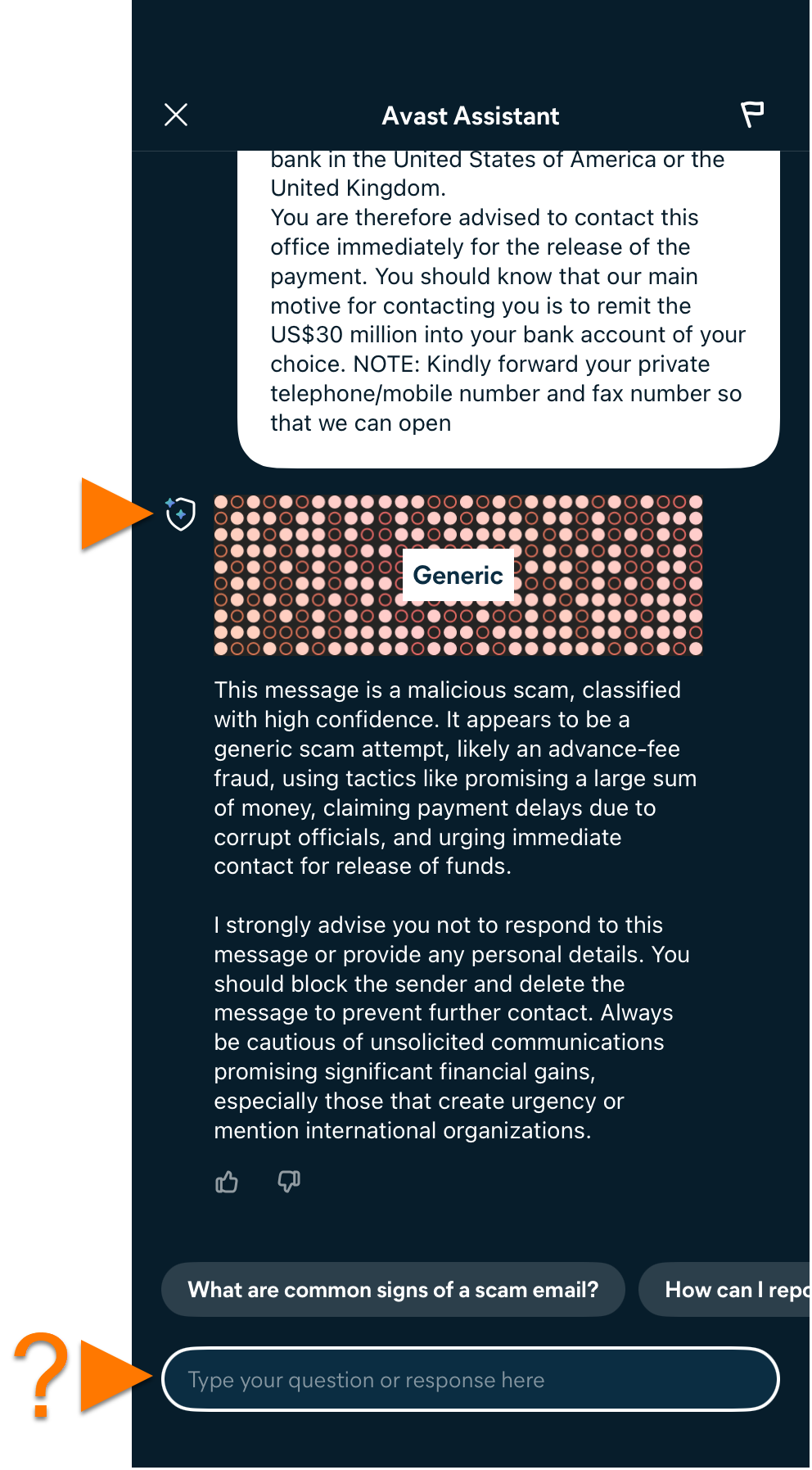
- Avast Assistant will provide an answer to your question or an analysis of the submitted text or link. You can continue asking further questions in the same conversation.
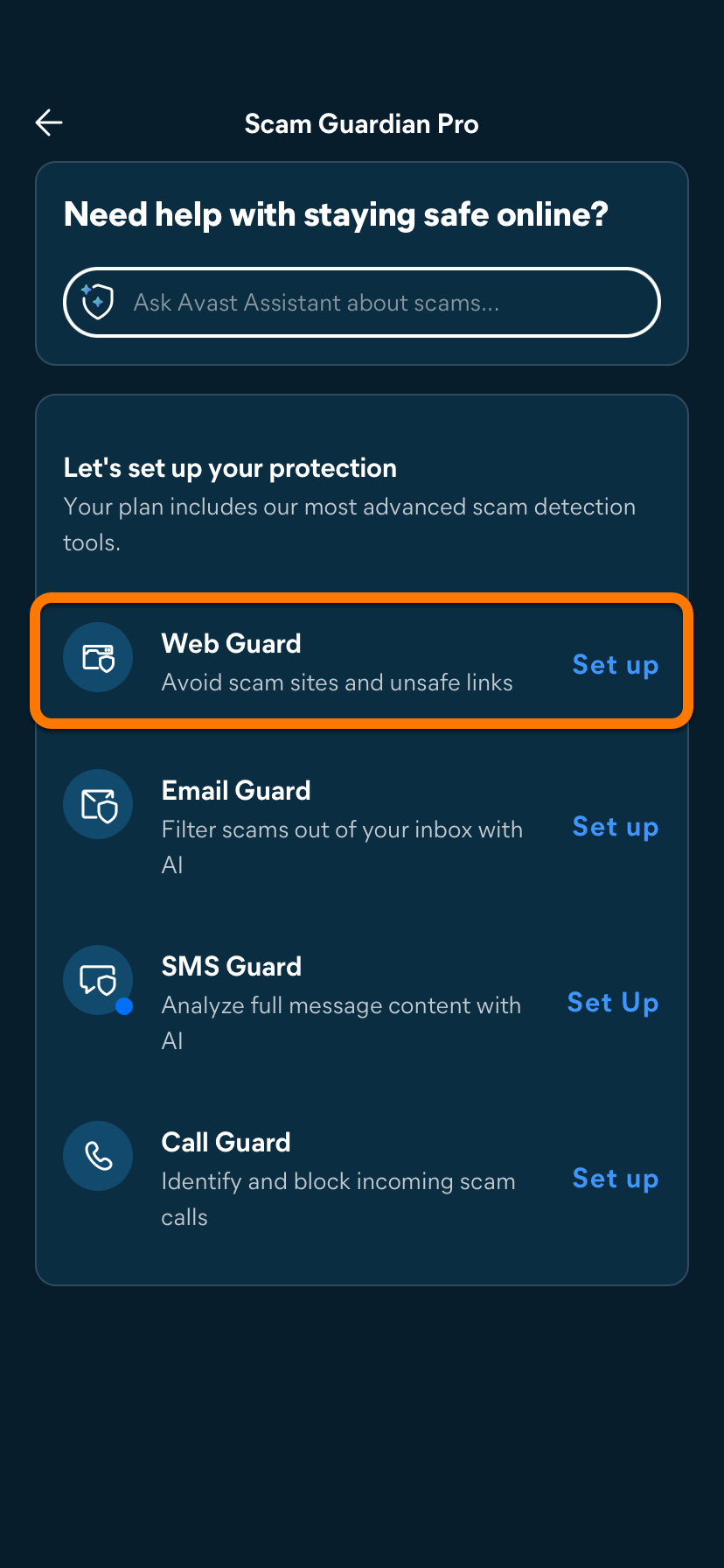
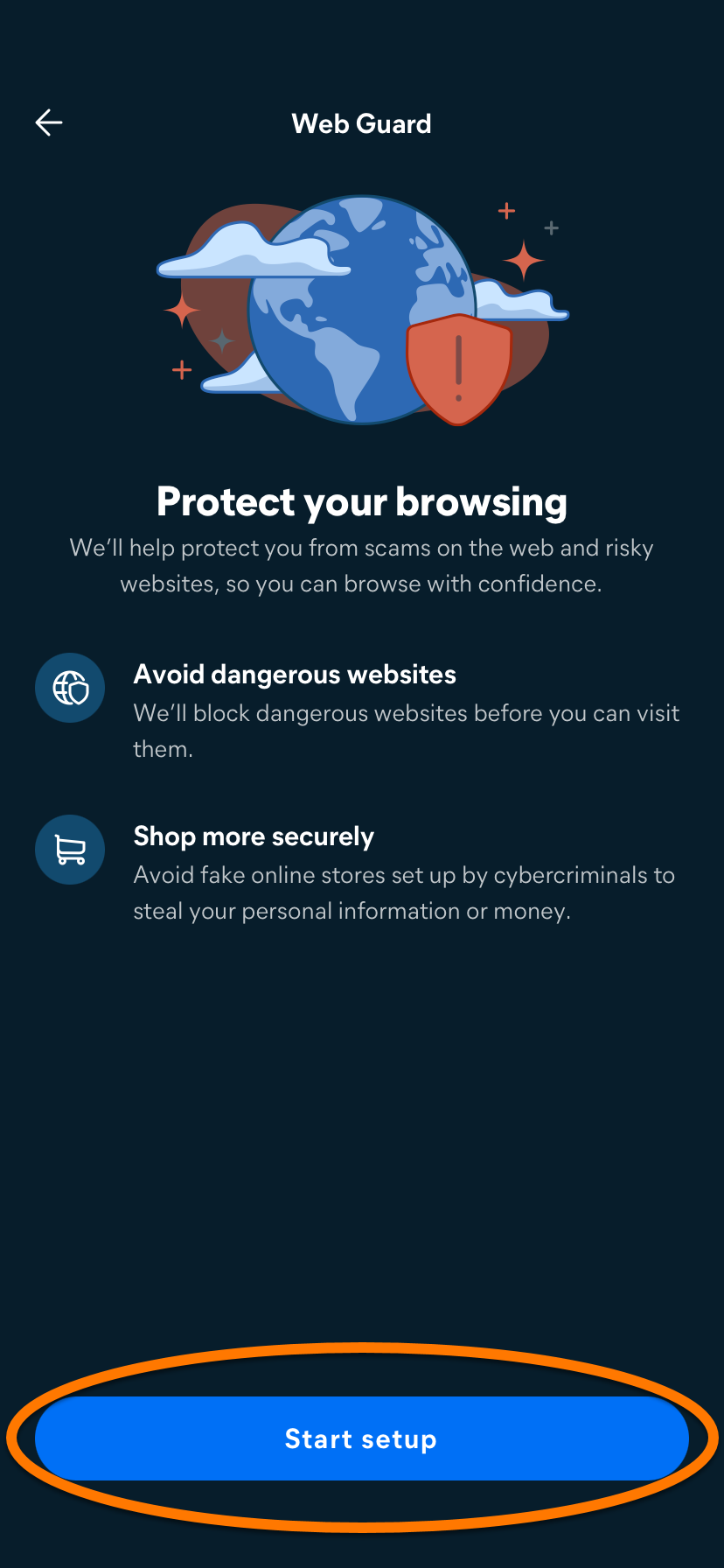
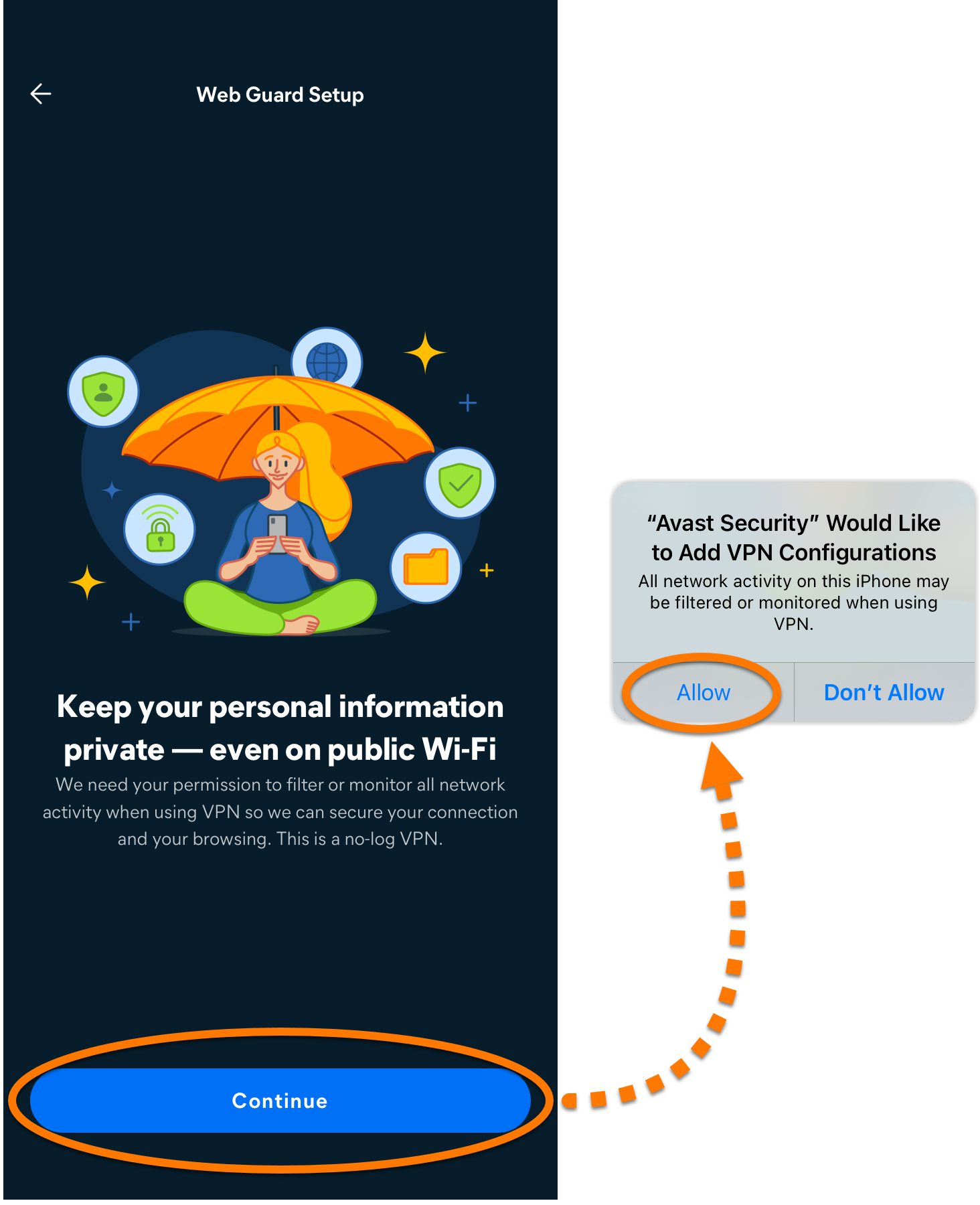
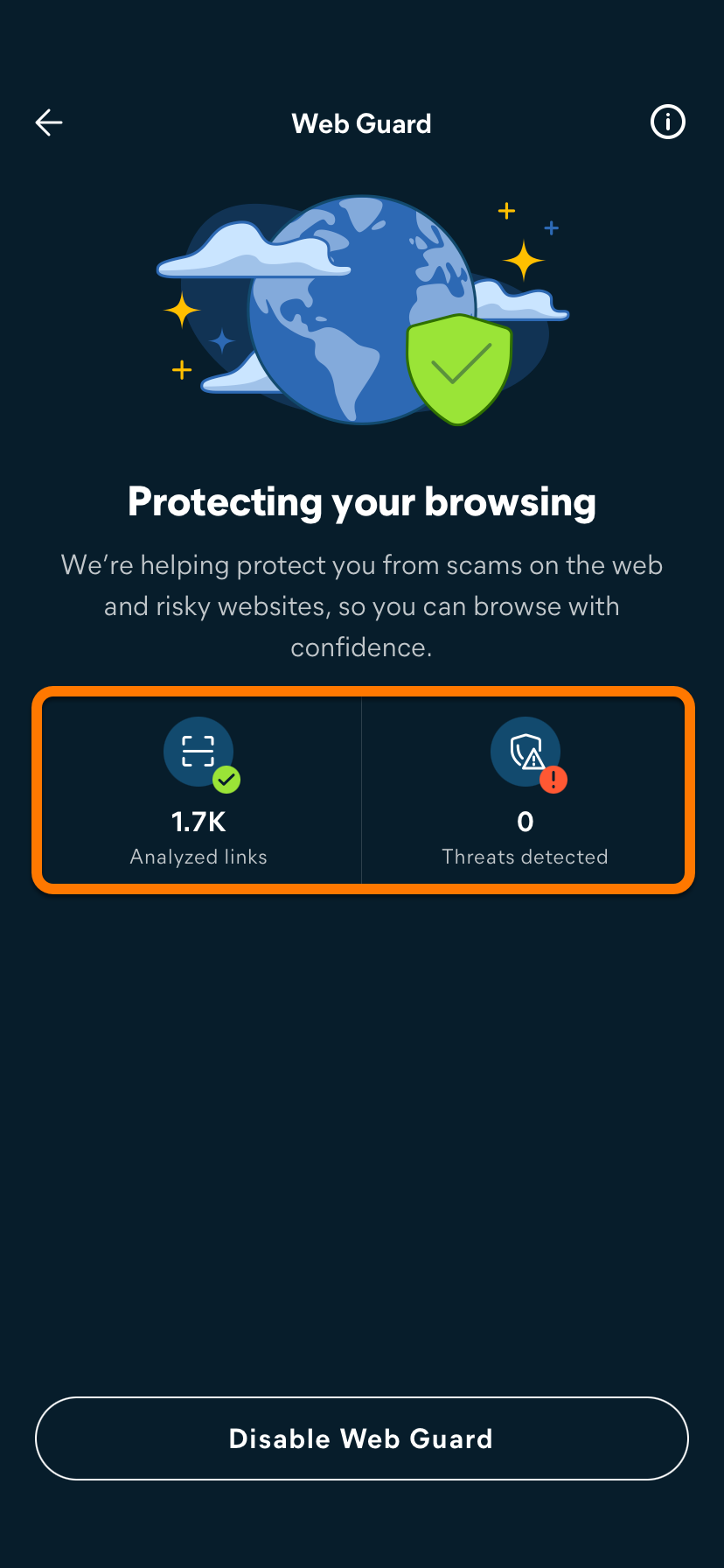
Set up Web Guard
To enable Web Guard:
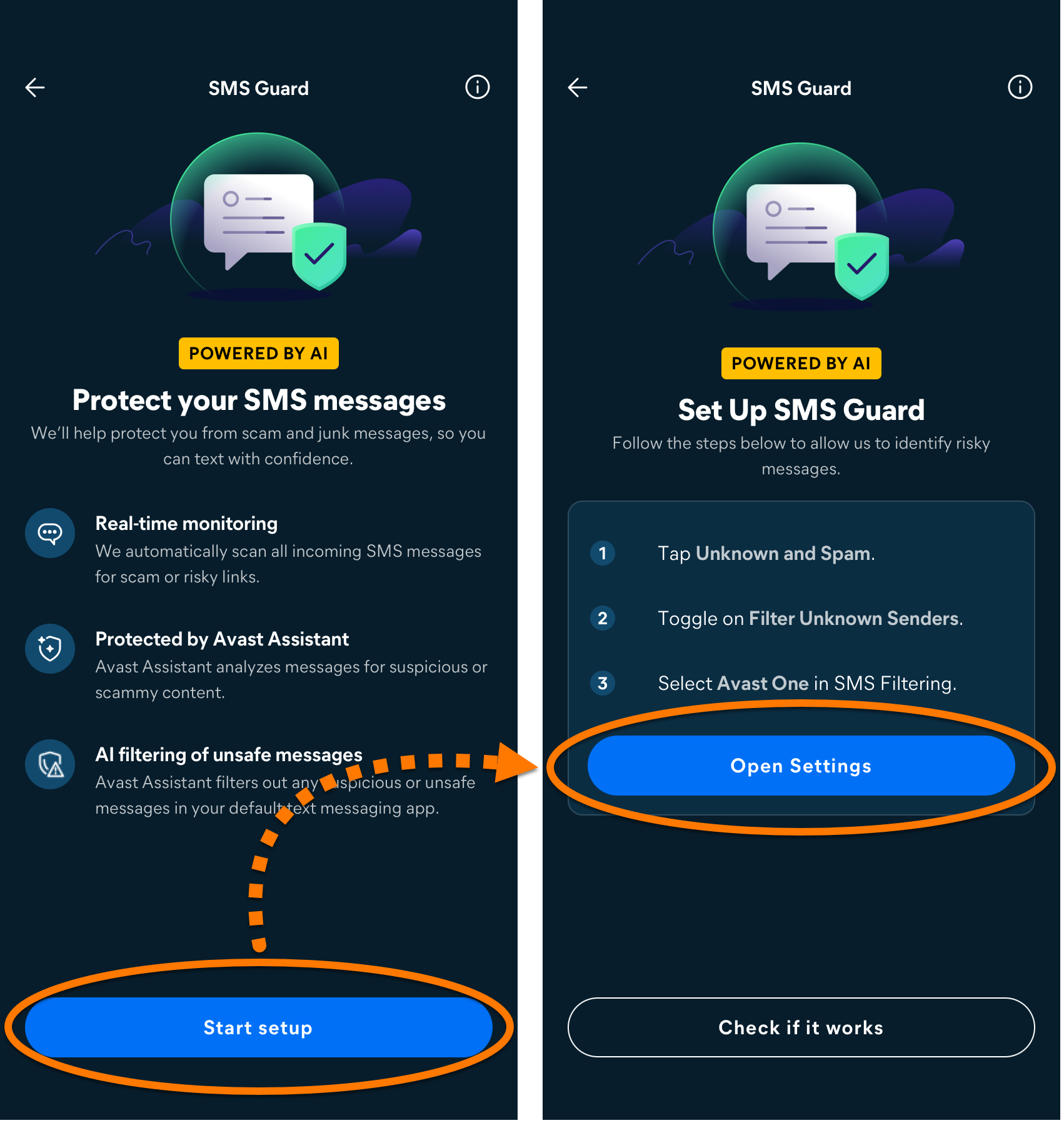
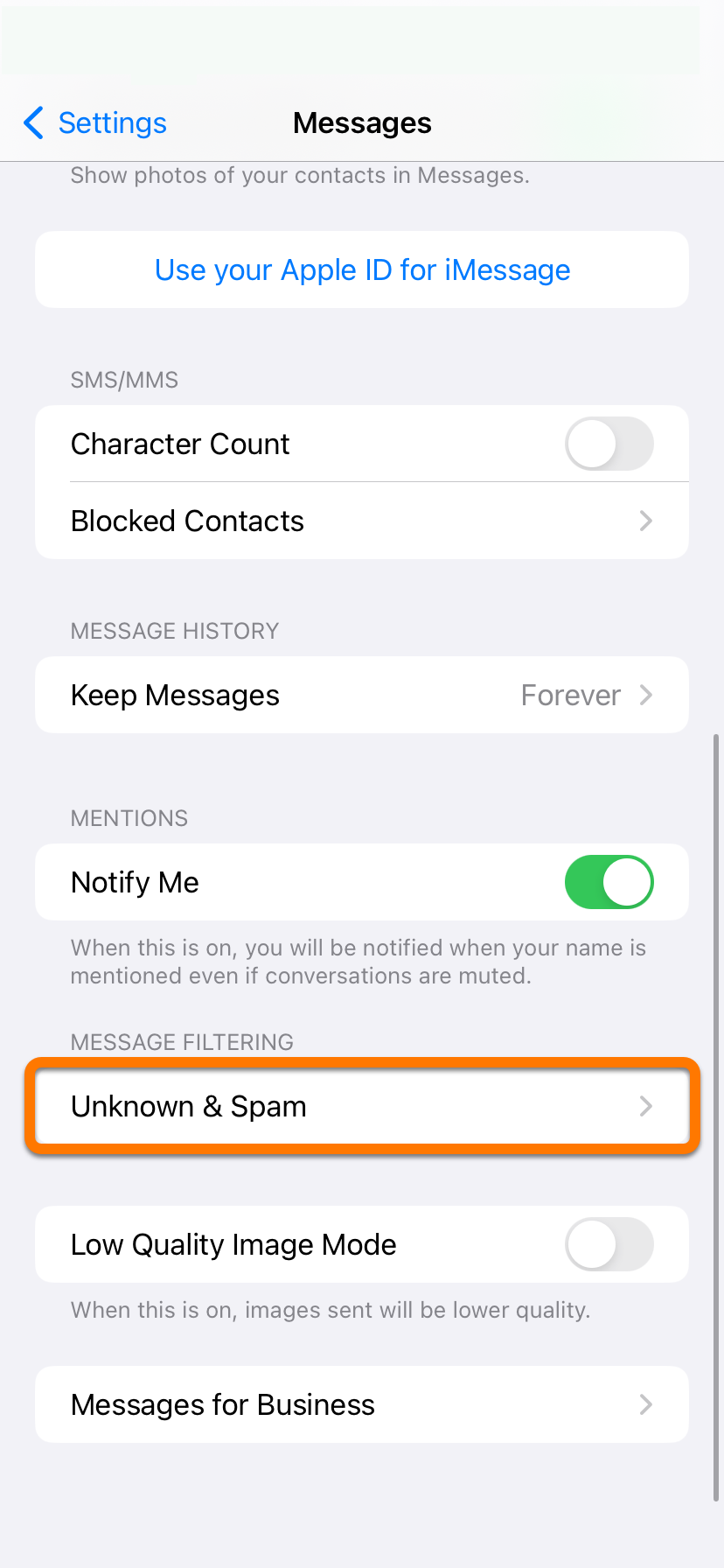
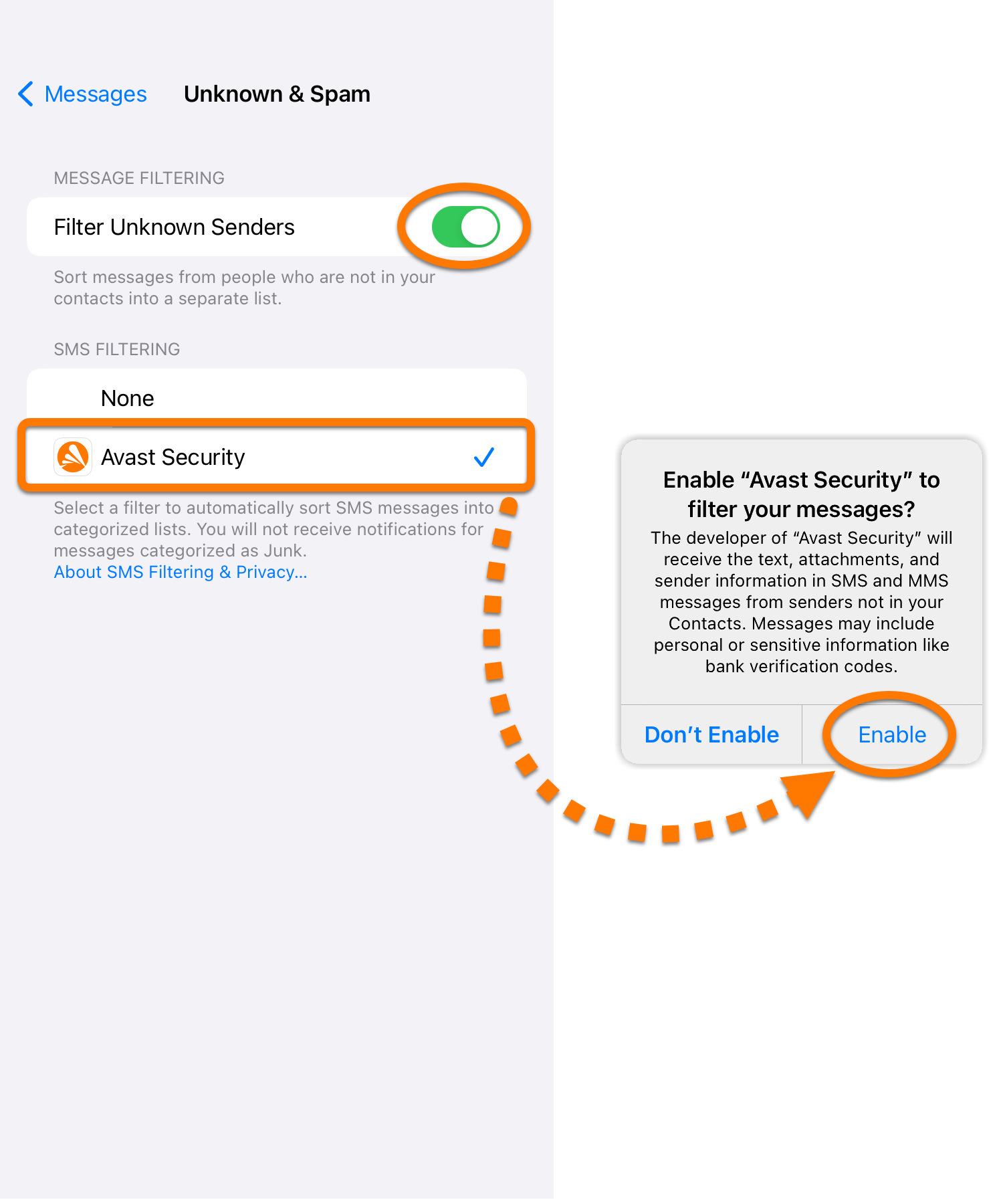
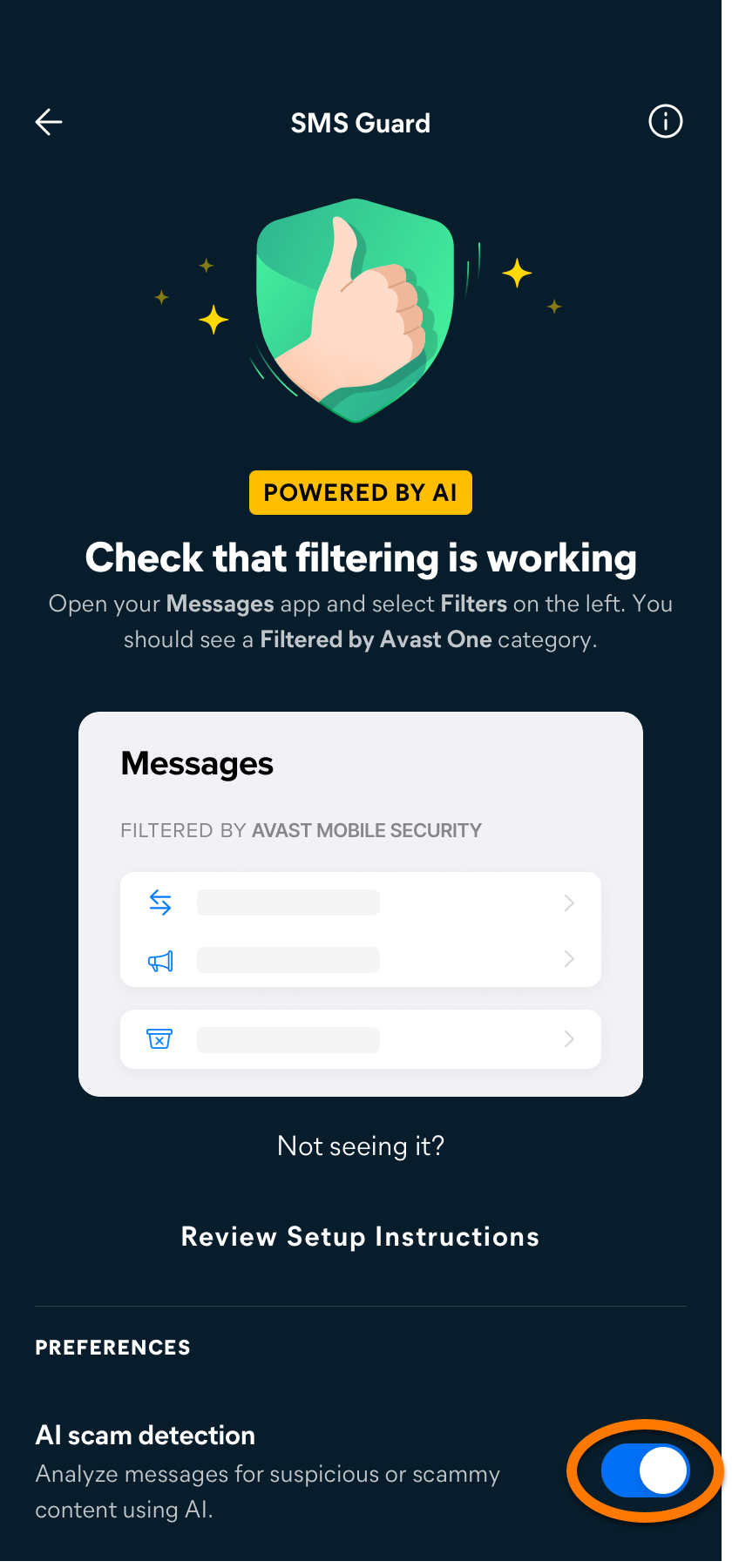
Set up SMS Guard
SMS Guard is a premium feature that requires a paid subscription.
To enable SMS Guard:
Set up Call Guard
Call Guard is a premium feature that requires a paid subscription.
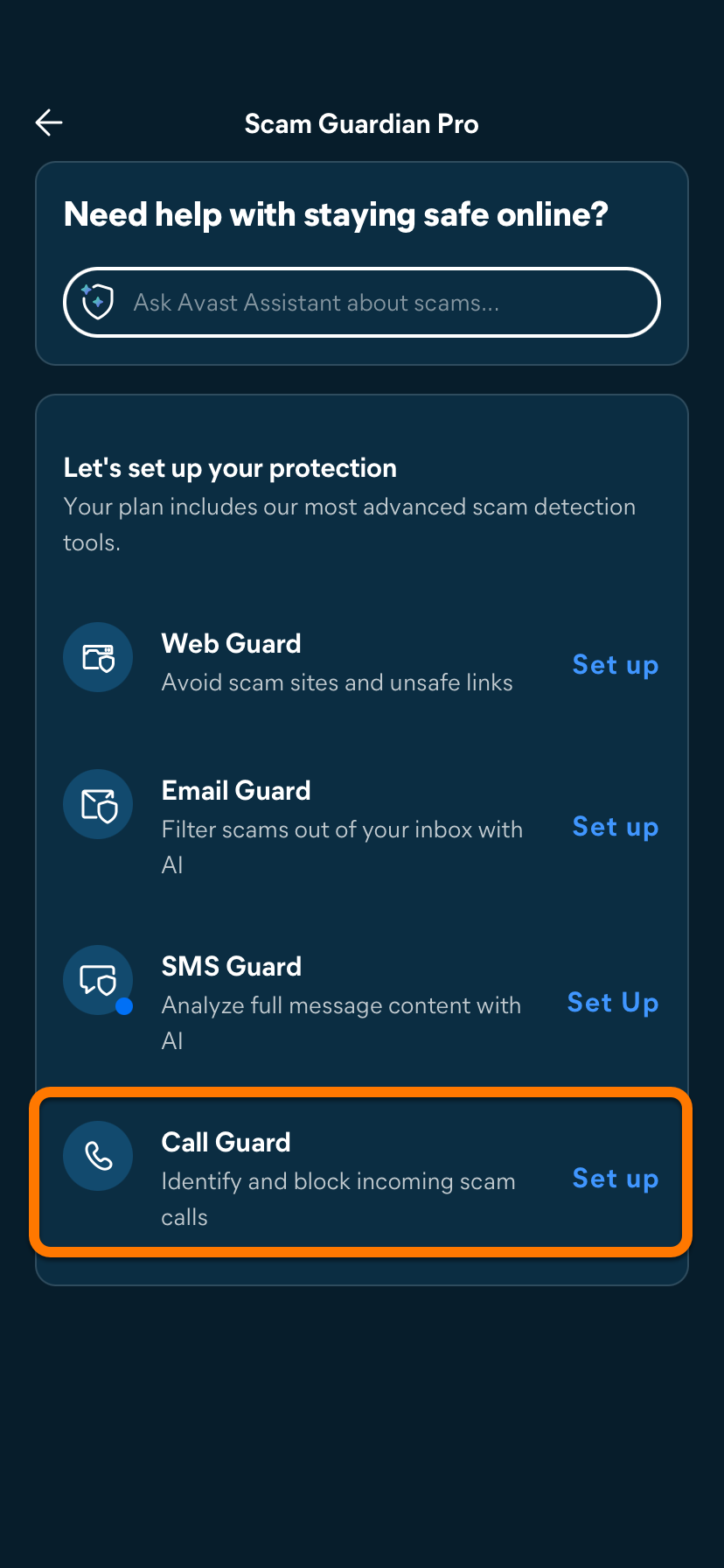
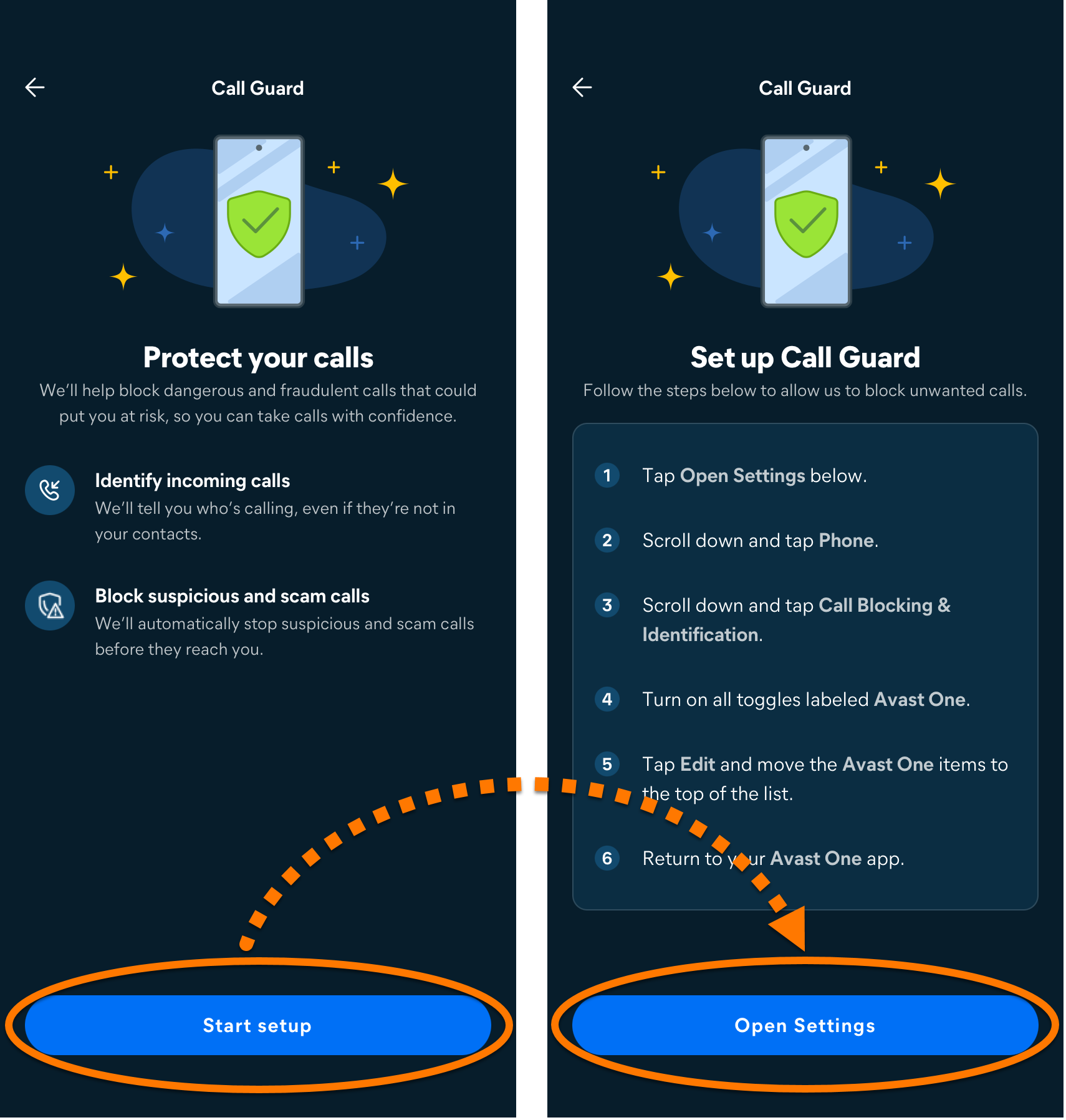
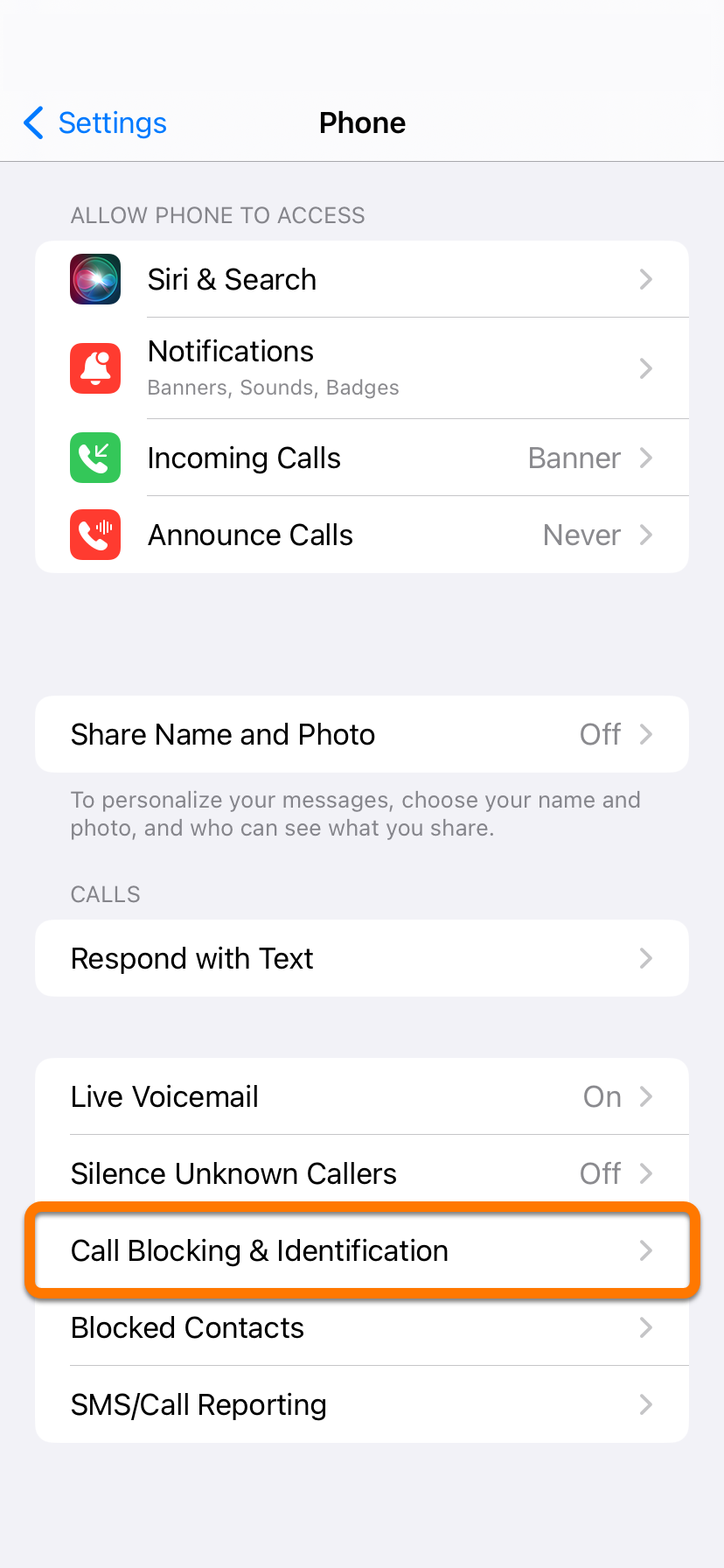
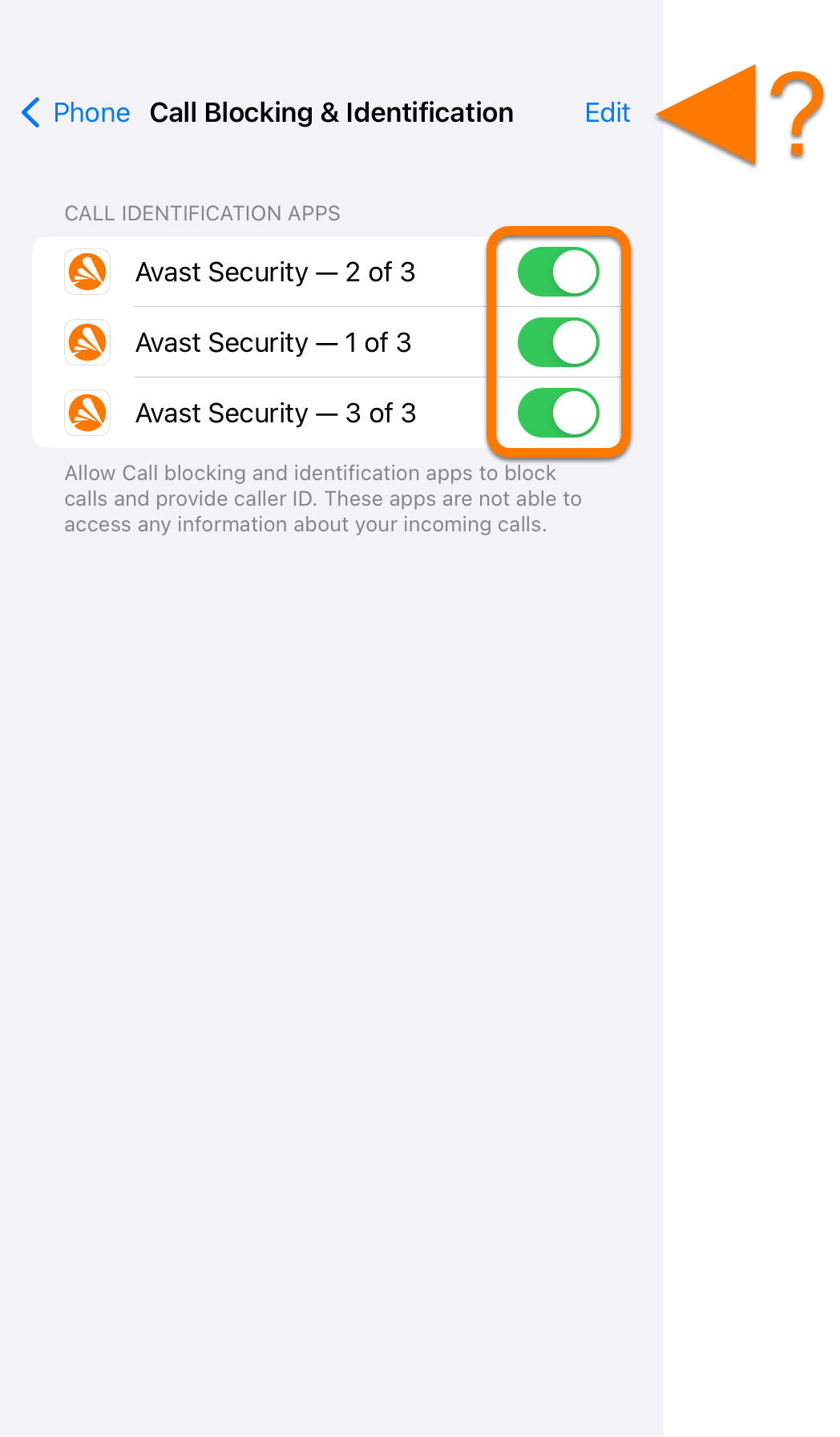
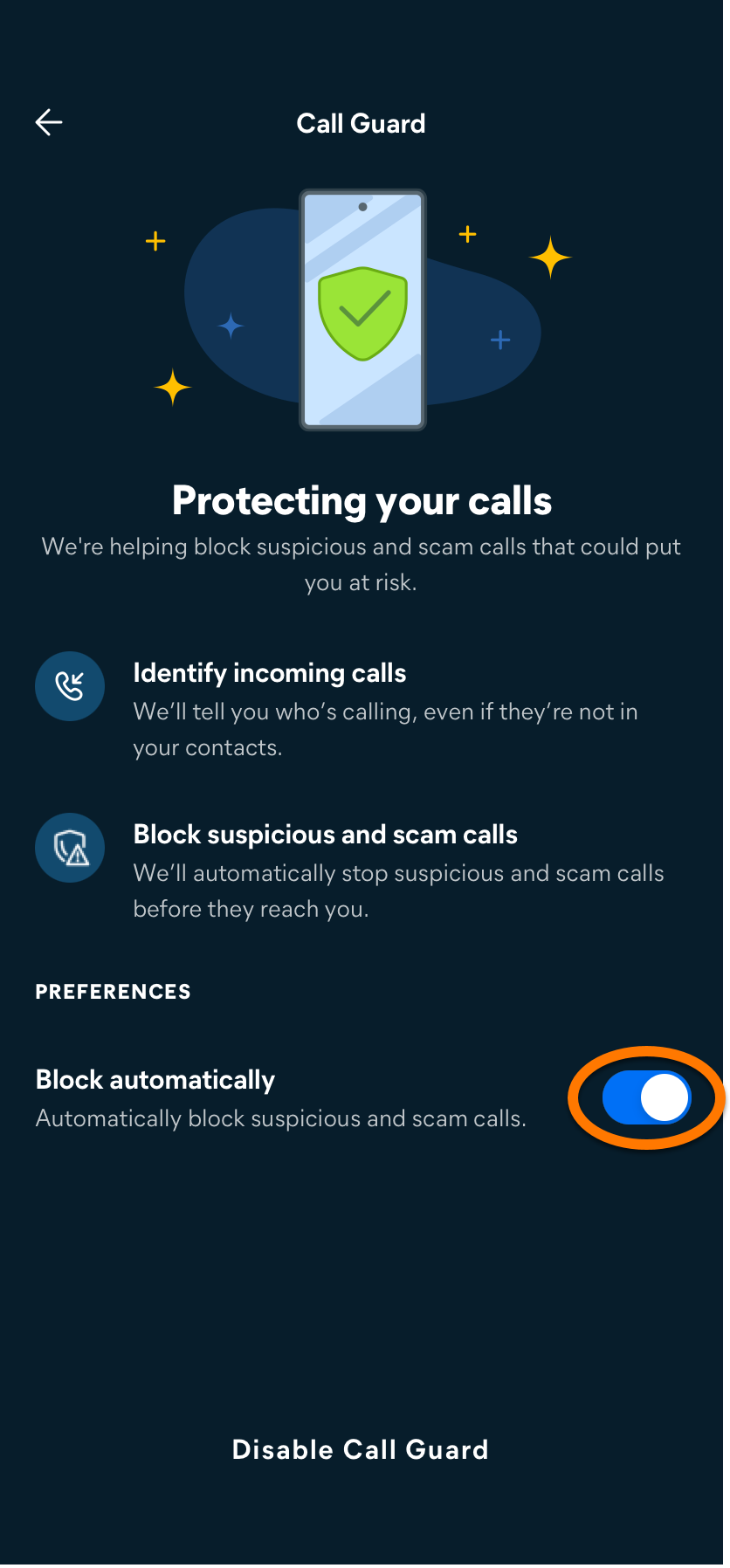
To enable Call Guard:
To disable Call Guard, tap Disable Call Guard.