


Run a scan
To scan your network for vulnerabilities:
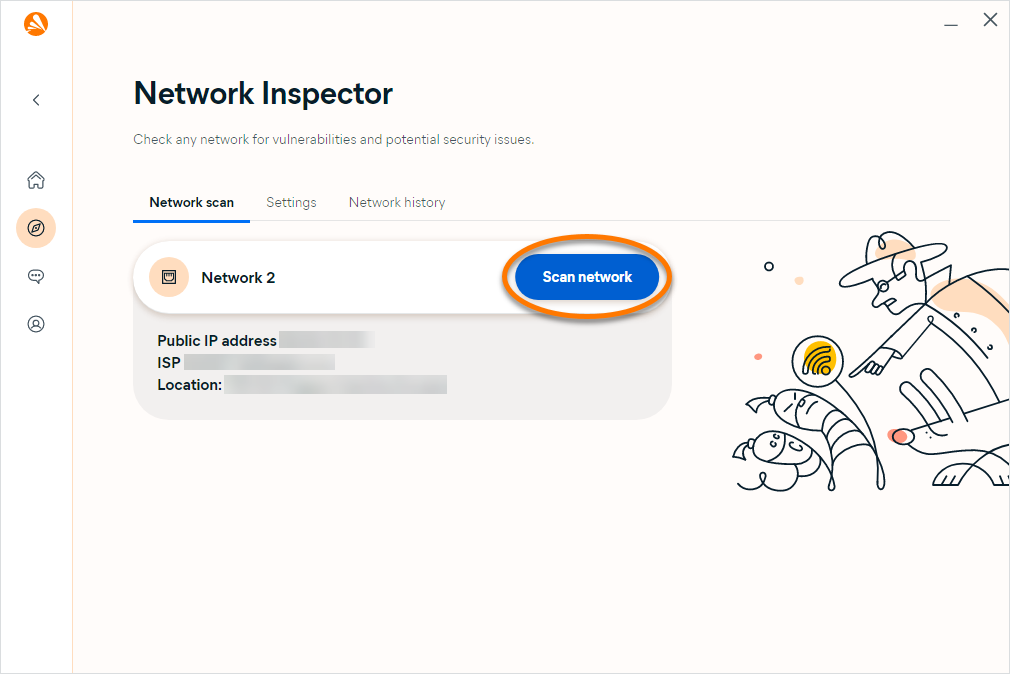
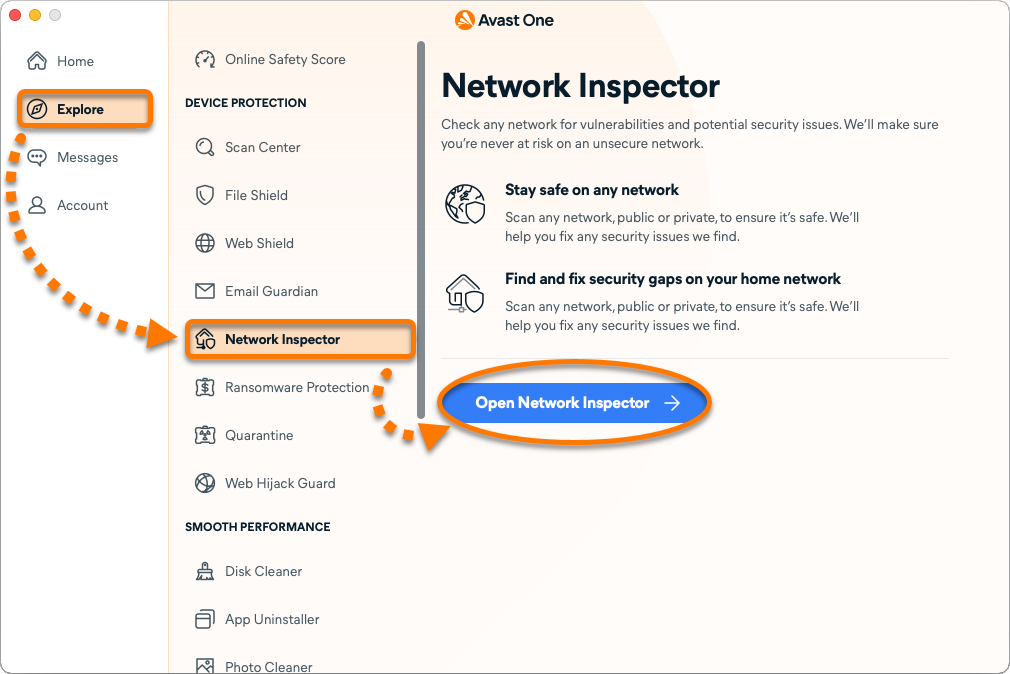
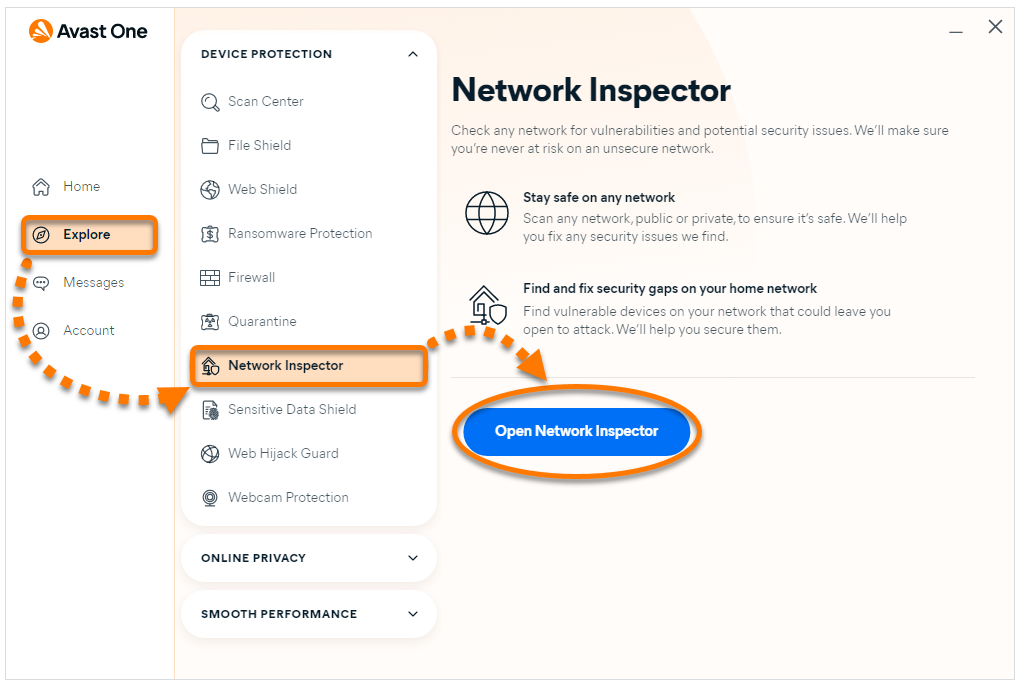
- Open Avast One, click Explore ▸ Network Inspector ▸ Open Network Inspector.
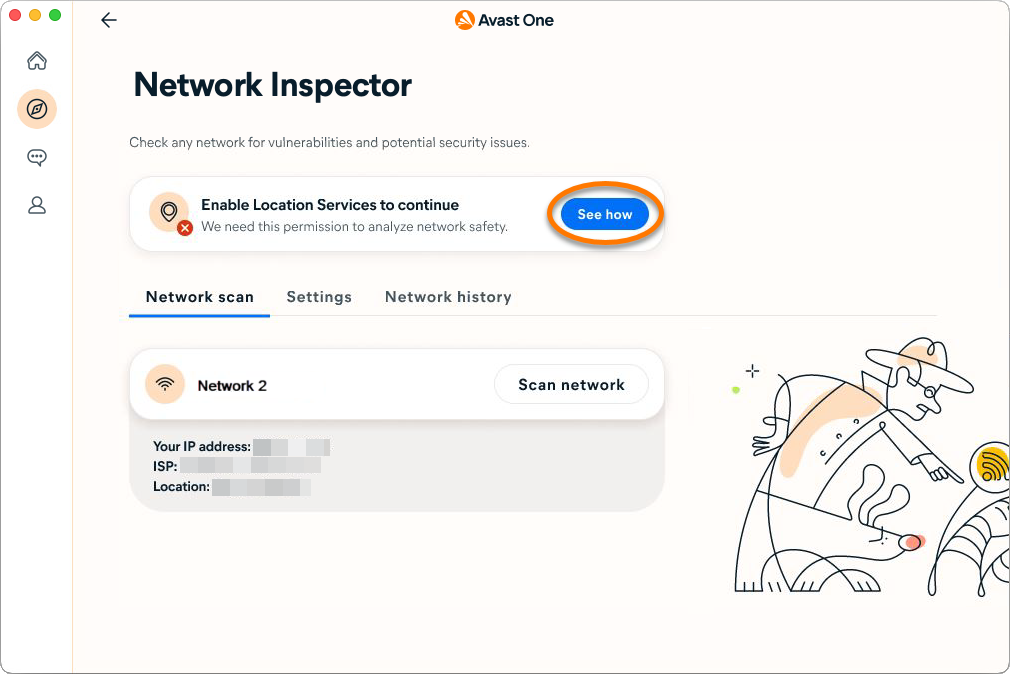
- Click Scan network.

If you are using macOS Sonoma, click See how and follow the on-screen instructions to enable Location Services.
- Wait while Network Inspector scans your network for vulnerabilities.
- Refer to the relevant information below according to the message you see on the results screen:
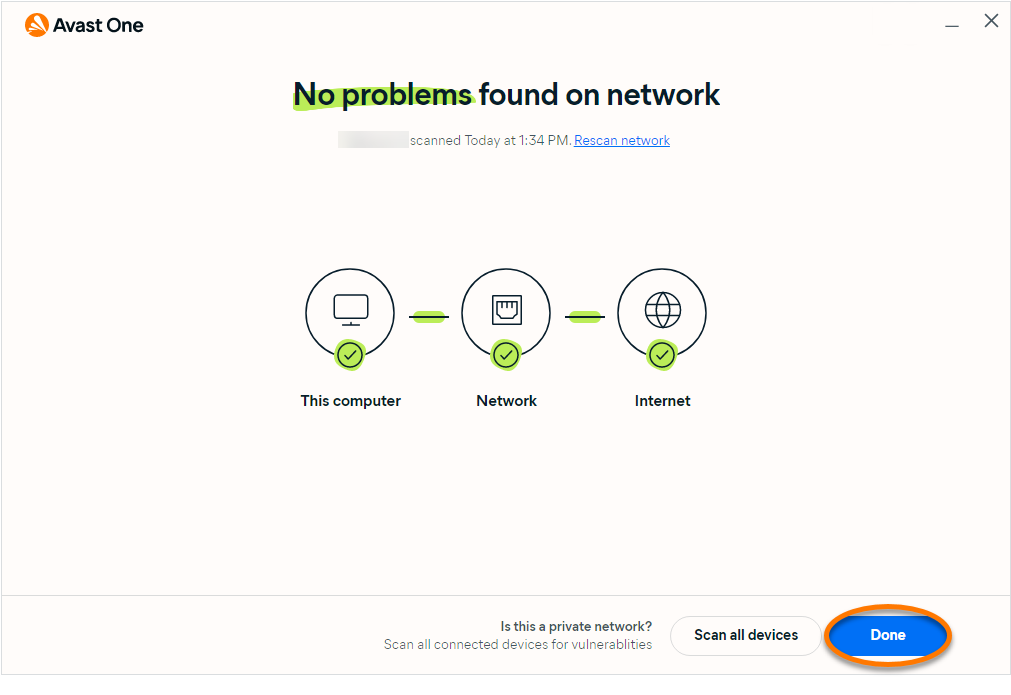
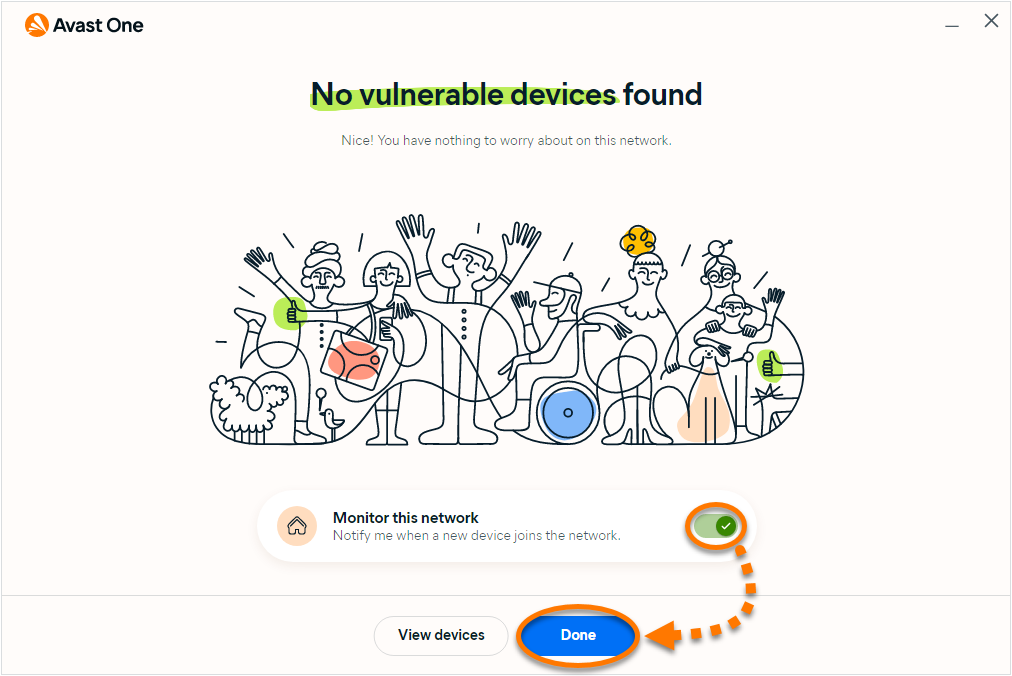
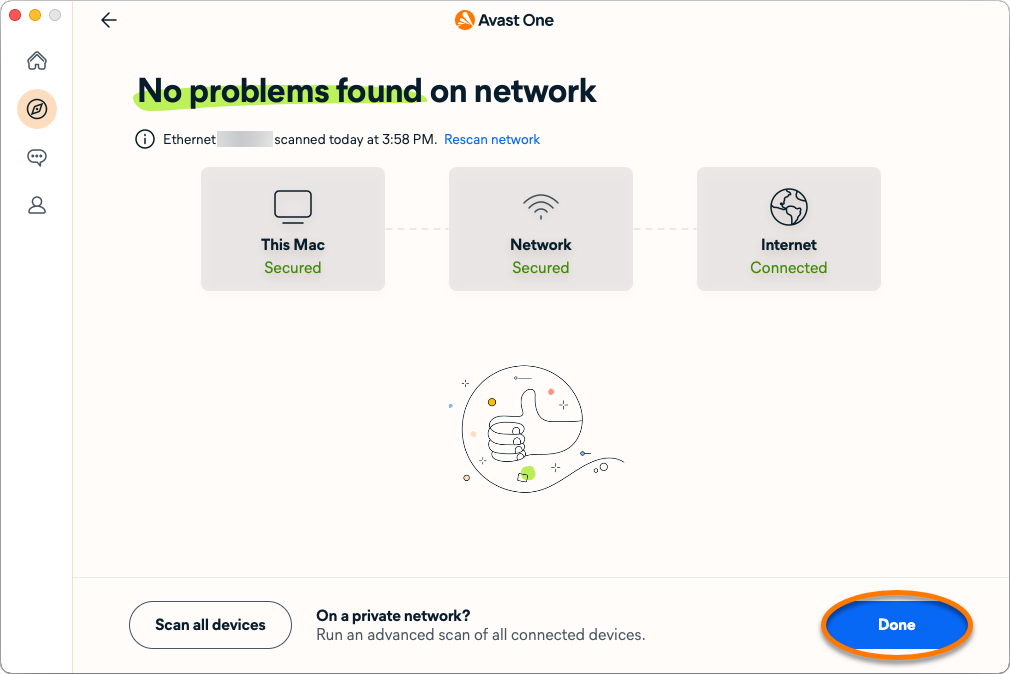
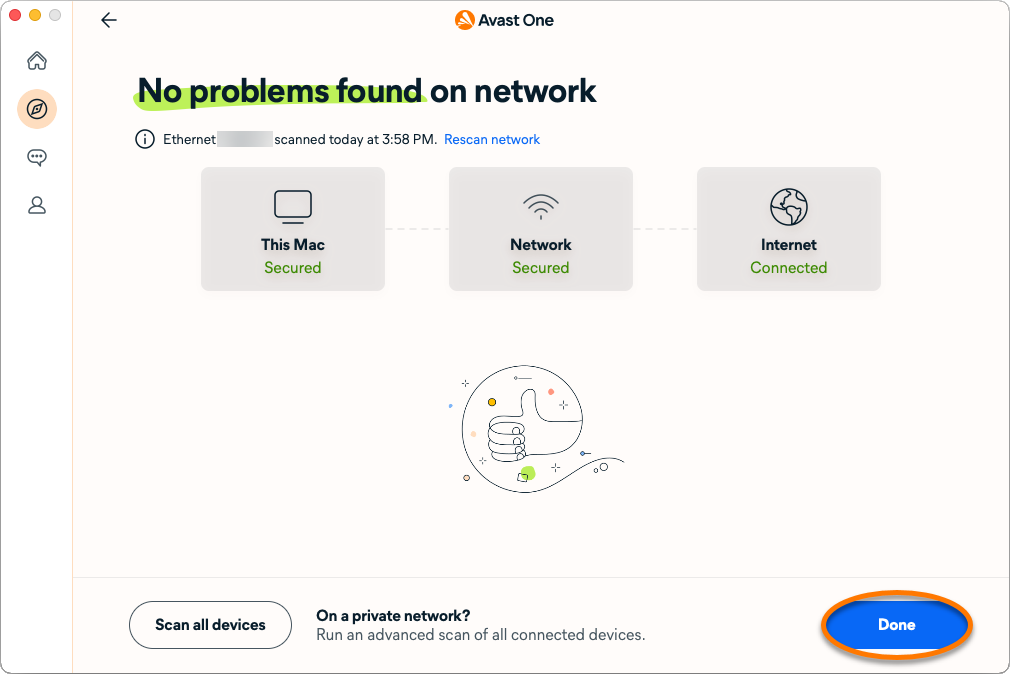
- No problems found on network or No vulnerable devices found: We have not identified any vulnerabilities or security issues on your current network. Click Done.
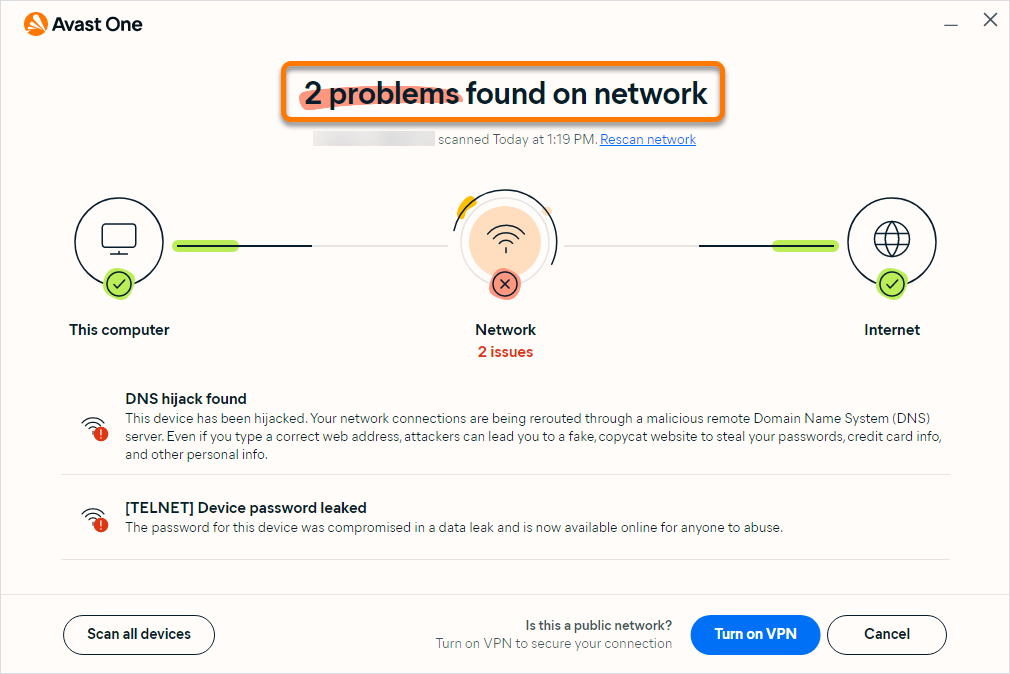
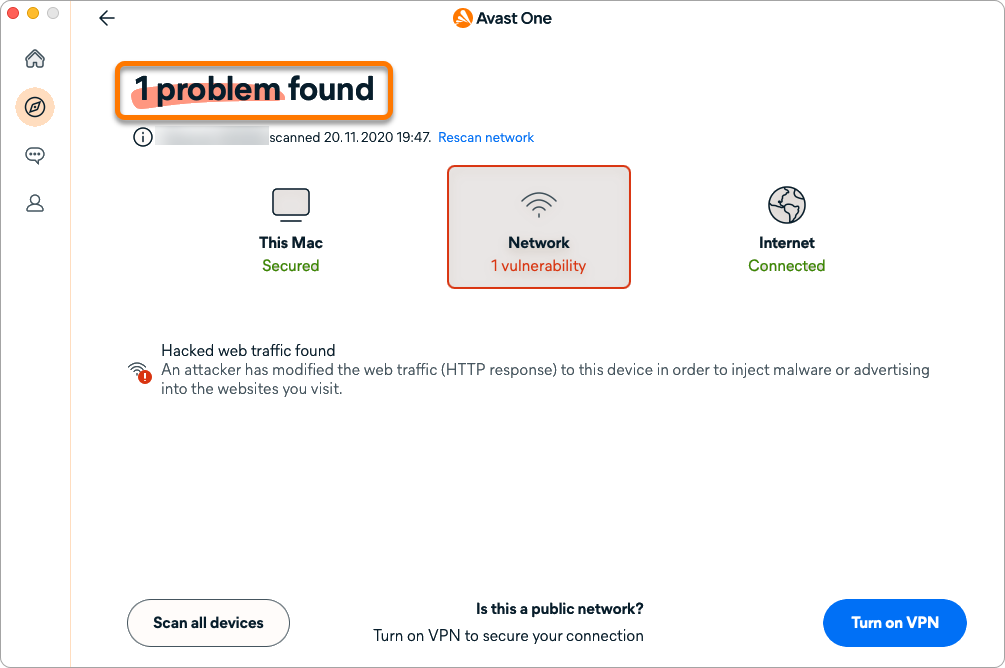
- Problems found or Vulnerable devices found: We have identified vulnerabilities or security issues on your network. For more information, refer to the Resolve an issue section of this article.
- No problems found on network or No vulnerable devices found: We have not identified any vulnerabilities or security issues on your current network. Click Done.
Resolve an issue
If Network Inspector detects issues on your network, you see the message Problems found or Vulnerable devices found after running a Network Inspector scan.
To resolve each detected vulnerability:
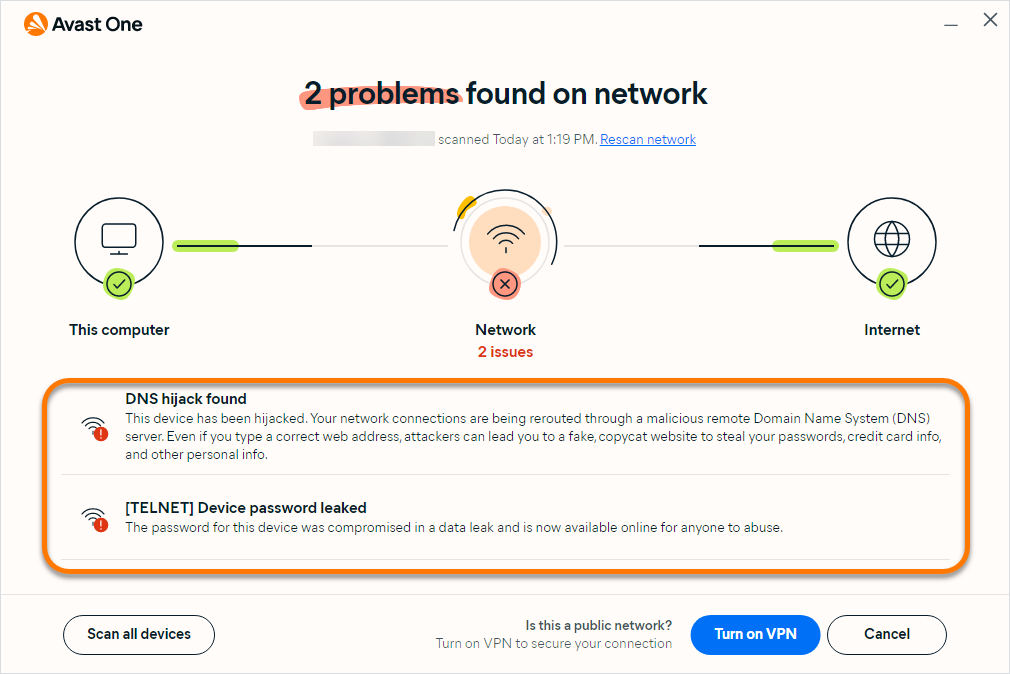
- Read the information in the panel to understand the type of vulnerabilities found. For example, Hacked web traffic found or Device password leaked.
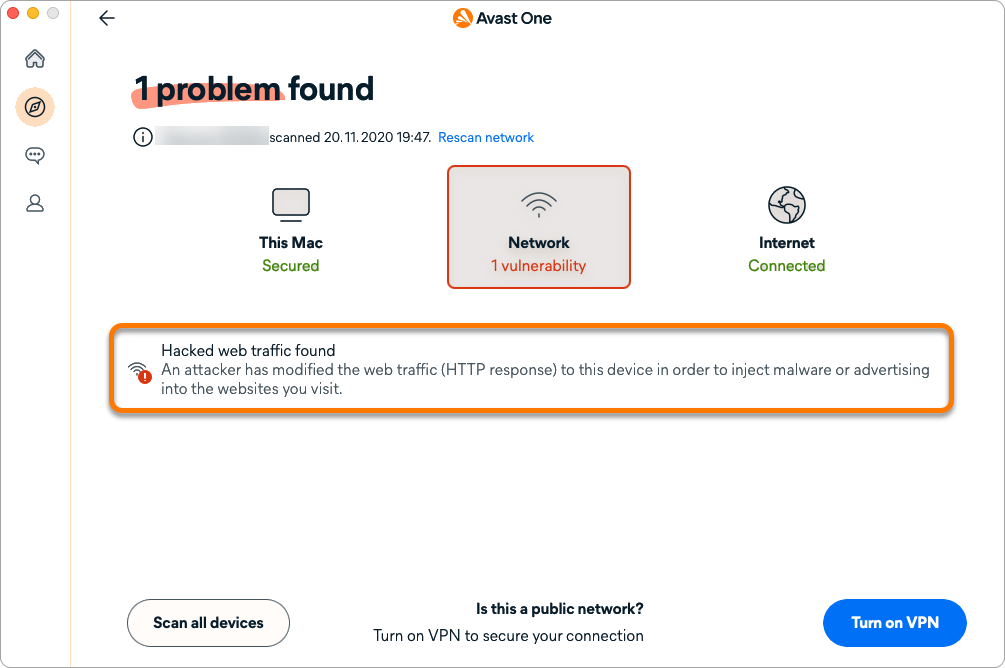
- Follow the instructions to secure your connection. For example, Turn on VPN.

We do not recommend exiting the scan without resolving issues. Your devices will remain vulnerable on the network.
- After following the instructions to resolve the vulnerability, your network is now secure. Click Done to finish running the scan and resolving the issue(s).
Manage settings
To modify your settings:
- Open Avast One, click Explore ▸ Network Inspector ▸ Open Network Inspector.
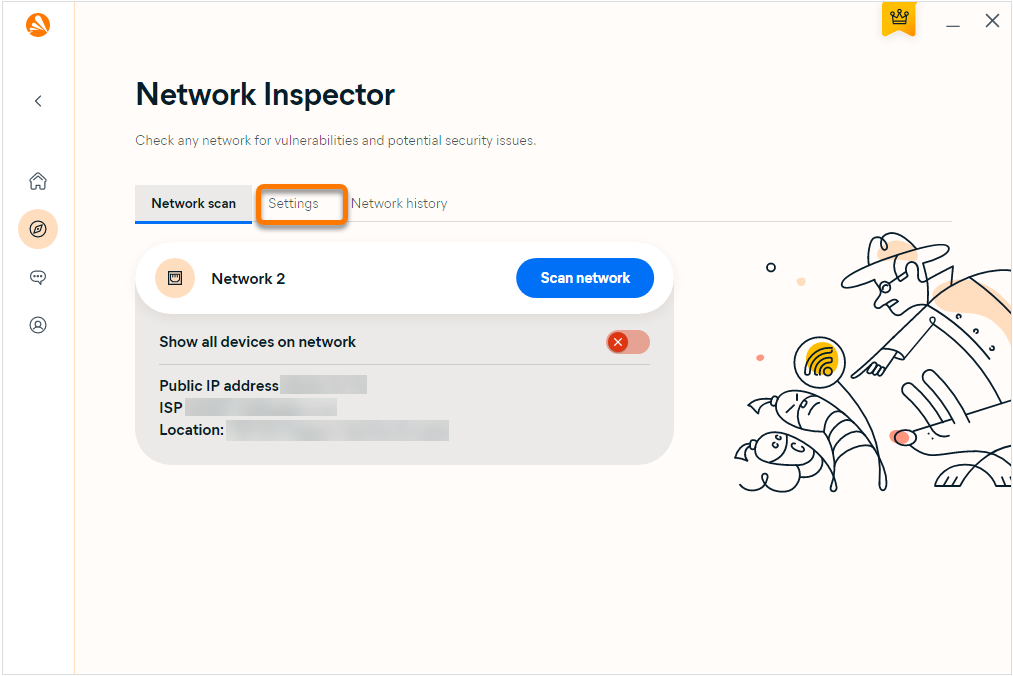
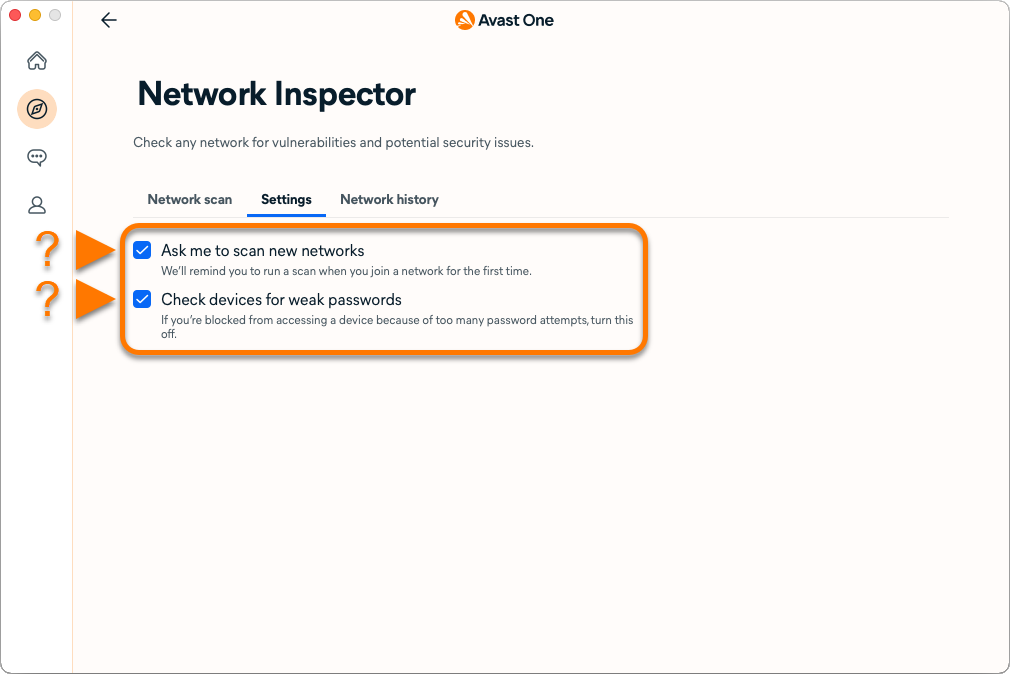
- Select the Settings tab.
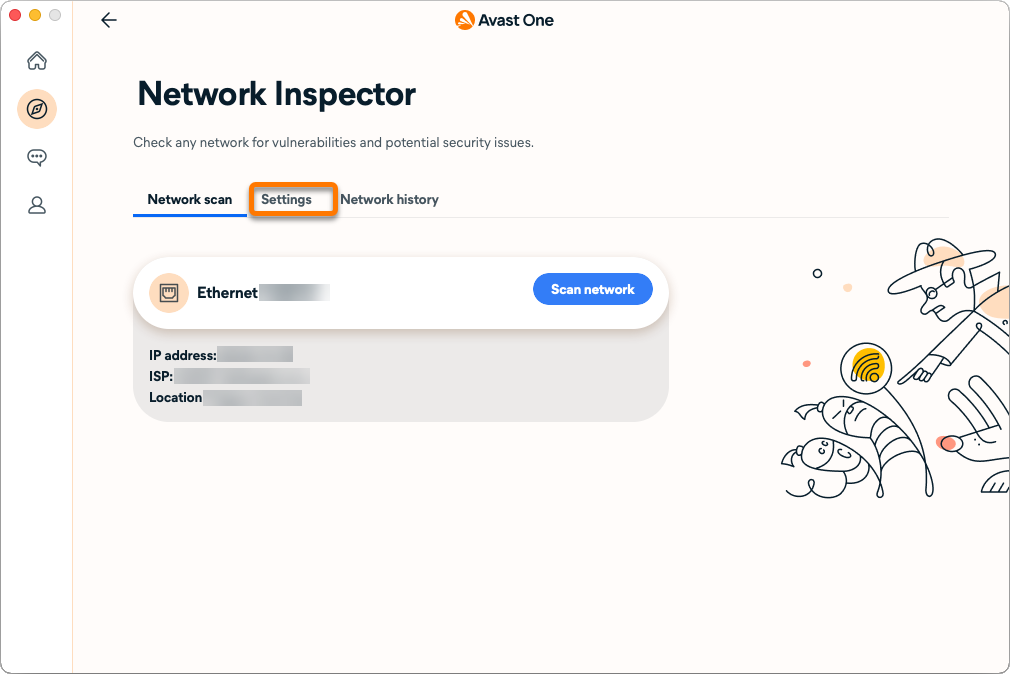
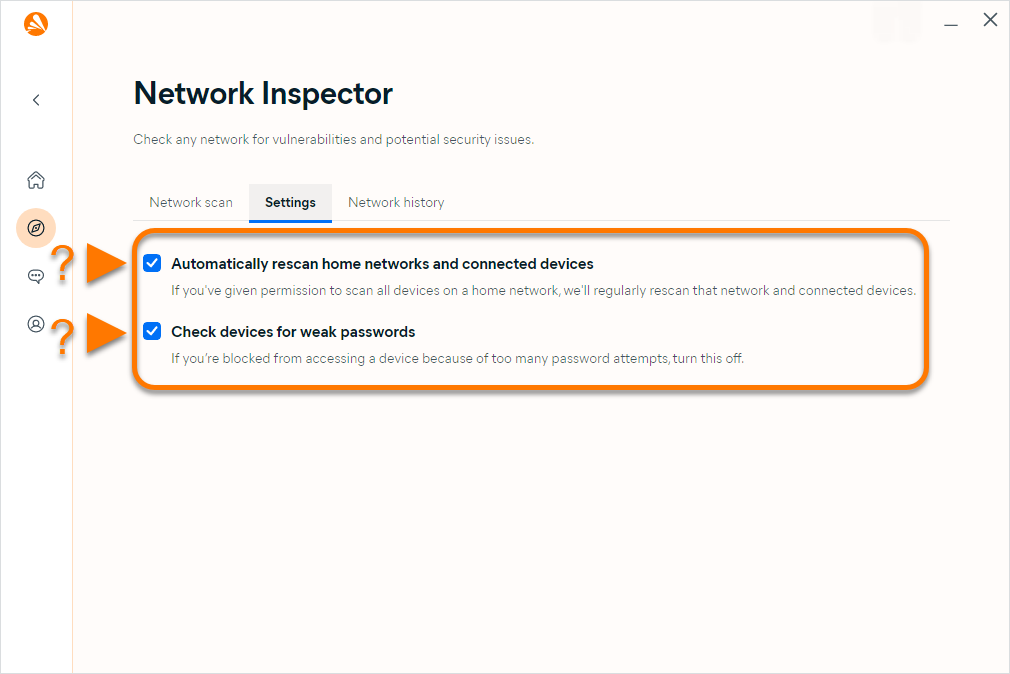
- Tick or untick the following options according to your preferences:
- Ask me to scan new networks: Automatically reminds you to scan new networks that you join for the first time.
- Check devices for weak passwords: Regularly inspects your passwords to ensure they are strong and secure.
Scan all devices
To enable Network Inspector to scan all devices:
- Open Avast One, click Explore ▸ Network Inspector ▸ Open Network Inspector.
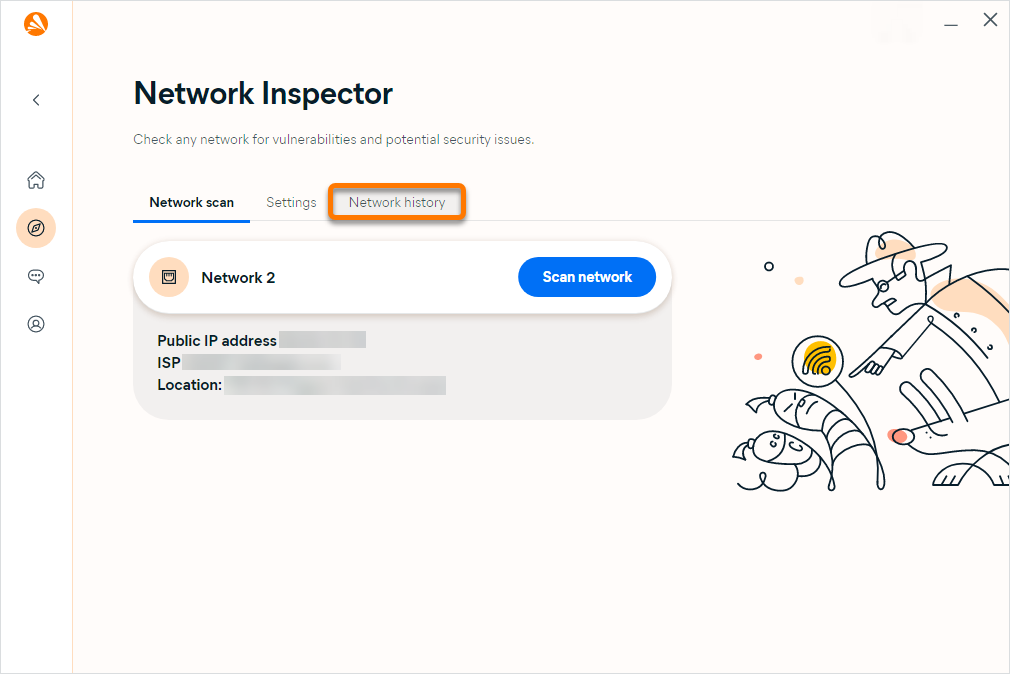
- Select the Network history tab.
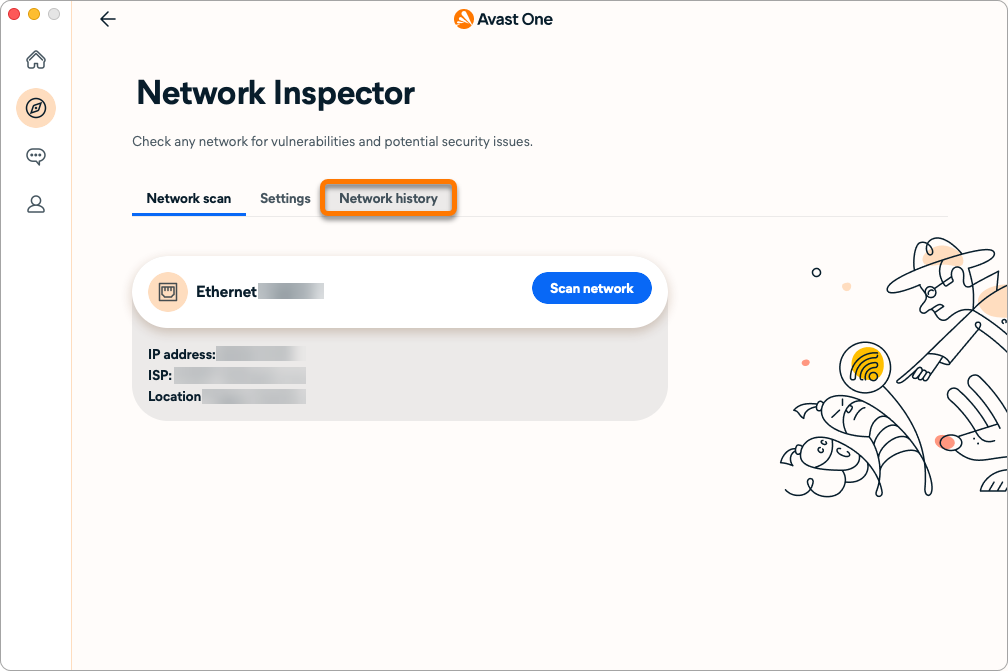
- For each Network, click the red (OFF) slider so that it changes to green (ON).

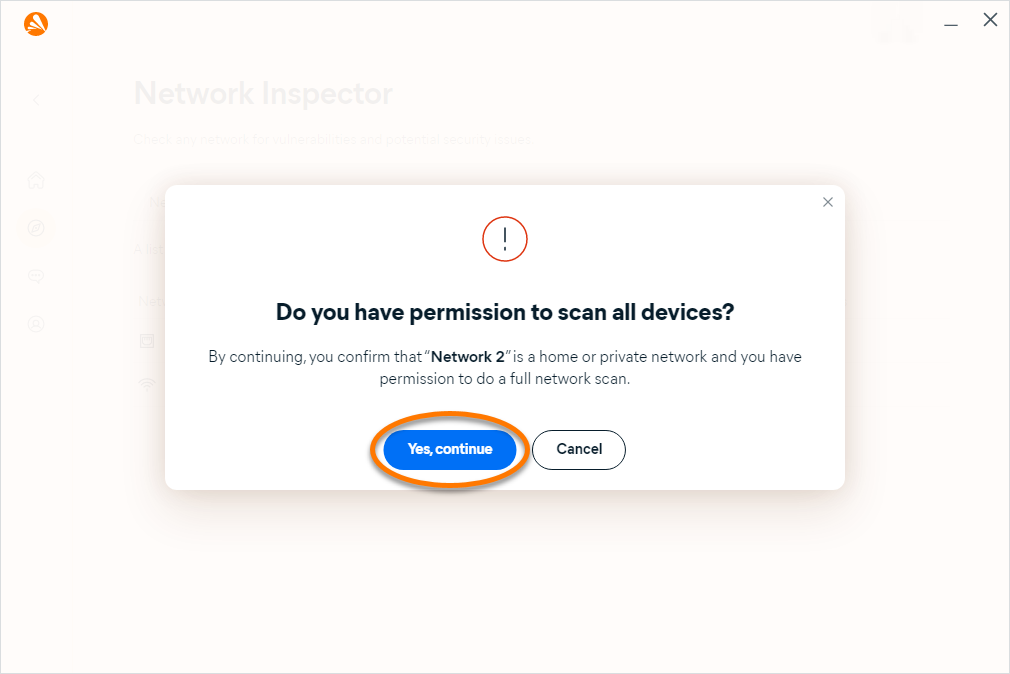
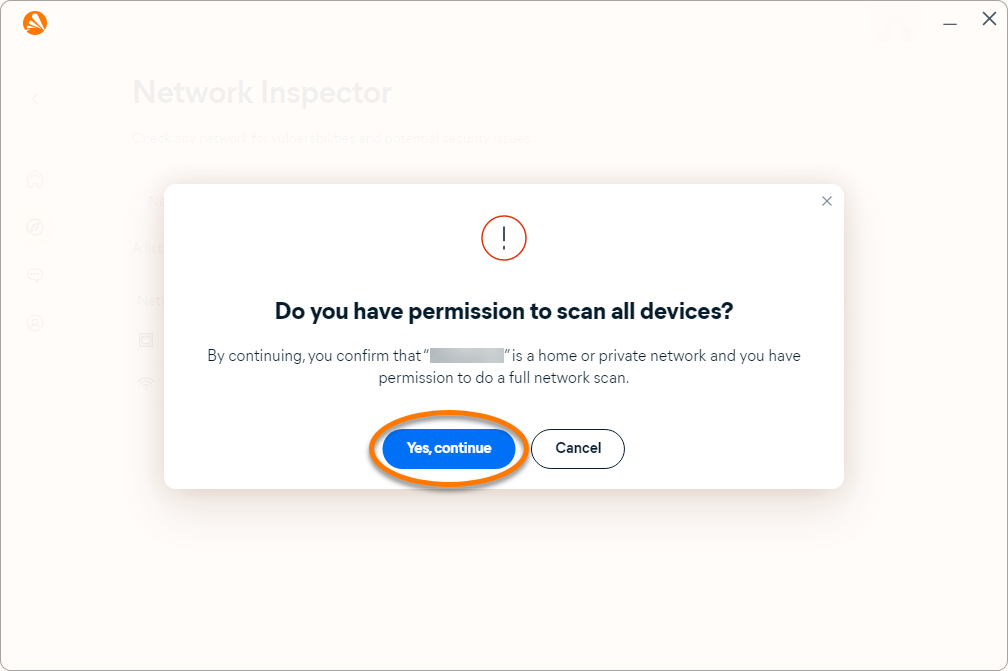
Only allow Network Inspector to scan all devices while on a home or private network to ensure that you have permission to do a full network scan.
- Click Yes, continue to confirm you have the permission to scan all devices.
Monitor your network
In the paid version of Avast One, you can monitor when a new device joins your network if scan all devices is enabled.
To enable network monitoring:
- Open Avast One, click Explore ▸ Network Inspector ▸ Open Network Inspector.
- Select the Network scan tab.
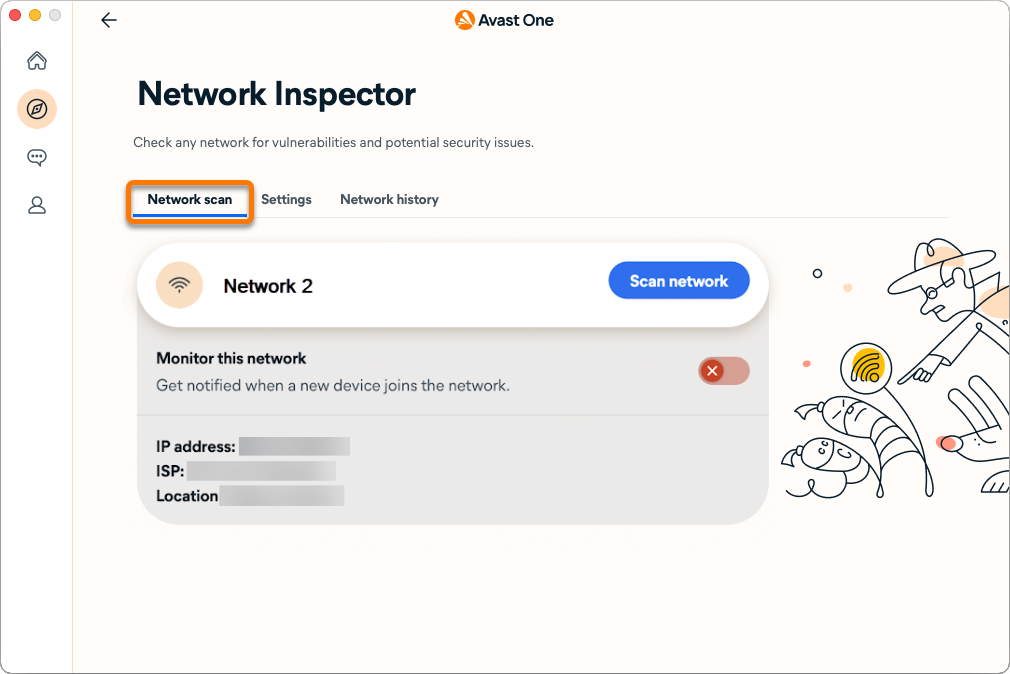
- Next to Monitor this network, click the red (OFF) slider so that it changes to green (ON).
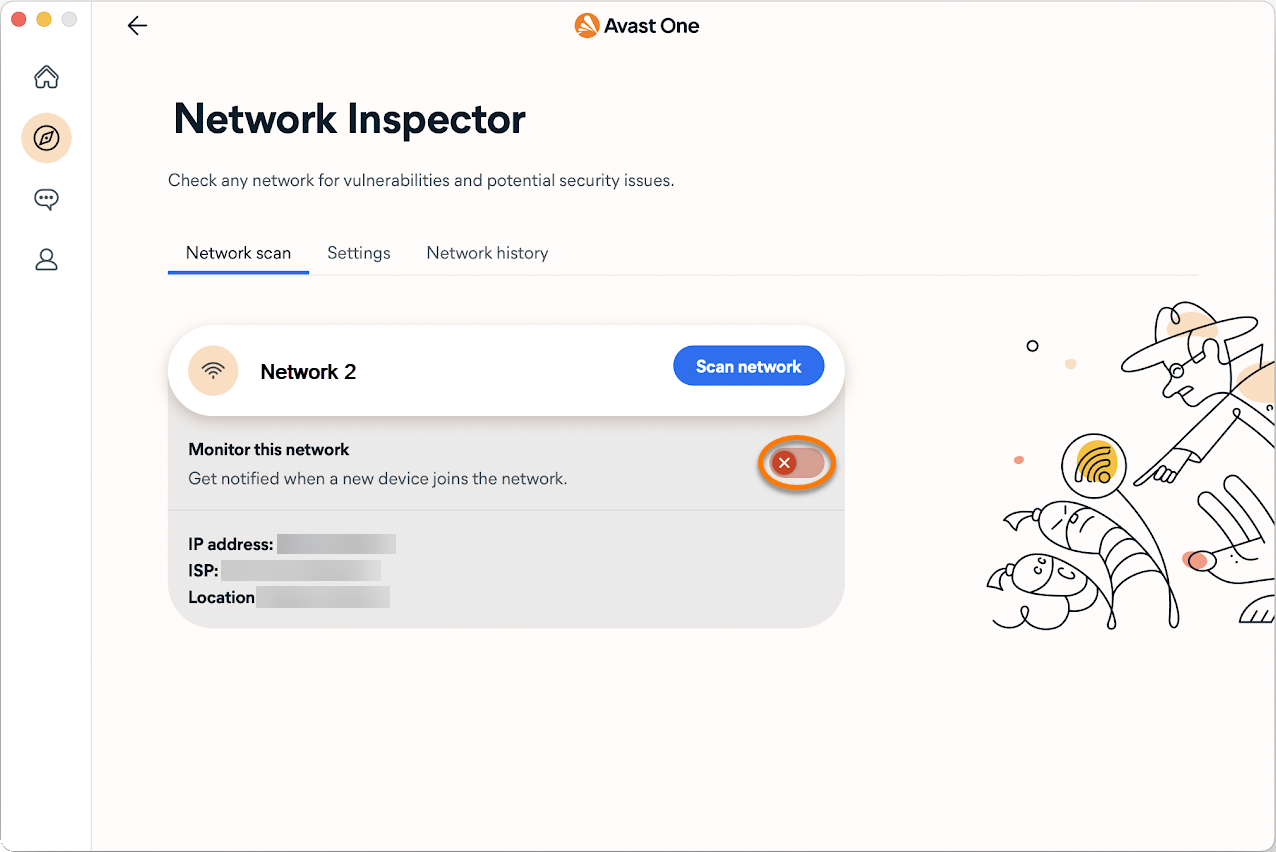
Network Inspector will now notify you every time a new devices joins this network.
Further recommendations
For more information about Network Inspector, refer to the following article:
