
IS YOUR COMPUTER SLOW? RUN LIKE NEW
If they are not maintained, computers lose performance over time. Avast Cleanup Premium can help significantly improve the performance of your computer.
Avast Driver Updater - Getting Started
Windows
Avast Driver Updater is a Windows PC performance tool that scans your hardware for broken and outdated drivers, and lets you update them to reduce and prevent problems with your PC. Refer to the sections in this article to learn how to use Avast Driver Updater.
Scan and update drivers
It is important to be careful when updating your computer drivers, even with the help of Avast Driver Updater. If not done correctly, driver updates can have a significant impact on your system's stability and compatibility, leading to functionality issues, system errors, or even hardware malfunction.
During installation and initial setup, Avast Driver Updater scans your PC and prompts you to update any outdated drivers. To scan your PC again for outdated drivers, follow the steps below:
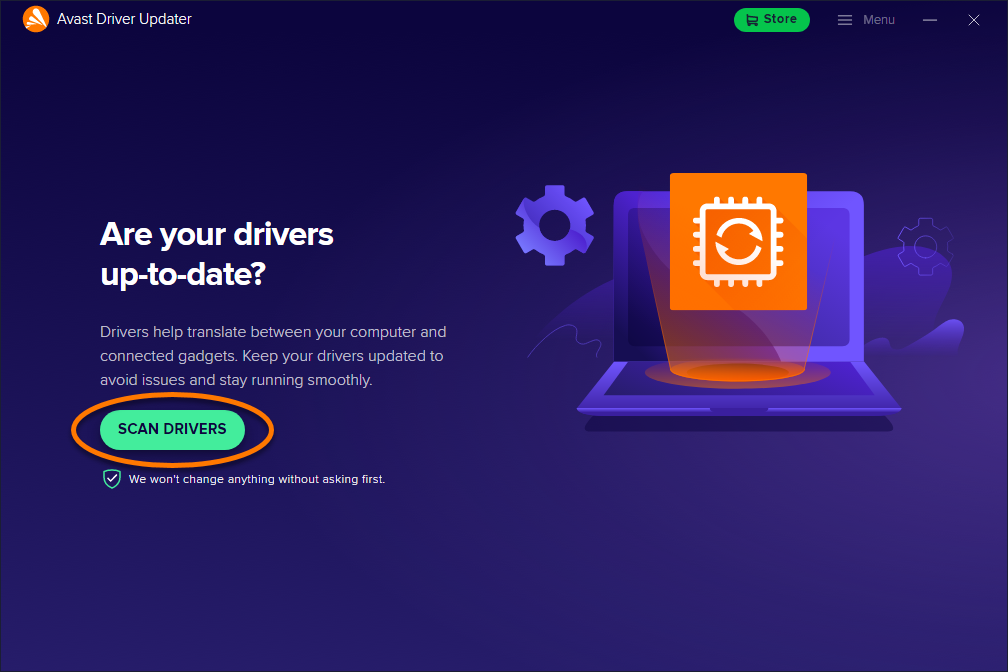
- Open Avast Driver Updater and click Scan drivers or Scan again.
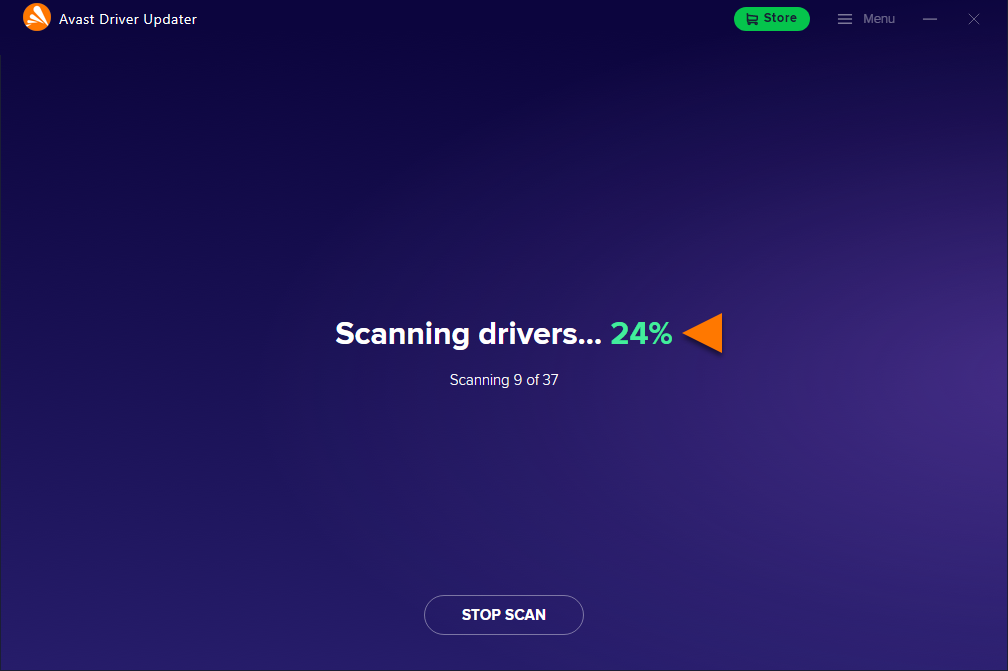
- Wait while Avast Driver Updater scans your drivers.
- Avast Driver Updater displays the outdated drivers.
To optionally filter the list, click Filters and select one or more driver categories.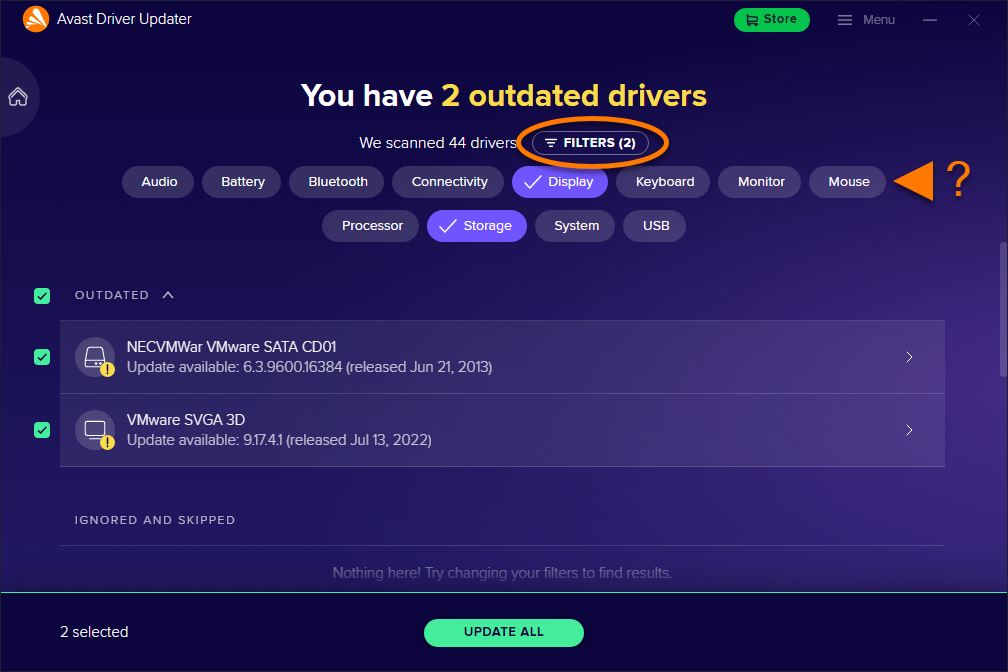
- Untick any drivers you do not want to update, then click Update all or Update selected.
Alternatively, click the>arrow on the panel for an outdated driver to view more details, then select Update.
You need to be connected to the internet for Avast Driver Updater to update your drivers.
- Wait while Avast Driver Updater updates your drivers. This may take some time.

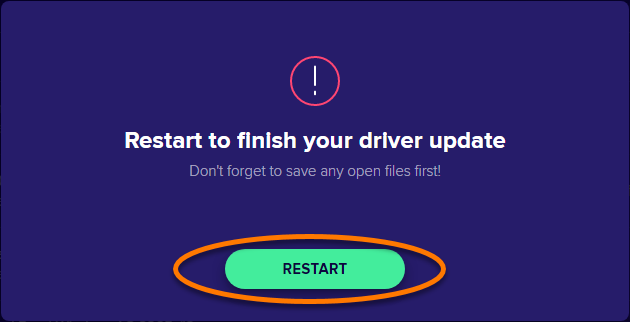
Do not turn off your PC while your drivers are updating, unless Avast Driver Updater prompts you to restart. Some drivers require restarting your PC to complete an update. If prompted, click Restart to immediately restart your PC and continue with driver updating.
- Click Done when all drivers have been updated.
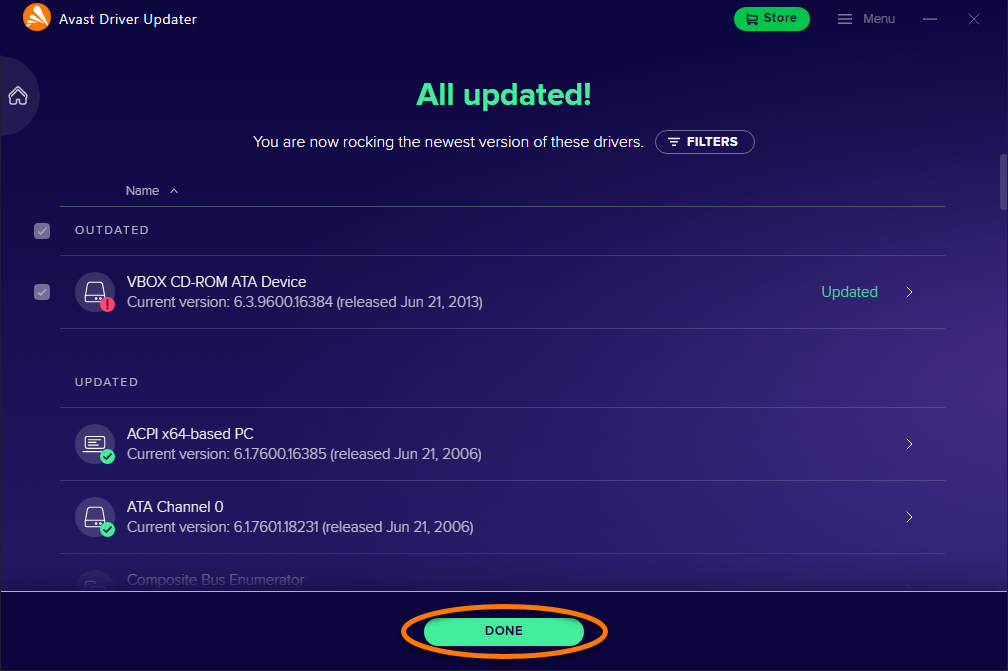
Your drivers are now updated.
Sometimes Avast Driver Updater is not able to successfully update a driver. If you see the message Sorry, we can't update your driver right now, but your PC will work just fine without it., click Continue to finish updating the remaining outdated drivers, or click Close if there are no remaining outdated drivers to update. Try updating the driver again later.
Manage individual drivers
Avast Driver Updater allows you to manage drivers individually if you want to skip an update or ignore a driver. A driver may also automatically be marked as skipped if the update fails multiple times in a row. Avast Driver Updater also stores a backup of previous driver versions in case you need to revert back to a previous driver version for troubleshooting purposes.
Skip an update or ignore a driver
- Click See outdated to view your outdated drivers.
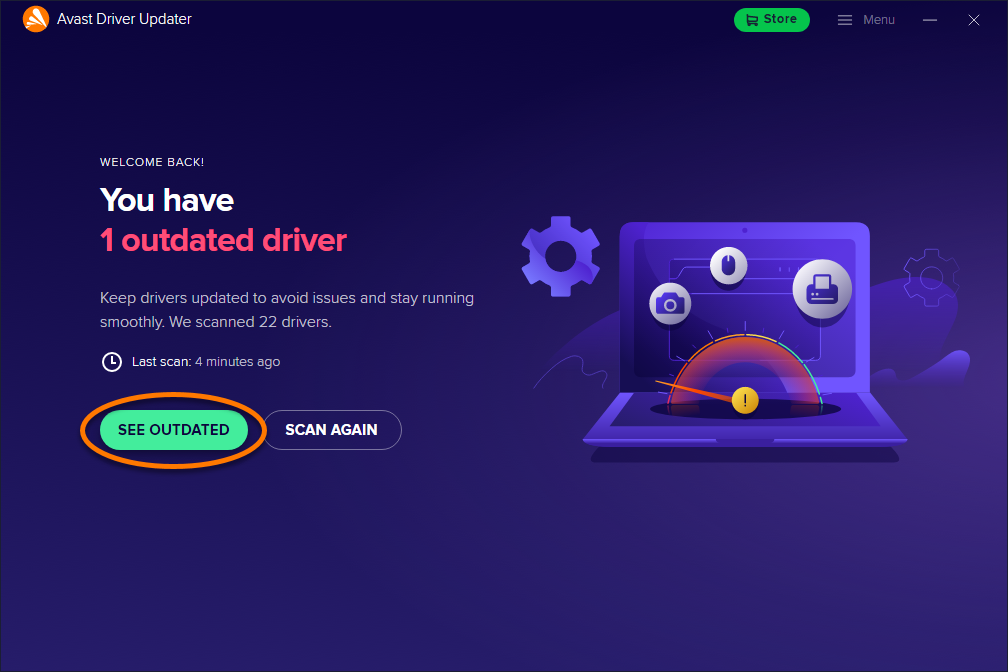
- Click the
>arrow on the panel for the driver you want to skip or ignore.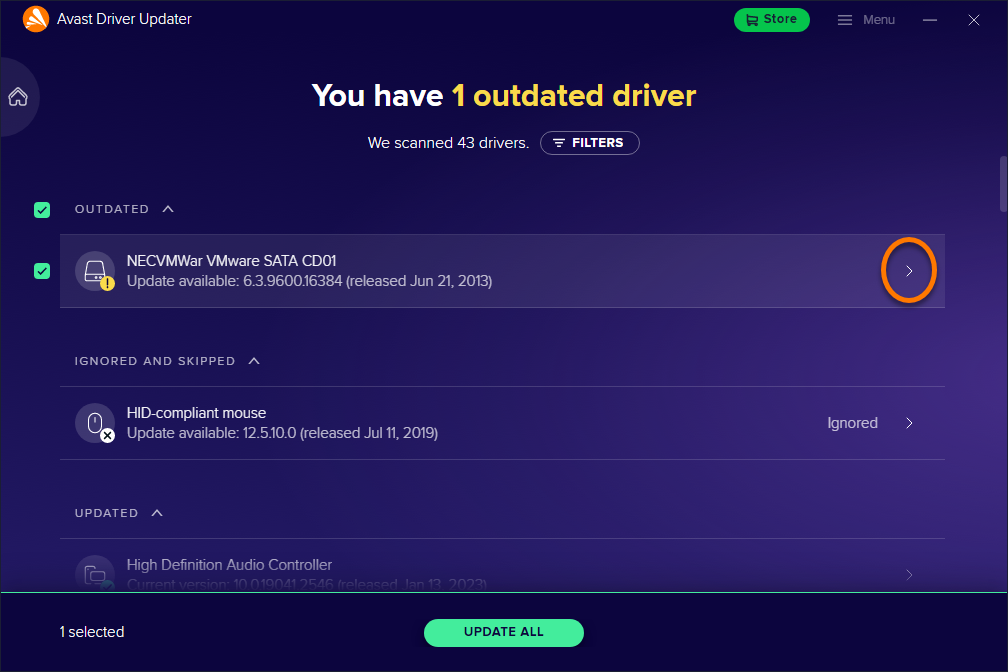
- Click
…More options (three dots).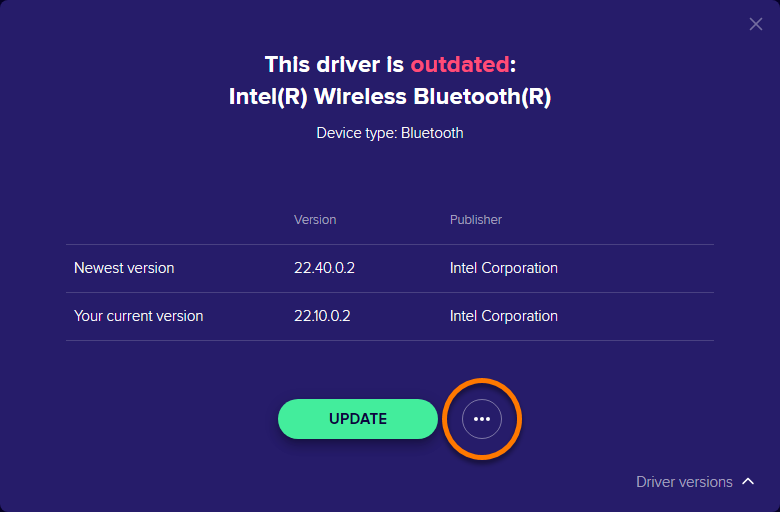
- Select your preferred action:
- Skip update: Avast Driver Updater will not update to the new driver version. However, you will be prompted to update this driver the next time a new update is available.
- Ignore driver: Avast Driver Updater will not update to the new driver version and will no longer check for updates for this driver.
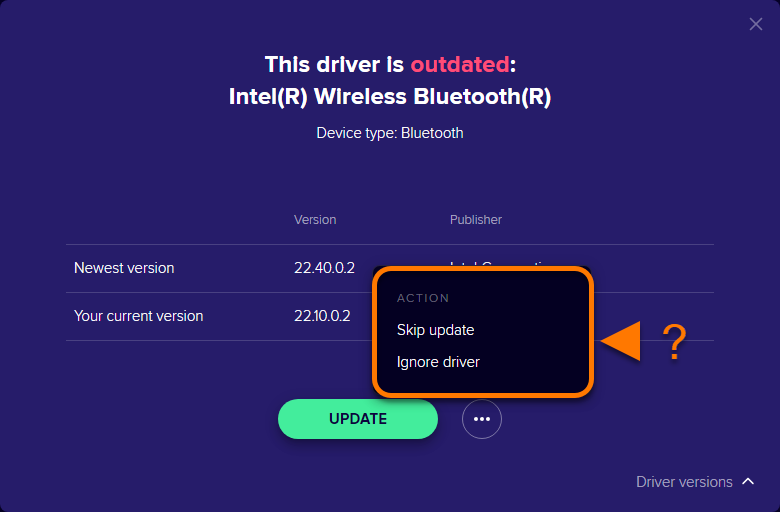
The selected driver is moved to the Ignored and skipped list.
To update a skipped driver or stop ignoring a driver, click the
>arrow on the panel for the relevant driver in the Ignored and skipped list, then select Stop skipping or Stop ignoring.

Revert a driver
- Click See overview to view all previously updated drivers.
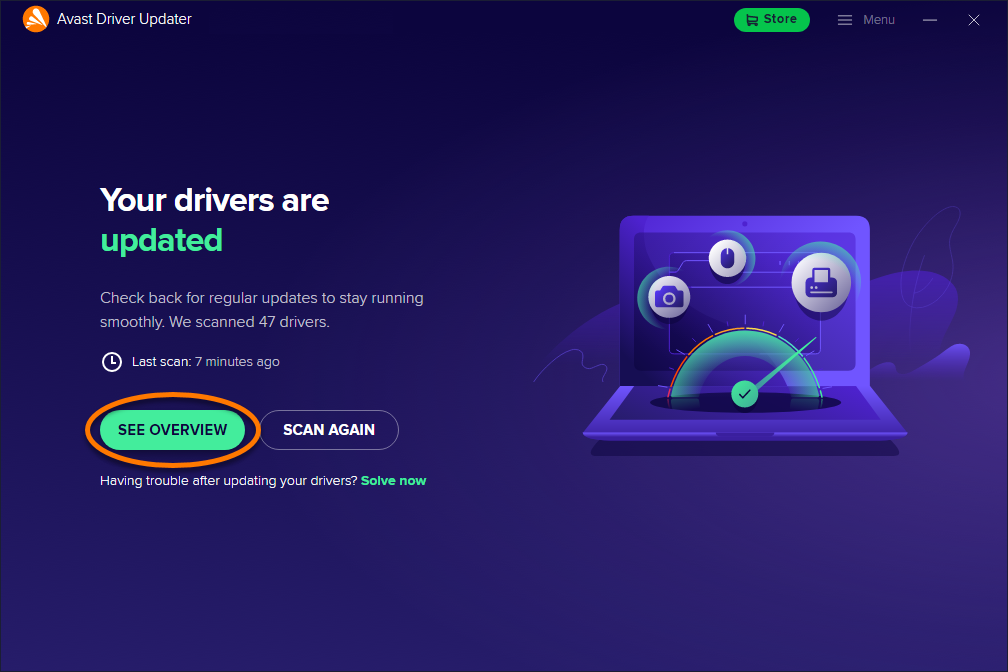
- Click the
>arrow on the panel for the driver you want to revert back to a previous version.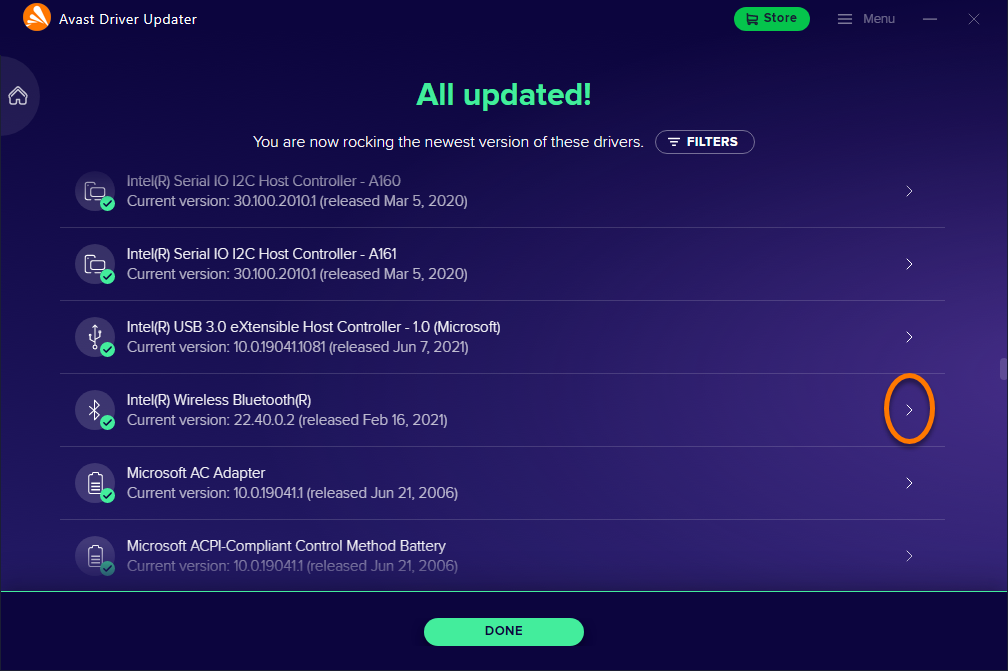
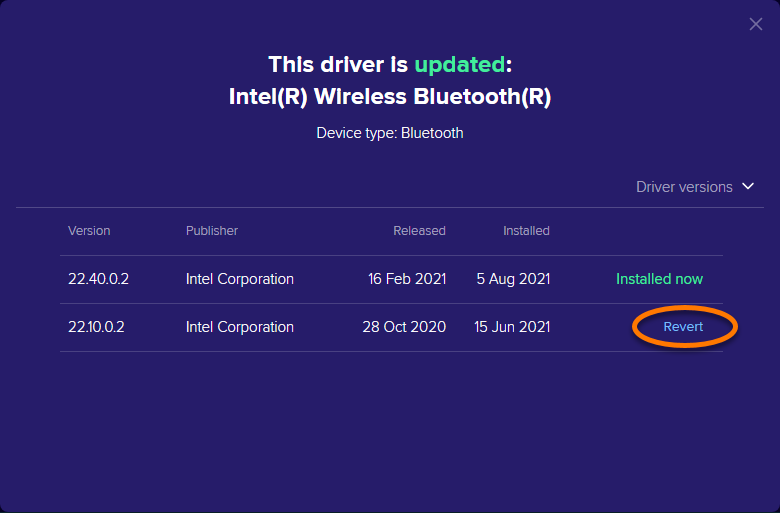
- Click Driver versions in the bottom-right corner of the screen.
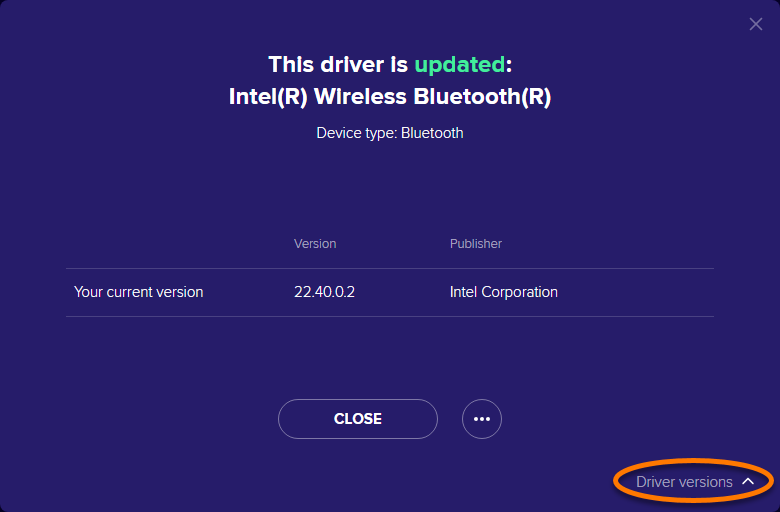
- Click Revert next to the driver version you want to revert back to.
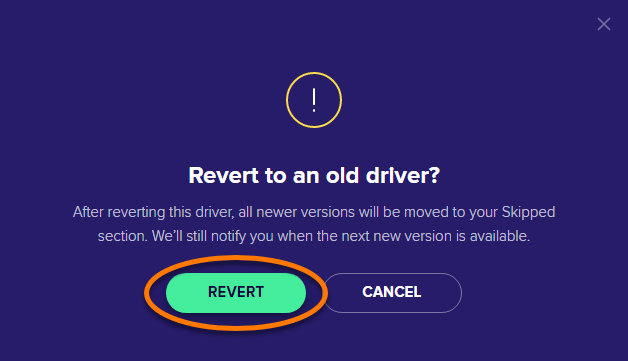
- Click Revert to confirm.
- If prompted, click Restart to immediately restart your PC.
The selected driver reverts back to the previous version you chose.
Avast Driver Updater can only revert back to driver versions that were previously updated by Driver Updater. You cannot revert back to a driver version that was updated by your operating system or other third-party software.
For more information about restoring previous driver versions, refer to the following article:
Manage settings
- Go to
☰Menu ▸ Settings.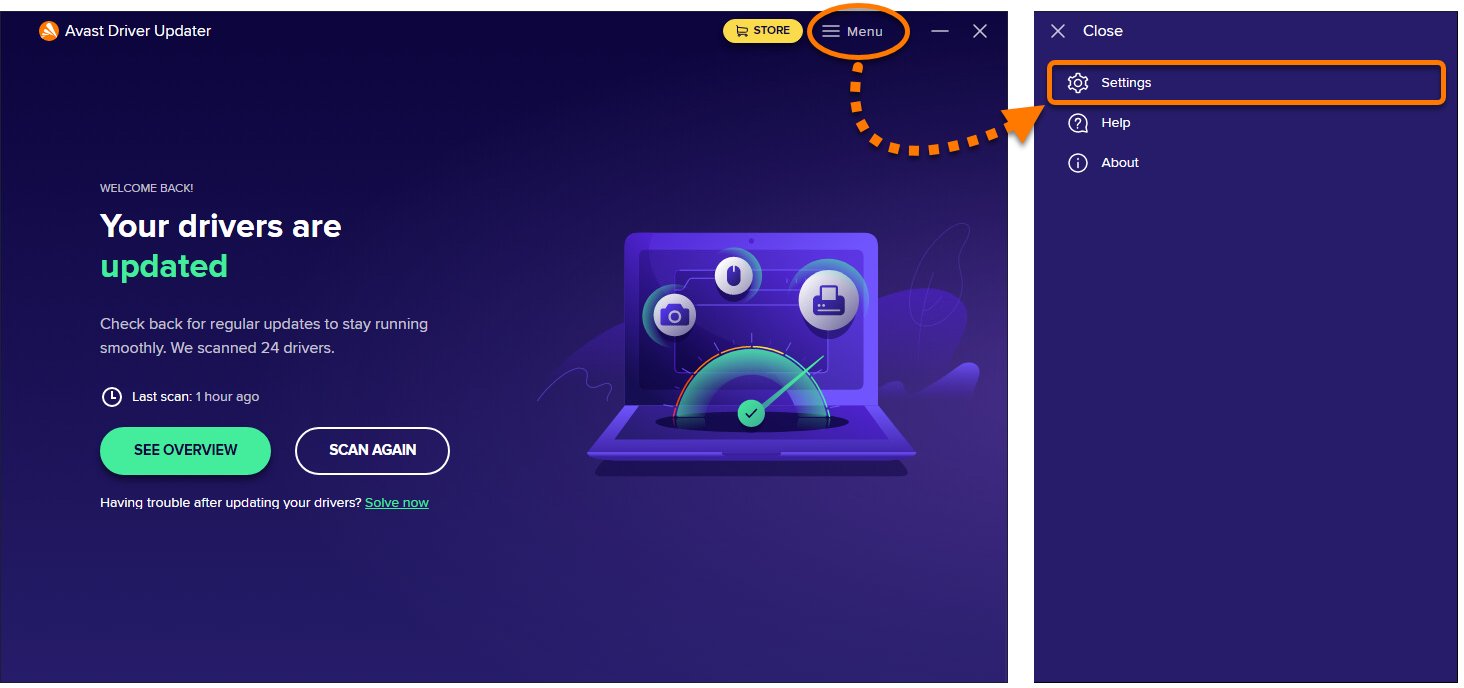
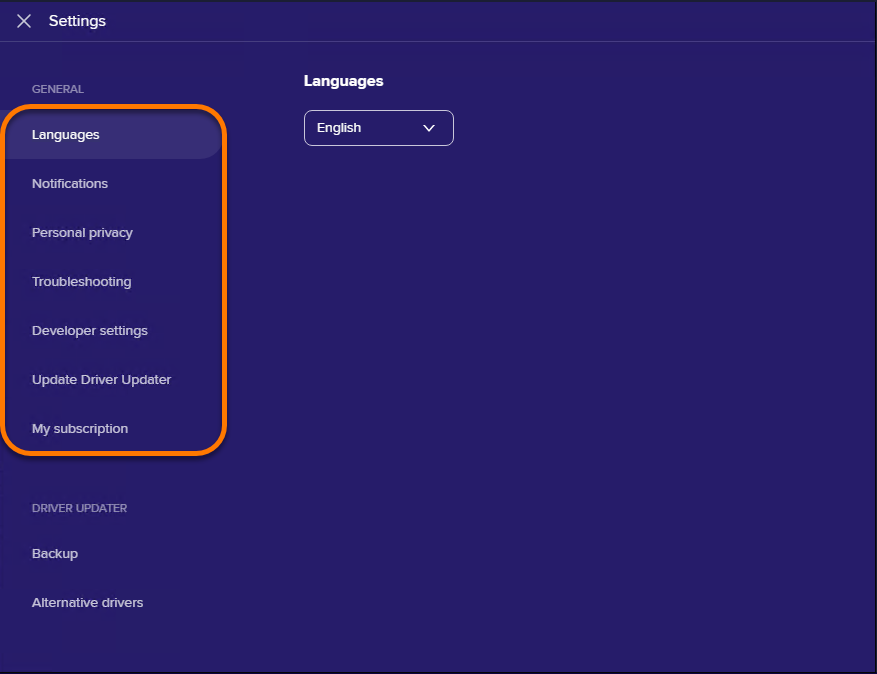
- The following settings are available:
- Languages: Use the drop-down menu to change the language of the application.
- Notifications: Specify if you want Avast Driver Updater to automatically notify you when there are outdated drivers on your PC.
- Personal privacy: Change the data that you share with Avast and third parties.
- Troubleshooting:
- Save error logs: Save information about unexpected problems that might occur when running the application.
- Create System Restore points: Save a snapshot of your PC before each driver update. Saving snapshots allows you to revert back if a driver update causes a problem on your PC.
- Send crash reports: Automatically send data to the Avast Driver Updater team about unexpected crashes.
- Developer settings: Configure advanced settings that control how Avast Driver Updater behaves when the application is closed. Disabling these settings may prevent Avast Driver Updater from working properly.
- Update Driver Updater: Check that your application version is up to date, and manage settings that control how Avast Driver Updater checks for and installs application updates.
- My subscription: Activate Avast Driver Updater and check the details of your subscription.
Manage Backup
Avast Driver Updater automatically saves a backup of your drivers before updating them, so you can restore them in case of any issues with the new driver.
To manage Backup, follow the steps below:
- On the Settings screen, select Backup.
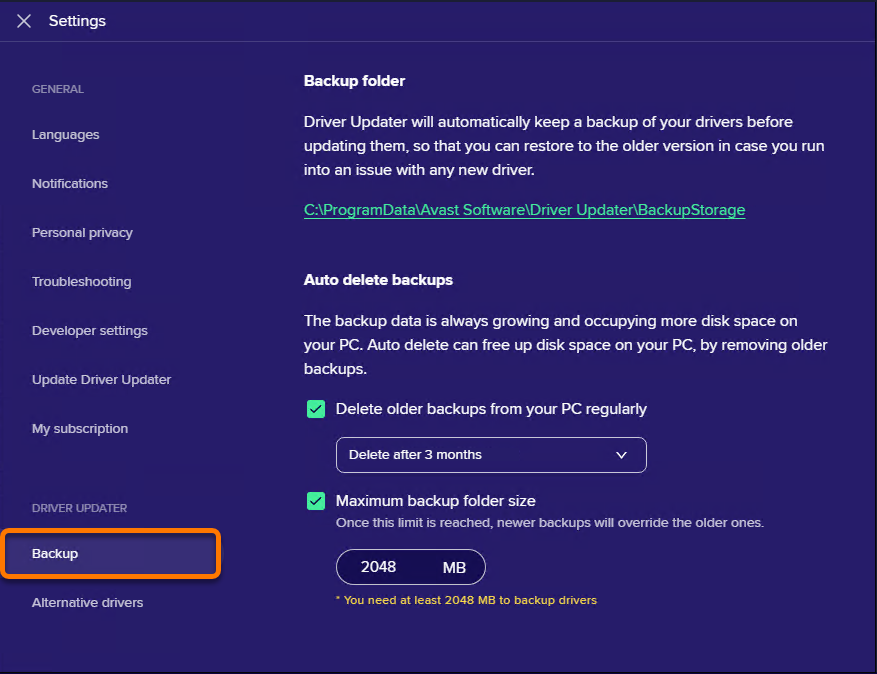
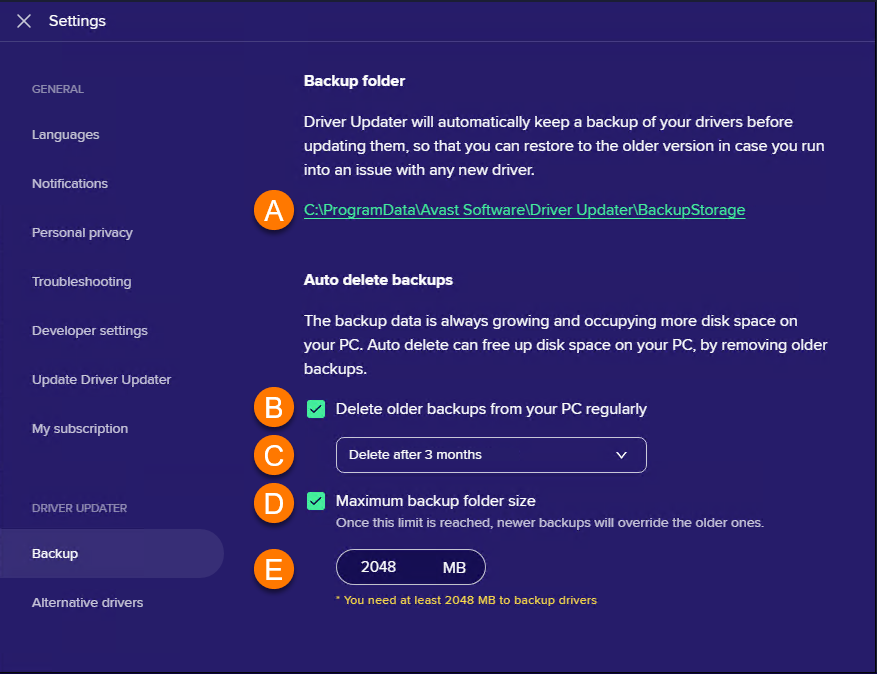
- The following options are available:
- Click the link to access the folder where Avast Driver Updater saves previous driver versions.
- Enable / disable auto delete of old backups.
- Specify the time period when old backups are deleted from your PC.
- Enable / disable a limit for the backup folder size.
- Set the maximum backup folder size (2048 MB by default).
Alternative Drivers
Avast Driver Updater can find alternative updates for your hardware in case the original developer does not offer a new update for a while. You can choose how long Driver Updater will wait before searching for alternative drivers by following the steps below:
- On the Settings screen, select Alternative drivers.
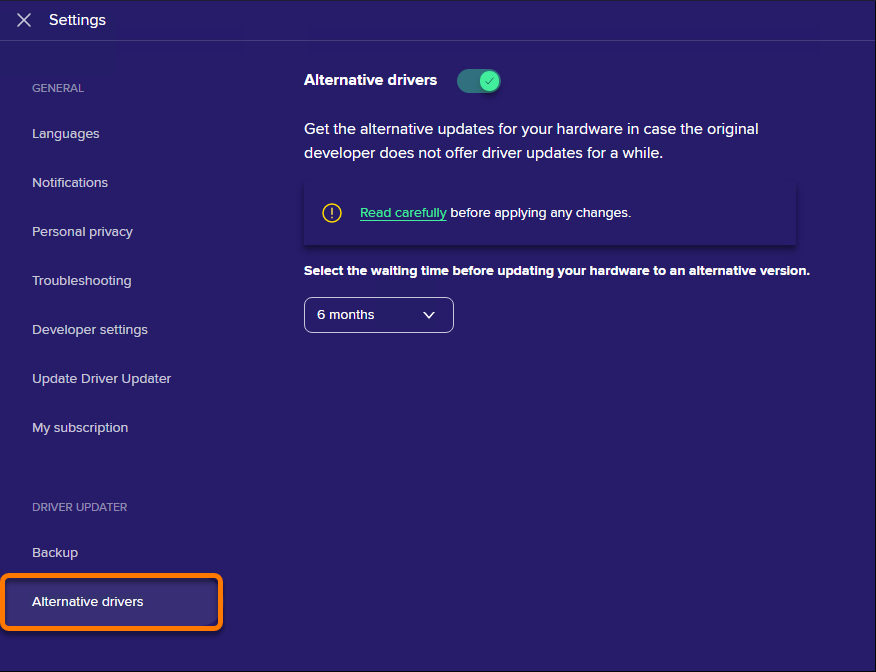
- Use the drop-down menu to specify how long before updating to an alternative driver.
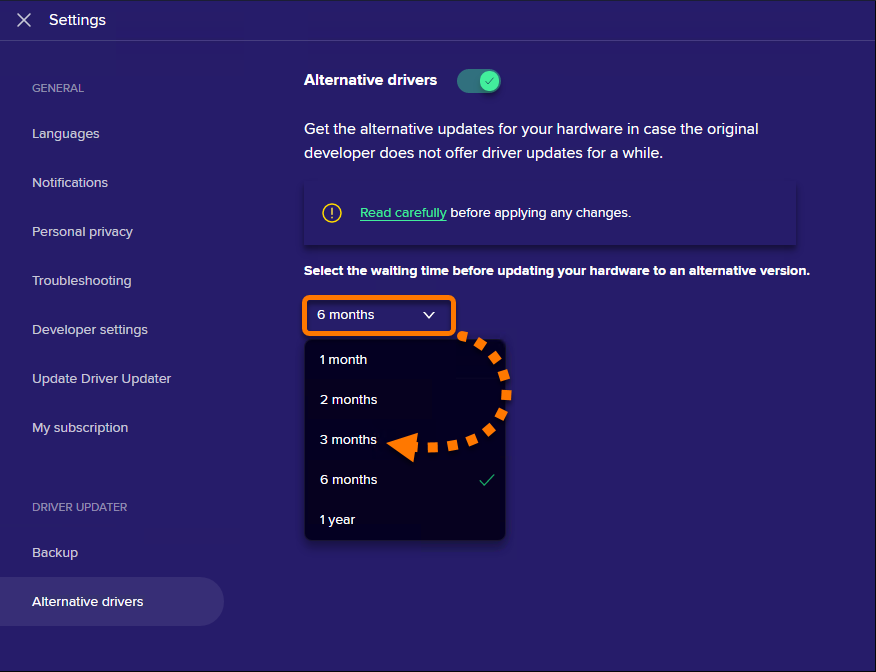
If you do not want Avast Driver Updater to use alternative drivers, you can disable this feature by clicking the green (ON) slider so that it changes to red (OFF).

Troubleshooting
In some cases, updating a driver can cause problems on your PC, such as your audio or trackpad not working properly, or issues with screen resolution and graphics quality. If this occurs, we recommend following the instructions in the article linked below to identify the cause of the issue and revert back to the previous driver version.
Further recommendations
For more information about Avast Driver Updater, refer to the following article:
Was this article helpful?

Keep your online identity private!
Browse like no one’s watching with Avast anti-tracking software.