
IS YOUR COMPUTER SLOW? RUN LIKE NEW
If they are not maintained, computers lose performance over time. Avast Cleanup Premium can help significantly improve the performance of your computer.
Avast Secure Browser Bank Mode - Getting Started
Windows
Bank Mode is a feature in Avast Secure Browser and Avast Antivirus that provides a virtual desktop, which acts as a clean, safe PC within your real PC. The Bank Mode virtual desktop protects you against the injection of malicious scripts, keystroke logging, and screenshot attempts by third-party apps. We recommend using Bank Mode each time you want to access a banking website or pay online.
Install Avast Products
To use Bank Mode, you need both Avast Secure Browser and Avast Antivirus or Avast One installed on your PC.
For detailed instructions to install your preferred Avast antivirus product, refer to the relevant articles below:
For detailed instructions to install Avast Secure Browser, refer to the following article:
Open Bank Mode
You can open Bank Mode using option A, B, or C below:
- Option A: Open Avast Secure Browser and go to
⋮Menu (three dots) ▸ New Bank Mode Window.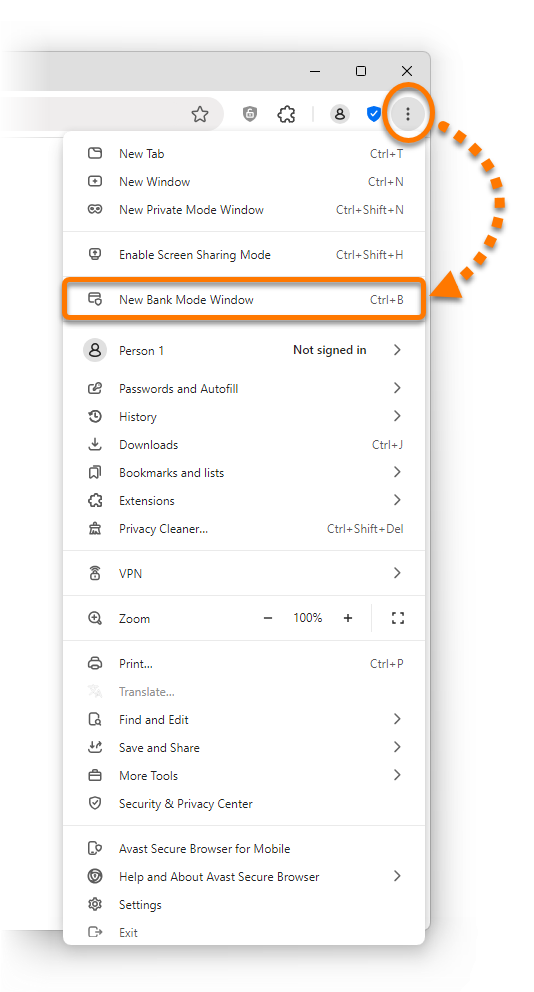
- Option B: Right-click the
 Avast Antivirus icon in the notification area of your Windows taskbar and select Run Bank Mode.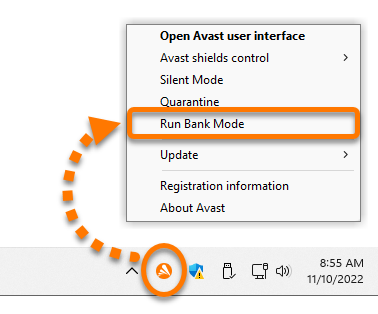
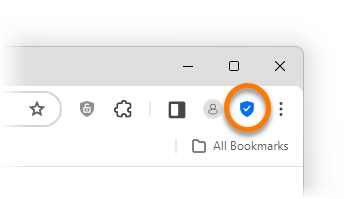
- Option C: Open Avast Secure Browser, then click the blue
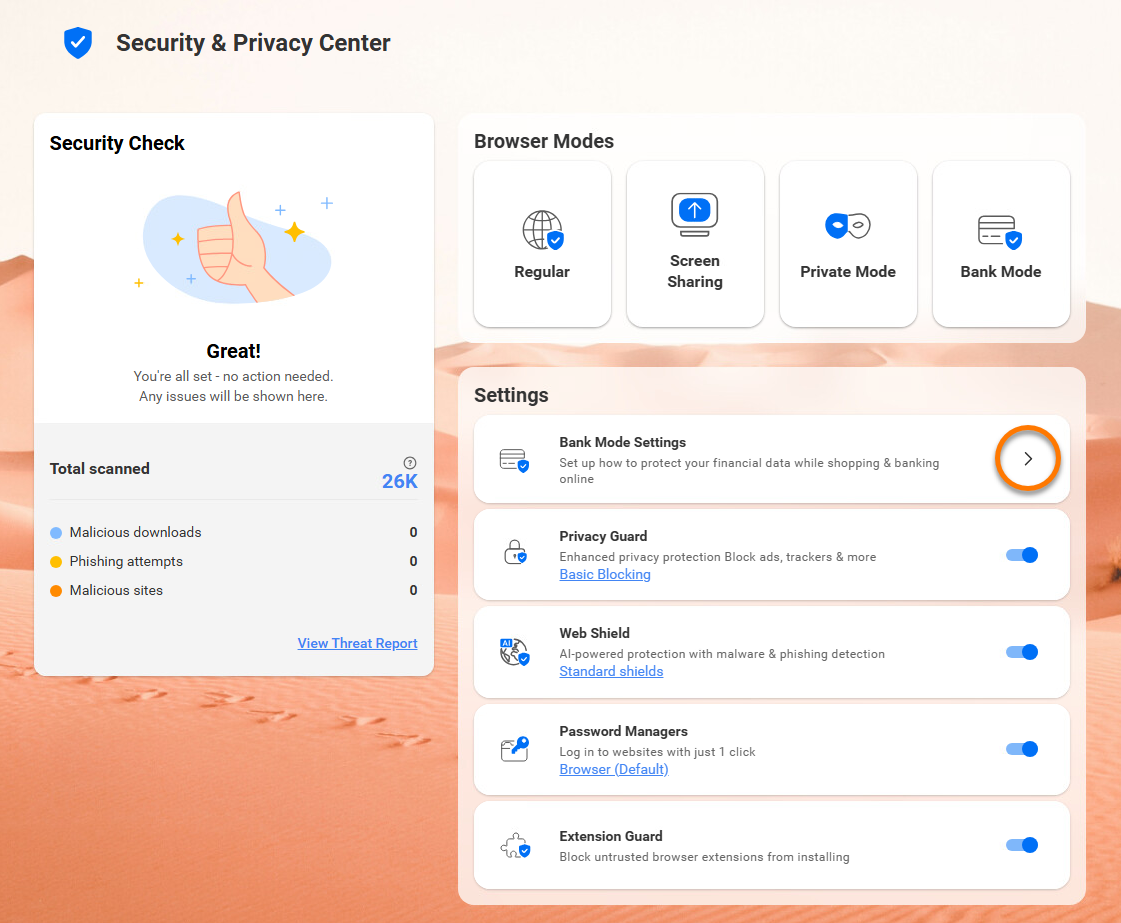
 Security & Privacy Center icon to the right of the address bar, and click the Bank Mode tile.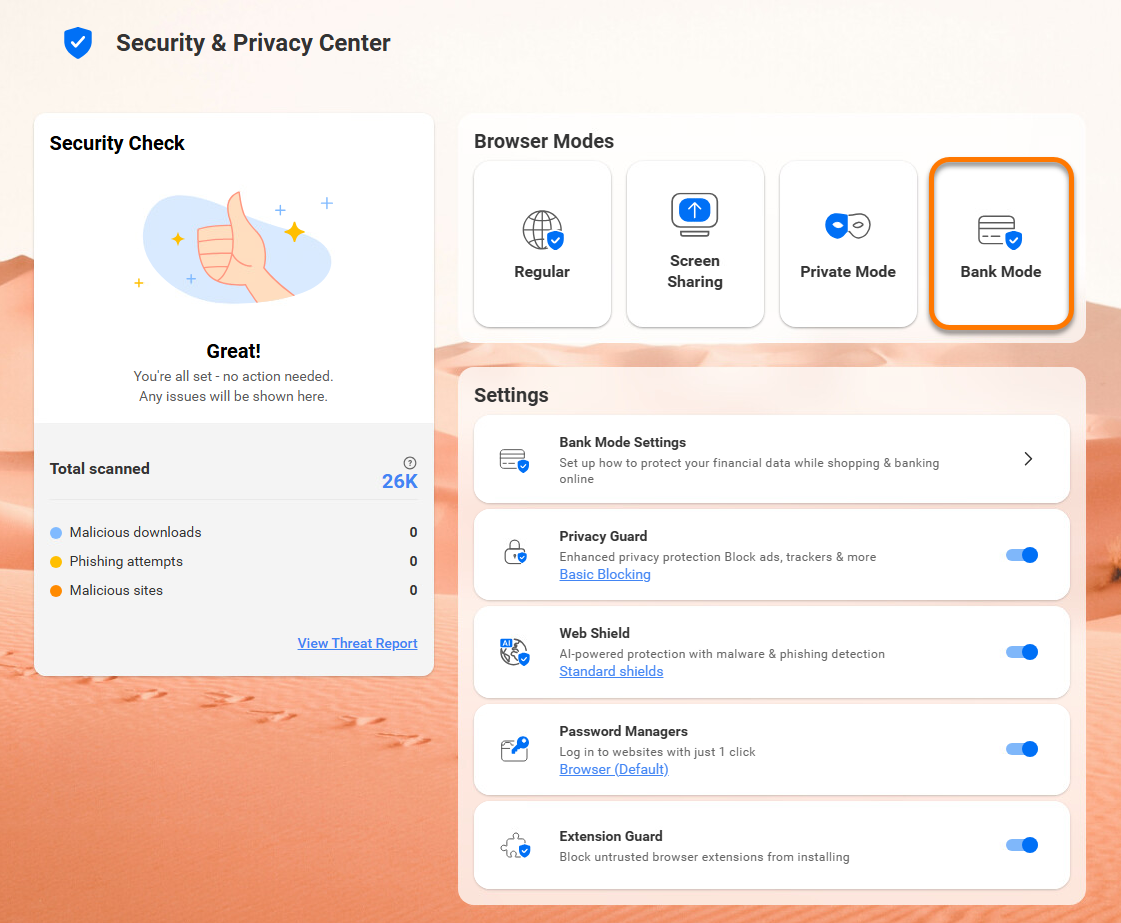
To open a bookmark in Bank Mode, right-click on the bookmark in Avast Secure Browser and select Open link in Bank Mode.
Manage Bank Mode
Once Bank Mode is open, you can easily switch back to Avast Secure Browser, add applications to the taskbar, or turn off Bank Mode completely.
Switch between Bank Mode and Avast Secure Browser
Bank Mode continues to run in the background when you switch from Bank Mode to Avast Secure Browser.
- To return to Avast Secure Browser, click Standard Desktop in the taskbar of the Bank Mode virtual desktop.
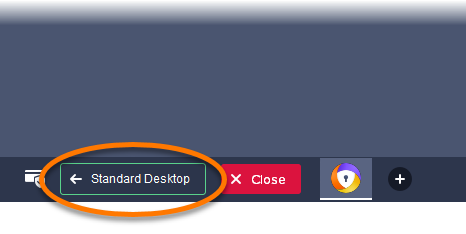
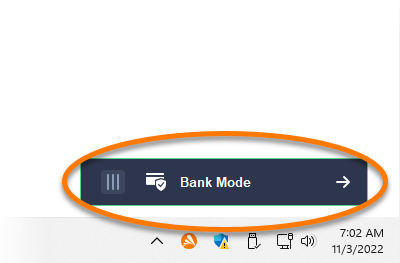
- To return to the Bank Mode virtual desktop, click the Bank Mode button in the bottom right of your standard desktop.
Pin an application to the Bank Mode taskbar
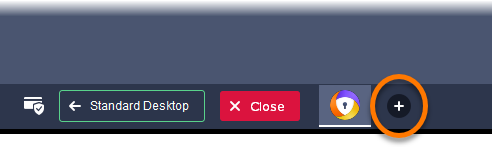
- Click the + plus icon in the taskbar of the Bank Mode virtual desktop.
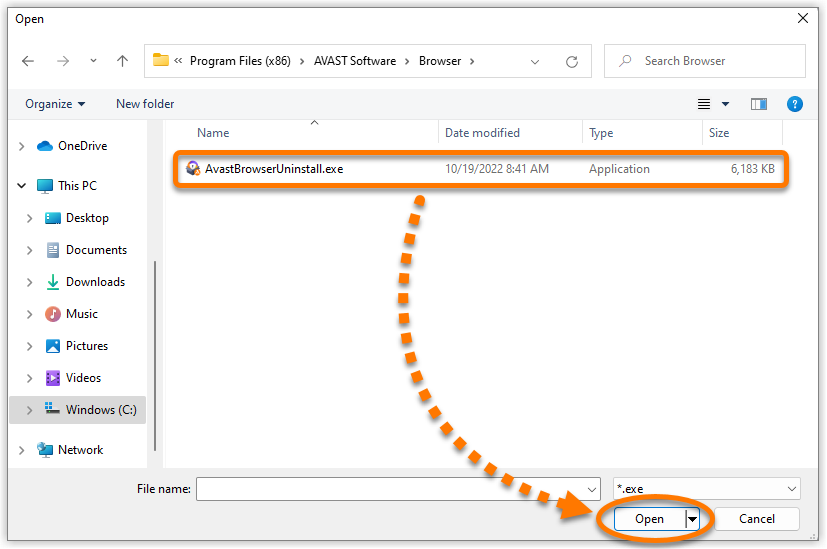
- Select the application you want to add to the Bank Mode taskbar, then click Open.
- Click OK in the confirmation dialog that appears.

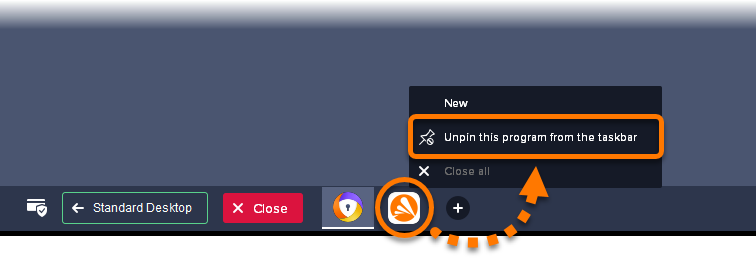
To remove an application from the Bank Mode taskbar, right-click the application icon on the taskbar, then click Unpin this program from the taskbar.
Turn off Bank Mode
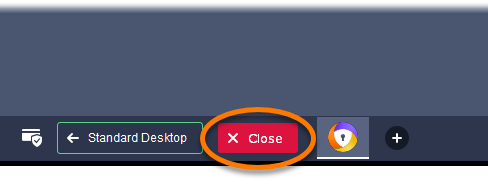
- Click Close in the taskbar of the Bank Mode virtual desktop.
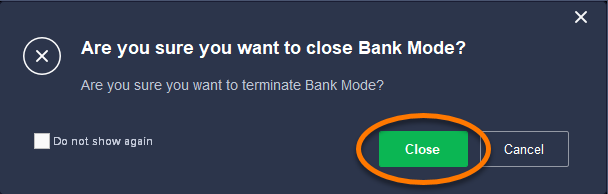
- Click Close in the confirmation dialog that appears.
Settings
Although we recommend using Bank Mode for all online payments and banking websites, you can configure some settings within Bank Mode. To access Bank Mode settings:
- Open Avast Secure Browser and click the blue Security & Privacy Center icon to the right of the address bar.
- Click the arrow on the Bank Mode Settings tile.
- On the Bank Mode settings screen, you can configure the following settings:

- When browsing in Bank Mode, always: Select your preferred action from the options.
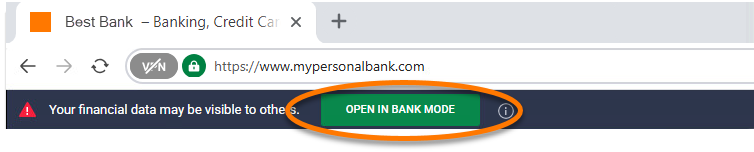
- Show Bank Mode notification prompt on banking websites (enabled by default): Enables Bank Mode to show you a notification banner at the top of your screen when you visit a banking website. Click Open in Bank Mode on the notification banner to open the website with the Bank Mode virtual desktop.
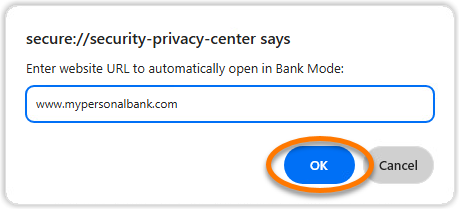
- Automatically open Bank Mode on the following websites: Enables Bank Mode to open automatically when you visit specific websites. Click Add, type the URL for the website, and click Add again to confirm.
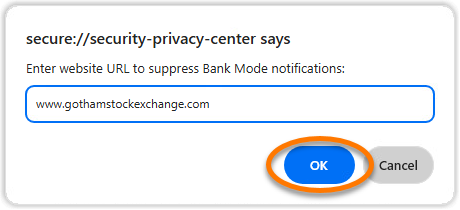
- Don't show Bank Mode notification prompt on the following websites: Prevents Bank Mode from showing a notification banner when you visit specific websites. Click Add, type the URL for the website, and click Add again to confirm.
Troubleshooting
If you have trouble opening Bank Mode, try closing and then re-opening the browser. If the issue persists, we recommend the following:
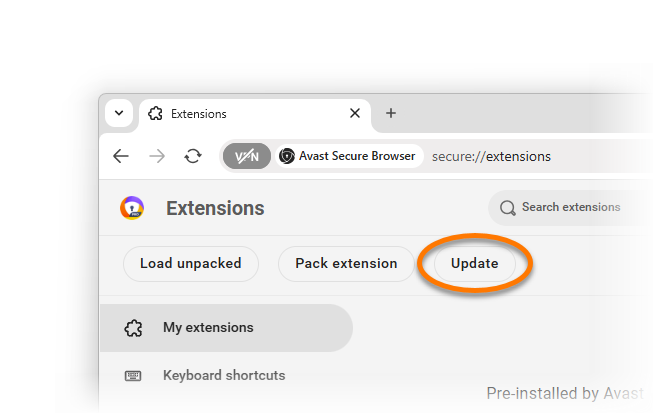
- Open Avast Secure Browser, then type
secure://extensionsin the address bar, and press the Enter key on your keyboard.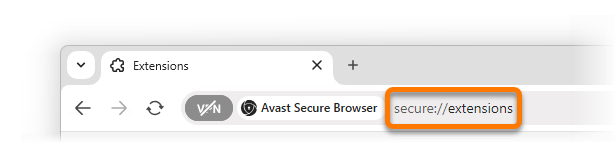
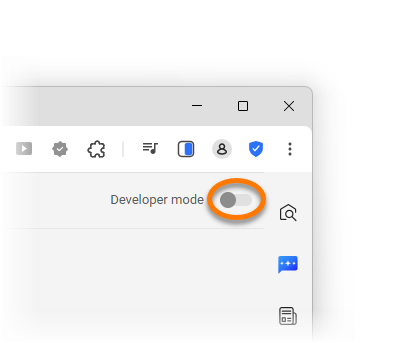
- Click the gray (OFF) slider next to Developer mode so that it changes to blue (ON).
- Click Update.
- After you see the Extensions updated message at the bottom of the screen, try to re-open Bank Mode.
Bank Mode should open normally now. If the issue persists, try one of the possible solutions below:
- Open Bank Mode using a different method.
- Ensure the latest version of your Avast Antivirus application is installed on your PC. For instructions, refer to the following article:
- Repair your Avast Antivirus application. For instructions, refer to the following article:
- Uninstall and reinstall Avast Secure Browser.
Was this article helpful?

Keep your online identity private!
Browse like no one’s watching with Avast anti-tracking software.