

 Explore ▸ Firewall.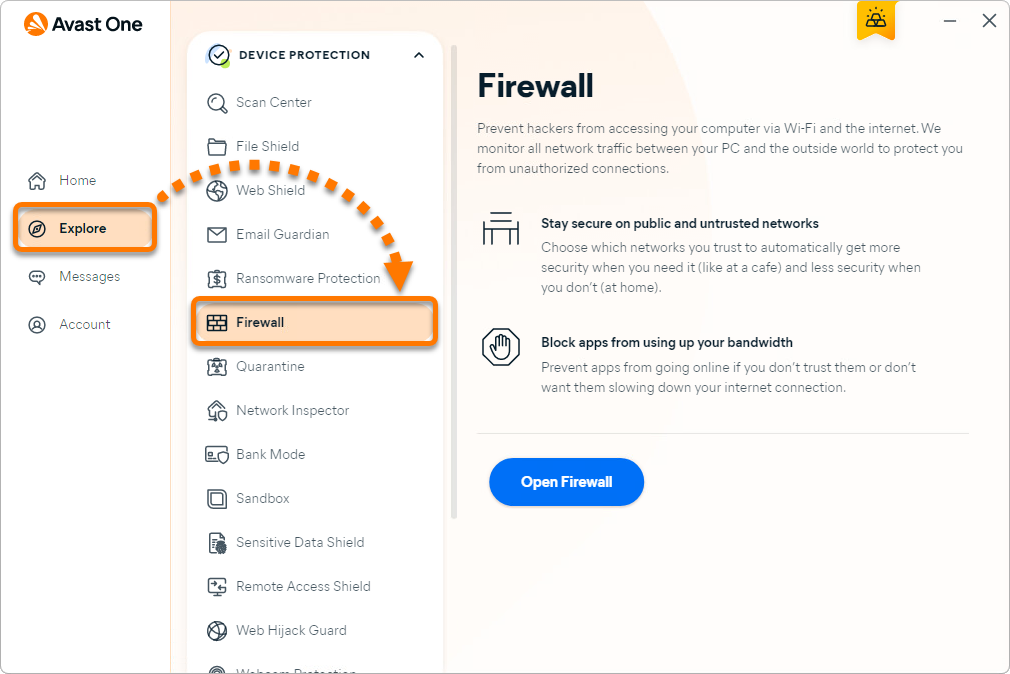
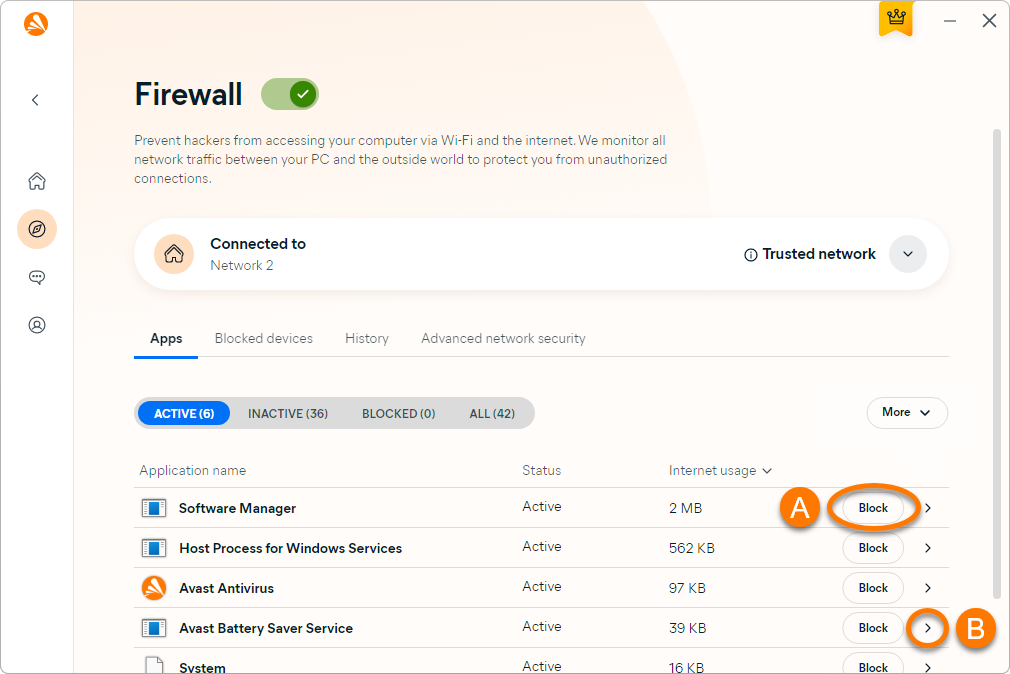
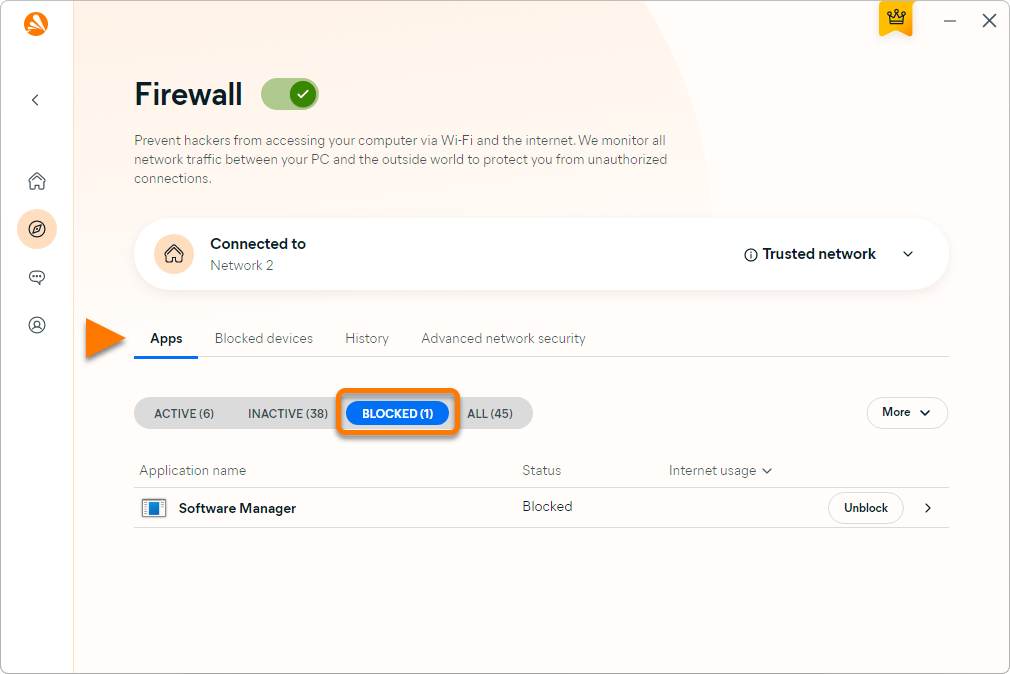
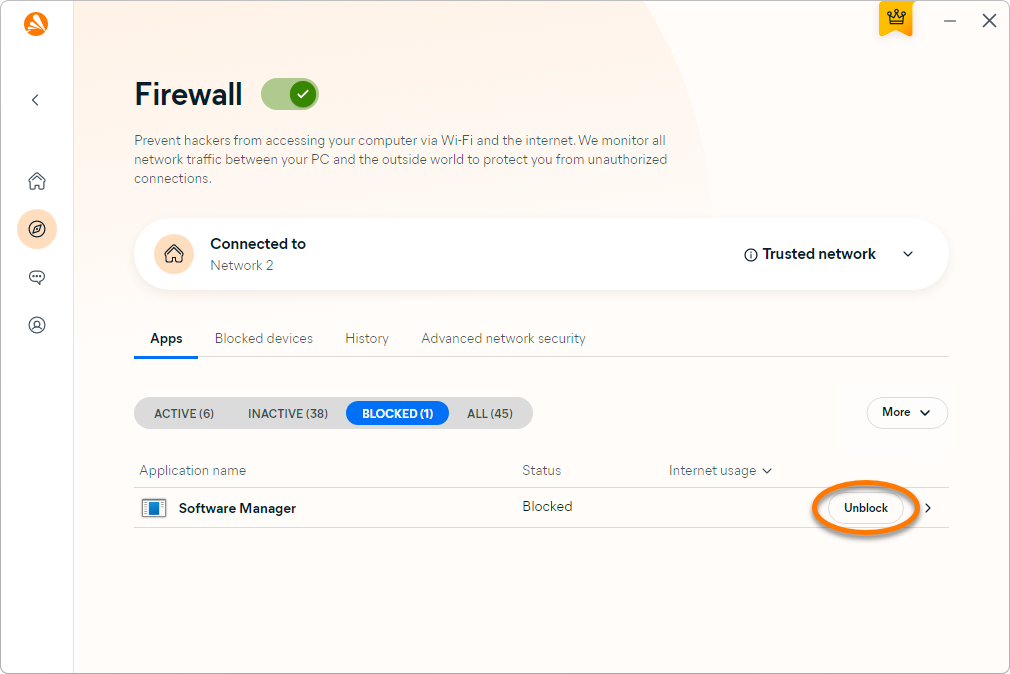

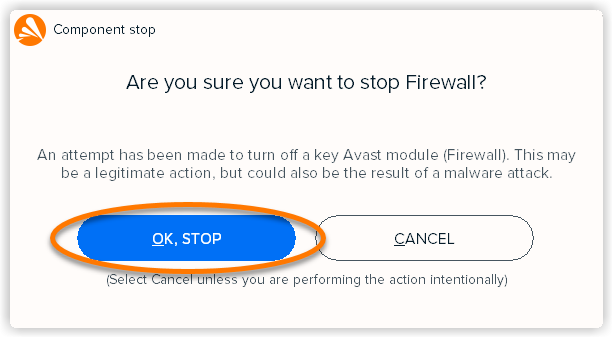
The Firewall feature in Avast One monitors the network traffic between your Mac and the outside world to help protect you from unauthorized communication and intrusions. This feature is designed to require minimal input from you. To ensure you have protection, all you need to do is enable Firewall and, when prompted, specify whether each network that you connect to is trusted.
Enable Firewall
To enable Firewall:
- Open Avast One and go to
 Explore ▸ Firewall.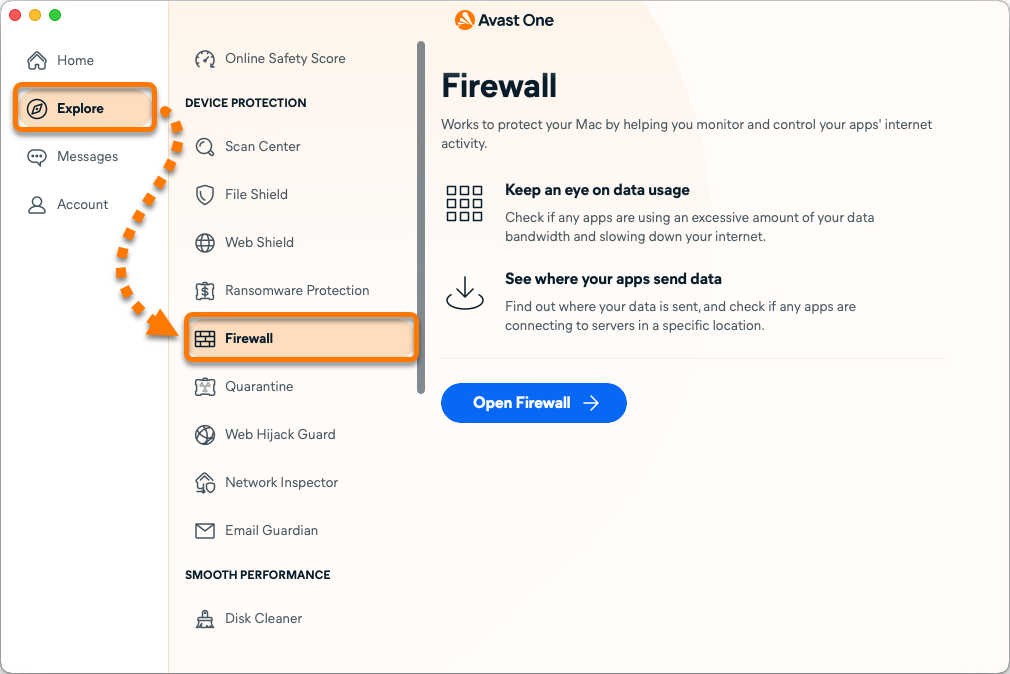
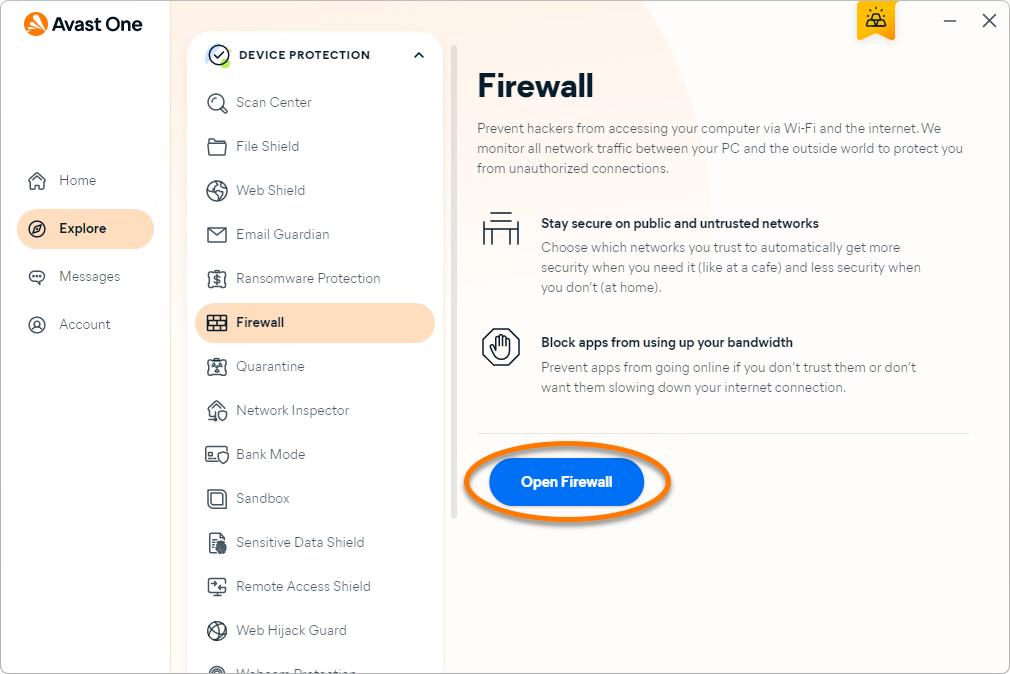
- Click Open Firewall.
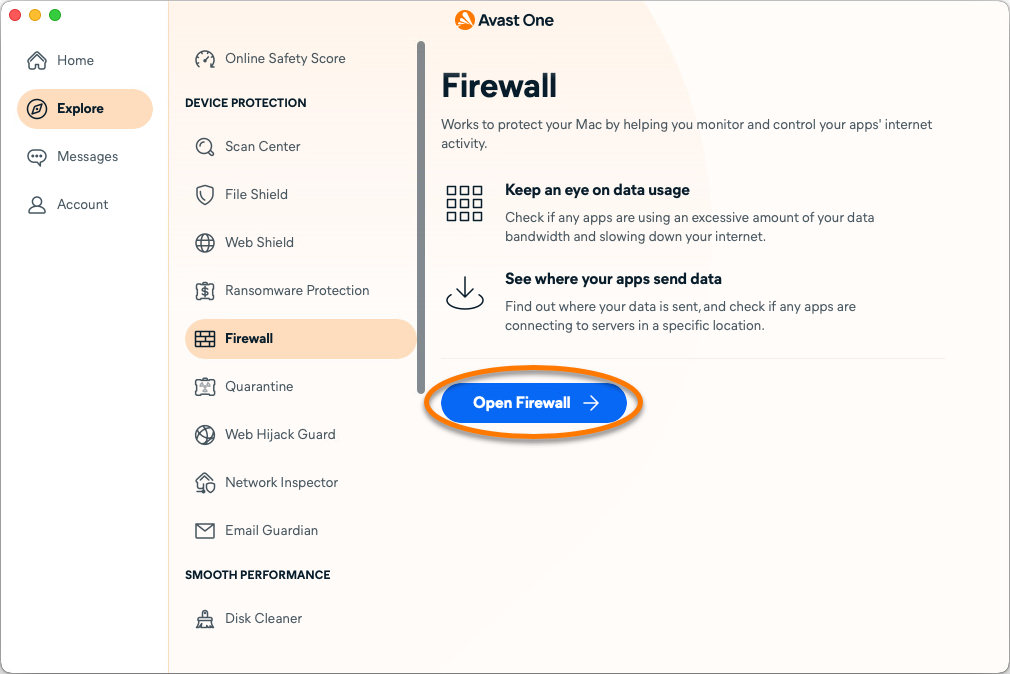
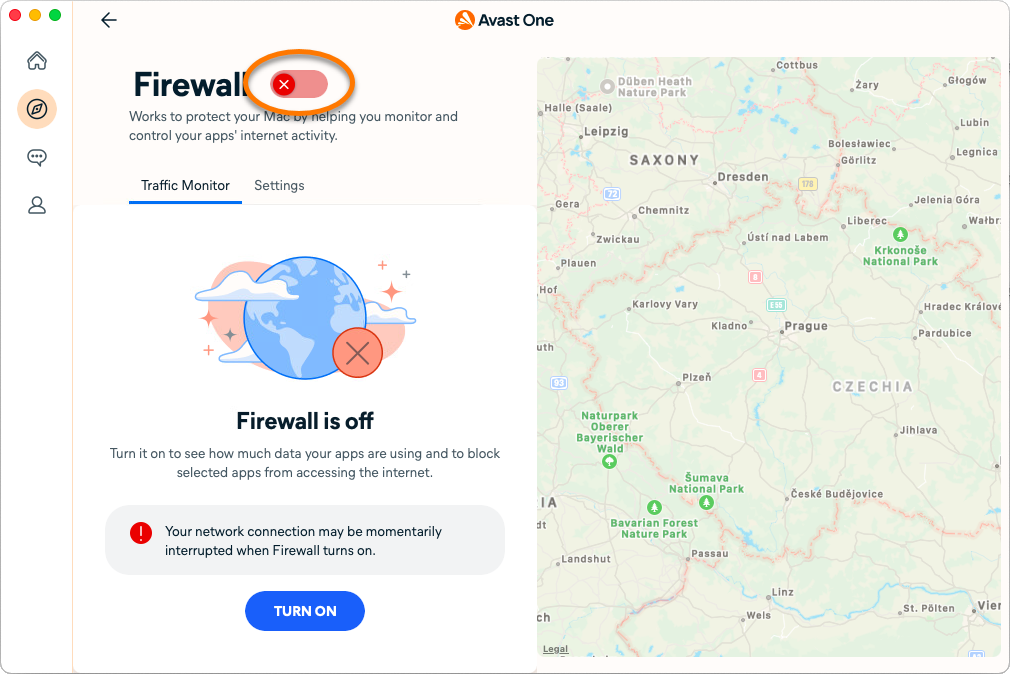
- To enable Firewall, click the red (OFF) slider so it changes to green (ON).
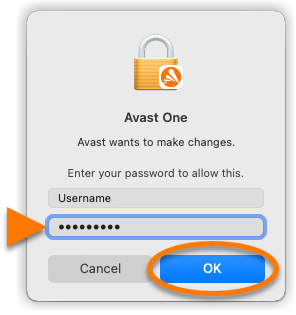
- If prompted, enter the password that you use when you start your Mac and click OK.
Firewall is enabled.
Add trusted networks
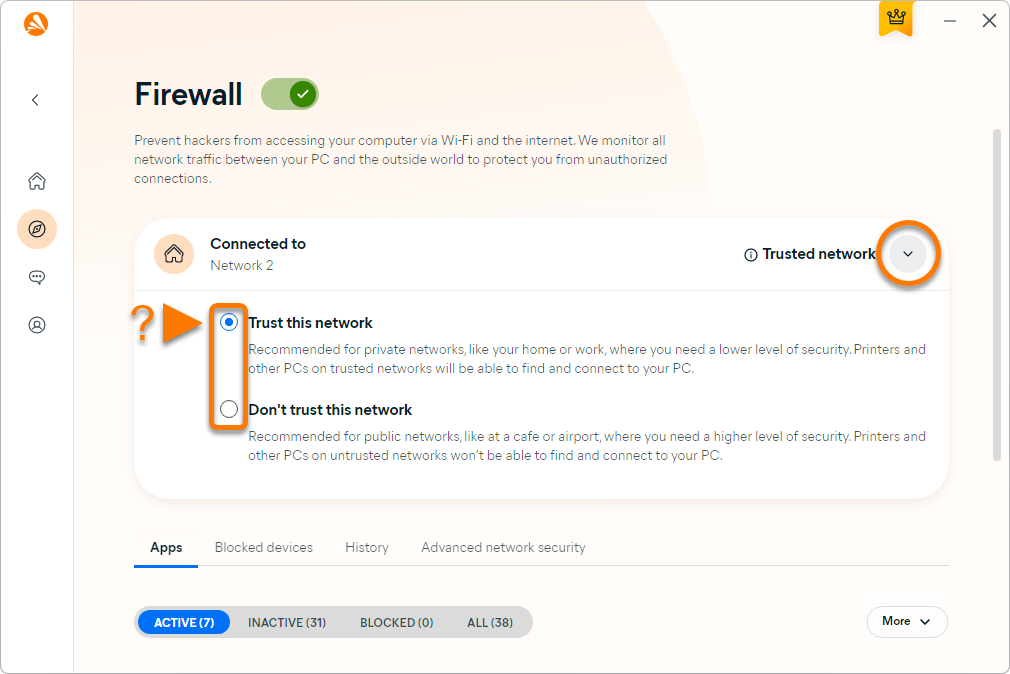
Each time you connect to a new network, Firewall prompts you to either turn on your VPN or select Trust this network.

To manually specify whether an individual network is trusted:
- Open Avast One and go to Explore ▸ Firewall.
- Click Open Firewall.
- Select Settings, then click Manage next to Private networks.
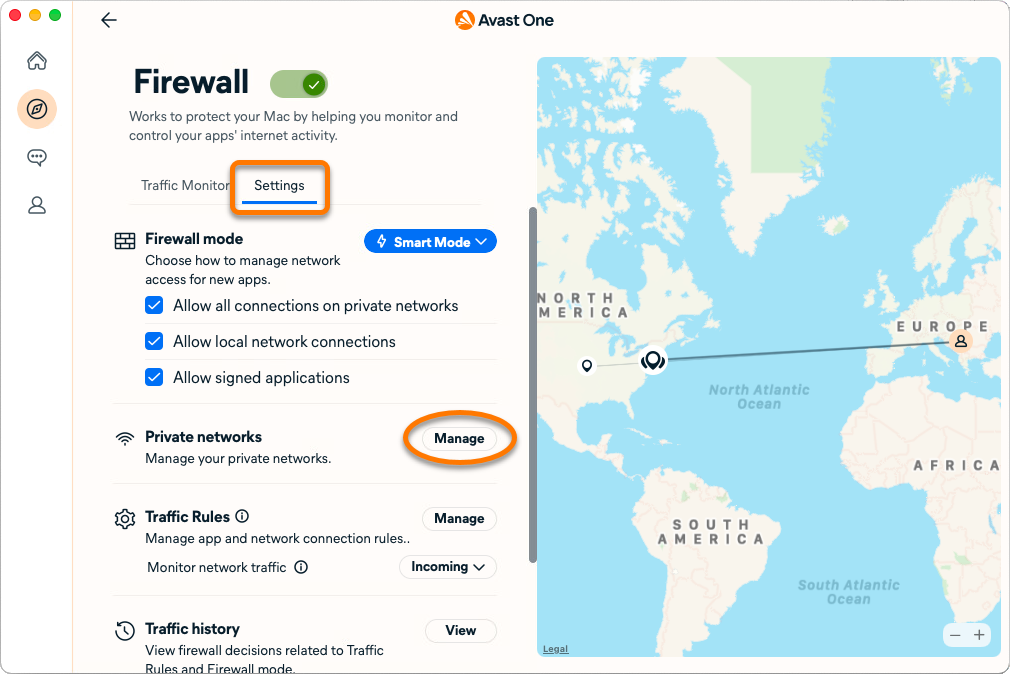
- Next to the detected network connection, click Trust. The network connection is added to the Trusted Networks list.
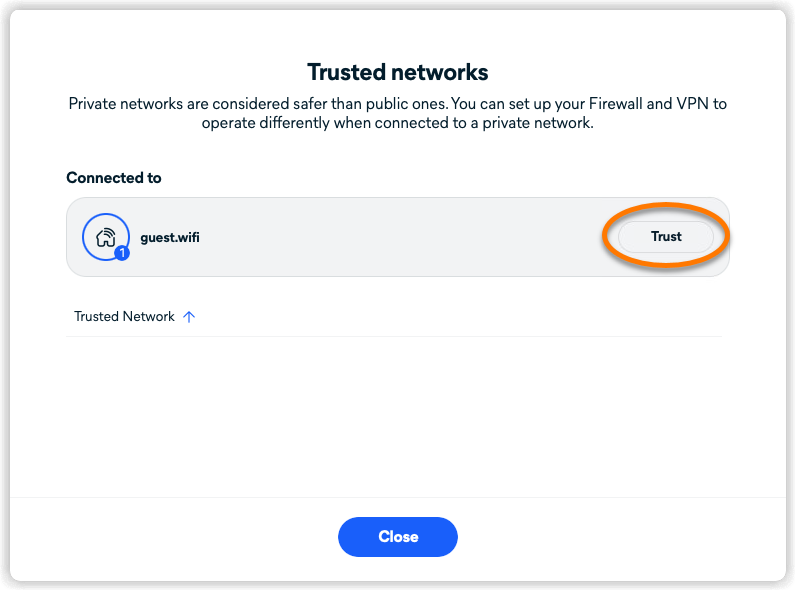
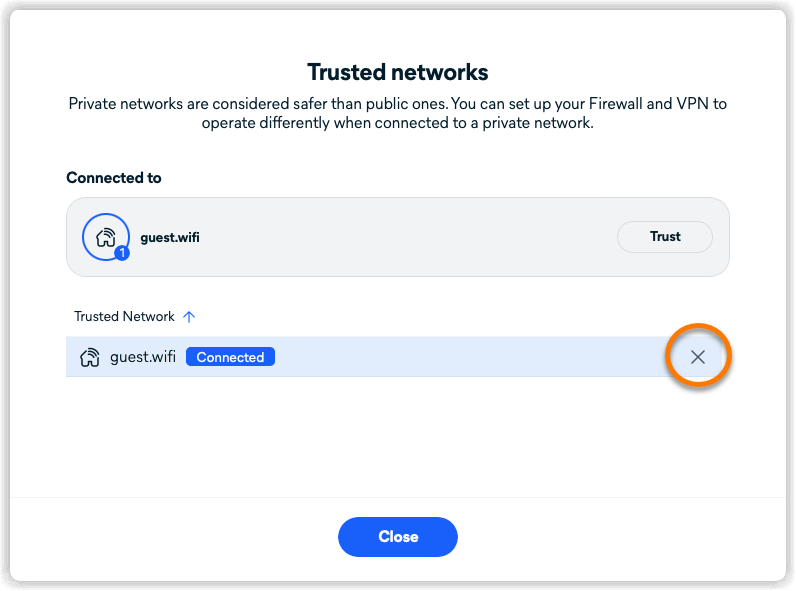
- Alternatively, click the X icon next to a network to remove it from the Trusted Networks list. It is recommended to keep your VPN on when connected to untrusted networks.
Firewall applies the settings according to your preferences.
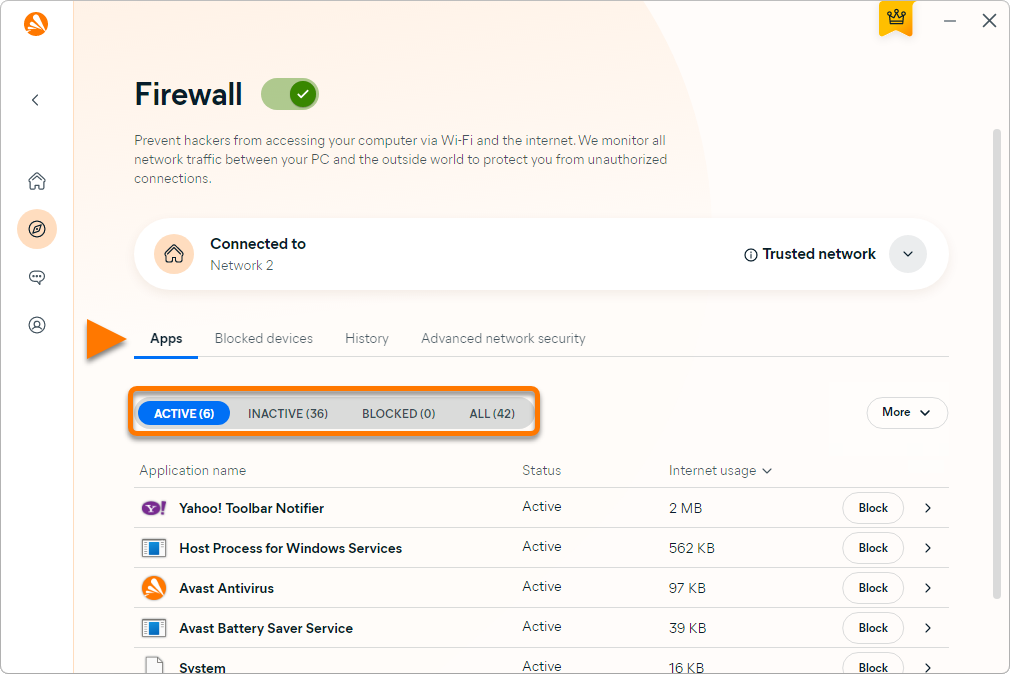
Manage app connections
Firewall controls when the apps on your Mac can connect to the internet or to other networks. It creates default rules for an application when it starts for the first time.
To manually specify how Firewall handles connection attempts from all of your apps:
- Open Avast One and go to Explore ▸ Firewall.
- Click Open Firewall.
- Ensure that Traffic Monitor is selected, then click the Firewall mode button to select from the following modes:
- Smart Mode: Asks if you want to block or allow untrusted application connections.
- Block all new connections: Automatically blocks all new connections without notifying you, except the connections with set rules.
- Allow all new connections: Automatically allows all new connections without notifying you, except the connections with set rules.
- Monitor only: No connections are blocked, and any previously set rules are ignored.

The Smart Mode feature is supported only on Apple macOS 11.x (Big Sur) or later versions.
- If prompted, enter the password that you use when you start your Mac and click OK.
The selected rules apply for all your apps.
Set rules for specific apps
To manually specify how Firewall handles connection attempts from individual apps:
- Select an application to view details about its data usage.
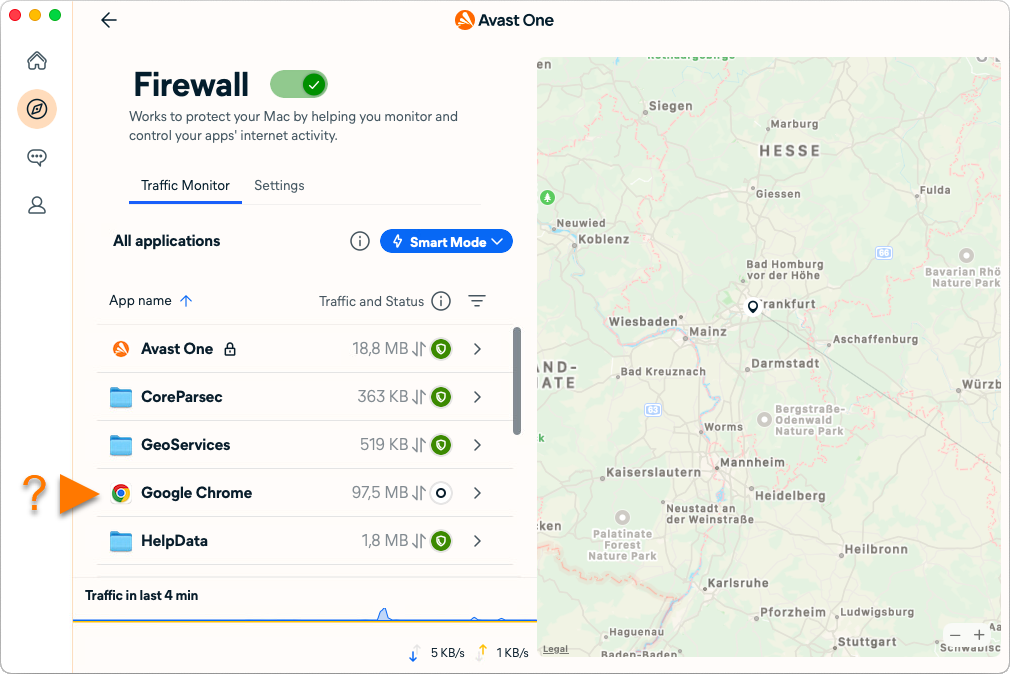
- The following options are available:
- Use the slider next to the chosen application to
 block,
  allow,
  trust or have the application
  ask for your permission when connecting to the internet.
 - Under App connections, use the slider to
 block or
  allow each connection.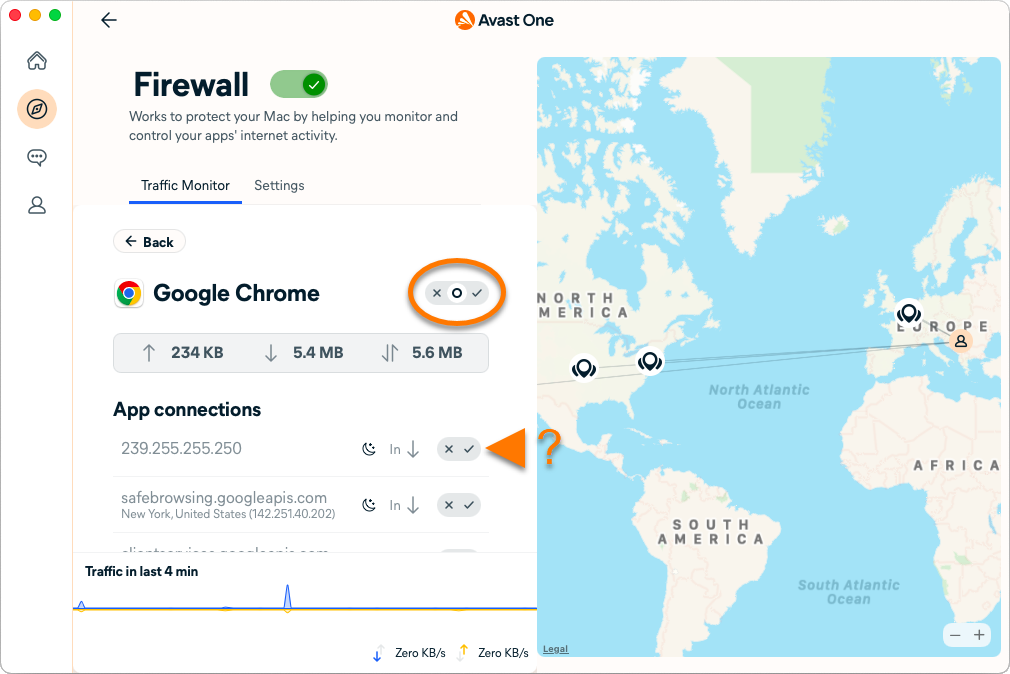
- Use the slider next to the chosen application to
- Click Create rule to confirm the rule for the connection.
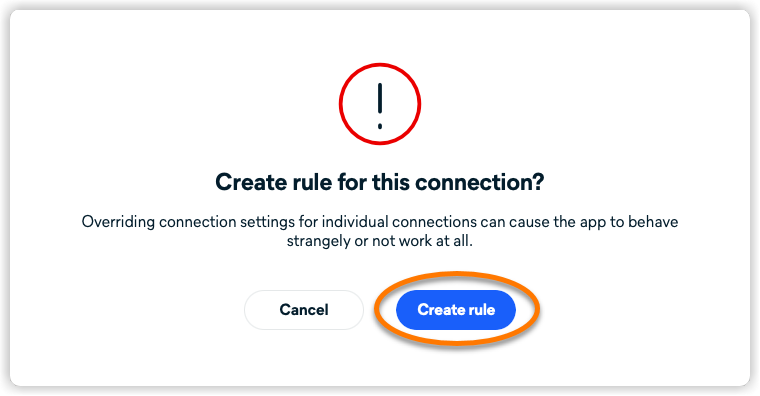
Firewall now allows or blocks your connections according to the set rules.
Disable Firewall
We recommend keeping Firewall enabled at all times, unless you need to temporarily disable it for troubleshooting purposes.
To disable Firewall:
- Open Avast One and go to Explore ▸ Firewall.
- Click Open Firewall.
- Click the green (ON) slider, then specify for how long Firewall will remain disabled.

We do not recommend selecting the Until I turn it on again option to permanently stop Firewall.
- If prompted, enter the password that you use when you start your Mac and click OK.
Firewall is disabled.
Further recommendations
To learn more about the Firewall feature in Avast One, refer to the following article:
