
-
Click the Windows
 Start button and select
 Settings (the gear icon).
-
Select Time & language in the left panel, then select the Date & time tile.
-
Turn on Set time automatically.
-
Scroll down and click Sync now.
IS YOUR COMPUTER SLOW? RUN LIKE NEW
If they are not maintained, computers lose performance over time. Avast Cleanup Premium can help significantly improve the performance of your computer.
Troubleshooting the "Session expired" error in Avast One Cloud Cleaner
Windows
When you try to access Avast One Cloud Cleaner, you may see a message stating that your session has expired. To fix this issue, follow the steps below:
Before you begin, make sure:
-
Avast Antivirus is up to date.
-
Your browser is updated to the latest version.
Step 1: Access Cloud Cleaner from the Avast One app
Whenever you access Cloud Cleaner, make sure you launch it from the Avast One app. Cloud Cleaner may display a session expired message if you access it using a saved web link or bookmark in your browser.
If the issue persists, go to Step 2.
Step 2: Clear browser cookies
Clear your browser cookies using Browser Cleaner in Avast One Cleanup Premium, then try to access Cloud Cleaner again.
The following article explains how you can use the Browser Cleaner feature: Avast One Cleanup Premium – Getting Started.
If the issue still persists, go to Step 3.
Step 3: Sync your system time
Make sure your computer's time is synchronized correctly. To sync your system time, follow the steps below:
-
Click the Windows
 Start button and select
 Settings (the gear icon).
-
Select Time & language in the left panel, then select the Date & time tile.
-
Turn on Set time automatically.
-
Scroll down and click Sync now.
-
On your keyboard, press the
 Win
Xkey simultaneously, then select Control Panel from the menu that appears. -
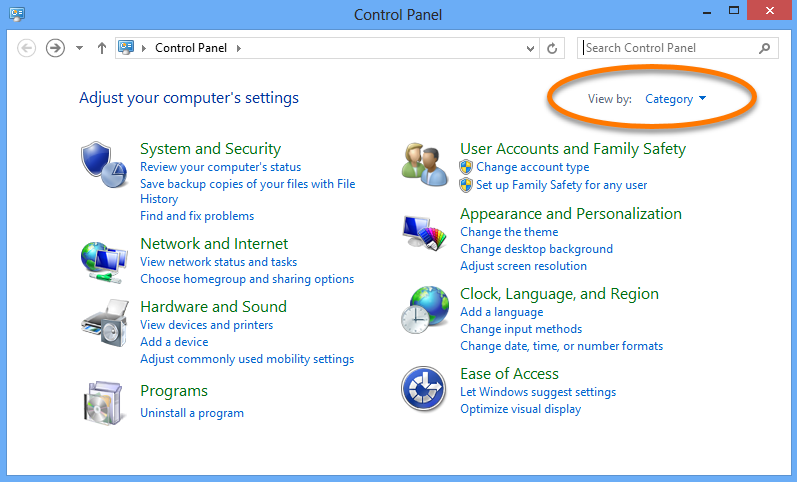
Next to View by, ensure you are using the Category view.
-
Select the Clock, Language and Region tile.
-
Select Date and Time.
-
Go to the Internet Time tab.
-
Click on Change settings....
-
Verify that the option Synchronize with an Internet time server is checked.
-
Click on Change settings....
-
Click on Update now.
-
Click the Windows
 Start button and select Control Panel.
-
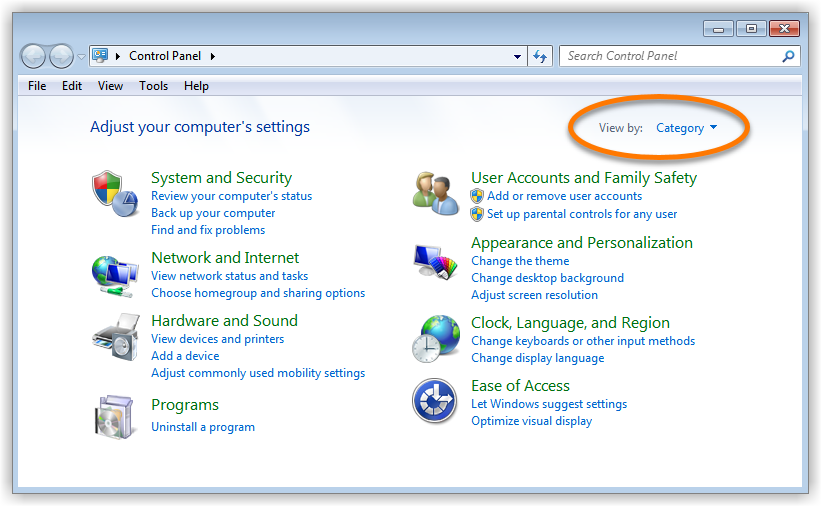
Next to View by, ensure you are using the Category view.
-
Select the Clock, Language and Region tile.
-
Select Date and Time.
-
Go to the Internet Time tab.
-
Click on Change settings....
-
Verify that the option Synchronize with an Internet time server is checked.
-
Click on Change settings....
-
Click on Update now.
Further recommendations
For more information about Avast One Cloud Cleaner, refer to the following articles:
DocID: troubleshooting-the-session-expired-error-in-avast-one-cloud-cleanerLast modified: 09/03/2026
Was this article helpful?

Keep your online identity private!
Browse like no one’s watching with Avast anti-tracking software.
Need more help?
Contact us
Avast account
Visit our forums
Visit academy