
- Open Avast SecureLine VPN, then go to Browser extensions.
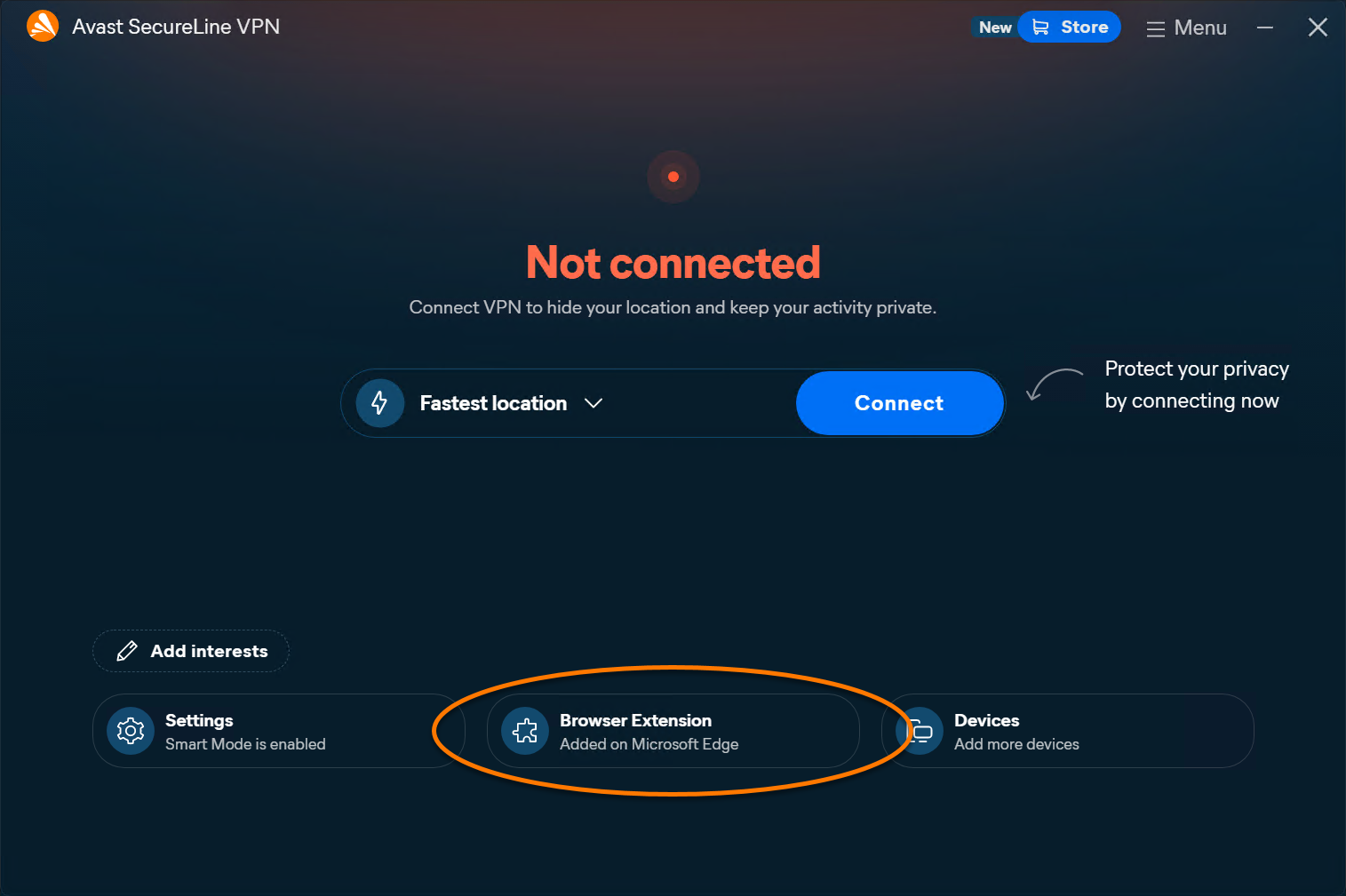
- Next to each relevant browser, click Add extension.
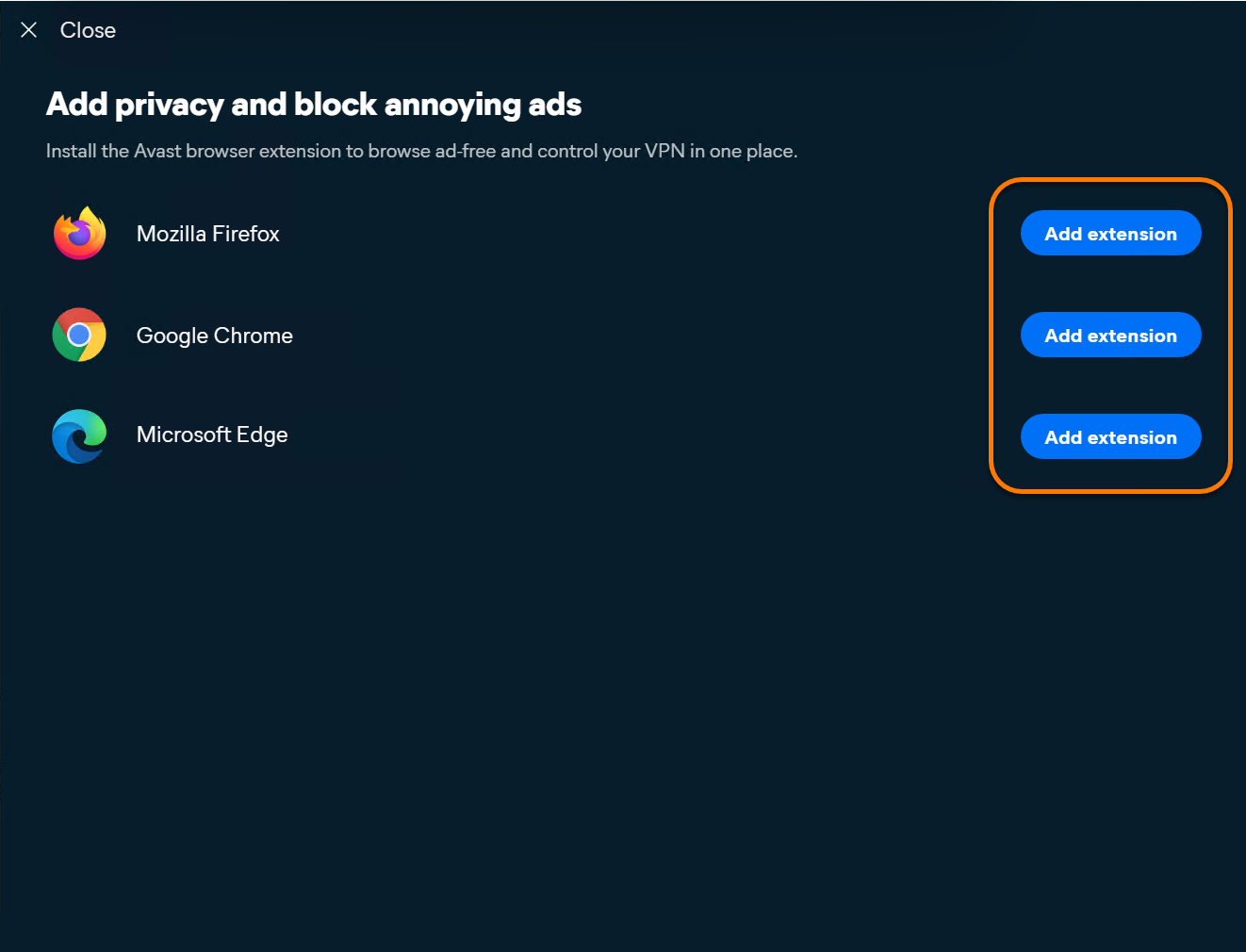
- Follow the on-screen instructions to install the chosen extension:
- Mozilla Firefox: On the Mozilla Firefox Add-ons extension page, click Add to Firefox ▸ Add. Optionally, tick Pin to extension to toolbar, then click OK.
- Google Chrome: On the Chrome web store page, click Add to Chrome ▸ Add extension. Optionally, click
 Extensions ▸
  Pin next to Avast SecureLine VPN with Ad Blocker to pin the extension to your browser toolbar.
 - Microsoft Edge: On the Edge Add-ons extension page, click Get ▸ Add extension. Optionally, click Extensions ▸ Pin next to Avast SecureLine VPN with Ad Blocker to pin the extension to your browser toolbar.
IS YOUR COMPUTER SLOW? RUN LIKE NEW
If they are not maintained, computers lose performance over time. Avast Cleanup Premium can help significantly improve the performance of your computer.
Installing the Avast SecureLine VPN browser extension on Windows and Mac
Windows
The Avast SecureLine VPN browser extension is an optional component that lets you manage Avast SecureLine VPN directly from your web browser. It is supported on Google Chrome, Microsoft Edge, and Mozilla Firefox. The extension is available on Windows only. This article explains how to install it using:
- Avast SecureLine VPN (standalone version)
- Avast SecureLine VPN within Avast One
Install the browser extension
You can use the browser extension only if Avast SecureLine VPN is installed and activated on your device, either as a standalone application or as part of Avast One. For detailed instructions, refer to the following articles:
- Standalone Avast SecureLine VPN:
- Avast One - Avast SecureLine VPN:
To install the Avast SecureLine VPN browser extension:
Your product:
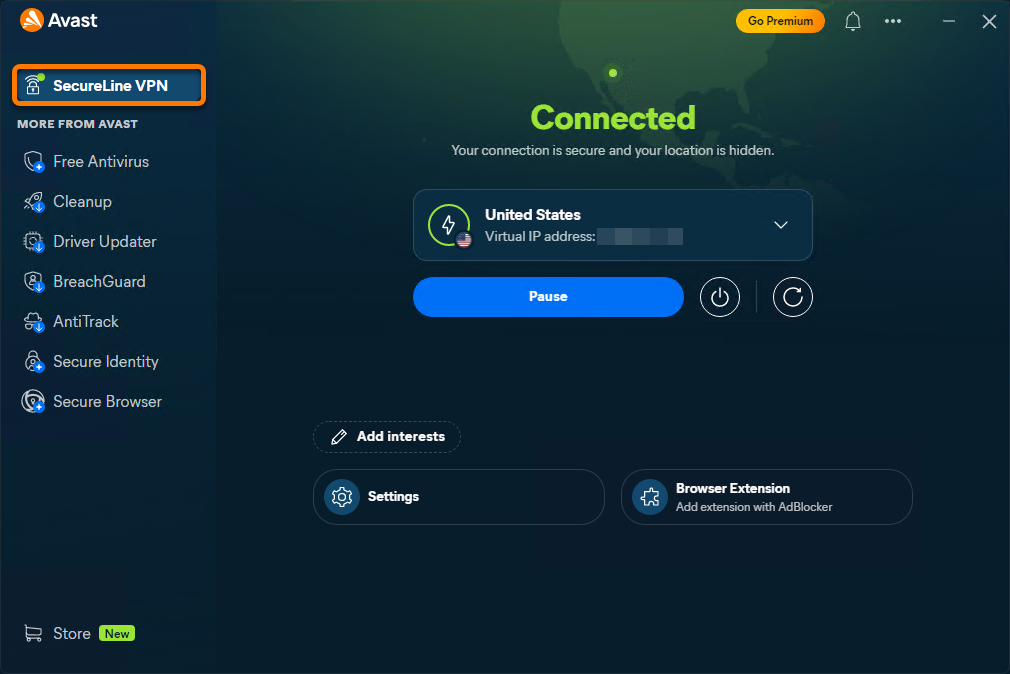
- Open Avast One, then hover your cursor over the side menu and select SecureLine VPN.
- Go to Browser Extension.
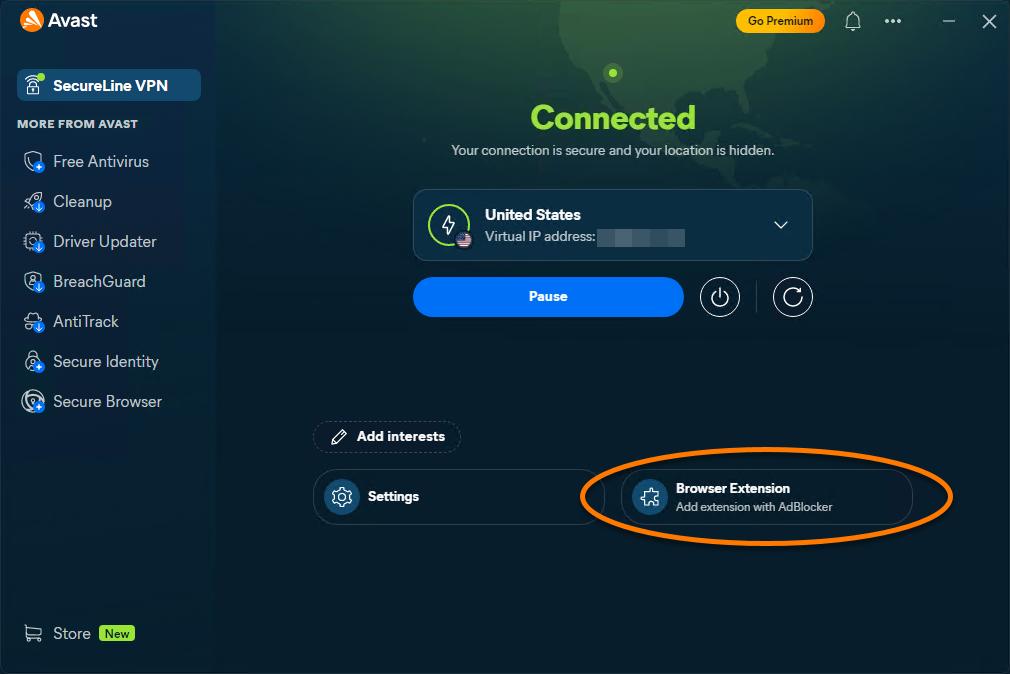
- Next to each relevant browser, click Add extension.
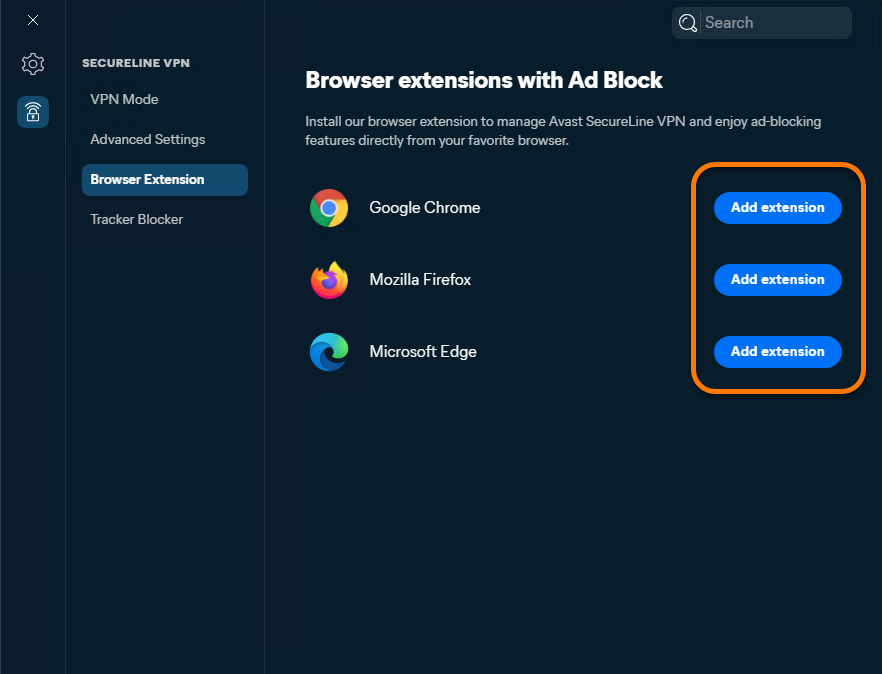
- Follow the on-screen instructions to install the chosen extension:
- Google Chrome: On the Chrome web store page, click Add to Chrome ▸ Add extension. Optionally, click Extensions ▸ Pin next to Avast SecureLine VPN with Ad Blocker to pin the extension to your browser toolbar.
- Mozilla Firefox: On the Mozilla Firefox Add-ons extension page, click Add to Firefox ▸ Add. Optionally, tick Pin extension to toolbar, then click OK.
- Microsoft Edge: On the Edge Add-ons extension page, click Get ▸ Add extension. Optionally, click Extensions ▸ Pin next to Avast SecureLine VPN with Ad Blocker to pin the extension to your browser toolbar.
- Google Chrome: On the Chrome web store page, click Add to Chrome ▸ Add extension. Optionally, click
Avast SecureLine VPN is now installed in your browser.
Connect to the VPN
To connect to the VPN using your Avast SecureLine VPN browser extension, follow the steps below:
- Open your browser with the Avast SecureLine VPN browser extension.
- In the top-right corner of the screen, click the Avast SecureLine VPN browser extension icon.
- On the extension panel, click Connect. Optionally, click the drop-down arrow next to the currently selected VPN location to choose a specific server.
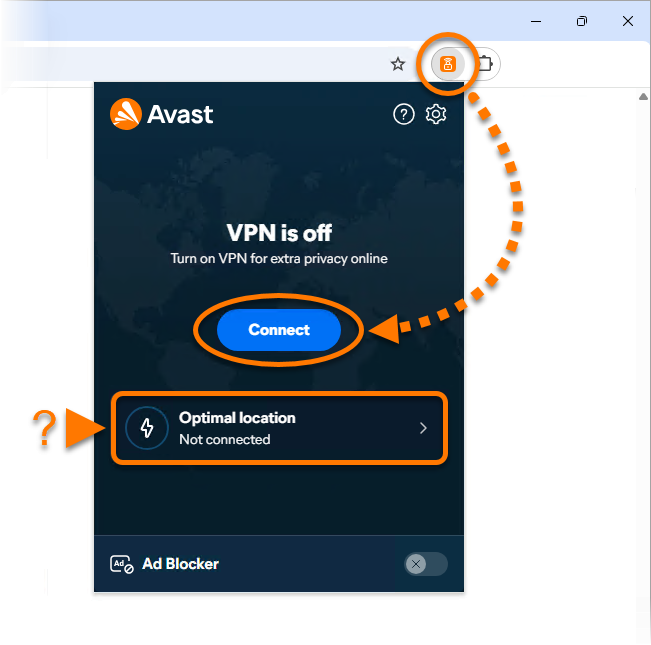
You are now connected to the Avast SecureLine VPN default server.
How can I connect to a different VPN server location?
- Open your browser with the Avast SecureLine VPN browser extension.
- In the top-right corner of the screen, click the Avast SecureLine VPN browser extension icon.
- Click the drop-down arrow beside the currently selected VPN location.
- In the Change VPN Location screen, select your preferred server.
Can I pause my VPN without disconnecting?
Yes. The Pause feature in Avast SecureLine VPN lets you pause your VPN connection for a set time and automatically reconnect afterward. This is useful for accessing trusted local resources or resolving connection issues without leaving your device unprotected for long.
To temporarily pause your VPN connection:
- Open your browser with the Avast SecureLine VPN browser extension.
- In the top-right corner of the screen, click the Avast SecureLine VPN browser extension icon.
- While connected to a VPN server, click the Pause button on the main dashboard.
- In the drop-down list that appears, select the duration you want to pause the VPN for.
- 15 minutes
- 30 minutes
- 60 minutes
What are Double VPN servers?
Double VPN is helpful for tasks that require extra privacy. Double VPN servers send all your data through two different VPN locations to further hide your real location and help enhance your online safety and privacy. This feature uses the WireGuard protocol.
To connect to a Double VPN server:
- Open your browser with the Avast SecureLine VPN browser extension.
- In the top-right corner of the screen, click the Avast SecureLine VPN browser extension icon.
- Click the drop-down arrow beside the currently selected VPN location.
- In the Change VPN Location screen, under Advanced Servers, click Double VPN. Optionally, click the down arrow and select your preferred server.
- If you see an Double VPN prompt, click Connect.
What are IP rotation servers?
IP Rotation servers are helpful for tasks that require extra privacy. IP rotation regularly changes your IP address to help prevent tracking, reduce website restrictions, and avoid dynamic pricing. This feature uses the WireGuard protocol.
To connect to an IP rotation server:
- Open your browser with the Avast SecureLine VPN browser extension.
- In the top-right corner of the screen, click the Avast SecureLine VPN browser extension icon.
- Click the drop-down arrow beside the currently selected VPN location.
- In the Change VPN Location screen, under Advanced Servers, click IP Rotation. Optionally, click the down arrow and select your preferred server.
- If you see an IP Rotation prompt, click Connect.
You can also use Avast SecureLine VPN to manually refresh your virtual IP address.
- Open your browser with the Avast SecureLine VPN browser extension.
- While connected to a VPN server, click the Refresh icon on the main dashboard.
Further recommendation
For information on how to enable and use the Ad Blocker feature within the browser extension, refer to the following article: Ad Blocker and Acceptable Ads in the Avast SecureLine VPN browser extension.
DocID: install-secureline-vpn-browser-extensionLast modified: 10/05/2026
Was this article helpful?

Keep your online identity private!
Browse like no one’s watching with Avast anti-tracking software.
Need more help?
Contact us
Avast account
Visit our forums
Visit academy