Promotional banner image

IS YOUR COMPUTER SLOW? RUN LIKE NEW

If they are not maintained, computers lose performance over time. Avast Cleanup Premium can help significantly improve the performance of your computer.

Importing and exporting bookmarks in Avast Secure Browser

Windows, Mac

Avast Secure Browser allows you to import bookmarks, browsing history, search engines, saved passwords, and autofill form data from the following web browsers:

  • Brave Browser
  • Google Chrome
  • Internet Explorer
  • Microsoft Edge
  • Mozilla Firefox
  • Opera

If you need to import browser data from an alternative web browser, you can export your bookmarks data from the relevant web browser to an HTML file, and then import the HTML file to Avast Secure Browser.

You can also export your bookmarks from Avast Secure Browser to an HTML file and then import them to your other browsers.

Import from a web browser

To import your browser data from a web browser:

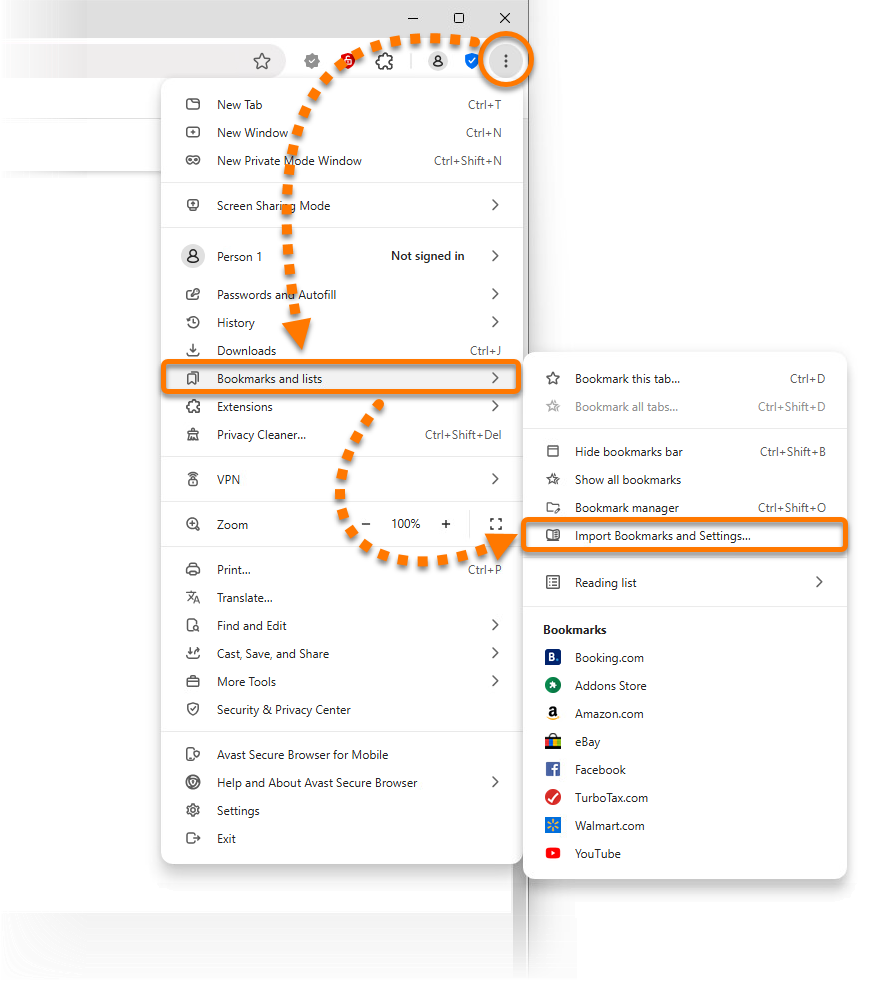
  1. Open Avast Secure Browser, then click ⋮ Menu (three dots) in the top-right corner and select Bookmarks and Lists ▸ Import Bookmarks and Settings....
  2. Select your preferred web browser from the drop-down menu. If needed, select the relevant profile.
  3. Use the checkboxes to select which browser data you want to import, then click Import.

    The available browser data to import varies according to the selected web browser.

  4. When the import is complete, click Done. Optionally, choose to show or hide the bookmarks bar.

Your imported browser data is now available in Avast Secure Browser.

Import from an HTML file

Before following the steps below, you need to export your bookmarks data from the original web browser to an HTML file. For instructions, refer to your web browser's support pages.

To import your browser data from an HTML file:

  1. Open Avast Secure Browser, then click ⋮ Menu (three dots) in the top-right corner and select Bookmarks and Lists ▸ Import Bookmarks and Settings....
  2. Select Bookmarks HTML File from the drop-down menu, then click Choose File.
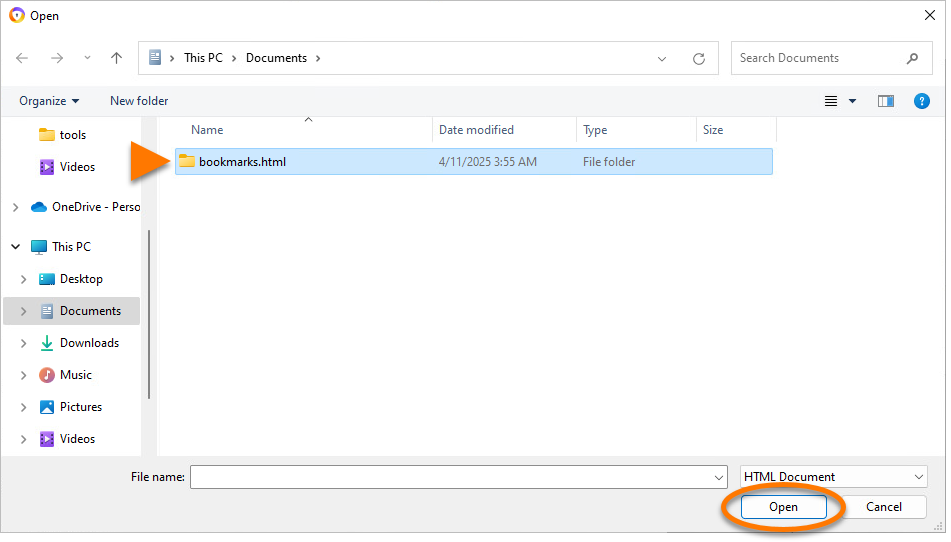
  3. Locate the HTML file on your PC, then click Open.
  4. When the import is complete, click Done. Optionally, choose to show or hide the bookmarks bar.

Your imported browser data is now available in Avast Secure Browser.

Export bookmarks from Avast Secure Browser

To Export your bookmarks to an HTML file:

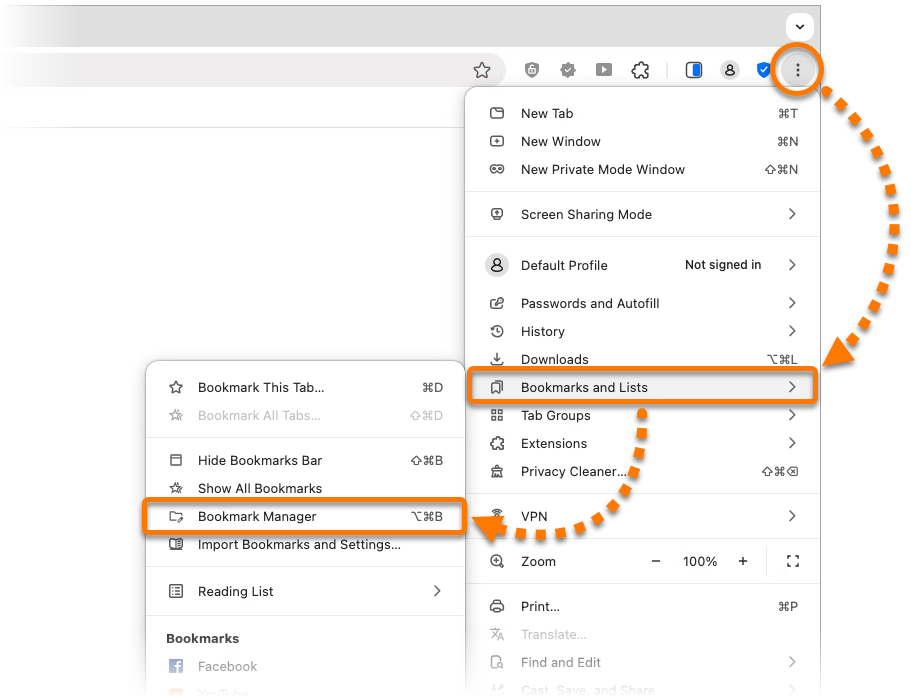
  1. Open Avast Secure Browser, then click ⋮ Menu (three dots) in the top-right corner and select Bookmarks and lists ▸ Bookmark manager.
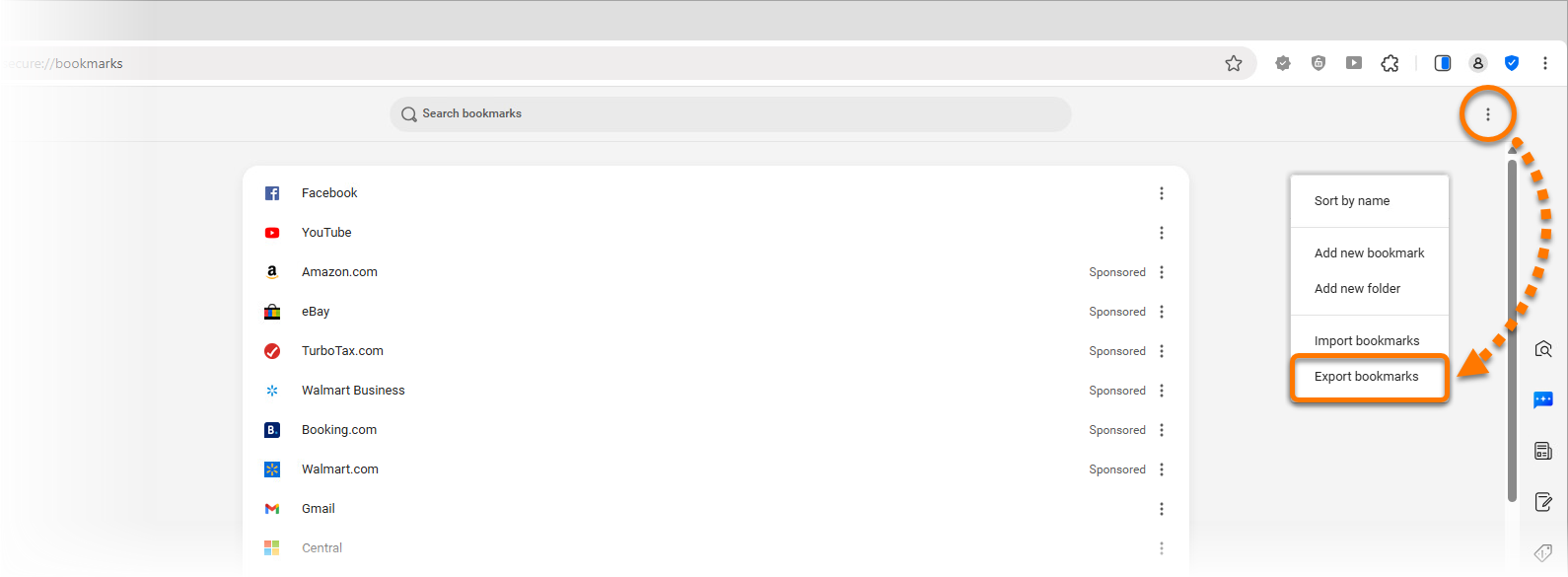
  2. Click ⋮ Menu (three dots) in the top-right corner and select Export bookmarks.
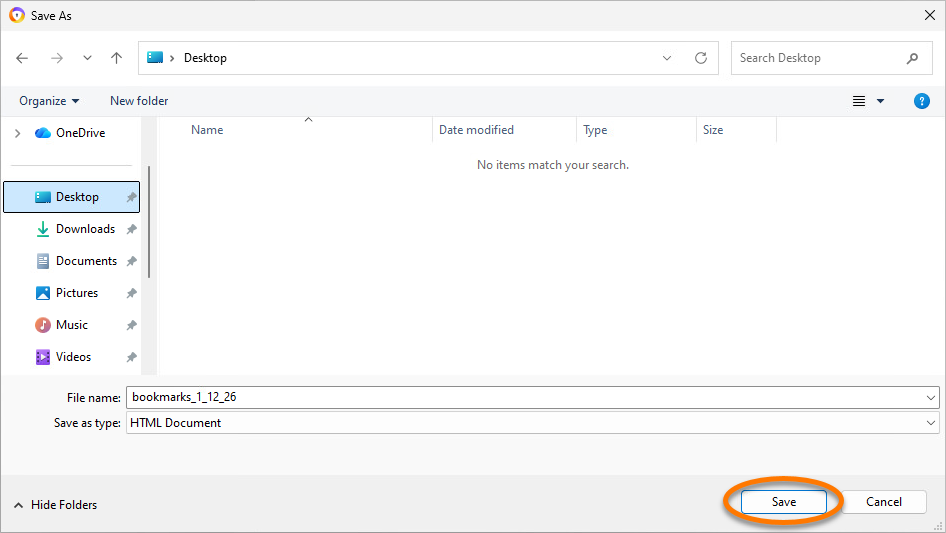
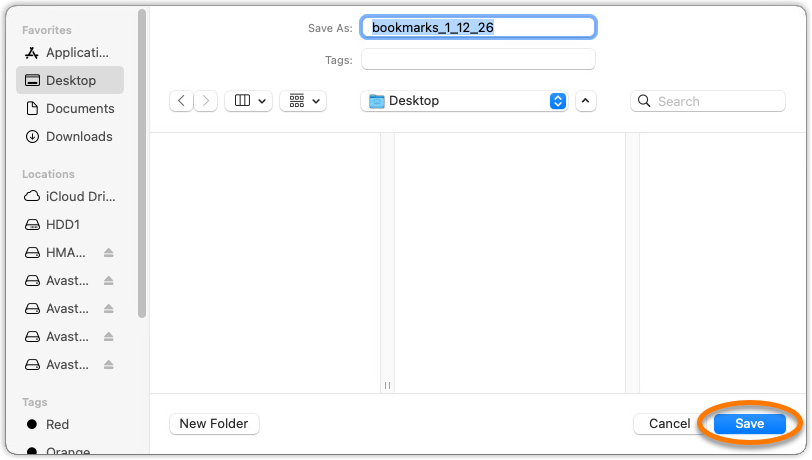
  3. Choose a familiar location to save the bookmarks.html file (for example, your desktop) and click Save.

Your bookmarks are now exported to an HTML file and are ready for importing to your other browsers.

Further recommendation:

For instructions to import or export passwords to Avast Secure Browser, refer to the following article:

Avast Secure Browser allows you to import bookmarks, browsing history, search engines, saved passwords, and autofill form data from the following web browsers:

  • Brave Browser
  • Google Chrome
  • Mozilla Firefox
  • Opera
  • Safari

If you need to import browser data from an alternative web browser, you can export your bookmarks data from the relevant web browser to an HTML file, and then import the HTML file to Avast Secure Browser.

You can also export your bookmarks from Avast Secure Browser to an HTML file and then import them to your other browsers.

Import from a web browser

To import your browser data from a web browser:

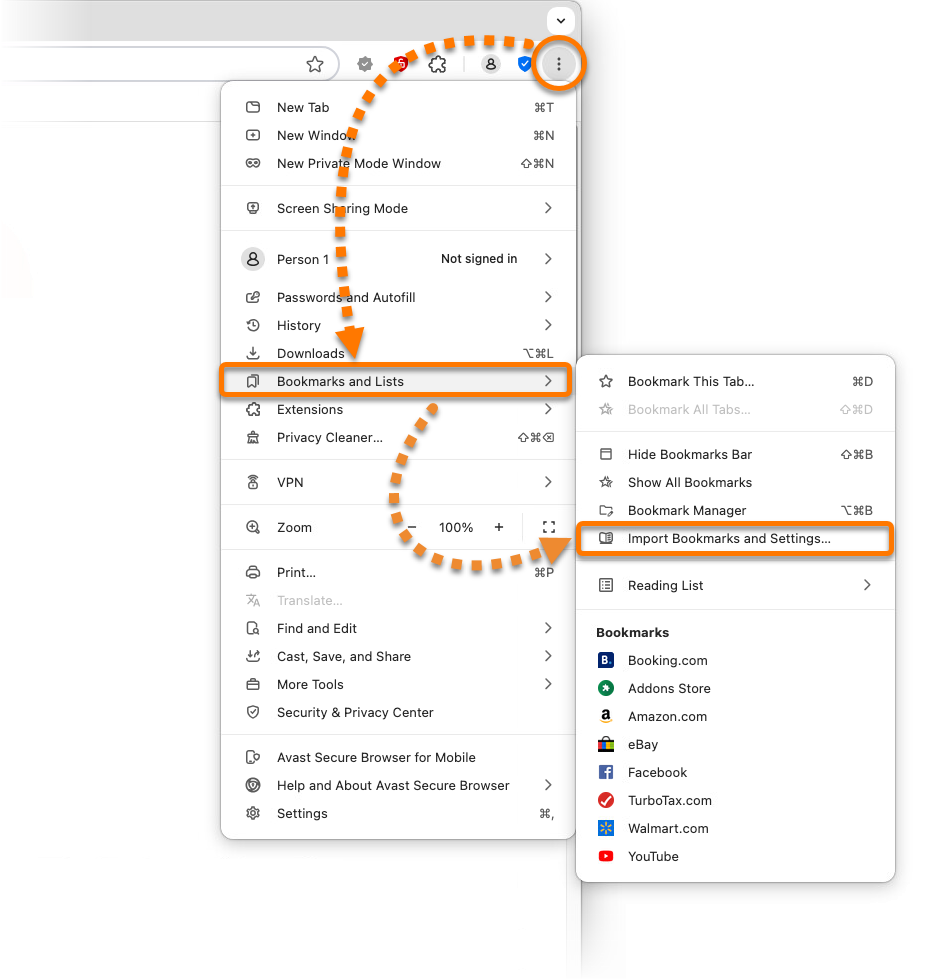
  1. Open Avast Secure Browser, then click ⋮ Menu (three dots) in the top-right corner and select Bookmarks and lists ▸ Import Bookmarks and Settings....
  2. Select your preferred web browser from the drop-down menu.
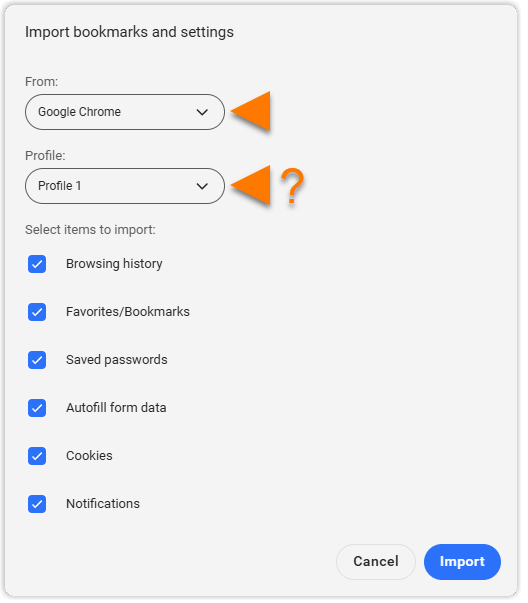
  3. Use the checkboxes to select which browser data you want to import, then click Import.

    The available browser data to import varies according to the selected web browser.

  4. When the import is complete, click Done. Optionally, choose to show or hide the bookmarks bar.
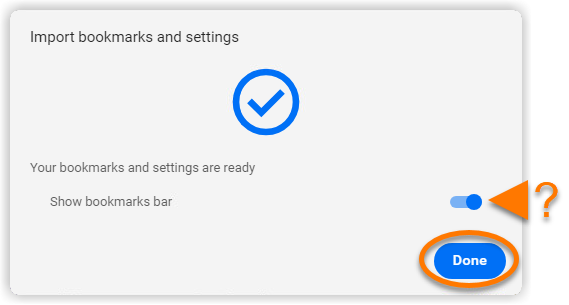
Your imported browser data is now available in Avast Secure Browser.

Import from an HTML file

Before following the steps below, you need to export your bookmarks data from the original web browser to an HTML file. For instructions, refer to your web browser's support pages.

To import your browser data from an HTML file:

  1. Open Avast Secure Browser, then click ⋮ Menu (three dots) in the top-right corner and select Bookmarks and lists ▸ Import Bookmarks and Settings....
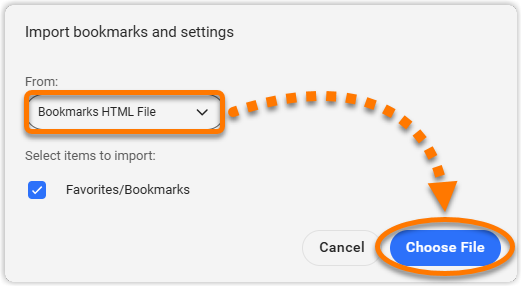
  2. Select Bookmarks HTML File from the drop-down menu, then click Choose File.
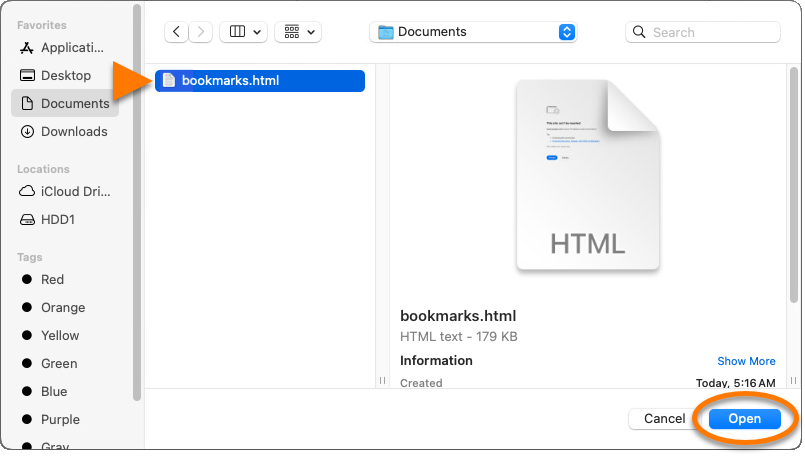
  3. Locate the HTML file on your Mac, then click Open.
  4. When the import is complete, click Done. Optionally, choose to show or hide the bookmarks bar.

Your imported browser data is now available in Avast Secure Browser.

Export bookmarks from Avast Secure Browser

To Export your bookmarks to an HTML file:

  1. Open Avast Secure Browser, then click ⋮ Menu (three dots) in the top-right corner and select Bookmarks and lists ▸ Bookmark manager.
  2. Click ⋮ Menu (three dots) in the top-right corner and select Export bookmarks.
  3. Choose a familiar location to save the bookmarks.html file (for example, your desktop) and click Save.
Your bookmarks are now exported to an HTML file and are ready for importing to your other browsers.

Further recommendation:

For instructions to import or export passwords to Avast Secure Browser, refer to the following article:

DocID: import-secure-browser-bookmarksLast modified: 09/03/2026

Was this article helpful?

Promotional banner image

Keep your online identity private!

Browse like no one’s watching with Avast anti-tracking software.

Need more help?

Contact us
Avast account
Visit our forums
Visit academy