
IS YOUR COMPUTER SLOW? RUN LIKE NEW
If they are not maintained, computers lose performance over time. Avast Cleanup Premium can help significantly improve the performance of your computer.
Dark Web Monitoring - Getting Started
Windows
Dark Web Monitoring is a feature in Avast One that helps detect if your passwords have been exposed in online data breaches. With the free version of Avast One (Avast One Basic), you can check if the passwords associated with your email addresses have been leaked. With the paid version of Avast One (Avast One Silver Privacy and Avast One Gold), you can constantly monitor up to 5 email addresses for data breaches.
Check for leaked passwords
Follow the steps below to check if any online accounts that use your email address have already been involved in a data breach:
- Open Avast One, then select
 Explore ▸ Dark Web Monitoring ▸ Open Dark Web Monitoring.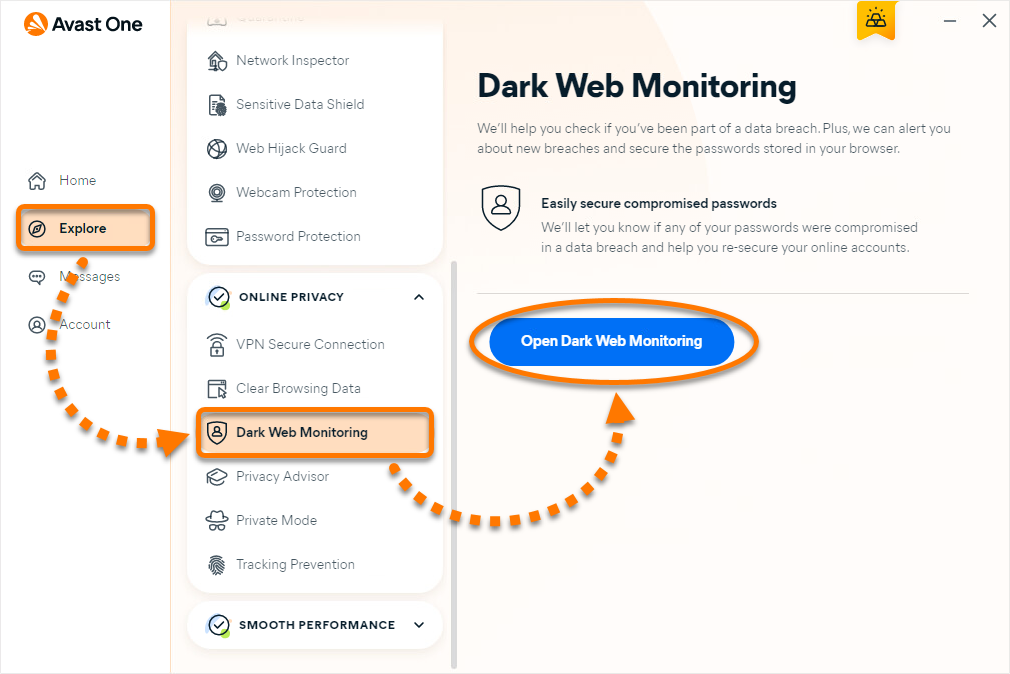
- Enter the email address you want to check, then click Check data breaches.
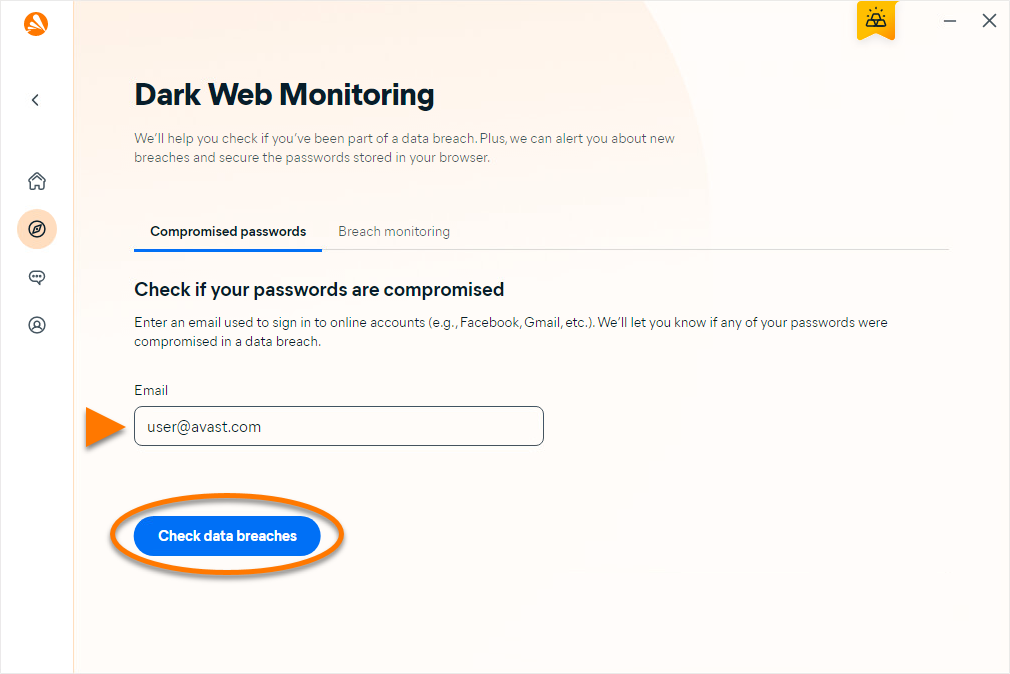
If you are using the free version of Avast One (Avast One Basic), you will get more information about the potential leaks if you activate an Avast Account associated with the email address you are checking. Leave the Create my Avast Account to easily check breaches option ticked to create an Avast Account as you check for breaches.

Dark Web Monitoring searches for data breaches involving the email address you entered, then displays details of any affected online accounts. Refer to the relevant information below:
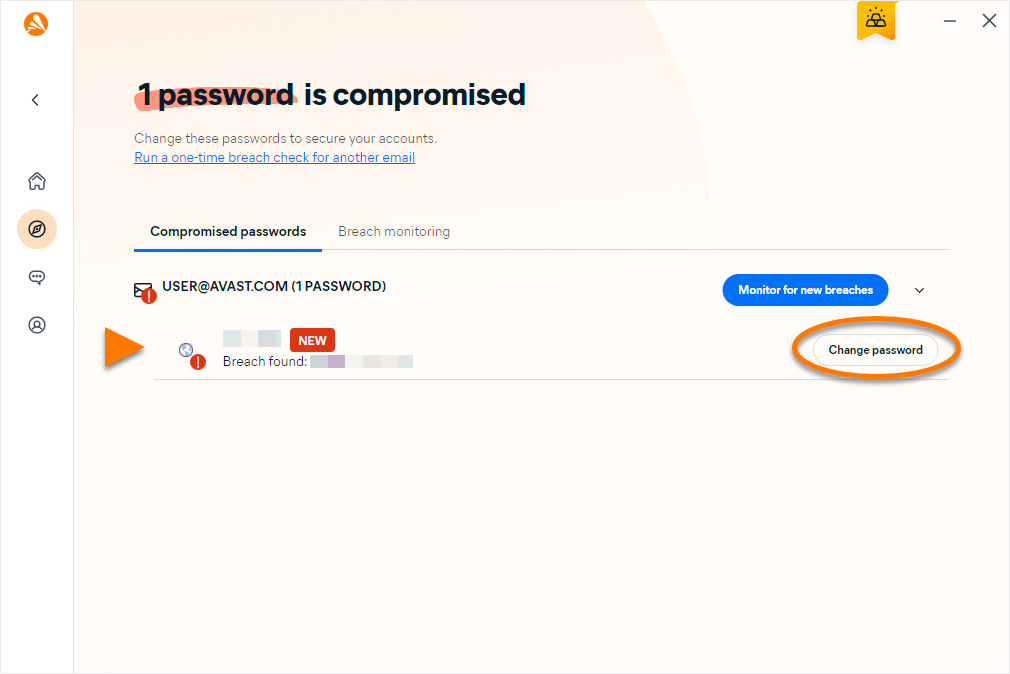
- If you see the Compromised passwords message at the top of the screen, we have found that at least one of your online accounts has been involved in a data breach. Click Change password and follow the on screen instructions to change the affected password. We recommend you immediately do this for all listed accounts.
- If you see 0 Passwords next to your email address, we have not found any data breaches involving your online accounts.
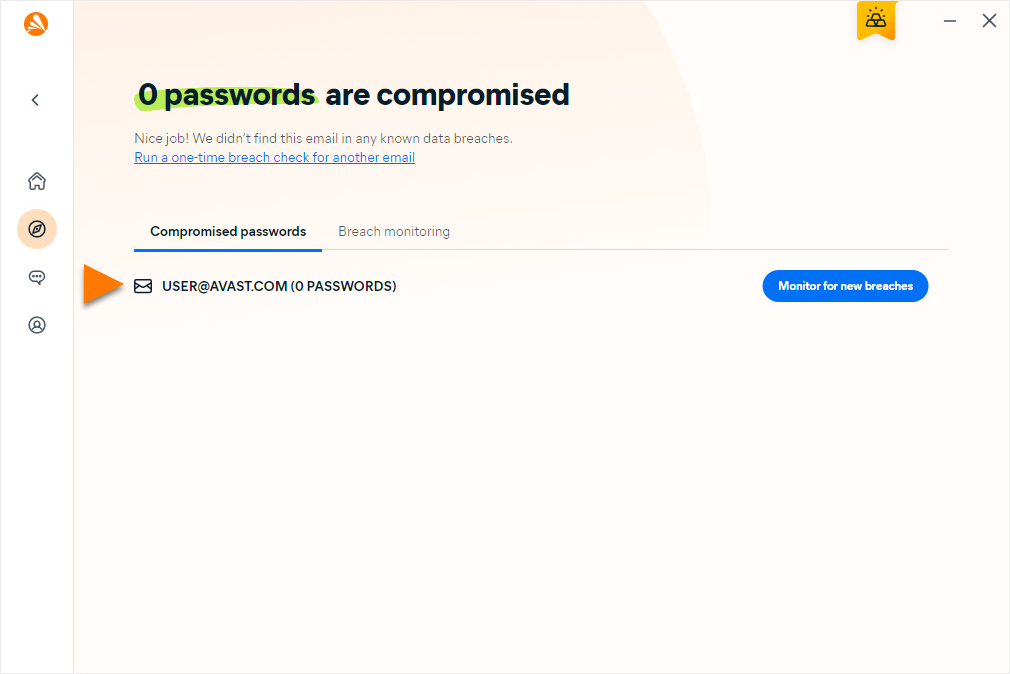
If you have the paid version of Avast One (Avast One Silver Privacy and Avast One Gold), optionally click Monitor for new breaches to set Dark Web Monitoring to continuously monitor for data breaches involving this email address.

Monitor for data breaches
In the paid version of Avast One (Avast One Silver Privacy and Avast One Gold), you can set Dark Web Monitoring to continuously monitor up to 5 email addresses for data breaches. Your Avast Account email address is automatically added as a monitored email address. To add an additional monitored email address:
- Open Avast One, then select Explore ▸ Dark Web Monitoring ▸ Open Dark Web Monitoring.
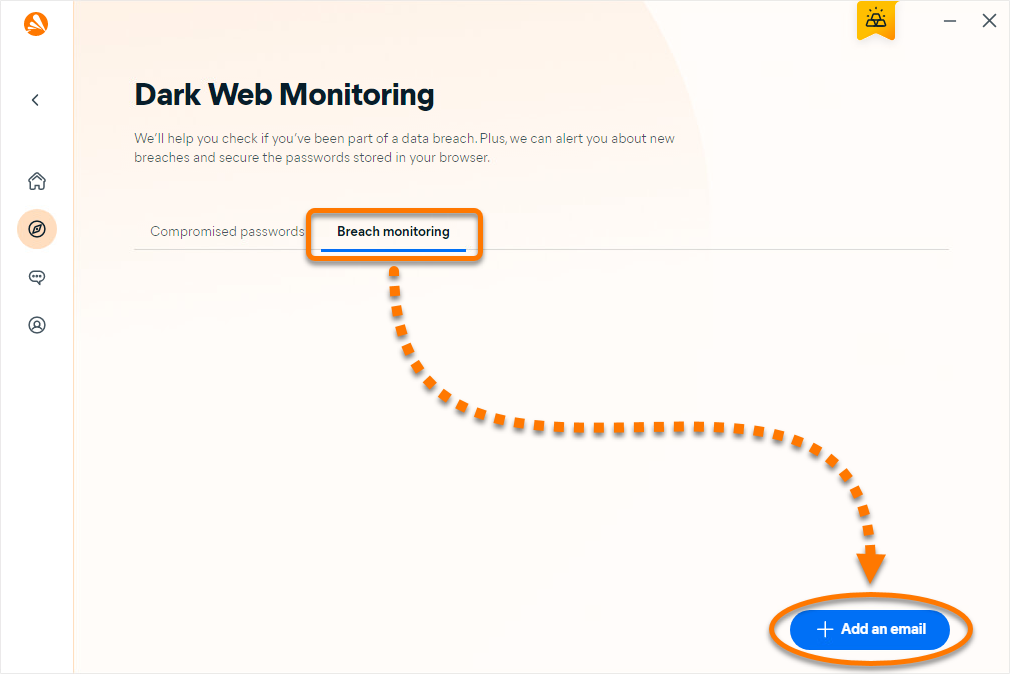
- Select the Breach monitoring tab, then click + Add an email.
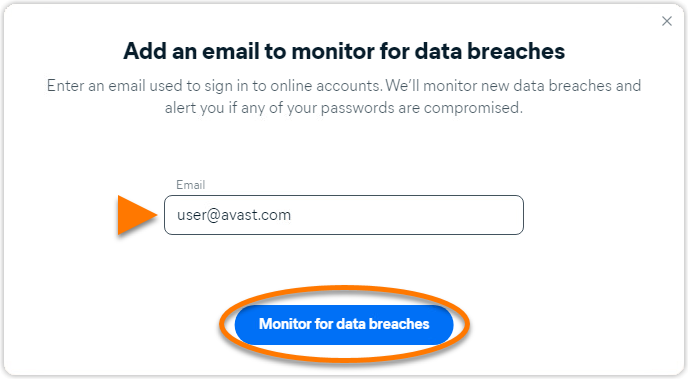
- Enter your email address, then click Monitor for data breaches.
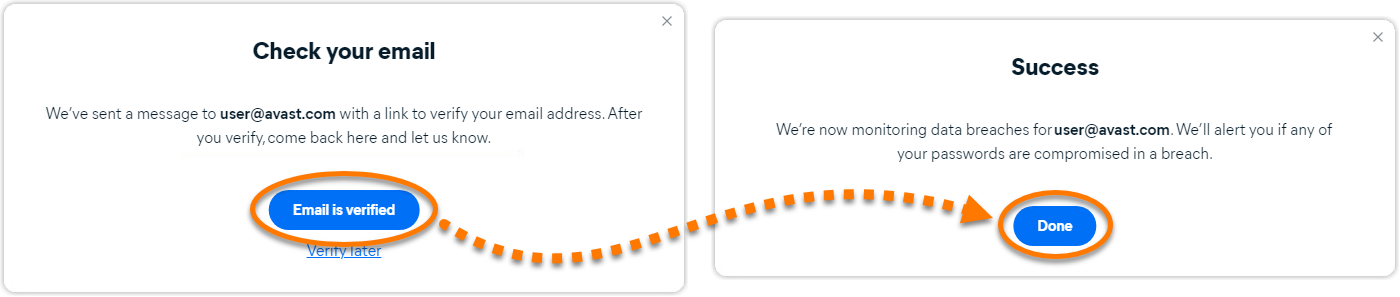
- A message with a verification link is sent to your email address. Open the email and follow the instructions to confirm that the email address is really yours. Then return to Avast One and click Email is verified ▸ Done.
Avast One will now continuously monitor this email address for new data breaches. You can check for breached online accounts at any time by clicking the Compromised passwords tab on the main Dark Web Monitoring screen.

Stop monitoring an email address
To stop monitoring an email address: remove an email address from the Breach monitoring tab:
- Open Avast One, then select Explore ▸ Dark Web Monitoring ▸ Open Dark Web Monitoring.
- Select the Breach monitoring tab.
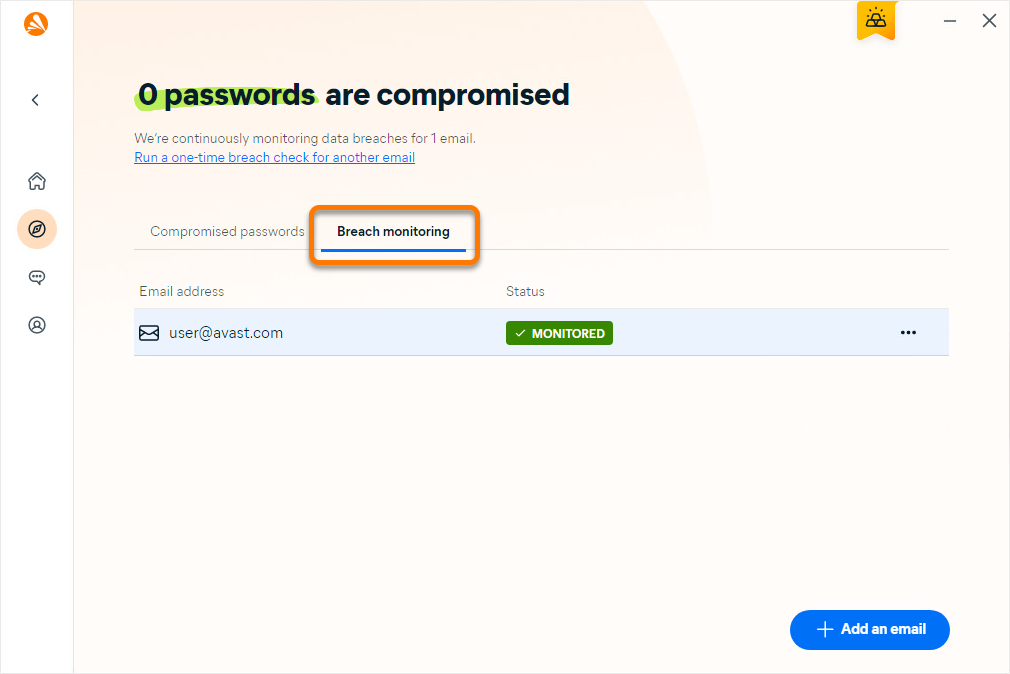
- Click
…(three dots) next to the relevant email address, then select Remove email.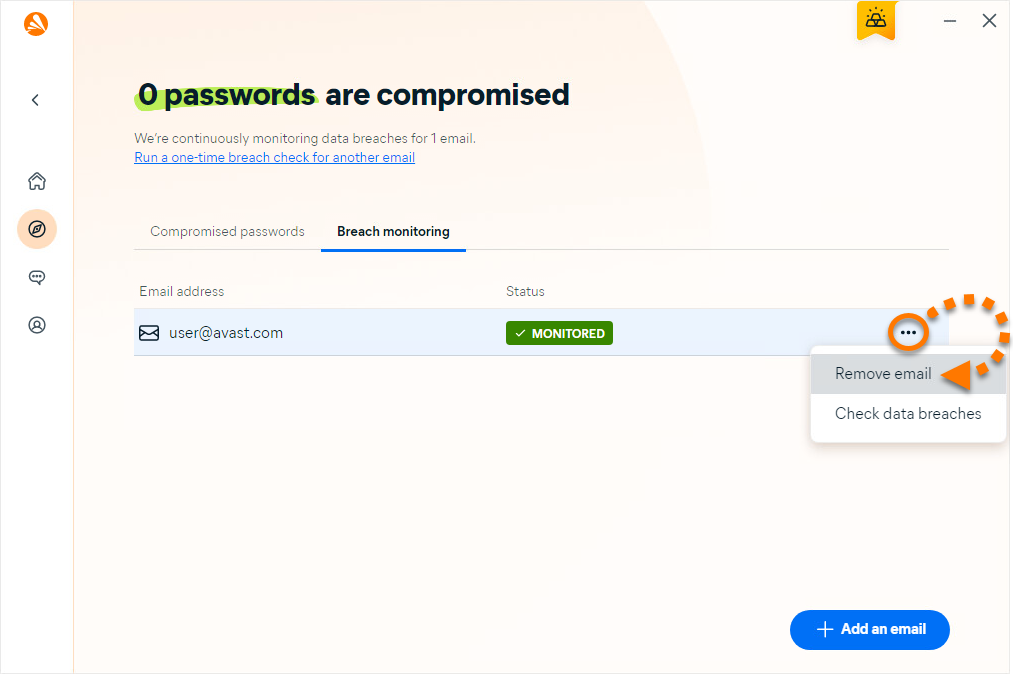
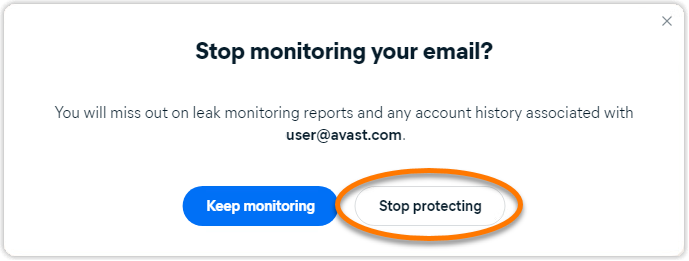
- Click Stop protecting to confirm.
Further recommendations
For more information about Dark Web Monitoring, refer to the following article:
Was this article helpful?

Keep your online identity private!
Browse like no one’s watching with Avast anti-tracking software.