
 The list updates automatically.
This article is about exclusions in Avast Security. For information about exclusions in Avast One, refer to the following article: Excluding certain files or websites from scanning in Avast One.
Although it is generally not recommended, you may want to exclude certain files, folders, or websites from being scanned by Avast Security. This can speed up your scans and prevent false-positive detections.
Set exceptions only if you know that the files and websites you want to exclude are safe. If you are unsure about a file, you can scan it in Virus Total, or add the file to Quarantine and submit it to Avast Threat Labs.
Refer to the sections below to manage exceptions in Avast Security:
Add an exception
all scans
To exclude files, folders, or applications from being scanned by Avast Security:
- Open Avast Security and click
☰Menu ▸ Preferences.
- Select the Scans tab.

- Choose the relevant scan type.

- Click Add exceptions.

- Select the file, folder, or application you want to exclude from being scanned, then click Open.

- If prompted, enter the password that you use when you start your Mac, then click OK to authorize the change.

The file path is added to the exceptions list.
To remove an excluded item, hover your cursor over the file path panel in the exceptions list, then click the X icon.

file shield
To exclude files, folders, or applications from being scanned by File Shield:
- Open Avast Security and click
☰Menu ▸ Preferences. - Select the Core Shields tab.

- Choose File Shield.

- Click Add exceptions.

- Select the file, folder, or application you want to exclude from being scanned, then click Open.
- If prompted, enter the password that you use when you start your Mac, then click OK to authorize the change.
The file path is added to the exceptions list.
To remove an excluded item, hover your cursor over the file path panel in the exceptions list, then click the Trash icon.

Web Guard
To exclude websites or domains from being scanned by Web Guard:
- Open Avast Security and click
☰Menu ▸ Preferences. - Select the Core Shields tab.
- Choose Web Guard.

- Click Add exceptions.

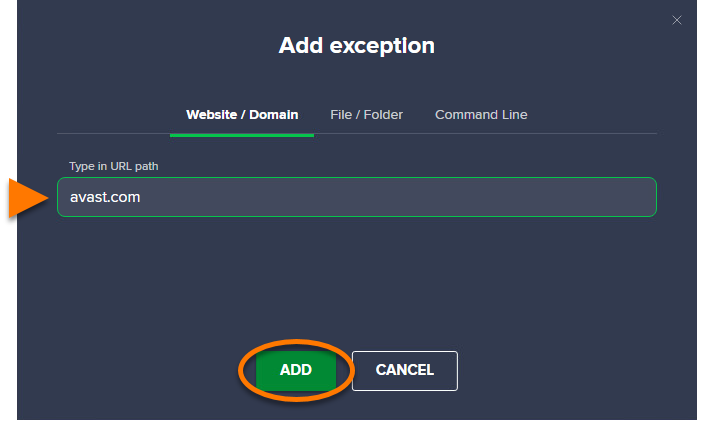
- Enter the URL of the website you want to exclude from being scanned and select the Web server services type, then click Add.

- If prompted, enter the password that you use when you start your Mac, then click OK to authorize the change.
The website is added to the exceptions list.
To remove an excluded item, hover your cursor over the server panel in the exceptions list, then click the Trash icon.

