Promotional banner image

IS YOUR COMPUTER SLOW? RUN LIKE NEW

If they are not maintained, computers lose performance over time. Avast Cleanup Premium can help significantly improve the performance of your computer.

Activate Avast Premium Security

Windows, Mac

Avast Premium Security for Windows is a paid application that requires a subscription to use. After installing Avast Premium Security, you may need to manually activate your application.

Your chosen activation method:

Activation code

Enter activation code

To activate Avast Premium Security using an activation code:

  1. Locate your activation code. The code is included in your order confirmation email. For detailed instructions, refer to the following article: Locate your Avast activation code.

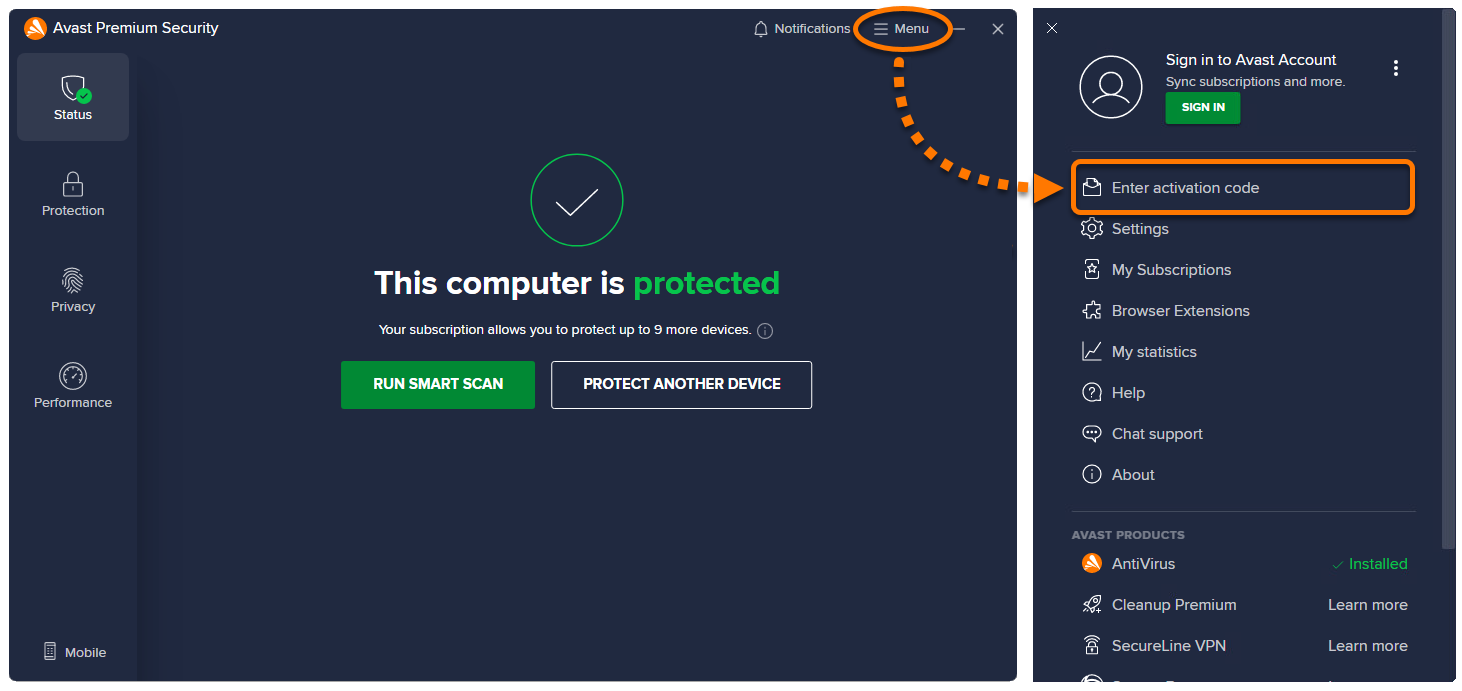
  2. Open Avast Premium Security, then go to ☰ Menu ▸ Enter activation code.  

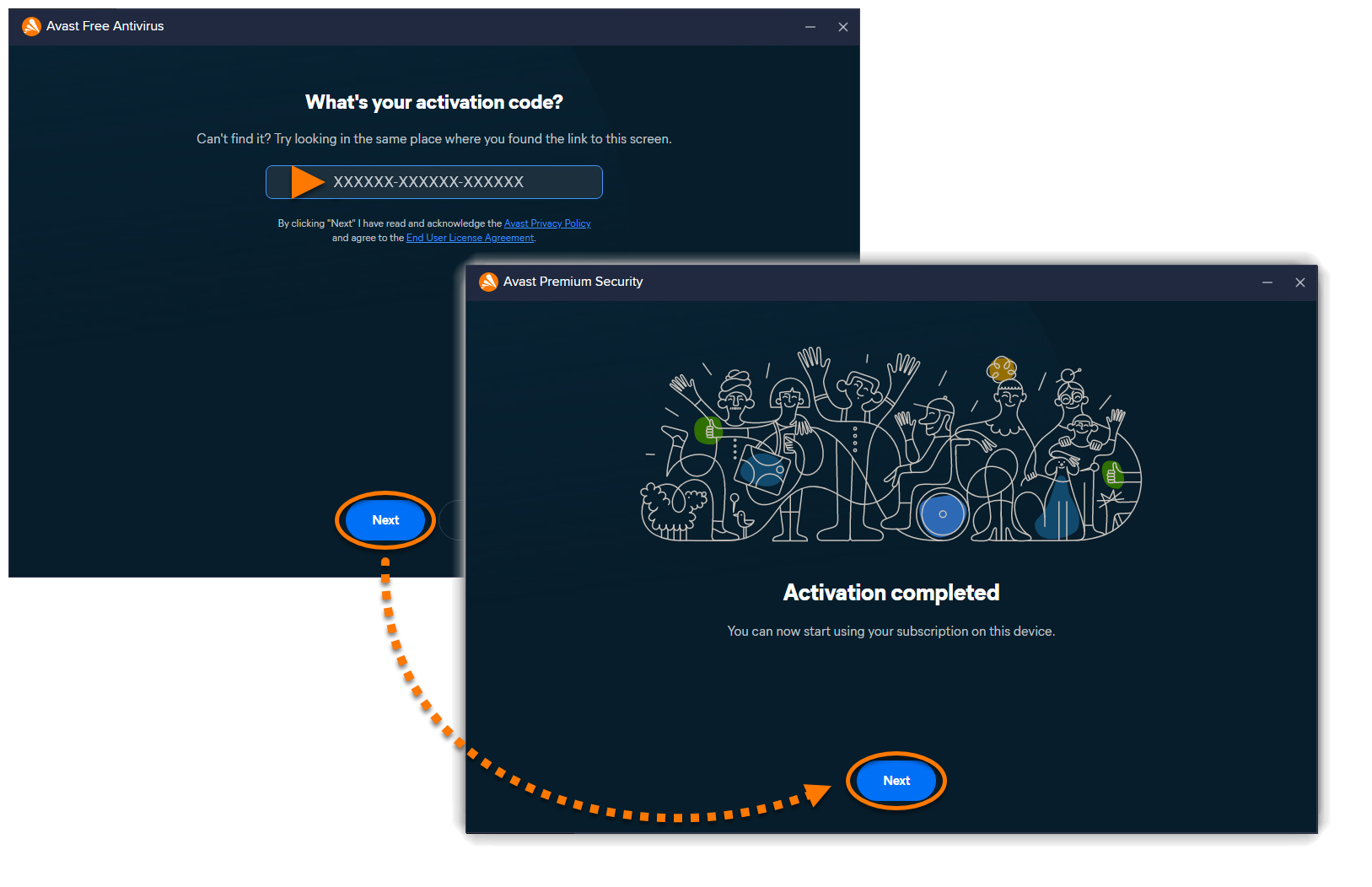
  3. Type or paste your activation code (including hyphens) into the text box, then click Next twice.  

  4. If more than one product is associated with your activation code, select the apps you want to install, then click Activate & install. The apps you select are installed and activated automatically.

Avast Premium Security is now active. If activation is unsuccessful, refer to the Still need help? section in this article.

To view your subscription details, go to ☰ Menu ▸ My subscriptions. The expiration date of your subscription appears in your Avast Account. You can activate your app on the number of devices you specified when making the purchase.

Avast account

Sign in to Avast Account

An Avast Account was created using the email address that you provided during the subscription purchase. To sign into your Avast Account for the first time, refer to the following article: Activate your Avast Account.

To activate Avast Premium Security using an Avast Account:

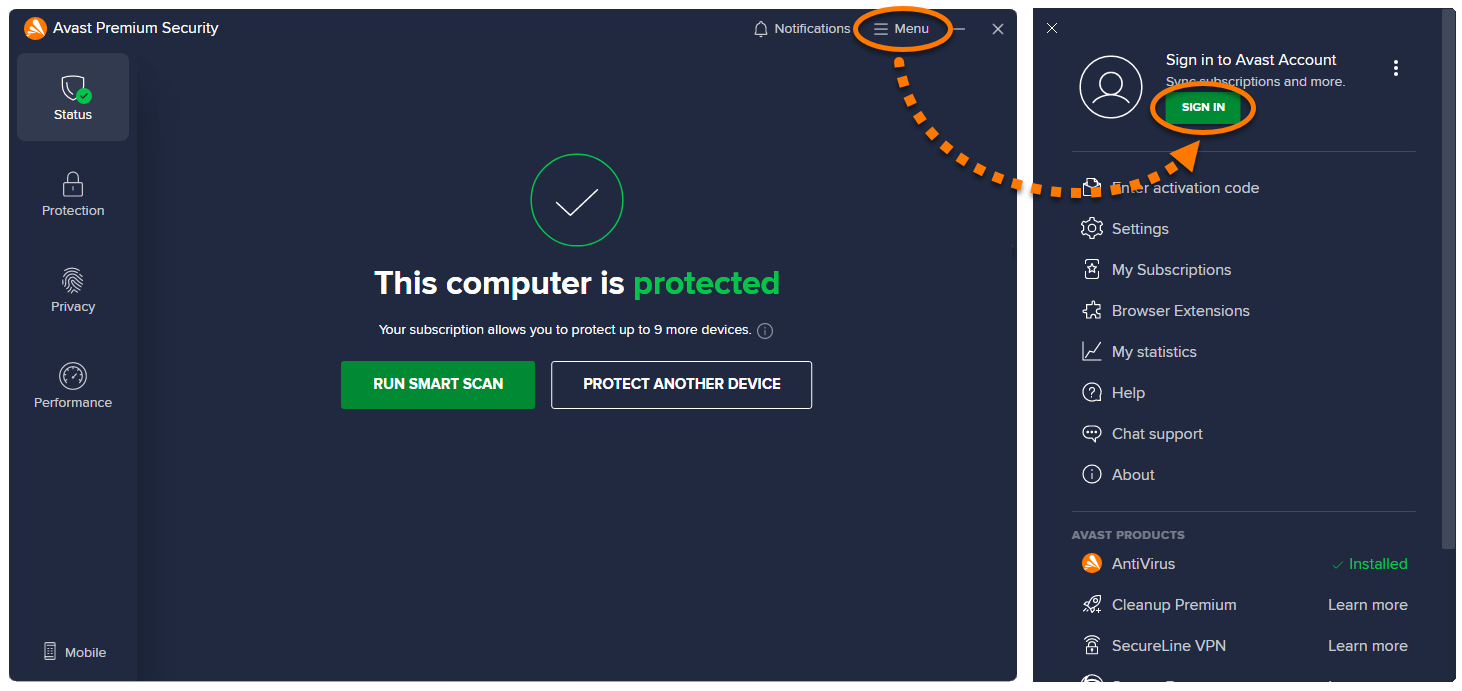
  1. Open Avast Premium Security, then go to ☰ Menu ▸ Sign in.  

  2. Continue following the steps in the in-app sign in screen or your default browser, depending on what you see on screen:

    • In-app: Sign in to your Avast Account using either Option A or Option B below:

      Option A:

      1. Enter the email address for the Avast Account that contains your Avast Premium Security subscription, then click Continue.  

      2. Enter the password for the Avast Account that contains your Avast Premium Security subscription. Optionally, tick the box next to Remember me on this device, then click Sign In.  

      Option B:

      1. Enter the email address for the Avast Account that contains your Avast Premium Security subscription, then select Request one-time passcode. An email containing a temporary passcode is sent to the email address you provided.  

      2. Enter the passcode you received in your email inbox, then click Verify.  

    • Default browser: Sign in to your Avast Account using either Option A or Option B below:

      • Option A: Check that the listed Avast Account is the one that contains your Avast Premium Security subscription, then click Yes, continue. Alternatively, click Sign in as someone else. When prompted by your browser, follow the on-screen instructions to re-open Avast Premium Security.  

      • Option B: Enter the credentials for the Avast Account that contains your Avast Premium Security subscription, then click Continue. When prompted by your browser, follow the on-screen instructions to re-open Avast Premium Security.  

  3. If more than one product is associated with your activation code, select the apps you want to install, then click Activate & install. The apps you select are installed and activated automatically.

Avast Premium Security is now active.

To view your subscription details, go to ☰ Menu ▸ My subscriptions. The expiration date of your subscription appears in your Avast Account. You can activate your app on the number of devices you specified when making the purchase.

Still need help?

To learn how to resolve some of the most common activation issues, refer to the following article:

Further recommendations

To learn more about Avast Premium Security, refer to the following article:

For instructions on transferring your subscription to a new device, refer to the following article:

Avast Premium Security for Mac is a paid application that requires a subscription to use. After installing Avast Premium Security, you may need to manually activate your application.

Your chosen activation method:

Activation code

Enter activation code

To activate Avast Premium Security using an activation code:

  1. Locate your activation code. The code is included in your order confirmation email. For detailed instructions, refer to the following article: Locate your Avast activation code.

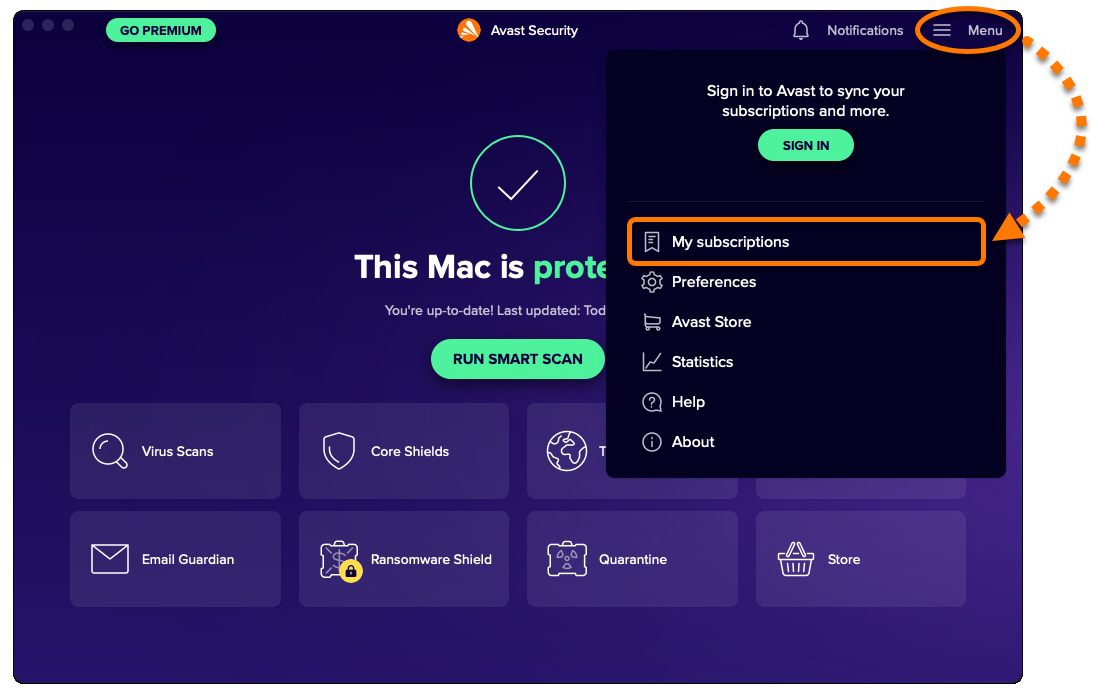
  2. Open Avast Security, then go to ☰ Menu ▸ My subscriptions.  

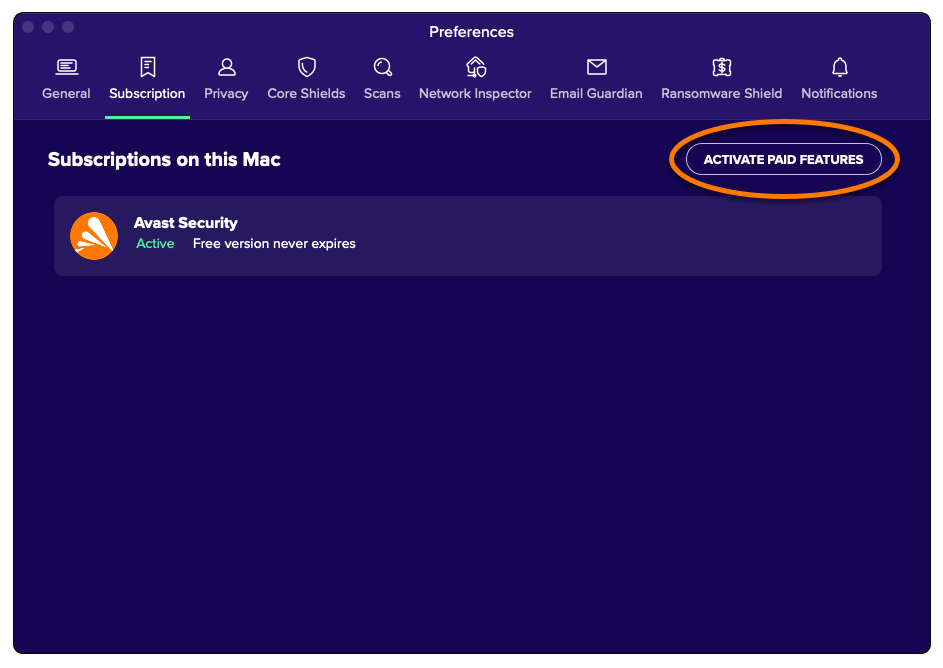
  3. Select Activate paid features.  

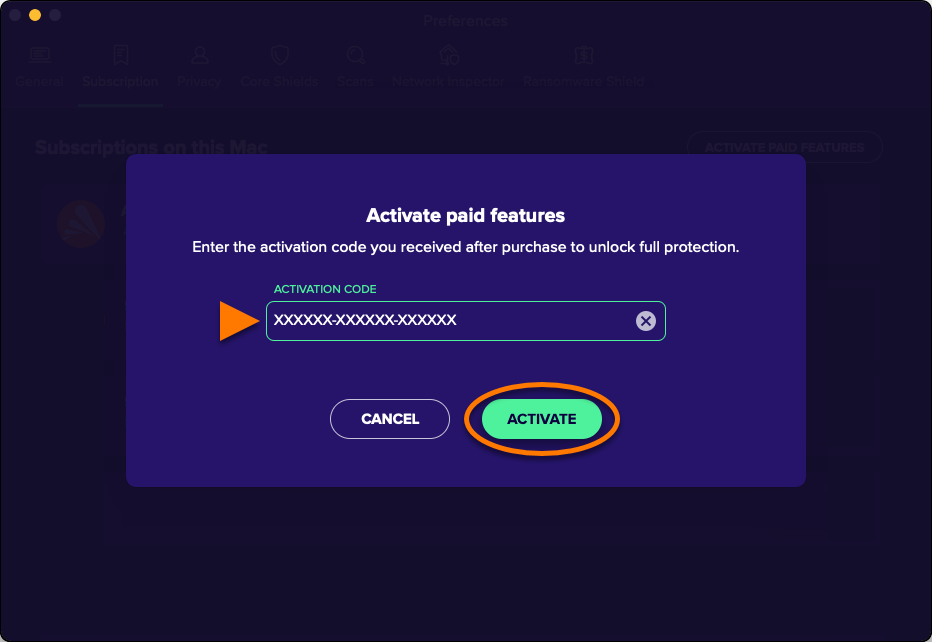
  4. Type or paste your activation code (including hyphens) into the text box, then click Activate.  
  5. If more than one product is associated with your activation code, click Install next to each product you want to install.

    The products you selected are installed and activated automatically.  
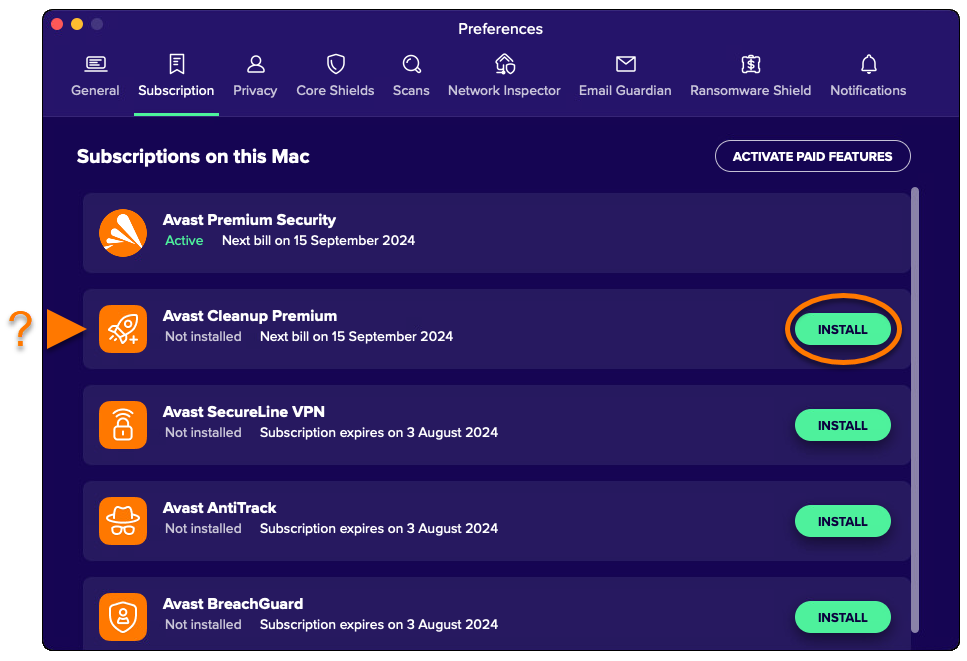
Avast Premium Security is now active. If activation is unsuccessful, refer to the Still need help? section in this article.

The expiration date of your subscription is available in ☰ Menu ▸ My subscriptions or in your Avast Account. You can activate your app on the number of devices you specified when making the purchase.

Avast account

Sign in to Avast Account

An Avast Account was created using the email address that you provided during the subscription purchase. To sign into your Avast Account for the first time, refer to the following article: Activate your Avast Account.

To activate Avast Premium Security using an Avast Account:

  1. Open Avast Security, then go to ☰ Menu ▸ Sign in. Your default browser opens.  
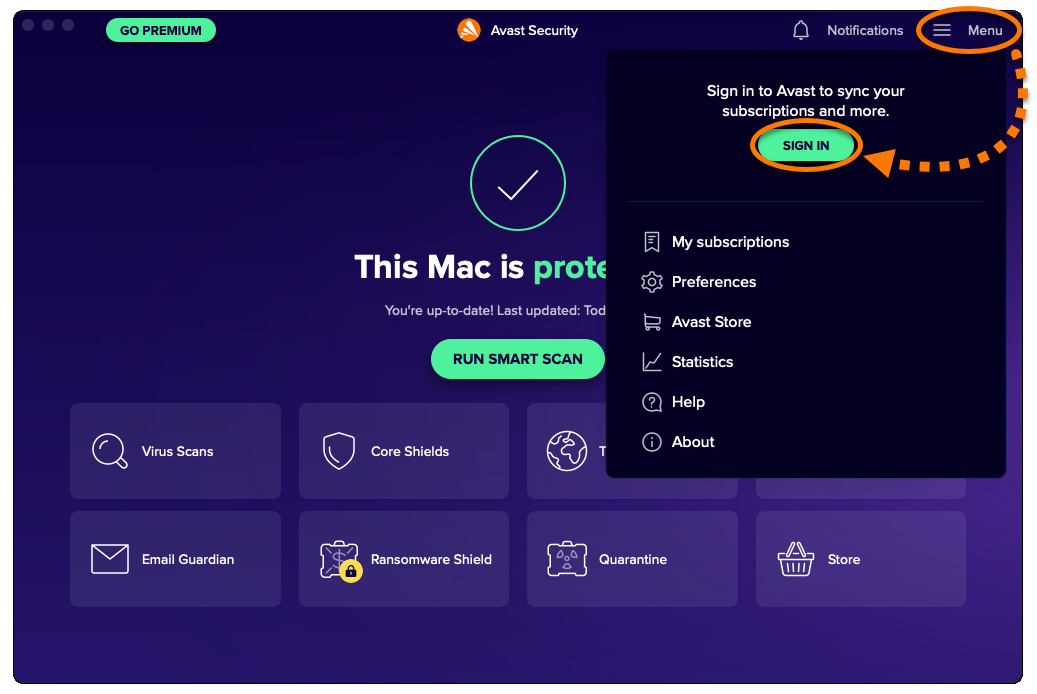
  2. Follow the relevant step below (option A or option B) in your browser:

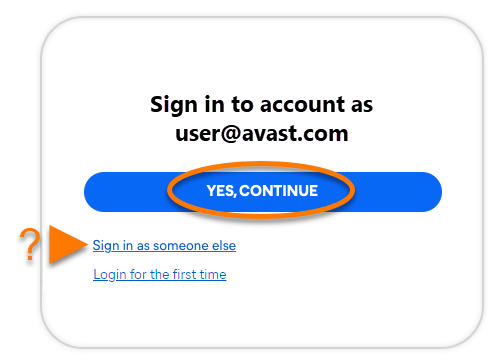
    • Option A: Check that the listed Avast Account is the one that contains your Avast Premium Security subscription, then click Yes, continue. Alternatively, click Sign in as someone else.  
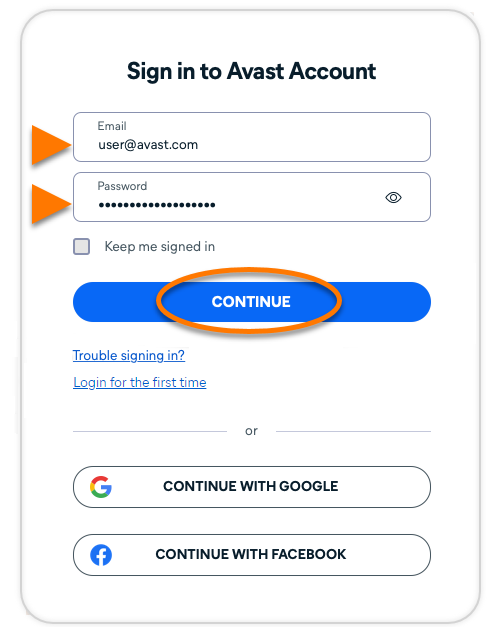
    • Option B: Enter the credentials for the Avast Account that contains your Avast Premium Security subscription, then click Continue.  
  3. When prompted by your browser, follow the on-screen instructions to re-open Avast Security.

  4. If more than one product is associated with your Avast Account, click Install next to each product you want to install.

    The products you selected are installed and activated automatically.  

Activate via sign-in key

If activation via Avast Account fails, you can activate Avast Premium Security using the sign-in key from your web browser. To use this alternative activation method:

  1. Open Avast Security, then go to ☰ Menu ▸ Sign in. Your default browser opens.  

  2. Follow the relevant step below (option A or option B) in your default web browser:

    • Option A: Check that the listed Avast Account is the one that contains your Avast Premium Security subscription, then click Yes, continue. Alternatively, click Sign in as someone else.  

    • Option B: Enter the credentials for the Avast Account that contains your Avast Premium Security subscription, then click Continue.  

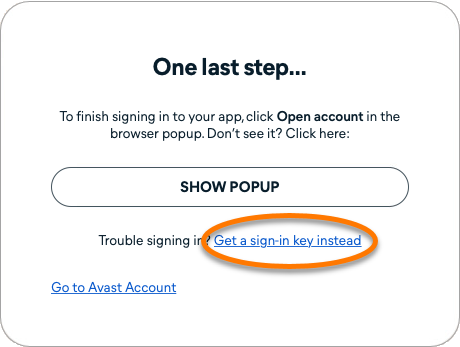
  3. Click Get a sign-in key instead.  

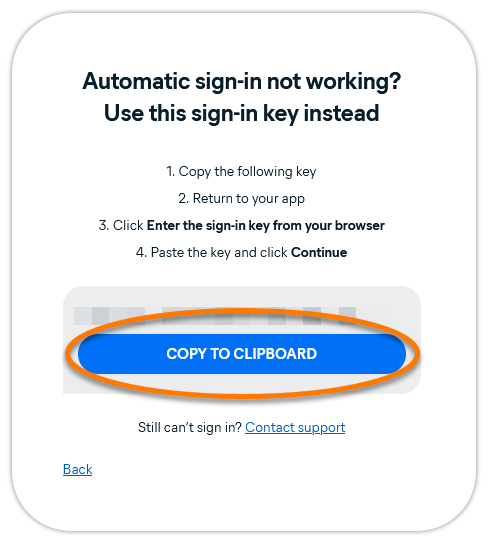
  4. Click Copy to clipboard.  

  5. Go to Avast Premium Security, and click enter the sign-in key from your browser.  
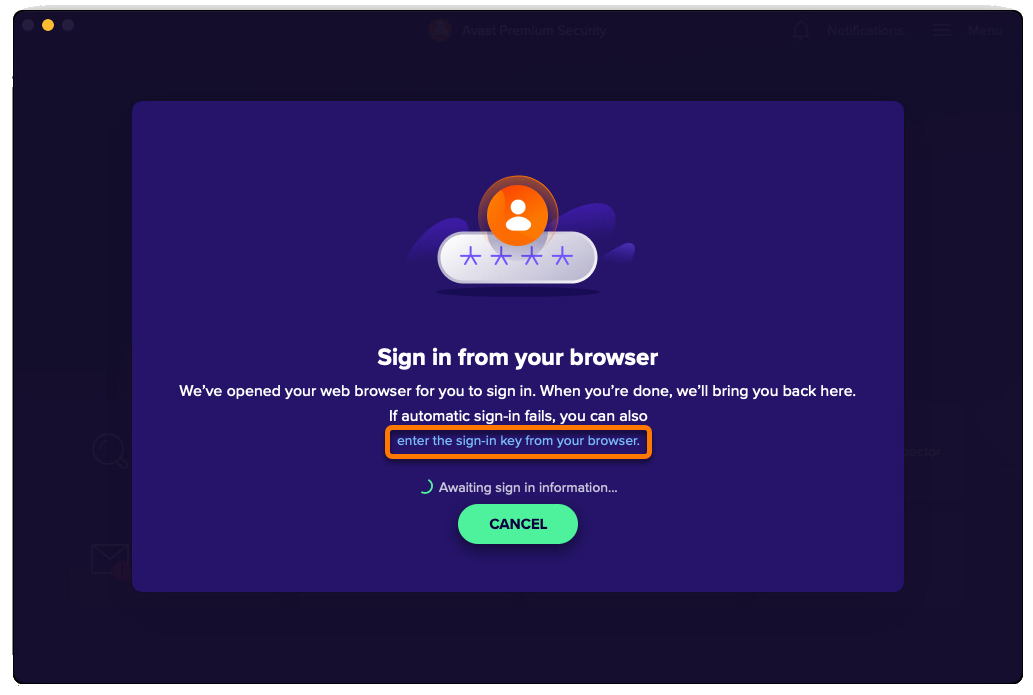
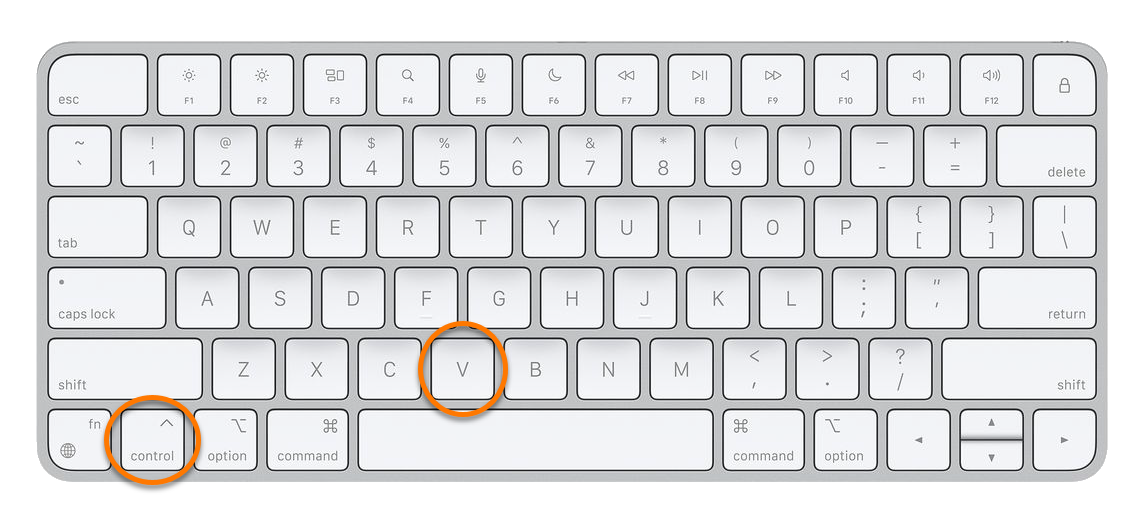
  6. Click in the text box, then press the Ctrl key and the V key on your keyboard simultaneously to paste the sign-in key.  
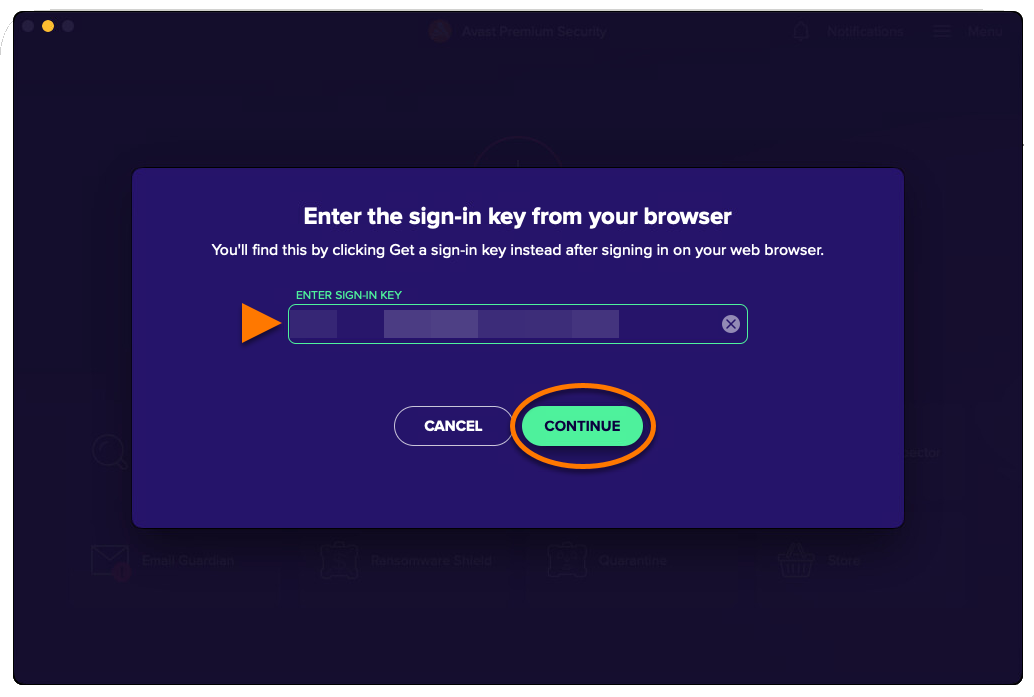
  7. When the sign-in key is entered, click Continue.  
  8. If more than one product is associated with your Avast Account, click Install next to each product you want to install.

    The products you selected are installed and activated automatically.  

Avast Premium Security is now active. If activation is unsuccessful, refer to the Still need help? section below.

The expiration date of your subscription appears via ☰ Menu ▸ My Subscriptions or in your Avast Account. You can activate your app on the number of devices you specified when making the purchase.

Still need help?

To learn how to resolve some of the most common activation issues, refer to the following article:

Further recommendations

To learn more about Avast Premium Security, refer to the following article:

For instructions on transferring your subscription to a new device, refer to the following article:

DocID: activate-premium-securityLast modified: 09/03/2026

Was this article helpful?

Promotional banner image

Keep your online identity private!

Browse like no one’s watching with Avast anti-tracking software.

Need more help?

Contact us
Avast account
Visit our forums
Visit academy