Promotional banner image

IS YOUR COMPUTER SLOW? RUN LIKE NEW

If they are not maintained, computers lose performance over time. Avast Cleanup Premium can help significantly improve the performance of your computer.

Troubleshooting Scam Protection in Avast Mobile Security and Avast One on Huawei devices

Android

This article explains how to resolve issues with Scam Protection in Avast Mobile Security and Avast One on Huawei devices. To troubleshoot Scam Protection issues, follow the steps in the relevant sections below:

Your Avast product:

These steps can differ slightly depending on your device model, Android version, and vendor customizations.

Set up Scam Protection

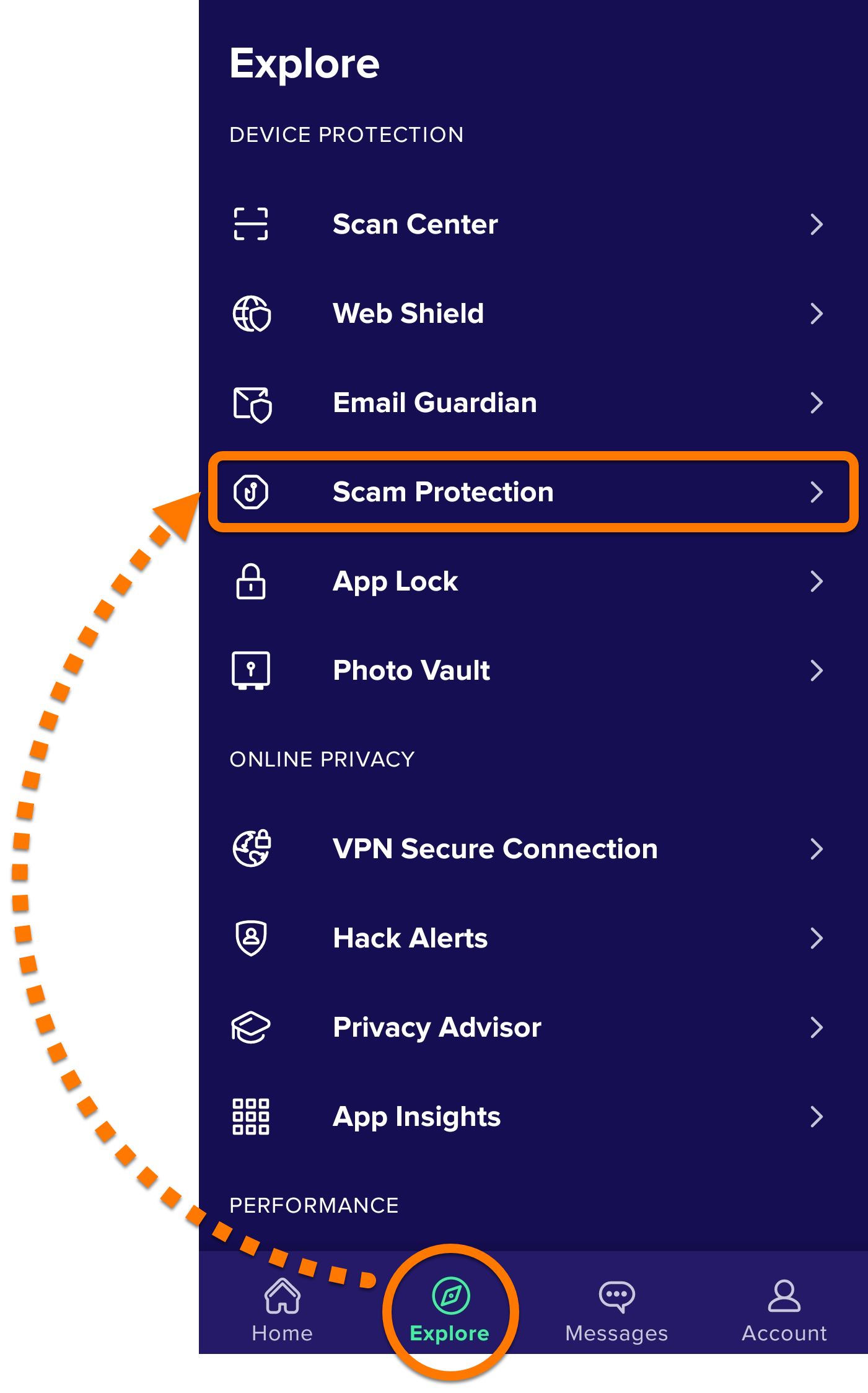
  1. Open Avast Mobile Security and tap   Explore ▸ Scam Protection.  

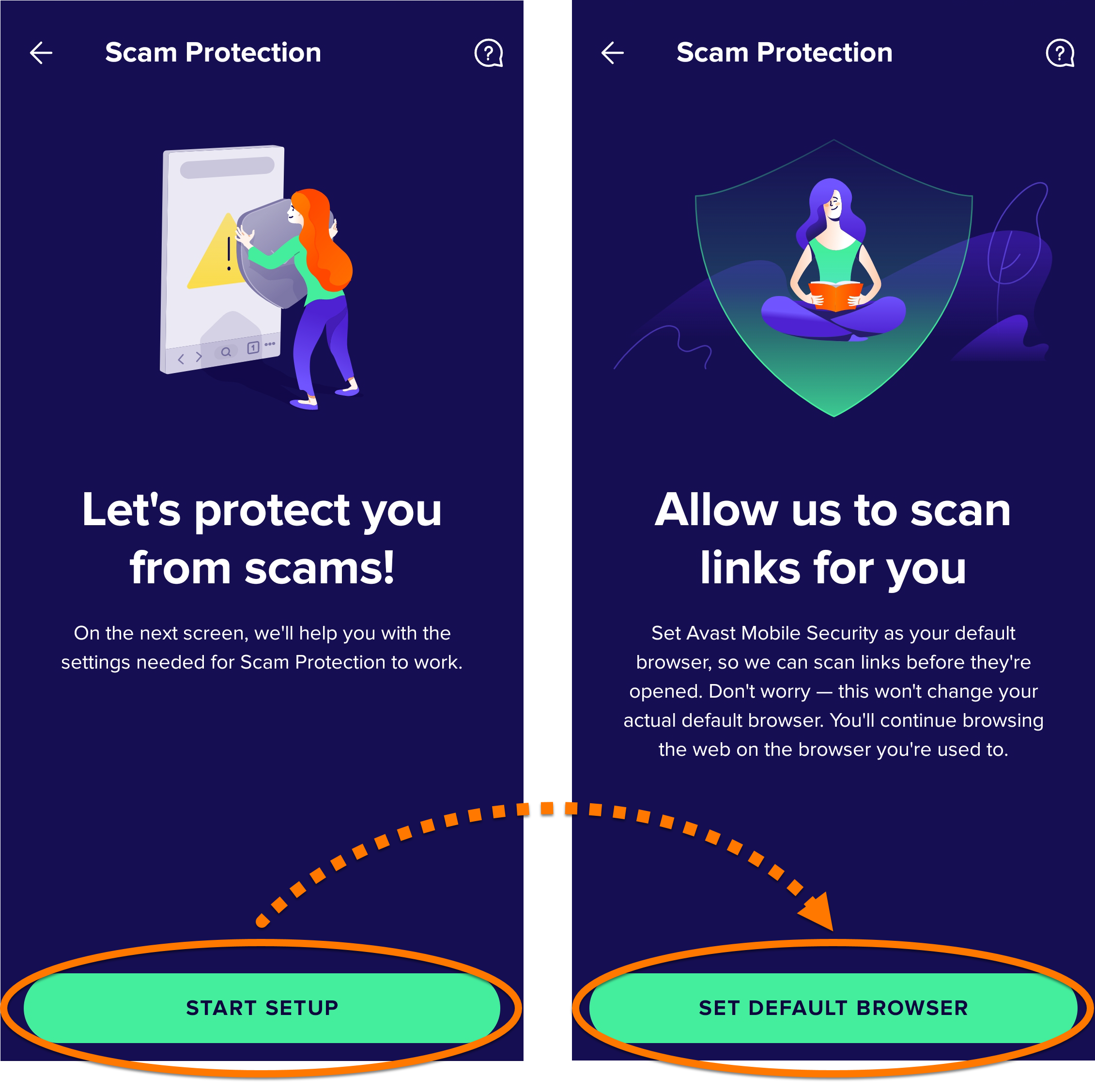
  2. If prompted, tap Start setup ▸ Set default browser to open your Android device Settings.  

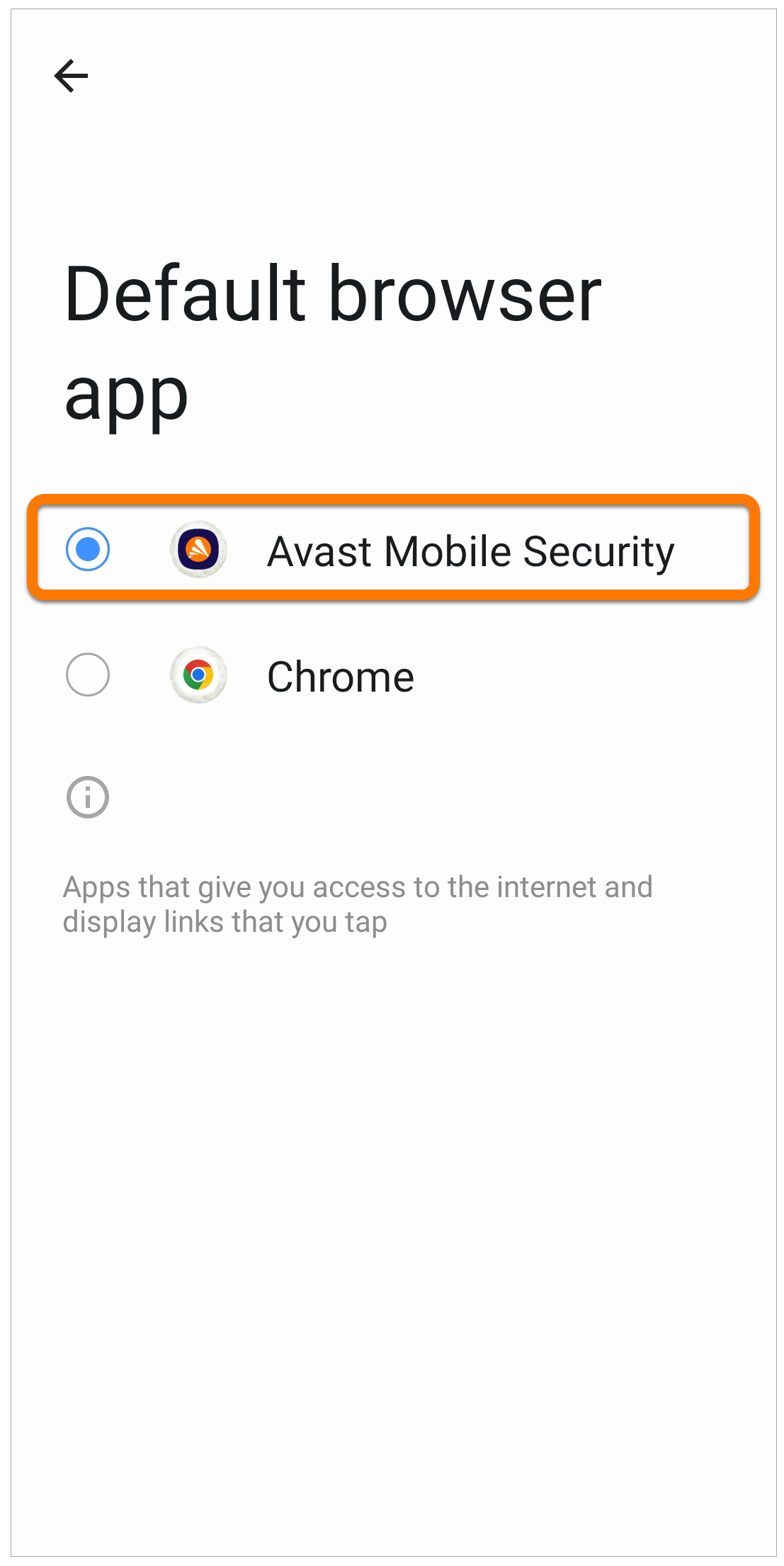
  3. In your Android device Settings, select Apps ▸ Default apps ▸ Browser app.

  4. Select Avast Mobile Security as your default browser. This requirement is only a system formality so that Avast Mobile Security can scan for threats. After the link is checked, it opens in your preferred web browser.  

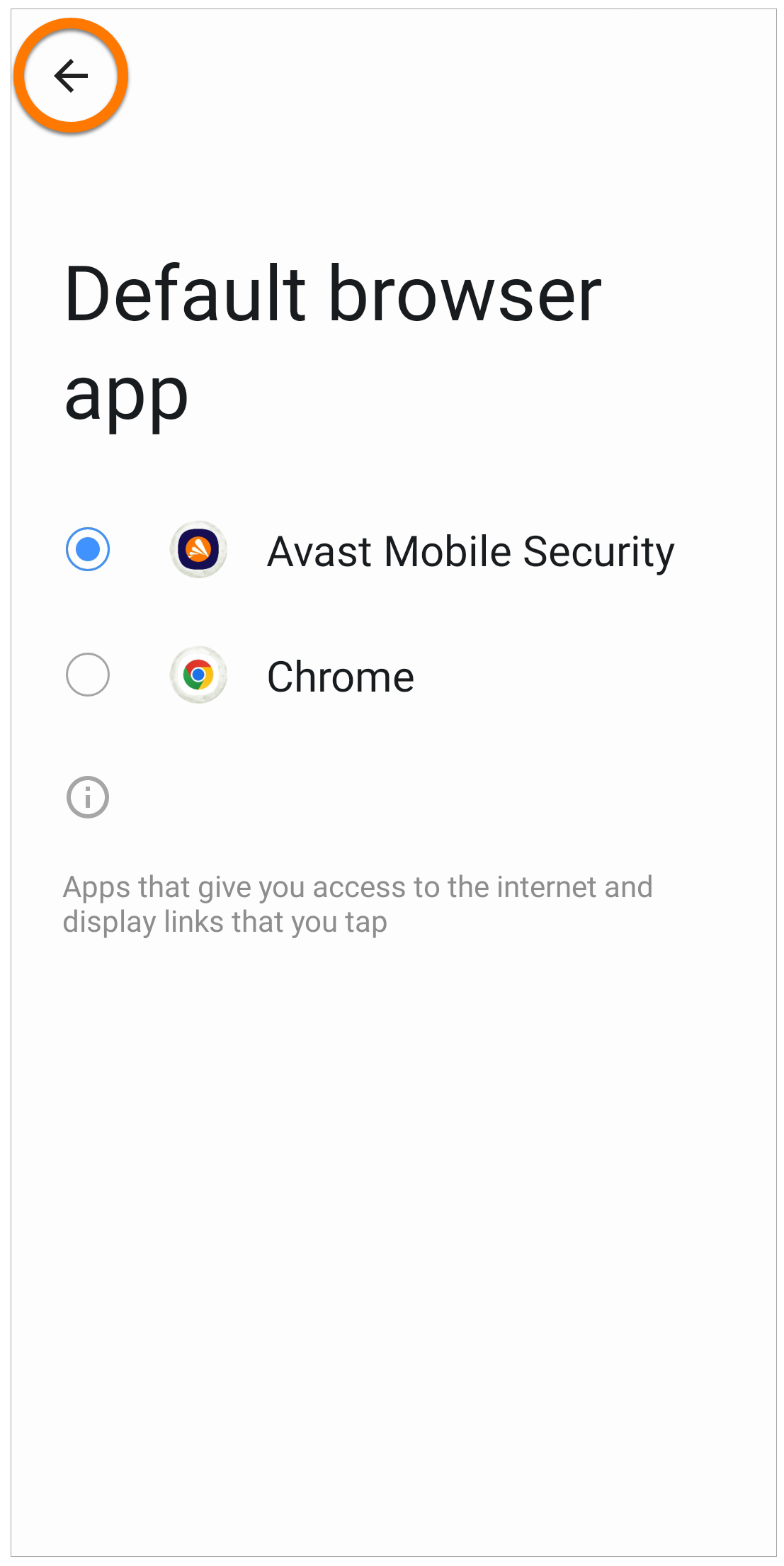
  5. Click the back arrow to return to Avast Mobile Security.  

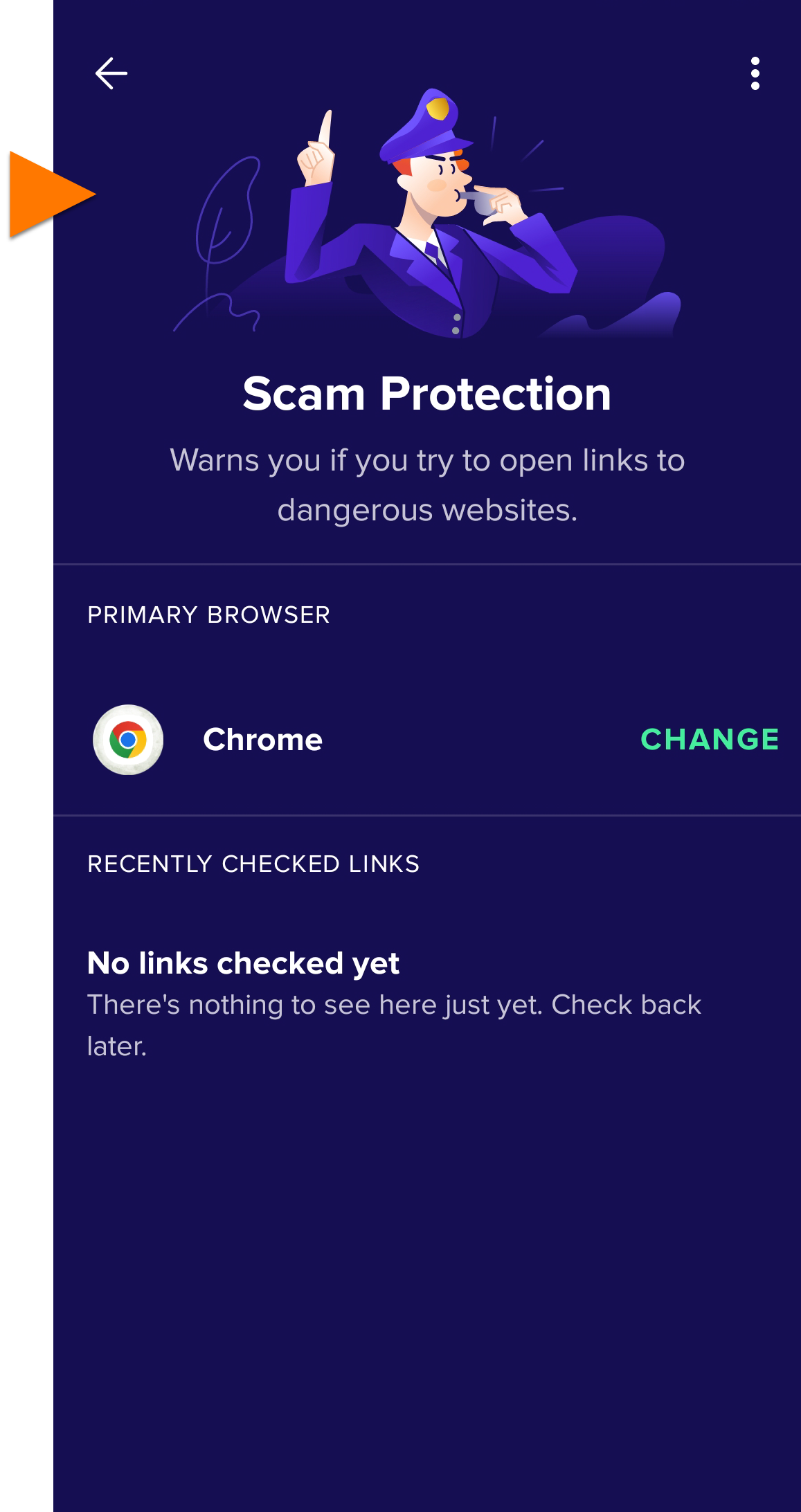
  6. If you see the main Scam Protection screen, the feature is on.  

To keep Scam Protection turned on, refer to the next section.

Always select Avast Mobile Security

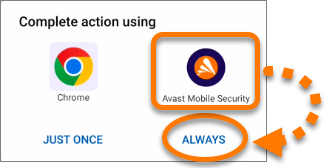
When the Complete action using dialog appears to open a link, select Avast Mobile Security and tap Always. If Avast Mobile Security is not an option, refer to Select another app once.

If you select Always for another browser app, Scam Protection turns off. To change your selection, refer to the Trigger bottom sheet dialog section of this article.

Scam Protection is enabled and the link opens in your preferred browser app (for example, Chrome).

Troubleshooting

If Scam Protection is correctly set up in your device settings, but the feature is turned off, try these possible solutions:

Uninstall and reinstall Avast Mobile Security

To resolve issues that may be caused by incorrect configuration, follow the steps below:

  1. Uninstall, reinstall, and reactivate Avast Mobile Security.

  2. Follow the steps to Set up Scam Protection in the above section.

  3. Go to another app (for example, your email app) and try to open an external link.

  4. When the Complete action using dialog appears, select Avast Mobile Security and tap Always. If Avast Mobile Security is not an option, refer to Select another app once.

To confirm if Scam Protection is on, go to Explore ▸ Scam Protection.

Trigger bottom sheet dialog

If you selected Always for another browser app, follow the steps below to trigger the Complete action using dialog again:

  1. Install another browser app (for example, free Avast Secure Browser). For installation instructions, refer to the following article: Installing Avast Secure Browser.

  2. Go to another app (for example, your email app) and try to open an external link.

  3. When the Complete action using dialog appears, select Avast Mobile Security and tap Always. If Avast Mobile Security is not an option, refer to Select another app once.

  4. Follow the steps to Set up Scam Protection in the above section.

To confirm if Scam Protection is on, go to Explore ▸ Scam Protection.

Select another app once

If Avast Mobile Security was not an app option in the Complete action using dialog, follow the steps below:

  1. Optionally, uninstall Avast Mobile Security.

  2. Install another browser app (for example, free Avast Secure Browser). For installation instructions, refer to the following article: Installing Avast Secure Browser.

  3. Go to another app (for example, your email app) and try to open an external link.

  4. When the Complete action using dialog appears, select Avast Secure Browser and tap Just once. The dialog appears again the next time to open a link.

  5. If you uninstalled Avast Mobile Security, reinstall and reactivate the app.

  6. Go to another app (for example, your email app) and try to open an external link.

  7. When the Complete action using dialog appears, select Avast Mobile Security and tap Always.

  8. Follow the steps to Set up Scam Protection in the above section.

To confirm if Scam Protection is on, go to Explore ▸ Scam Protection.

These steps can differ slightly depending on your device model, Android version, and vendor customizations.

Set up Scam Protection

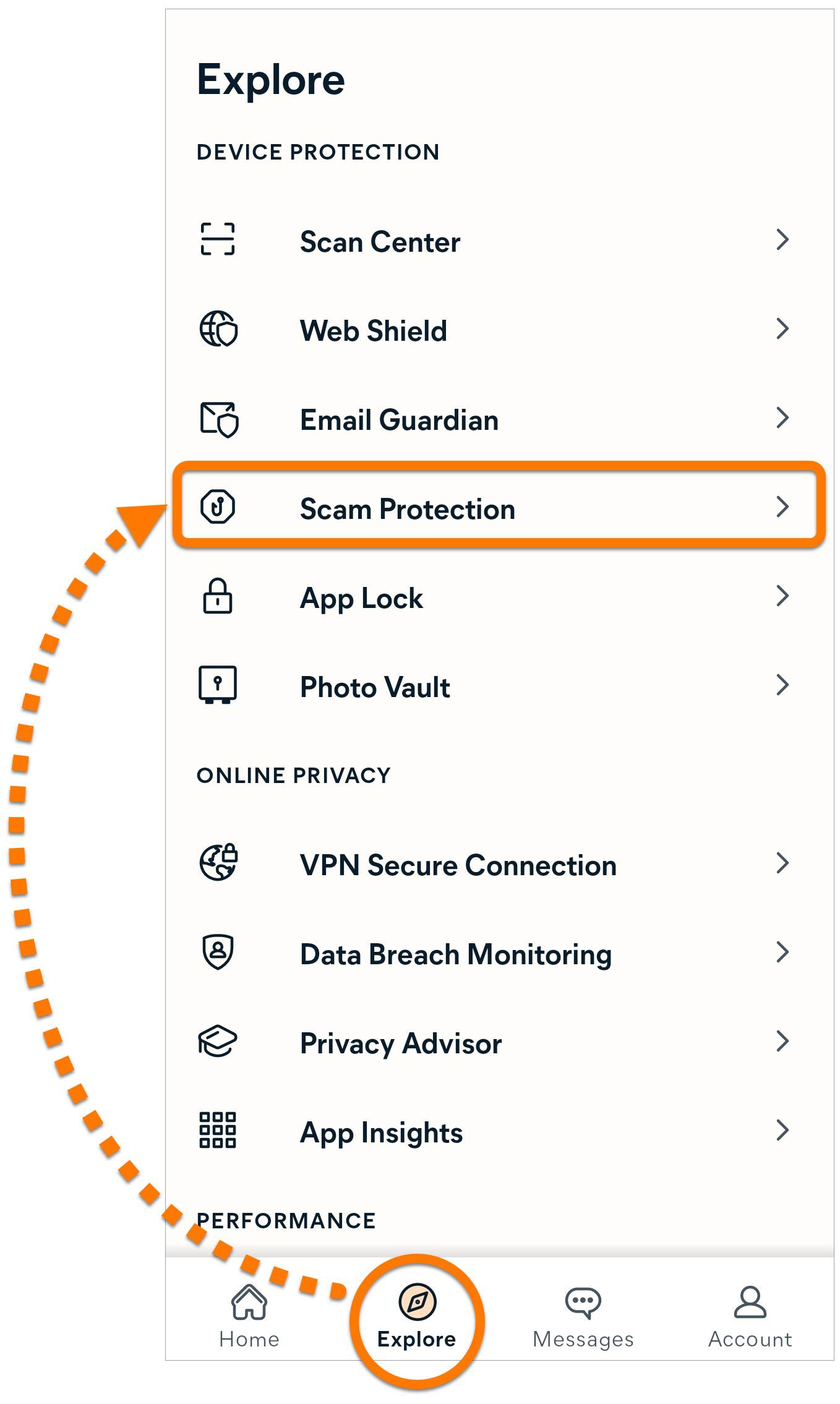
  1. Open Avast One and tap   Explore ▸ Scam Protection.  
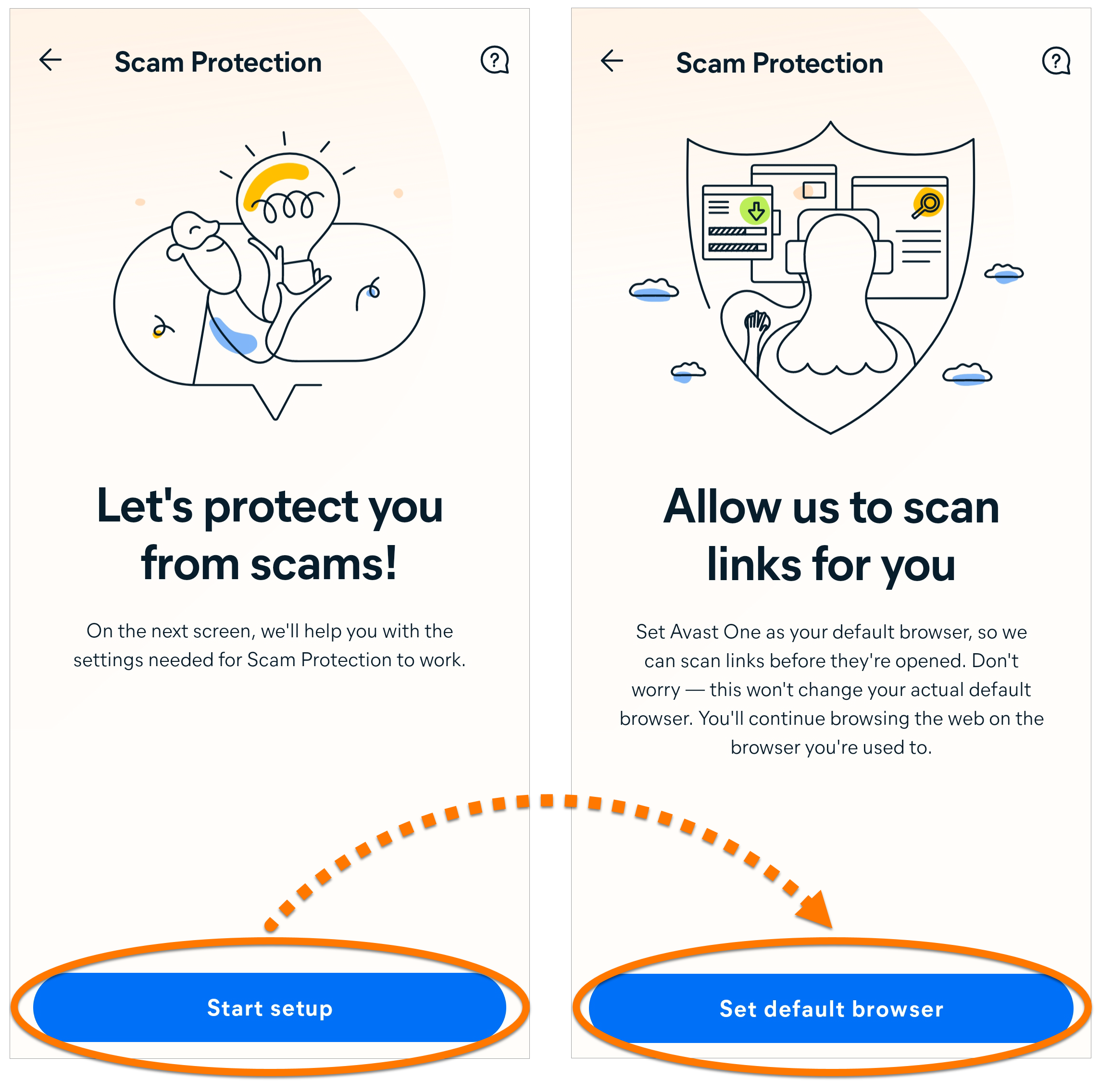
  2. If prompted, tap Start setup ▸ Set default browser to open your Android device Settings.  
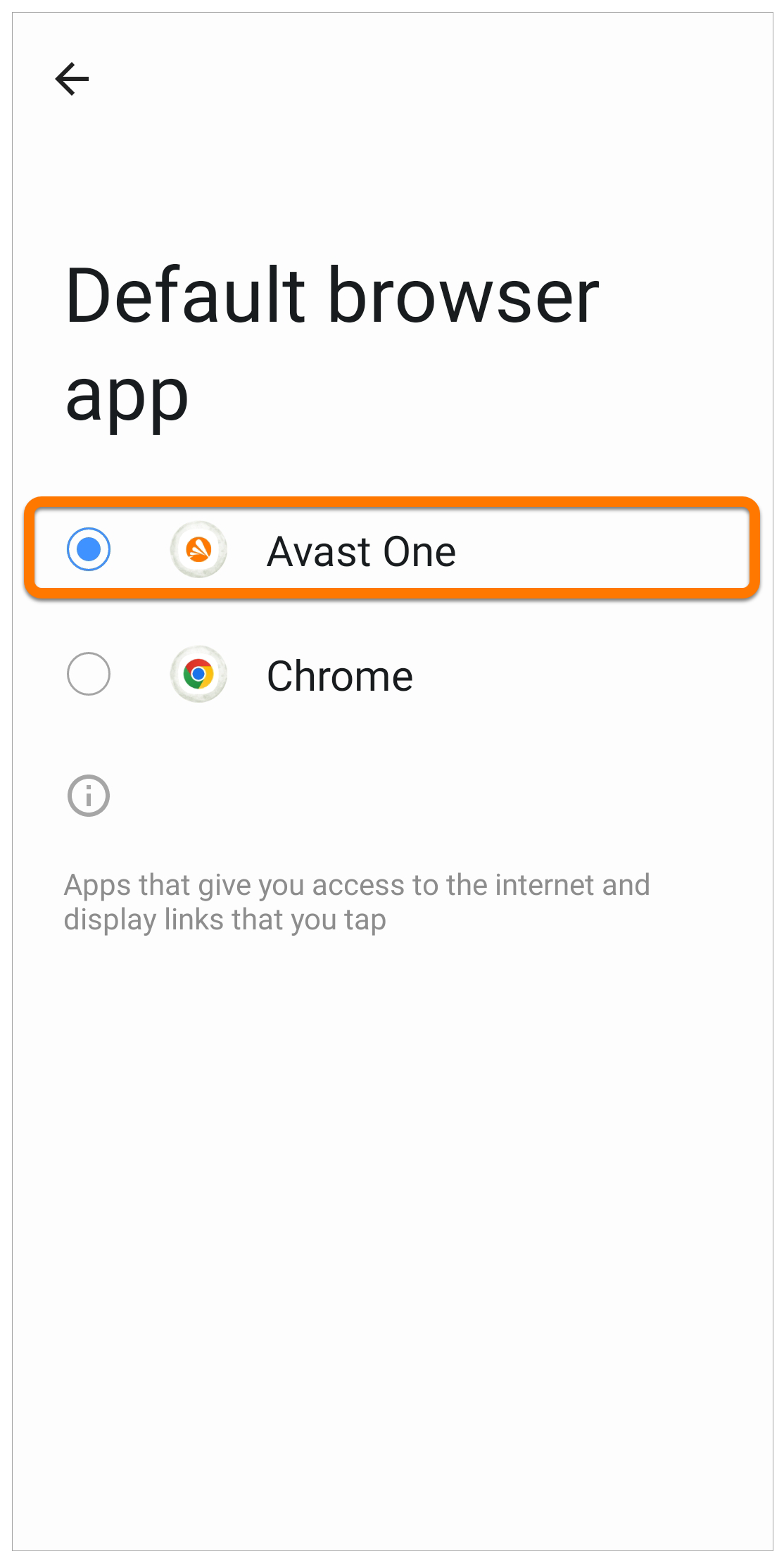
  3. In your Android device Settings, select Apps ▸ Default apps ▸ Browser app.

  4. Select Avast One as your default browser. This requirement is only a system formality so that Avast One can scan for threats. After the link is checked, it opens in your preferred web browser.  
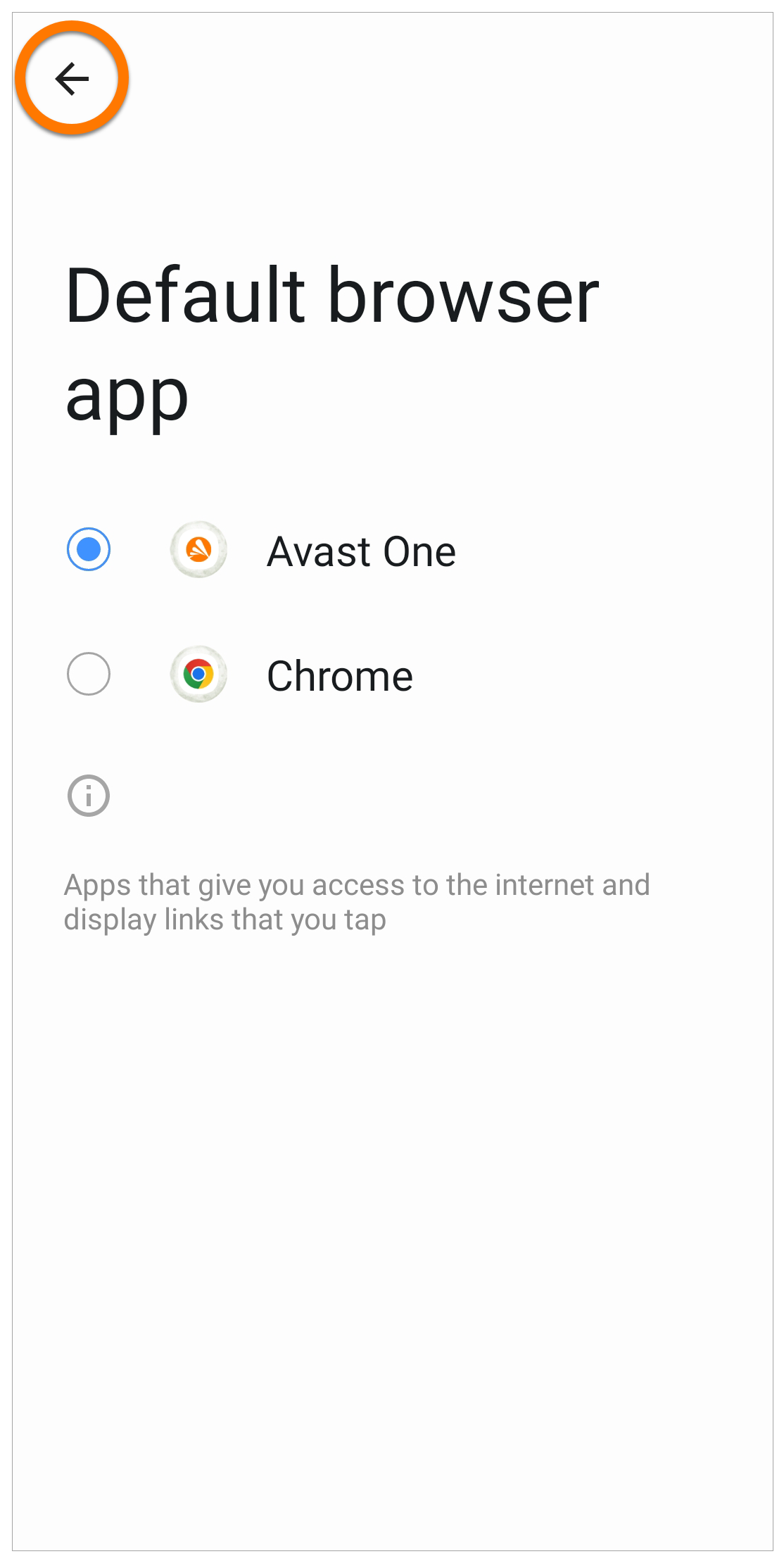
  5. Click the back arrow to return to Avast One.  
  6. If you see the main Scam Protection screen, the feature is on.  
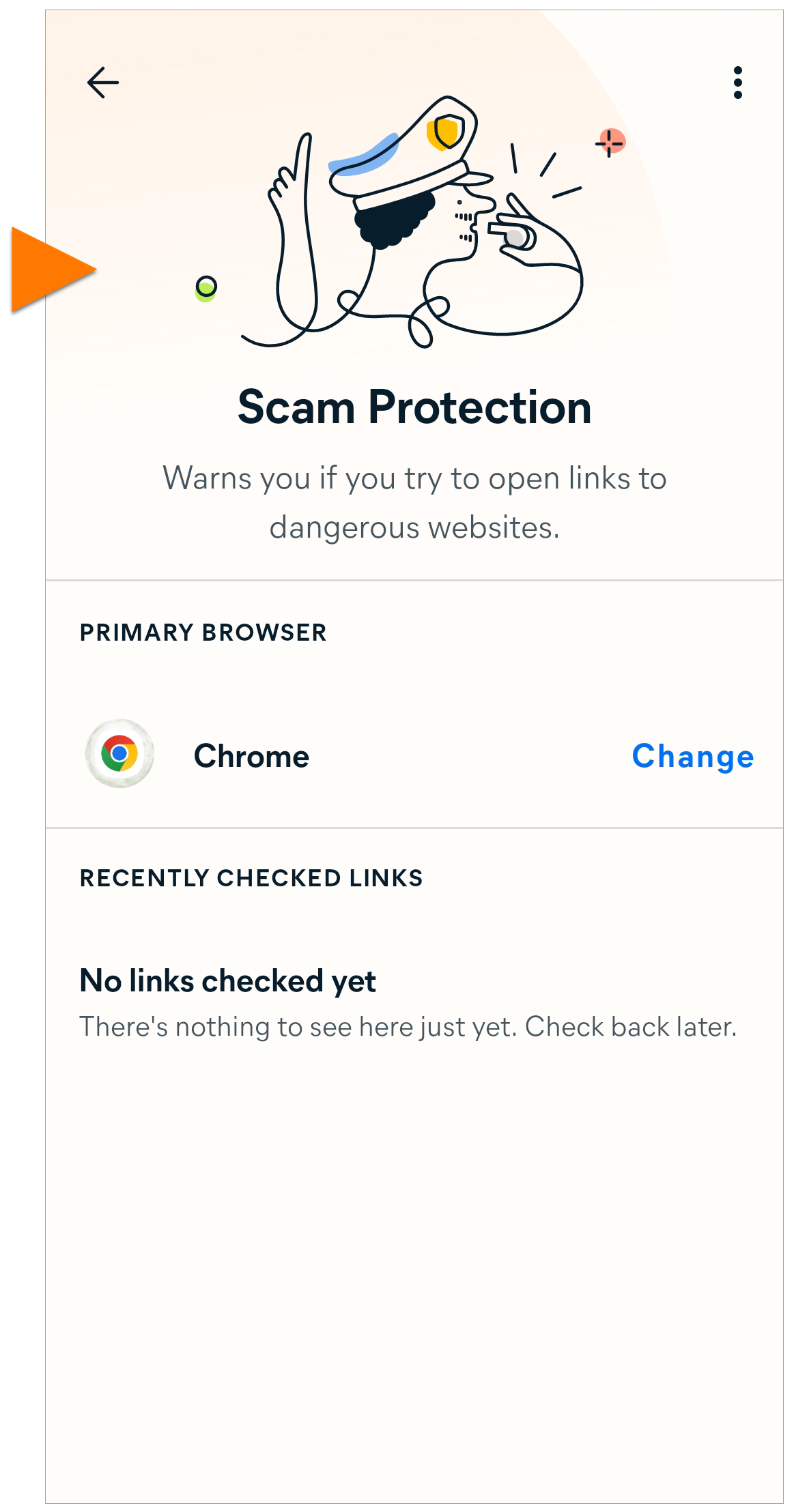
To keep Scam Protection turned on, refer to the next section.

Always select Avast One

When the Complete action using dialog appears to open a link, select Avast One and tap Always. If Avast One is not an option, refer to Select another app once.
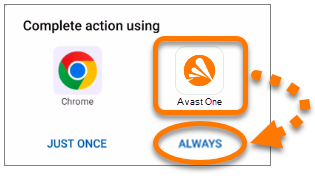
If you select Always for another browser app, Scam Protection turns off. To change your selection, refer to the Trigger bottom sheet dialog section of this article.

Scam Protection is enabled and the link opens in your preferred browser app (for example, Chrome).

Troubleshooting

If Scam Protection is correctly set up in your device settings, but the feature is turned off, try these possible solutions:

Try these possible solutions:

Uninstall and reinstall Avast One

To resolve issues that may be caused by incorrect configuration, follow the steps below:

  1. Uninstall, reinstall, and reactivate Avast One to resolve issues caused by incorrect configuration.

  2. Follow the steps to Set up Scam Protection in the above section.

  3. Go to another app (for example, your email app) and try to open an external link.

  4. When the Complete action using dialog appears, select Avast One and tap Always. If Avast One is not an option, refer to Select another app once.

To confirm if Scam Protection is on, go to Explore ▸ Scam Protection.

Trigger bottom sheet dialog

If you selected Always for another browser app, follow the steps below to trigger the Complete action using dialog again:

  1. Install another browser app (for example, free Avast Secure Browser). For installation instructions, refer to the following article: Installing Avast Secure Browser.

  2. Go to another app (for example, your email app) and try to open an external link.

  3. When the Complete action using dialog appears, select Avast One and tap Always. If Avast One is not an option, refer to Select another app once.

  4. Follow the steps to Set up Scam Protection in the above section.

To confirm if Scam Protection is on, go to Explore ▸ Scam Protection.

Select another app once

If Avast One was not an app option in the Complete action using dialog, follow the steps below:

  1. Optionally, uninstall Avast One.

  2. Install another browser app (for example, free Avast Secure Browser). For installation instructions, refer to the following article: Installing Avast Secure Browser.

  3. Go to another app (for example, your email app) and try to open an external link.

  4. When the Complete action using dialog appears, select Avast Secure Browser and tap Just once. The dialog appears again the next time to open a link.

  5. If you uninstalled Avast One, reinstall and reactivate the app.

  6. Go to another app (for example, your email app) and try to open an external link.

  7. When the Complete action using dialog appears, select Avast One and tap Always.

  8. Follow the steps to Set up Scam Protection in the above section.

To confirm if Scam Protection is on, go to Explore ▸ Scam Protection.

DocID: troubleshoot-mobile-scam-protectionLast modified: 09/03/2026

Was this article helpful?

Promotional banner image

Keep your online identity private!

Browse like no one’s watching with Avast anti-tracking software.

Need more help?

Contact us
Avast account
Visit our forums
Visit academy