Avast Mobile Security for iOS - Getting Started
This article applies to the legacy Avast Mobile Security app, which is being replaced by the new Avast One. As part of this transition, the legacy Avast Mobile Security is being removed from the App Store and will soon no longer be available. All new installations on iOS now install the new Avast One app.
For information about the new Avast One, refer to the following article:
Avast Mobile Security is an app designed to protect your privacy online, securely store your photos, block dangerous websites, and alert you if your online accounts or email addresses have been leaked online.
After installing Avast Mobile Security, the app scans your Wi-Fi network and prompts you to resolve any detected issues. Refer to the sections in this article to learn how to set up and use Avast Mobile Security on your iOS device.
If you have a paid subscription, ensure you have activated your app to be able to follow along in all of the sections below.
Run a Smart Scan
When you open Avast Mobile Security, you have the option to run a Smart Scan, which checks your device for any potential threats. To start the scan:
- Tap the Avast Mobile Security icon on the Home screen of your device. The app opens.

- Tap Start Scan on the main Avast Mobile Security screen.
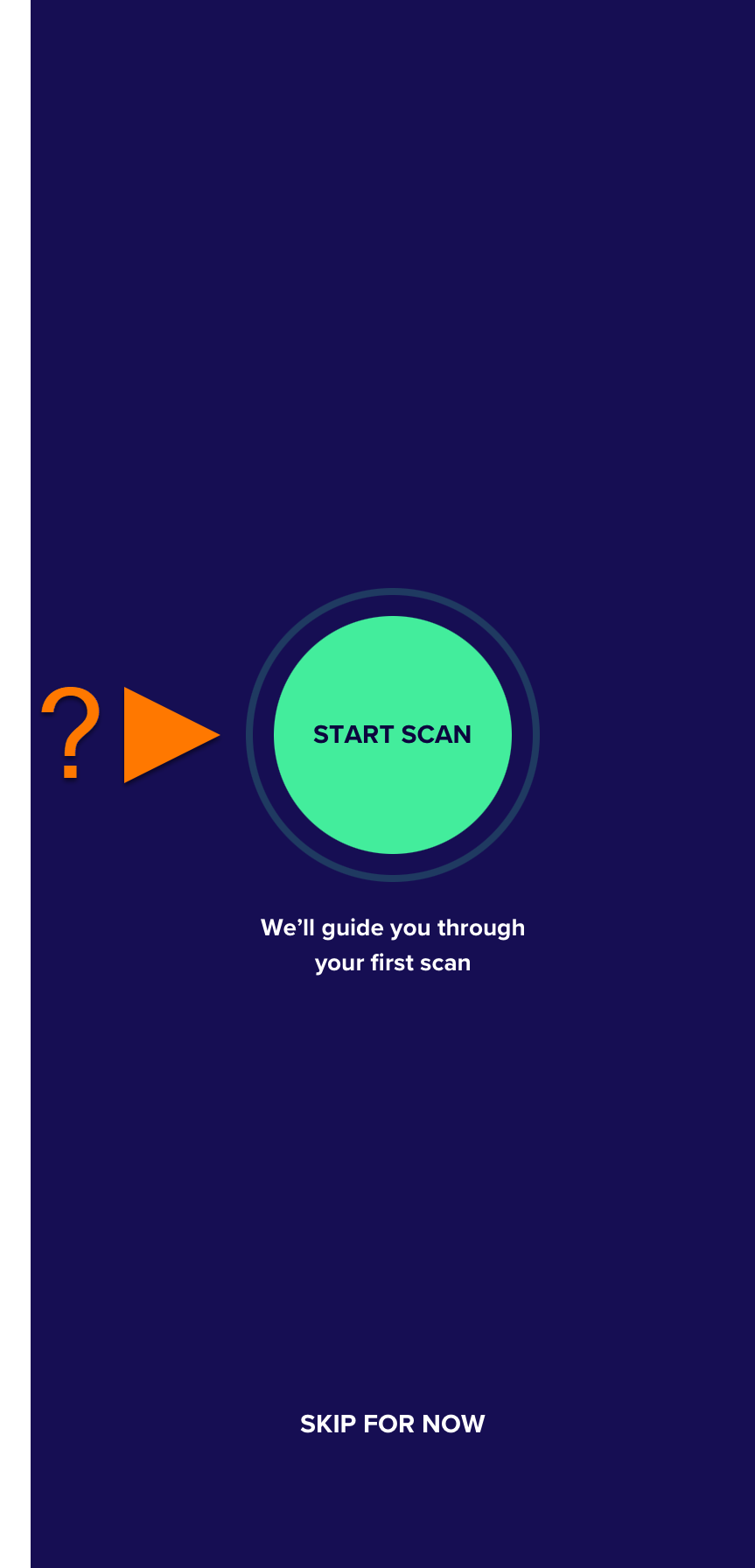
- Follow the on-screen instructions to resolve any issues found or tap Skip to do this later.
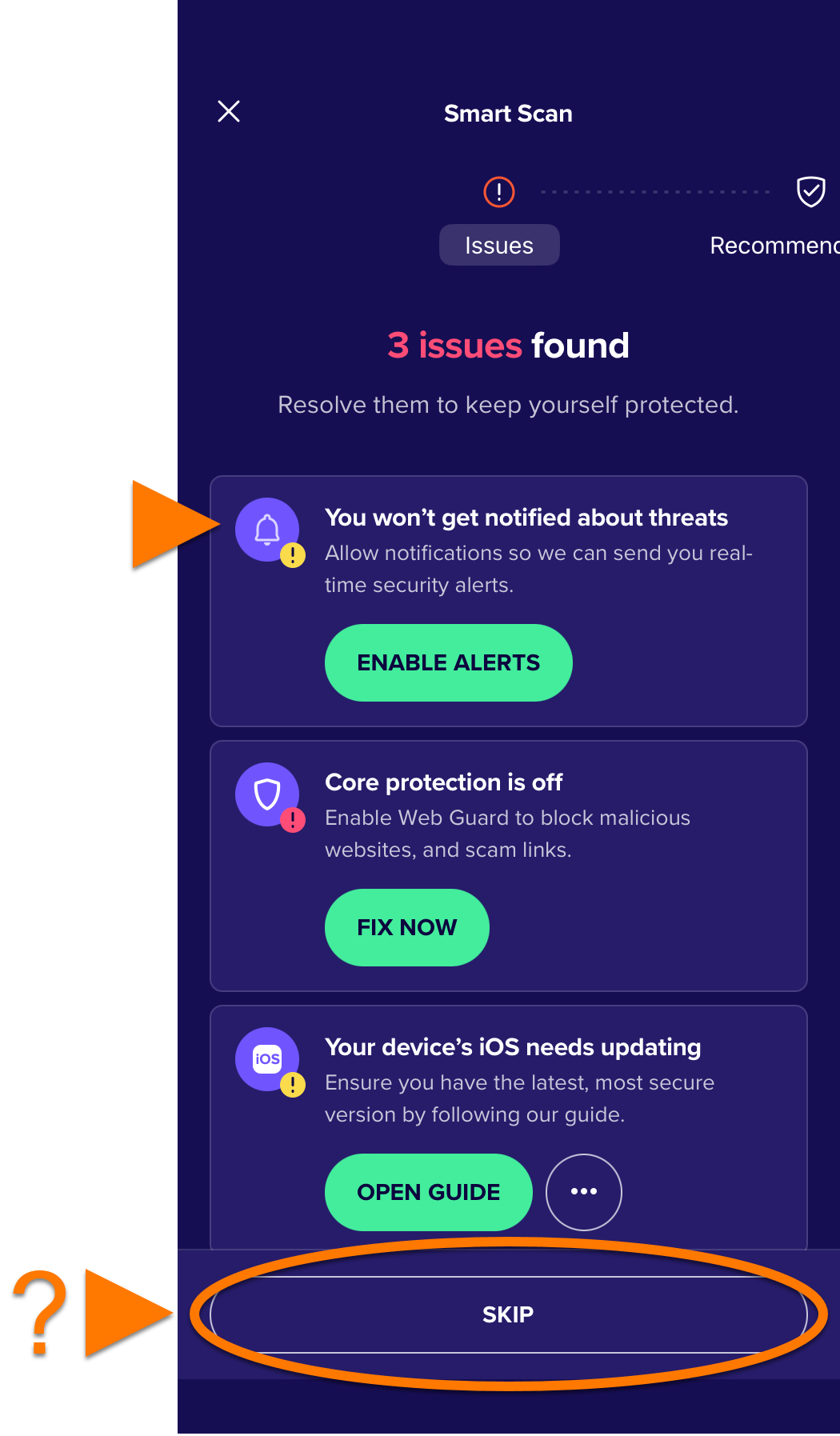
For detailed instructions on how to solve the found issues, refer to the sections below.
You may require a paid subscription to resolve some of the issues, such as turning on VPN Secure Connection.
Use Scam Guardian
Scam Guardian is one of the main feature of Avast Mobile Security. It provides users with the following tools to recognize and avoid online threats, improving digital security:
- Avast Assistant: An AI-powered cybersecurity assistant that analyzes texts, emails, and links for potential scams and cybersecurity concerns. It can also be used for any online safety related questions.
- Web Guard: This tool scans internet activity in real time to prevent malware from downloading onto devices and help you avoid suspicious websites. A local VPN (Virtual Private Network) is required to enable this feature.
- Email Guard: A feature that scans incoming emails in your online accounts to help detect potential scam and phishing risks, with AI-powered detection available as an optional setting.
- SMS Guard: A scam protection tool that scans text messages in your default messaging app to help detect potentially risky links or scam content, with optional AI-powered detection.
- Call Guard: Automatically blocks suspicious and scam calls, and helps you identify whether incoming calls are from trusted contacts, businesses, or potentially risky sources.
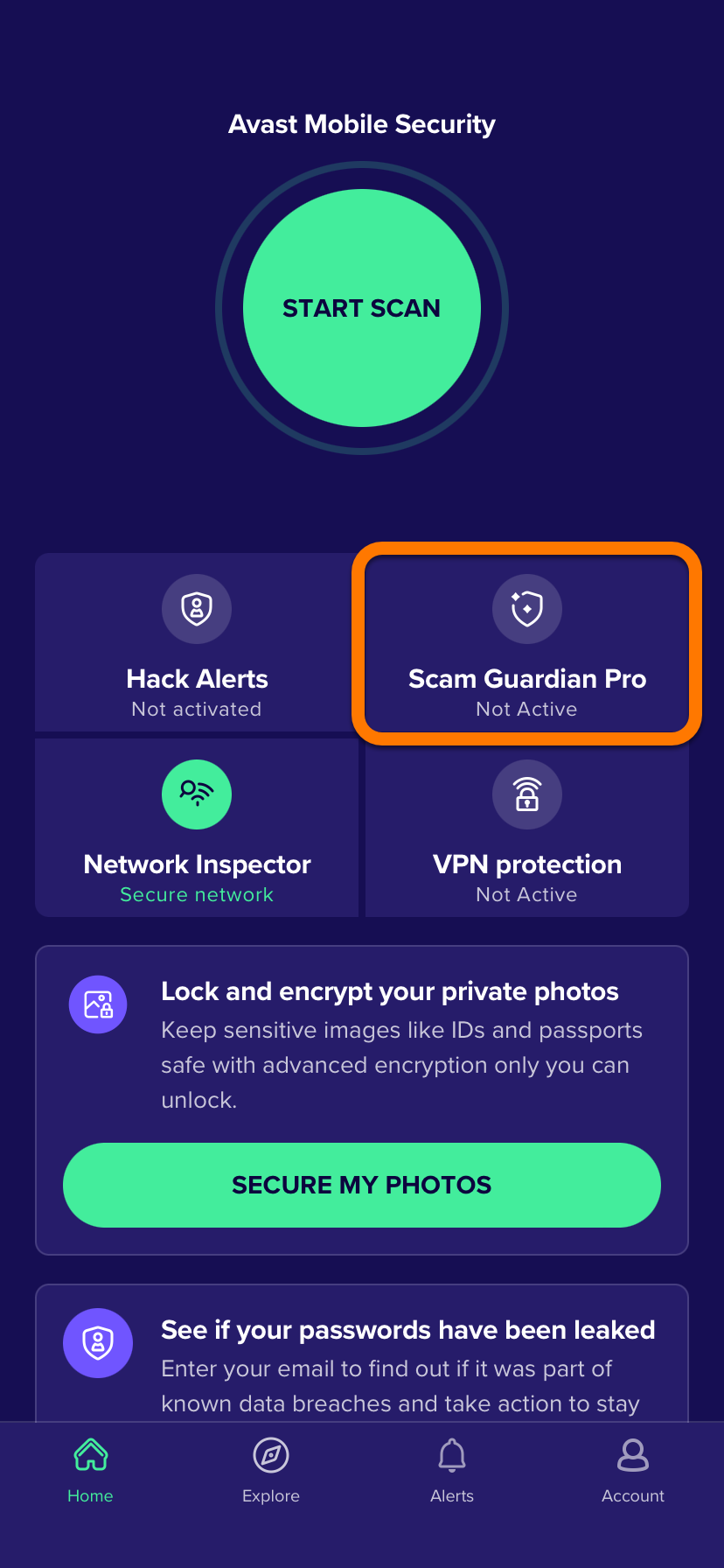
To learn about how to set up and use these features, refer to the following article: Scam Guardian - Getting Started.
Enable VPN Protection
VPN Protection uses our VPN (Virtual Private Network) infrastructure to create an encrypted and private VPN connection. This helps to protect the data you upload and download from the internet and helps to keep your internet activity private. To activate VPN Secure Connection:
VPN Secure Connection is available as part of an Avast Mobile Security Ultimate subscription.
- Open Avast Mobile Security and tap VPN Protection.
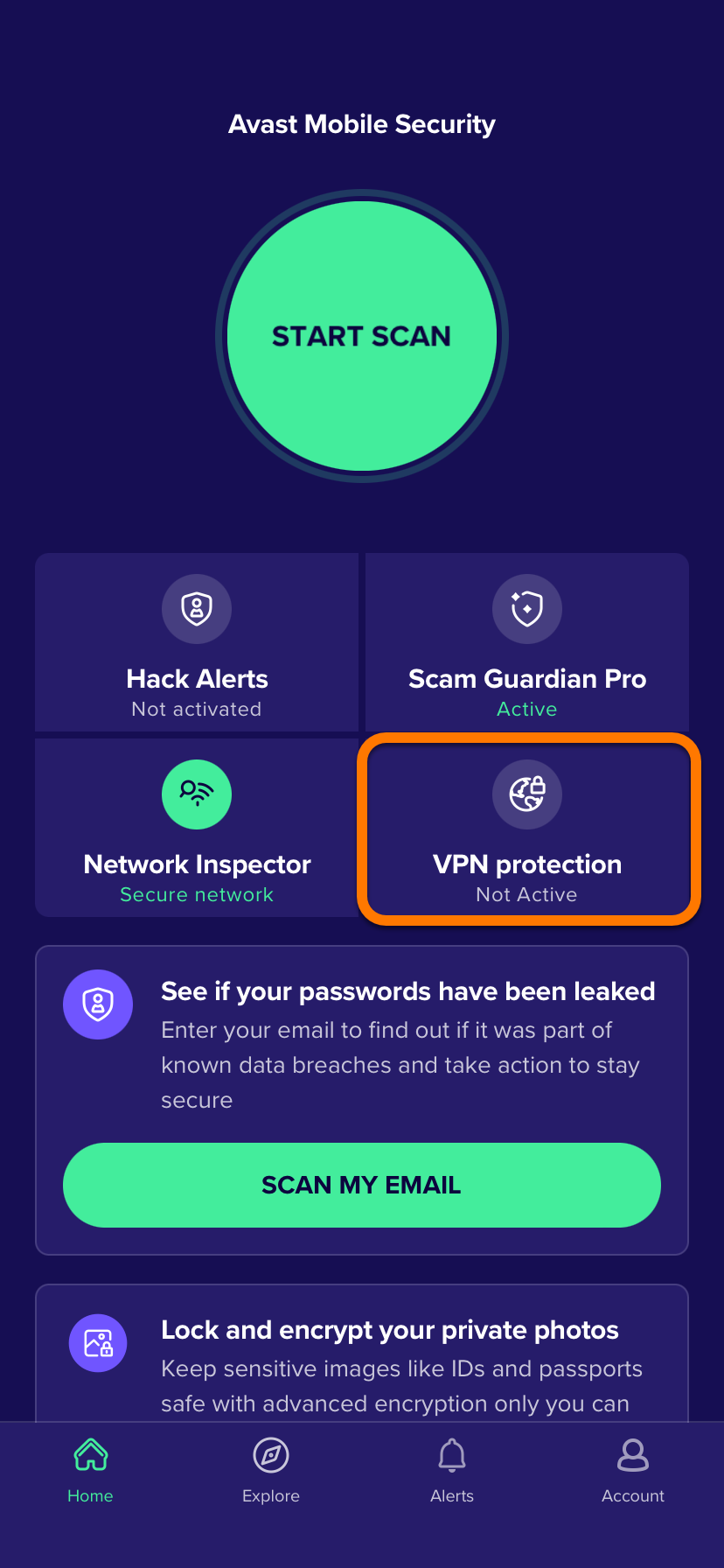
- Tap Set up ▸ Allow to add VPN Configurations.
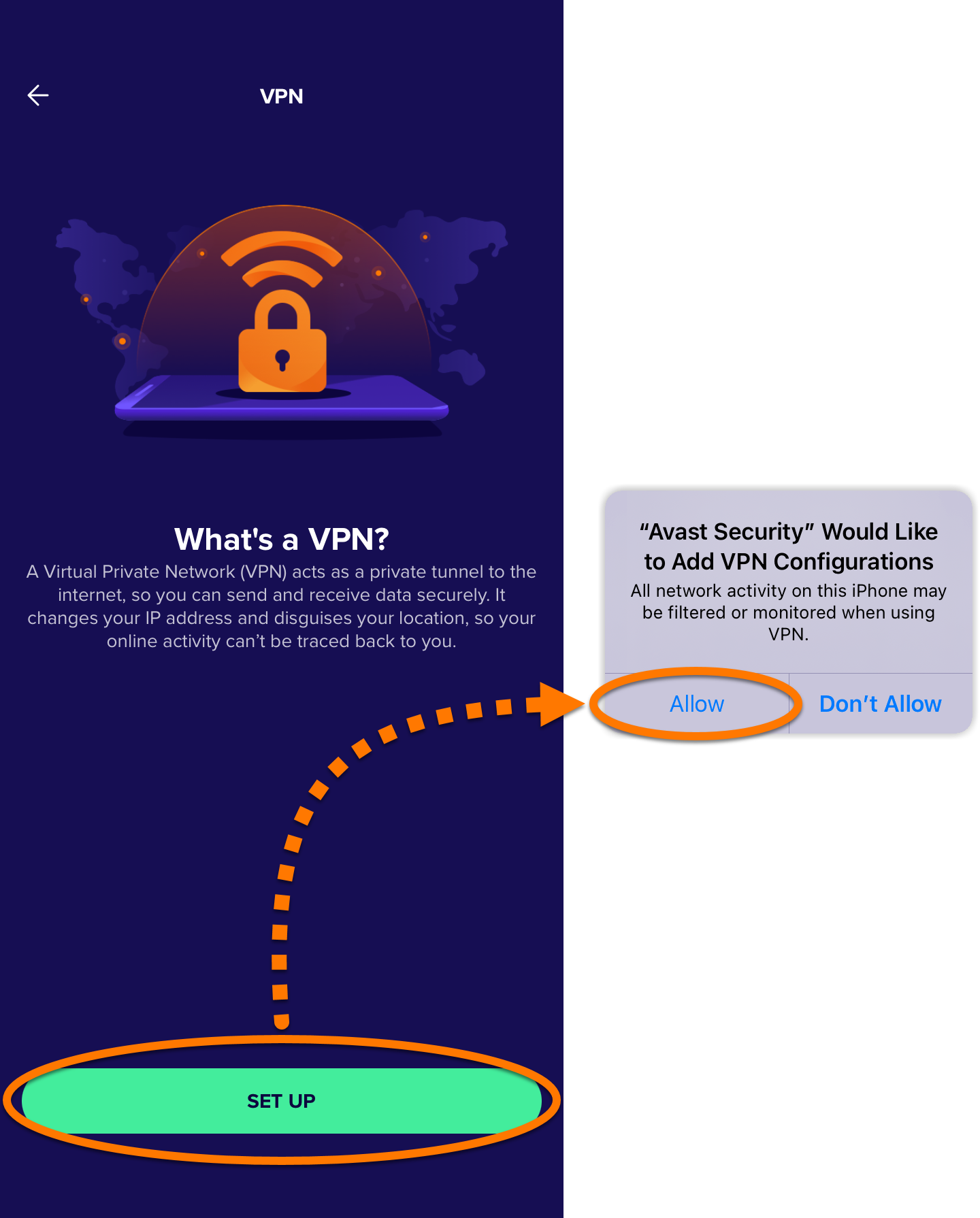
- Tap the red (OFF) slider so that it changes to green (ON).
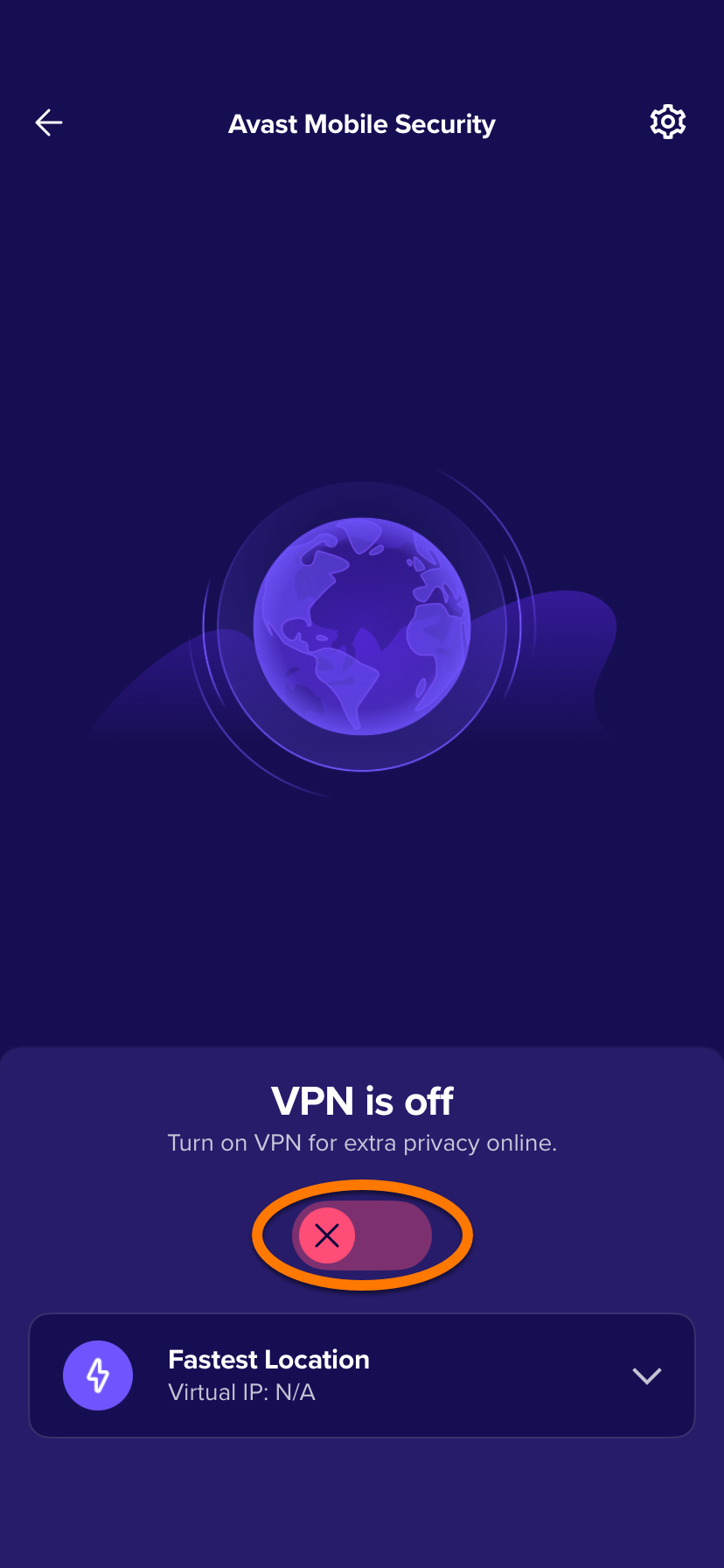
VPN Secure Connection is activated and connected to the fastest server location.
Manage VPN Protection
To connect to a different location:
- Tap the server location at the bottom of the main app screen.
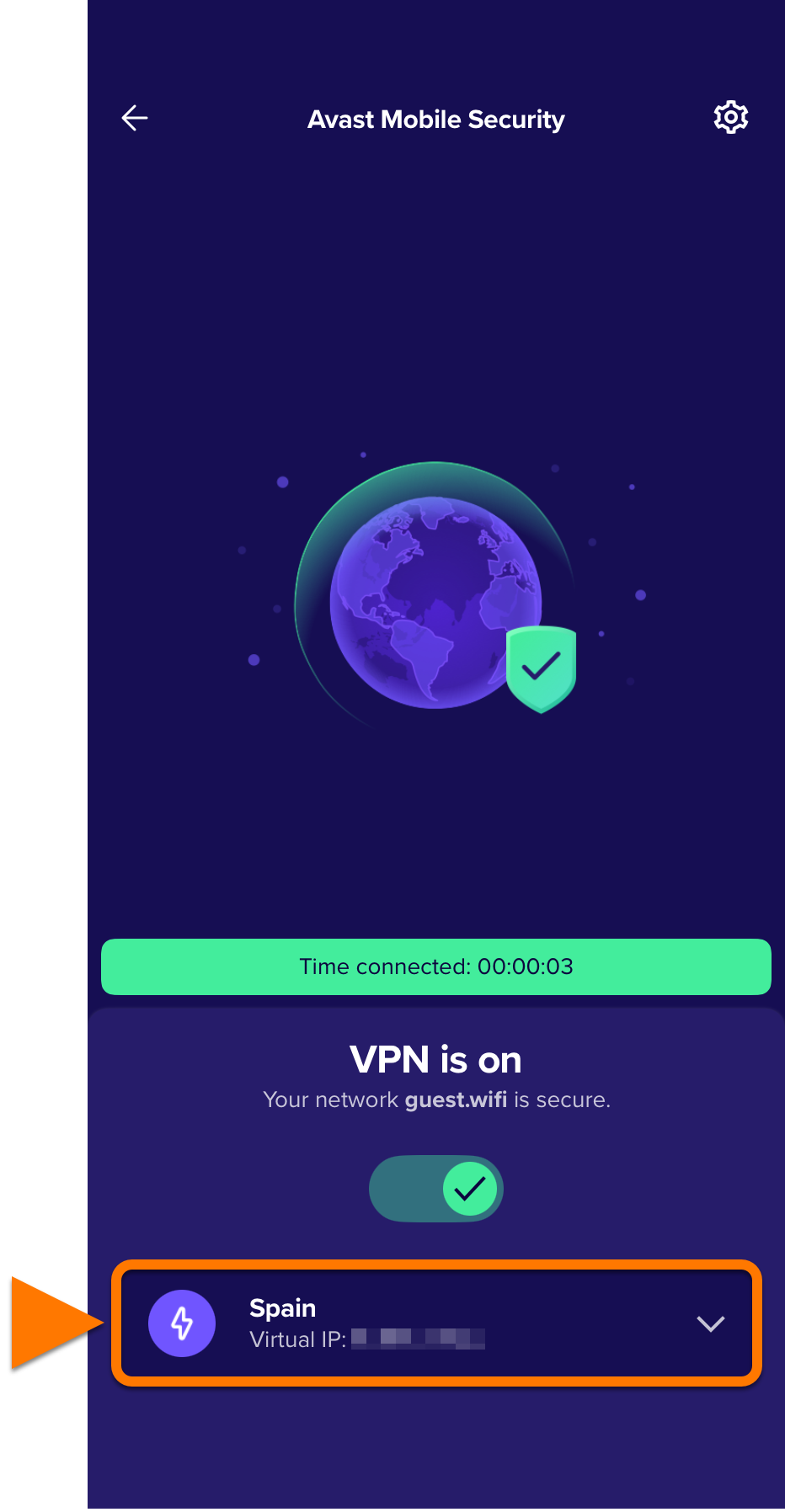
- Tap your preferred country to change your location. For countries with multiple locations, tap
… then choose your preferred city. 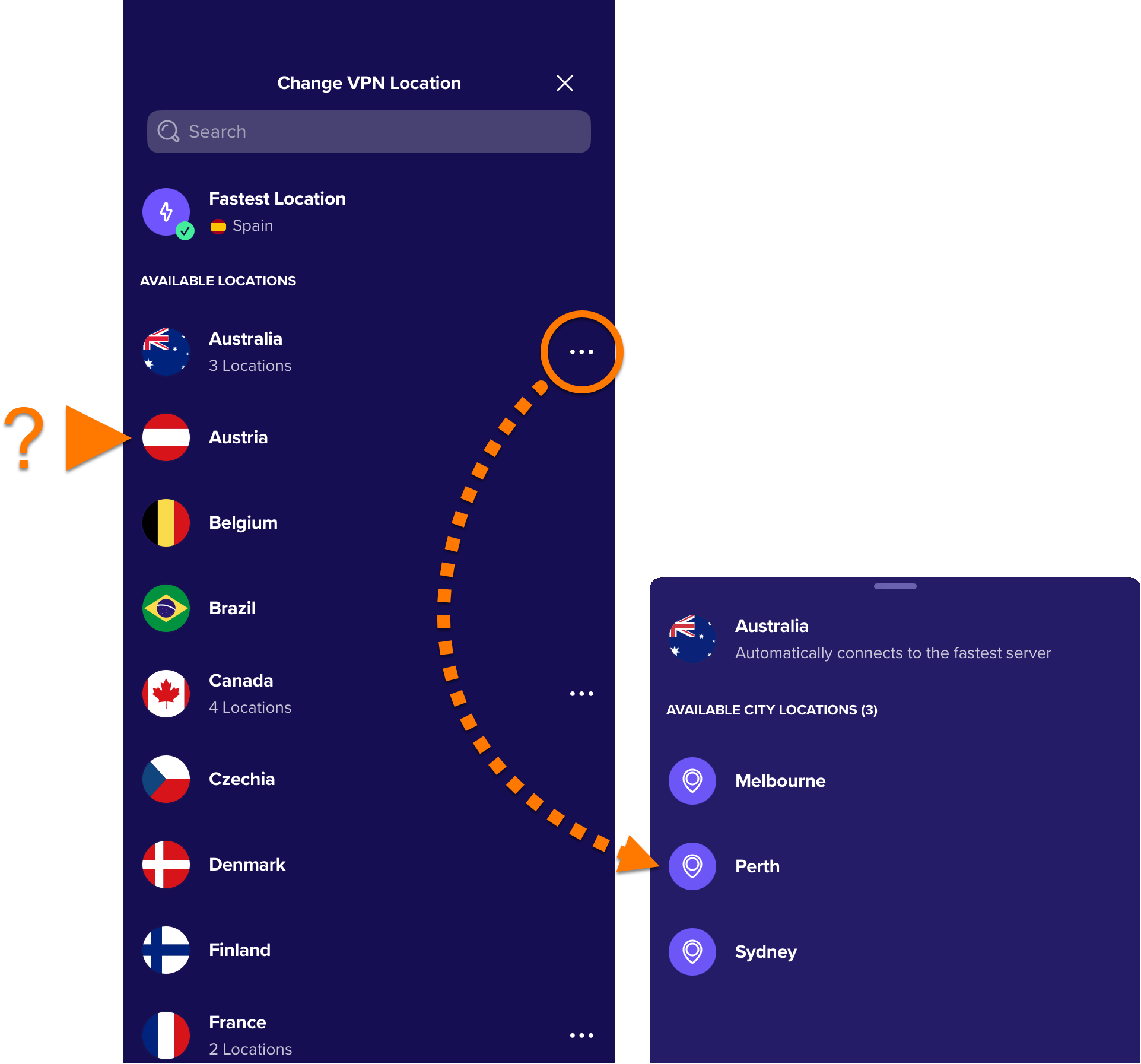
To manage Auto Connect rules:
- Tap
 Settings (the gear icon) at the top-right corner of the screen.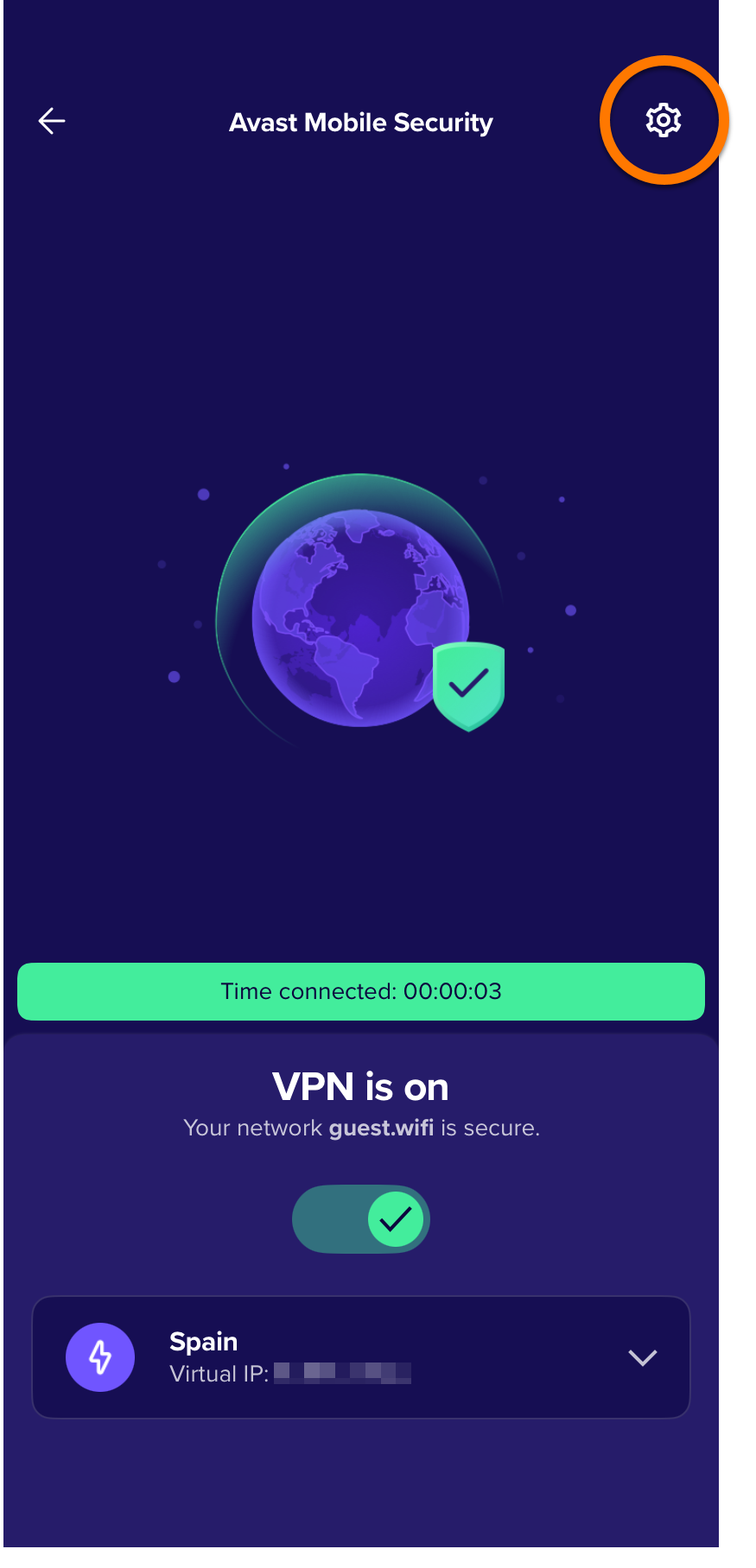
- Choose between the following options:
- Never: VPN Protection will never Auto Connect.
- Unsecured Wi-Fi: VPN Protection will always Auto Connect on non-Private Networks.
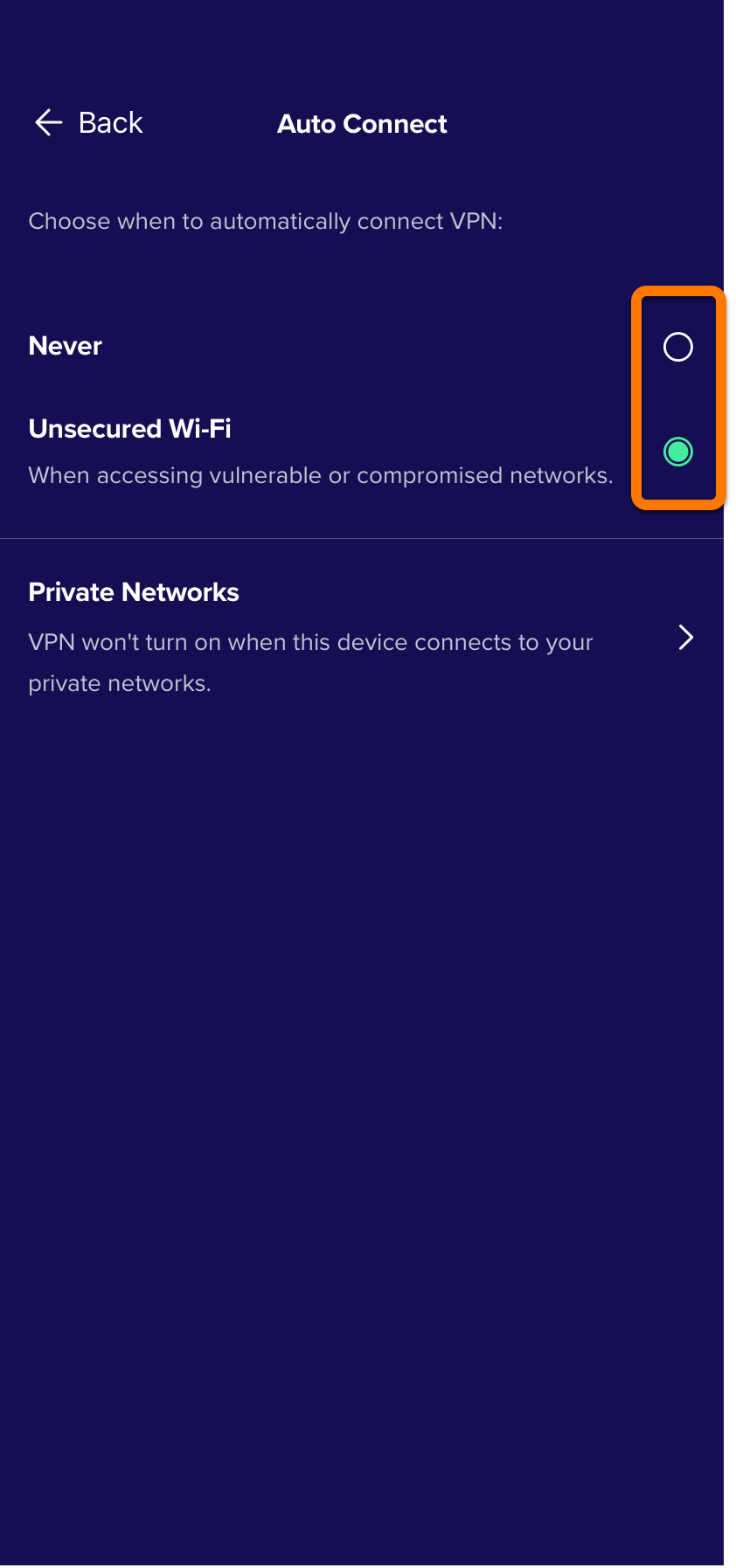
- Optionally, to add a Private Network, ensure that Unsecured Wi-Fi option is enabled, then tap Private Networks ▸
+ (the plus icon) to add the current network to the list of Private Networks. 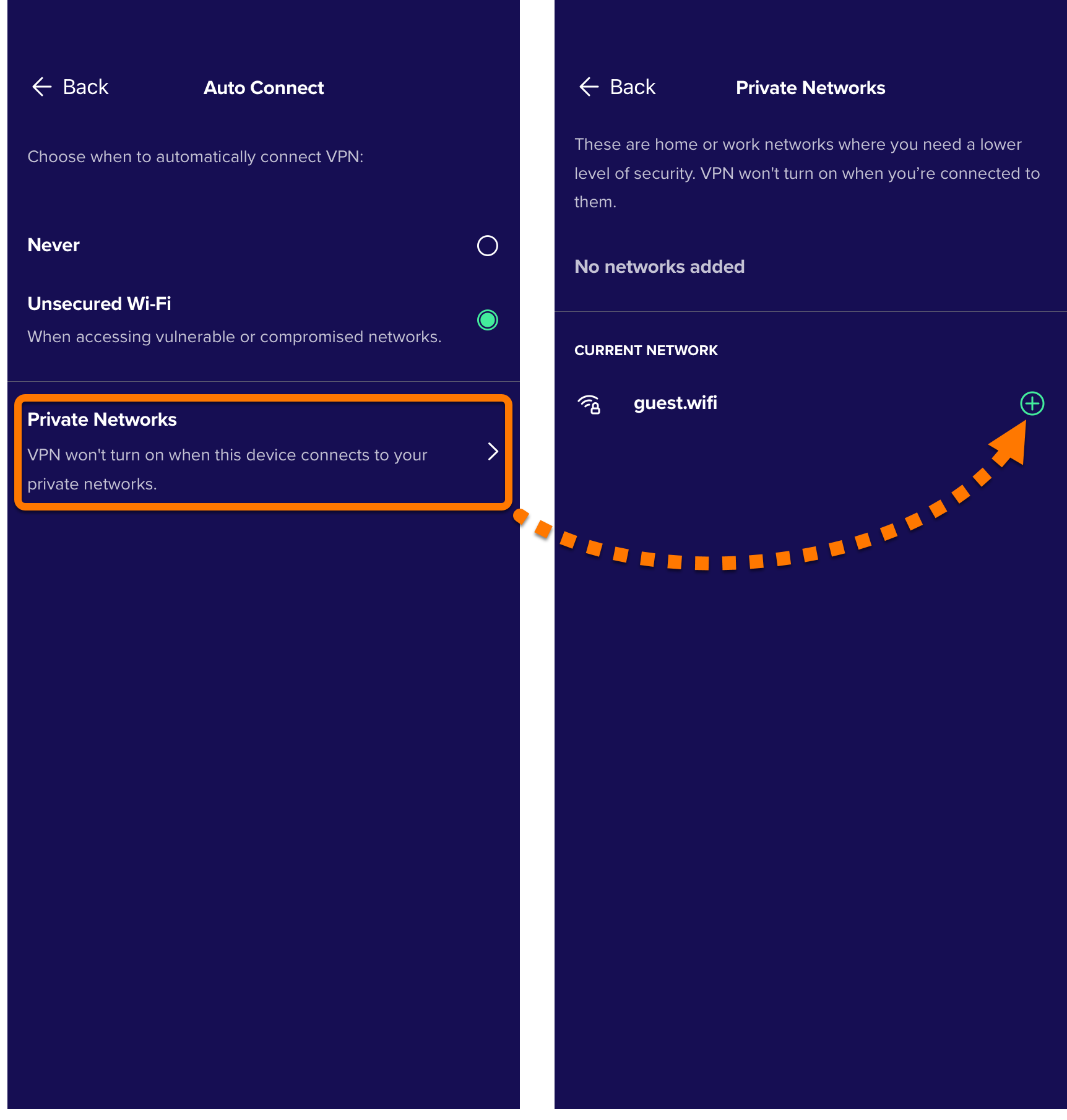
VPN Protection will not auto-connect while you are connected to a Private Network.
Activate Hack Alerts
Hack Alerts helps to keep your online accounts safe by seeking to ensure none of the passwords linked to your email address have been leaked online. If a leak is found, Hack Alerts immediately notifies you and prompts you to change the password that was compromised. To activate Hack Alerts:
- Open Avast Mobile Security and tap Hack Alerts.
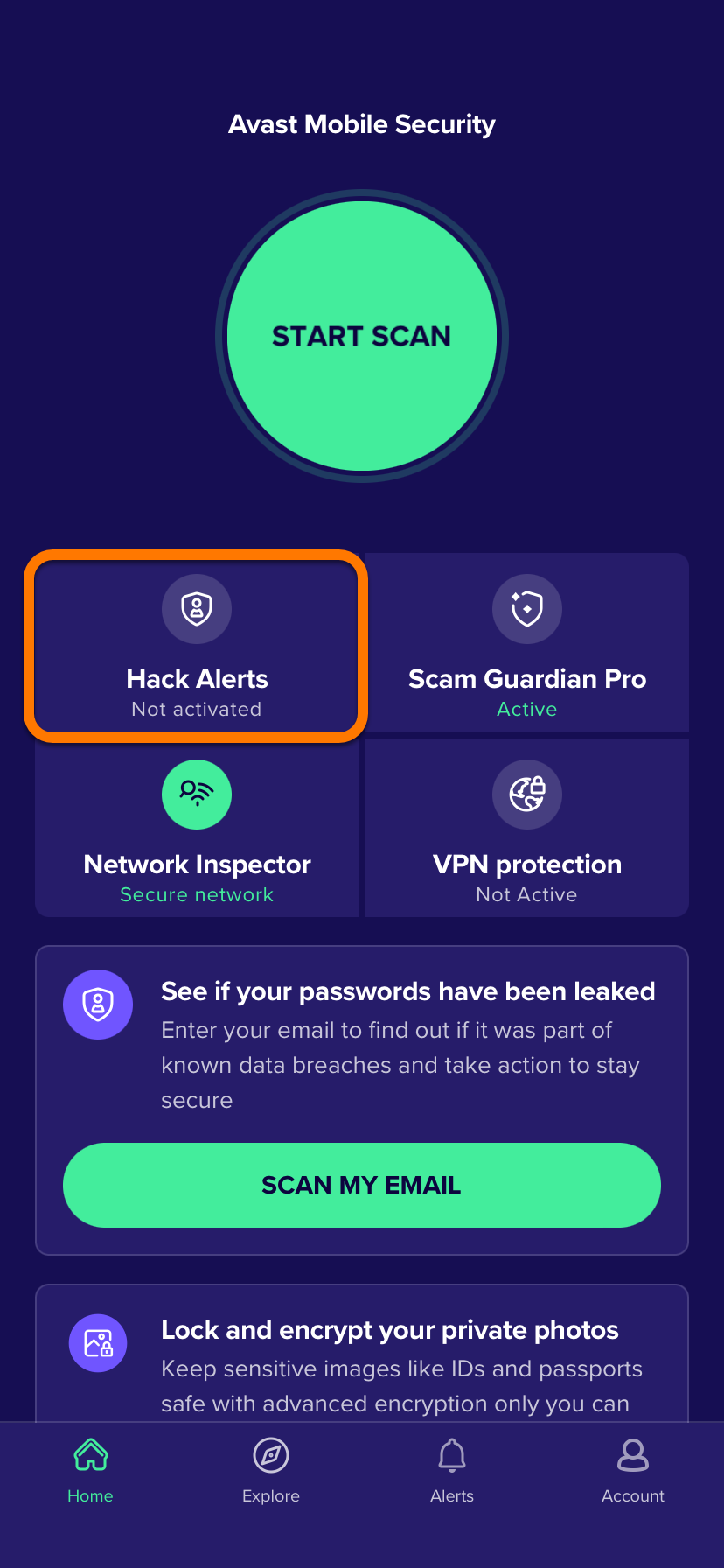
- Tap Next twice.
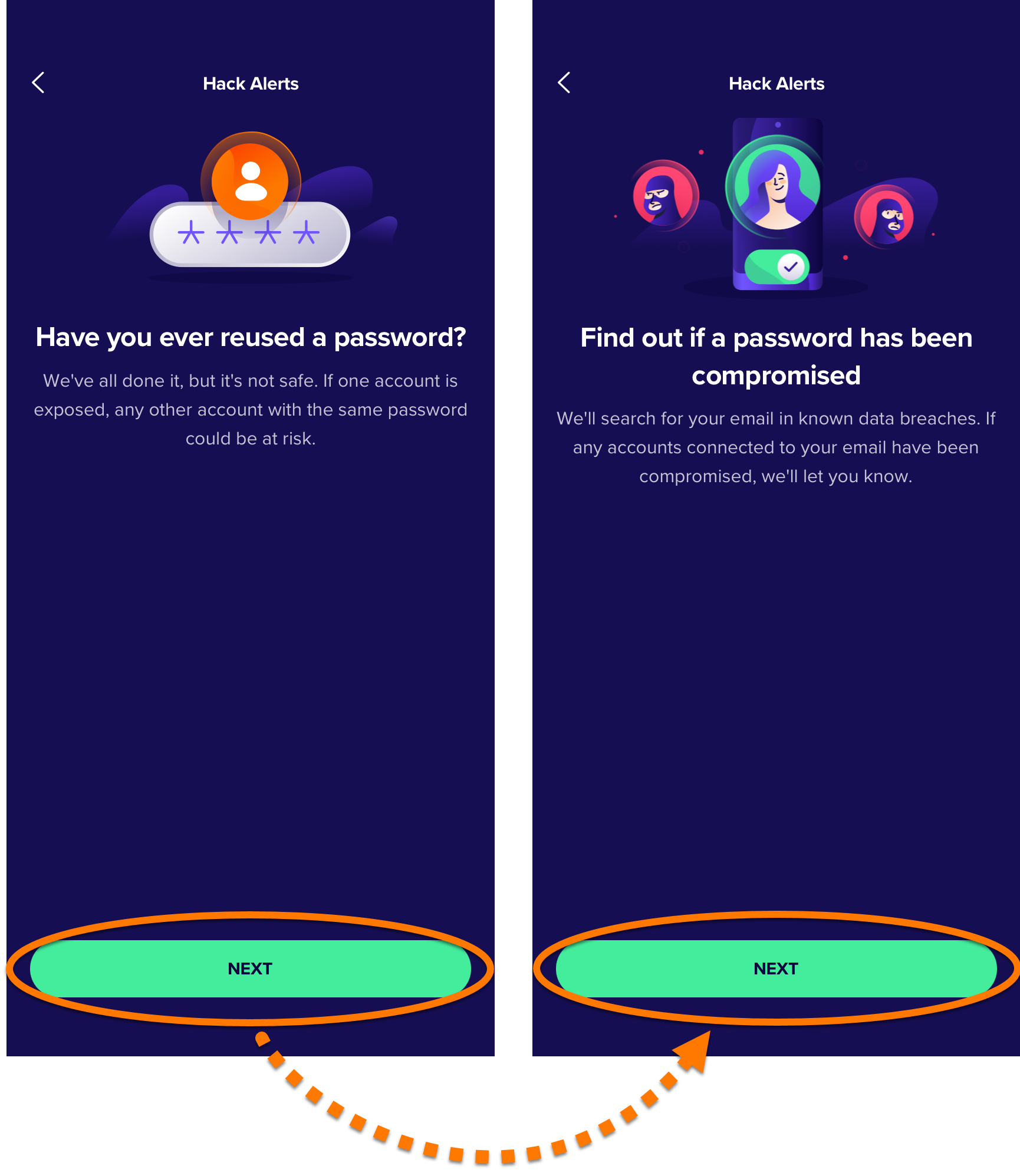
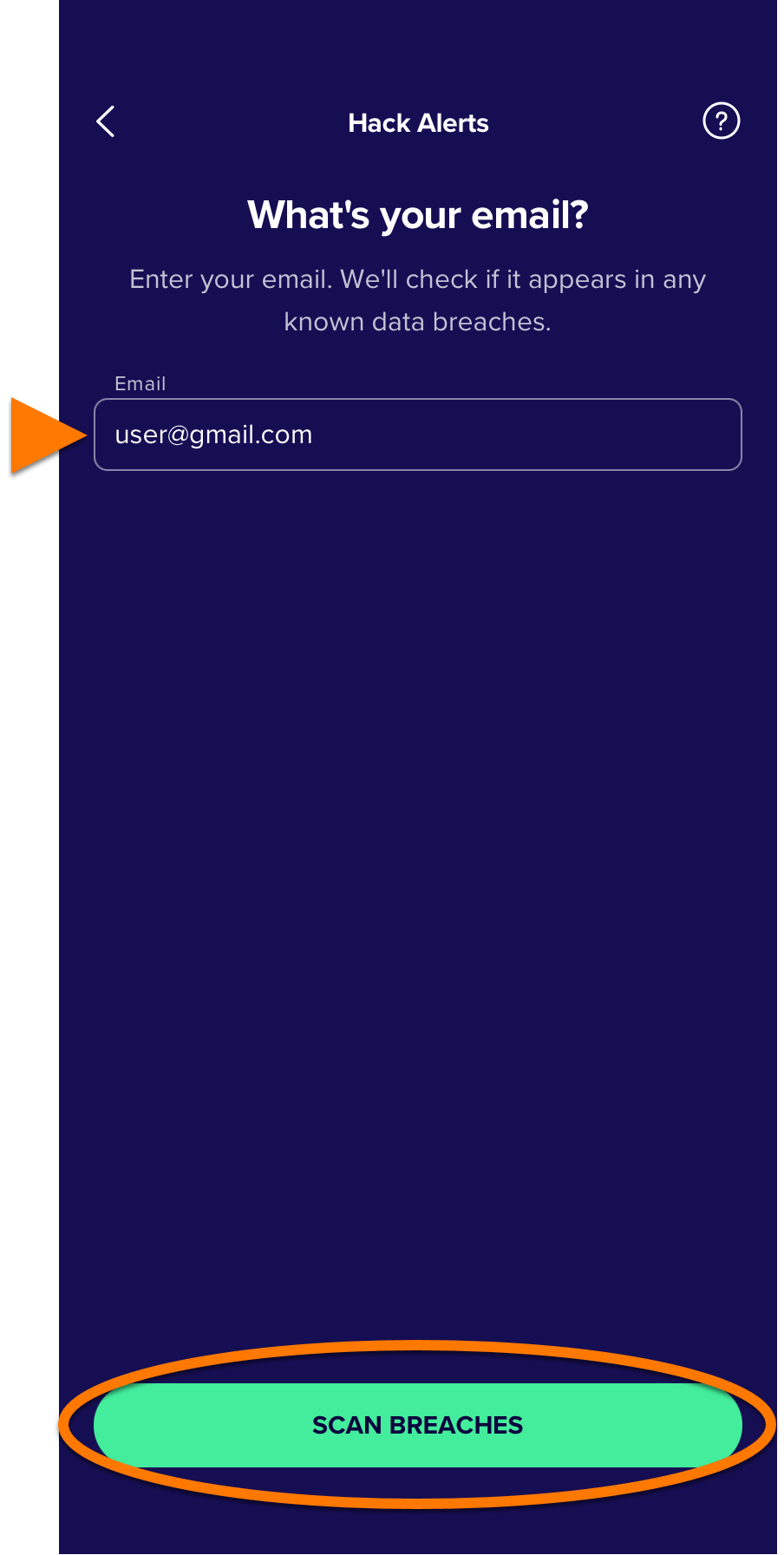
- Enter your email address, then tap Scan breaches.
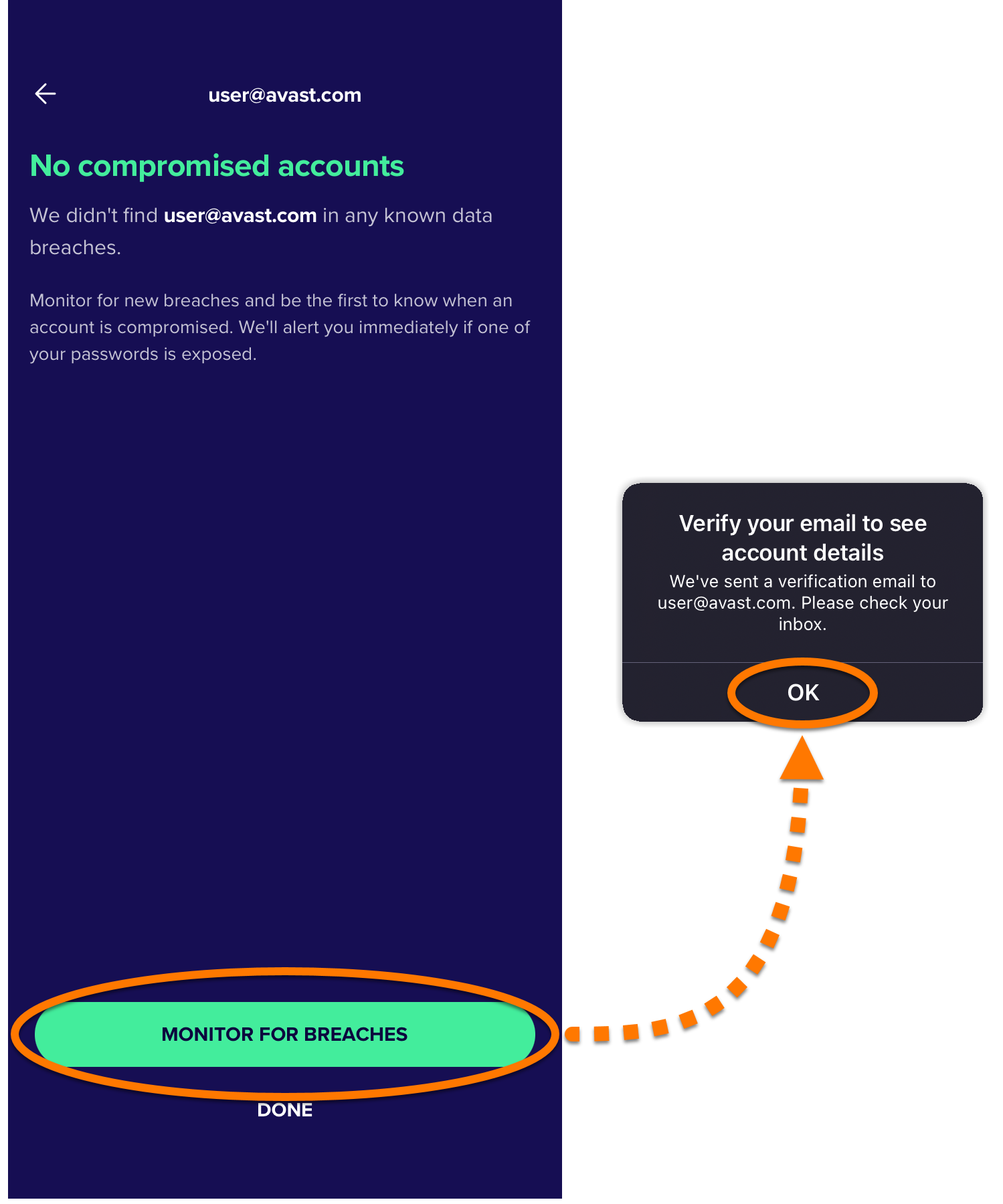
- Once the scan is finished, tap Monotor for breaches ▸ OK.
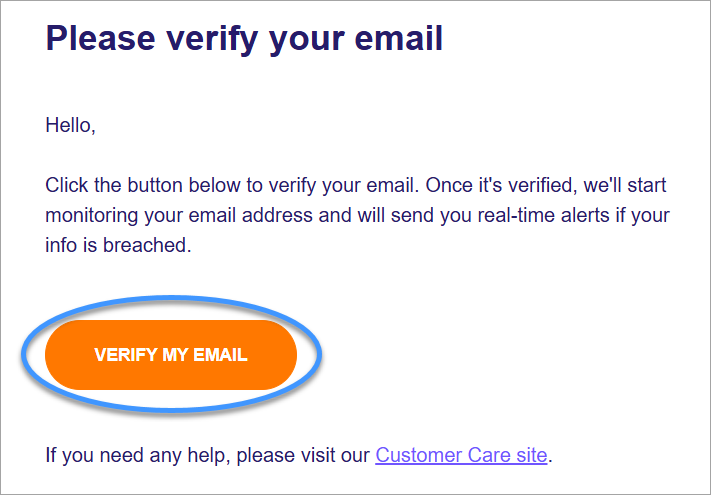
- Open your email inbox and locate the email from notification@emails.avast.com with the subject: Please verify your email. Tap the Verify my email button.
- In the Avast Mobile Security app, select your email address and tap Already verified.

Hack Alerts is now active and continuously checks for new data breaches involving this email address. Free users are only able to monitor one email address at a time. Paid users are able to monitor 5. To add another email address, open Hack Alerts, tap Scan for new email, then follow the instructions above, starting at step 4.
To remove an email address, open Hack Alerts tile, then select your email address, and tap ⋮ ▸ Stop monitoring email.
Securing compromised accounts
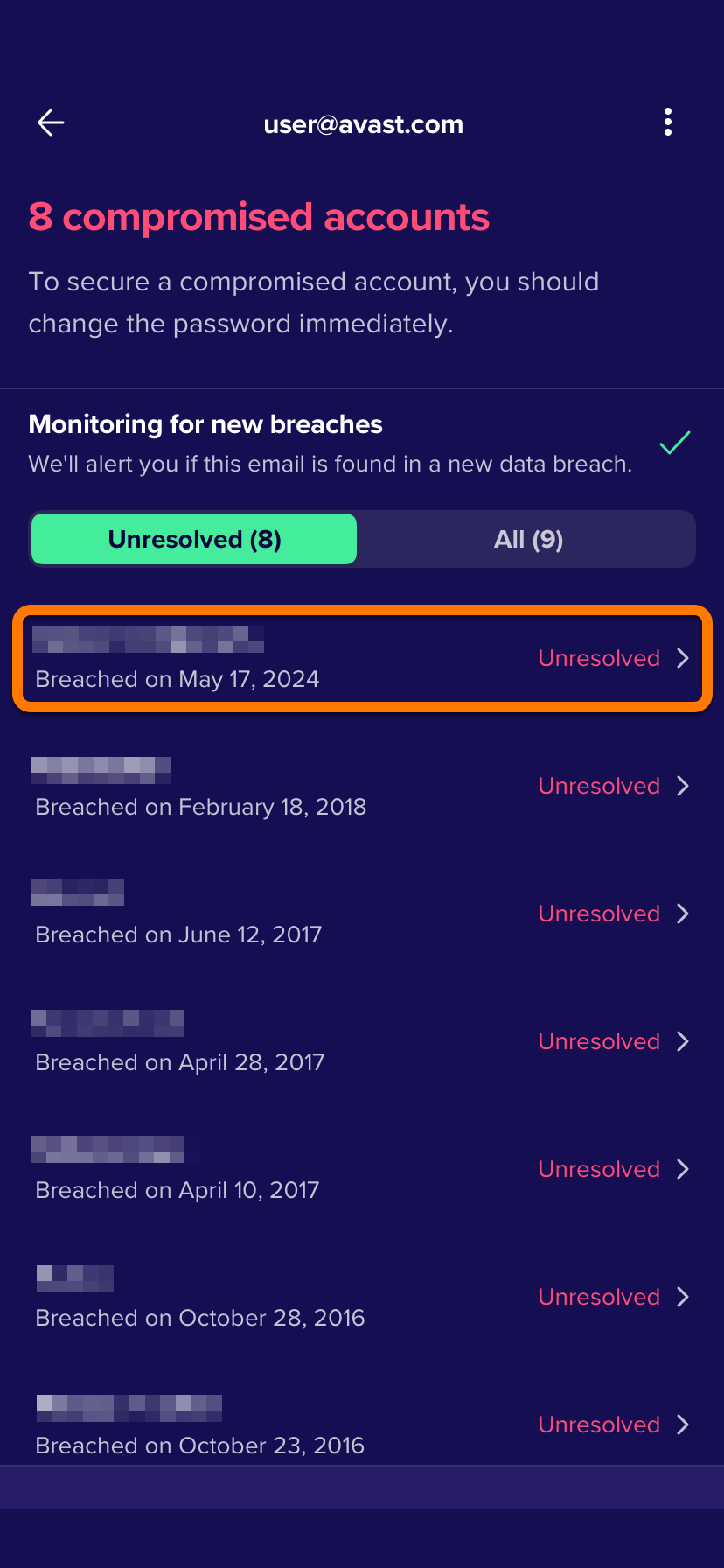
If Hack Alerts finds any breaches related to your email address, it lists all involved accounts under Compromised accounts list. We recommend you immediately change the passwords for all accounts listed under Compromised accounts:
- Tap a breached account on your Unresolved list.
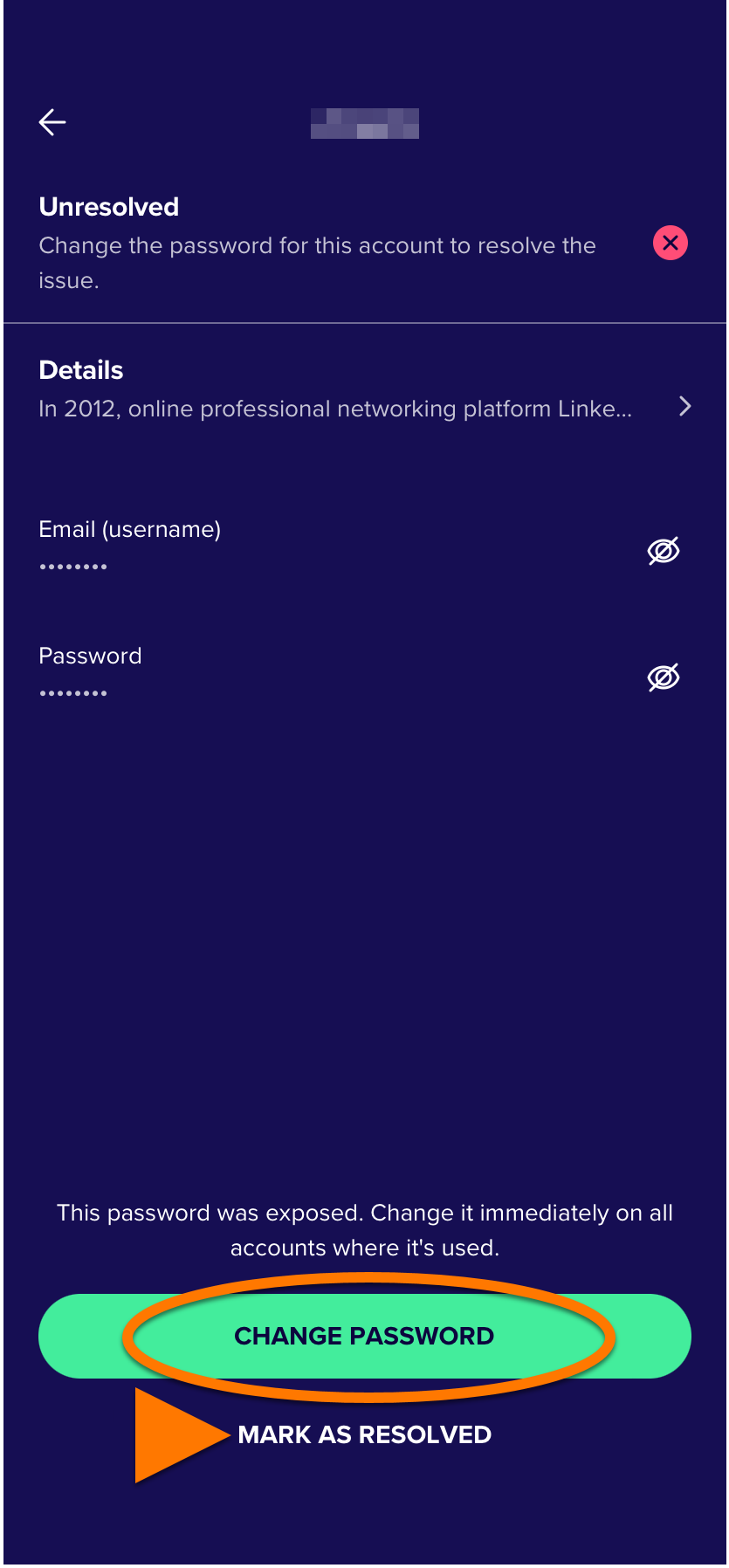
- Tap Change password to follow the on-screen instructions to change the account's password. When done, tap Mark as resolved.
Access Network Inspector
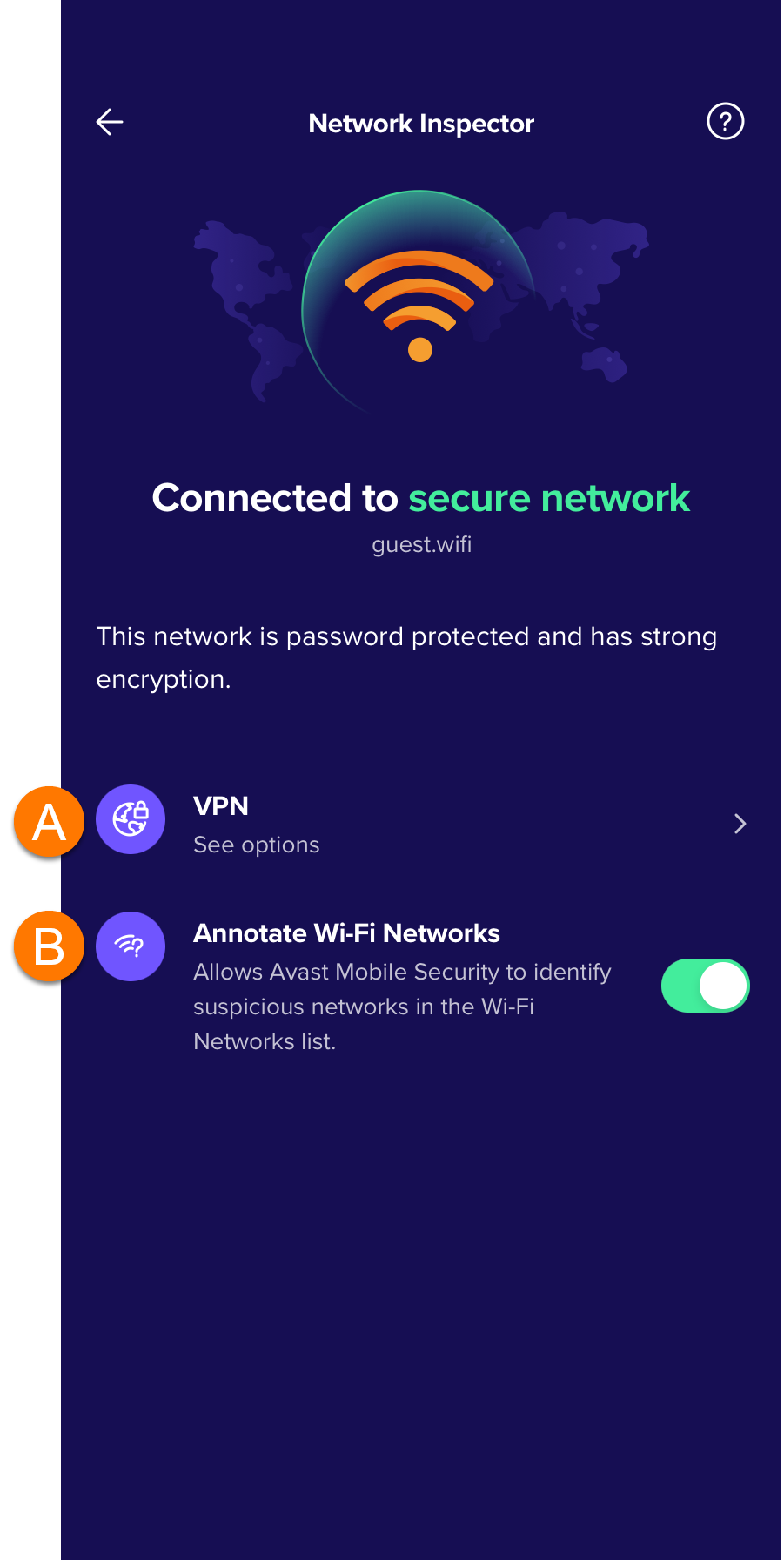
Network Inspector automatically scans the networks you join for any vulnerabilities, and helps give you recommendations for how to protect your privacy and personal info.
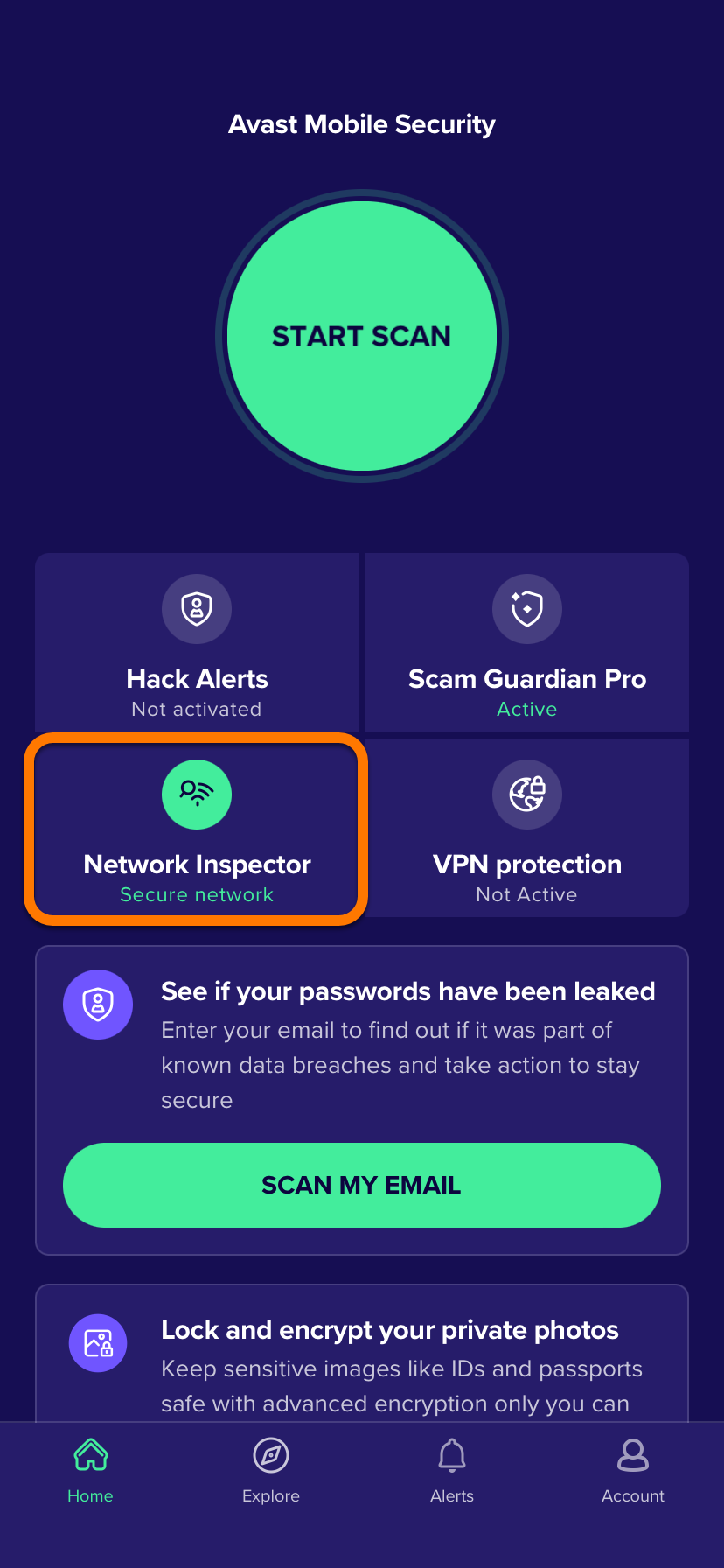
- Open Avast Mobile Security and tap Network Inspector.
- Tap Get started.
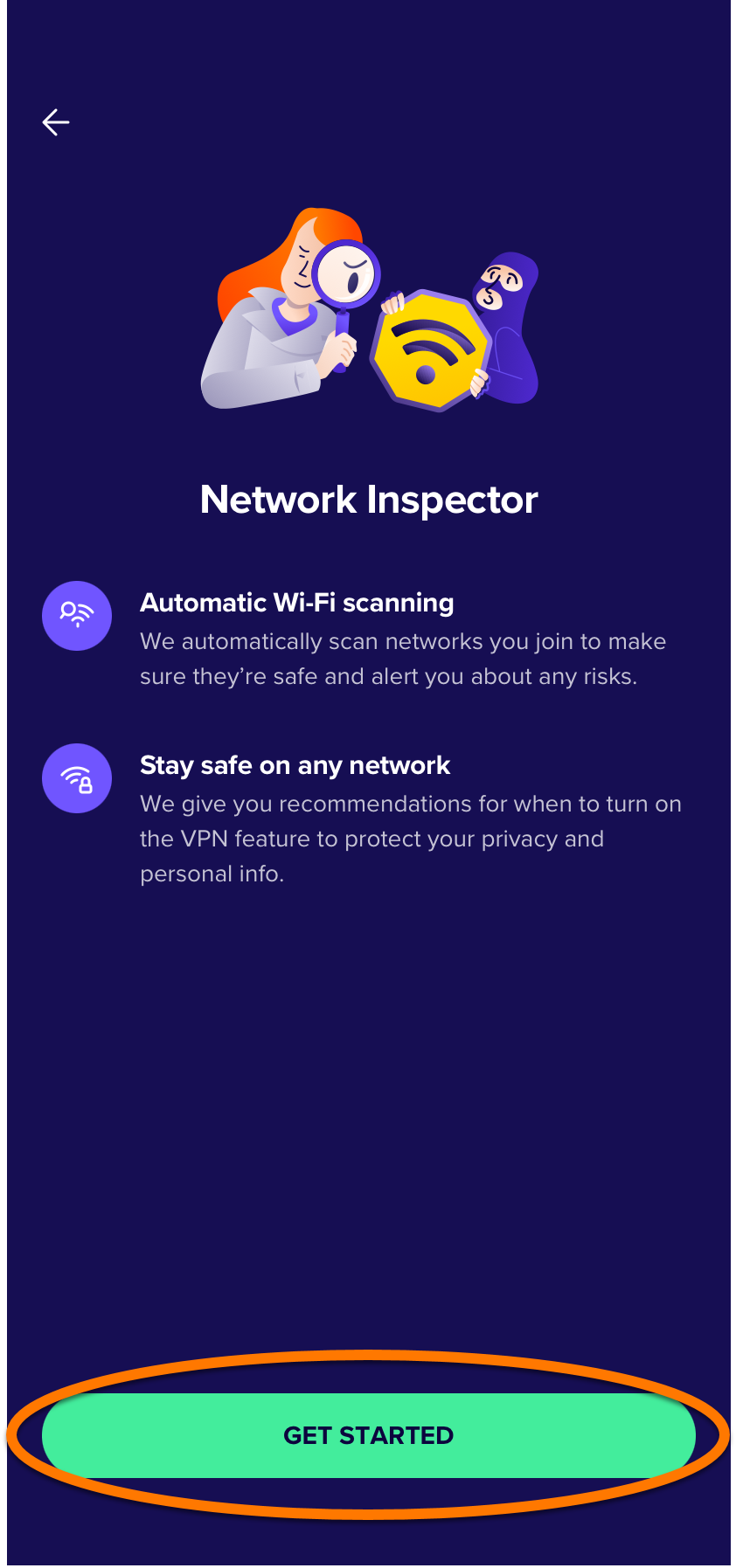
- The following options are available:
- VPN: A quick access to your VPN Protection.
- Annotate Wi-Fi Networks: Ensure that the slider is ON to allow Avast Mobile Security to identify suspicious networks.
Use Photo Vault
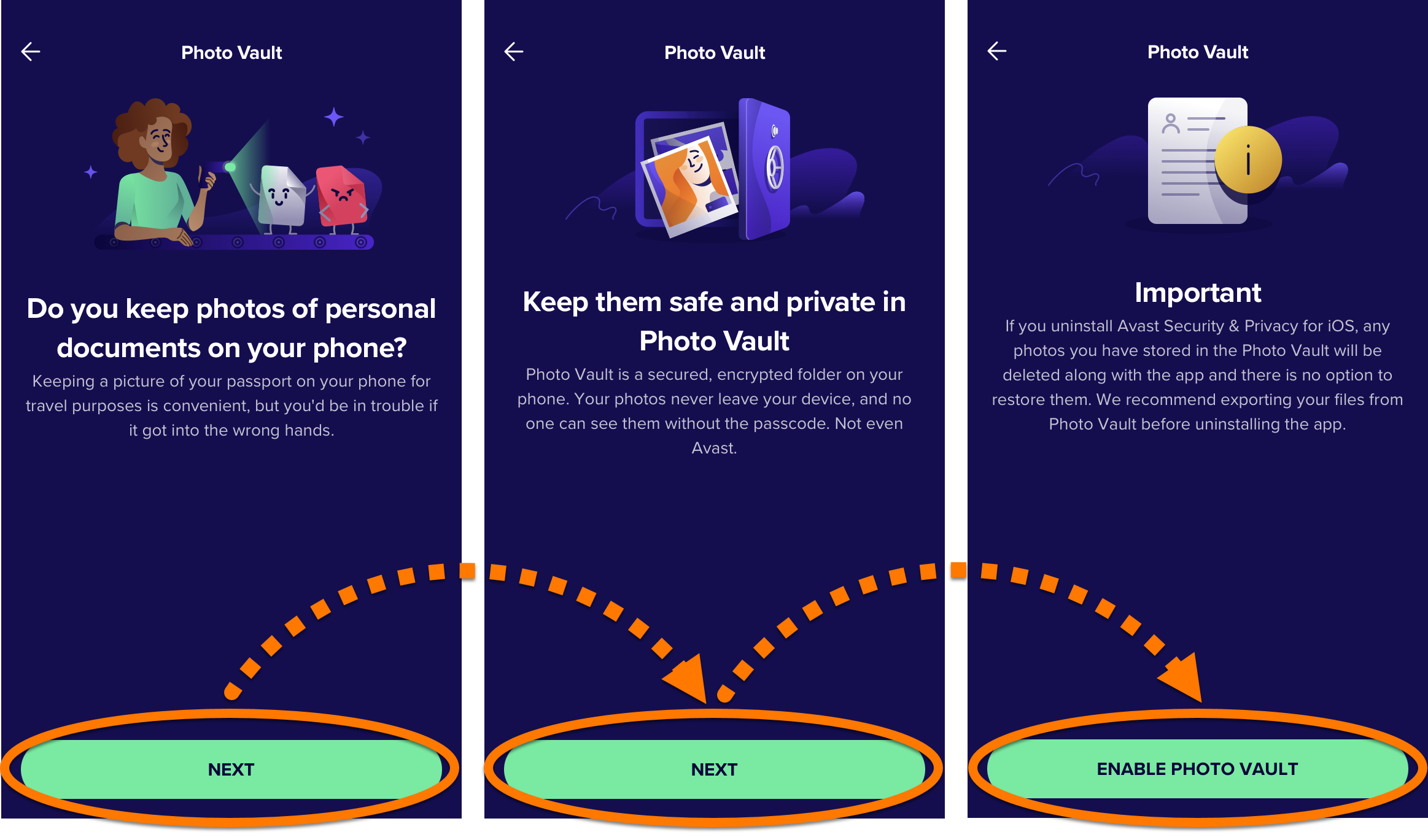
If you uninstall the legacy Avast Mobile Security app, any photos stored in Photo Vault are deleted along with the app and cannot be restored. The legacy app cannot be reinstalled. We recommend exporting your files from Photo Vault before uninstalling legacy Avast Mobile Security.
Photo Vault helps protect your photos and images from prying eyes by moving them to a passcode-protected, encrypted vault on your device. Up to 40 photos or images from your device or camera can be added to the vault. With an Avast Mobile Security Premium subscription you can store an unlimited number of photos or images in Photo Vault. To set up Photo Vault:
- Open Avast Mobile Security and tap
 Explore ▸ Photo Vault.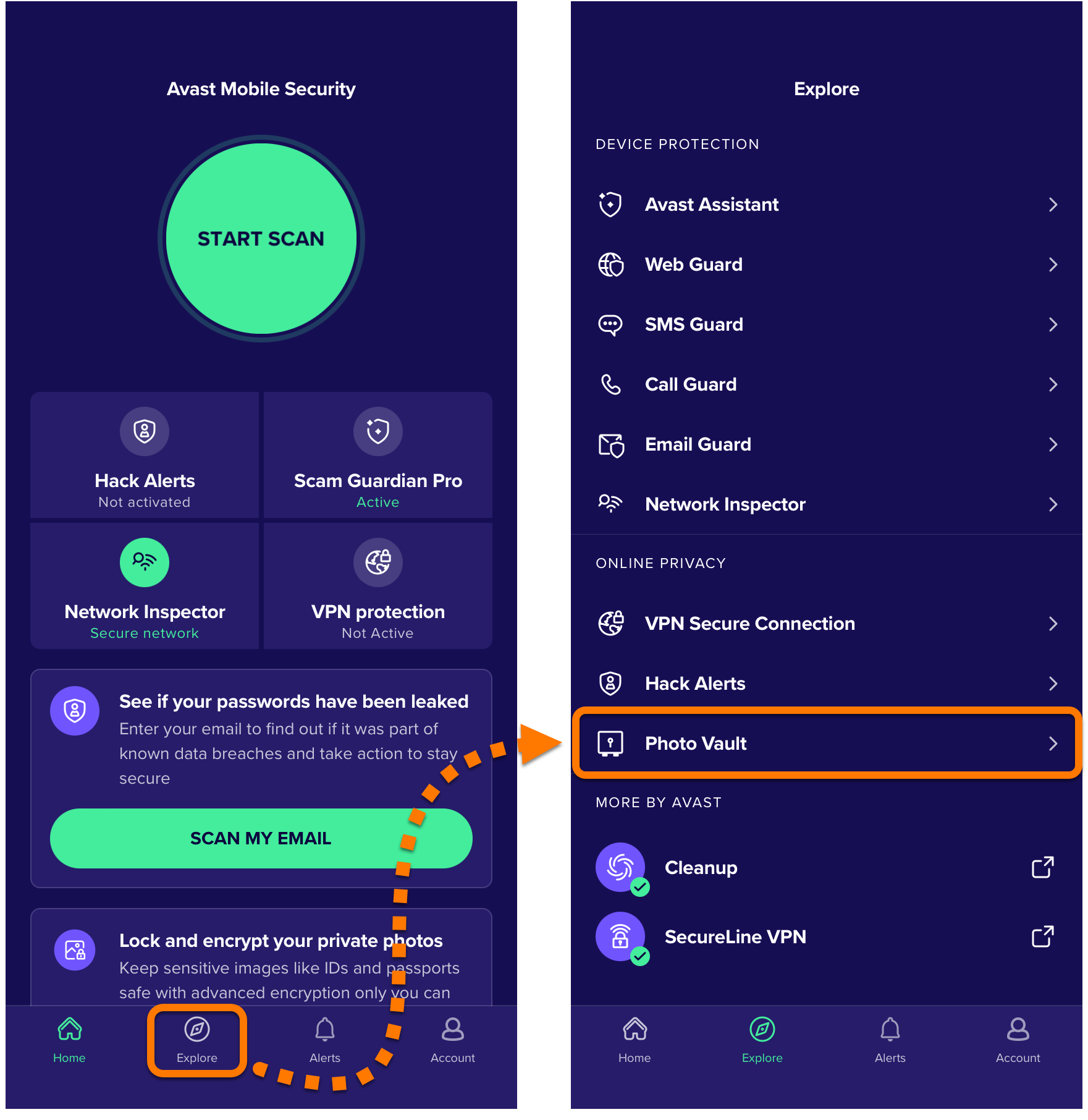
- Tap Next twice, then tap Enable photo vault.
- Create a four digit access code that you will use to sign in to your Photo Vault. Type it twice to confirm.
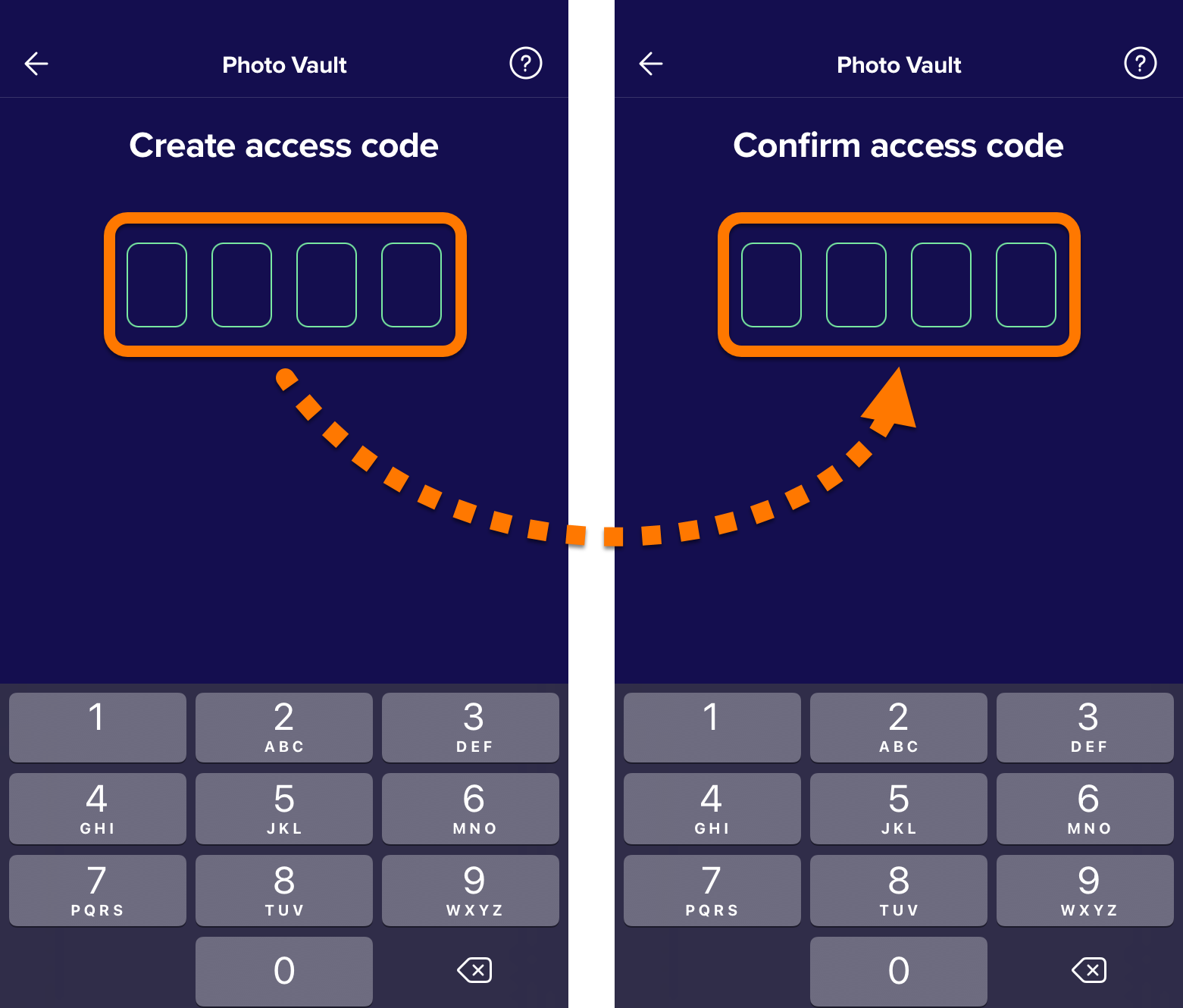
Your passcode is set. Now every time you open Photo Vault you are prompted to enter your passcode to gain access to the vault.
Add photos to Photo Vault
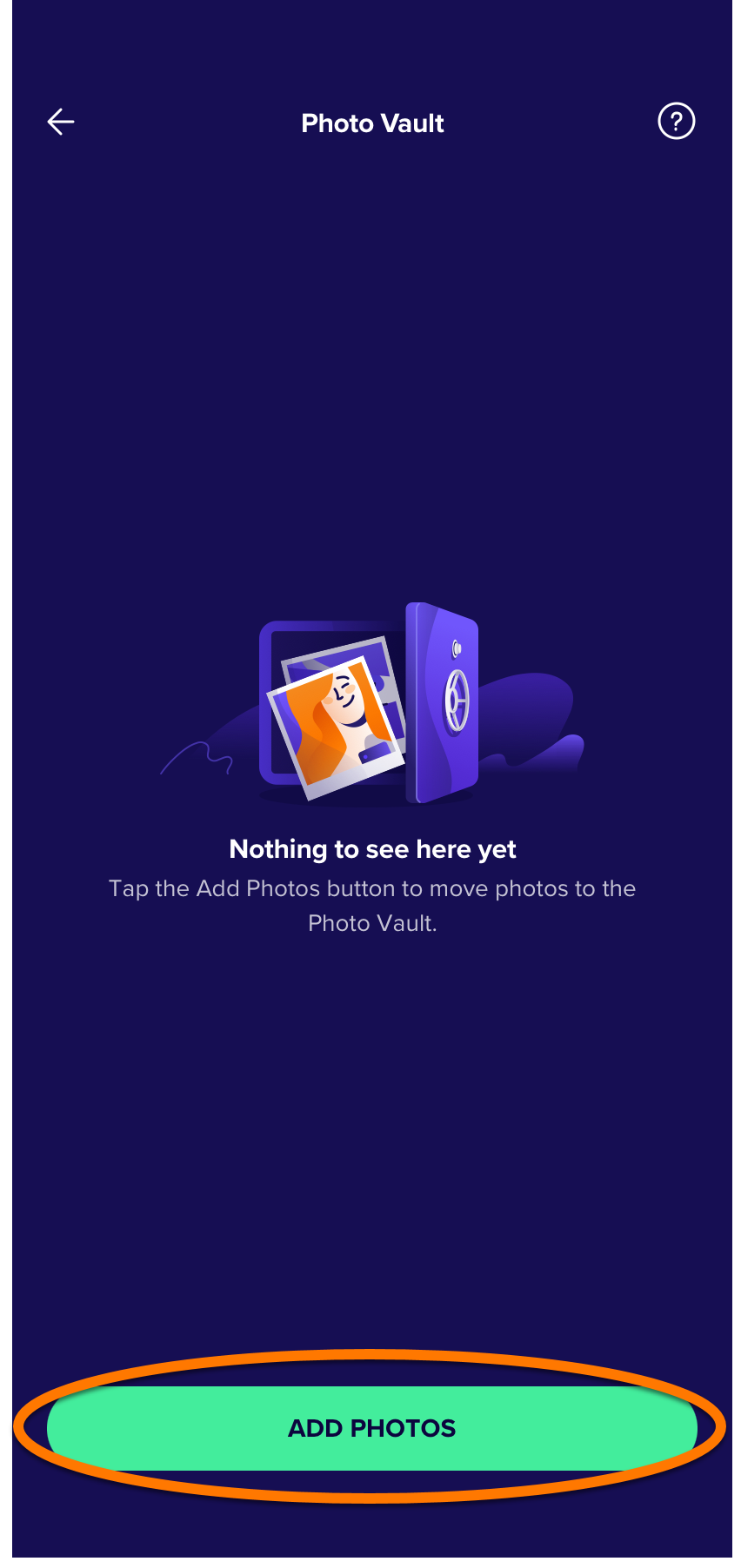
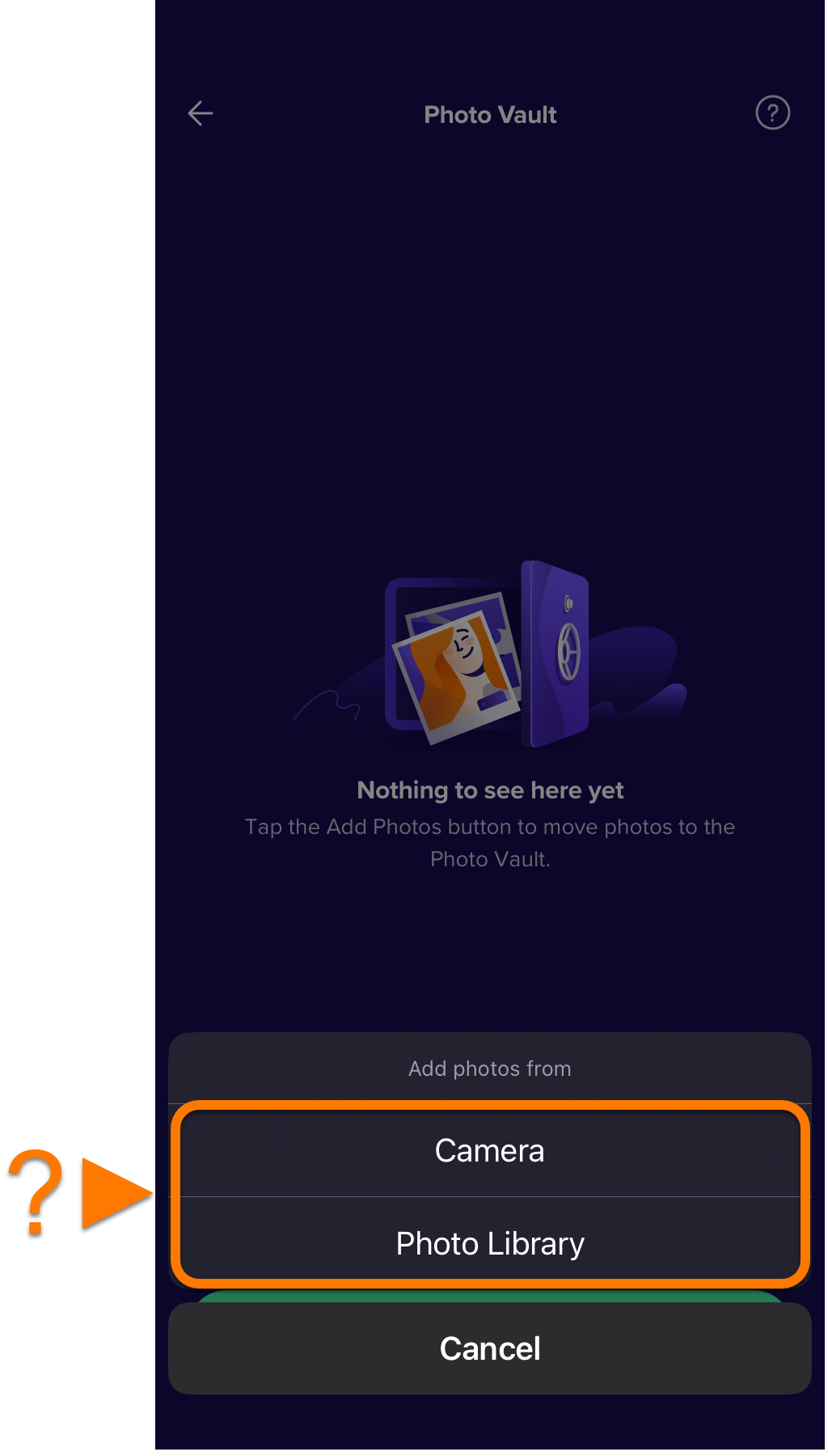
You can add existing images to your Photo Vault from the Photo Library on your device, or use the camera on your device to take a photo and import it directly into your Photo Vault. To add images to Photo Vault:
- Tap Add photos.
- Select either Camera or Photo Library:
Manage files in Photo Vault
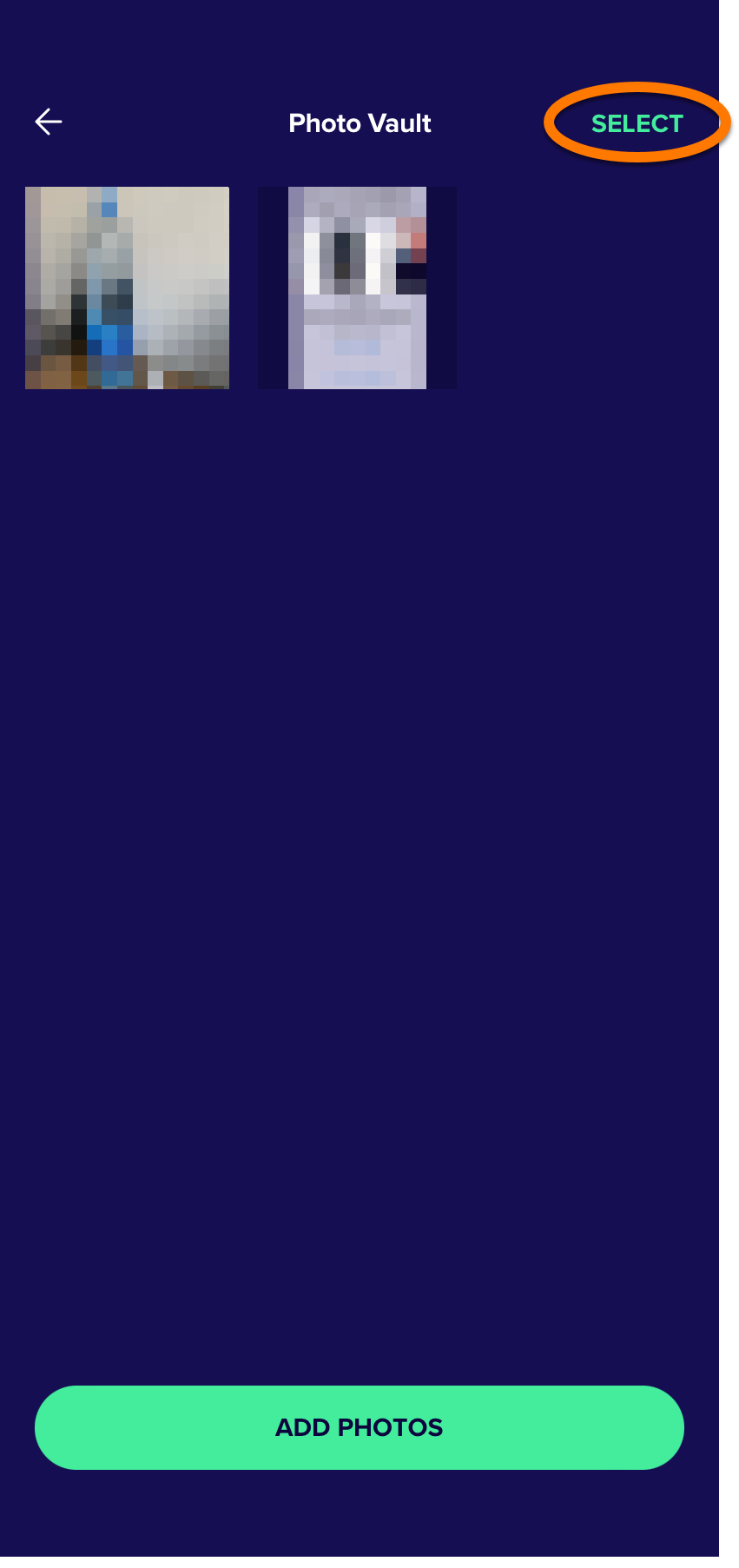
To export or delete files from Photo Vault:
- Open Photo Vault and tap Select.
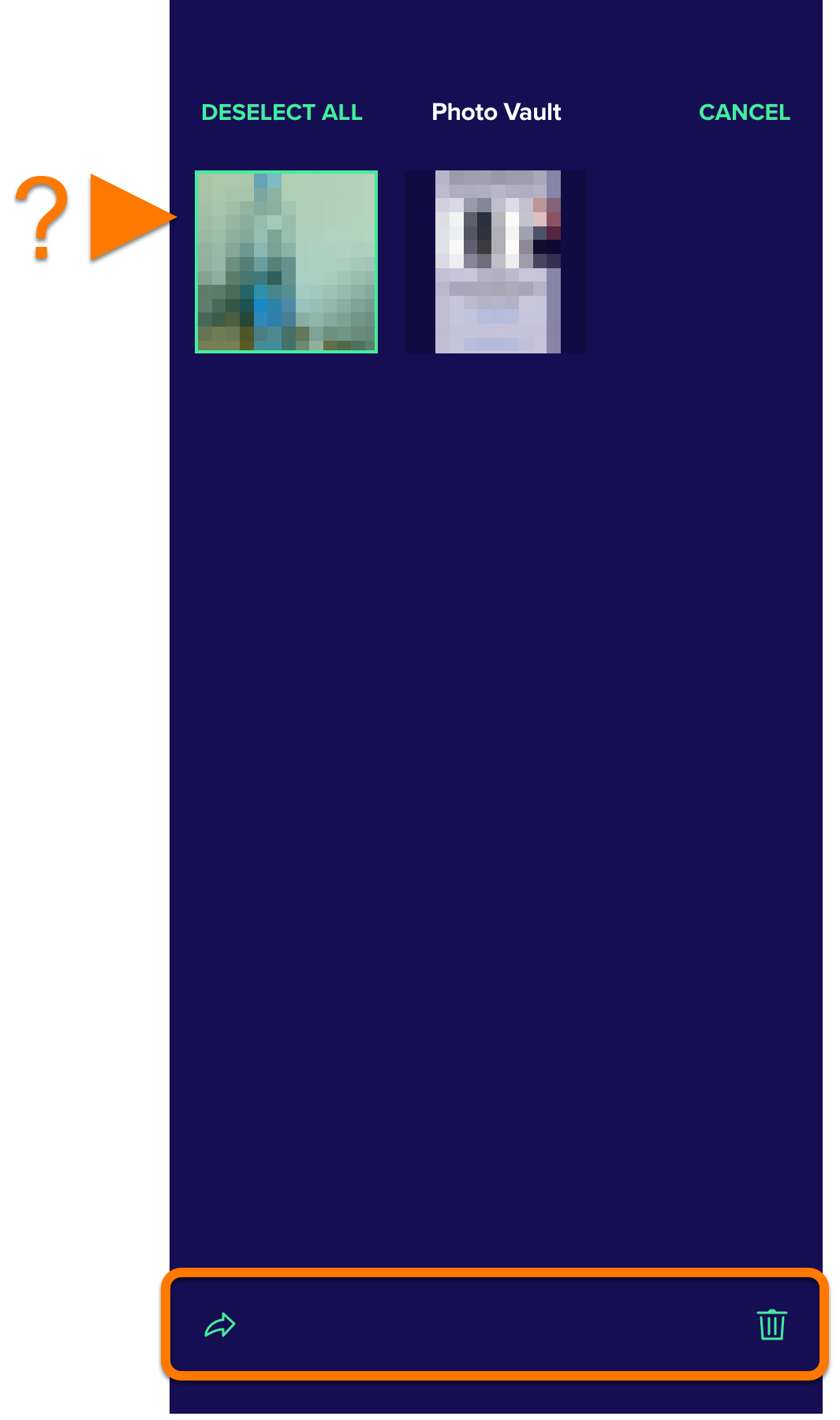
- Tap the photo(s) you want to share or remove from the vault. A green border appears around the selected photo(s). Tap the relevant option:
- Share icon: Send the selected file(s) to another location, for example via AirDrop, email, or message.
- Trash icon: Permanently remove the file(s) from Photo Vault.
Change your Photo Vault passcode
- Open Avast Mobile Security and tap
 Account.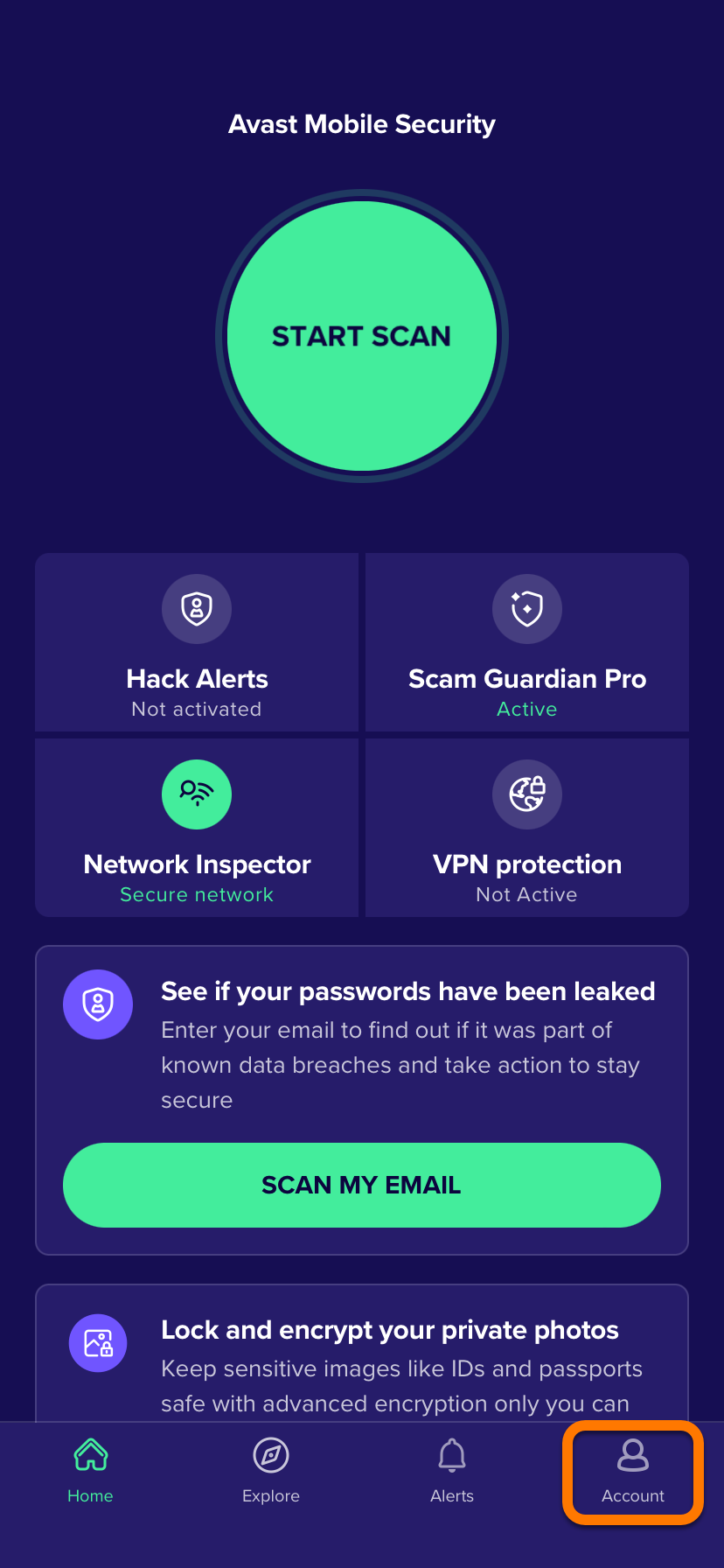
- Tap Help and support ▸ Photo Vault ▸ Change access code.
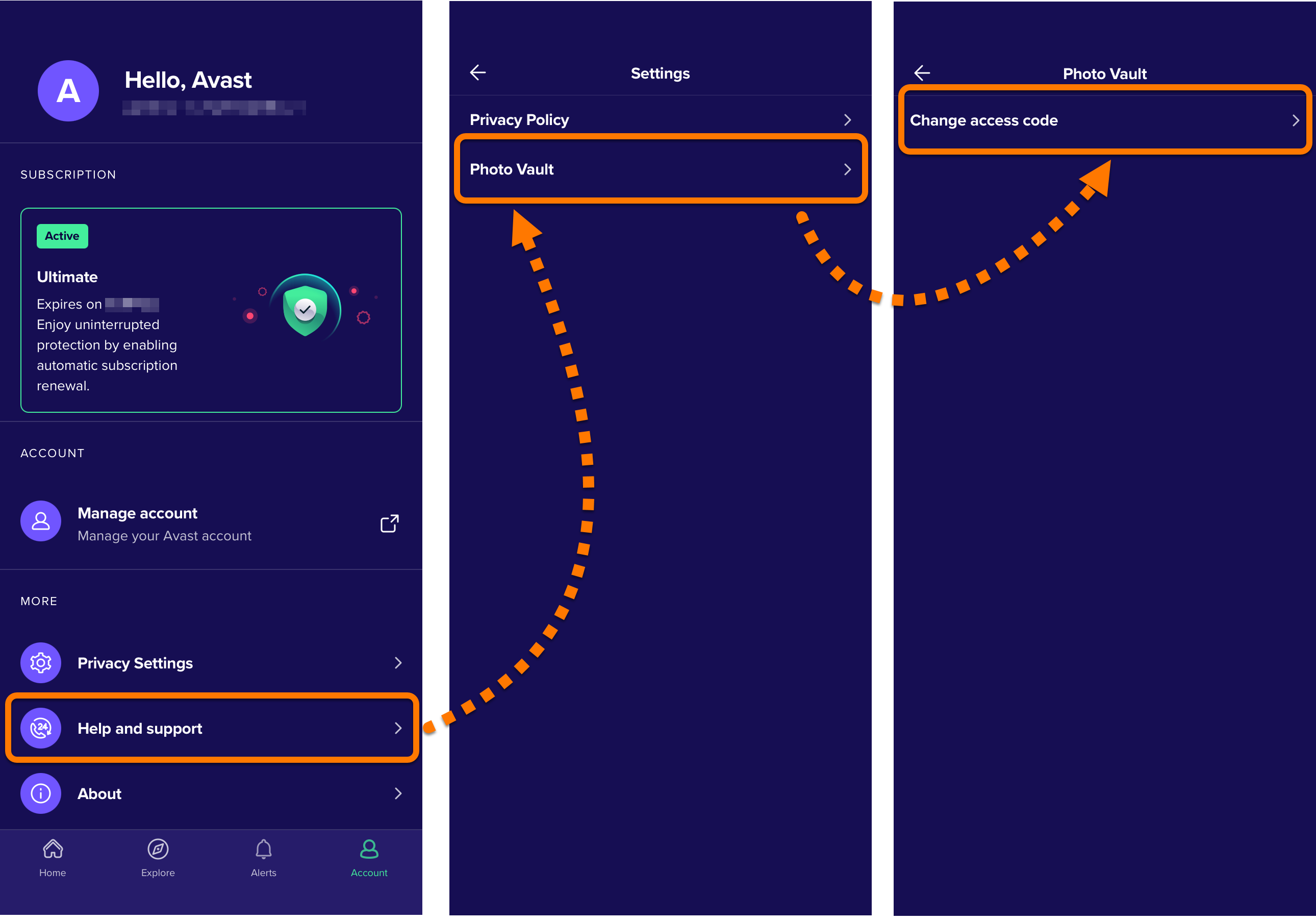
- Enter your current passcode, then enter a new 4-digit passcode twice to confirm it.
Your passcode for Photo Vault is now changed.
Further recommendations
For more information about the features available in Avast Mobile Security, refer to the following article:


