Promotional banner image

IS YOUR COMPUTER SLOW? RUN LIKE NEW

If they are not maintained, computers lose performance over time. Avast Cleanup Premium can help significantly improve the performance of your computer.

Troubleshooting when Windows does not detect Avast Antivirus installation

Windows

In some cases, the Action Center or Security Center in Windows reports that an antivirus software is not installed on your PC although Avast Antivirus is installed. If this issue occurs, Windows may display the following notification:

To resolve this issue, refer to the sections in this article for instructions.

If Windows reports that Avast Antivirus and/or Avast Firewall is turned off, refer to the following article: Windows reports Avast Antivirus and/or Avast Firewall is turned off.

Ensure that Avast is installed and turned on

Check that the following conditions are met to confirm that Avast is installed and actively protecting your PC:

  1. Avast Antivirus is installed.

  2. Your Avast subscription is active.

  3. The Avast program version and virus definitions are up-to-date.

  4. Avast reports that You're protected.

For detailed instructions, refer to the following article:

Scan and repair the WMI Repository

The Action Center / Security Center acquires information about the current status of installed antivirus software by using Windows Management Instrumentation (WMI). If there is a problem in the WMI Repository, or the WMI service is not started, the Action Center reports outdated or misleading information. To resolve this issue, scan and repair the WMI Repository by following the steps below.

  1. Log into Windows as an administrator and ensure no other programs are running.
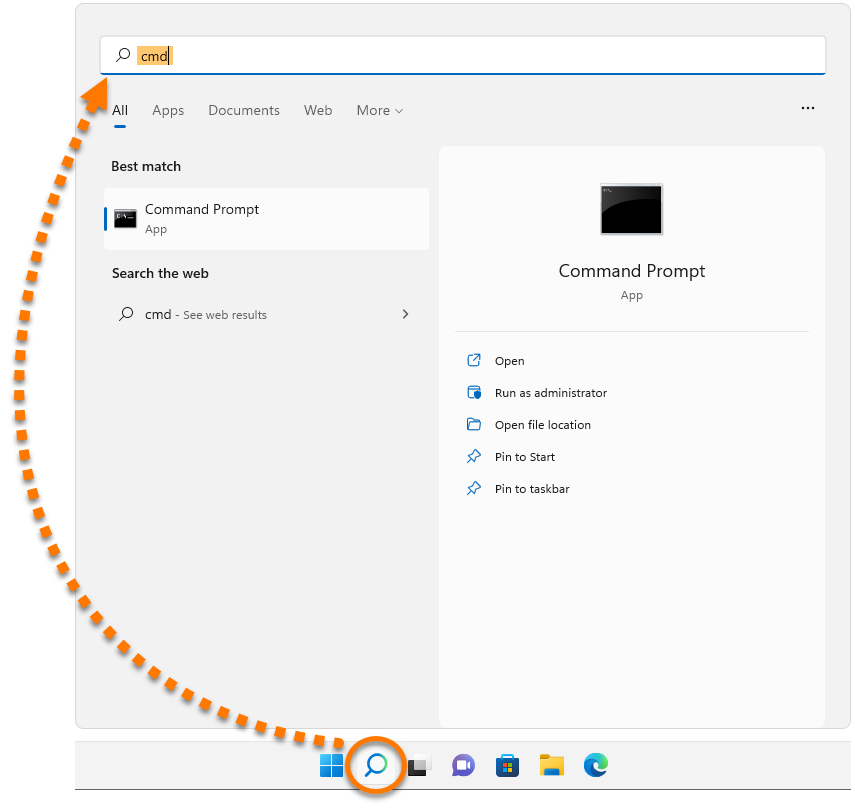
  2. Click the Search icon and type cmd into the search bar.
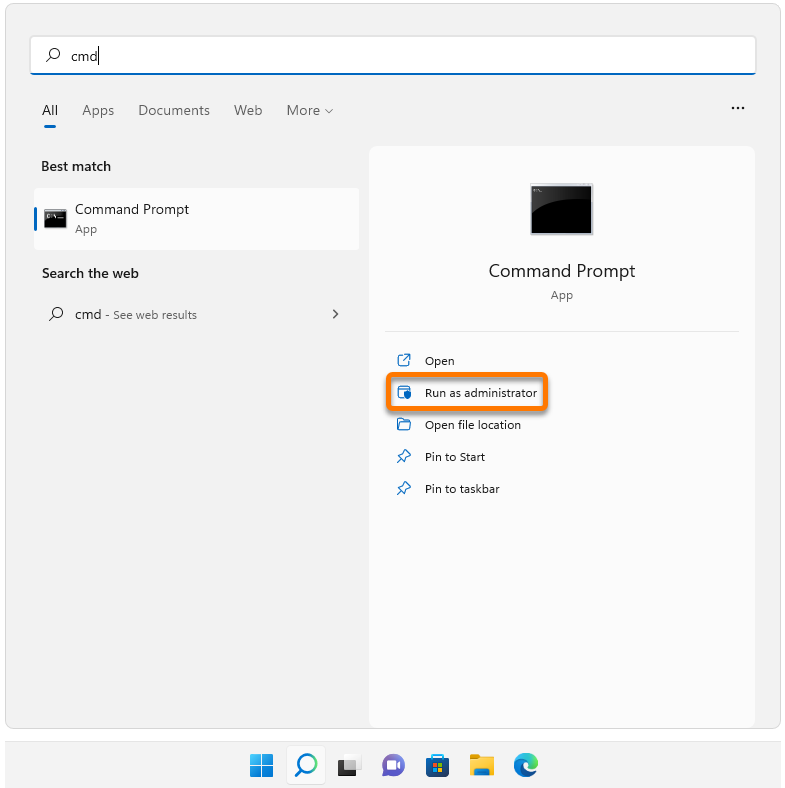
  3. Select Run as administrator.
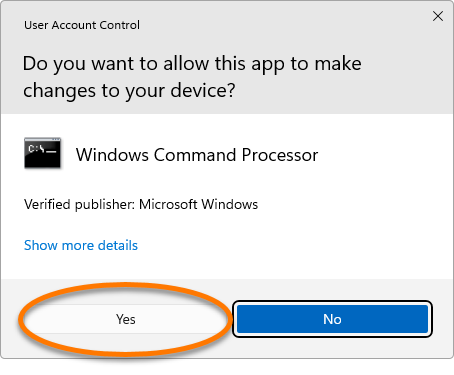
  4. If prompted, click Yes in the User Account Control dialog.
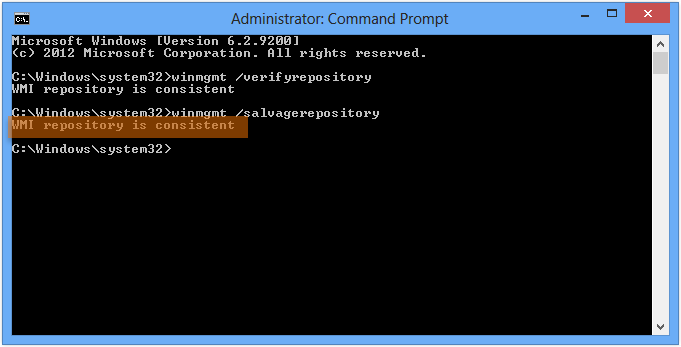
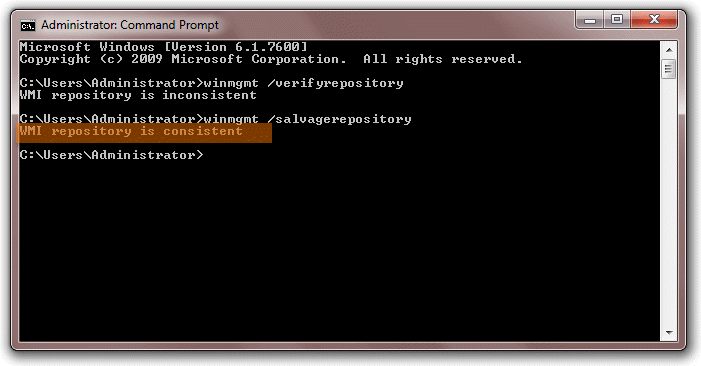
  5. Type the winmgmt /verifyrepository command into the Command Prompt and press the Enter key to perform a consistency check of the WMI Repository.
    If you receive the error message WMI repository verification failed... ...Access denied when running the above command, repeat steps 1 - 3 listed above.
  6. The message WMI repository is consistent or WMI repository is inconsistent appears in the currently open window. Type the winmgmt /salvagerepository command into the Command Prompt and press the Enter key to rebuild the WMI Repository.
    If you receive the message WMI repository is inconsistent or WMI repository salvage failed, run the command winmgmt /salvagerepository a second time.
  7. After you receive the message WMI repository is consistent in the output, restart your PC.

Once your PC has restarted, the current status of the installed antivirus software is reported correctly in the Action Center.

  1. Log into Windows as an administrator and ensure no other programs are running.
  2. Right-click the Windows Start icon and select Command Prompt (Admin) from the menu that appears.
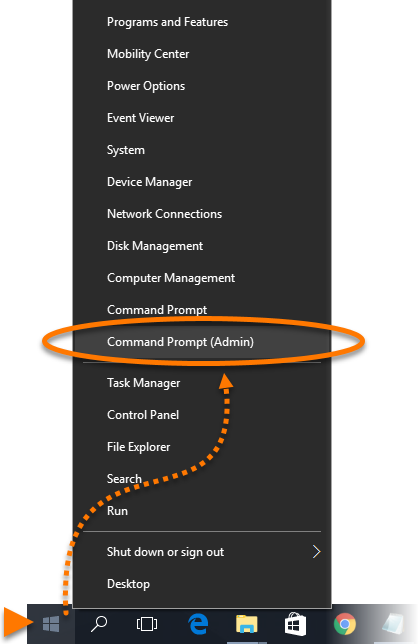
  3. If prompted, click Yes in the User Account Control dialog.
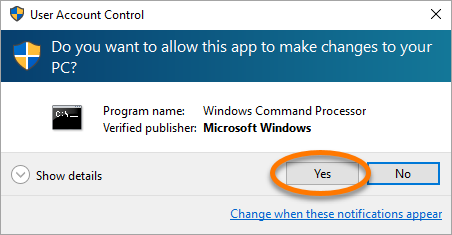
  4. Type the winmgmt /verifyrepository command into the Command Prompt and press the Enter key to perform a consistency check of the WMI Repository.
    If you receive the error message WMI repository verification failed... ...Access denied when running the above command, repeat steps 1 - 3 listed above.
  5. The message WMI repository is consistent or WMI repository is inconsistent appears in the currently open window. Type the winmgmt /salvagerepository command into the Command Prompt and press the Enter key to rebuild the WMI Repository.
    If you receive the message WMI repository is inconsistent or WMI repository salvage failed, run the command winmgmt /salvagerepository a second time.
  6. After you receive the message WMI repository is consistent in the output, restart your PC.
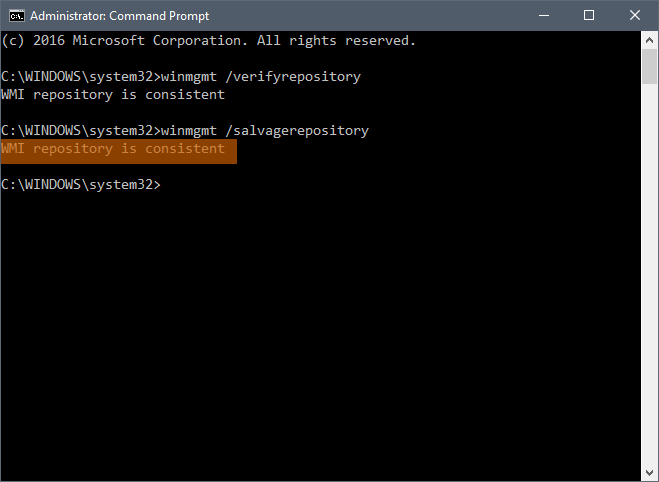
Once your PC has restarted, the current status of the installed antivirus software is reported correctly in the Action Center.
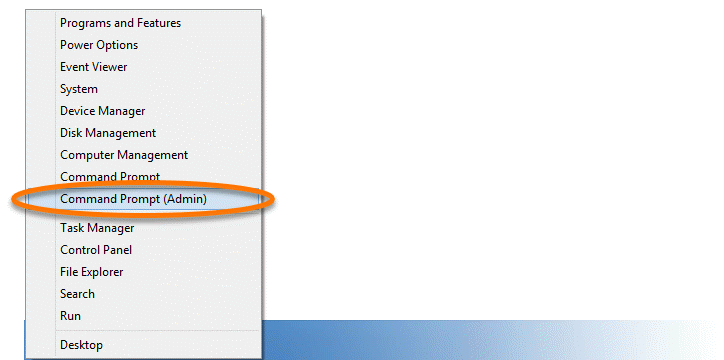
  1. Log into Windows as an administrator and ensure no other programs are running.
  2. Press the Win + X keys simultaneously on your keyboard, then select Command Prompt (Admin) from the menu that appears.
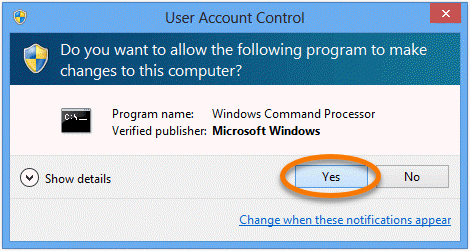
  3. If prompted, click Yes in the User Account Control dialog.
  4. Type the winmgmt /verifyrepository command into the Command Prompt and press the Enter key to perform a consistency check of the WMI Repository.
    If you receive the error message WMI repository verification failed... ...Access denied when running the above command, repeat steps 1 - 3 listed above.
  5. The message WMI repository is consistent or WMI repository is inconsistent appears in the currently open window. Type the winmgmt /salvagerepository command into the Command Prompt and press the Enter key to rebuild the WMI Repository.
    If you receive the message WMI repository is inconsistent or WMI repository salvage failed, run the command winmgmt /salvagerepository a second time.
  6. After you receive the message WMI repository is consistent in the output, restart your PC.

Once your PC has restarted, the current status of the installed antivirus software is reported correctly in the Action Center.

  1. Log into Windows as an administrator and ensure no other programs are running.
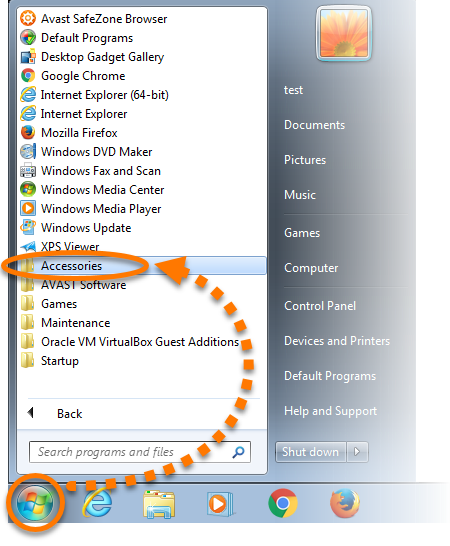
  2. Click the Windows Start icon and select All Programs (or Programs) ▸ Accessories.
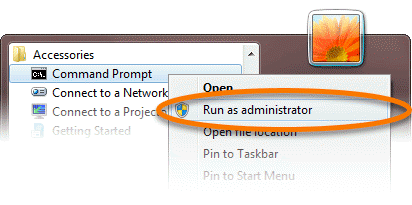
  3. Right-click Command Prompt and select Run as administrator from the context menu.
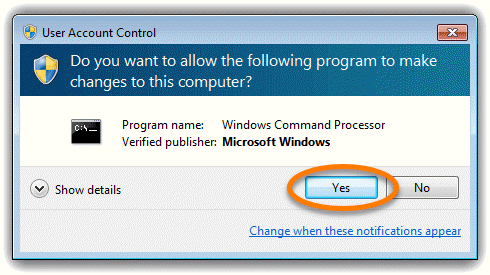
  4. If prompted, click Yes in the User Account Control dialog.
  5. Type the winmgmt /verifyrepository command into the Command Prompt and press the Enter key to perform a consistency check of the WMI Repository.
    If you receive the error message WMI repository verification failed... ...Access denied when running the above command, repeat steps 1 - 3 listed above.
  6. The message WMI repository is consistent or WMI repository is inconsistent appears in the currently open window. Type the winmgmt /salvagerepository command into the Command Prompt and press the Enter key to rebuild the WMI Repository.
    If you receive the message WMI repository is inconsistent or WMI repository salvage failed, run the command winmgmt /salvagerepository a second time.
  7. After you receive the message WMI repository is consistent in the output, restart your PC.

Once your PC has restarted, the current status of the installed antivirus software is reported correctly in the Action Center.

DocID: troubleshoot-unknown-antivirusLast modified: 10/07/2026

Was this article helpful?

Promotional banner image

Keep your online identity private!

Browse like no one’s watching with Avast anti-tracking software.

Need more help?

Contact us
Avast account
Visit our forums
Visit academy