Promotional banner image

IS YOUR COMPUTER SLOW? RUN LIKE NEW

If they are not maintained, computers lose performance over time. Avast Cleanup Premium can help significantly improve the performance of your computer.

Troubleshooting the "We've got something" error in Avast SecureLine VPN

Windows

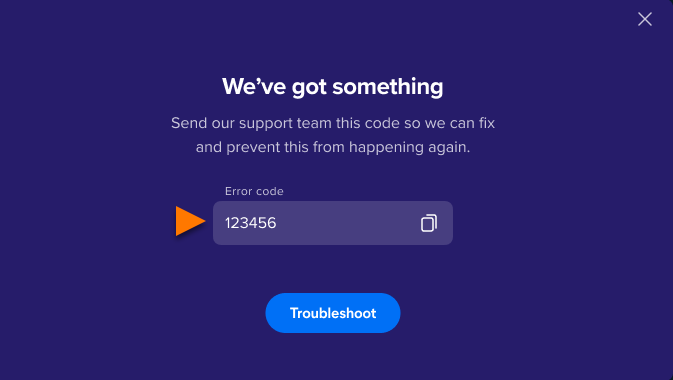
This article contains instructions for when Avast SecureLine VPN displays the "We've got something" error message. This error occurs when the VPN fails to connect, and contains a 6-digit error code, or multiple 6-digit error codes.
Instructions

  1. Ensure that your internet connection is stable by testing the following:

    • Reboot your router.

    • Connect to a different Wi-Fi/Ethernet/Mobile network or by creating a mobile hotspot, if available. For instructions, refer to the vendor's support documentation according to your Wi-Fi router or mobile device.

      If the internet connection without VPN is unstable or switching to a different network helps, we suggest contacting your internet service provider.

  2. Try to connect to a different server location or try the Optimal location. For detailed instructions, refer to the following article:

  3. Test other protocols (for example, WireGuard or Mimic) in VPN settings. Open Avast SecureLine VPN and go to ☰ Menu ▸ Settings ▸ VPN Protocols.

  4. Change your DNS settings. For detailed instructions, refer to the following article:

  5. Temporarily disable any third-party firewall or antivirus applications, then try connecting to the VPN again. Firewalls and antivirus programs can sometimes interrupt VPN connections. For instructions, refer to the vendor's support documentation according to your firewall or antivirus software.

Reinstall SecureLine VPN

If your issue persists, reinstall SecureLine VPN. Restart your device after uninstalling the application. For detailed instructions, refer to the following articles:

  • Uninstall Avast SecureLine VPN, then restart your Windows device.

  • Install Avast SecureLine VPN.

  • Activate Avast SecureLine VPN, then try connecting to the VPN again.

If these steps do not resolve the issue, contact Avast Support. Ensure to include the VPN error code message (as a screenshot) and troubleshooting steps you've already tried.

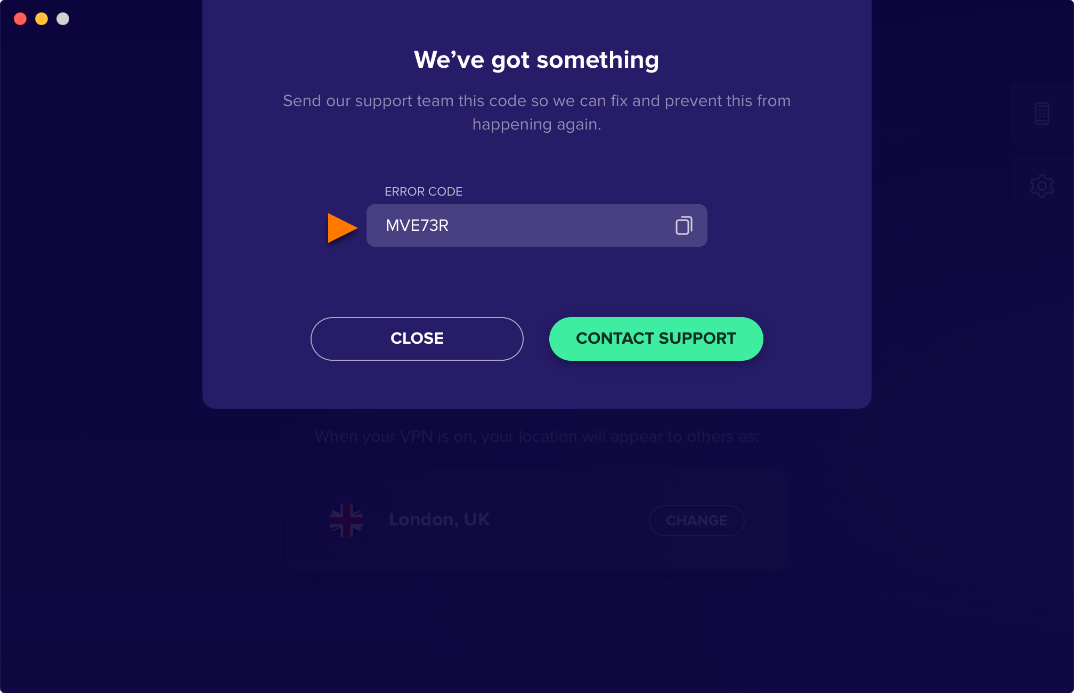
This article contains instructions for when Avast SecureLine VPN displays the "We've got something" error message. This error occurs when the VPN fails to connect, and contains a 6-digit error code, or multiple 6-digit error codes.

Instructions

  1. Ensure that your internet connection is stable by testing the following:

    • Reboot your router.

    • Connect to a different Wi-Fi/Ethernet/Mobile network or by creating a mobile hotspot, if available. For instructions, refer to the vendor's support documentation according to your Wi-Fi router or mobile device.

      If the internet connection without VPN is unstable or switching to a different network helps, we suggest contacting your internet service provider.

  2. Try to connect to a different server location or try the Optimal location. For detailed instructions, refer to the following article:

  3. Test other protocols (for example, WireGuard or Mimic) in VPN settings. Open Avast SecureLine VPN and go to ☰ Menu ▸ Preferences ▸ VPN protocols.

  4. Change your DNS settings. For detailed instructions, refer to the following article:

  5. Temporarily disable any third-party firewall or antivirus applications, then try connecting to the VPN again. Firewalls and antivirus programs can sometimes interrupt VPN connections. For instructions, refer to the vendor's support documentation according to your firewall or antivirus software.

Reinstall SecureLine VPN

If your issue persists, reinstall SecureLine VPN. Restart your device after uninstalling the application. For detailed instructions, refer to the following articles:

  • Uninstall Avast SecureLine VPN, then restart your Mac device.

  • Install Avast SecureLine VPN.

  • Activate Avast SecureLine VPN, then try connecting to the VPN again.

If these steps do not resolve the issue, contact Avast Support. Ensure to include the VPN error code message (as a screenshot) and troubleshooting steps you've already tried.

DocID: troubleshoot-secureline-vpn-error-codeLast modified: 07/28/2026

Was this article helpful?

Promotional banner image

Keep your online identity private!

Browse like no one’s watching with Avast anti-tracking software.

Need more help?

Contact us
Avast account
Visit our forums
Visit academy