
IS YOUR COMPUTER SLOW? RUN LIKE NEW
If they are not maintained, computers lose performance over time. Avast Cleanup Premium can help significantly improve the performance of your computer.
Troubleshooting issues when allowing protection permissions on macOS
Mac
In some cases, a problem with macOS prevents enabling the necessary permissions. This mainly affects macOS 10.13 (High Sierra) and macOS 10.14 (Mojave). If you are unable to allow the permissions as described in the article Allowing all protection permissions on macOS, try one of the troubleshooting options below:
Update macOS
Updating your macOS version should resolve the issue. For instructions, refer to the following Apple Support article:
Reinstall macOS
For instructions to reinstall your macOS, refer to the following Apple Support article:
Fix manually (advanced users)
If updating or reinstalling macOS is not possible, you can try to fix the issue manually by following the instructions below.
These steps were reported on the White Hat Mac website, where you can read more about the issue and proposed solution: White Hat Mac ▸ macOS bugs are causing kext failures
Based on the White Hat Mac article, we recommend first identifying which directory is affected by the issue, before fixing the access rights.
Identify the affected directory
-
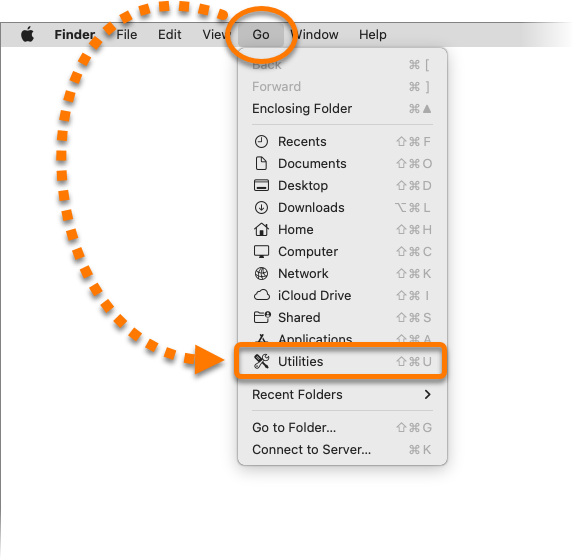
Click Go ▸ Utilities in the Apple menu bar.
-
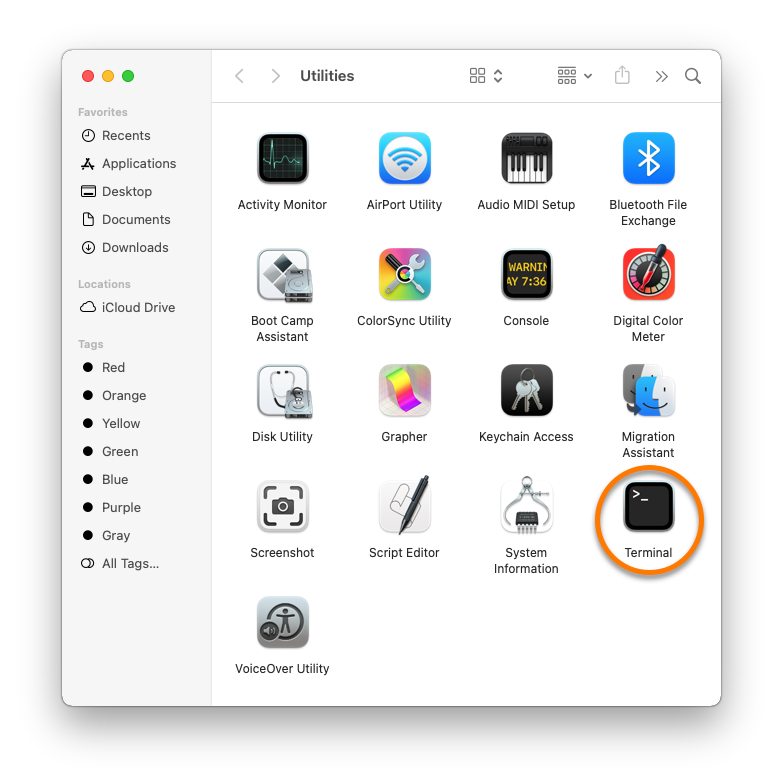
Double-click Terminal in the Utilities window.
-
In the Terminal window, type:
ls -alO /Library/StagedExtensions
Ensure you have correctly entered the command, then press Enter.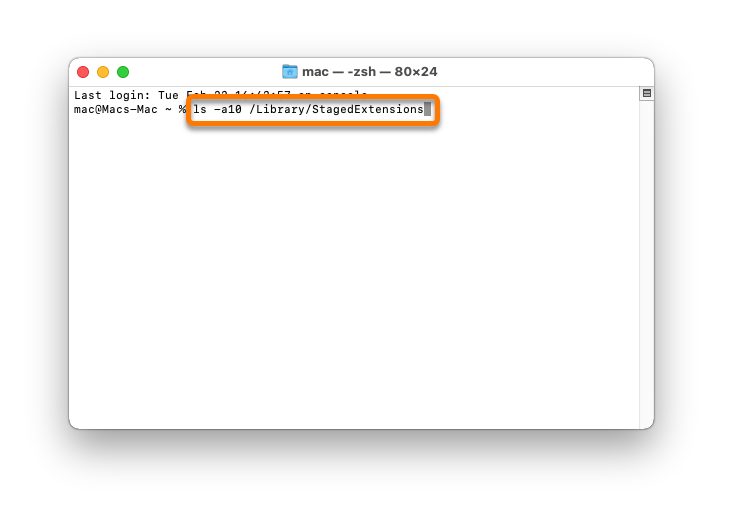
-
In the output, check for the following code:
drwxr-xr-x@ 4 root wheel restricted
-
If you see only drwxr-xr-x@ 4 root wheel without the restricted text, then the Staged Extensions directory is affected and you can try to fix the access rights for this directory.
-
If you see no such file or directory, continue with the steps below to check the Kernel Extension Management directory.
-
-
In the Terminal window, type:
ls -alO /private/var/db/KernelExtensionManagement/
Ensure you have correctly entered the command, then press Enter.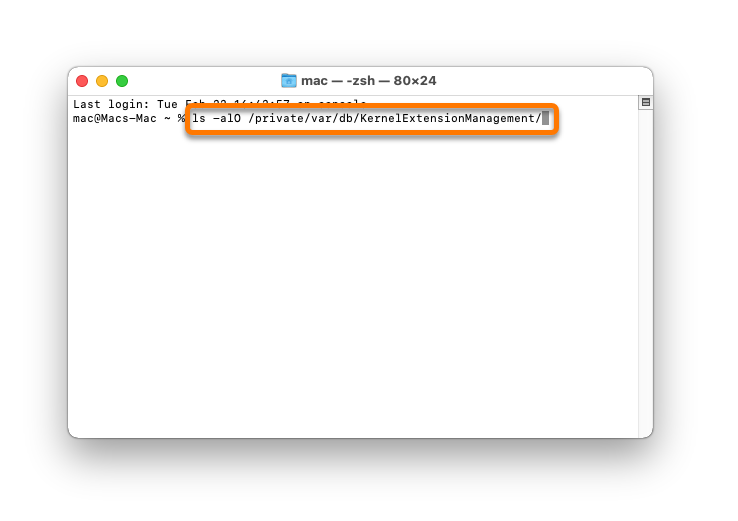
-
In the output, check for the following code:
drwxr-xr-x@ 4 root wheel restricted
If you see only drwxr-xr-x@ 4 root wheel without the restricted text, then your Kernel Extension Management directory is affected and you can try to fix the access rights for this directory.
Fix access rights
The instructions below require executing a command in recovery mode and are intended only for advanced users. Customizations of your system settings, missing a step, or performing a step incorrectly can change a system setup that could prevent your Mac from starting properly and you could suffer a potential loss of data. Use these instructions at your own risk!
-
Click the
 Apple icon in the menu bar, then select Restart....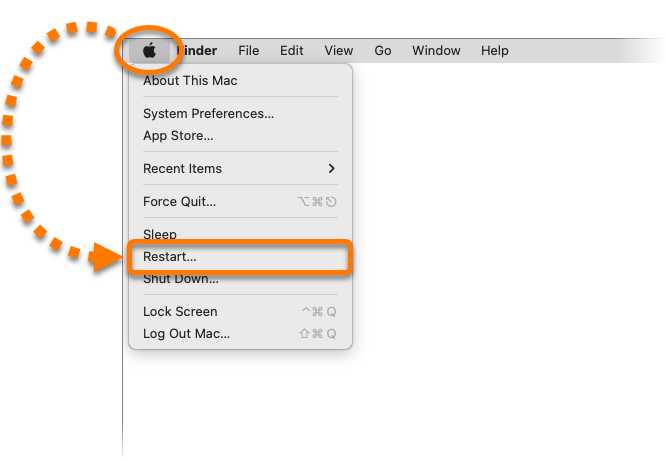
-
Immediately hold down the
⌘ Commandkey andRkey simultaneously until you see the Apple logo.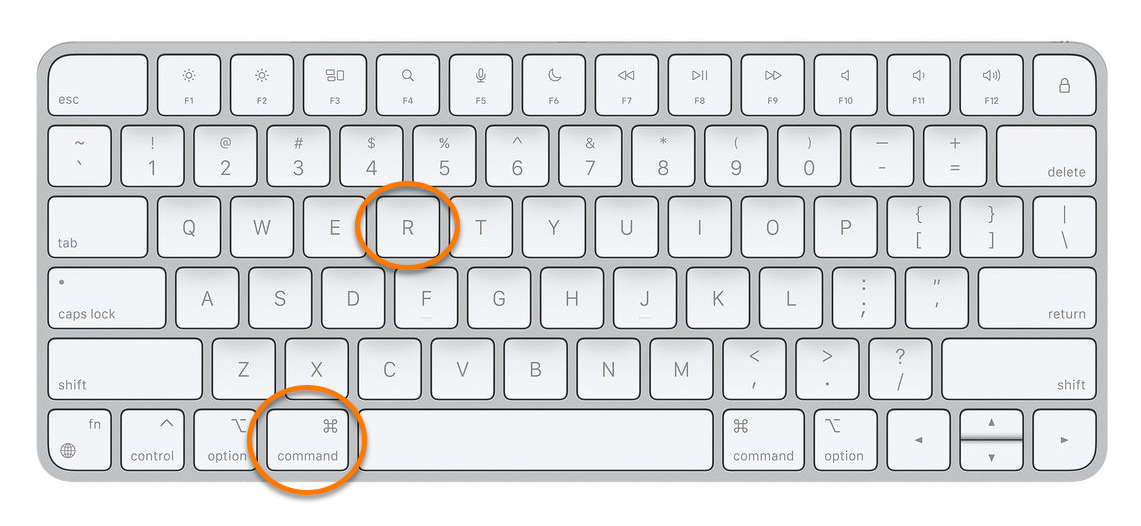
-
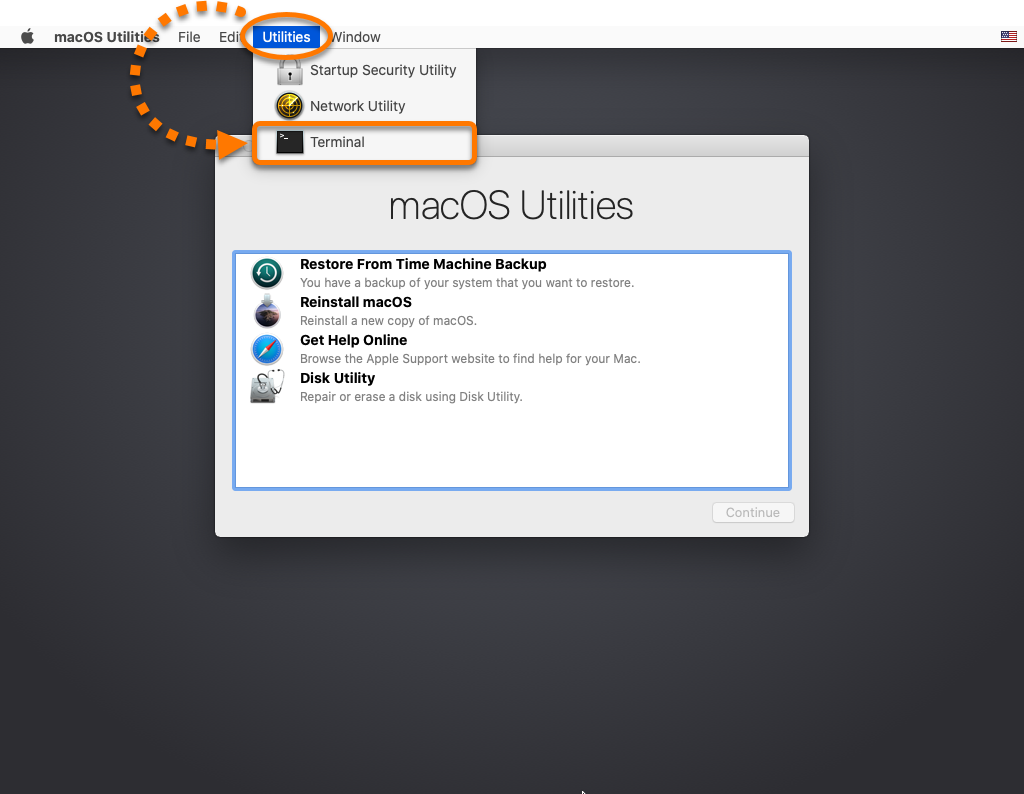
When the macOS Utilities window appears, click Utilities in the Apple menu bar, then select Terminal.
-
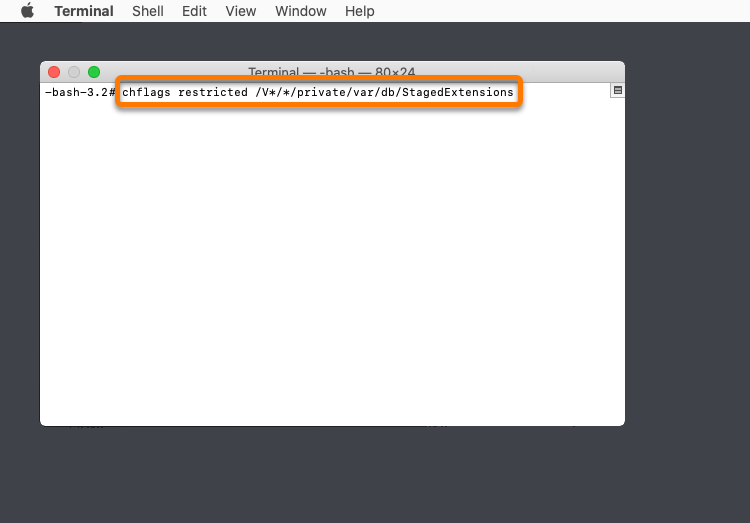
In the Terminal window, type the relevant code below according to which directory was missing the restricted tag:
-
Staged Extensions:
chflags restricted /V*/*/private/var/db/StagedExtensions
-
Kernel Extension Management:
chflags restricted /V*/*/private/var/db/KernelExtensionManagement
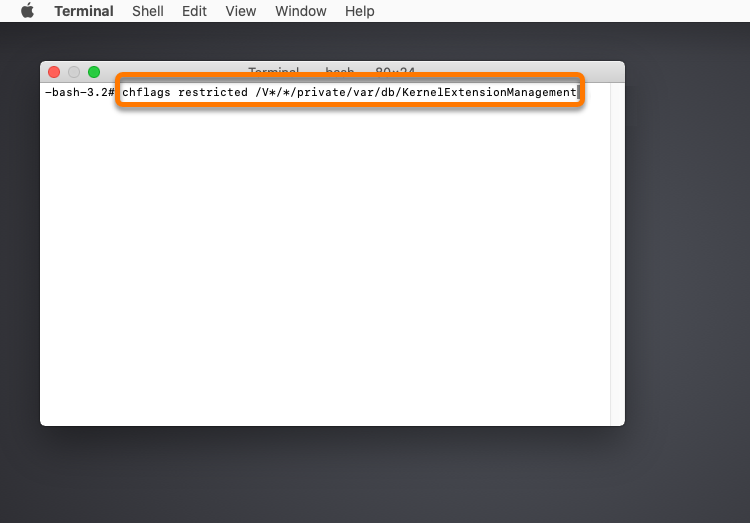
Ensure you have correctly entered the command, then press Enter.
-
-
Click the
Apple icon in the menu bar, then select Restart. 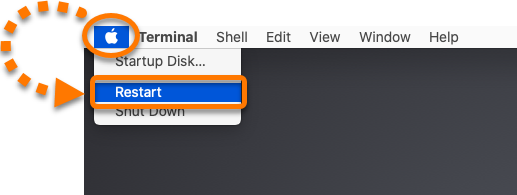
You should now be able to allow all permissions by following the instructions in the article Allowing all protection permissions on macOS . If you continue to experience problems, contact Avast Support.
Was this article helpful?

Keep your online identity private!
Browse like no one’s watching with Avast anti-tracking software.