Preventing WebRTC leaks
In most web browsers, Web Real-Time Communication (WebRTC) leaks can cause your IP address to be visible, even when you are connected to Avast SecureLine VPN. You can prevent WebRTC leaks by blocking or disabling WebRTC.
When WebRTC is blocked or disabled, some video chat or file sharing applications that depend on WebRTC functionality may not work properly.
To block or disable WebRTC in Google Chrome and Mozilla Firefox, use one of the methods below:
Alternatively, you can avoid the vulnerability by using a browser that does not apply WebRTC, such as Microsoft Internet Explorer or Safari.
Use the SecureLine browser extension
The latest version of Avast SecureLine VPN includes a browser extension that blocks WebRTC for Google Chrome and Mozilla Firefox.
Ensure that you have installed the SecureLine browser extension and enabled the WebRTC Blocker feature. For instructions, refer to the following article:
Disable WebRTC in your browser
If you do not want to use the SecureLine browser extension, you can install a third-party browser extension on Google Chrome and Mozilla Firefox, or disable WebRTC manually.
Google Chrome
You can install free third-party extensions that block or disable WebRTC via the Chrome Store. We suggest trying the following extensions:
As a more extreme measure, you can install an extension that blocks all scripts. This increases privacy but may significantly decrease browser functionality, as many websites rely on scripts to load properly. We suggest trying the following extension:
Mozilla Firefox
You can install free third-party extensions that block or disable WebRTC via FireFox Browser Add-ons. We suggest trying the following extensions:
As a more extreme measure, you can install an extension that blocks all scripts. This increases privacy but may significantly decrease browser functionality, as many websites rely on scripts to load properly. We suggest trying the following extension:
Alternatively, you can manually block WebRTC in Firefox settings:
- Open Mozilla Firefox and type
about:config in the address bar, then press the Enter key on your keyboard. 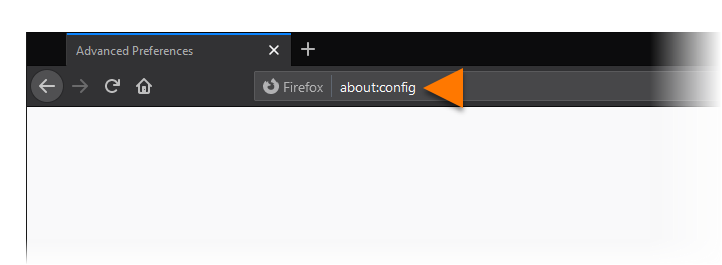
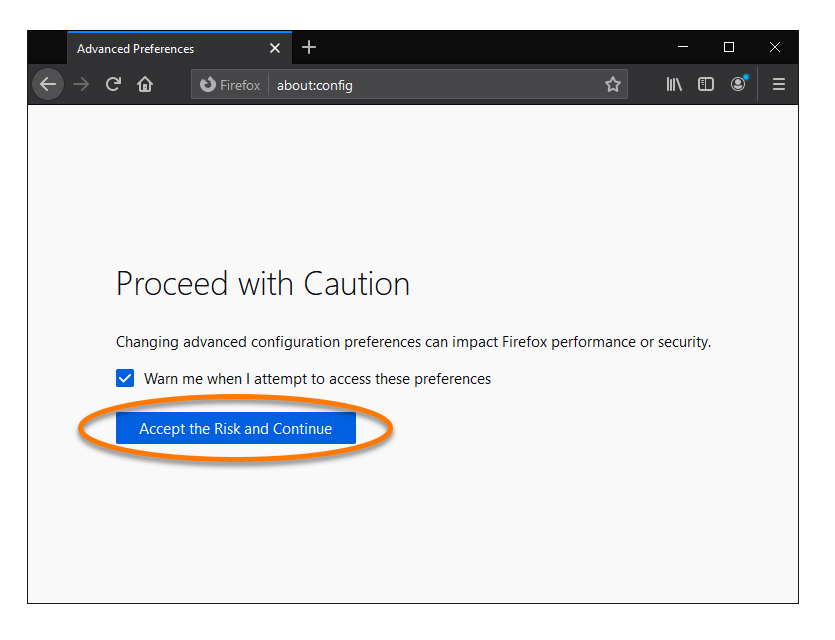
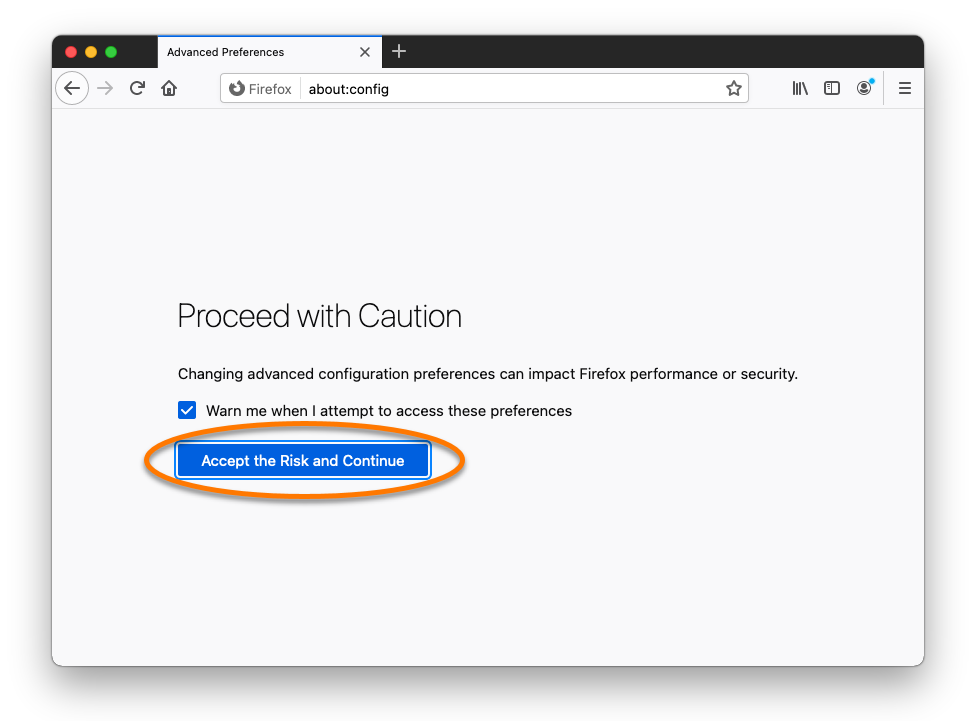
- Accept the warning by clicking Accept the Risk and Continue.
- Type
media.peerconnection.enabled in the search bar. 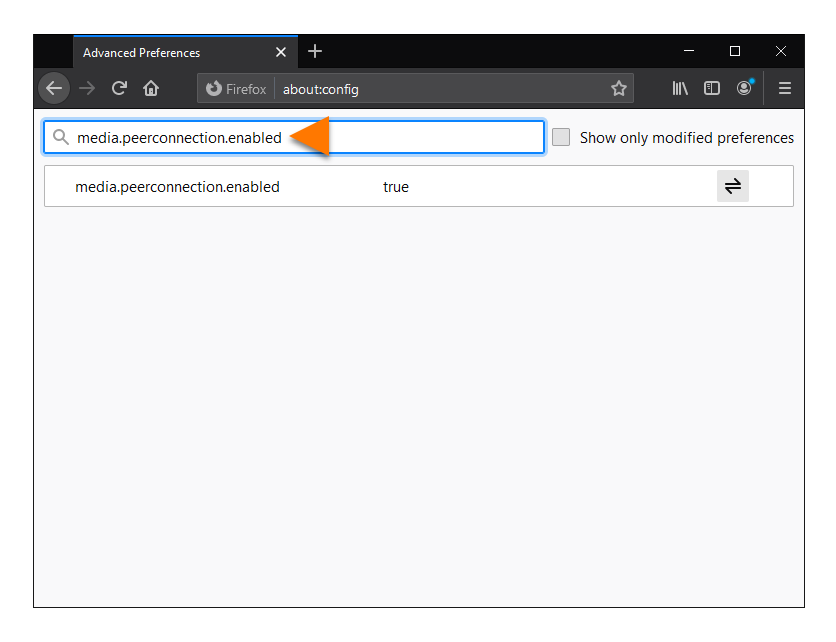
- Double-click the media.peerconnection.enabled entry or click the Toggle icon.
Its value changes to false, meaning the feature is disabled. 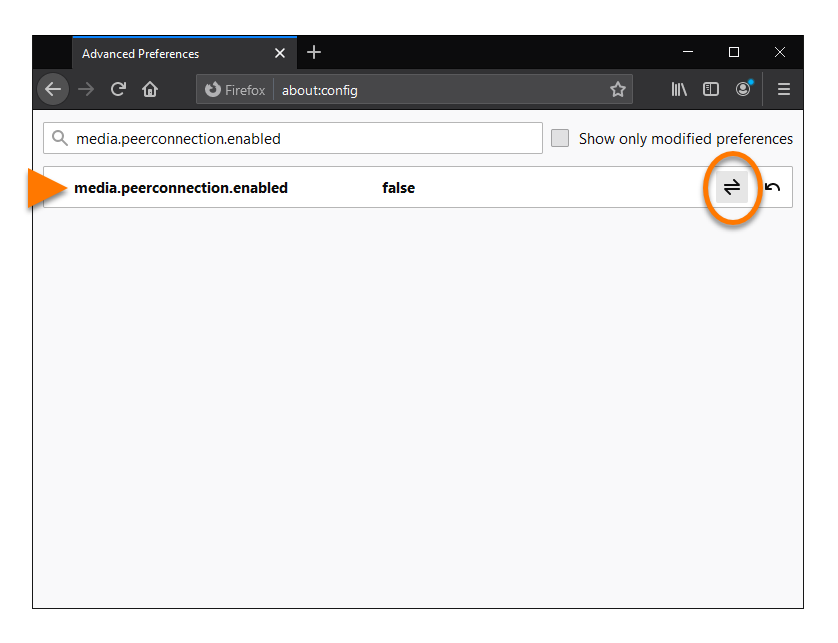
WebRTC is now blocked in Mozilla Firefox.
Google Chrome
You can install free third-party extensions that block or disable WebRTC via the Chrome Store. We recommend trying the following extensions:
As a more extreme measure, you can install an extension that blocks all scripts. This increases privacy but may significantly decrease browser functionality, as many websites rely on scripts to load properly. We suggest trying the following extension:
Mozilla Firefox
You can install free third-party extensions that block or disable WebRTC via FireFox Browser Add-ons. We suggest trying the following extensions:
As a more extreme measure, you can install an extension that blocks all scripts. This increases privacy but may significantly decrease browser functionality, as many websites rely on scripts to load properly. We suggest trying the following extension:
Alternatively, you can manually block WebRTC in Firefox settings:
- Open Mozilla Firefox and type
about:config in the address bar, then press the Enter key on your keyboard. 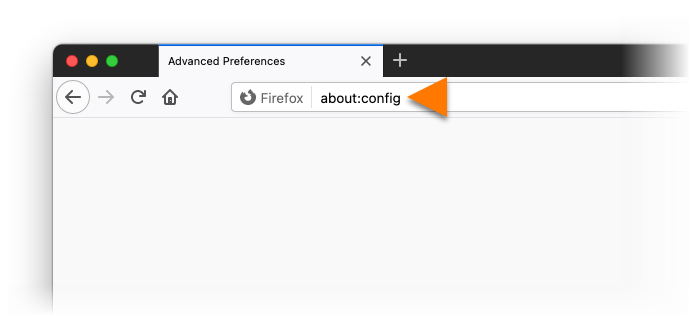
- Accept the warning by clicking Accept the Risk and Continue
- Type
media.peerconnection.enabled in the search bar. 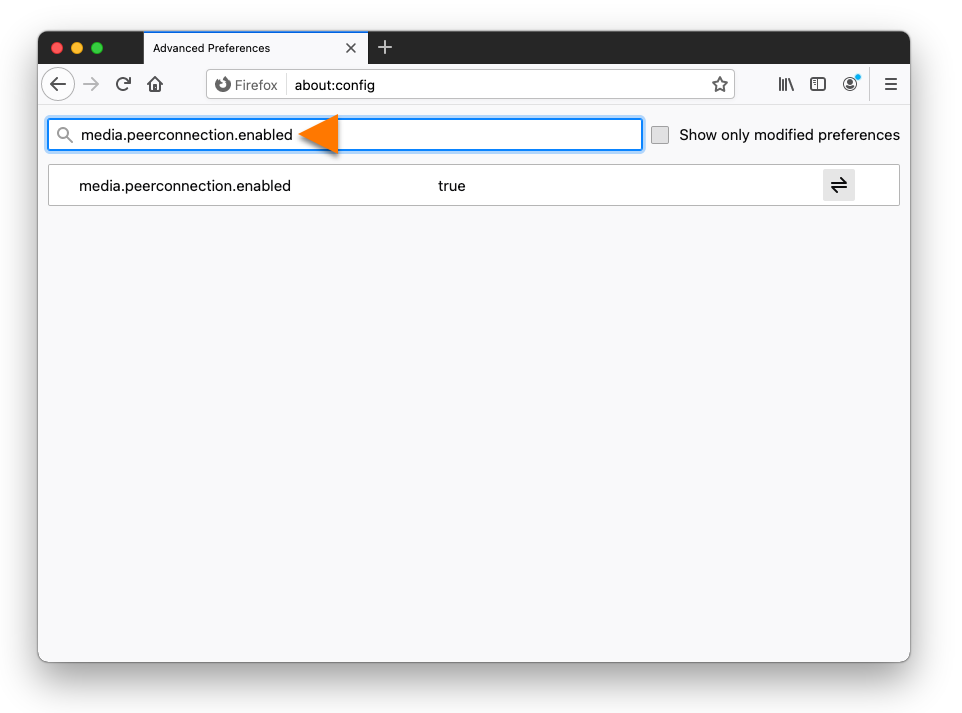
- Double-click the media.peerconnection.enabled entry or click the Toggle icon.
Its value changes to false, meaning the feature is disabled. 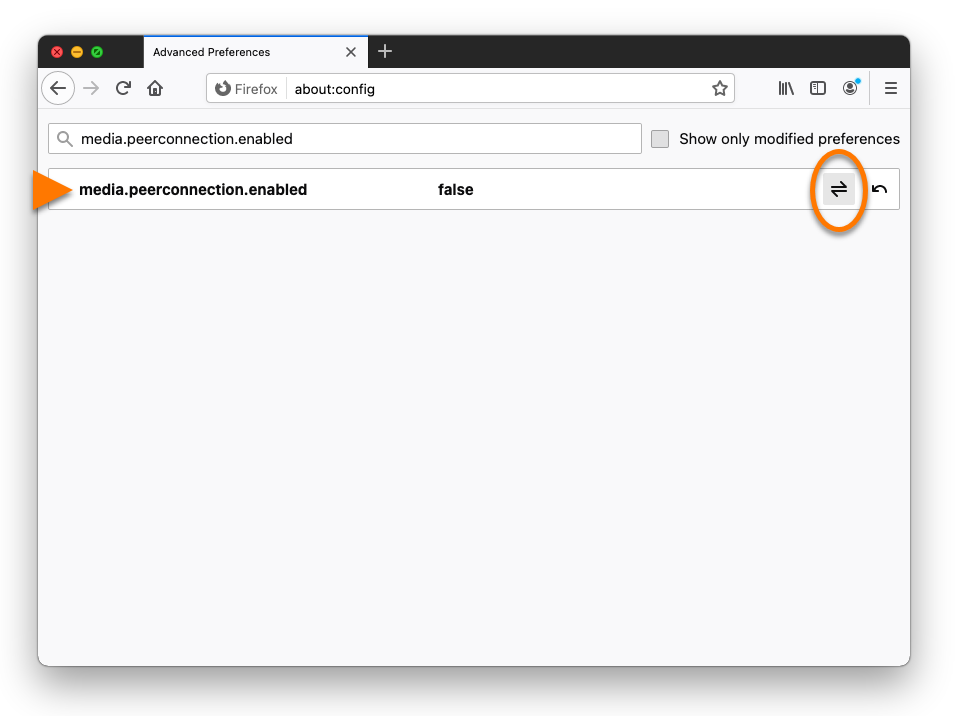
WebRTC is now blocked in Mozilla Firefox.

