Promotional banner image

IS YOUR COMPUTER SLOW? RUN LIKE NEW

If they are not maintained, computers lose performance over time. Avast Cleanup Premium can help significantly improve the performance of your computer.

Temporarily disabling other antivirus software

If you use third-party antivirus software on your PC, you may need to temporarily disable your antivirus protection before installing an Avast application. This is because third-party antivirus software may incorrectly flag Avast applications as malicious and block installation.

This article does not apply if you want to install Avast Premium Security or Avast Free Antivirus. You must completely uninstall any third-party antivirus software from your PC before installing an Avast antivirus application, as it is not possible to have multiple antivirus applications installed on one PC. For detailed instructions, refer to the following article: Uninstalling other antivirus software.

Follow the instructions in this article to first verify the default antivirus application on your PC, before temporarily disabling third-party antivirus protection.

Verify your default antivirus

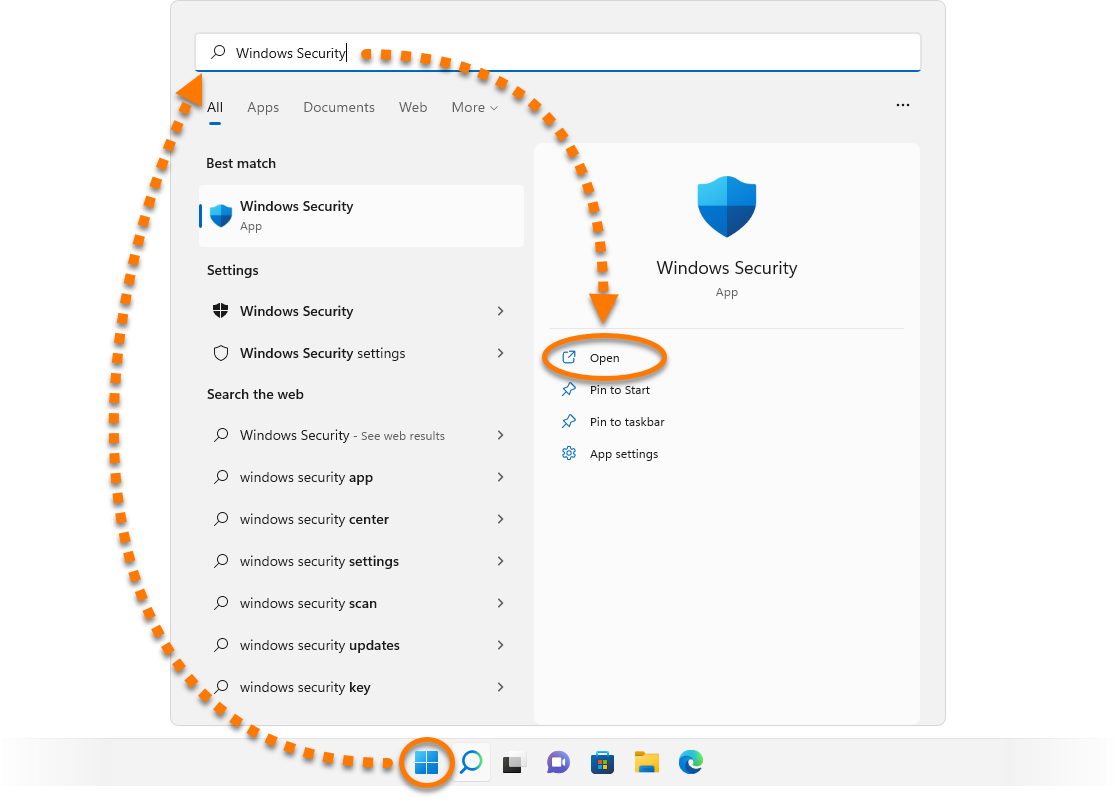
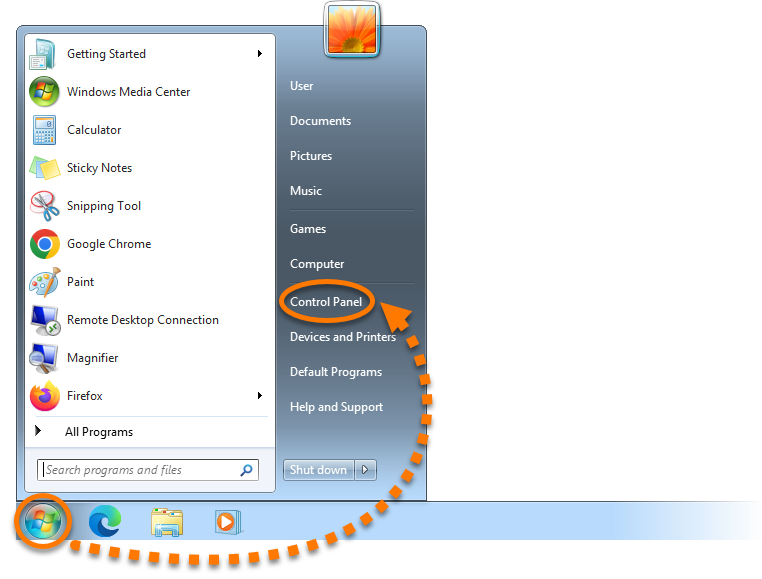
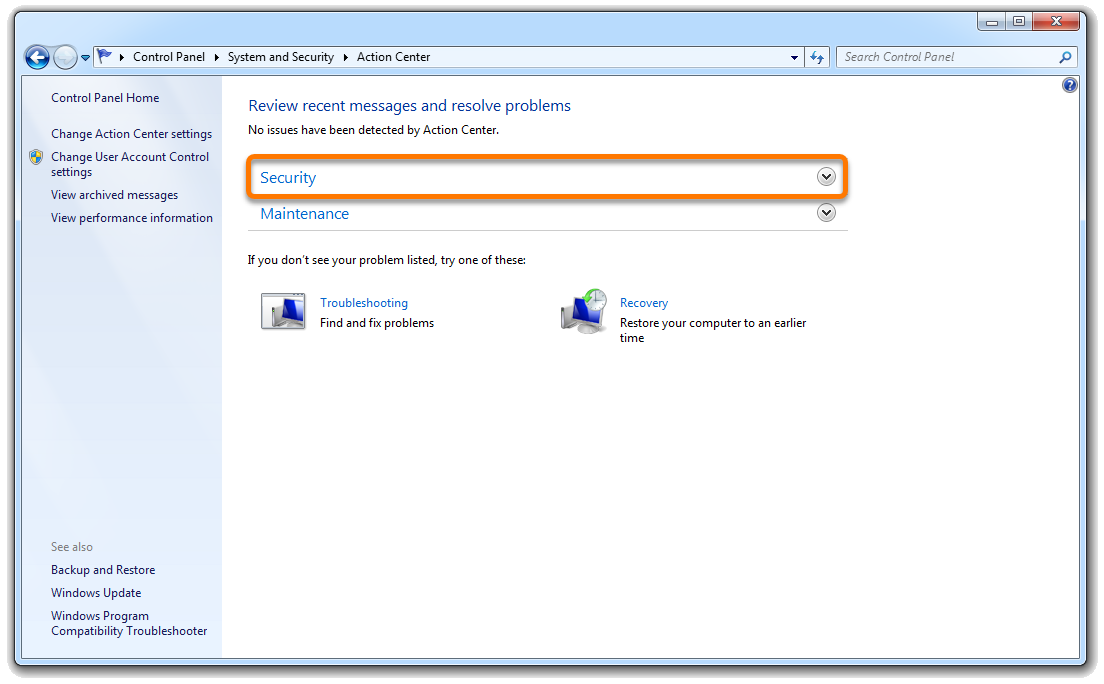
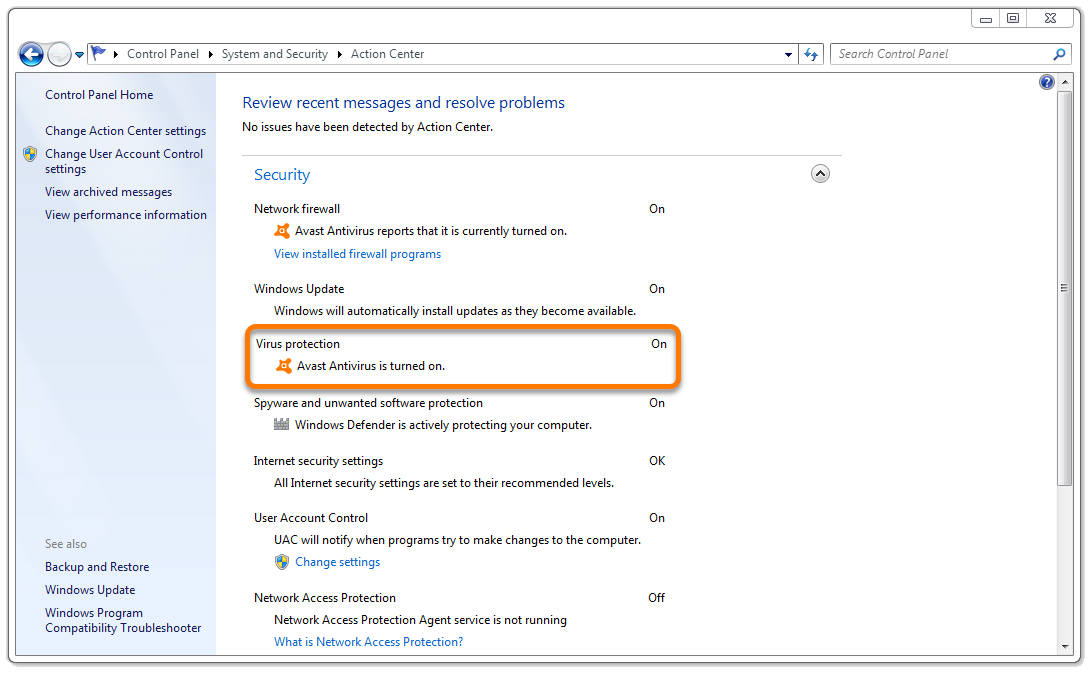
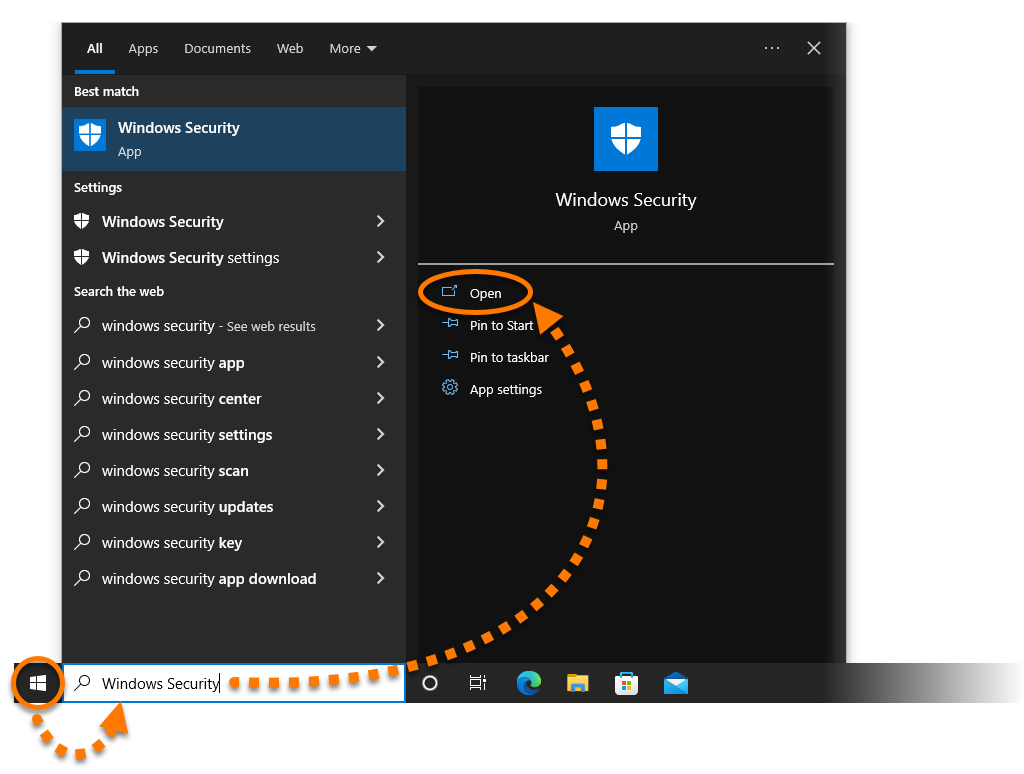
  1. Click the Windows Start button, then type Windows Security in the search box, and select Open in the Windows Security panel.
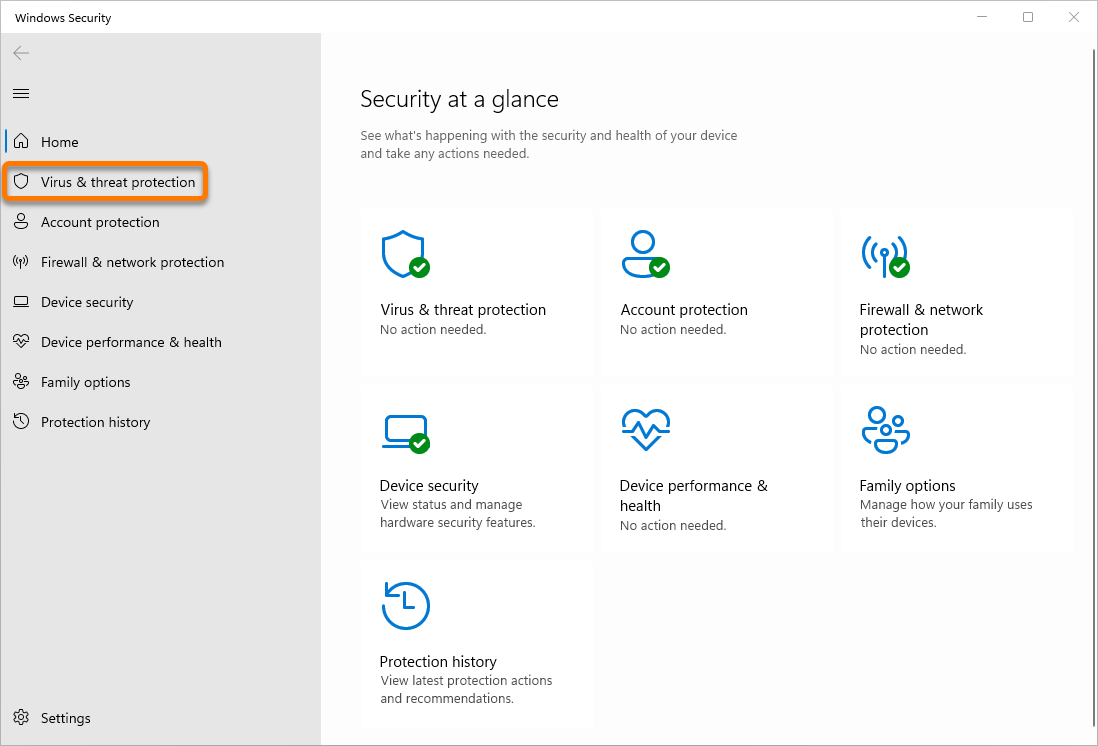
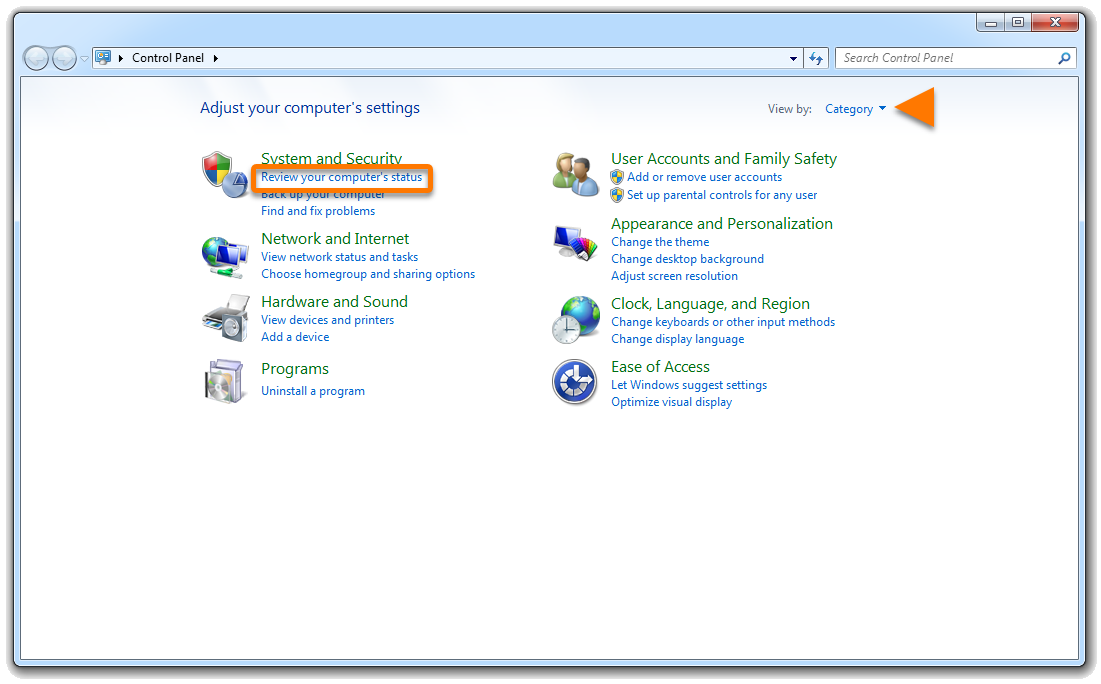
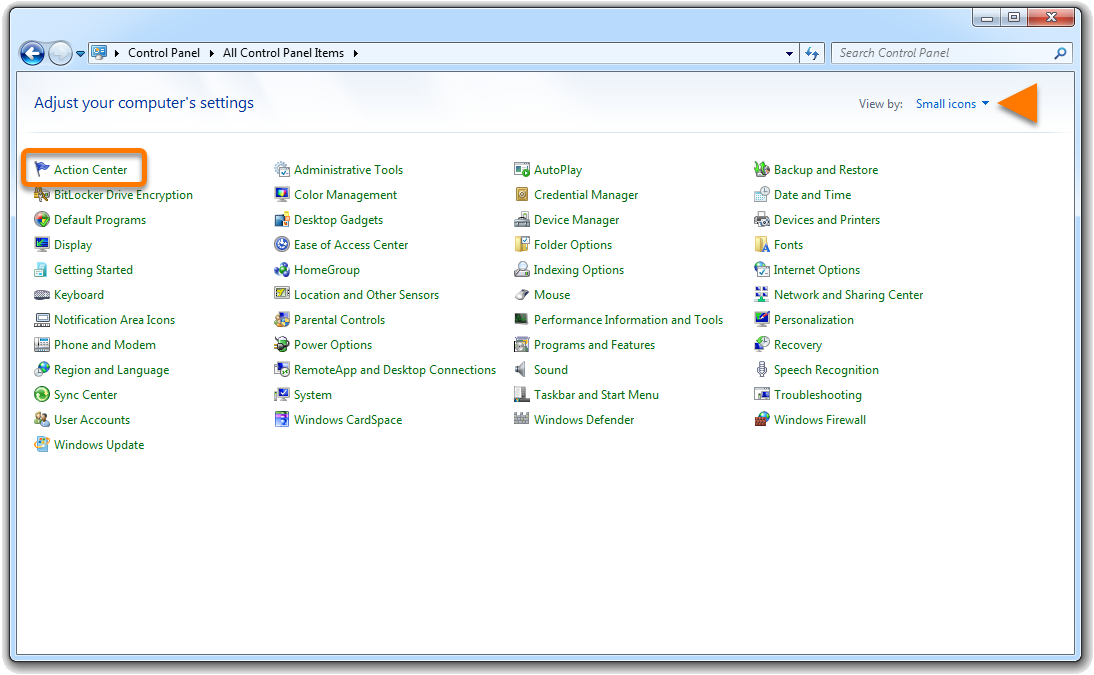
  2. Select Virus & threat protection in the left panel.
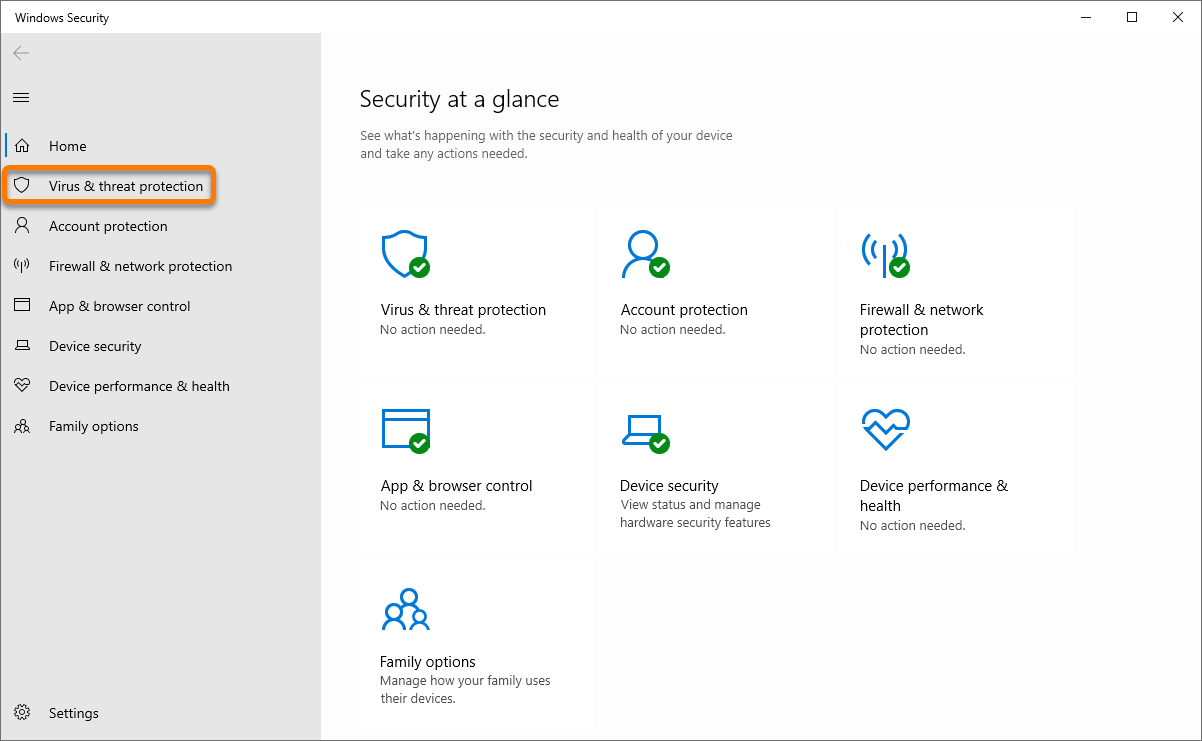
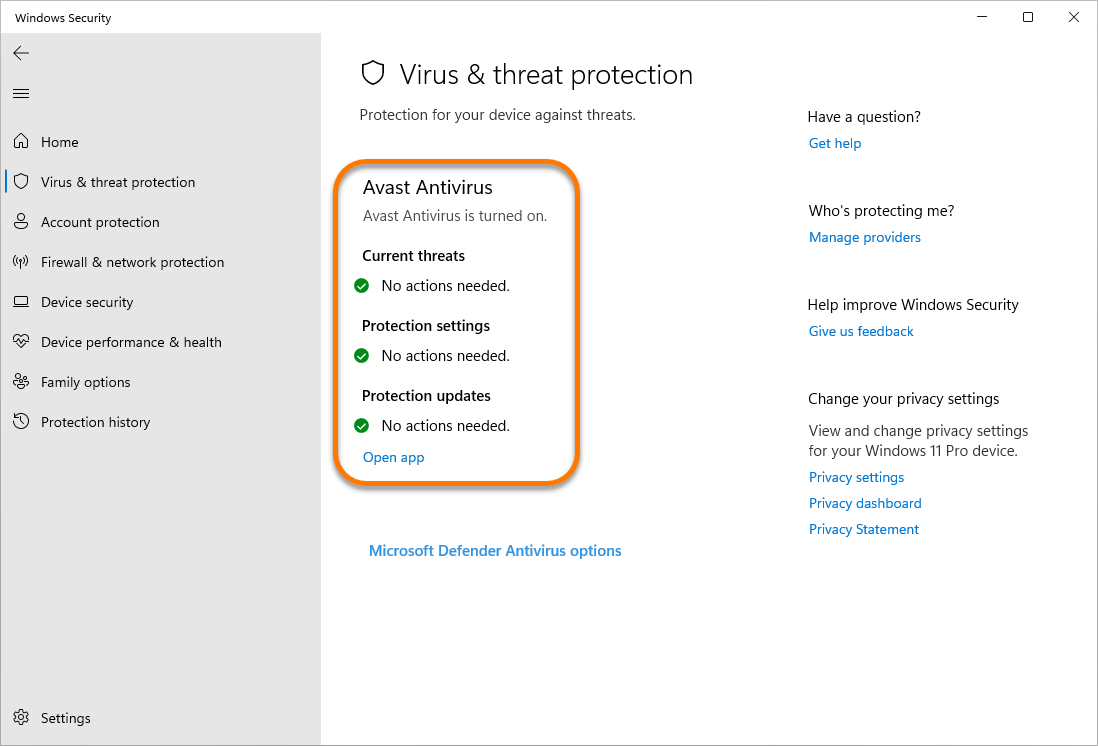
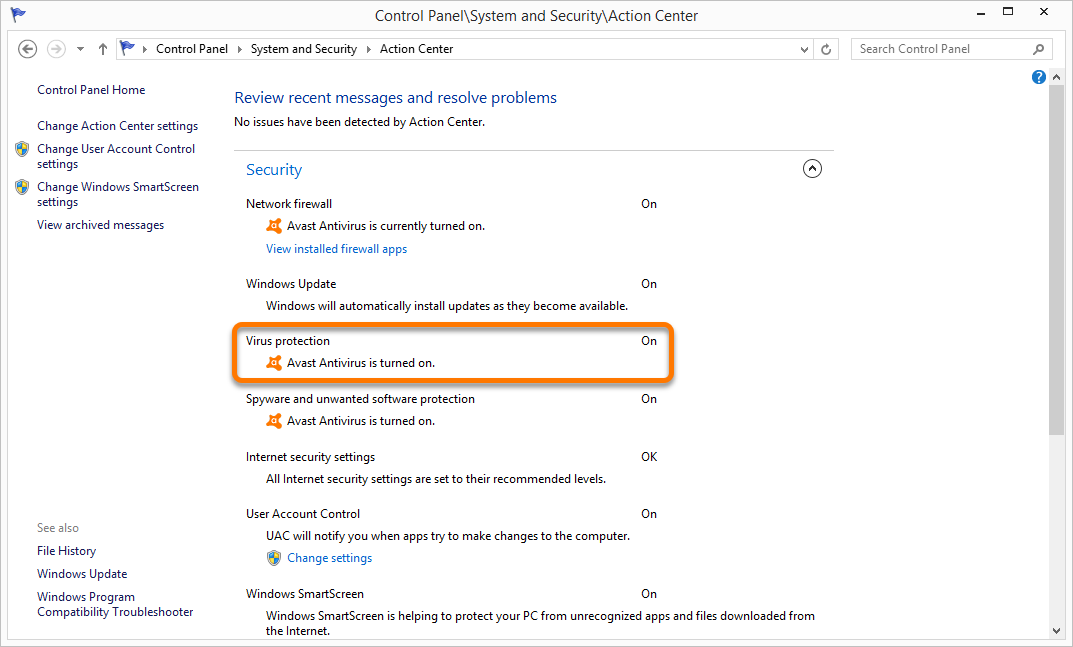
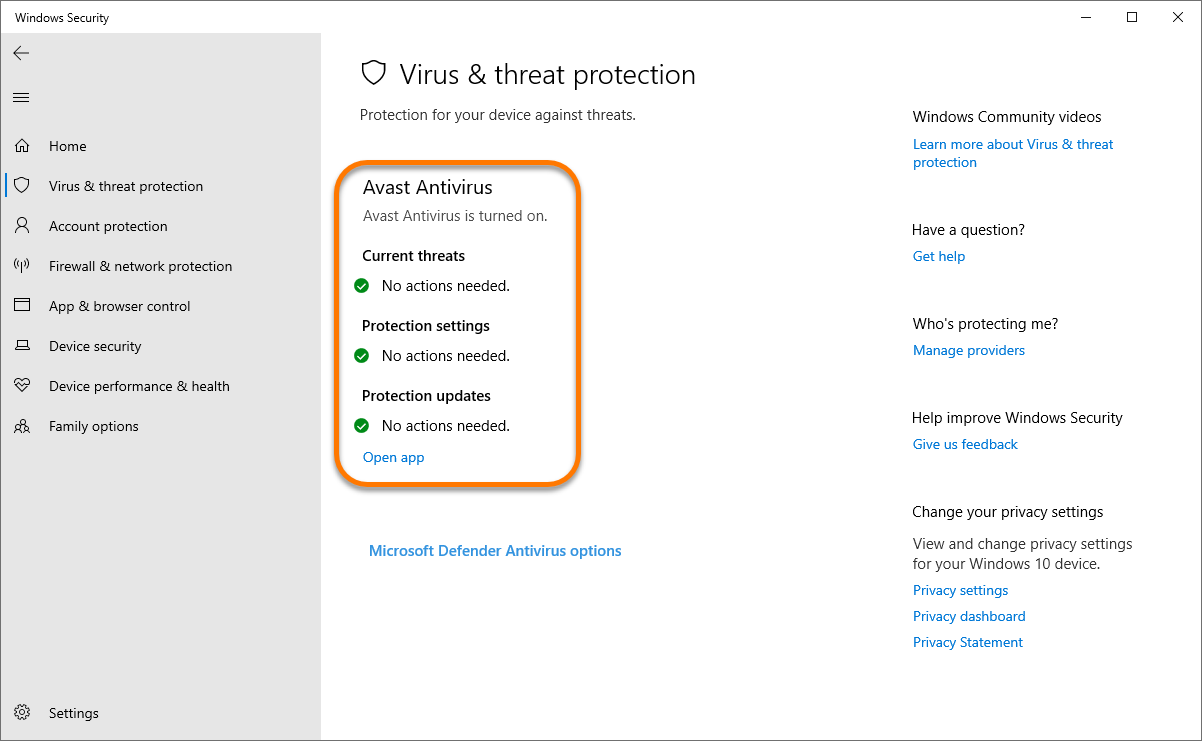
  3. Your default antivirus application appears at the top of the Virus & threat protection screen.
  1. Click the Windows Start button, then type Windows Security in the search box, and select Open in the Windows Security panel.
  2. Select Virus & threat protection in the left panel.
  3. Your default antivirus application appears at the top of the Virus & threat protection screen.
  1. Click the Windows Start button, then type Windows Security in the search box, and select Open in the Windows Security panel.
  2. Select Virus & threat protection in the left panel.
  3. Your default antivirus application appears at the top of the Virus & threat protection screen.
  1. Click the Windows Start button, then type Windows Security in the search box, and select Open in the Windows Security panel.
  2. Select Virus & threat protection in the left panel.
  3. Your default antivirus application appears at the top of the Virus & threat protection screen.

Disable other antivirus software

Refer to the alphabetical list below to access the websites of common antivirus software for instructions to temporarily disable your protection. Avast is not responsible for any of the content on the linked web pages. If the antivirus application that you are trying to disable is not on this list, refer to the support website for your antivirus provider.

After successfully installing your Avast application, ensure that you re-enable your third-party antivirus software.

A | B | C | D | E | F | G | K | L | M | N | P | Q | S | T | U | V | W | Z

A

B

E

K

M

N

P

Q

S

W

DocID: disable-other-antivirusLast modified: 09/03/2026

Was this article helpful?

Promotional banner image

Keep your online identity private!

Browse like no one’s watching with Avast anti-tracking software.

Need more help?

Contact us
Avast account
Visit our forums
Visit academy