
IS YOUR COMPUTER SLOW? RUN LIKE NEW
If they are not maintained, computers lose performance over time. Avast Cleanup Premium can help significantly improve the performance of your computer.
Temporarily disabling Avast Antivirus protection
Windows
Avast Premium Security, Avast Free Antivirus and Avast One contain a range of components, designed to keep you and your personal data safe online. This article provides instructions to temporarily disable all Avast protection, or individual Avast components.
We recommend following steps in this article only when requested by Avast Support for troubleshooting purposes, as disabling Avast protection leaves you vulnerable to attacks.
Disable all Avast protection
- Right-click
 the Avast icon in the notification area of your Windows taskbar, then in the menu that appears, click Manage Shields.
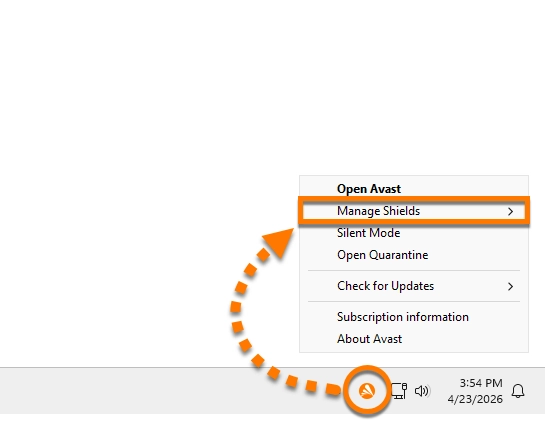
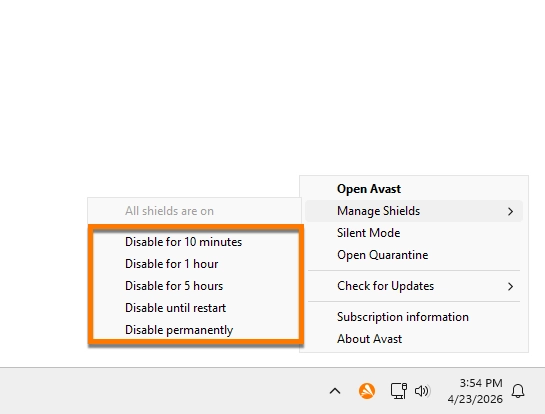
- Select the time duration to disable all Shields.
- Click OK, Stop.
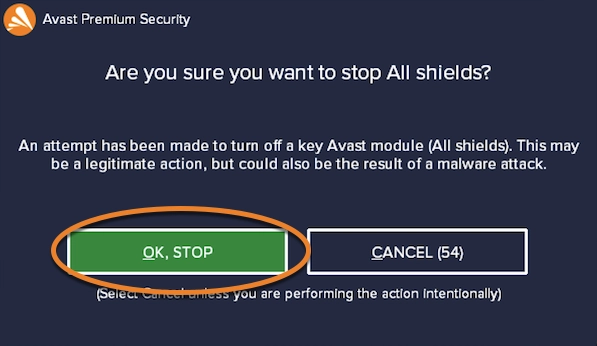
All Avast components are disabled. Based on your selection, the Avast protection will re-enable automatically.
Further recommendations
Disabling Avast shields is intended for temporary troubleshooting only. If you want to keep Avast installed while using another antivirus application, we recommend enabling Passive Mode. This mode turns off all real‑time protection and prevents conflicts with other antivirus software. For more information, refer to the following article:
Was this article helpful?

Keep your online identity private!
Browse like no one’s watching with Avast anti-tracking software.