Test - Avast Network Inspector alert: Remote Desktop vulnerability found
This article explains how to resolve the issue if Network Inspector in Avast Antivirus shows the following alert:
Description
Remote Desktop Protocol (RDP), commonly called Remote Desktop, allows you to connect to your PC from any location. If you see the alert above after running a Network Inspector scan in Avast Antivirus, we have found that your PC's Remote Desktop settings are not secure.
An attacker could connect to your PC and use known vulnerabilities in Microsoft's Remote Desktop Protocol to execute malicious code, or plant malware. An attacker may also attempt to access protected areas of your PC by repeatedly guessing the password (known as a brute-force attack).
Solution
You can resolve this issue by enabling Network Level Authentication on your PC. This ensures that any connection attempts must be authenticated before they can establish a session with the server.
Follow the steps below to enable Network Level Authentication on your PC:
The steps to enable Network Level Authentication vary according to your version of Windows 10. Follow the relevant steps below:
Later versions of Windows 10
-
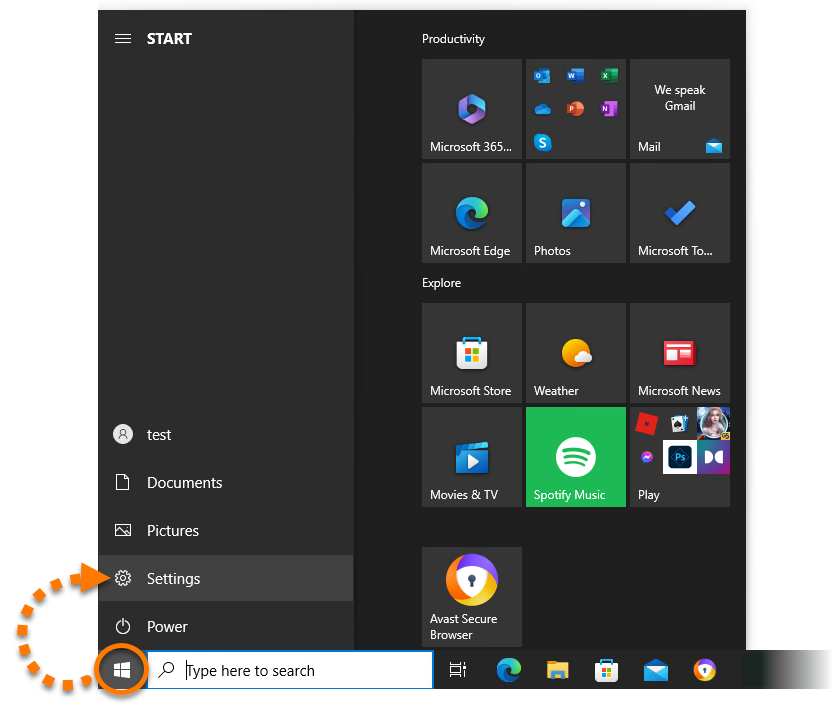
Click the Windows  Start button and select
 Settings (the gear icon).
-
Select the System tile. 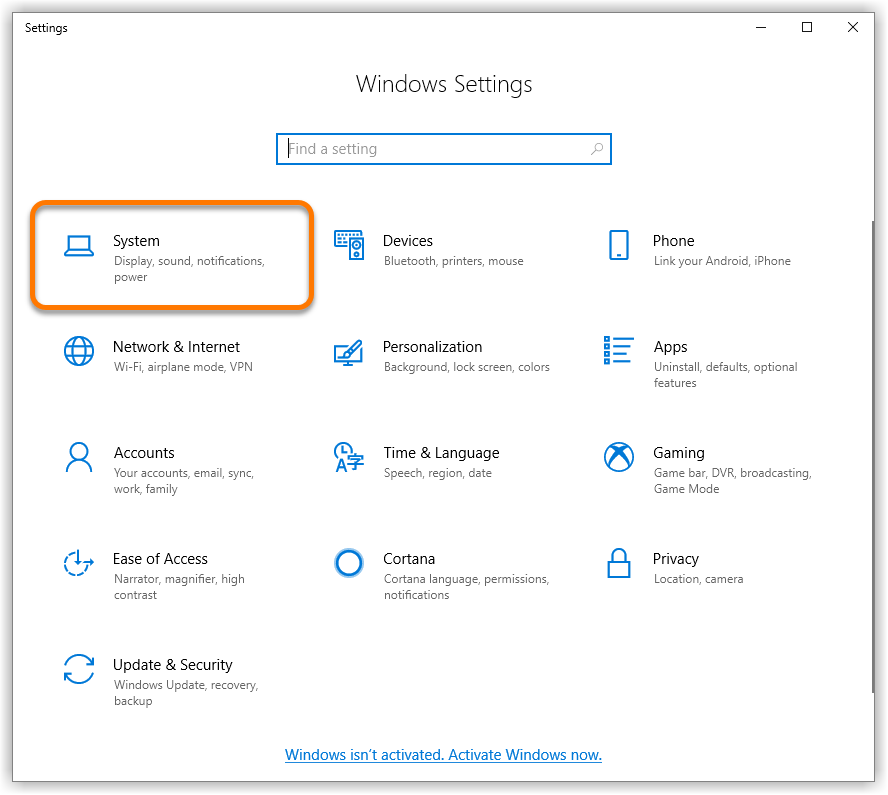
-
Click Remote Desktop in the left panel. 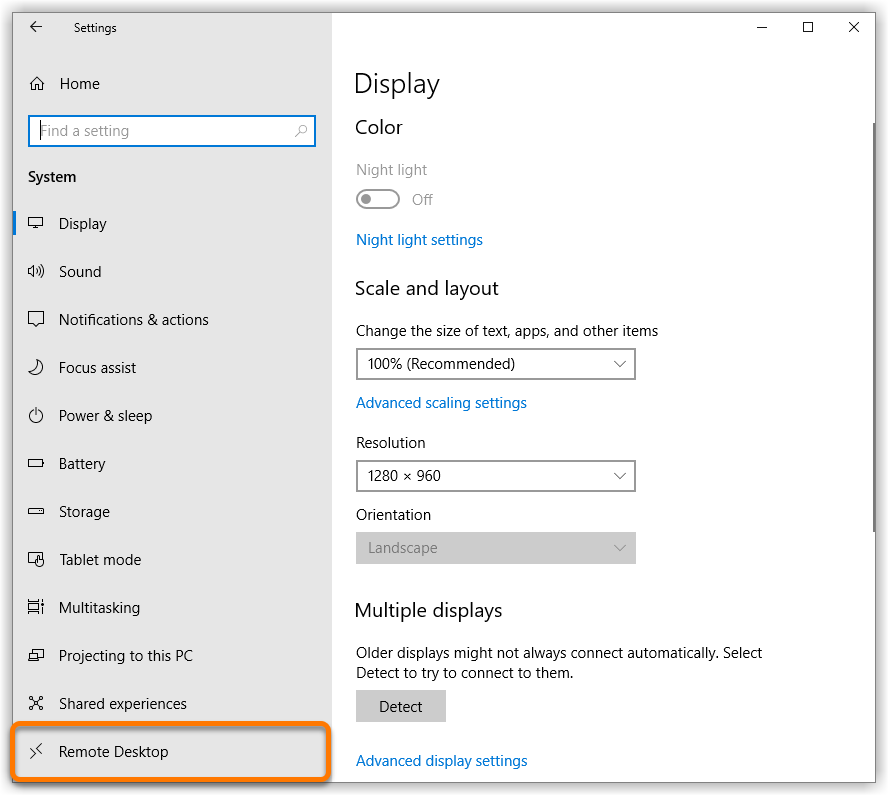
-
Click Advanced settings. 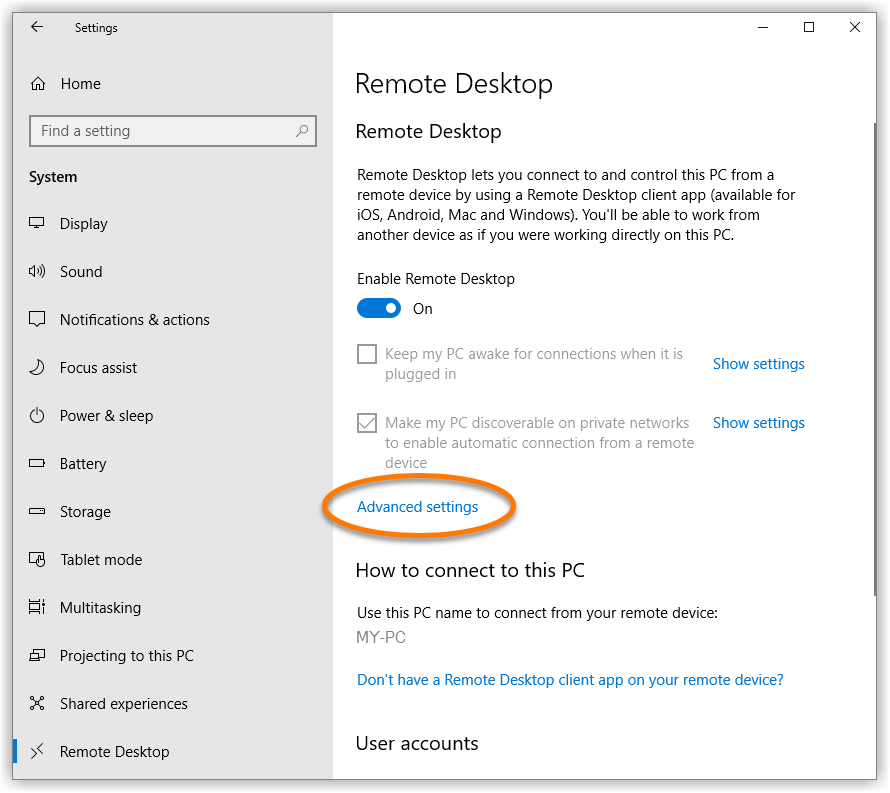
-
Tick the box next to Require computers to use Network Level Authentication to connect (recommended). 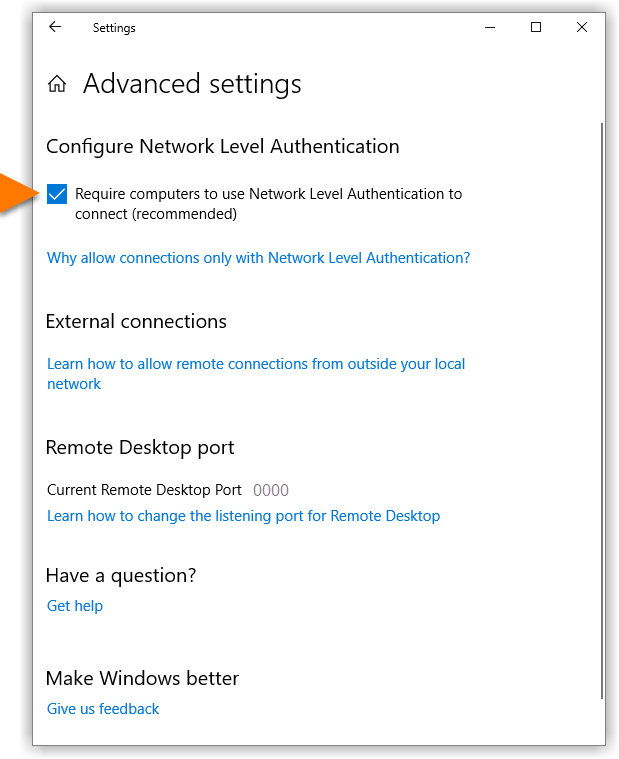
Network Level Authentication is now enabled, and your PC is protected against unwanted connections via Remote Desktop.
Earlier versions of Windows 10
-
Click the Windows Start button, start typing control panel to open the search box, then select Control Panel from the search results. 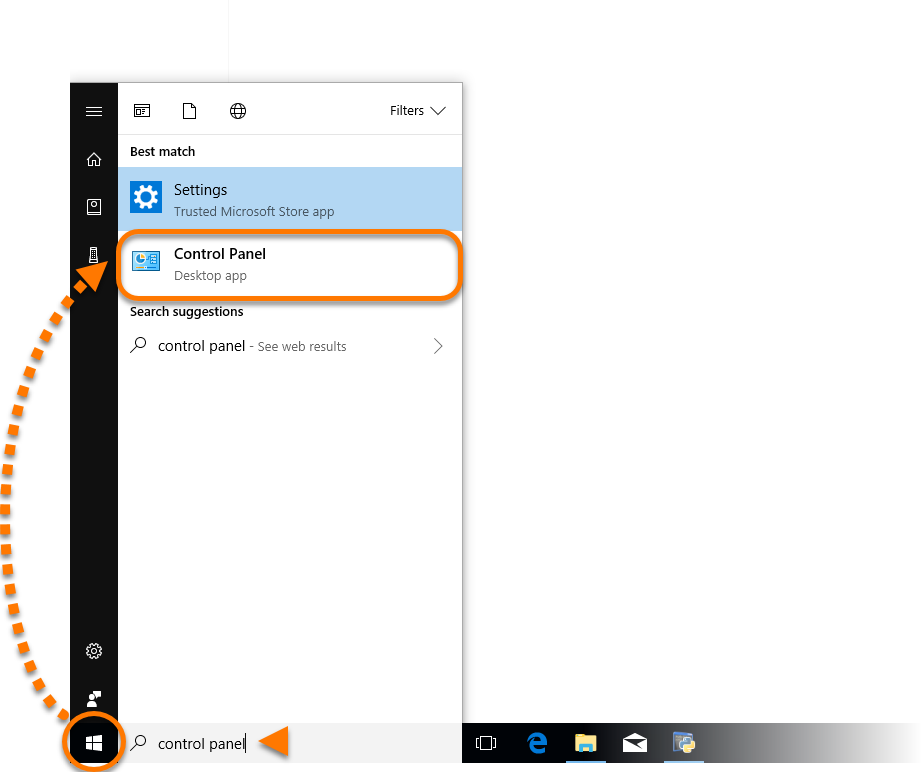
-
Next to View by, ensure you are using the Category view. 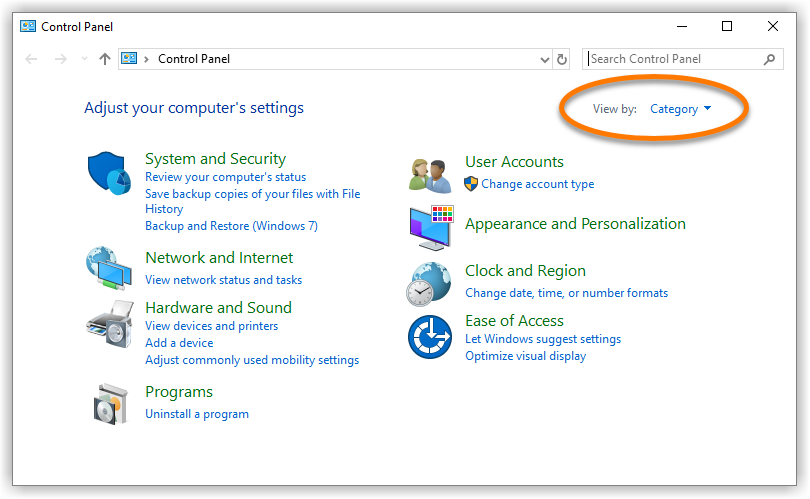
-
Select the System and Security tile. 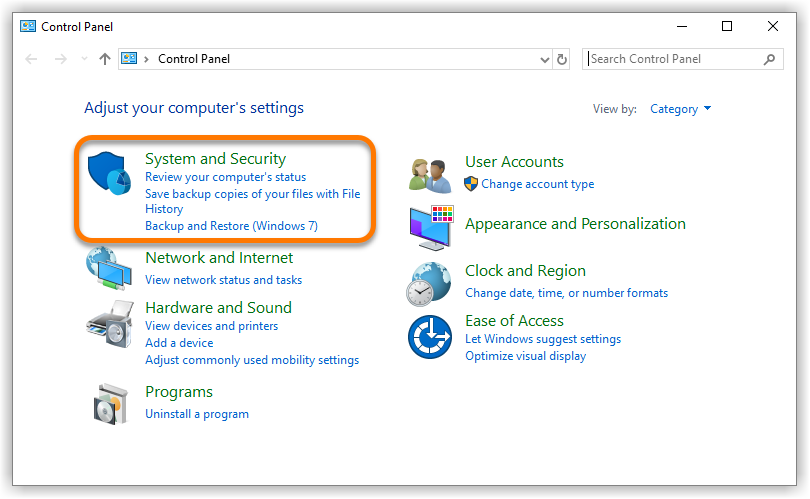
-
Under System, select Allow remote access. 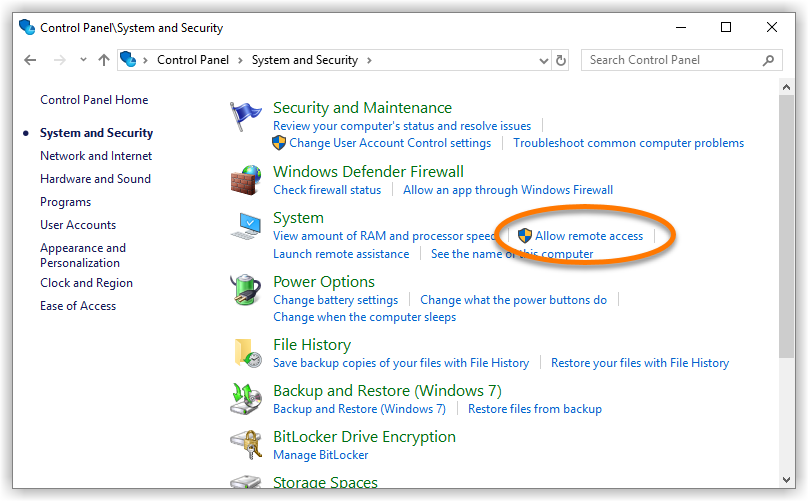
-
Under Allow remote connections to this computer, ensure the box next to Allow connections only from computers running Remote Desktop with Network Level Authentication (recommended) is ticked. Then click OK. 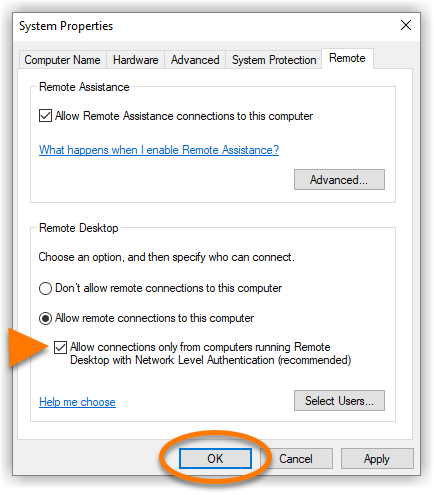
Network Level Authentication is now enabled, and your PC is protected against unwanted connections via Remote Desktop.
-
On your keyboard, press the 
Win key and X key simultaneously, then select Control Panel from the menu that appears. 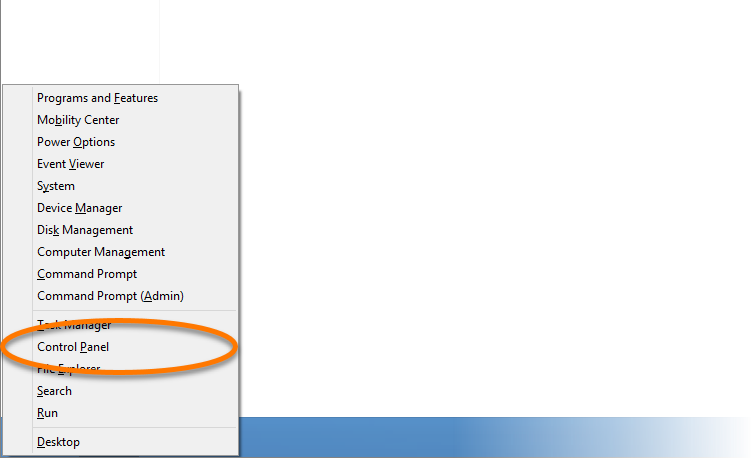
-
Next to View by, ensure you are using the Category view. 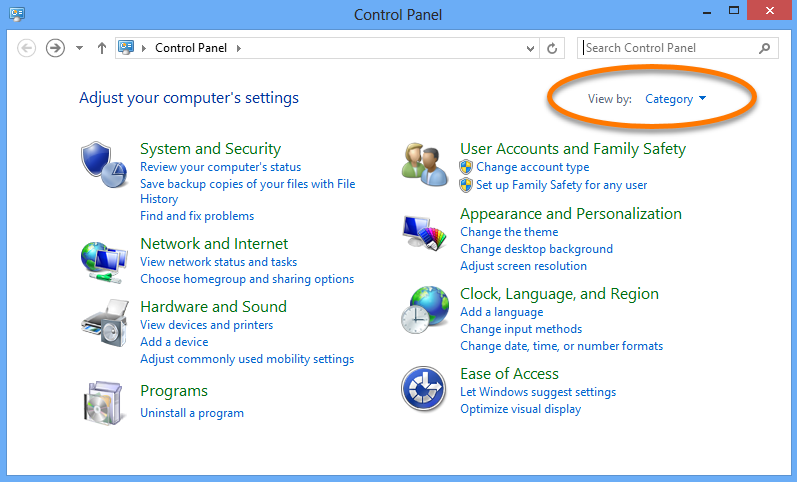
-
Select the System and Security tile. 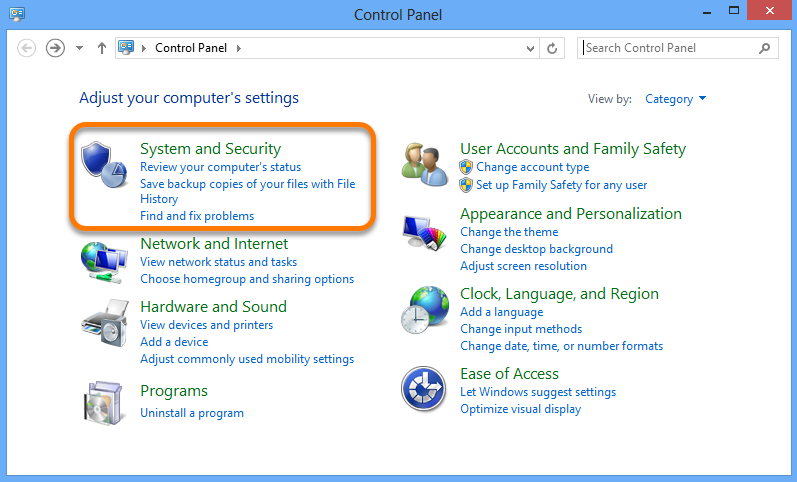
-
Under System, select Allow remote access. 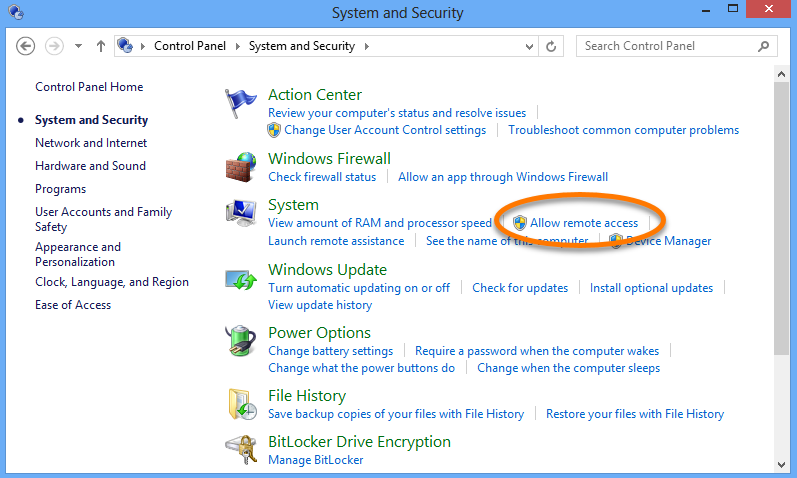
-
Under Allow remote connections to this computer, ensure the box next to Allow connections only from computers running Remote Desktop with Network Level Authentication (recommended) is ticked. Then click OK. 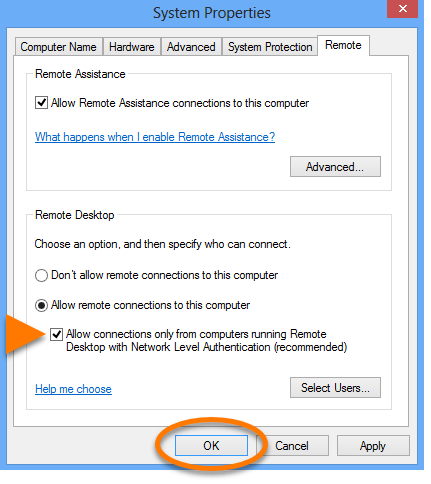
Network Level Authentication is now enabled, and your PC is protected against unwanted connections via Remote Desktop.
-
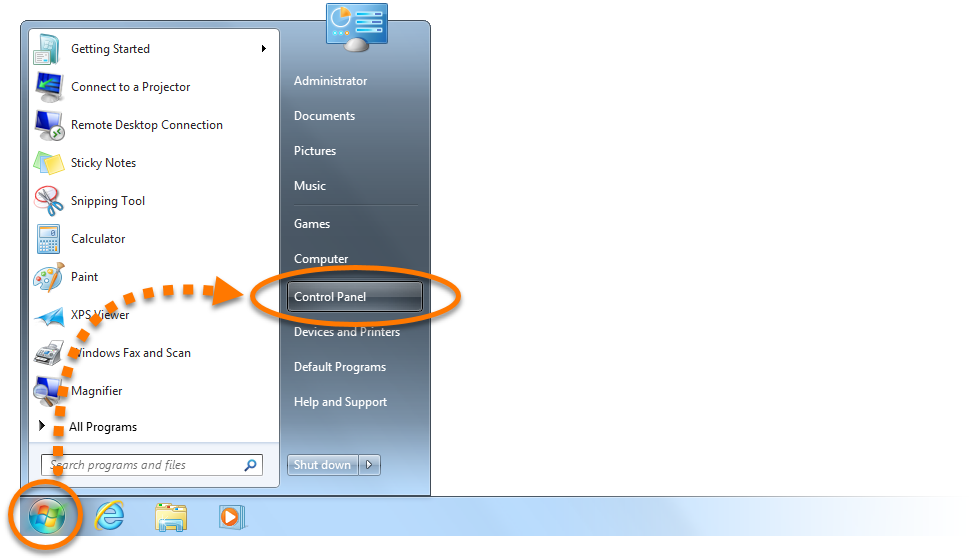
Click the Windows  Start button and select Control Panel.
-
Next to View by, ensure you are using the Category view. 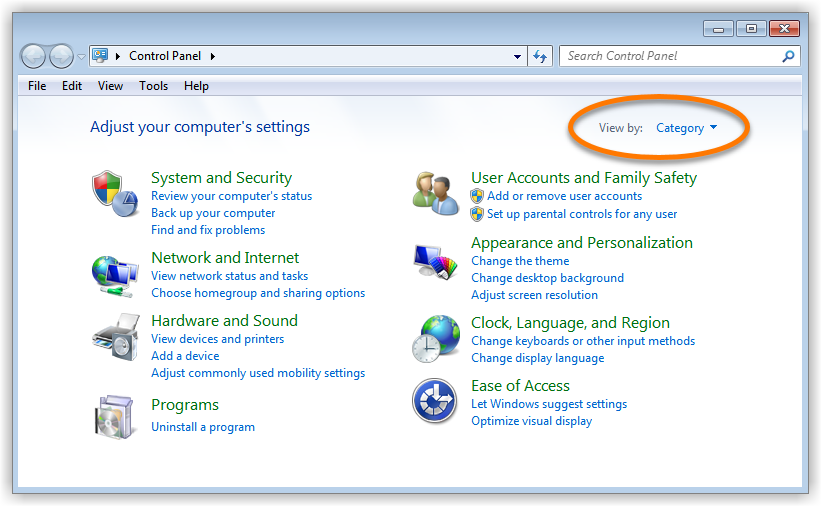
-
Select the System and Security tile. 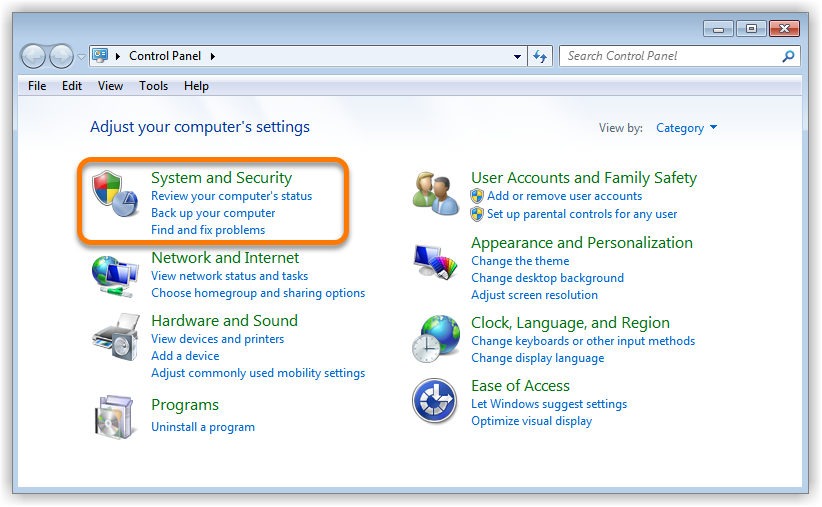
-
Under System, select Allow remote access. 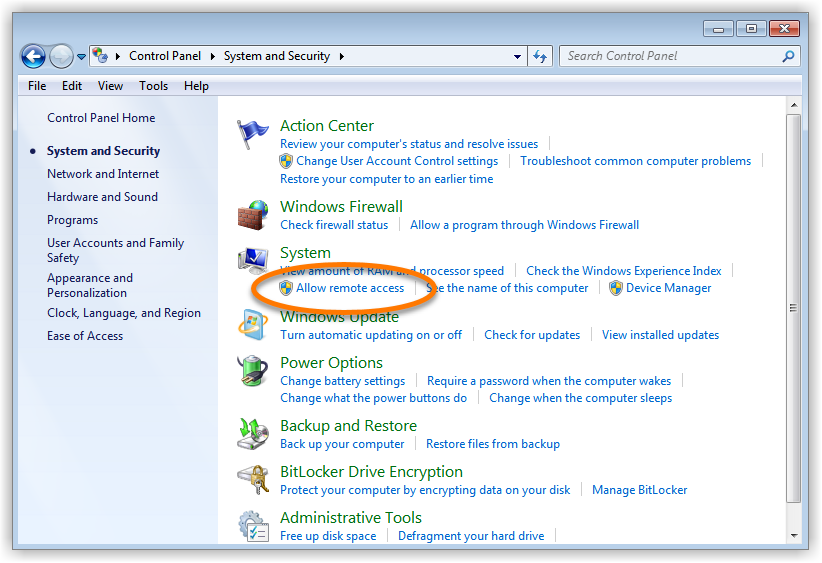
-
Ensure that Allow connections only from computers running Remote Desktop with Network Level Authentication (more secure) is selected. Then click OK. 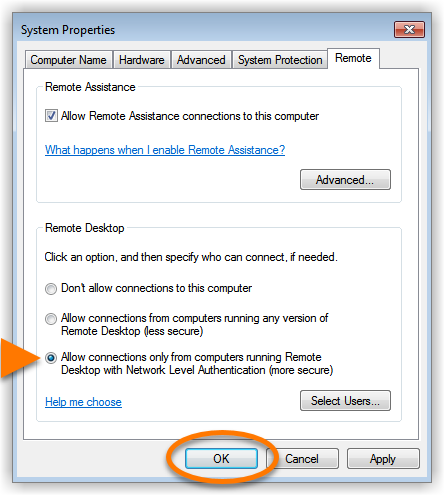
Network Level Authentication is now enabled, and your PC is protected against unwanted connections via Remote Desktop.

 Start button and select
 Settings (the gear icon).


