
IS YOUR COMPUTER SLOW? RUN LIKE NEW
If they are not maintained, computers lose performance over time. Avast Cleanup Premium can help significantly improve the performance of your computer.
Avast Online Security & Privacy - FAQs
Windows, Mac
We have developed a completely new version of the Avast Online Security browser extension, which is now called Avast Online Security & Privacy (version 21.0.68 and later). This article applies for the new version of the browser extension.
To verify which version of the browser extension you are using, or to troubleshoot update issues, refer to the Troubleshooting section below.
General
What is Avast Online Security & Privacy?
Avast Online Security & Privacy is a free browser extension that lets you control who has access to your private data, and warns you about malicious websites and phishing scams.
How does Avast Online Security & Privacy boost my online privacy?
Avast Online Security & Privacy includes the Anti-tracking and Ads opt out features. When enabled, these features prevent third parties from collecting and selling information that relates to your online behavior. You can also use the Privacy Advisor tool, which lets you easily update the settings for your online accounts to better protect your privacy. Additionally, you can use Cookie Consent Manager to automatically select cookie preferences on websites you visit.
How does Avast Online Security & Privacy keep me safe online?
Avast Online Security & Privacy scans the URL for every website that you visit, and alerts you about dangerous websites that may try to steal your personal information or infect your PC with malware.
In addition, when you use popular search engines (such as Google, Yahoo, and Bing), Avast Online Security & Privacy adds a colored shield icon to indicate the security status of each search result. You see one of the following messages and icons next to each search result:
- This website is safe (green shield icon): We have not flagged the website as malicious, so it is safe to visit.
- This website is not safe (red shield icon): We have flagged the website as potentially malicious. The website may try to infect your PC with malware, or steal your private data via a phishing scam.
Does Avast Online Security & Privacy block ads?
No, Avast Online Security & Privacy is not an ad blocker. You may continue to see ads on your favorite websites after installing the extension. When you use Avast Online Security & Privacy, you can prevent third parties from tracking your online behavior and selling your personal data. This means that you will see fewer targeted ads (for example, ads for products you have recently viewed).
Installation and Setup
How can I install Avast Online Security & Privacy?
For detailed instructions on how to install and set up Avast Online Security & Privacy, refer to the following article:
Which browsers is Avast Online Security & Privacy compatible with?
Avast Online Security & Privacy is compatible with the following web browsers:
- Google Chrome
- Microsoft Edge
- Opera
- Avast Secure Browser
Which devices is Avast Online Security & Privacy available for?
You can install and use Avast Online Security & Privacy on Windows PC or Mac.
How can I remove Avast Online Security & Privacy from my browser?
If you are trying to remove the classic version of the browser extension, follow the steps above but instead look for the Avast Online Security tile.
Chrome
- Open Google Chrome and go to
⋮Menu (three dots) ▸ More tools ▸ Extensions. - Perform your preferred action below:
- Disable: Click the blue (ON) slider in the
 Avast Online Security & Privacy tile so that it changes to gray (OFF).
 - Uninstall: Click Remove in the Avast Online Security & Privacy tile.
- Disable: Click the blue (ON) slider in the
Edge
- Open Microsoft Edge and go to
…Menu (three dots) ▸ Extensions. - Perform your preferred action below:
- Disable: Click the blue (ON) slider in the Avast Online Security & Privacy tile so that it changes to gray (OFF).
- Uninstall: Click Remove in the Avast Online Security & Privacy tile.
- Disable: Click the blue (ON) slider in the
Opera
- Open Opera.
- Click
Othe Opera icon in the top-left corner of the browser, and select Extensions ▸ Extensions. - Ensure All is selected in the top menu.
- Perform your preferred action below:
- Disable: Click Disable in the Avast Online Security & Privacy tile.
- Uninstall: Click
X(the cross icon) in the top-right corner of the Avast Online Security & Privacy tile. Click Remove to confirm.
- Disable: Click Disable in the
Securebrowser
- Open Avast Secure Browser and go to
⋮Menu (three dots) ▸ Extensions. - Perform your preferred action below:
- Disable: Click the green (ON) slider in the Avast Online Security & Privacy tile so that it changes to gray (OFF).
- Uninstall: Click Remove in the Avast Online Security & Privacy tile.
- Disable: Click the green (ON) slider in the
Features and Settings
How can I use Avast Online Security & Privacy?
To learn how to use Avast Online Security & Privacy, refer to the following article:
What is Anti-tracking?
Most websites use tracking systems to monitor visitor behavior, which allows them to obtain statistics and other data for marketing purposes. The  Anti-tracking feature in Avast Online Security & Privacy allows you to see which tracking systems are used by the websites you visit and stop websites from using these systems to track you.
For instructions on how to use Anti-tracking, refer to the following article:
What is Ads opt out?
Online advertisers are companies that collect information about you by tracking your online activity. This information can be used to create a profile of you as an individual, and target you with ads that appear to match your interests and behavior.
The  Ads opt out feature in Avast Online Security & Privacy lets you send opt-out requests to online advertisers. After receiving your opt-out requests, the online advertisers are legally obligated to stop collecting and selling your personal information.
For instructions on how to use Ads opt out, refer to the following article:
What is Privacy Advisor?
Many of your online accounts include settings that allow you to control who has access to your personal data. The  Privacy Advisor feature in Avast Online Security & Privacy helps you to easily locate these settings and adjust them according to your preferences.
For instructions on how to use Privacy Advisor, refer to the following article:
What is Cookie Consent Manager?
Cookie Consent Manager is only available if you have an Avast One or Avast Premium Security subscription.
Many websites ask your consent to accept storing cookies for your login info, passwords, cart items, etc. The  Cookie Consent Manager is a premium feature in Avast Online Security & Privacy that automatically hides cookie pop-ups on websites you visit according to your preferences. This feature is available with Google Chrome, Microsoft Edge, and Opera browsers.
For instructions on how to use Cookie Consent Manager, refer to the following article:
What is Global Privacy Control (GPC)?
When Global Privacy Control (GPC) is enabled in Avast Online Security & Privacy, your browser sends a signal to every website you visit that communicates your preference for privacy.
Depending on your jurisdiction, GPC may signal the following preferences:
- General Data Protection Regulation (GDPR): The website should limit the sharing of your personal data to other companies for marketing purposes.
- California Consumer Privacy Act (CCPA): The website should not share or sell your personal data.
Websites that participate in GPC should handle your personal data according to your preferences. You can find a list of participating websites via the Global Privacy Control website.
To ensure that Global Privacy Control (GPC) is enabled, follow the steps below:
- Click the Avast Online Security & Privacy icon to the right of your address bar.
- Click
 Settings (the gear icon) in the bottom-left corner.
 - Ensure the slider next to Enable Global Privacy Control (GPC) is green (ON). If this feature is not enabled, click the red (OFF) slider so that it changes to green (ON).
What happens if I try to visit a dangerous website?
When you attempt to visit a dangerous website, you see the message Hold on, this website isn't safe, and connection to the website is blocked. We recommend clicking Avoid site to return safely to the previous webpage. Alternatively, if you are certain that the website is safe, you can click Continue anyway.
Avast Online Security & Privacy detects the following threats while you browse the internet:
- Phishing scams: Dangerous fake websites that may appear legitimate, but are designed to steal your sensitive personal information.
- Malicious code: Websites that contain malicious code and may attempt to infect your PC with malware or adware.
How can I manage the data I share with Avast?
By default, when you use Avast Online Security & Privacy you share anonymous usage data with Avast to help us improve the extension. This includes data about how you interact with the browser extension, as well as information about your operating system, browser, and location.
To opt out of data sharing:
- Click the Avast Online Security & Privacy icon to the right of your address bar.
- Click Settings (the gear icon) in the bottom-left corner.
- Click the green (ON) slider next to Help us improve by sharing your usage data with us so that it changes to red (OFF).
You no longer share usage data with Avast.
Other Avast products
Can I use Avast Online Security & Privacy if I don't have any other Avast products?
Yes. You can use Avast Online Security & Privacy as a standalone tool if you do not have any other Avast products installed on your PC. You can also use Avast Online Security & Privacy alongside any other Avast products because the browser extension is designed to complement the privacy and security features included in our other products.
Do I need Avast Online Security & Privacy if I already use an Avast antivirus product?
If you currently use an Avast antivirus product (such as Avast Premium Security or Avast Free Antivirus), we recommend installing Avast Online Security & Privacy alongside your Avast antivirus product. This is because Avast Online Security & Privacy includes additional privacy features, such as Anti-tracking, Ads opt out, Privacy Advisor, Cookie Consent Manager, and Global Privacy Control.
Avast Online Security & Privacy also includes security features such as Safe search, which complement the existing security features offered by our antivirus products.
You can install Avast Online Security & Privacy directly via your Avast antivirus application by going to
☰Menu ▸ Browser Extensions.
Do I need Avast Online Security & Privacy if I already use Avast BreachGuard?
If you are an existing Avast BreachGuard user, we recommend installing Avast Online Security & Privacy alongside Avast BreachGuard. This is because Avast Online Security & Privacy includes the additional Ads opt out and Global Privacy Control features, which complement the existing privacy features offered by Avast BreachGuard.
You can install Avast Online Security & Privacy directly via the Avast BreachGuard application by going to
☰Menu ▸ Settings ▸ Extensions.
Do I need Avast Online Security & Privacy if I already use Avast AntiTrack?
If you are an existing Avast AntiTrack user, we recommend installing Avast Online Security & Privacy alongside Avast AntiTrack. This is because Avast Online Security & Privacy includes the additional Ads opt out, Privacy Advisor, Cookie Consent Manager, and Global Privacy Control features, which complement the existing privacy features offered by Avast AntiTrack.
If the Avast AntiTrack browser extension is installed in your browser, you can use both browser extensions simultaneously without any issues.
To learn how to install Avast Online Security & Privacy, refer to the following article:
Troubleshooting
Do I have the new version of Avast Online Security & Privacy?
We have developed a completely new version of the Avast Online Security browser extension, which is now called Avast Online Security & Privacy.
To check which version of the browser extension is installed in your browser, review the information below:
- The new version (version 21.0.68 and later): is called Avast Online Security & Privacy and uses an orange Avast icon with the main screen shown below:
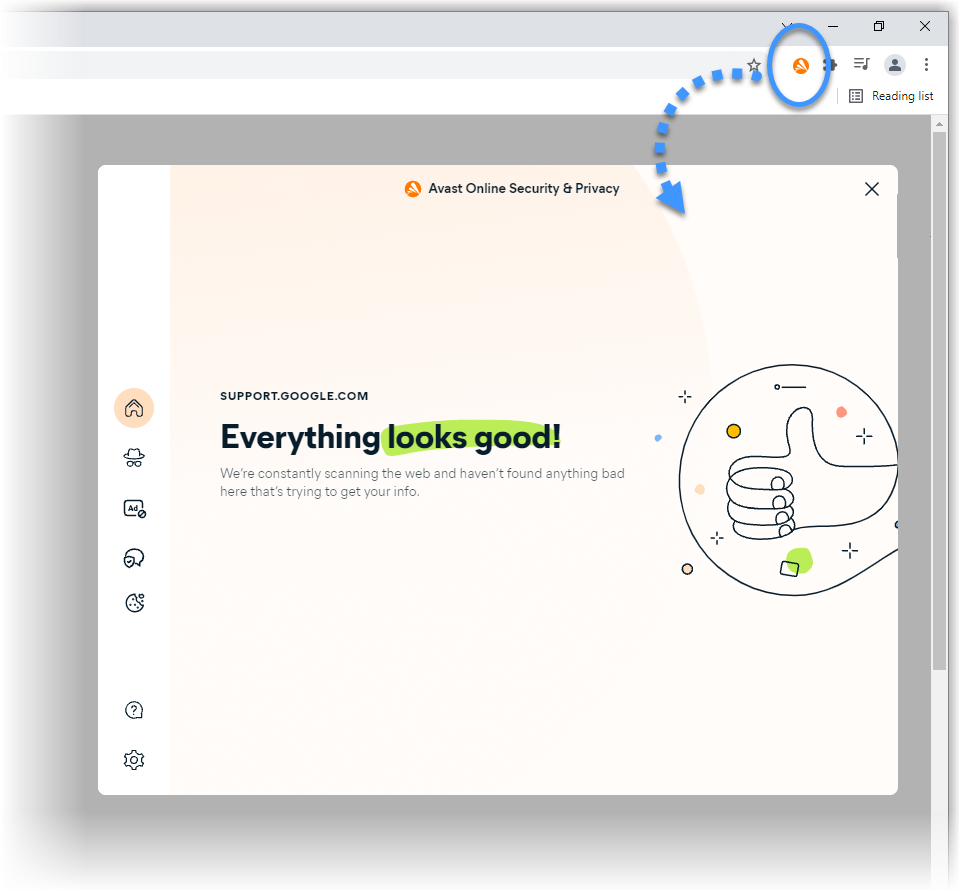
- The classic version (version 21.0.67 and earlier): is called Avast Online Security and uses a colored
 Shield icon with the main screen shown below: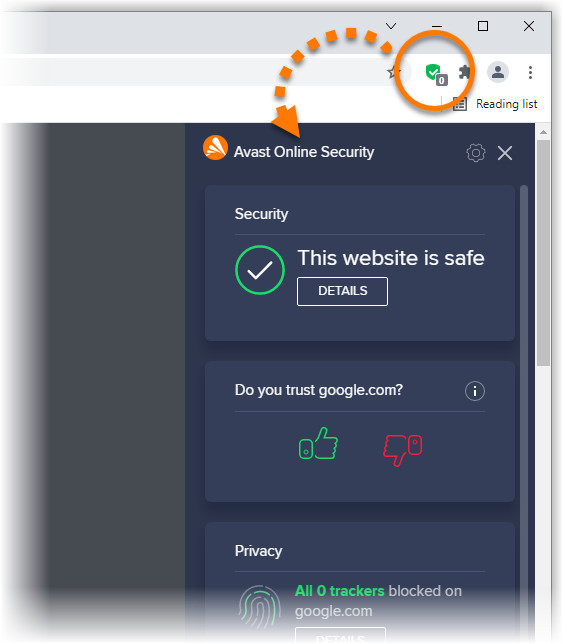
If you still have the classic version of the browser extension, we recommend that you regularly check for available updates to ensure you can start using the new version as soon as possible.
How can I manually update to the new version of Avast Online Security & Privacy?
If you still have the classic version of the browser extension (Avast Online Security version 21.0.67 and earlier), refer to the information in the relevant tab below to troubleshoot update issues.
Chrome
Automatic updates for browser extensions are enabled by default in Google Chrome.
Optionally, try to manually update all of your Google Chrome browser extensions by following the steps below:
- Open Google Chrome and go to
⋮Menu (three dots) ▸ More tools ▸ Extensions. - In the top-right corner, click the slider next to Developer mode so that it changes to blue (ON).
- Click the Update button at the top of the screen to check for and automatically install any available updates for all of your Google Chrome browser extensions.
If you do not receive the update after following the steps above, try fully removing then reinstalling the browser extension.
Because update releases for browser extensions are managed by individual web browsers, we cannot guarantee that the new version will immediately be available for all users.
If you still have the classic version of the browser extension after following the steps above, you may need to wait for the update to become available in Google Chrome.
Edge
Automatic updates for browser extensions are enabled by default in Microsoft Edge.
Optionally, try to manually update all of your Microsoft Edge browser extensions by following the steps below:
- Open Microsoft Edge and go to
…Menu (three dots) ▸ Extensions. - In the bottom-left corner, click the slider next to Developer mode so that it changes to blue (ON).
- Click Update next to Installed extensions to check for and automatically install any available updates for all of your Microsoft Edge browser extensions.
If you do not receive the update after following the steps above, try fully removing then reinstalling the browser extension.
Because update releases for browser extensions are managed by individual web browsers, we cannot guarantee that the new version will immediately be available for all users.
If you still have the classic version of the browser extension after following the steps above, you may need to wait for the update to become available in Microsoft Edge.
Opera
Automatic updates for browser extensions are enabled by default in Opera.
Optionally, check for any available manual updates by following the steps below:
- Open Opera.
- Click
Othe Opera icon in the top-left corner of the browser, and select Extensions ▸ Extensions. - Click Updates in the top menu. Opera shows any updates that are available for your browser extensions.
If you do not receive the update after following the steps above, try fully removing then reinstalling the browser extension.
Because update releases for browser extensions are managed by individual web browsers, we cannot guarantee that the new version will immediately be available for all users.
If you still have the classic version of the browser extension after following the steps above, you may need to wait for the update to become available in Opera.
Securebrowser
Automatic updates for browser extensions are enabled by default in Avast Secure Browser.
Optionally, try to manually update all of your browser extensions in Avast Secure Browser by following the steps below:
- Open Avast Secure Browser and go to
⋮Menu (three dots) ▸ Extensions. - In the top-right corner, click the slider next to Developer mode so that it changes to ON.
- Click the Update button at the top of the screen to check for and automatically install any available updates for all of your browser extensions in Avast Secure Browser.
If you do not receive the update after following the steps above, try fully removing then reinstalling the browser extension.
Because update releases for browser extensions are managed by individual web browsers, we cannot guarantee that the new version will immediately be available for all users.
If you still have the classic version of the browser extension after following the steps above, you may need to wait for the update to become available in Avast Secure Browser.
Why can I no longer rate the websites that I visit?
We have developed a completely new version of the Avast Online Security browser extension, which is now called Avast Online Security & Privacy. In Avast Online Security & Privacy, we have removed the Web Reputation feature, which allowed you to rate the trustworthiness of the websites you visit.
When you use search engines, the Safe search feature will still show a colored shield icon to indicate the security status of each search result. However, in the new version of the browser extension, the security status provided by Safe search is not influenced by user ratings. This offers more accurate results and greater clarity about which websites are safe to visit.
Why is Firefox no longer supported?
For information about Avast Online Security & Privacy with Mozilla Firefox, refer to the following article:
Was this article helpful?

Keep your online identity private!
Browse like no one’s watching with Avast anti-tracking software.