
IS YOUR COMPUTER SLOW? RUN LIKE NEW
If they are not maintained, computers lose performance over time. Avast Cleanup Premium can help significantly improve the performance of your computer.
Running a Boot-Time Scan in Avast Antivirus from Windows in Safe Mode
Windows
If malware prevents Avast Antivirus from running a Boot-Time Scan, you can run Windows in Safe Mode and use the Boot-Time Scan scheduler.
If Avast Antivirus is running on Windows in normal mode, start the scan directly from Protection ▸ Virus scans. Refer the following article to learn more:
Run a Boot-Time Scan
- Reboot your computer and start Windows in Safe Mode with Command Prompt according to the instructions on the relevant Windows or third party support pages:
- In the Command Prompt window, type the
CDcommand and the location of your Avast installation file (C:\Program Files\Avast Software\Avastby default), then pressEnter ↵.
If typing the default location does not work, you may have saved your Avast installation file to a different location. Type the
CDcommand followed by the location where your Avast installation file is saved and pressEnter ↵. - Type the
sched /A:*orsched.exe /A:*command, then pressEnter ↵to schedule a default Boot-Time Scan of all local drives on your system.
To view all command line options, type
schedorsched.exe, then pressEnter ↵. - When the Command Prompt dialog indicates that the Boot-Time Scan is scheduled, type
shutdown /r, then pressEnter ↵to re-boot your computer to run the Boot-Time Scan.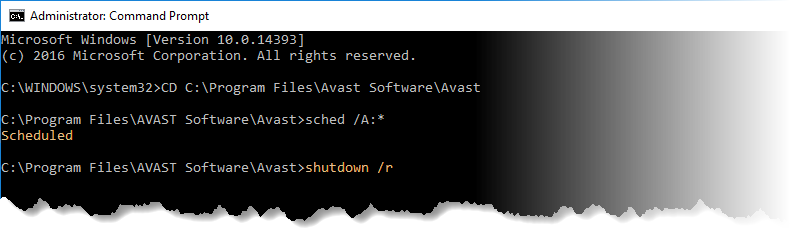
- After your computer restarts, a Boot-Time Scan progress screen appears as Windows begins loading. For any detected threat select which action to take.
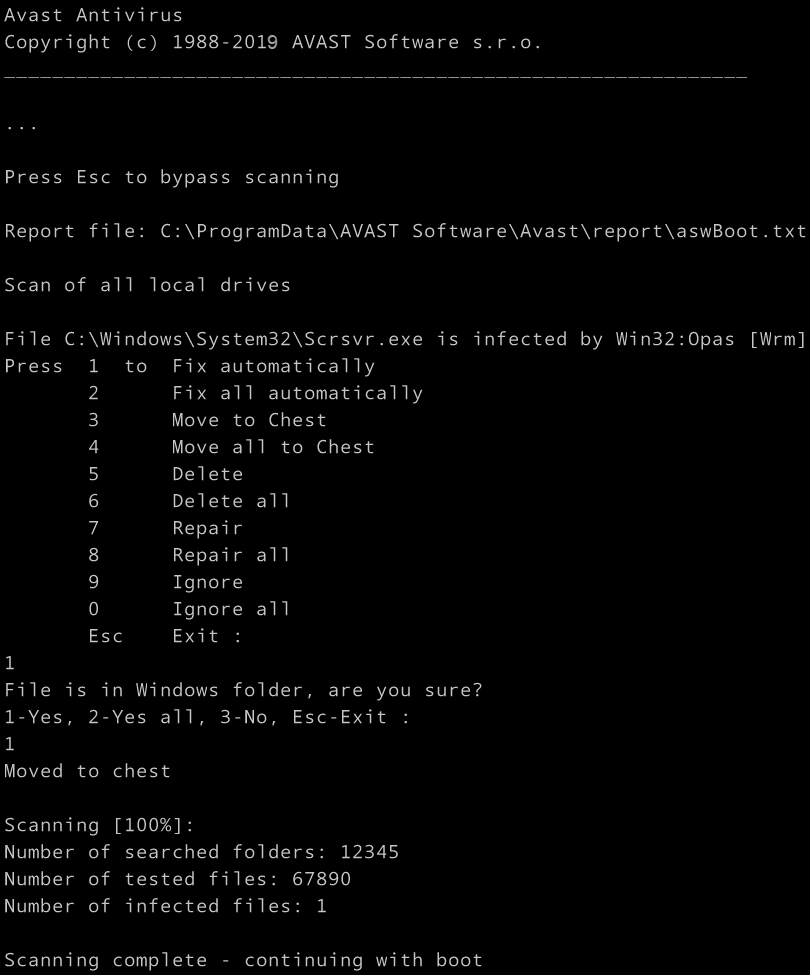
The scan usually takes several minutes but the duration varies depending on the speed of your system and the number of files to be scanned. When the scan is completed or skipped, Windows continues booting up.
To skip the scan, press the
Esckey on your keyboard.
Was this article helpful?

Keep your online identity private!
Browse like no one’s watching with Avast anti-tracking software.