
IS YOUR COMPUTER SLOW? RUN LIKE NEW
If they are not maintained, computers lose performance over time. Avast Cleanup Premium can help significantly improve the performance of your computer.
Canceling the renewal for a subscription via your Avast Account
Android, ChromeOS, iOS, Mac, Windows
We are introducing a new Avast account portal experience, designed to enhance usability and security. This phased release means you may see a different experience on the Avast portal. To support you during this transition, this article provides a solution to address your current experience. For the new portal experience, read Canceling the renewal for a subscription via your Avast Account.
This article does not apply to Avast subscriptions purchased via Google Play Store or the App Store. To cancel a subscription purchased via one of these vendors, refer to the following article: Canceling an Avast subscription via Google Play Store or the App Store.
If you do not want to cancel via your Avast Account, refer to the following article: Alternative methods for canceling the renewal for an Avast subscription.
This article explains how to cancel a renewal for an Avast subscription via your Avast Account. An Avast Account was created using the email address that you provided during the subscription purchase.
- To sign in to your Avast Account for the first time, refer to the following article: Activating your Avast Account.
- If you do not know the password for your Avast Account, refer to the following article: Resetting your Avast Account password.
Canceling the renewal of your subscription before the next billing date ensures you will not be renewed nor charged for the renewal. For more information about canceling the renewal for an Avast subscription, refer to the following article: Canceling an Avast subscription - FAQs.
Cancel the renewal for a subscription
- Sign in to your Avast account using the link below:
Important! We are introducing a new Avast account portal experience, designed to enhance usability and security. This phased release means you may see a different experience on the Avast portal. To support you during this transition, this article provides a solution to address your current experience. For the new portal experience, read Canceling the renewal for a subscription via your Avast Account.

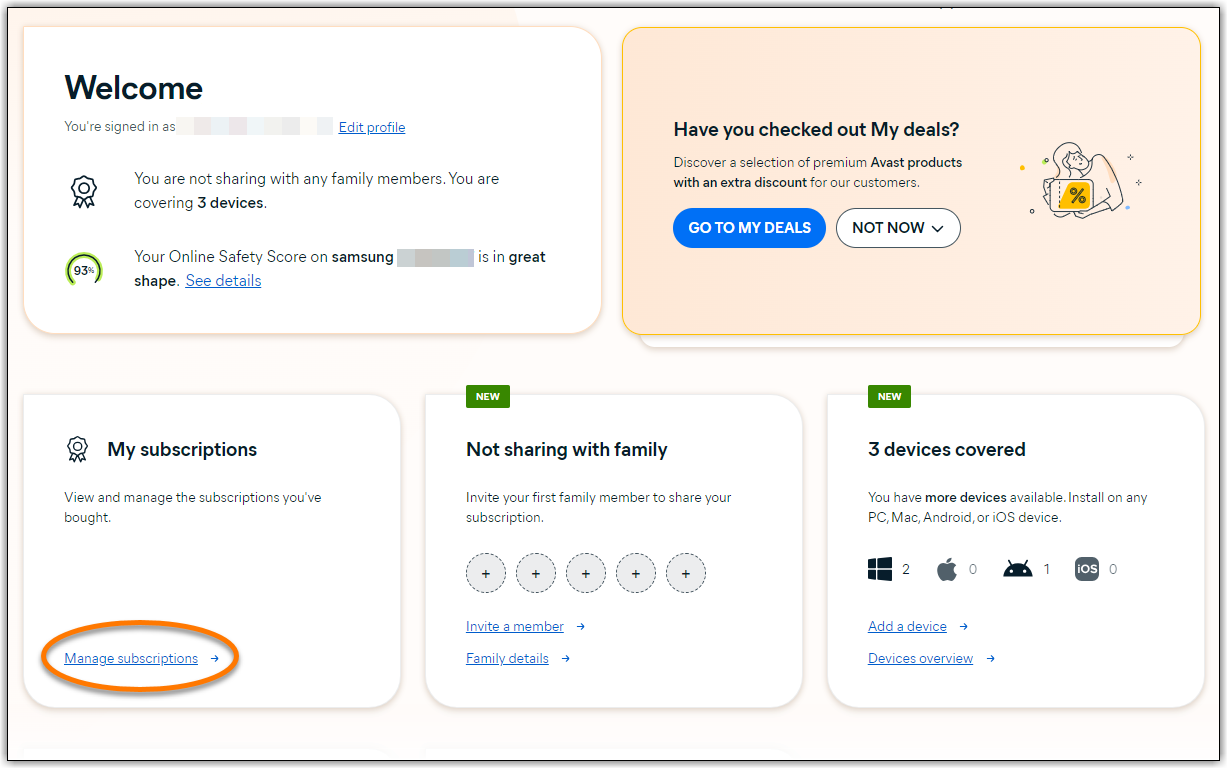
- Click Manage subscriptions on the My subscriptions tile.
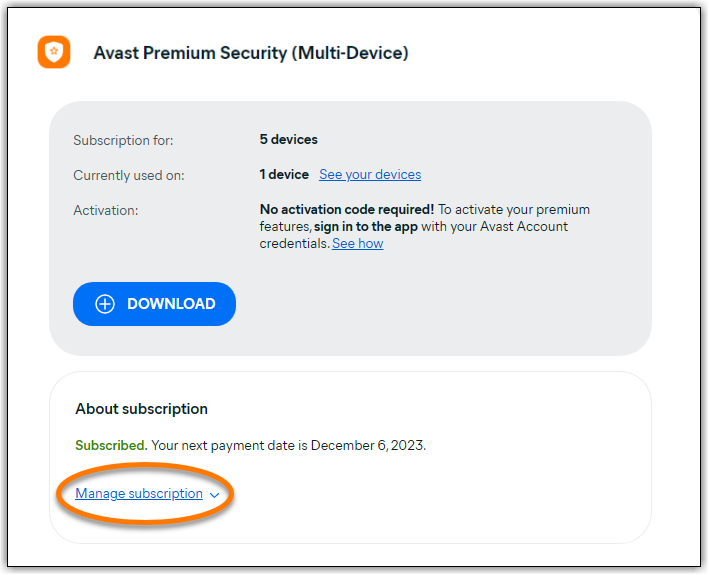
- Under the subscription that you want to cancel the renewal for, click Manage subscription. If the subscription does not appear on the My Subscriptions screen, refer to the Still need help? section below.
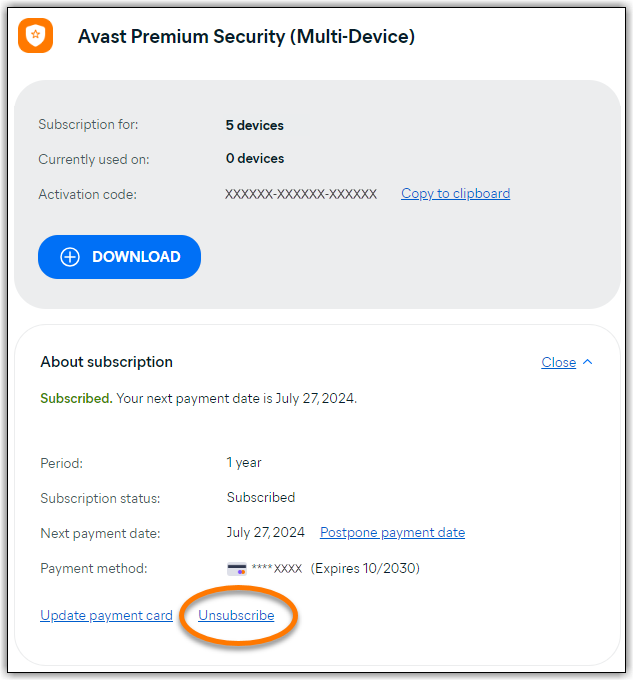
- Click Unsubscribe or Cancel renewal. If you do not see the Unsubscribe or Cancel renewal button, refer to the Still need help? section below.
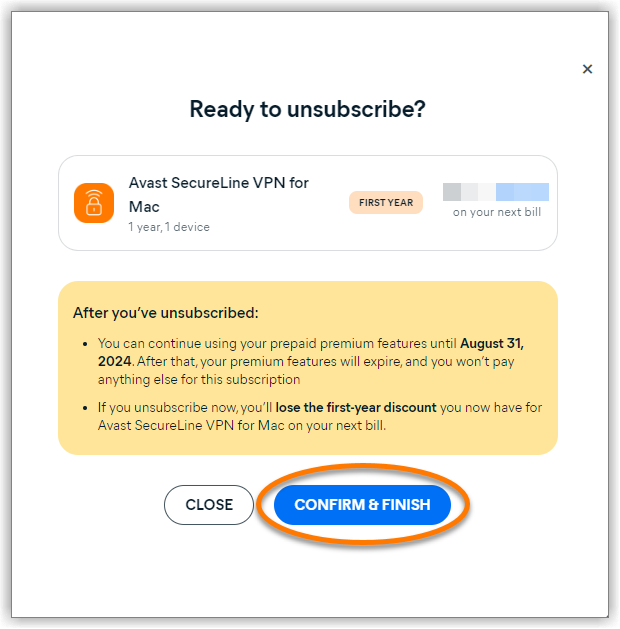
- Review the details, then click Confirm & finish.
- Optionally, let us know why you are canceling the renewal, then click Unsubscribe or Cancel renewal.
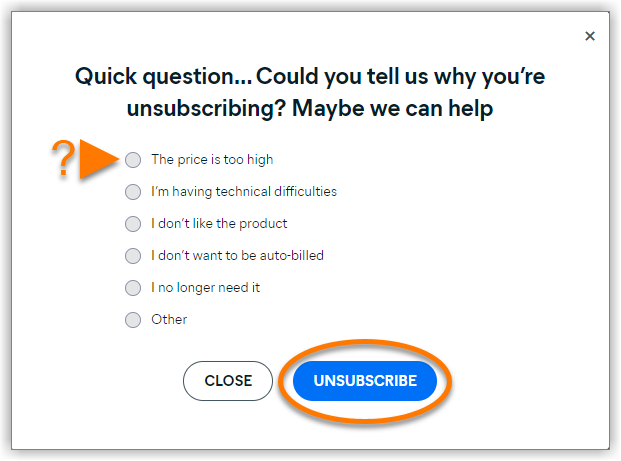
- Review the details about the canceled subscription you are canceling the renewal for, then click Close.
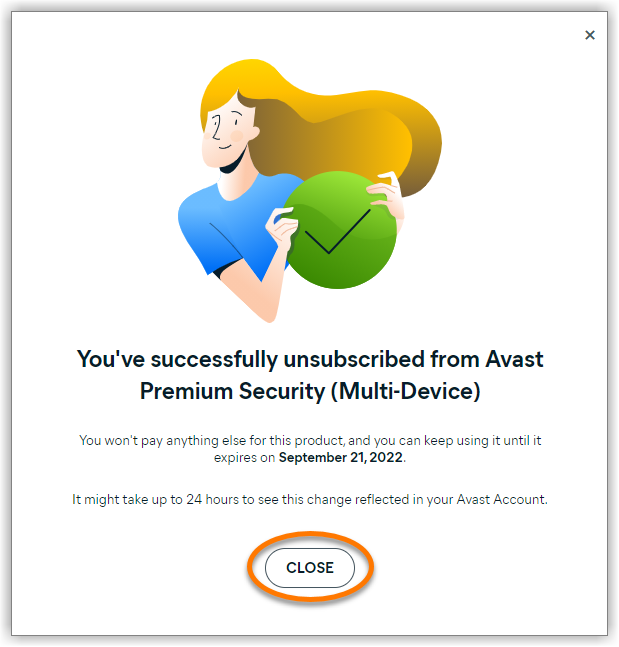
Your subscription renewal is now canceled. You will receive confirmation of the cancellation by email.
If you have multiple Avast subscriptions, repeat the steps above for each subscription you want to cancel the renewal for.
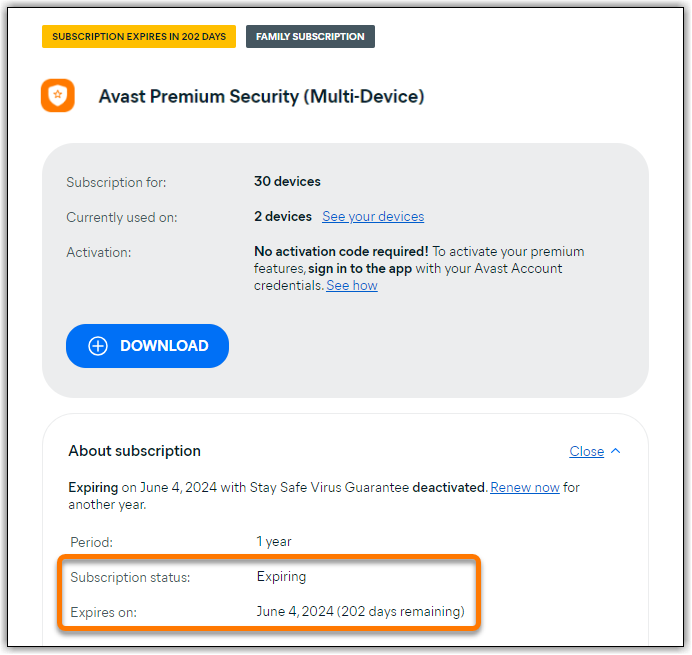
When the subscription renewal is canceled, the status changes to Expiring. You can continue using your paid Avast subscription until the expiration date shown next to Expires on. After this date, you will either lose access or you will be switched to the free version.
Still need help?
If this article did not help you cancel the renewal for your subscription, try one of the possible solutions below according to your issue:
- Add a missing subscription: If the subscription you want to cancel the renewal for does not appear in your Avast Account, you can manually add the missing subscription. For instructions, refer to the following article: Adding a missing subscription to your Avast Account.
- Use an alternative method: If you cannot cancel the renewal for the subscription via your Avast Account or the Unsubscribe or Cancel renewal button does not appear under the subscription that you want to cancel, we recommend using an alternative cancellation method. For more information, refer to the article: Alternative methods for canceling the renewal for an Avast subscription.
Was this article helpful?

Keep your online identity private!
Browse like no one’s watching with Avast anti-tracking software.