
- Click the Windows
 Start icon, select Power, then hold down the
Shift ⇧key on your keyboard and select Restart.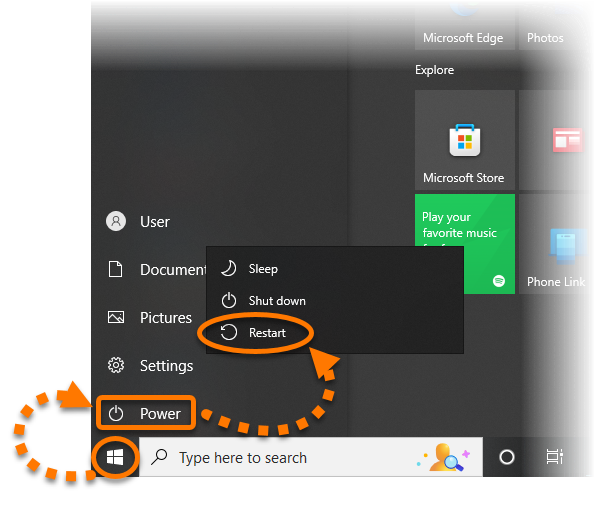
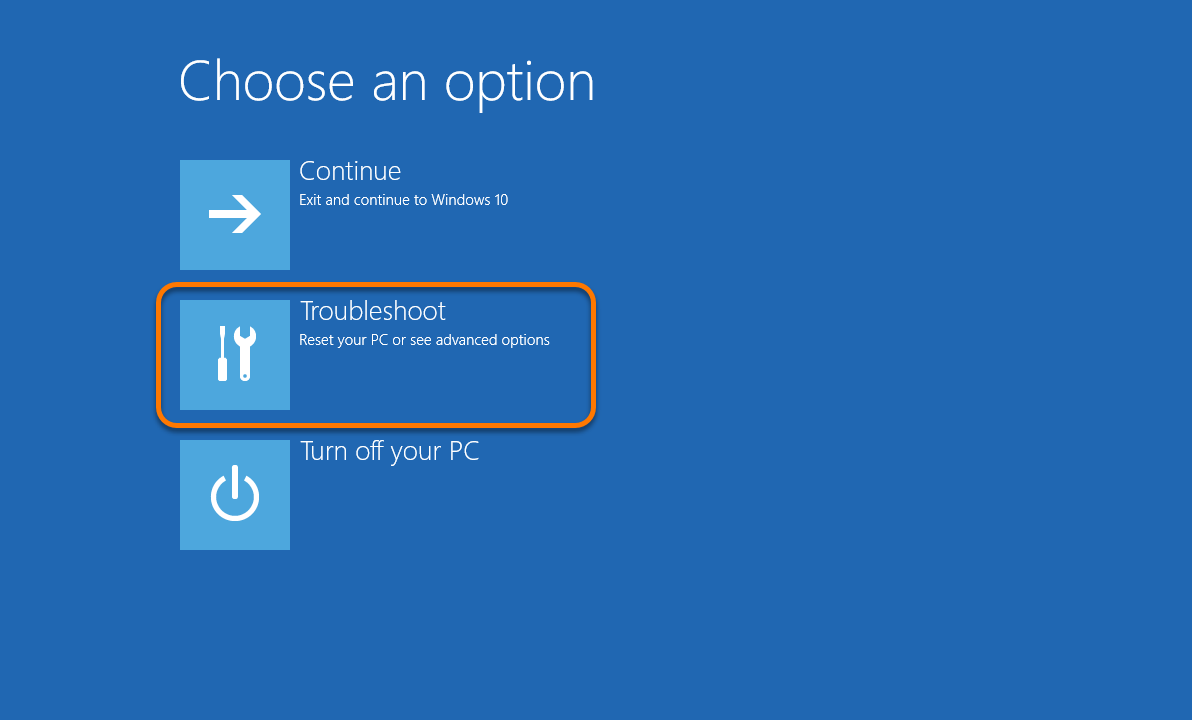
- On the Choose an option screen, select Troubleshoot.
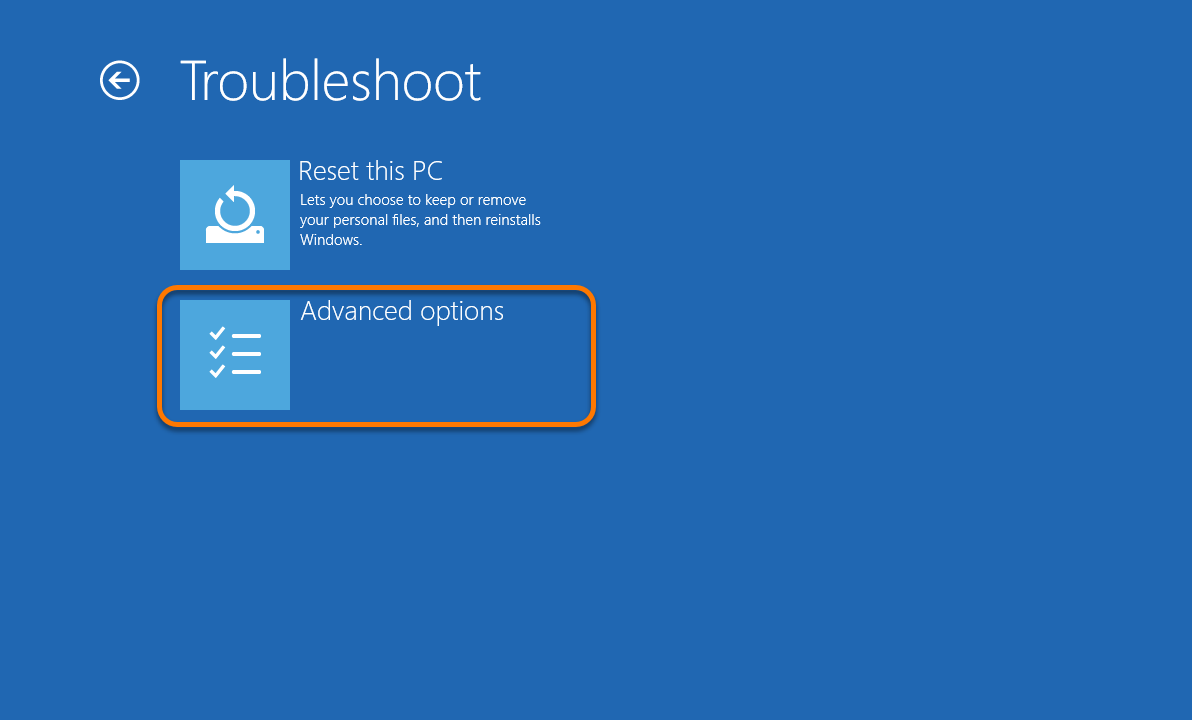
- Select Advanced options.
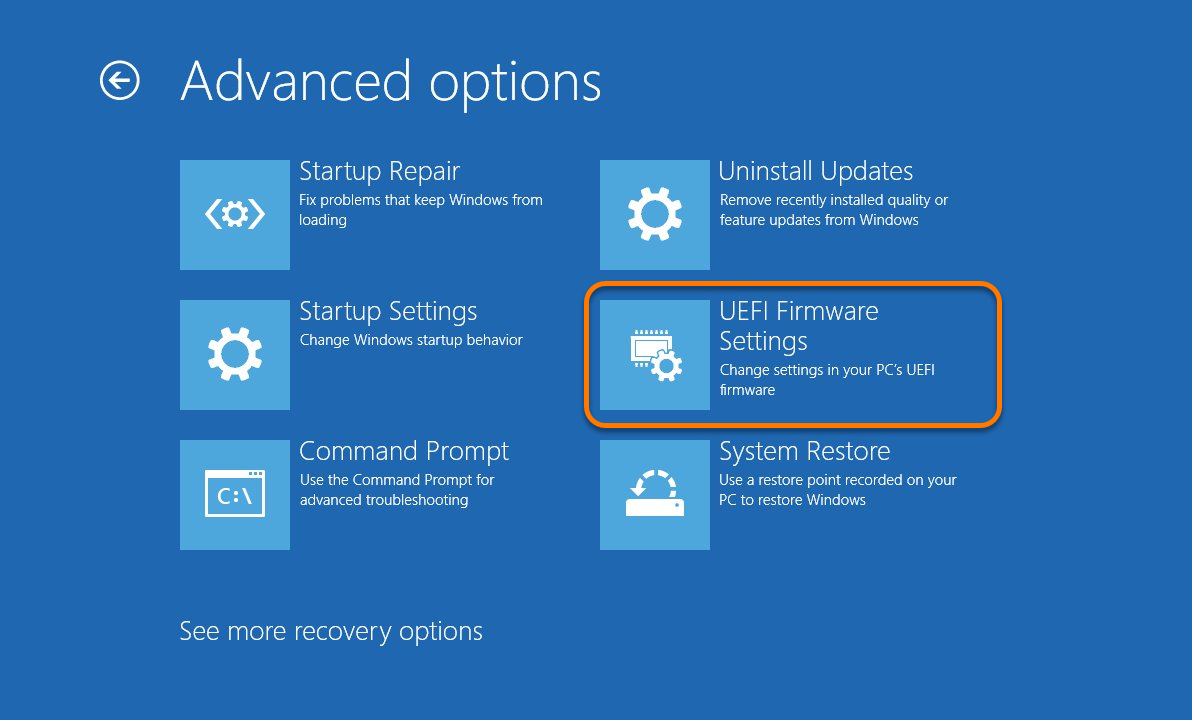
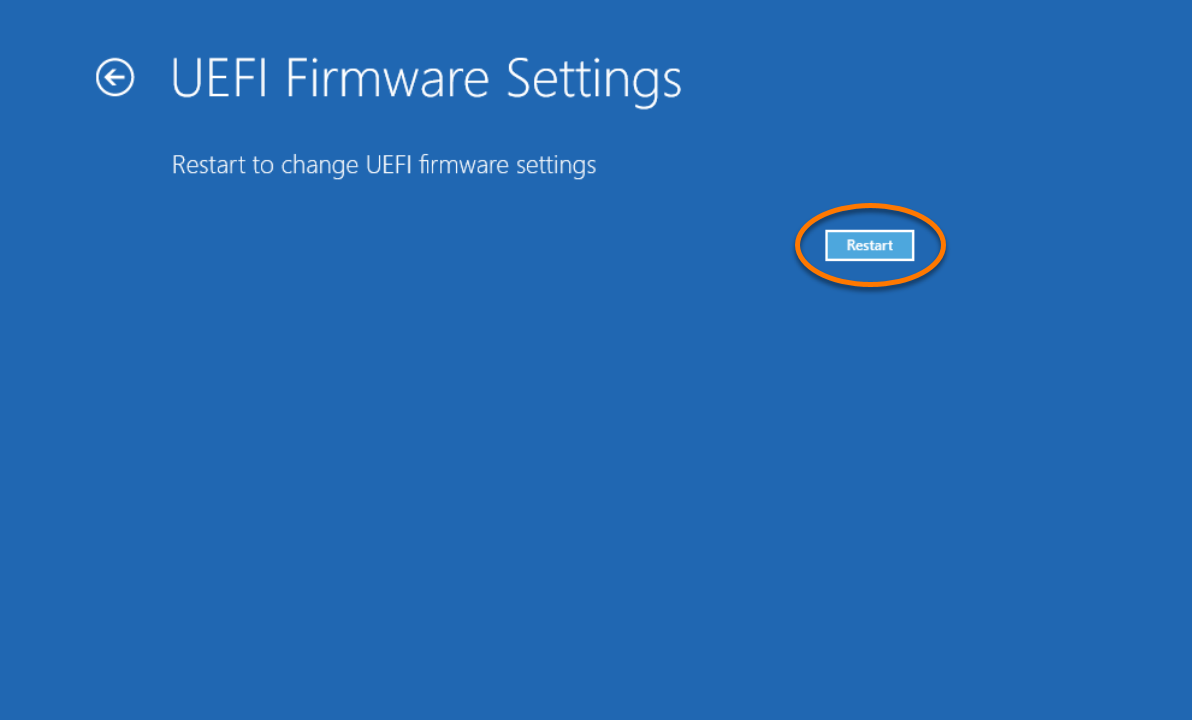
- Select UEFI Firmware Settings.
- Select Restart.
IS YOUR COMPUTER SLOW? RUN LIKE NEW
If they are not maintained, computers lose performance over time. Avast Cleanup Premium can help significantly improve the performance of your computer.
Activating Secure Boot to improve your Online Safety Score in Avast One
Windows
While using Avast One you may see an Online Safety Score message, advising you to change your PC settings to fully protect your device. The following message may appear:
- Your PC is vulnerable to malware at start up
Secure Boot is off. We recommend turning it on in your UEFI BIOS Settings.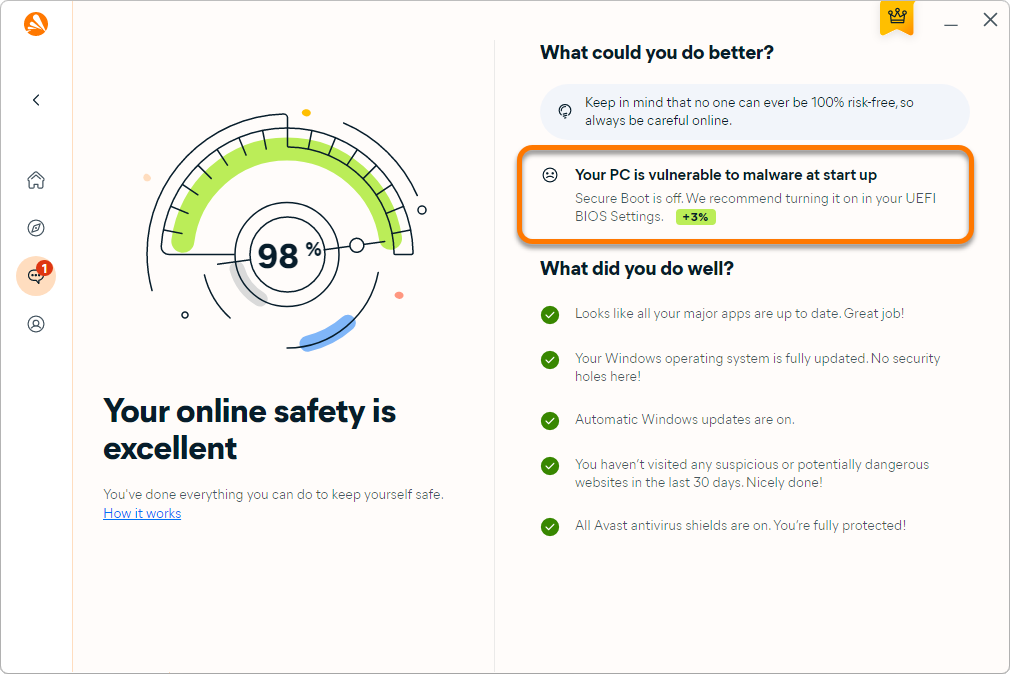
Secure Boot is a system security feature designed to prevent malicious software from loading when your PC starts up. Secure Boot can be enabled in your PC's UEFI (Unified Extensible Firmware Interface) Firmware Settings. Firmware, often called BIOS (Basic Input/Output System), is the software that starts up before Windows when you turn on your PC.
Follow the sections in this article to enable Secure Boot via the UEFI Firmware Settings on your PC.
Access UEFI Firmware Settings
To enable Secure Boot, you need to access the UEFI Firmware Settings:
Your Windows version:
- Click the Windows
 Start icon, select Power, then hold down the
Shift ⇧key on your keyboard and select Restart.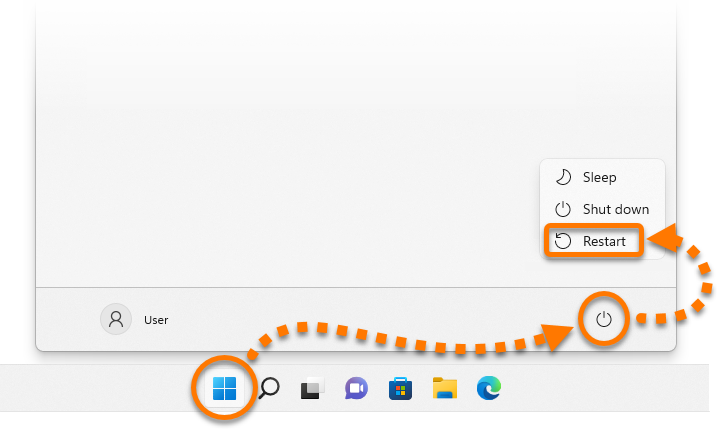
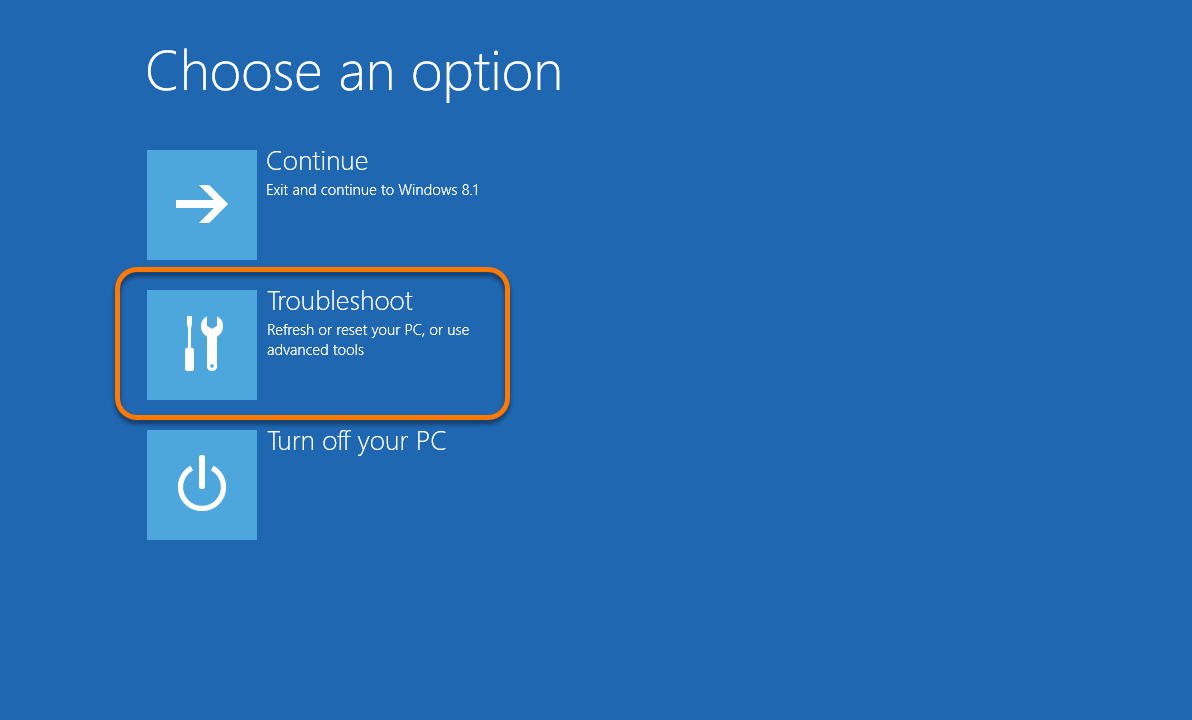
- On the Choose an option screen, select Troubleshoot.
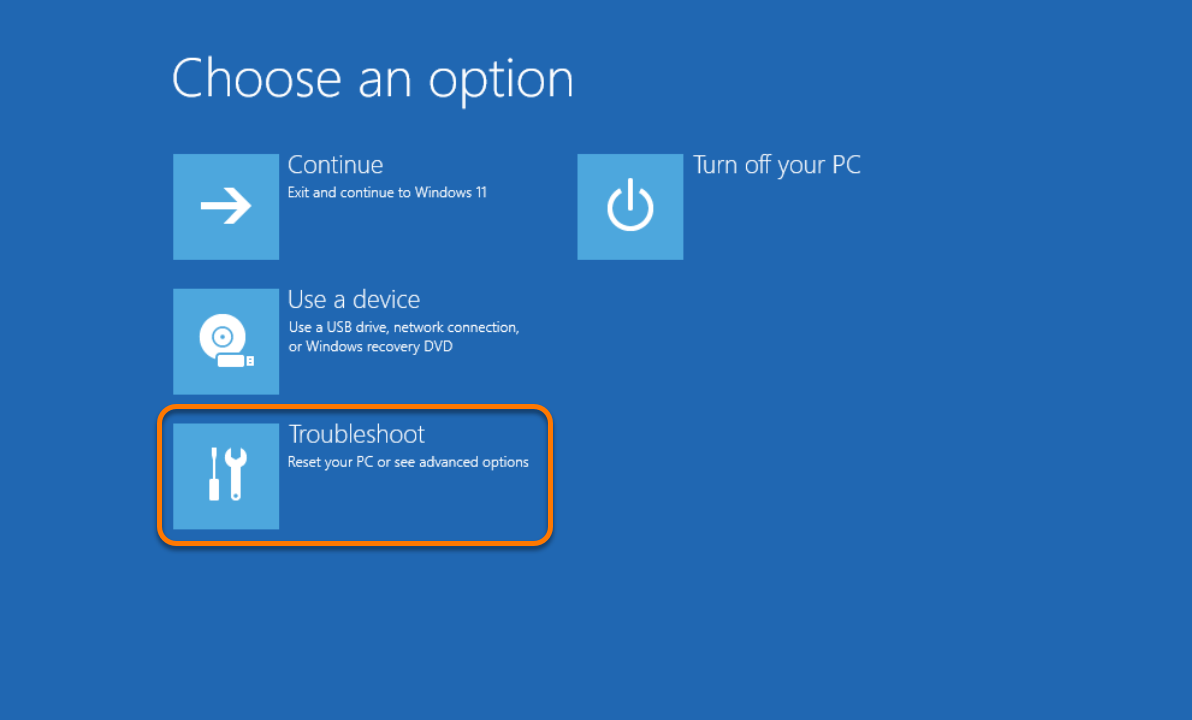
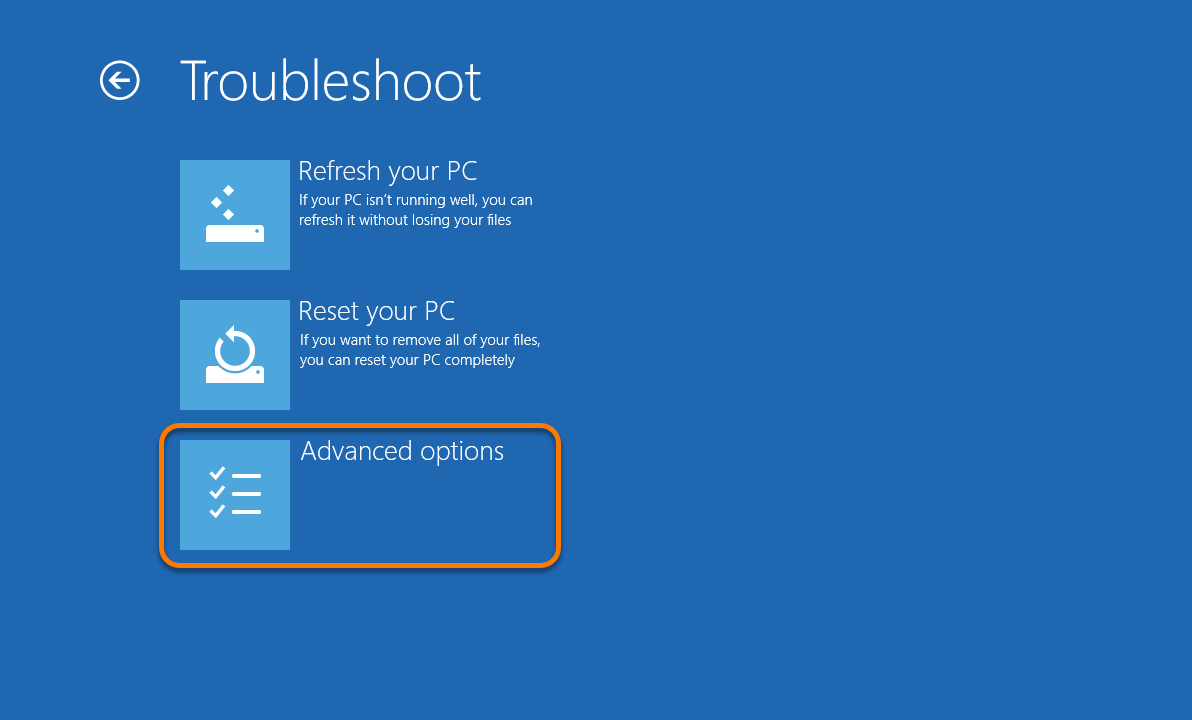
- Select Advanced options.
- Select UEFI Firmware Settings.
- Select Restart.
- On your keyboard, press the Windows
 logo key and
Xkey simultaneously.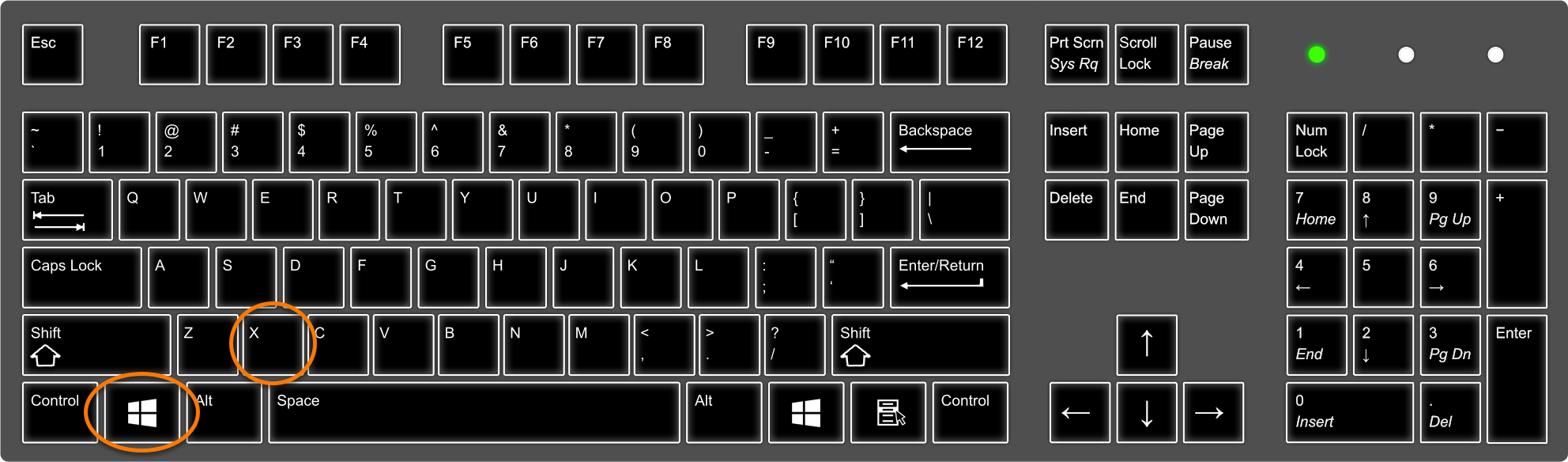
- Select Shut down or sign out, then hold down the
Shift ⇧key on your keyboard and select Restart.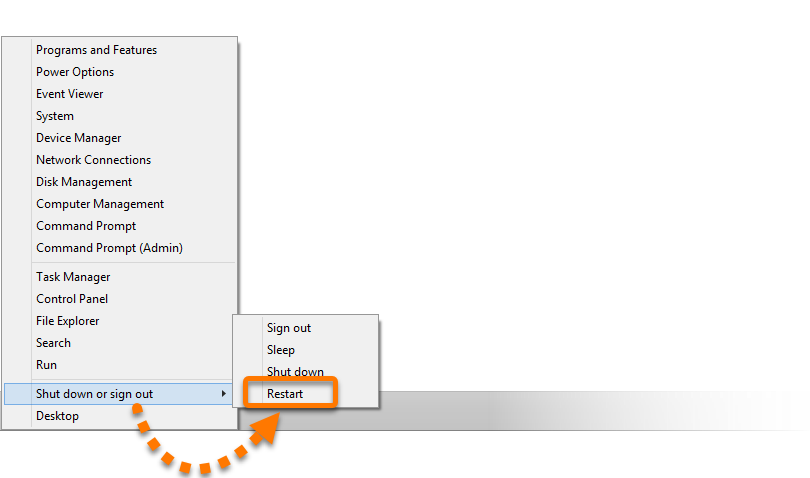
- On the Choose an option screen, select Troubleshoot.
- Select Advanced options.
- Select UEFI Firmware Settings.
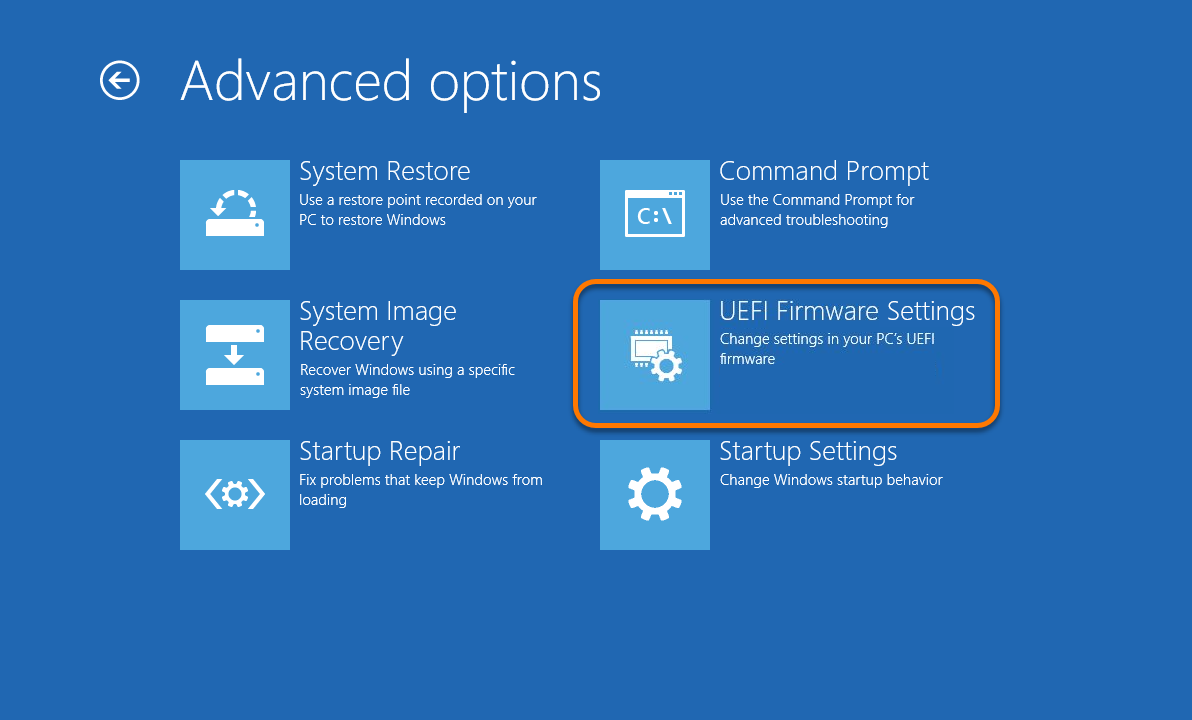
- Select Restart.
After your PC restarts, follow the steps in the next section to enable Secure Boot.
Enable Secure Boot
The exact steps may differ depending on your PC manufacturer. For specific instructions, check the manufacturer's support website or refer to the relevant support article for common PC manufacturers below:
- Use the arrow keys to select the Security tab from the top menu (depending on your PC manufacturer, you may need to select the Boot tab instead).
- Select Secure Boot and press the
Enterkey on your keyboard. - Select Enabled and press the
Enterkey on your keyboard. - Confirm the changes and restart your PC.
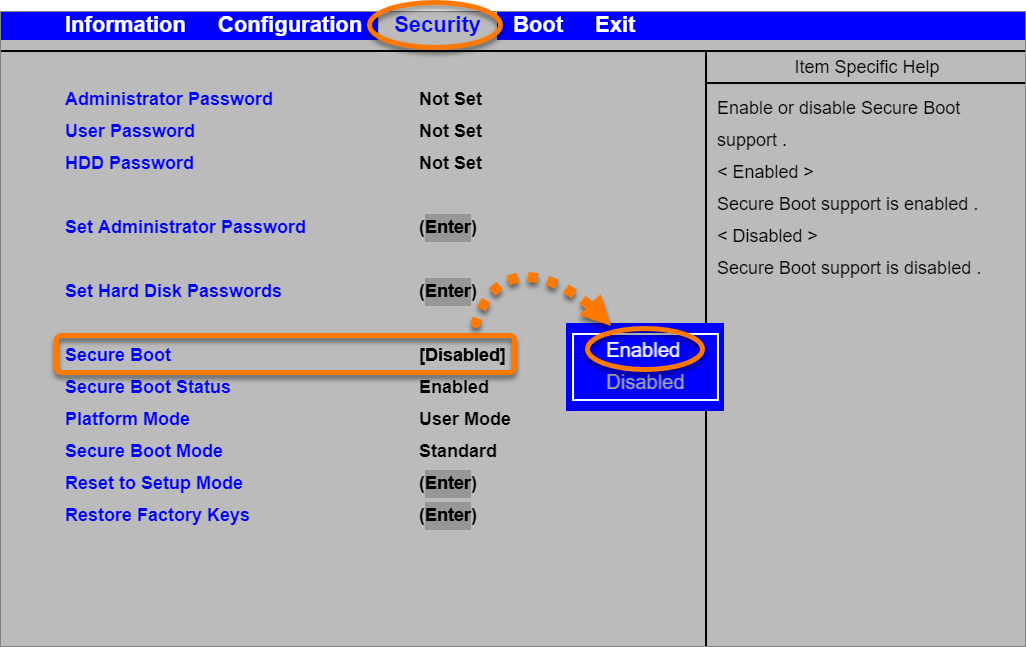
Secure Boot is now enabled.
DocID: windows-online-safety-score-settingsLast modified: 09/03/2026
Was this article helpful?

Keep your online identity private!
Browse like no one’s watching with Avast anti-tracking software.
Need more help?
Contact us
Avast account
Visit our forums
Visit academy