
IS YOUR COMPUTER SLOW? RUN LIKE NEW
If they are not maintained, computers lose performance over time. Avast Cleanup Premium can help significantly improve the performance of your computer.
Using the on-screen keyboard to sign into Windows
Windows
If your physical keyboard is unresponsive and you need to sign into Windows as an administrator to perform troubleshooting tasks, use the on-screen keyboard.
Instructions
-
Right-click the Windows Start
 icon, select Shut down or sign out, then select Sign out.
-
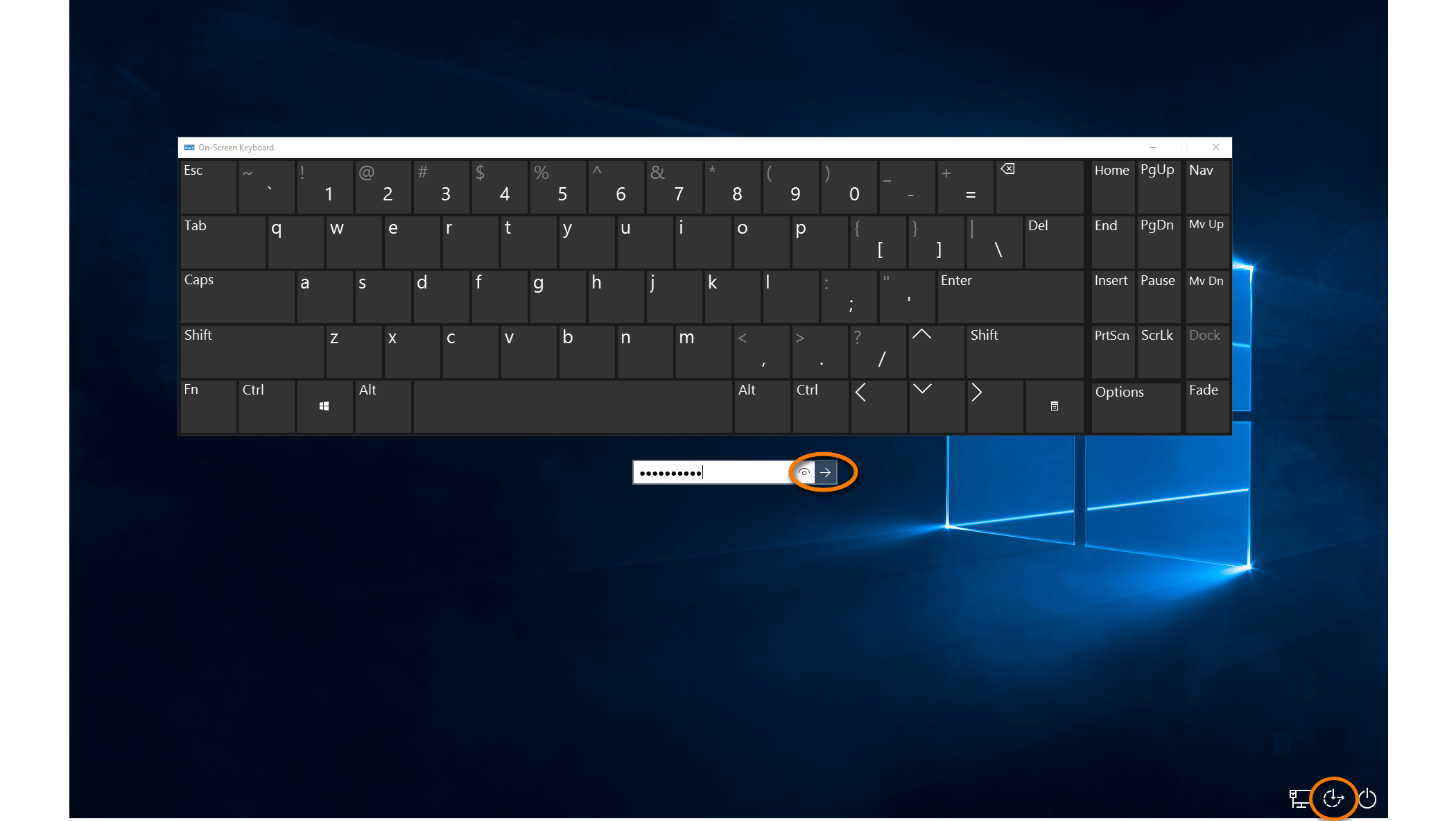
On the login screen, click the Ease of access
 icon, then select On-Screen Keyboard.
-
Use the keyboard to type your administrator credentials, and click the arrow to sign in.
-
Click your user name at the top-right of your screen, then click Sign out.
-
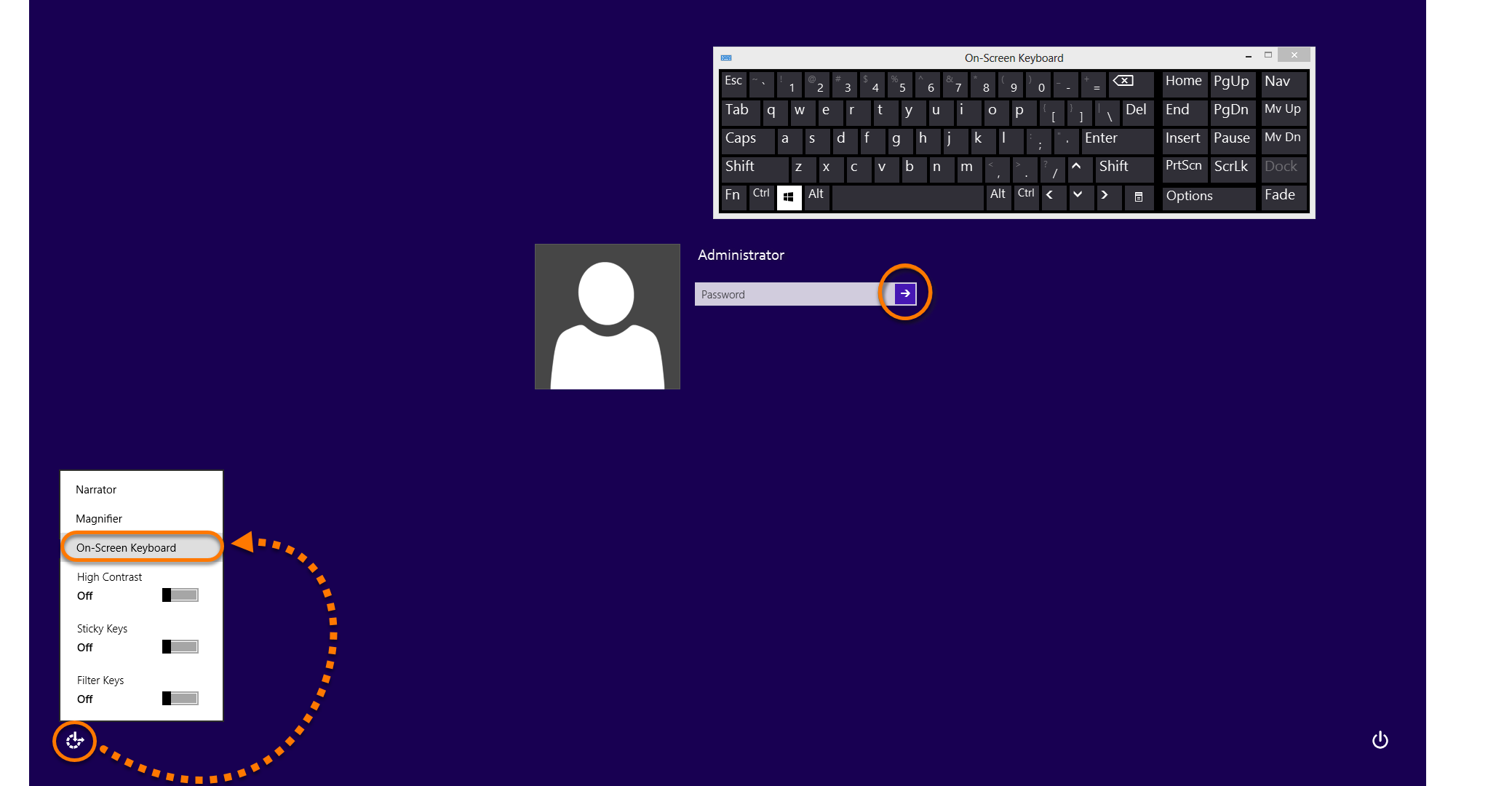
On the login screen, click the Ease of access
icon, then select On-Screen Keyboard. -
Use the keyboard to type your administrator credentials, and click the arrow to sign in.
-
Click the Windows Start
 icon, click the arrow next to Shut down, then click Log off.
-
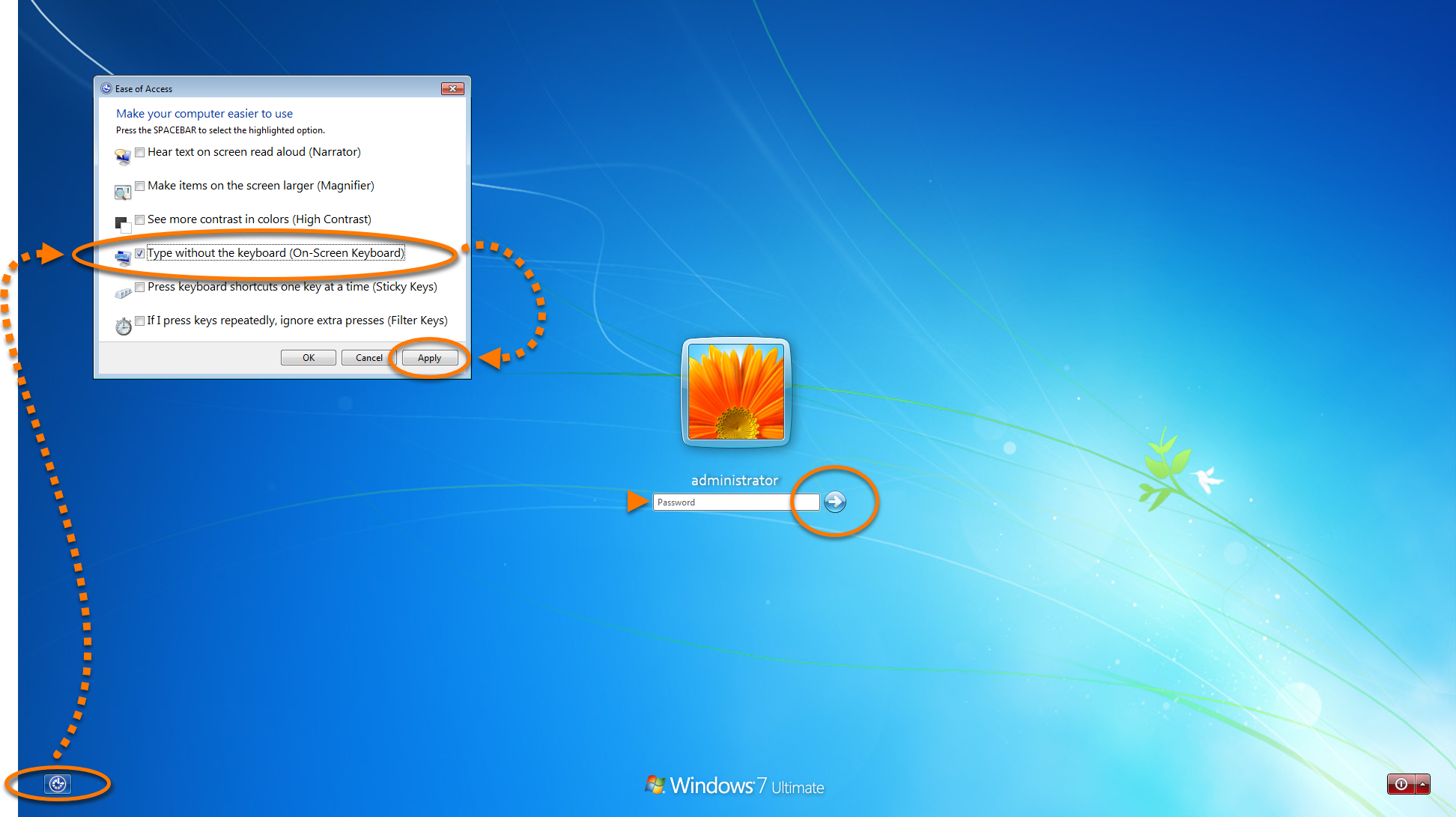
On the login screen, click the Ease of access
 icon, then tick Type without the keyboard (On-Screen Keyboard) and click Apply.
-
Use the keyboard to type your administrator credentials, and click the arrow
 to sign in.
-
Click the Windows Start
 icon, hover over the arrow, and select Log Off.
-
On the login screen, click the Ease of access
icon, then tick Type without the keyboard (On-Screen Keyboard). -
Use the keyboard to type your administrator credentials, and click the arrow
to sign in. 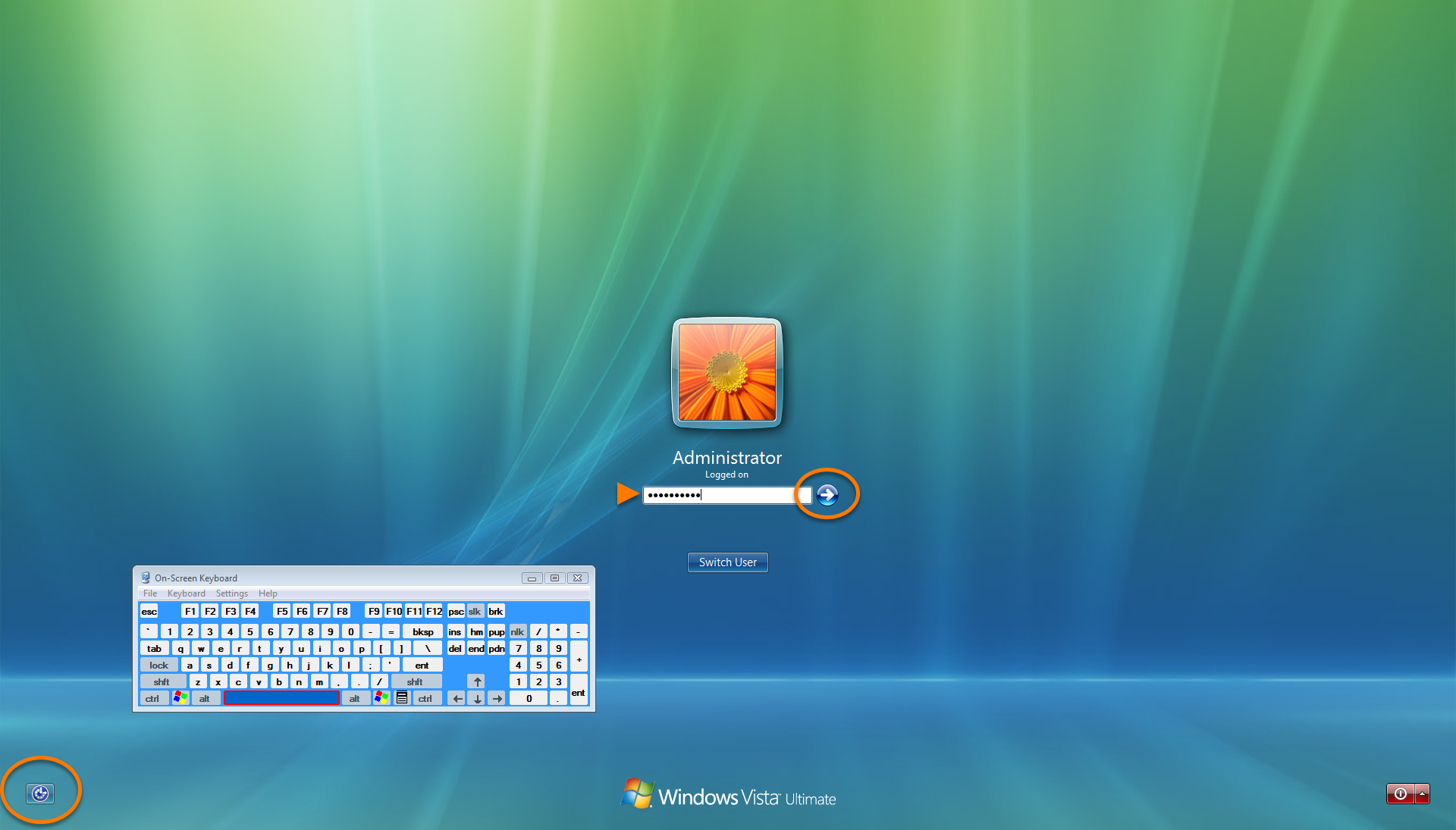
Was this article helpful?

Keep your online identity private!
Browse like no one’s watching with Avast anti-tracking software.