Promotional banner image

IS YOUR COMPUTER SLOW? RUN LIKE NEW

If they are not maintained, computers lose performance over time. Avast Cleanup Premium can help significantly improve the performance of your computer.

Installing and Activating Avast One - Secure Identity

Windows, Mac

This version of Avast Secure Identity is available only in the United States, on Windows and Mac devices running Apple macOS 11.x (Big Sur) or later. For more information about this version, refer to: Avast One Secure Identity - FAQs.

In other regions, the legacy Avast Secure Identity is available. For more information about the legacy version, refer to the following article: Legacy Avast Secure Identity - FAQs.

Avast Secure Identity is an identity protection solution in Avast One that helps monitor your personal and financial information, detect potential identity threats, and provide guidance or support to resolve them.

This article explains how to download, install, and activate Avast Secure Identity in Avast One.

Install Avast One

To install Avast One, follow the steps below:

  1. Use the download option in your confirmation email or on your Avast Account to download the Avast One setup file, then save it to a familiar location on your Windows device (by default, downloaded files are saved to the Downloads folder). Alternatively, click the button below to download the Avast One setup file.
    Download Avast One Secure Identity for Windows

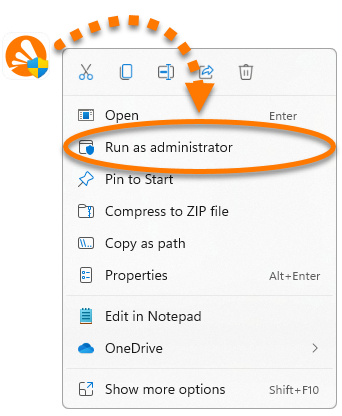
  2. Right-click the downloaded setup file avast_one_secure_identity.exe and select Run as administrator from the context menu.  

    If you are unable to authorize the installation of Avast One, refer to the following article for advice: Managing administrative accounts on your Windows device.

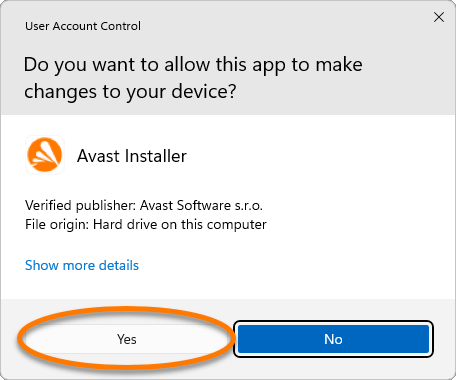
  3. If prompted for permission by the User Account Control dialog, click Yes.  

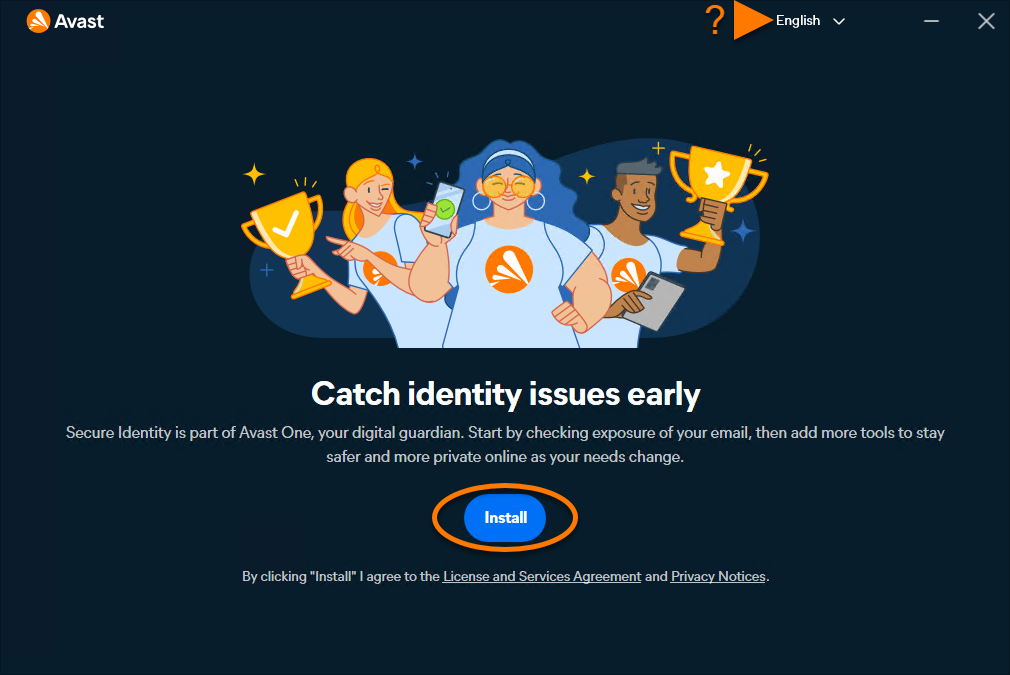
  4. To change the default setup language, click the current language in the top-right corner of the screen and select your preferred language. Then click Install.

    At this step, you may be prompted to move installed standalone Avast apps into Avast One.


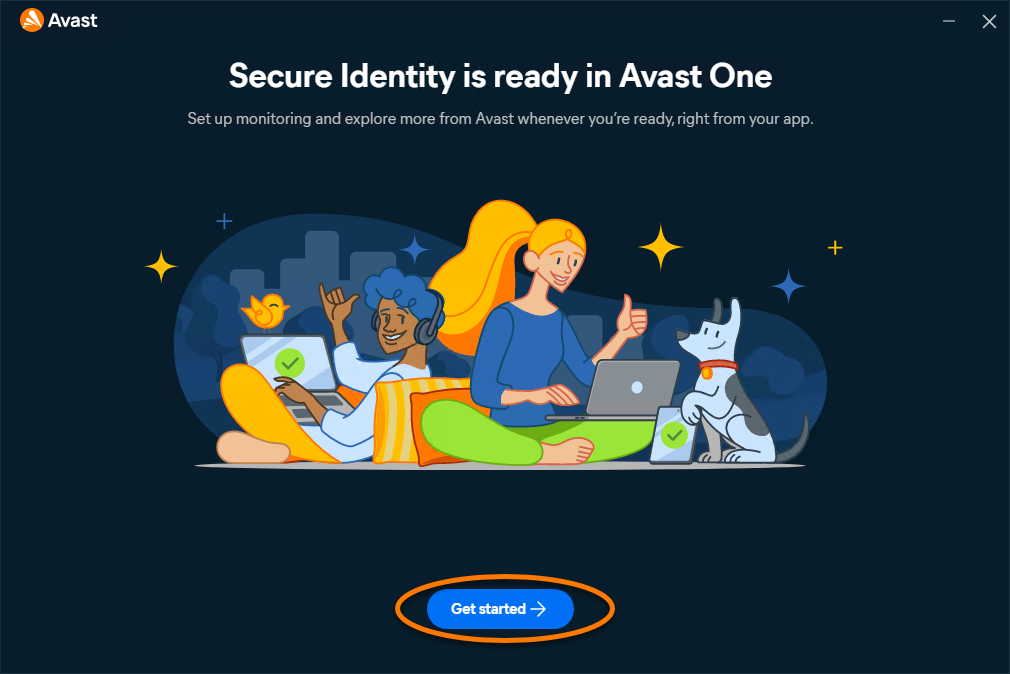
  5. Wait while setup installs Avast One on your Windows device, then click Get started.  

Avast One is installed. To verify whether your Avast Premium subscription is active, or to activate it manually if needed, refer to the section below.

Activating Avast Secure Identity

Automatic Activation

Automatic Activation

If you downloaded the installer file from your Avast Account or a confirmation email, Avast One Secure Identity is usually activated automatically after installation.

To confirm that Secure Identity is active, follow the steps below:

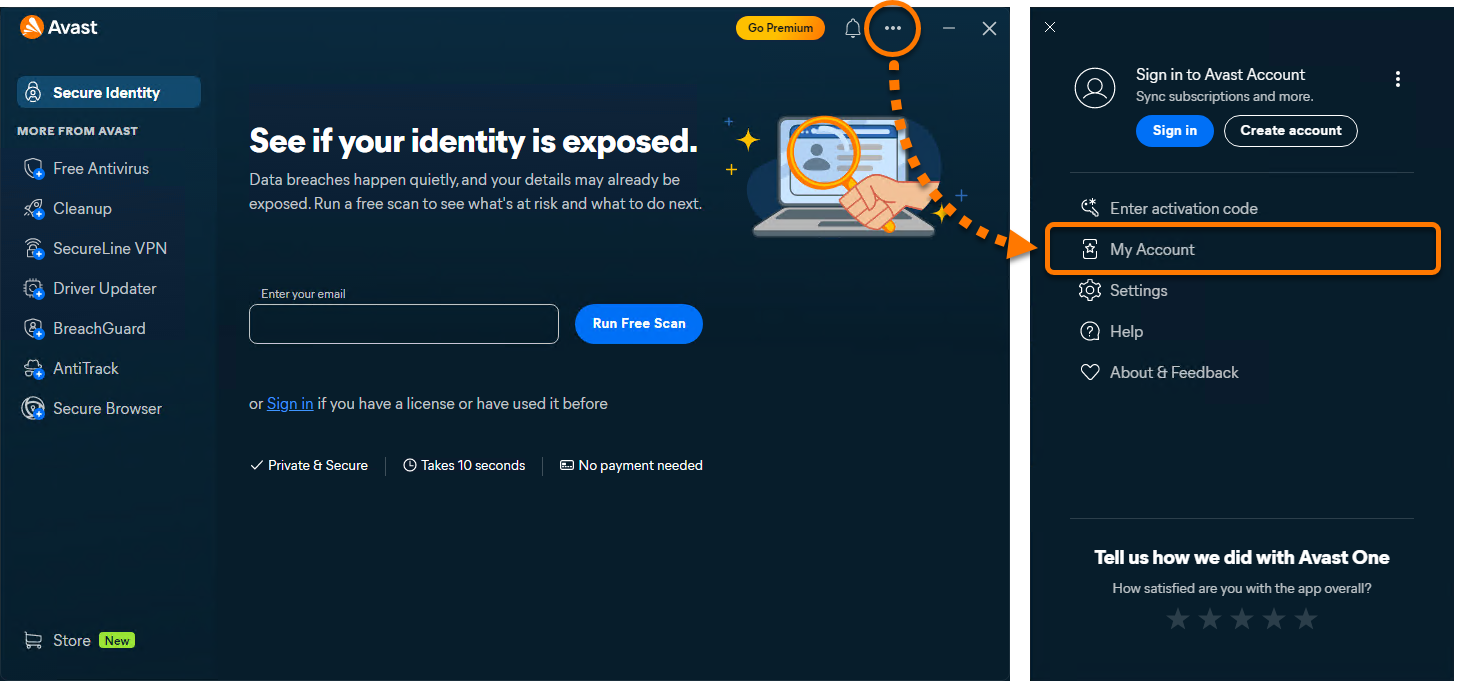
  1. Open Avast One, then go to ••• Menu ▸ My Account.  

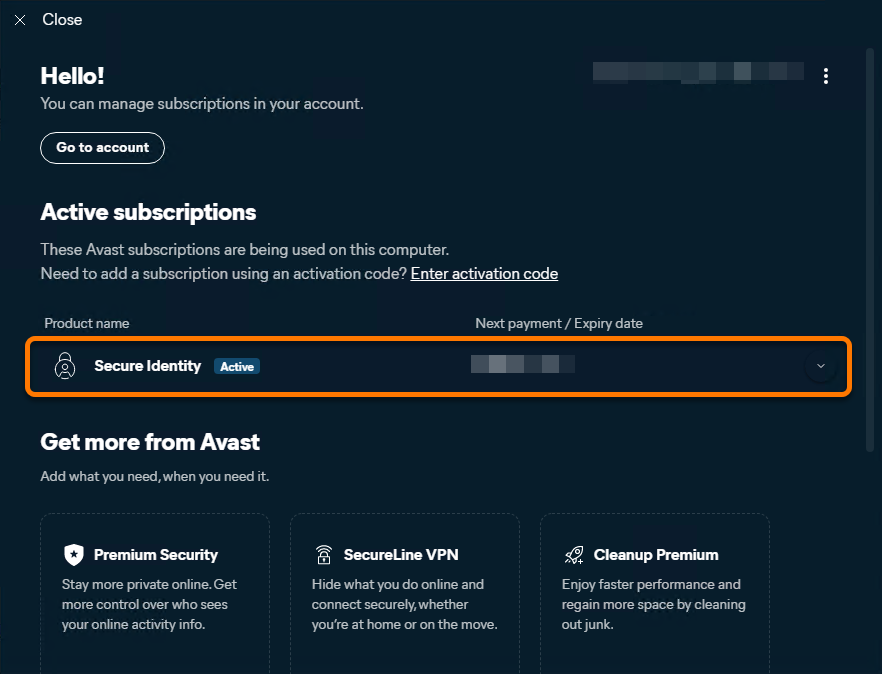
  2. Check whether Secure Identity is listed under Active subscriptions.  

If Avast Secure Identity is listed as active, no further action is required. If Free Secure Identity is still shown, follow the steps to sign in to an Avast Account associated with a valid subscription.

Avast account

Activate via Avast Account

An Avast Account was created using the email address that you provided during the subscription purchase. To sign into your Avast Account for the first time, refer to the following article: Activating your Avast Account.

To activate Avast Secure Identity in Avast One using an Avast Account:

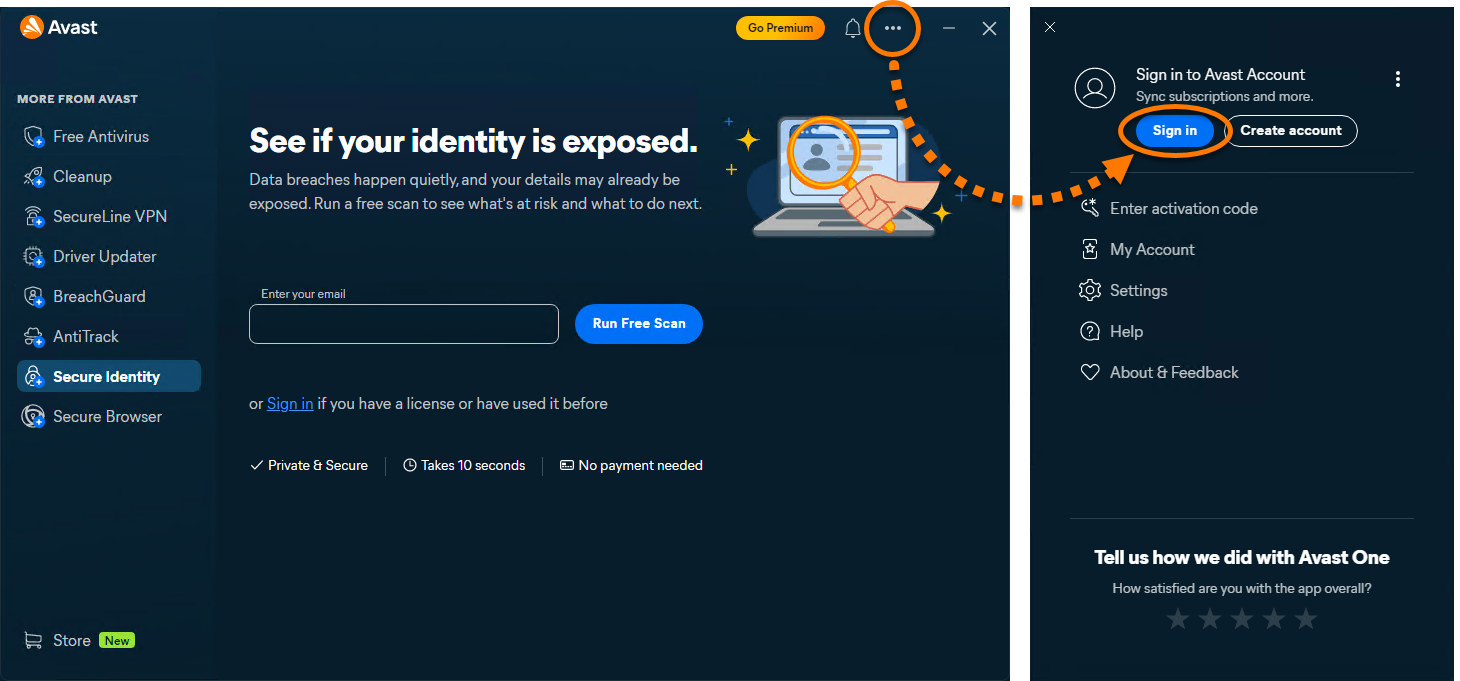
  1. Open Avast One, then go to ••• Menu ▸ Sign in.  

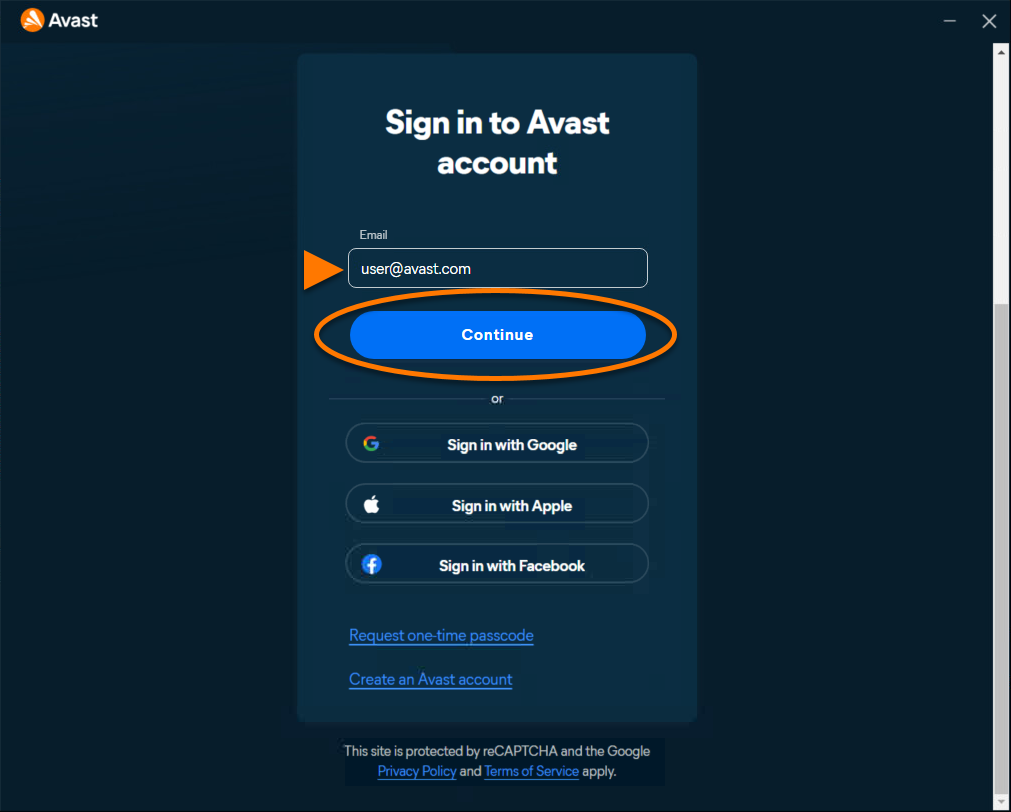
  2. Enter the email address associated with your Avast Account, then click Continue.  

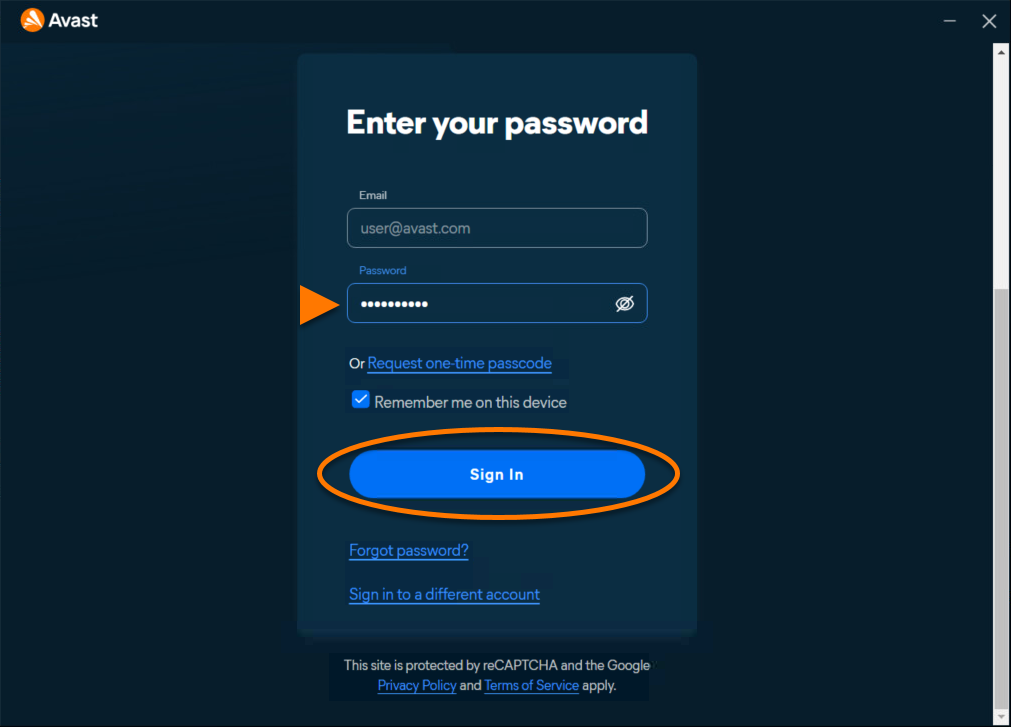
  3. Enter the password associated with your Avast Account, then click Sign In.  

Avast Secure Identity is now active. To view your subscription details, go to ••• Menu ▸ My Account. The renewal date or the expiration date of your subscription appear under Active subscriptions. You can activate your app on the number of devices you specified when making the purchase.

If activation is unsuccessful, refer to the Troubleshoot activation issues section below.

Troubleshoot activation issues

If you experience activation issues, review the information below, which explains how to resolve some of the most common activation issues.

  • Ensure that you are entering the credentials for the Avast Account that is linked to your Avast subscriptions. To verify this, sign in to your Avast Account in your web browser and click Manage subscriptions on the My subscriptions tile to see a list of the linked subscriptions.

  • If your Avast subscriptions are not visible in your Avast Account, refer to the following article to manually link the subscription to your Avast Account:

  • Refer to the following article for solutions to some common activation issues: Troubleshooting activation issues in Avast apps.

  • Completely uninstall and then reinstall Avast One. This can resolve issues caused by incorrect configuration or corrupted files. We recommend following the exact steps in the articles linked below:

    After reinstallation, try activating your subscription again.

If you are still unable to activate your subscription, contact Avast Support.

This version of Avast Secure Identity is available only in the United States, on Windows and Mac devices running Apple macOS 11.x (Big Sur) or later. For more information about this version, refer to: Avast One Secure Identity - FAQs.

In other regions, the legacy Avast Secure Identity is available. For more information about the legacy version, refer to the following article: Legacy Avast Secure Identity - FAQs.

Avast Secure Identity is an identity protection solution in Avast One that helps monitor your personal and financial information, detect potential identity threats, and provide guidance or support to resolve them.

This article explains how to download, install, and activate Avast Secure Identity in Avast One.

Install Avast One

To install Avast One, follow the steps below:

  1. Use the download option in your confirmation email or on your Avast Account to download the Avast One setup file, then save it to a familiar location on your Mac (by default, downloaded files are saved to the Downloads folder). Alternatively, click the button below to download the Avast One setup file.
    Download Avast One Secure Identity for Mac

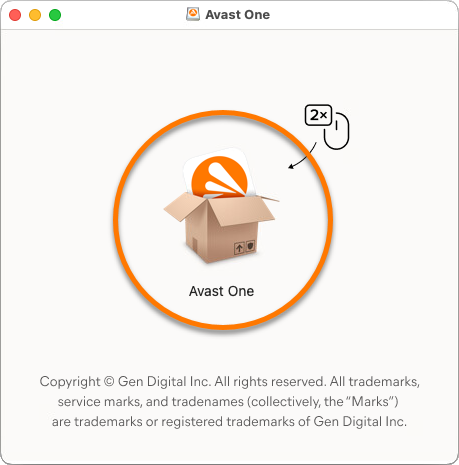
  2. Double-click the downloaded setup file avast_one_secure_identity.dmg.  
  3. Double-click the Avast One icon.  

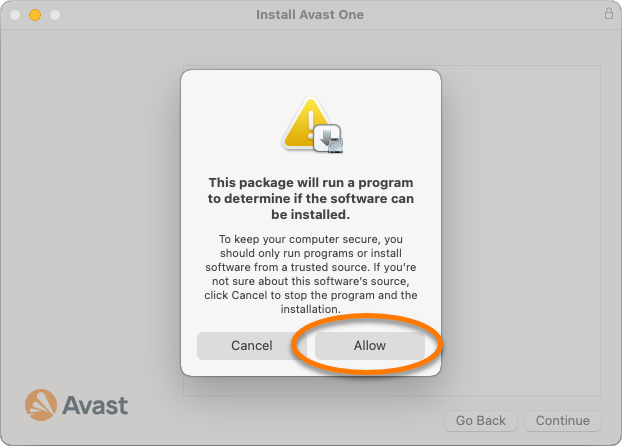
  4. In the new window, click Allow.  

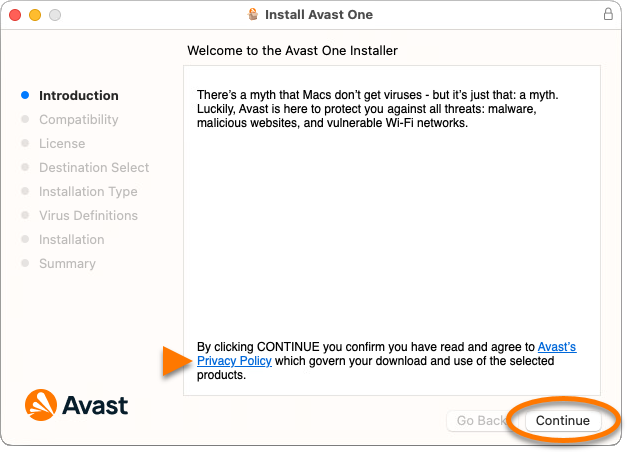
  5. Click Continue to confirm that you accept the Avast Privacy Policy.  
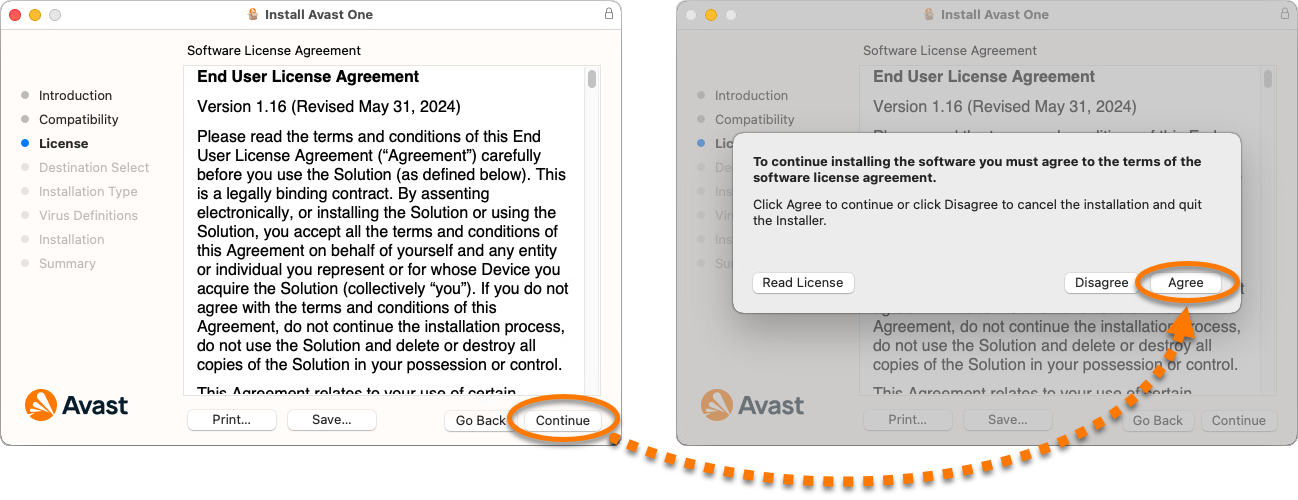
  6. Click Continue to confirm that you have read the End User License Agreement, then click Agree to confirm that you accept the terms.  
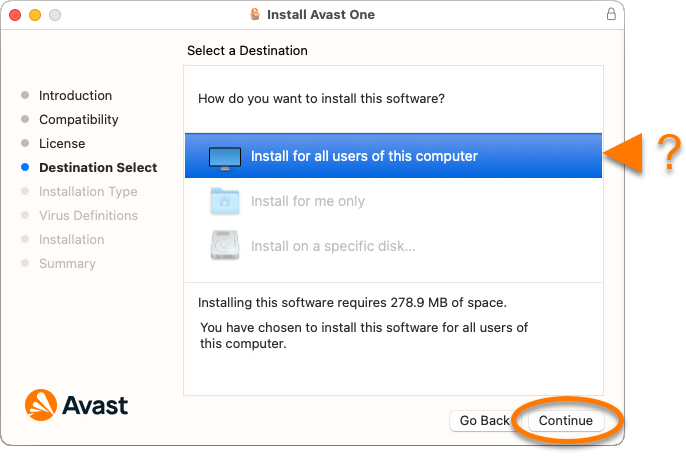
  7. Select the users who should have access to Avast One, then click Continue.  
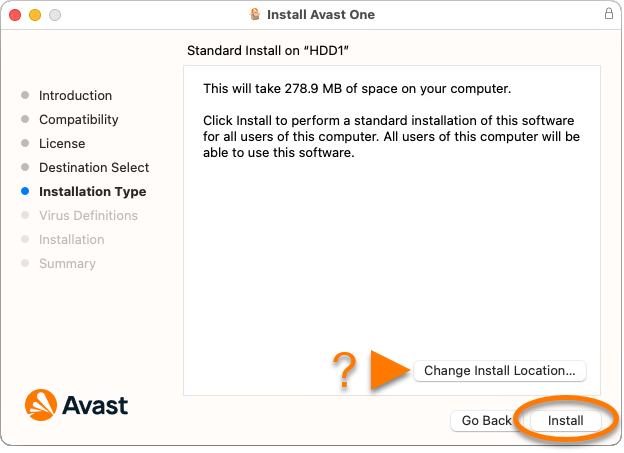
  8. Click Install to proceed with default installation. Alternatively, click Change Install Location... if you want to make changes to the default setup.  
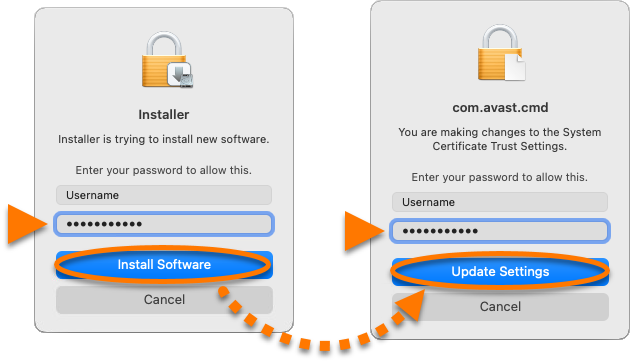
  9. Enter the password that you use when you start your Mac, then click Install Software. If prompted, enter this password again, and click Update Settings.  
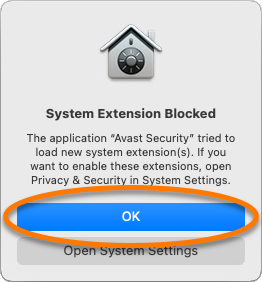
  10. When the System Extension Blocked notification appears, click OK.  
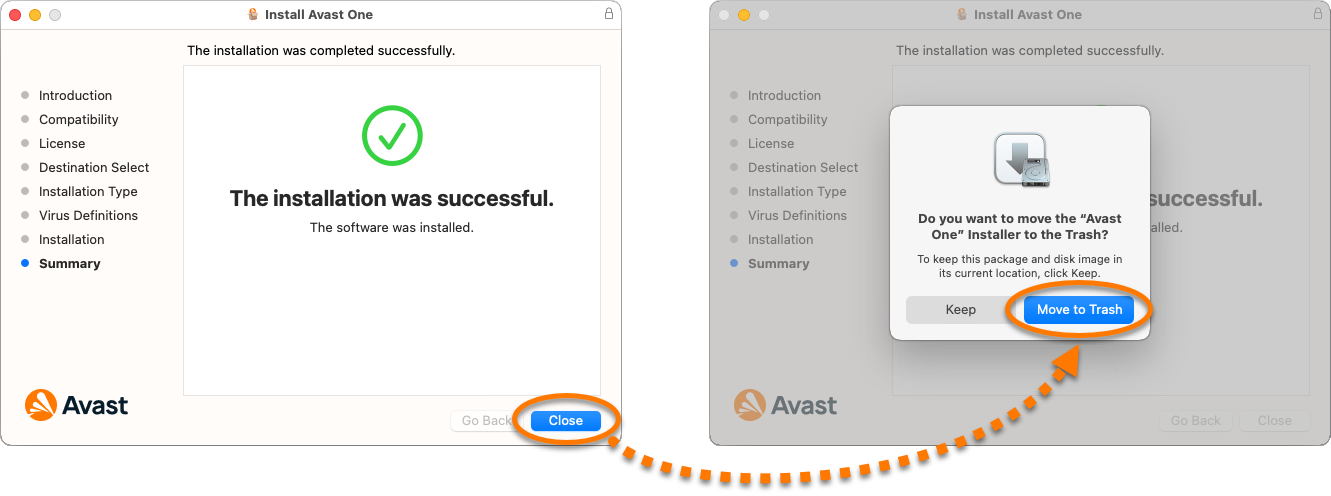
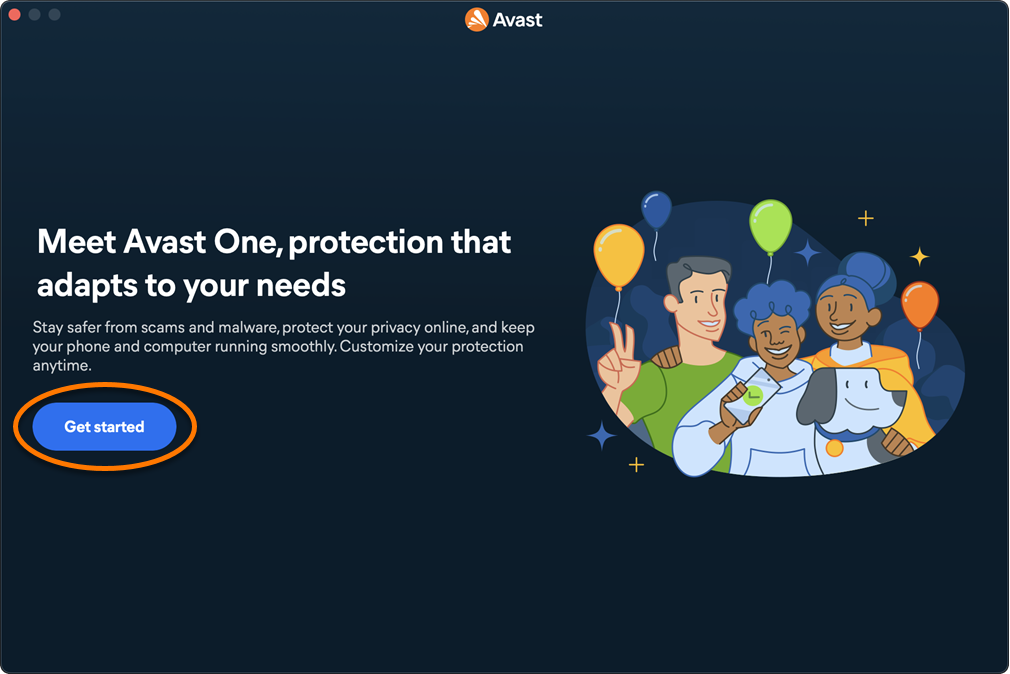
  11. Click Close ▸ Move to Trash.  

  12. Click Get started.

    At this step, you may be prompted to move installed standalone Avast apps into Avast One.
     

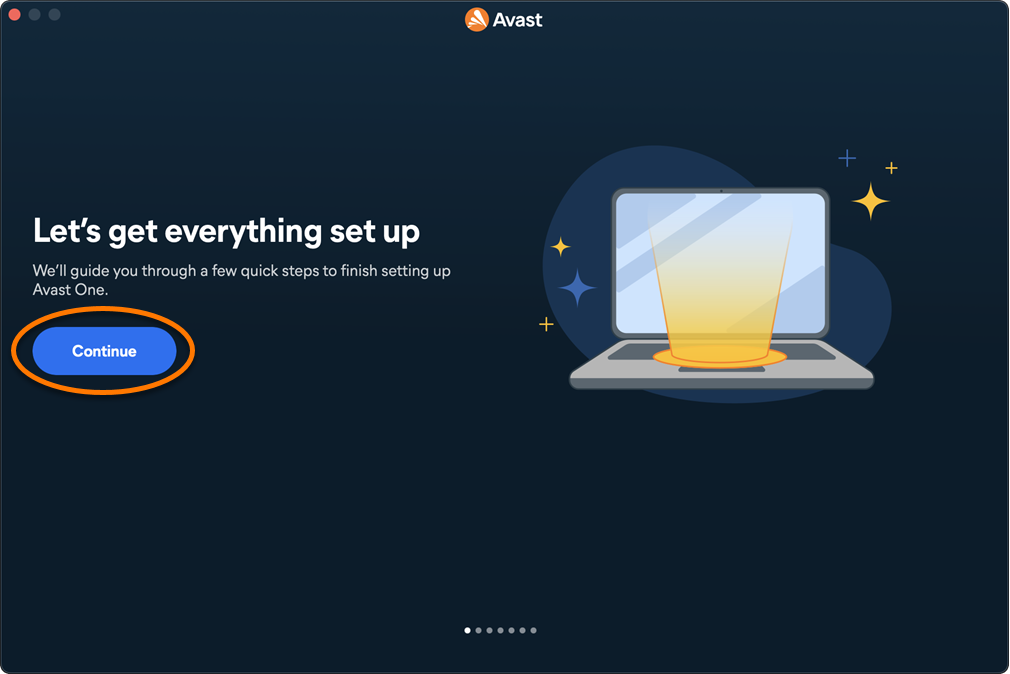
  13. Click Continue.  

Avast One is installed. To verify whether your Avast Premium subscription is active, or to activate it manually if needed, refer to the section below.

Activating Avast Secure Identity

Automatic Activation

Automatic Activation

To confirm that Secure Identity is active, follow the steps below:

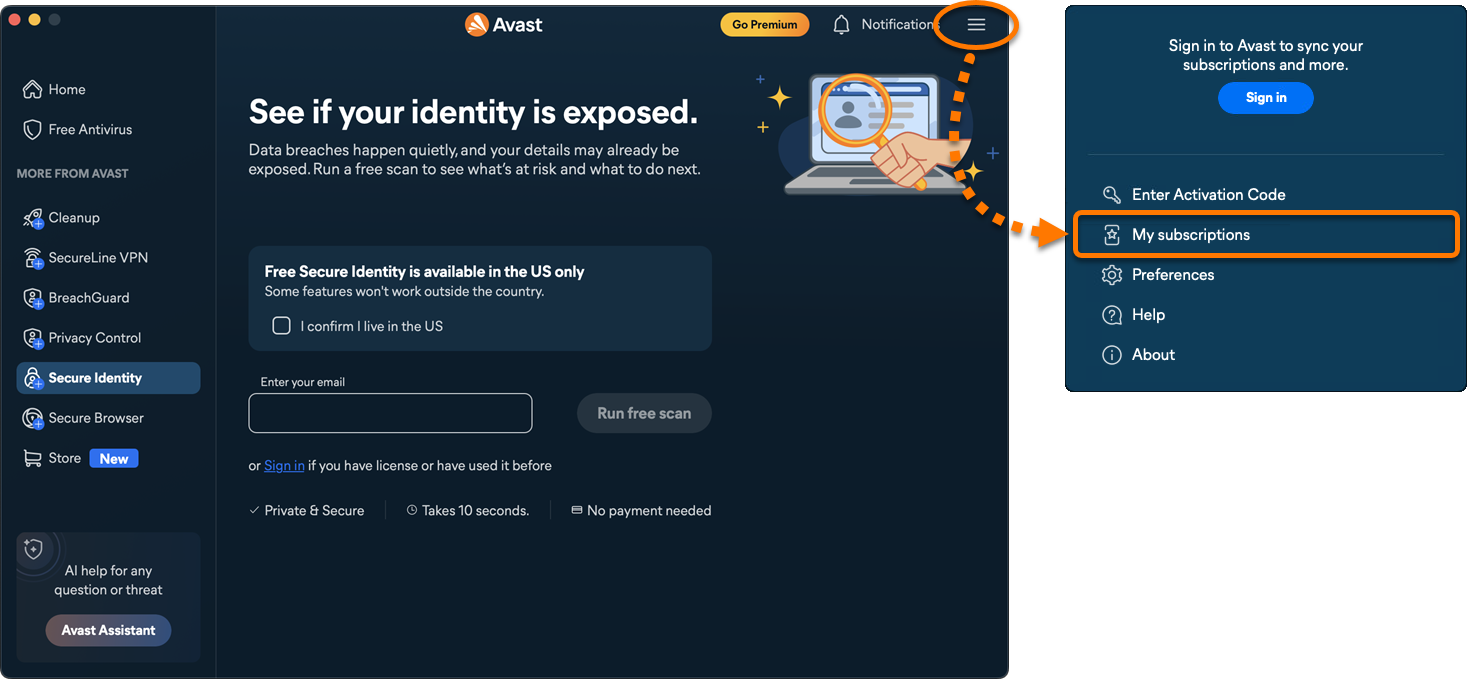
  1. Open Avast One, then go to ☰ Menu ▸ My subscriptions.  

  2. Check whether Secure Identity appears under Active subscriptions.  
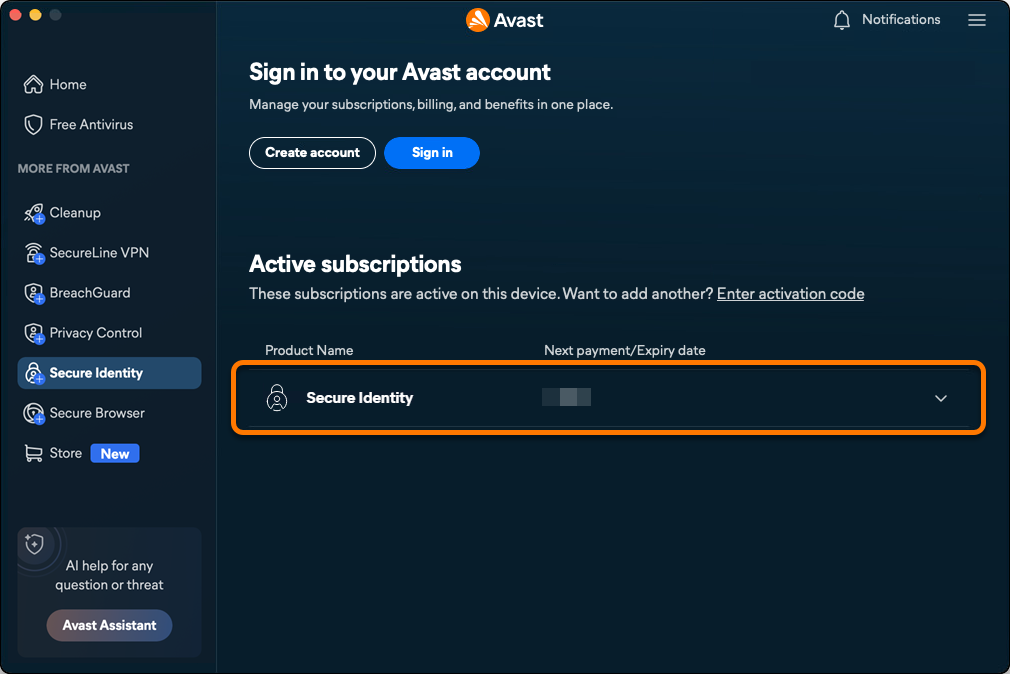
If Avast Secure Identity is listed as active, no further action is required. If Free Secure Identity is still shown, follow the steps to either sign in to an Avast Account associated with a valid subscription or enter a valid activation code. This article includes instructions for both methods.

Avast account

Activate via Avast Account

An Avast Account was created using the email address that you provided during the subscription purchase. To sign into your Avast Account for the first time, refer to the following article: Activating your Avast Account.

To activate Avast Secure Identity in Avast One using an Avast Account:

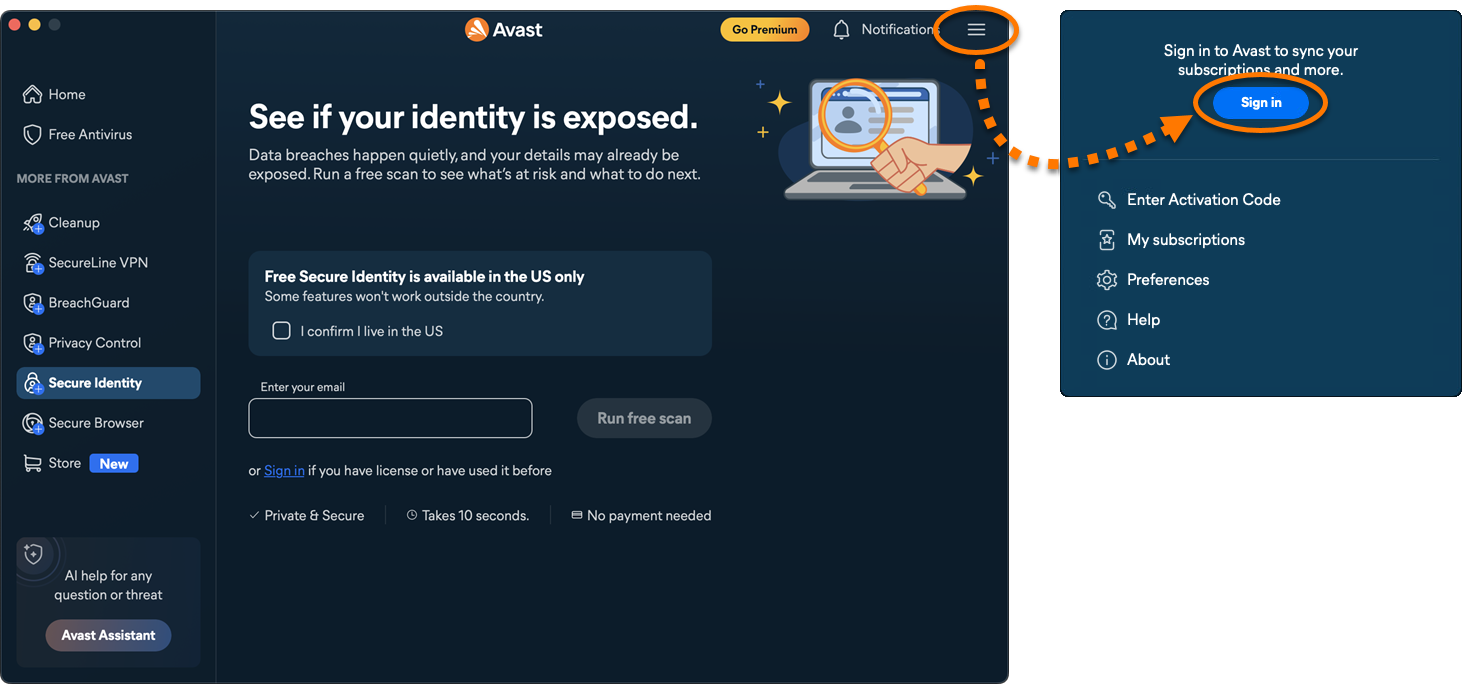
  1. Open Avast One, then go to ☰ Menu ▸ Sign in.  

  2. Enter the email address associated with your Avast Account, then click Continue.  
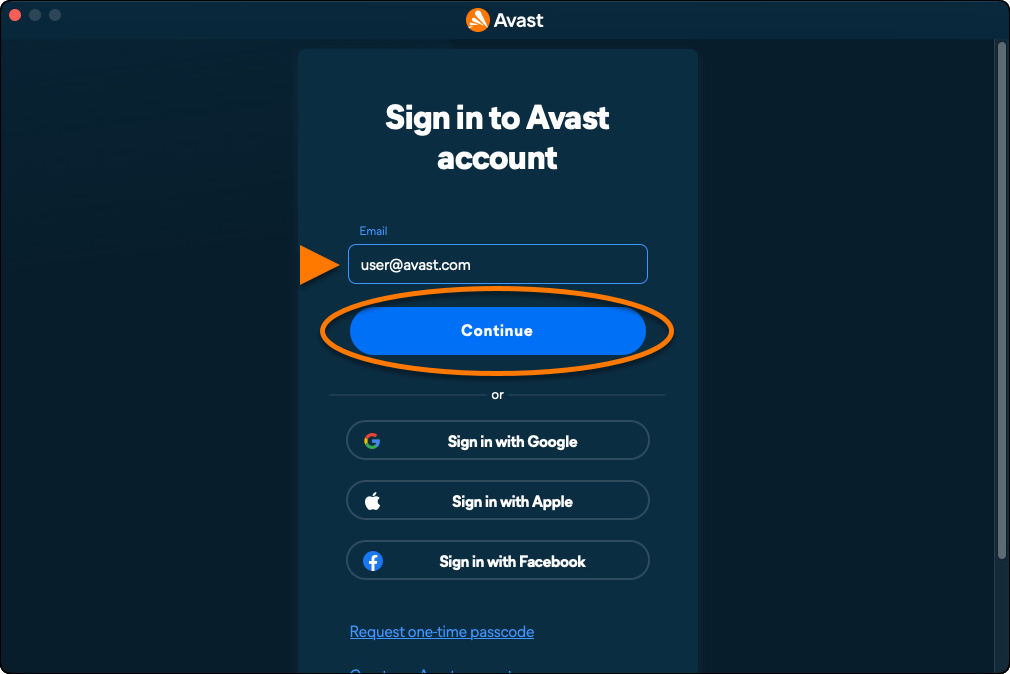
  3. Enter the password associated with your Avast Account, then click Sign In.  
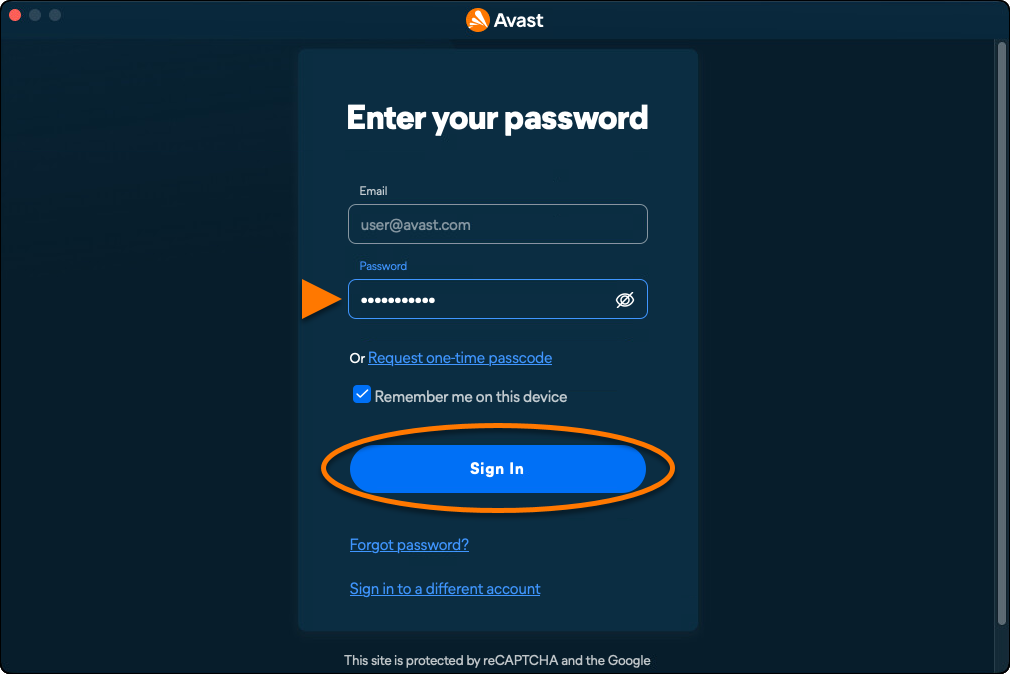
Avast Secure Identity is now active. To view your subscription details, go to ☰ Menu ▸ My subscriptions. The renewal date or the expiration date of your subscription appear under Active subscriptions. You can activate your app on the number of devices you specified when making the purchase.

If activation is unsuccessful, refer to the Troubleshoot activation issues section below.

Troubleshoot activation issues

If you experience activation issues, review the information below, which explains how to resolve some of the most common activation issues.

  • Ensure that you are entering the credentials for the Avast Account that is linked to your Avast subscriptions. To verify this, sign in to your Avast Account in your web browser and click Manage subscriptions on the My subscriptions tile to see a list of the linked subscriptions.

  • If your Avast subscriptions are not visible in your Avast Account, refer to the following article to manually link the subscription to your Avast Account:

  • Refer to the following article for solutions to some common activation issues: Troubleshooting activation issues in Avast apps.

  • Completely uninstall and then reinstall Avast One. This can resolve issues caused by incorrect configuration or corrupted files. We recommend following the exact steps in the articles linked below:

    After reinstallation, try activating your subscription again.

If you are still unable to activate your subscription, contact Avast Support.

DocID: secure-identity-in-avast-oneLast modified: 09/03/2026

Was this article helpful?

Promotional banner image

Keep your online identity private!

Browse like no one’s watching with Avast anti-tracking software.

Need more help?

Contact us
Avast account
Visit our forums
Visit academy