
- Open Avast Antivirus and go to
☰Menu ▸ Settings.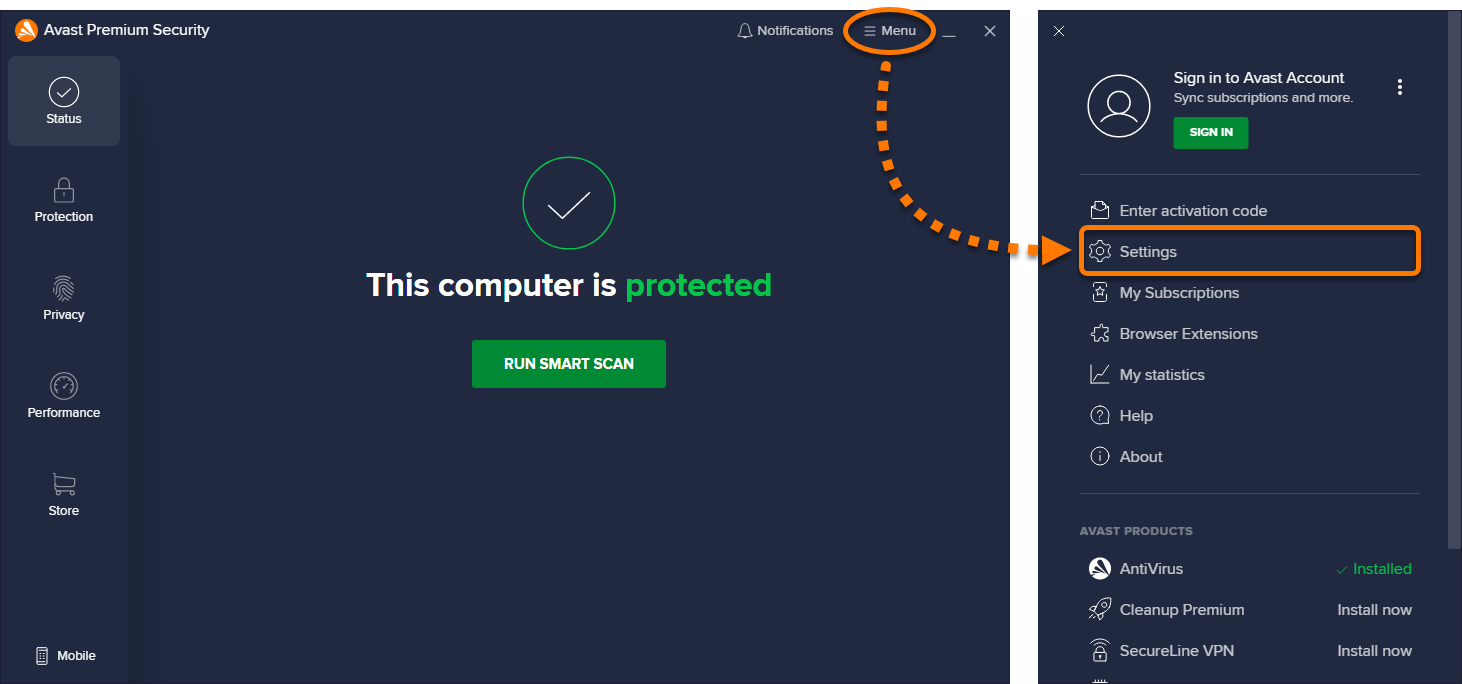
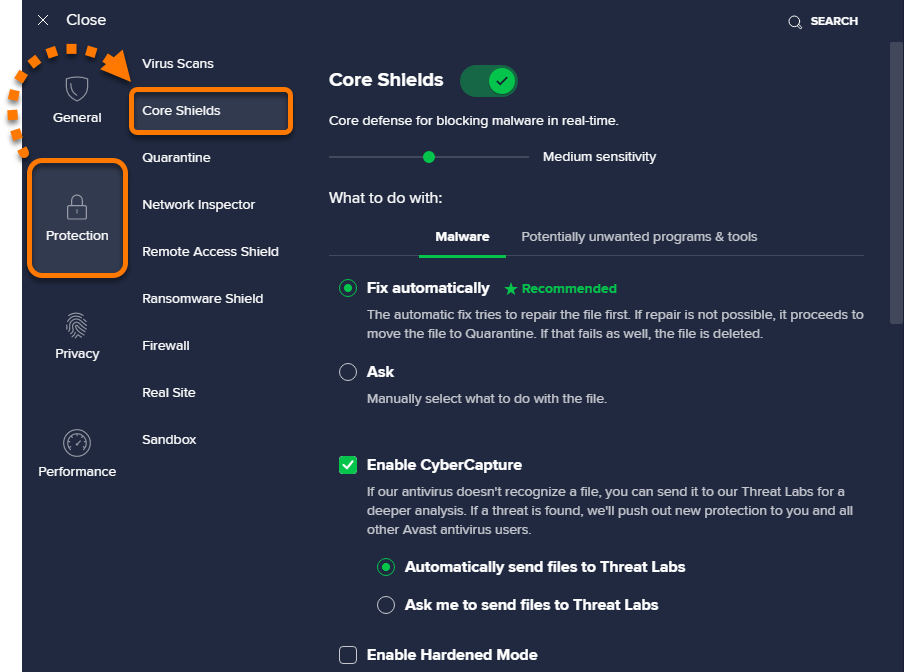
- Select Protection ▸ Core Shields.
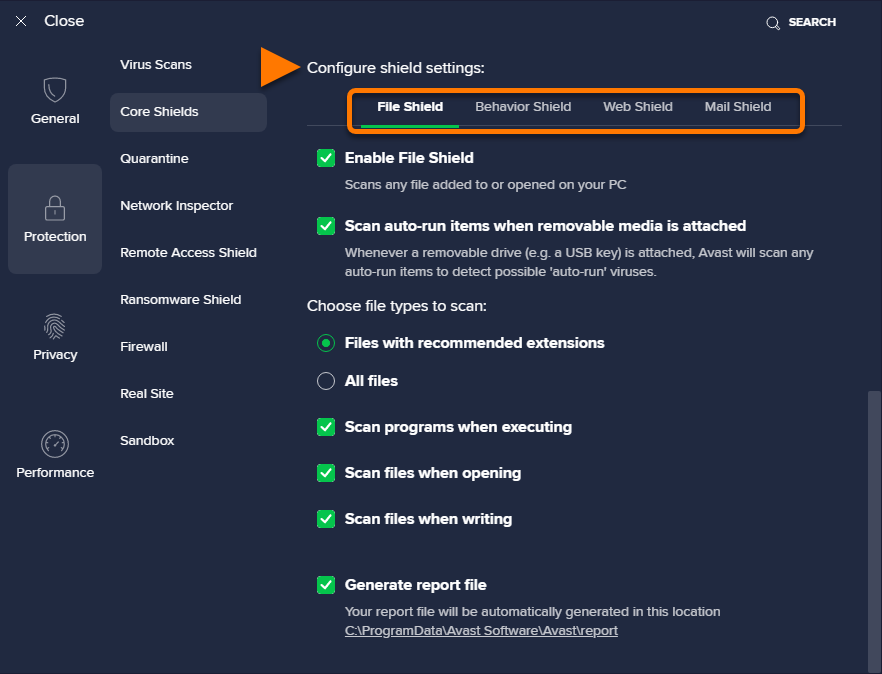
- Scroll down to Configure shield settings and select the shield you want to generate a scan report for.
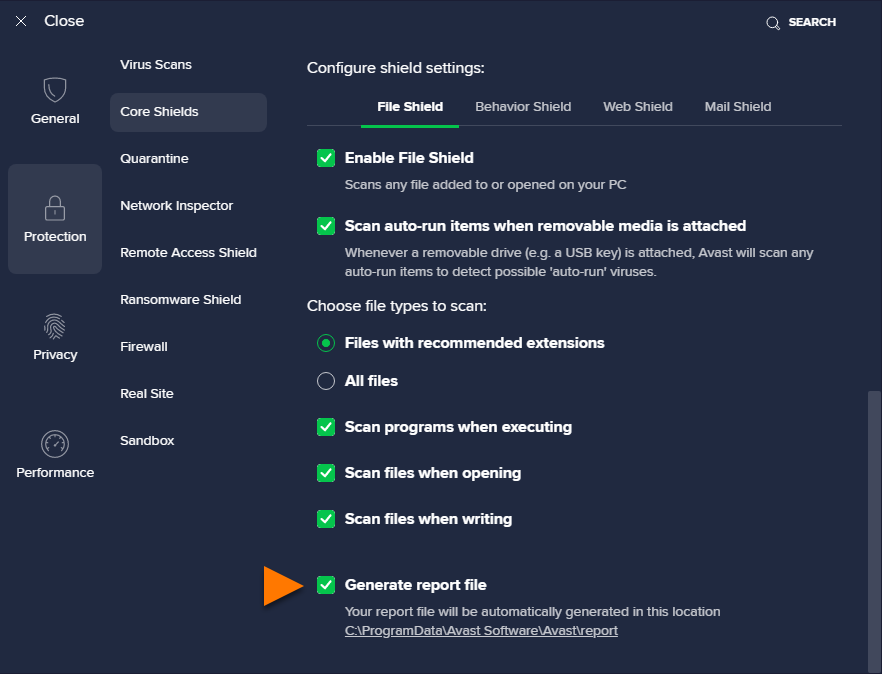
- Ensure the box next to Generate report file is ticked.
IS YOUR COMPUTER SLOW? RUN LIKE NEW
If they are not maintained, computers lose performance over time. Avast Cleanup Premium can help significantly improve the performance of your computer.
Creating scan reports in Avast Antivirus
Windows
Avast Antivirus allows you to specify if you want to produce a report automatically at the end of each scan (Virus Scans, Core Shields, or Custom Scans). When troubleshooting issues with Avast Support, you may be requested to provide this report file. Follow the steps in this article to generate a scan report, run a scan, and locate the scan report file on your PC.
Generate a scan report
Select your preferred scan:
- Open Avast Antivirus and go to
☰Menu ▸ Settings. - Select Protection ▸ Virus Scans.
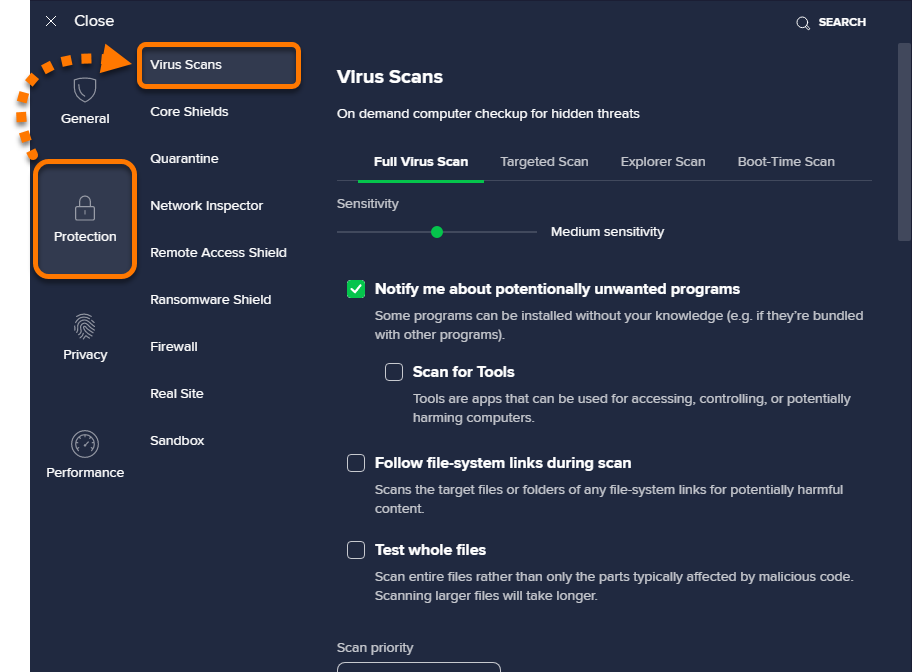
- Select the scan you want to generate a report for.

Boot-Time scan always creates a full report automatically after it is run, and customization to this report is not possible.
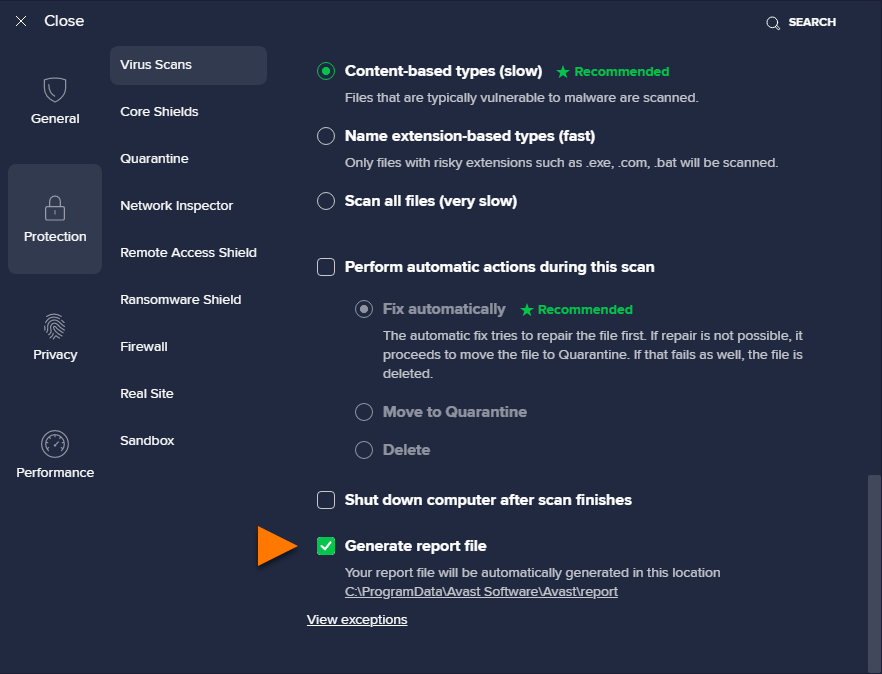
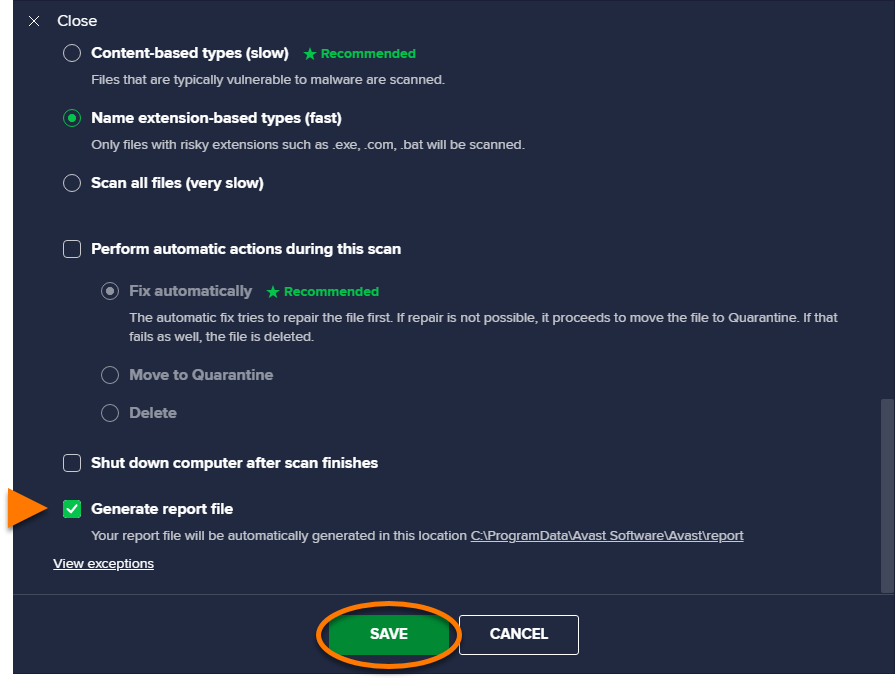
- Scroll down and tick the box next to Generate report file.
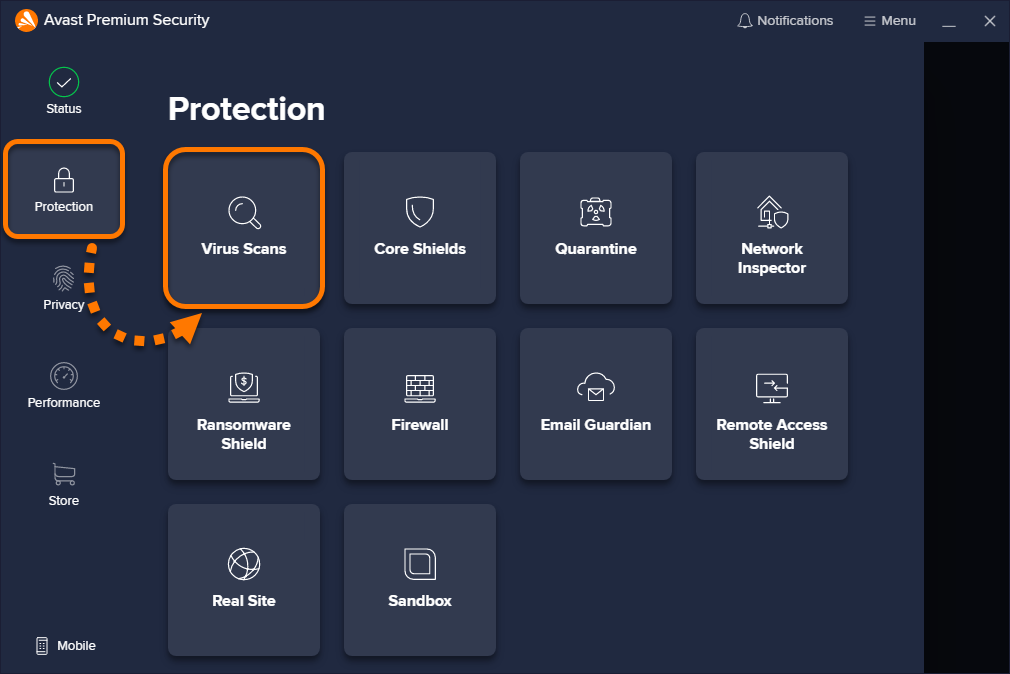
- Open Avast Antivirus and go to Protection ▸ Virus Scans.
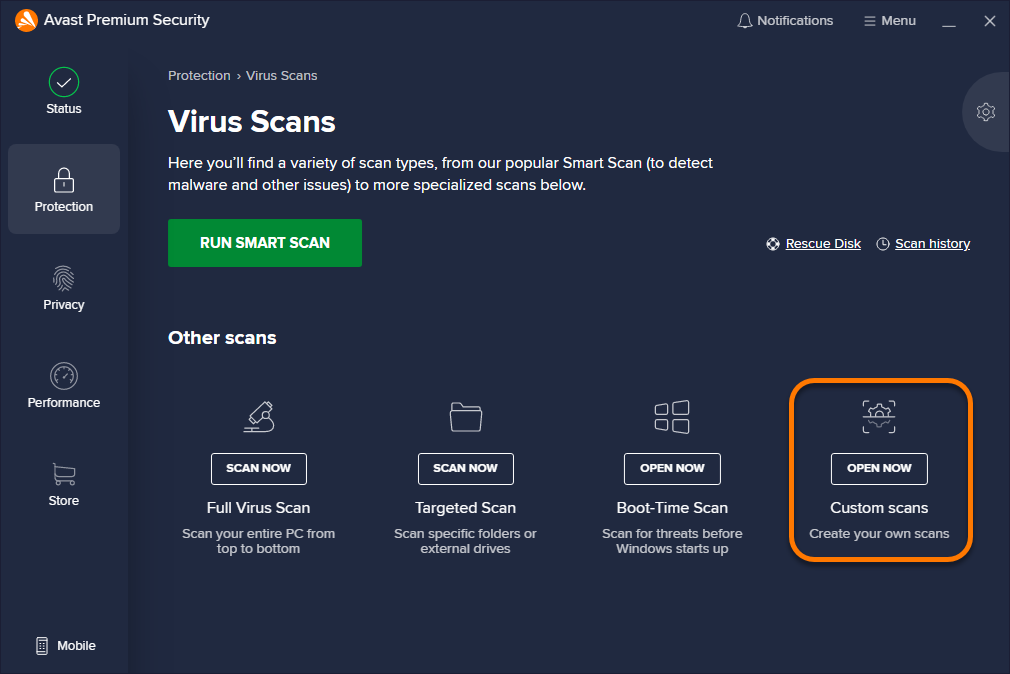
- Select the Custom scans tile.
- Hover your cursor over the relevant scan panel, then click
…More options (three dots), and select Settings.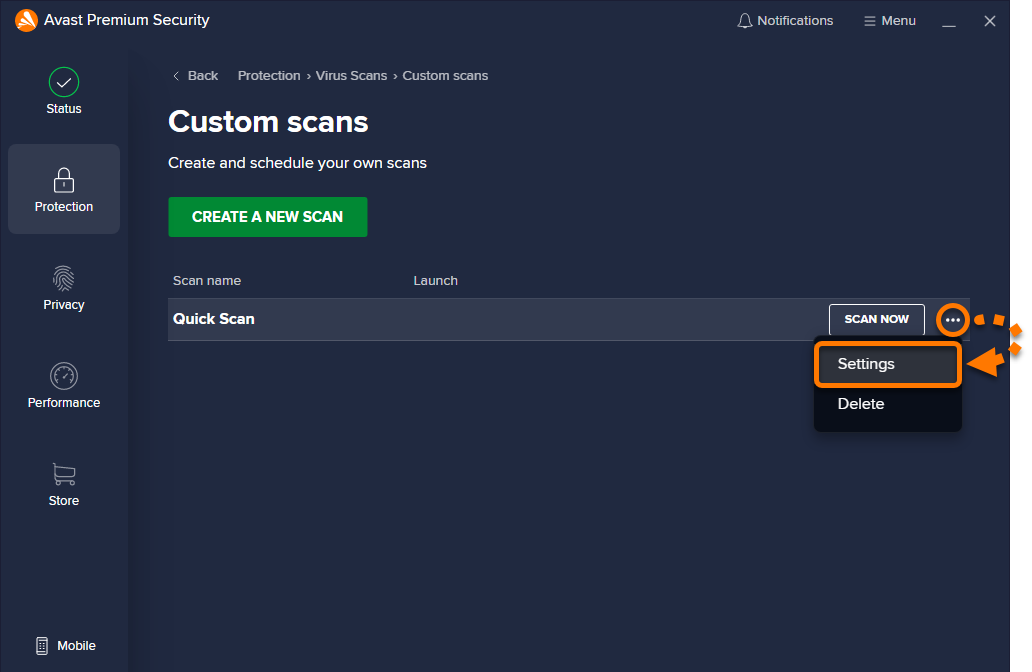
- Scroll down and tick the box next to Generate report file, then click Save.
Run a scan
For instructions to run a Smart Scan, refer to the following article:
For instructions to run a Full Virus Scan, Targeted Scan, Boot-Time Scan, and Custom scan go to Protection ▸ Virus Scans and click the relevant tile. For detailed instructions, refer to the following article:
Locate a report file
After the scan is complete, copy and paste the following location into File Explorer to locate your report file:
C:\ProgramData\AVAST Software\Avast\report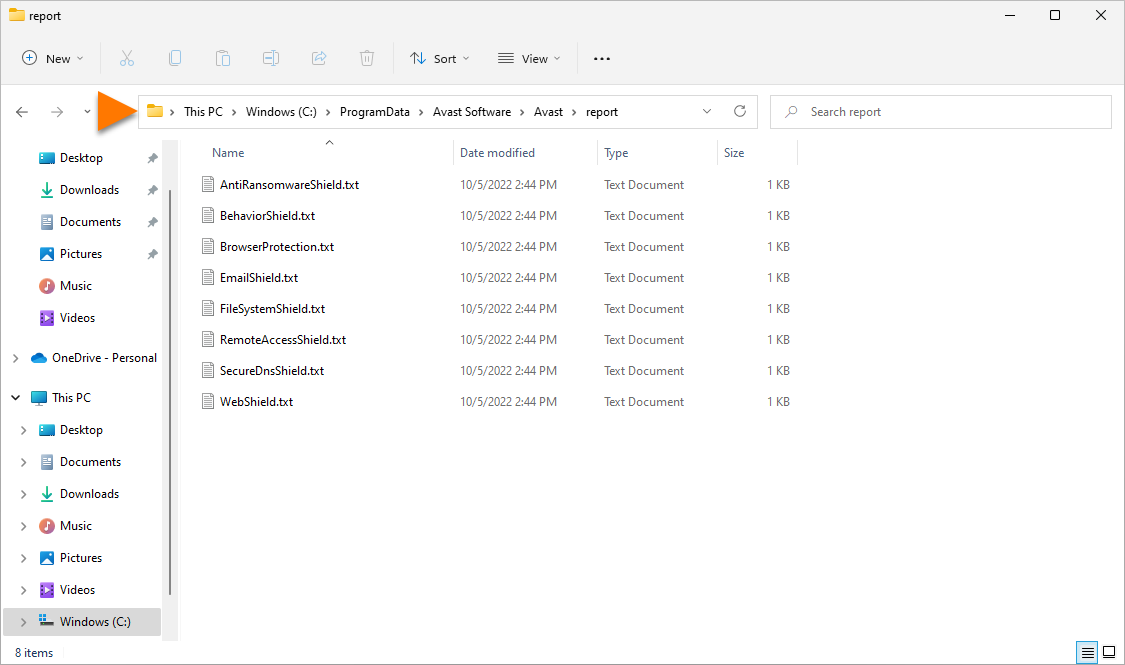
Boot-Time scan reports are stored in the
aswboot.txtfile.
DocID: create-antivirus-scan-reportLast modified: 09/03/2026
Was this article helpful?

Keep your online identity private!
Browse like no one’s watching with Avast anti-tracking software.
Need more help?
Contact us
Avast account
Visit our forums
Visit academy