Promotional banner image

IS YOUR COMPUTER SLOW? RUN LIKE NEW

If they are not maintained, computers lose performance over time. Avast Cleanup Premium can help significantly improve the performance of your computer.

Restarting Microsoft Windows in Safe Mode

Windows

Restarting your Windows operating system in Safe Mode is necessary for performing certain troubleshooting tasks with Avast software products.

Instructions

To restart your Windows in Safe Mode, follow these steps:

  1. Click the Windows Start icon, select the Power icon, then hold down the Shift ⇧ key on your keyboard and select Restart.
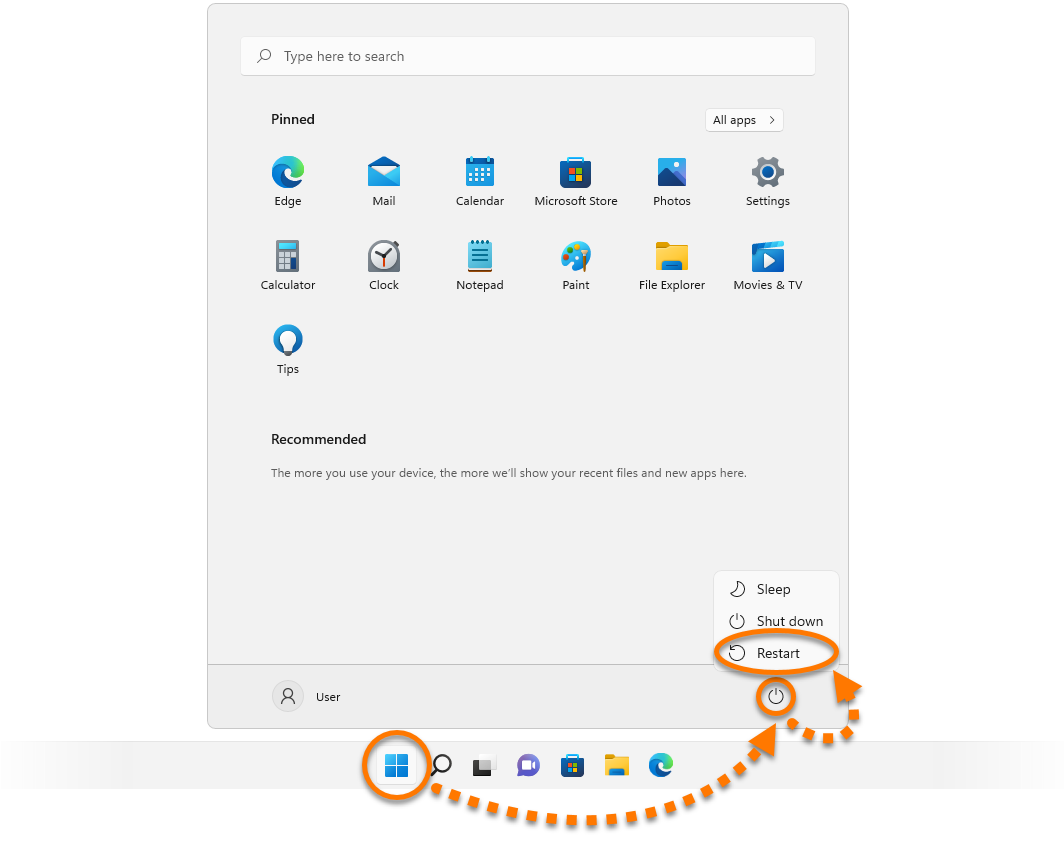
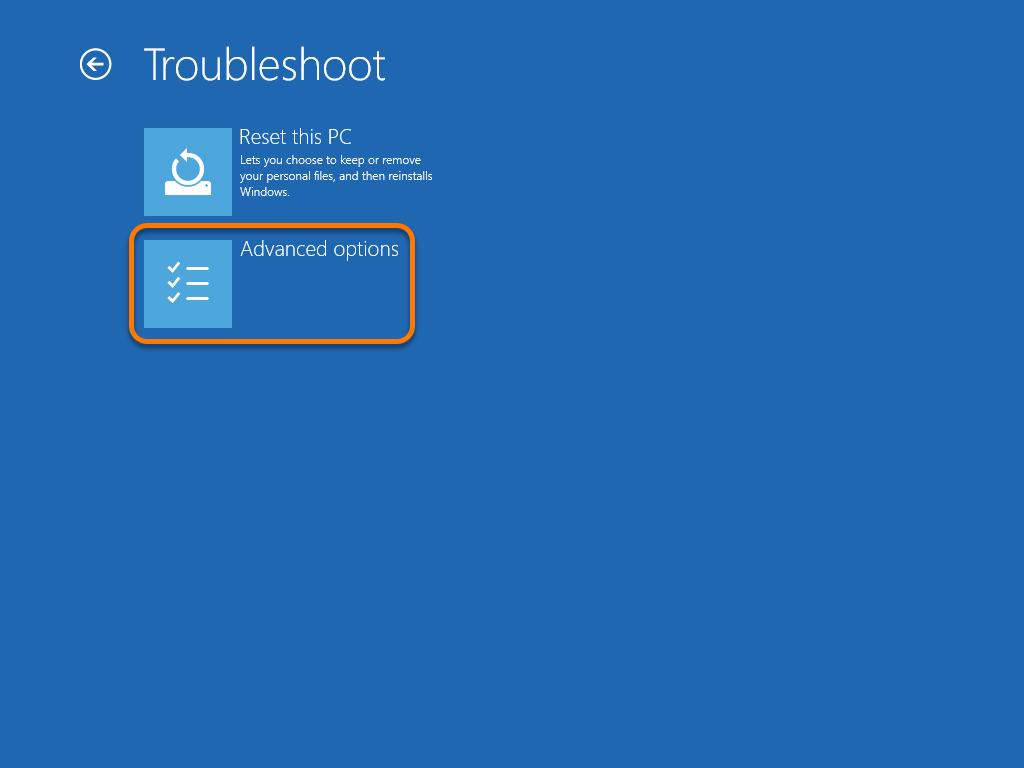
  2. When the Choose an option screen appears, select Troubleshoot.
  3. Select Advanced options.
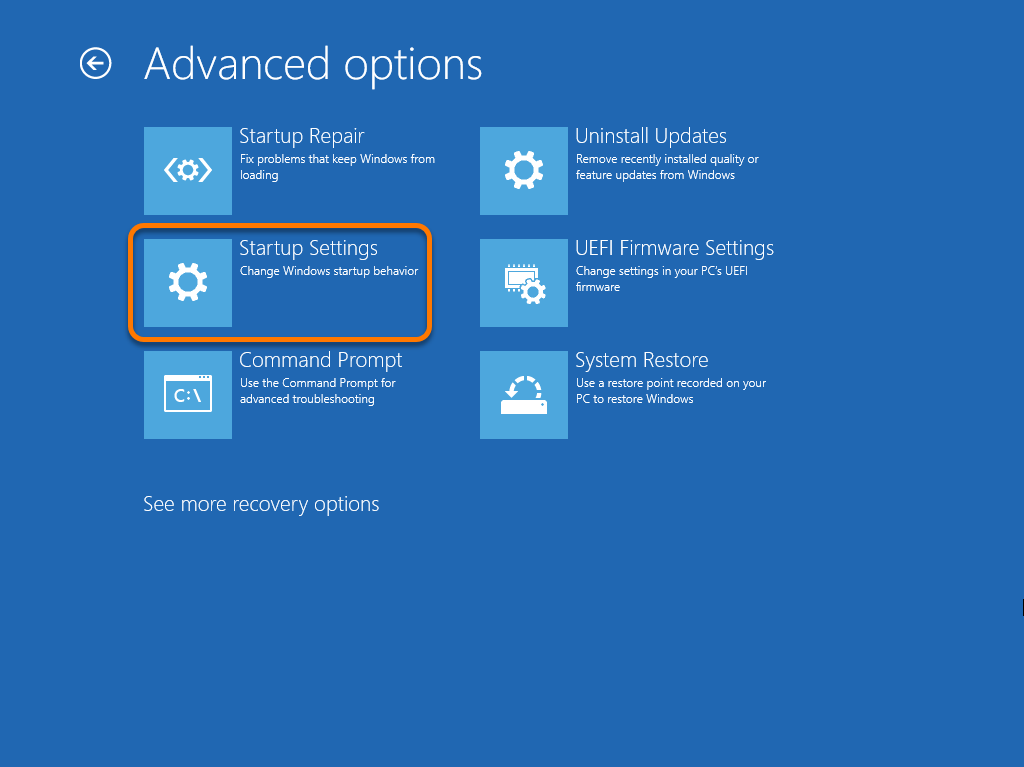
  4. Select Startup Settings.
  5. Click Restart to open a list of Startup Settings options.
  6. Select option 4) Enable Safe Mode.

    For certain troubleshooting tasks, you can alternatively select option 5) Enable Safe Mode with Networking or option 6) Enable Safe Mode with Command Prompt.

When your PC restarts, Windows is in Safe Mode and ready for you to perform troubleshooting tasks.

To restart your Windows in Safe Mode, follow these steps:

  1. Click the Windows Start icon, select the Power icon, then hold down the Shift ⇧ key on your keyboard and select Restart.
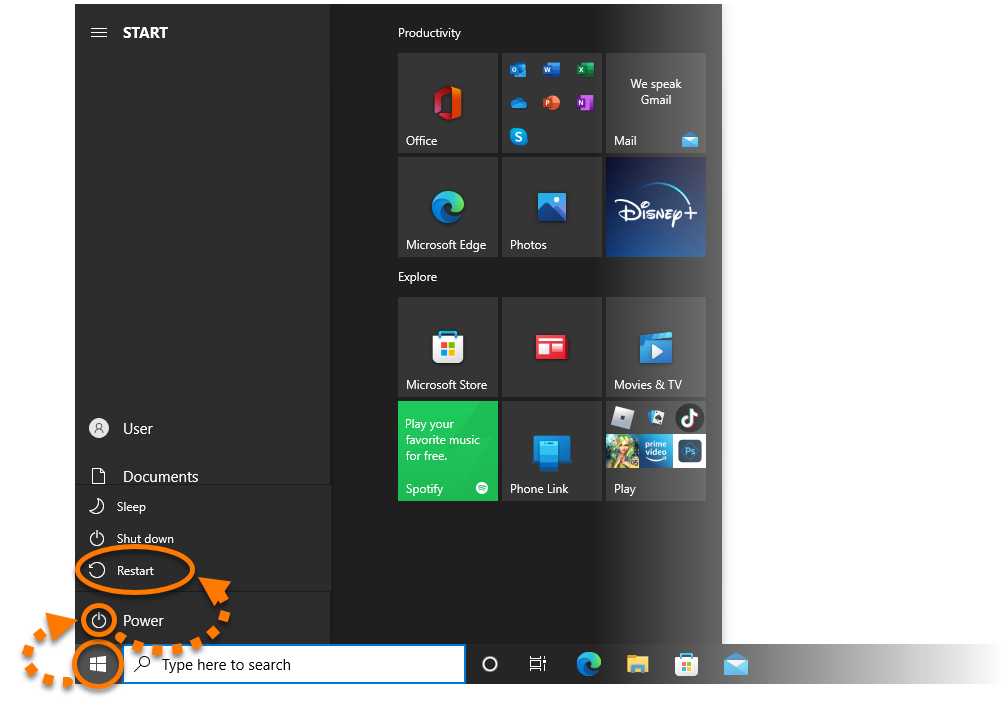
  2. When the Choose an option screen appears, select Troubleshoot.
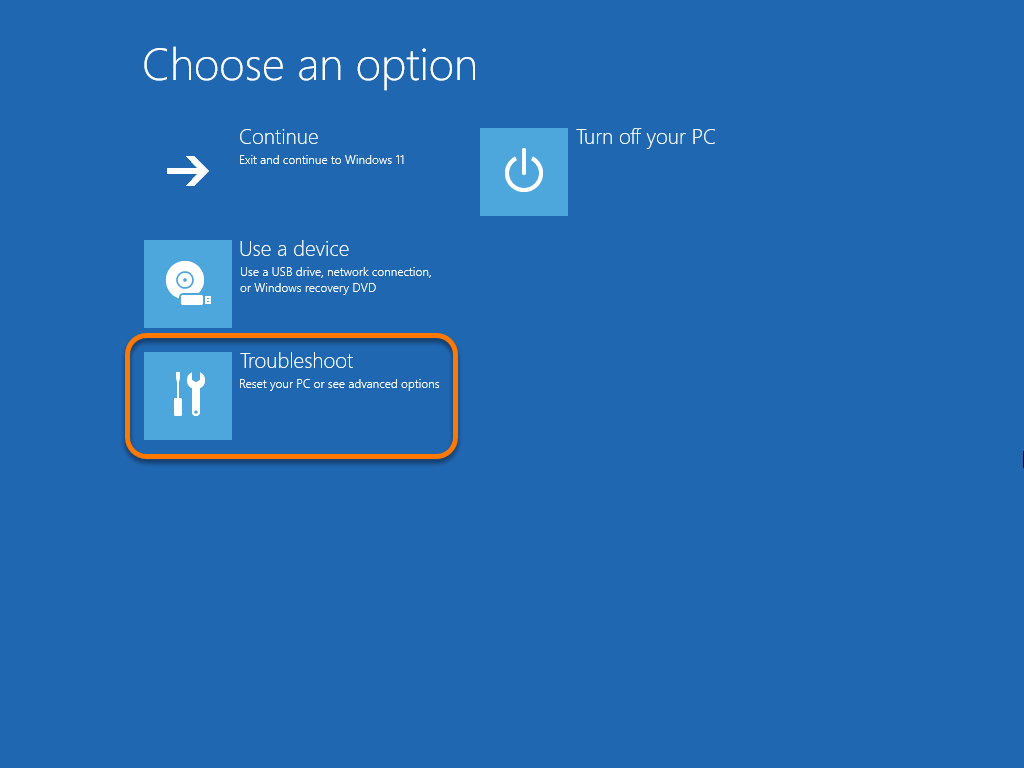
  3. Select Advanced options.
  4. Select Startup Settings.
  5. Click Restart to open a list of Startup Settings options.
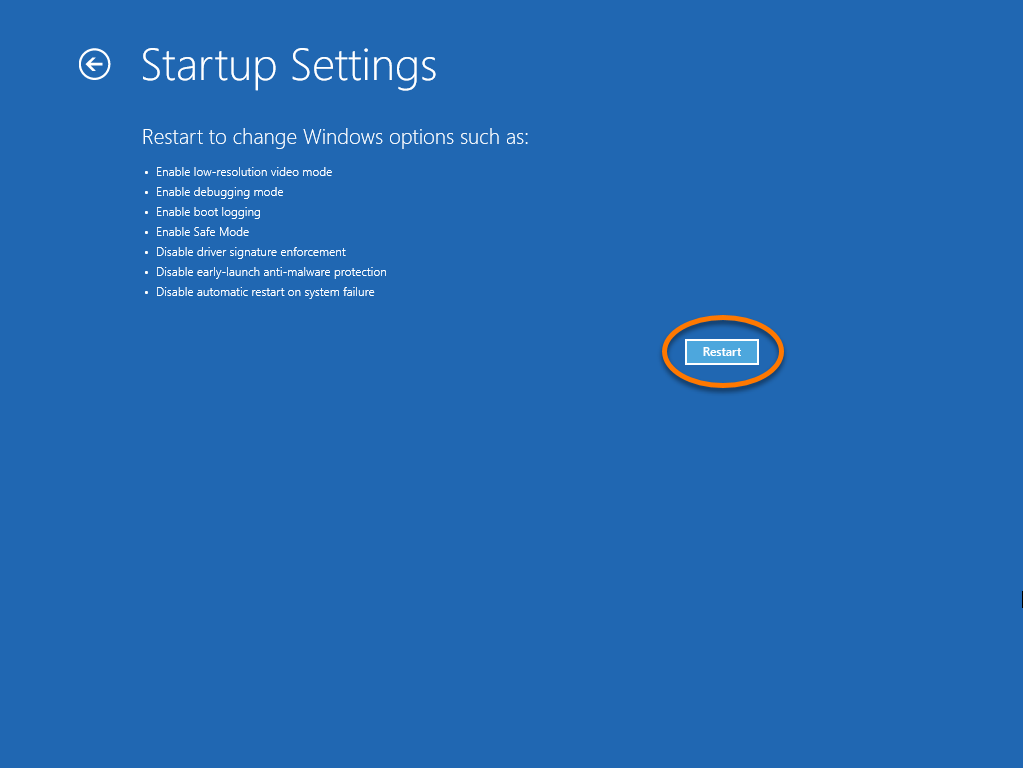
  6. Select option 4) Enable Safe Mode.

    For certain troubleshooting tasks, you can alternatively select option 5) Enable Safe Mode with Networking or option 6) Enable Safe Mode with Command Prompt.

When your PC restarts, Windows is in Safe Mode and ready for you to perform troubleshooting tasks.

To restart your Windows in Safe Mode, follow these steps:

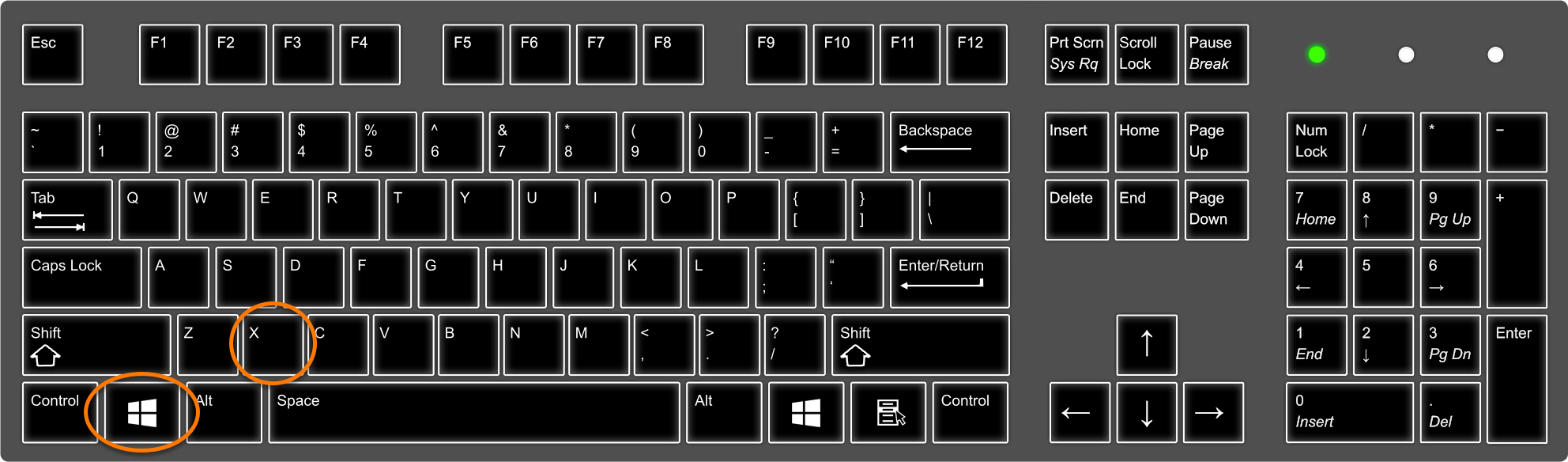
  1. On your keyboard, press the Windows logo key and X key simultaneously.
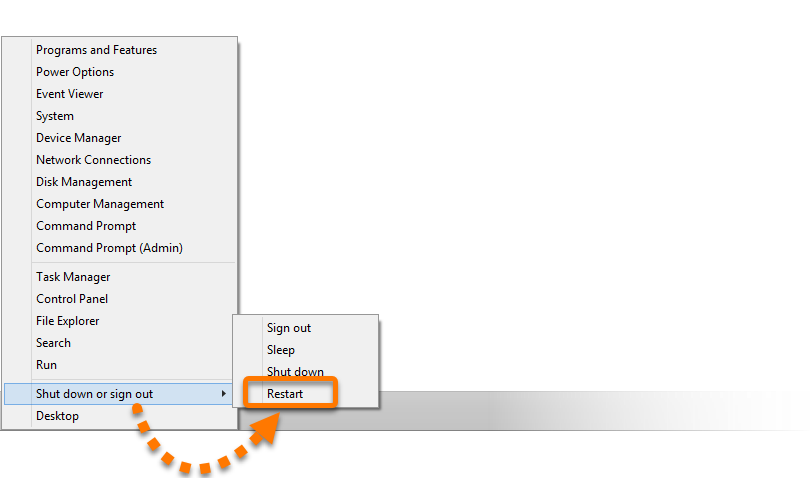
  2. Select Shut down or sign out, then hold down the Shift ⇧ key on your keyboard and select Restart.
  3. When the Choose an option screen appears, select Troubleshoot.
  4. Select Advanced options.
  5. Select Startup Settings.
  6. Click Restart to open a list of Startup Settings options.
  7. Select option 4) Enable Safe Mode.

    For certain troubleshooting tasks, you can alternatively select option 5) Enable Safe Mode with Networking or option 6) Enable Safe Mode with Command Prompt.

When your PC restarts, Windows is in Safe Mode and ready for you to perform troubleshooting tasks.

To restart your Windows in Safe Mode, follow these steps:

  1. Click the Windows Start icon and click the arrow icon beside Shut down. Then, while holding down the F8 key on your keyboard, select Restart.
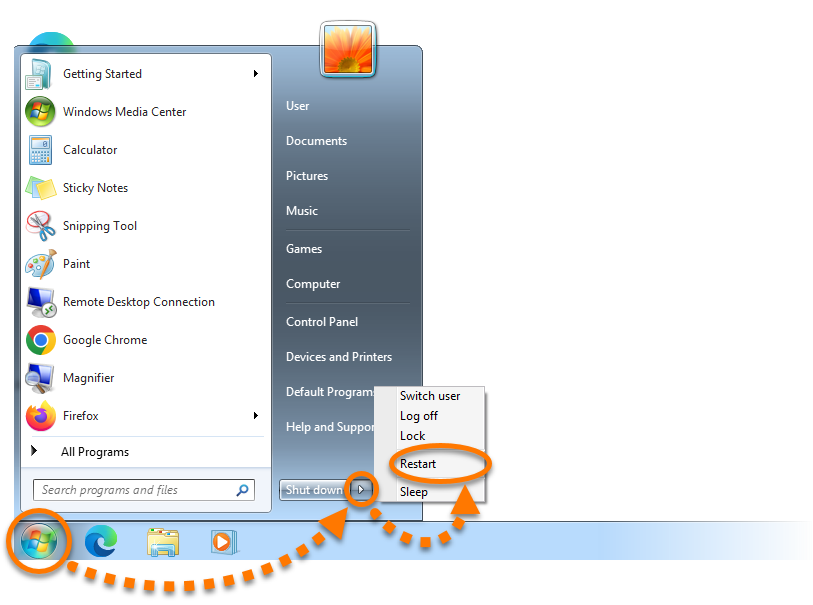
  2. Continue to hold down the F8 key until your PC restarts and a list of options appears.
  3. Use the arrow keys on your keyboard to highlight the Safe Mode option, and press Enter.

    For certain troubleshooting tasks, you can alternatively select Safe Mode with Networking or Safe Mode with Command Prompt.

When your PC restarts, Windows is in Safe Mode and ready for you to perform troubleshooting tasks.

DocID: restart-windows-safe-modeLast modified: 10/23/2026

Was this article helpful?

Promotional banner image

Keep your online identity private!

Browse like no one’s watching with Avast anti-tracking software.

Need more help?

Contact us
Avast account
Visit our forums
Visit academy