Promotional banner image

IS YOUR COMPUTER SLOW? RUN LIKE NEW

If they are not maintained, computers lose performance over time. Avast Cleanup Premium can help significantly improve the performance of your computer.

Changing Mac settings to improve your Online Safety Score in Avast One

Mac

While using Avast One you may see an Online Safety Score message, advising you to change your Mac settings to fully protect your device. One of the following messages may appear:

  • Your MacOS operating system isn't up to date.
  • Turn on Gatekeeper to ensure that only trusted software will run on your Mac.
  • Turn on System Integrity Protection to help prevent malicious software from modifying protected files and folders on your Mac.

To change your Mac settings, follow the steps in the relevant section below:

Update your macOS

The following instructions apply to macOS 13.x (Ventura), 12.x (Monterey), 11.x (Big Sur), 10.15.x (Catalina), and 10.14.x (Mojave).

If you are running macOS 10.13.x (High Sierra), go to Applications ▸ App Store ▸ Updates and click Update (or Get) next to the relevant macOS update.

Your macOS version:

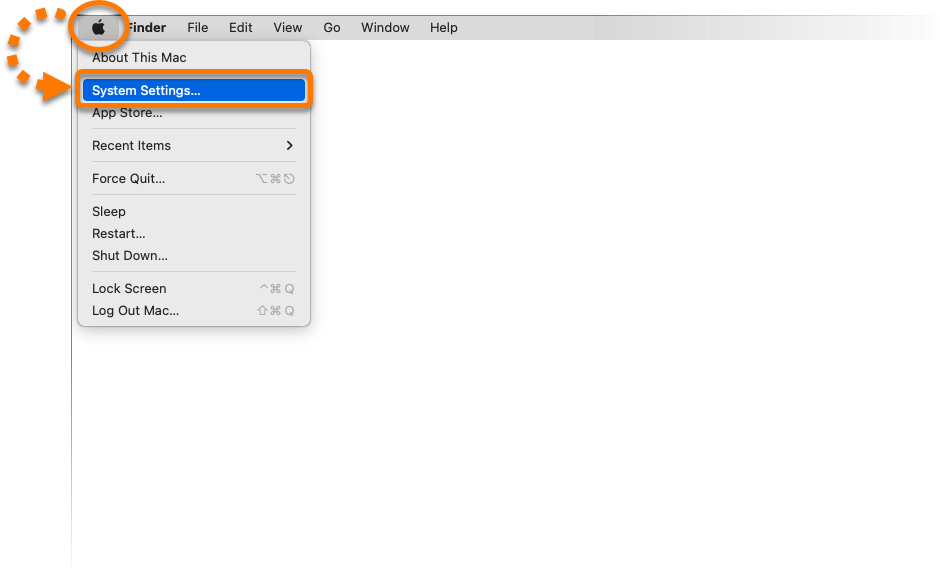
  1. In the Apple menu, click the Apple icon, then select System Settings....
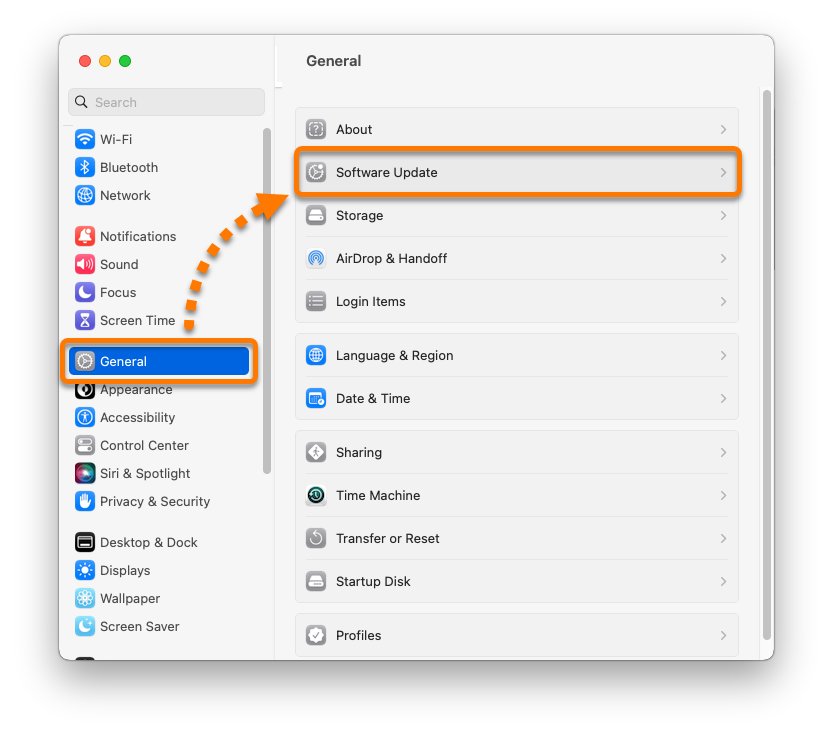
  2. Click General, then select Software Update.
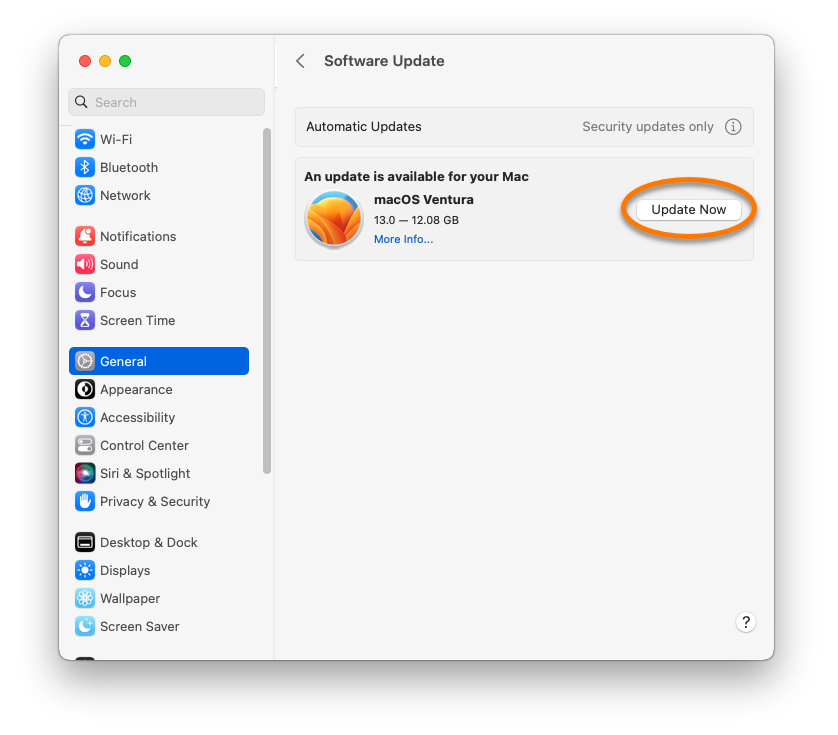
  3. Select Update Now to install the latest updates for your currently installed macOS version (for example, Ventura 13.0 to 13.1) or Upgrade Now to install a new macOS version (for example, Ventura 13.x to the next version 14.x).
  4. If prompted, enter the password that you use when you start your Mac, then click Unlock.
  5. Wait while your Mac restarts and installs the update.

Your macOS is now up to date.

Turn on Gatekeeper

  1. In the Apple menu, click the Apple icon, then select System Settings....
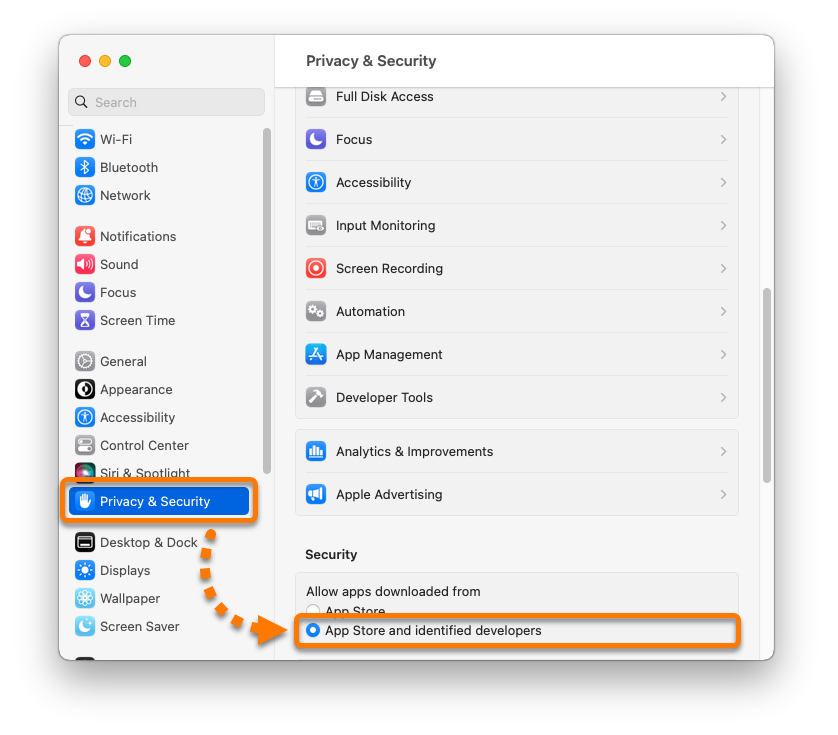
  2. Select Privacy & Security, scroll to the Security section, then under Allow apps downloaded from select the option App Store and identified developers.

Gatekeeper is now enabled.

  1. In the Apple menu, click the Apple icon, then select System Preferences....
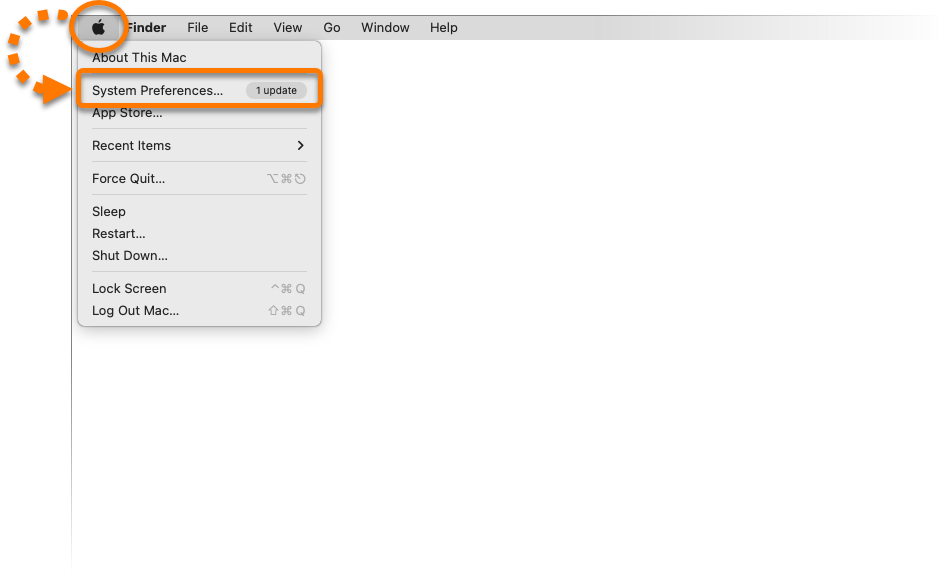
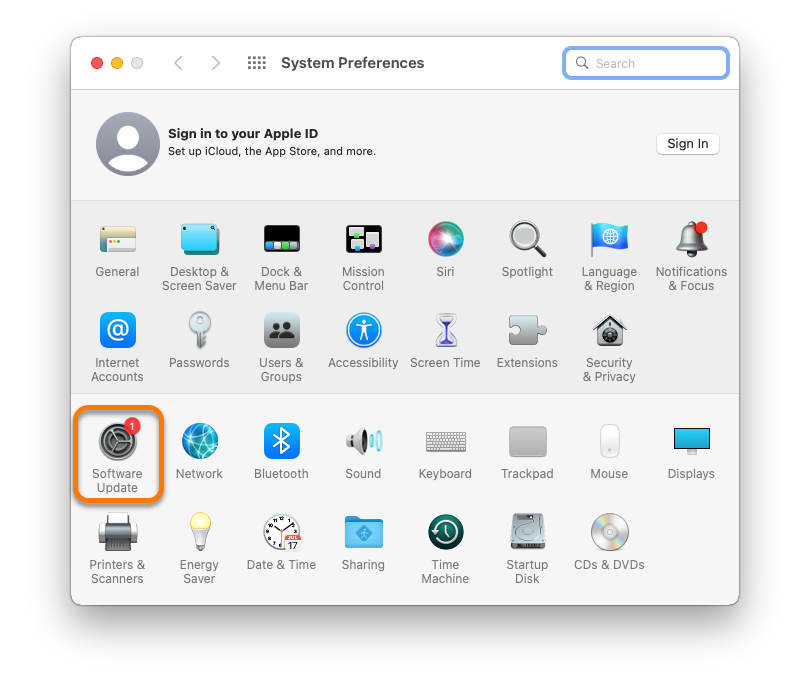
  2. Click Software Update.
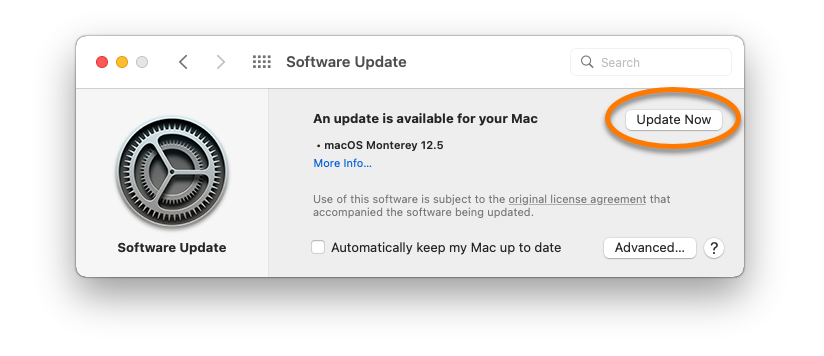
  3. Select Update Now to install the latest updates for your currently installed macOS version (for example, Monterey 12.4 to 12.5) or Upgrade Now to install a new macOS version (for example, Monterey 12.x to Ventura 13.x).
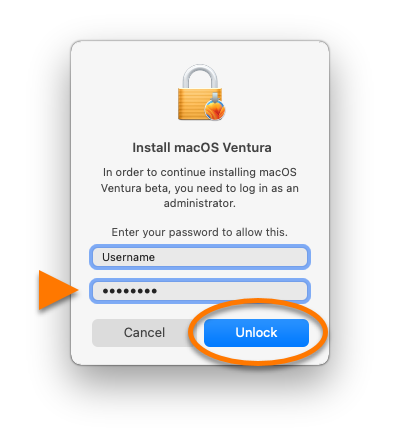
  4. If prompted, enter the password that you use when you start your Mac, then click Unlock.
  5. Wait while your Mac restarts and installs the update.

Your macOS is now up to date.

Turn on Gatekeeper

  1. In the Apple menu, click the Apple icon, then select System Preferences....
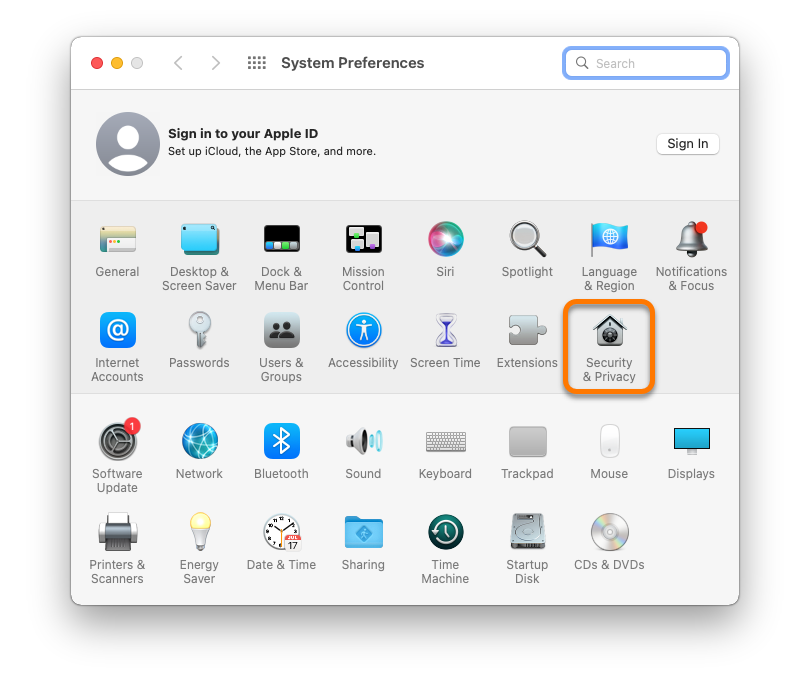
  2. Click Security & Privacy.
  3. Click the lock icon in the bottom-left corner, then enter the password that you use when you start your Mac, and click Unlock.
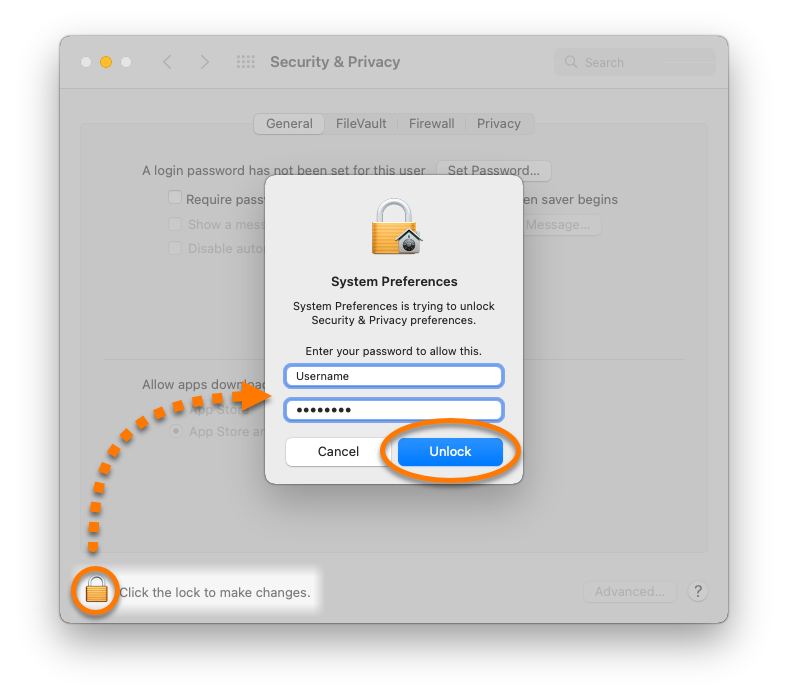
  4. Ensure the General tab is selected, then under Allow apps downloaded from select the option App Store and identified developers.
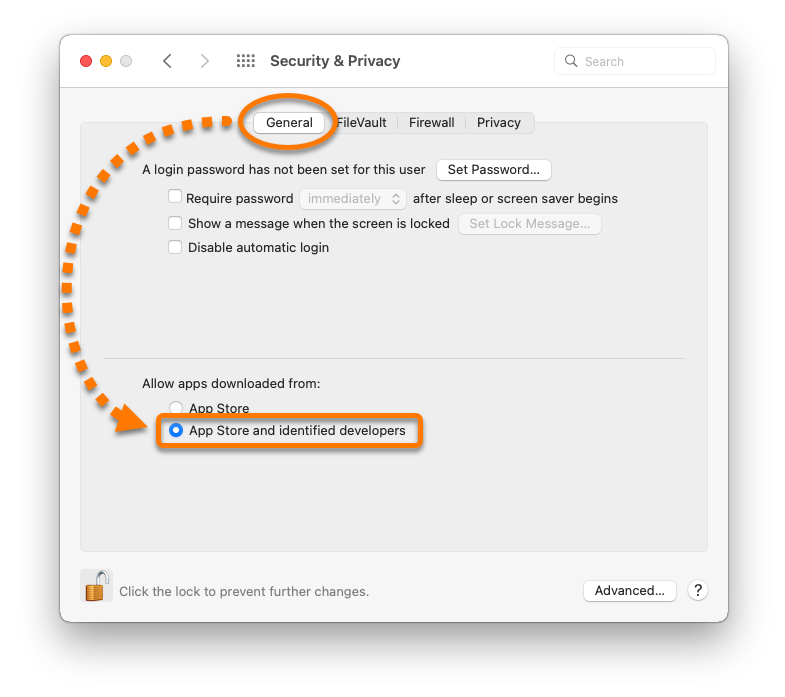
Gatekeeper is now enabled.


Enable System Integrity Protection

  1. Restart your Mac in Recovery mode by turning on your Mac and immediately pressing and holding the ⌘ Command and R keys on your keyboard.

    For detailed instructions to restart your Mac in Recovery Mode, refer to the Apple Support articles:

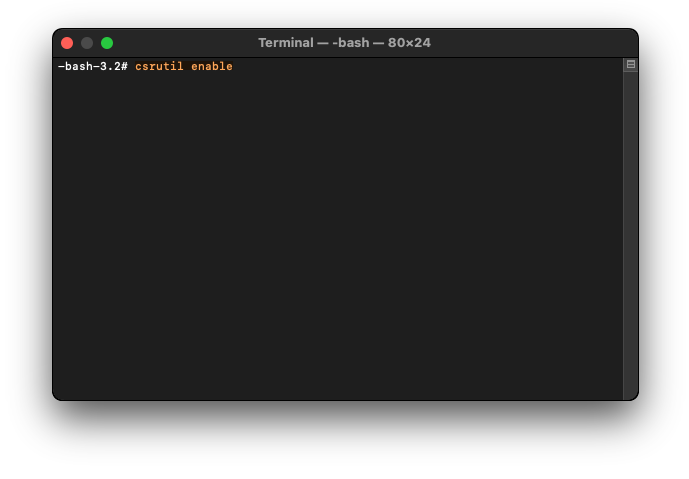
  2. In the Apple menu bar, select Utilities ▸ Terminal.
  3. Enter csrutil enable in the command prompt.
  4. On your keyboard, press Return.

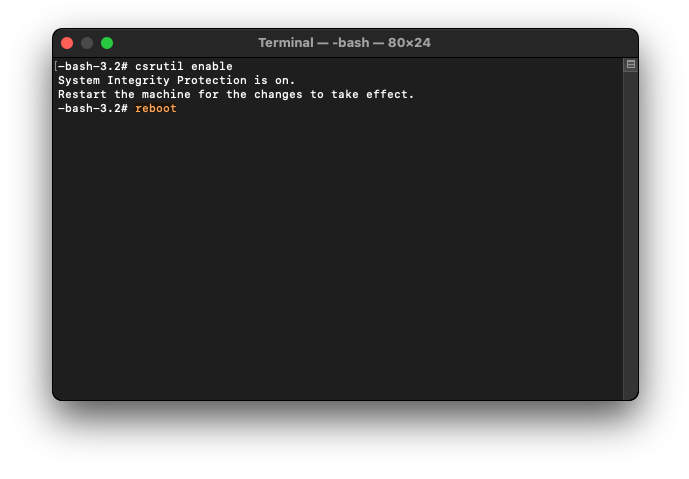
    If prompted, enter the password that you use when you start your Mac, then press the Return key on your keyboard.

  5. Enter reboot in the command prompt, then press the Return key on your keyboard to restart your Mac.

System Integrity Protection is now enabled.

DocID: mac-online-safety-score-settingsLast modified: 10/23/2026

Was this article helpful?

Promotional banner image

Keep your online identity private!

Browse like no one’s watching with Avast anti-tracking software.

Need more help?

Contact us
Avast account
Visit our forums
Visit academy