Promotional banner image

IS YOUR COMPUTER SLOW? RUN LIKE NEW

If they are not maintained, computers lose performance over time. Avast Cleanup Premium can help significantly improve the performance of your computer.

Installing Avast Premium Security

Windows, Mac

This article is about installing the standalone version of Avast Premium Security. For information about installing Avast Premium Security in the new version of Avast One, refer to the following article: Installing and Activating Avast One apps.

Avast Premium Security for Windows is a comprehensive security application that helps block viruses, spyware, and other malicious threats. Additionally, it helps protect you and your data against dangerous fake websites, ransomware, and hackers while you are online. This article explains how to download and install the application.

Install Avast Premium Security

  1. Click the button below to download the Avast Premium Security setup file, and save it to a familiar location on your PC (by default, downloaded files are saved to your Downloads folder).
    Download Avast Premium Security for Windows
  2. Right-click the downloaded setup file avast_premium_security_setup_online.exe and select Run as administrator from the context menu.

    If you are unable to authorize installation of Avast Premium Security, refer to the following article: Managing administrative accounts on your Windows PC.

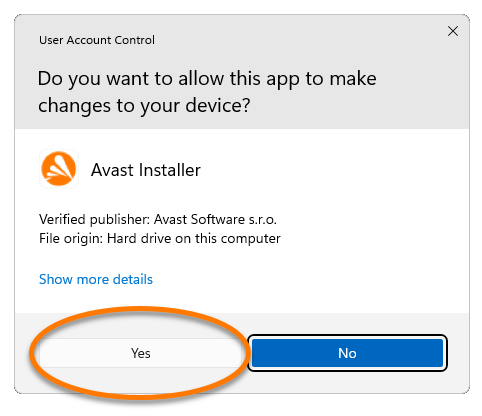
  3. If prompted for permission by the User Account Control dialog, click Yes.
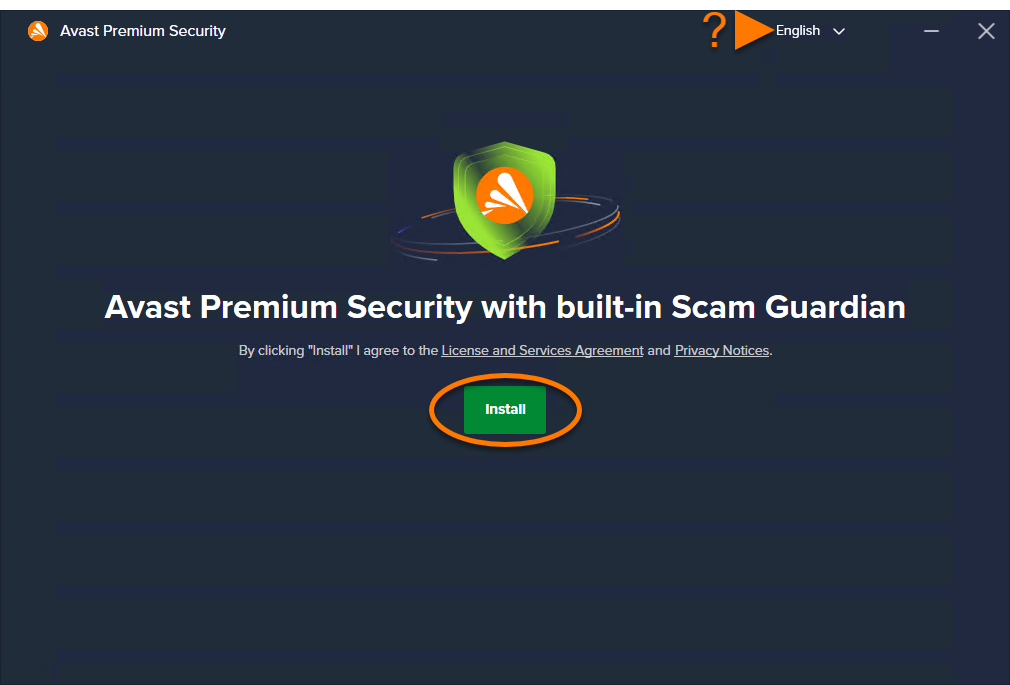
  4. To change the default setup language, choose your preferred language in the top-right corner of the screen. Then, click Install.
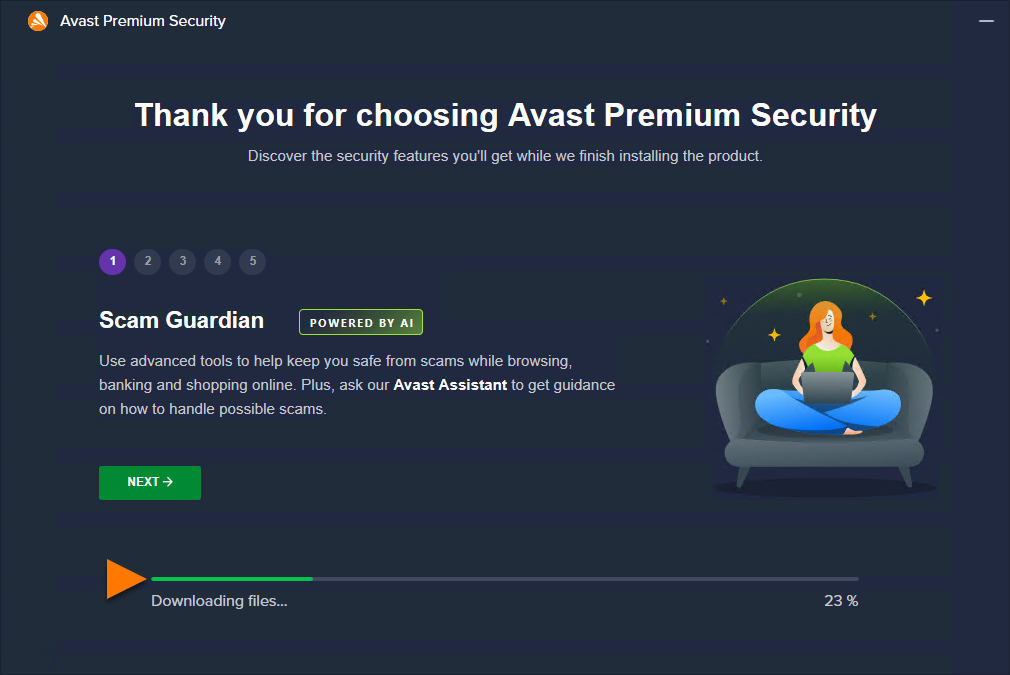
  5. Wait while setup installs Avast Premium Security on your PC.
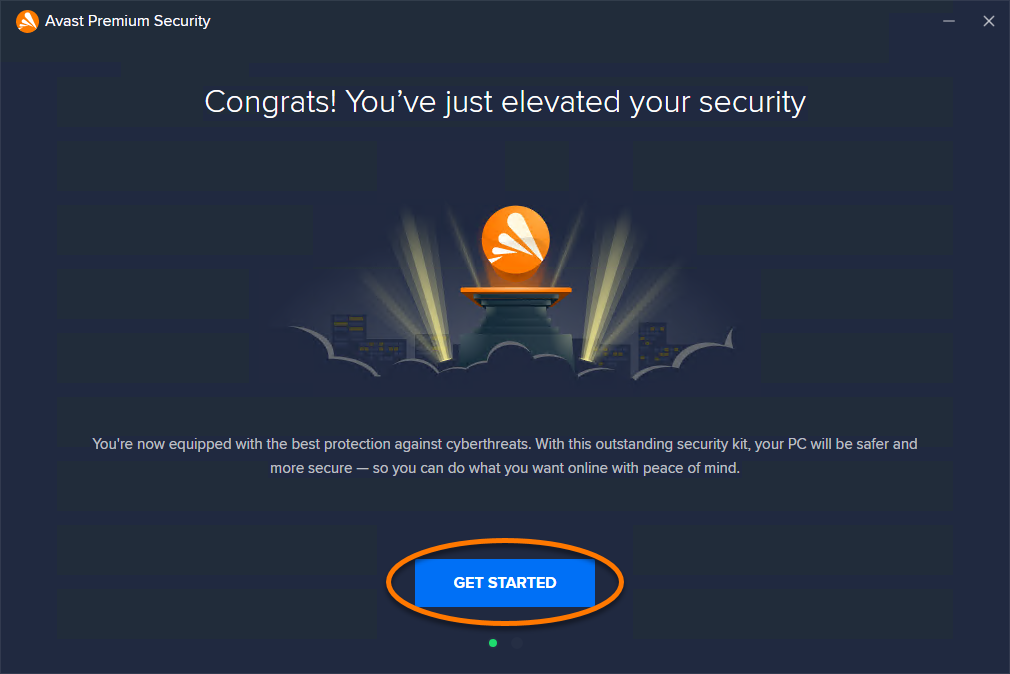
  6. Click Get Started.
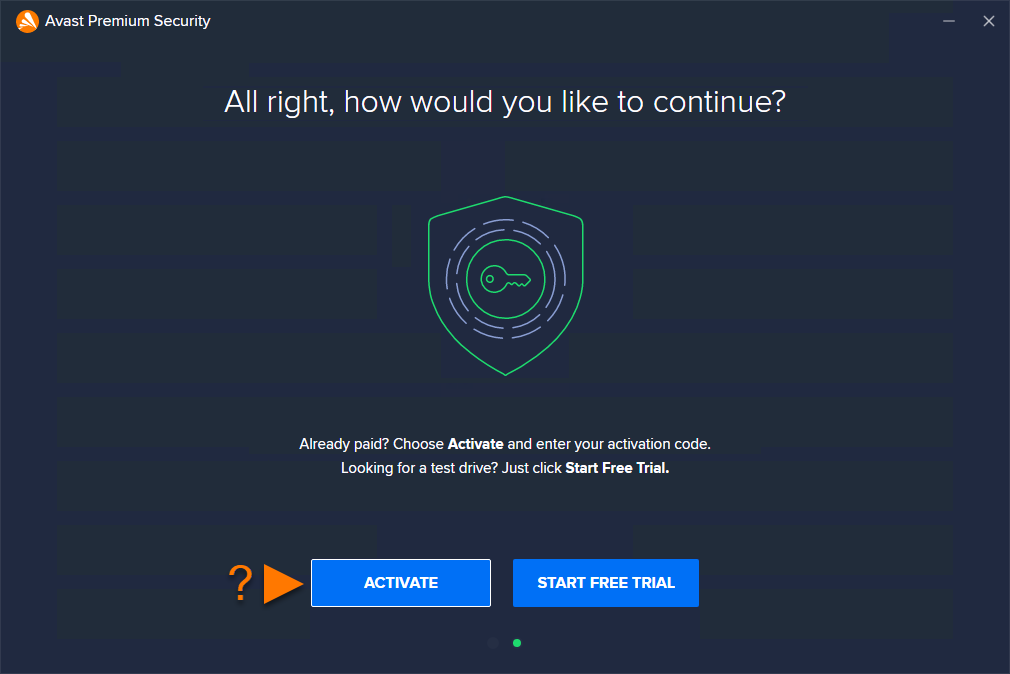
  7. Choose one of the following options:
    • Activate: If you already have a paid subscription, use this option to activate Avast Premium Security. Refer to the following article for activation instructions: Activate Avast Premium Security.
    • Start free trial: Use this option to start a free trial.

Avast Premium Security is now installed, but some components may not fully function until you restart your PC.

Still need help?

If you experience any installation issues:

  1. Ensure your PC meets the minimum system requirements and your Windows is up to date: System requirements for Avast applications.
  2. Check that the downloaded setup file is not corrupted. For instructions, refer to the following article:
  3. Uninstall Avast Premium Security and any other antivirus software from your PC. For instructions, refer to the following articles:
  4. Restart your PC, then try to install Avast Premium Security again by following the exact steps in this article.

If the issue persists, contact Avast Support and provide your setup log file. For instructions, refer to the following article:

Further recommendations

For more information about Avast Premium Security, refer to the following article:

Avast Premium Security for Mac is a comprehensive security application that helps block viruses, spyware, and other malicious threats. Additionally, it helps protect you and your data against dangerous fake websites, ransomware, and hackers while you are online. This article explains how to download and install the application.

Install Avast Premium Security

  1. Click the button below to download the Avast Security setup file, and save it to a familiar location on your Mac (by default, downloaded files are saved to your Downloads folder).
    Download Avast Premium Security for Mac
  2. Double-click the downloaded setup file avast_security_online.dmg.
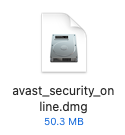
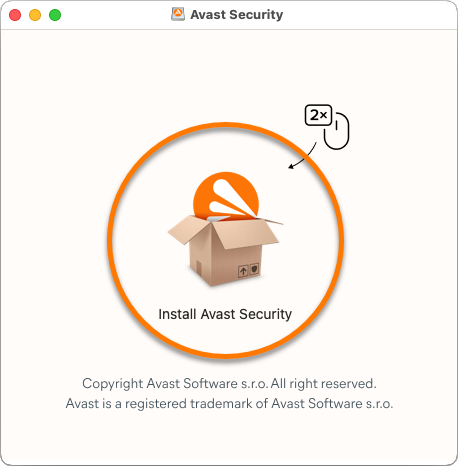
  3. Double-click the Install Avast Security icon.
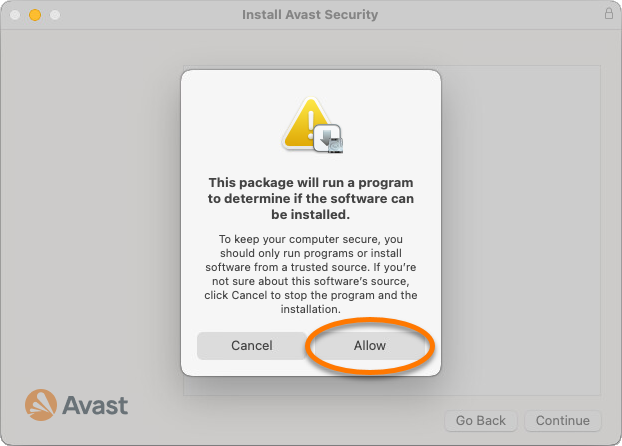
  4. Click Allow.
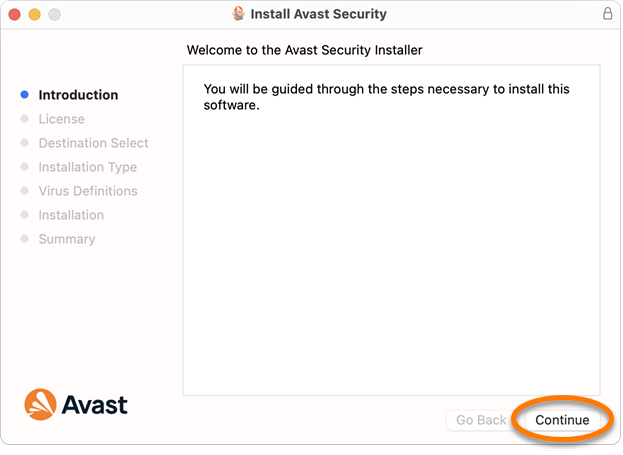
  5. Click Continue.
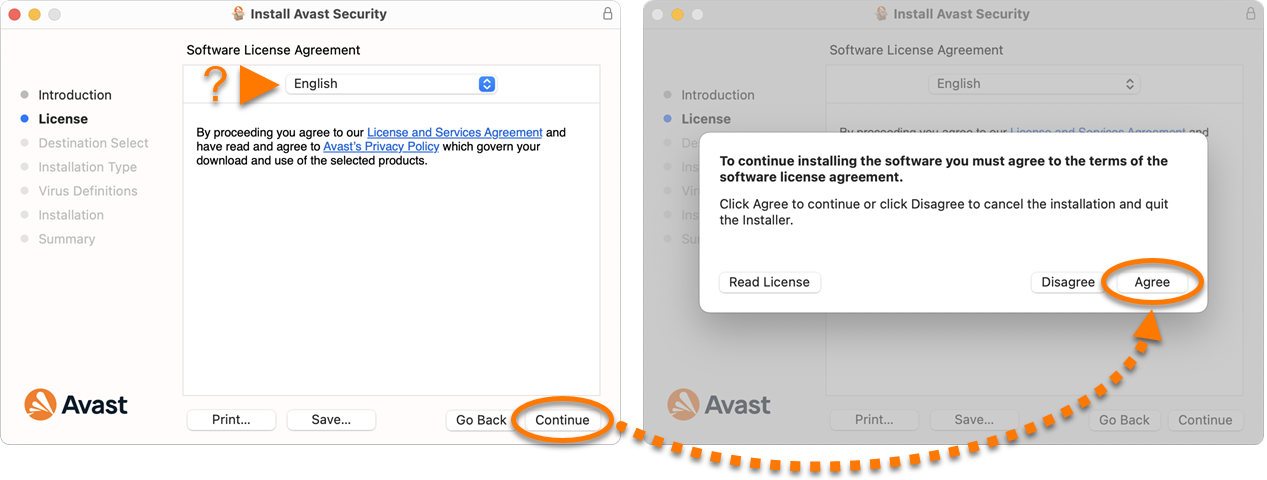
  6. To change the default setup language, choose your preferred language in the top of the screen. Review the License and Services Agreement and Avast Privacy Policy, then click Continue ▸ Agree to confirm that you accept the terms.
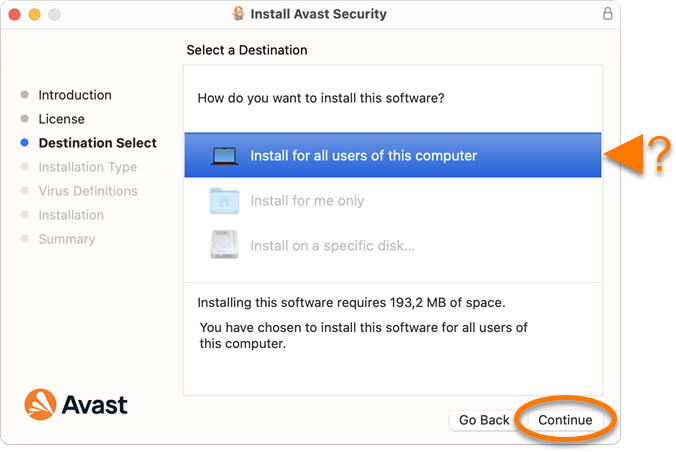
  7. If prompted, select the users who should have access to Avast Security, then click Continue.
  8. Click Install to proceed with default installation, or click Change install location... if you want to make changes to the default setup.
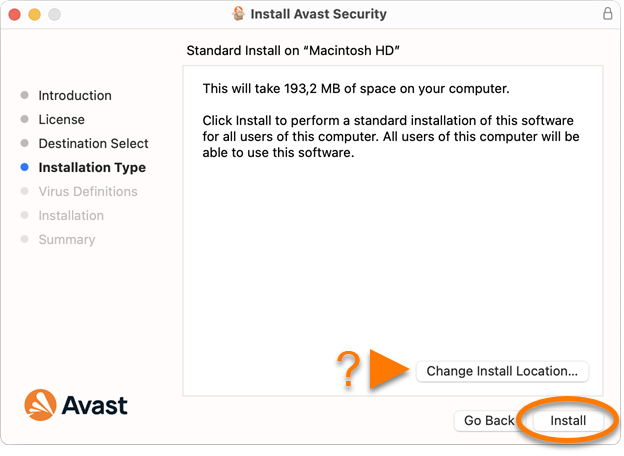
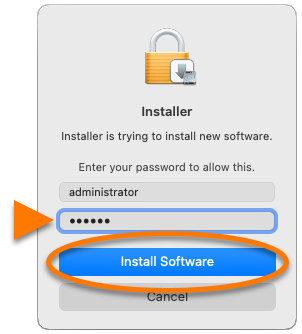
  9. If prompted, use your Touch ID to grant permission for the installation, or click Use Password..., then enter the password that you use when you start your Mac and click Install Software.
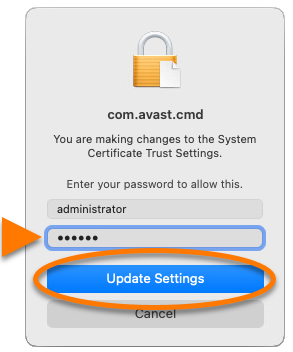
  10. If prompted, use your Touch ID to allow Avast Security to make changes to the System Certificate Trust Settings, or enter the password that you use when you start your Mac and click Update Settings.
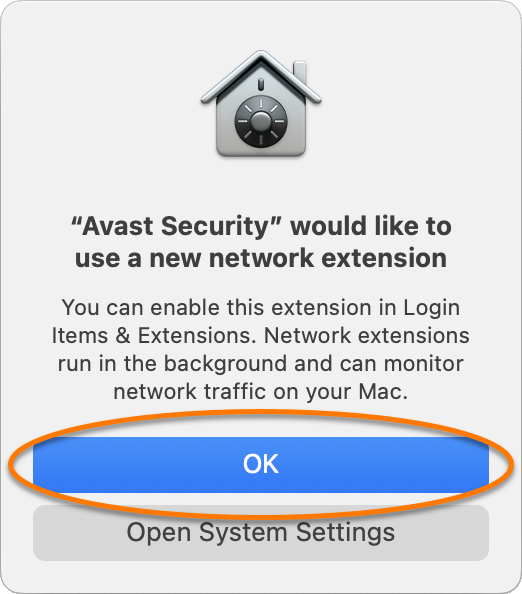
  11. When the "Avast Security" would like to use a new network extension notification appears, click OK.
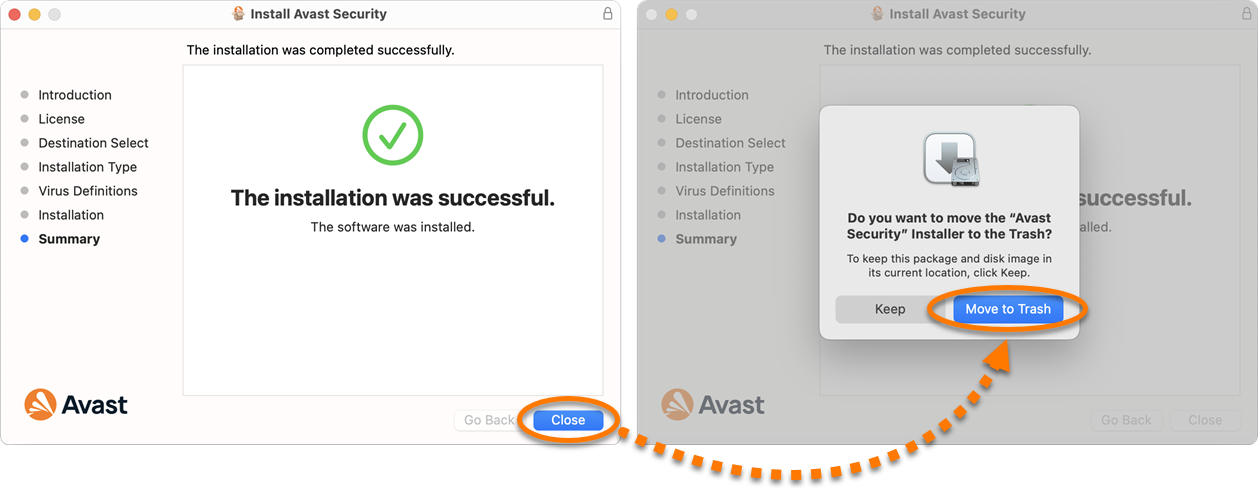
  12. Click Close ▸ Move to Bin.

Avast Premium Security is now installed, but some components may not fully function until you restart your Mac. To complete the initial setup, follow the on-screen instructions to allow permissions for the app. For detailed instructions, refer to the following article:

If you have a paid subscription to Avast Premium Security, you need to manually activate it. Refer to the following article for detailed instructions: Activate Avast Premium Security.

Still need help?

If you experience any installation issues:

  1. Ensure your Mac meets the minimum system requirements and your macOS is up to date: System requirements for Avast applications.
  2. Uninstall Avast Premium Security and any other antivirus software from your Mac. For instructions, refer to the following articles:
  3. Restart your Mac, then try to install Avast Premium Security again by following the exact steps in this article.

If the issue persists, contact Avast Support.

Further recommendations

For more information about Avast Premium Security, refer to the following article:

DocID: install-premium-securityLast modified: 11/16/2026

Was this article helpful?

Promotional banner image

Keep your online identity private!

Browse like no one’s watching with Avast anti-tracking software.

Need more help?

Contact us
Avast account
Visit our forums
Visit academy