Troubleshooting 'The app you're trying to install isn't a Microsoft-verified app' error during installation of Avast Antivirus
When installing Avast Antivirus on a Windows 10 or 11 device, you may receive an error message 'The app you're trying to install isn't a Microsoft-verified app', which causes the installation process to fail. You receive the error message when your computer is set to only allow installation of programs from the Microsoft store.
This article explains how to change your Windows app settings, to resolve the error and finish installing Avast Antivirus.
To change your Windows app settings:
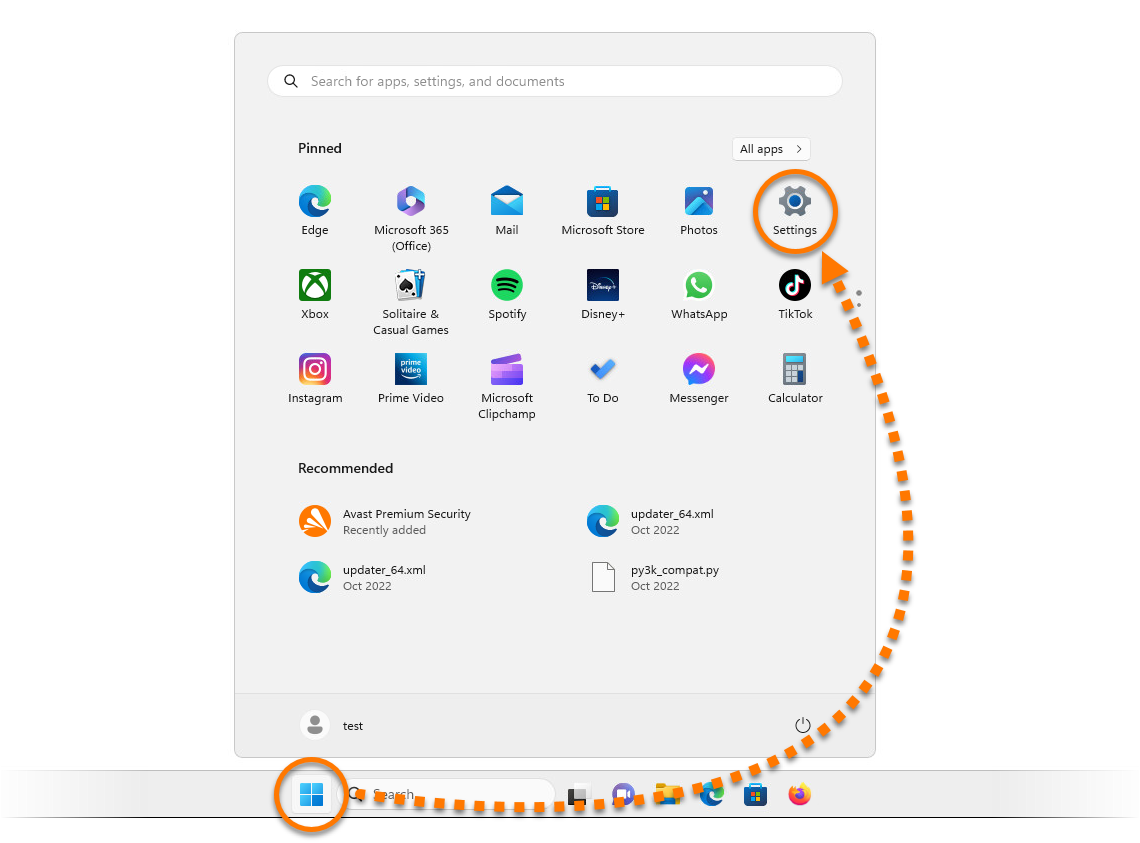
- Click the Windows
 Start button and select Settings.
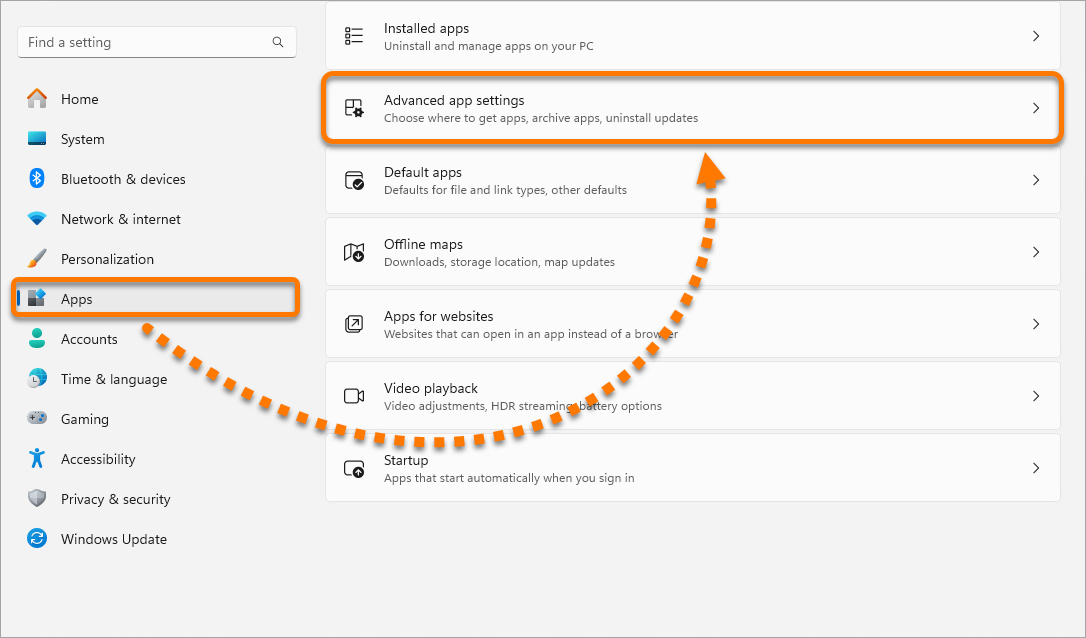
- Select Apps ▸ Advanced app settings.
- In the Choose where to get apps panel, click the drop-down arrow, then select Anywhere.
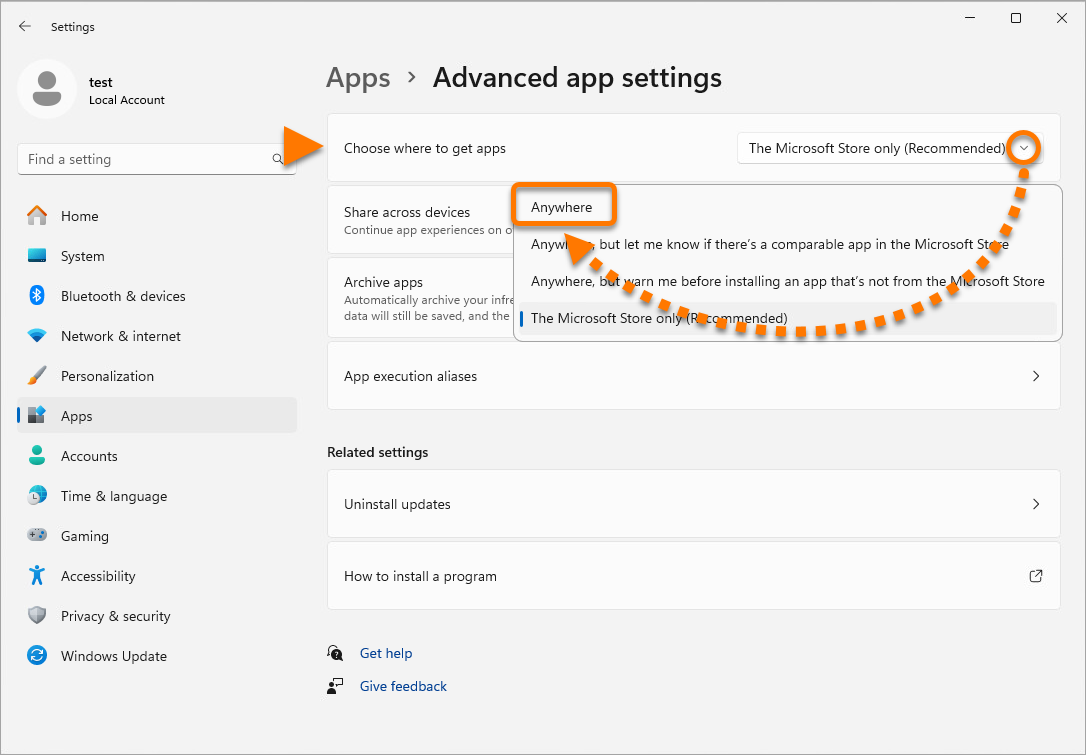
Your Windows app settings are changed. You can now install Avast Free Antivirus or Avast Premium Security successfully.
For detailed installation instructions, refer to the relevant article below:
To change your Windows app settings:
- Click the Windows
 Start button and select Settings.
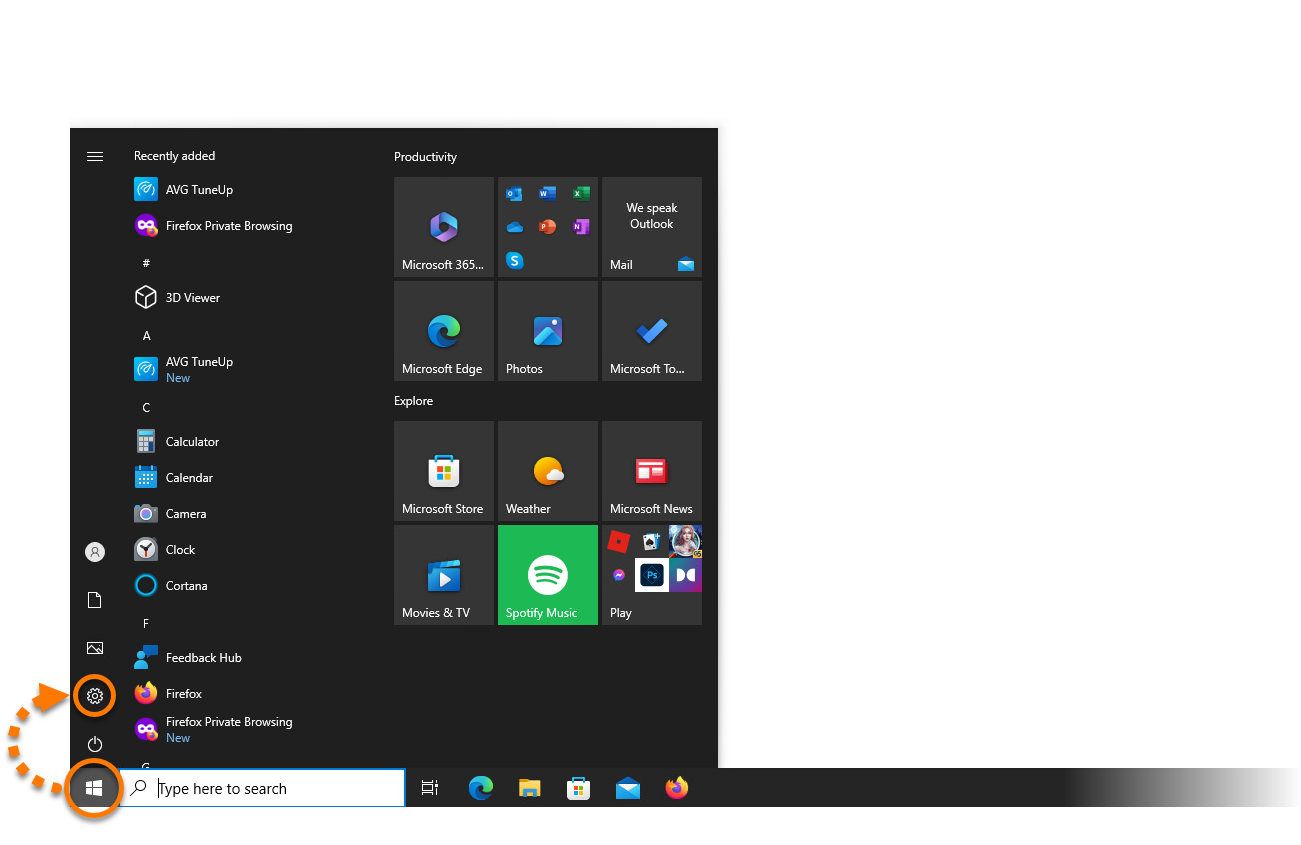
- Select Apps.
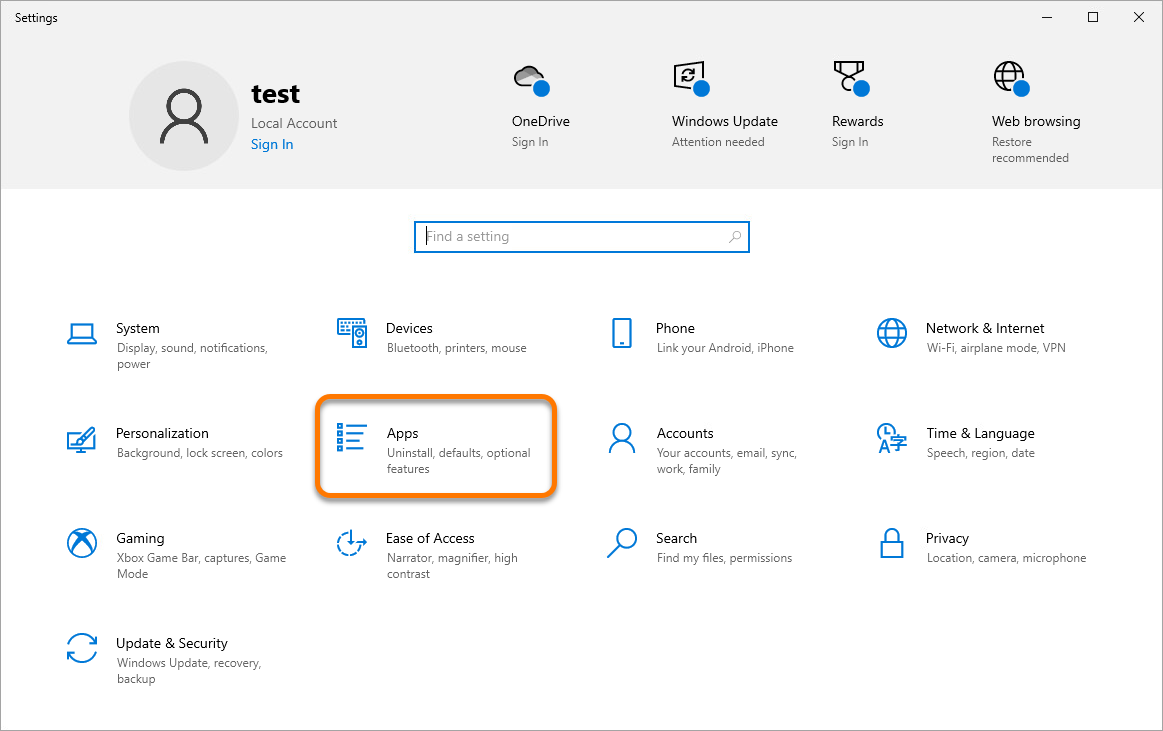
- Under Choose where to get apps, click the drop-down arrow, then select Anywhere.
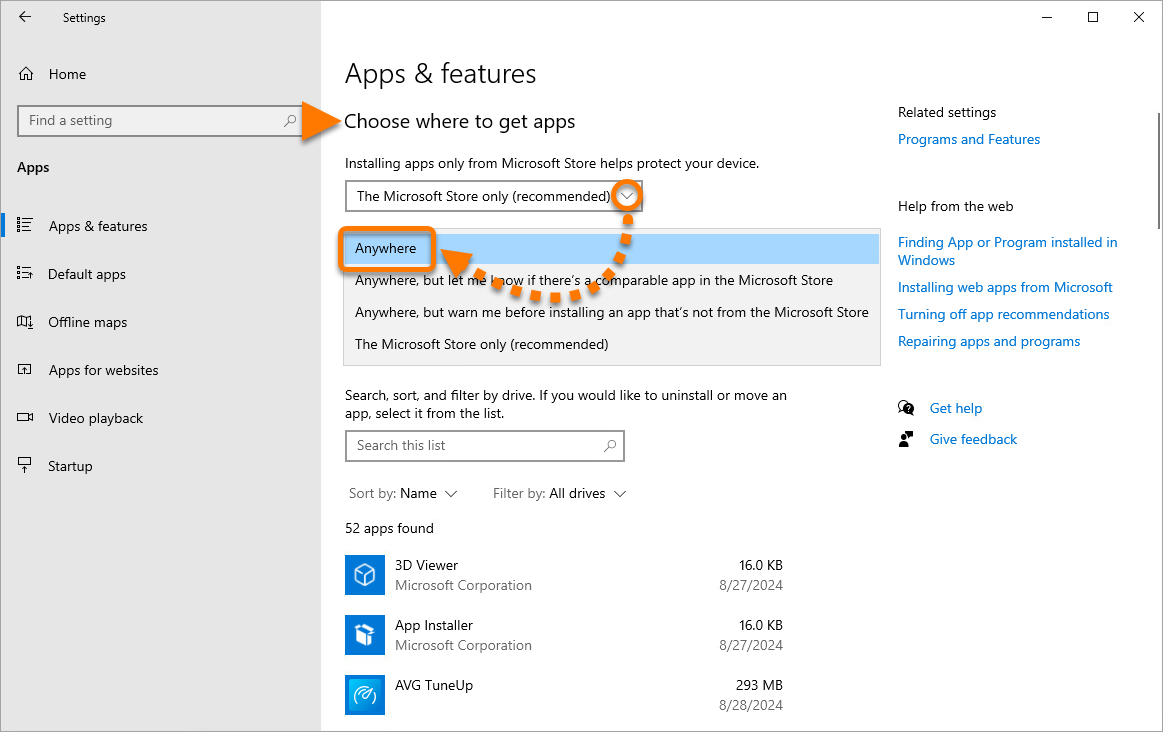
Your Windows app settings are changed. You can now install Avast Free Antivirus or Avast Premium Security successfully.
For detailed installation instructions, refer to the relevant article below:

