Promotional banner image

IS YOUR COMPUTER SLOW? RUN LIKE NEW

If they are not maintained, computers lose performance over time. Avast Cleanup Premium can help significantly improve the performance of your computer.

Exporting Avast Passwords data and importing it to a Google Account or Google Chrome

Windows

The support for Avast Passwords is ending across all platforms, including Windows, Mac, Android, and iOS. Users are encouraged to migrate to the new Avast Password Manager standalone browser extension and the new mobile application. For more information, refer to the following article: Avast Passwords Migration - FAQs.

This article describes how to export your passwords data stored in Avast Passwords and import it to your Google Account or into the Google Chrome browser.

Export data

To export your passwords data from Avast Passwords:

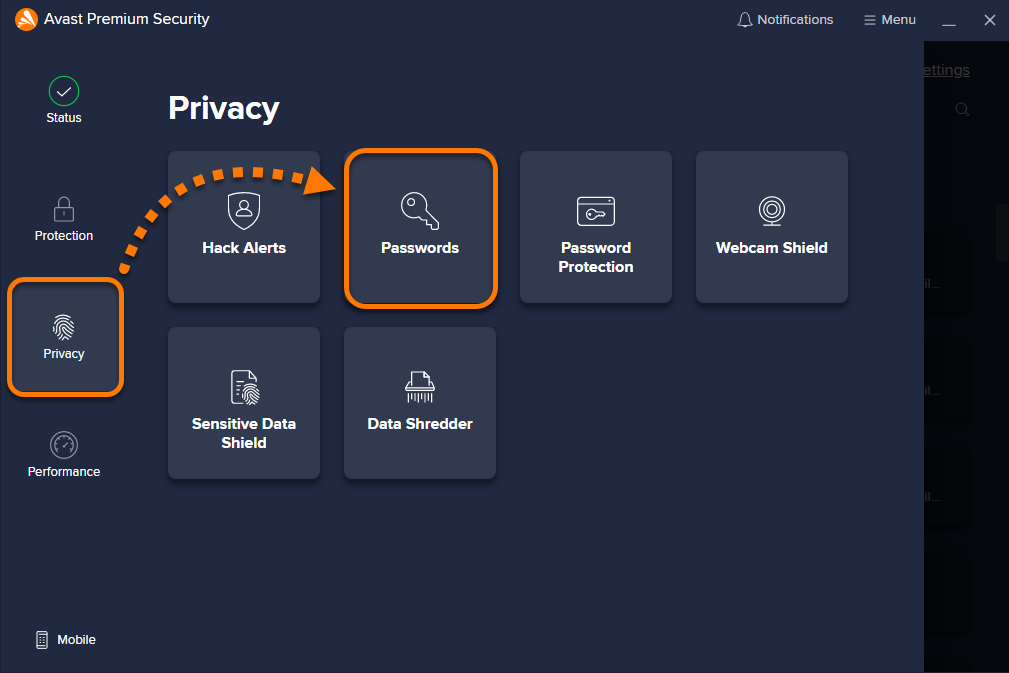
  1. Open Avast Antivirus and select Privacy ▸ Passwords.
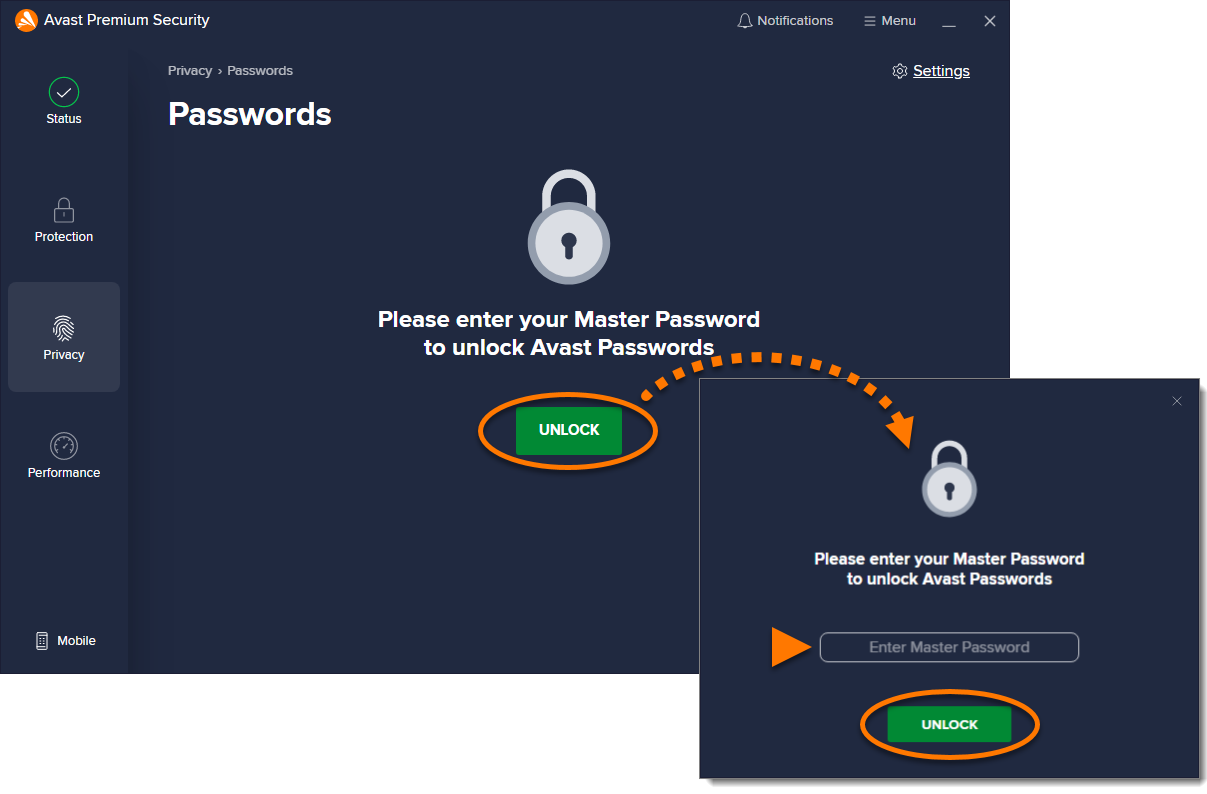
  2. If prompted, click Unlock. Then enter your Master Password and click Unlock.
  3. Click Settings in the top right corner.
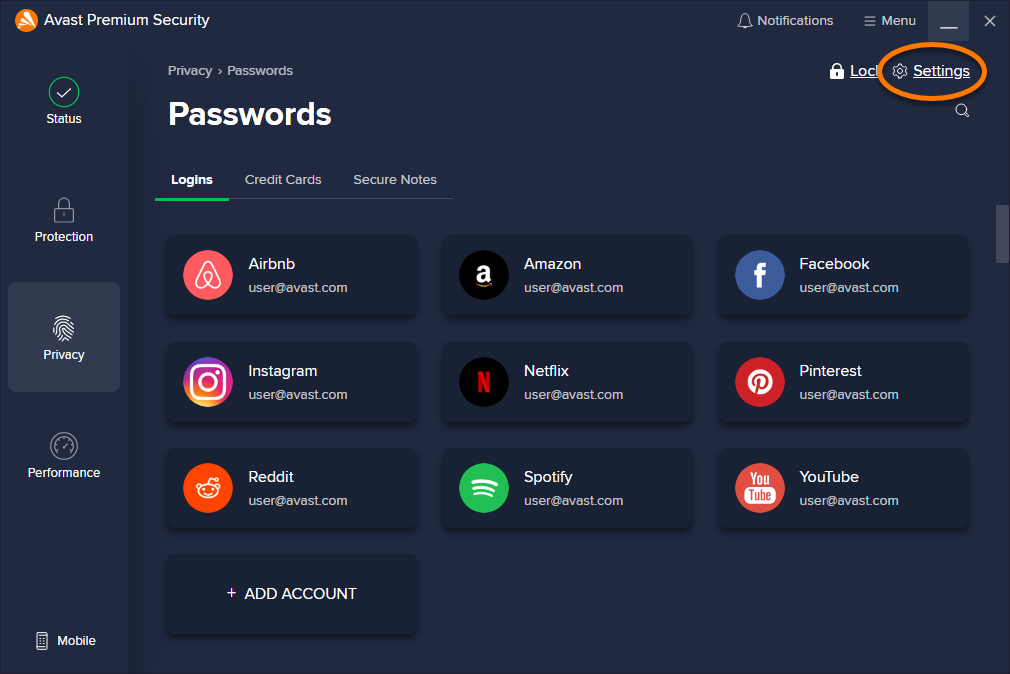
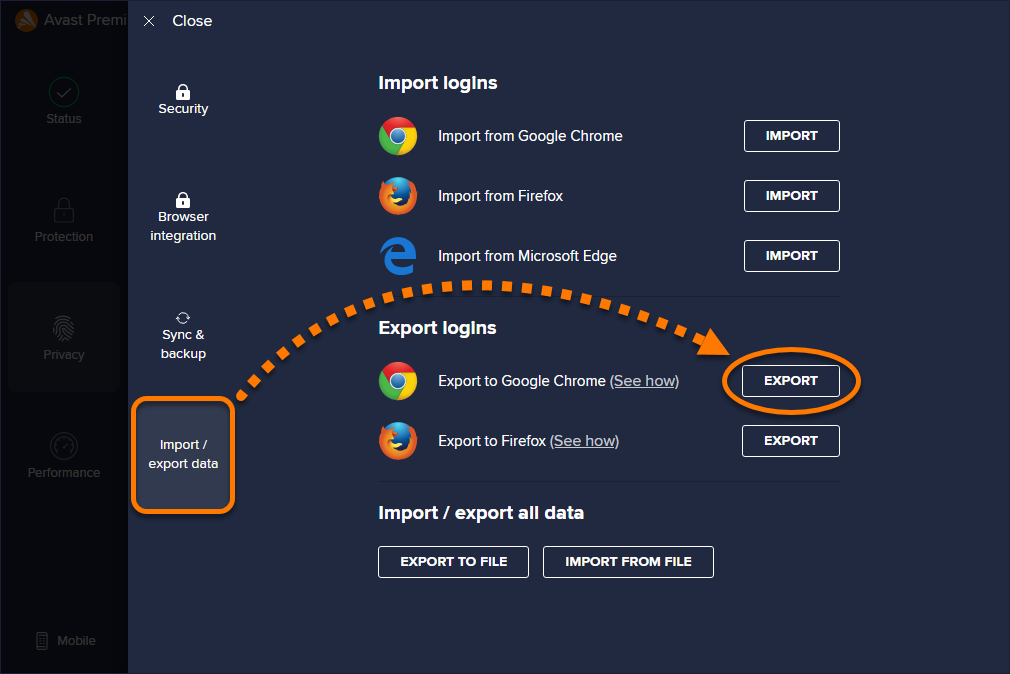
  4. Select Import / export data, then click Export next to Export to Google Chrome.
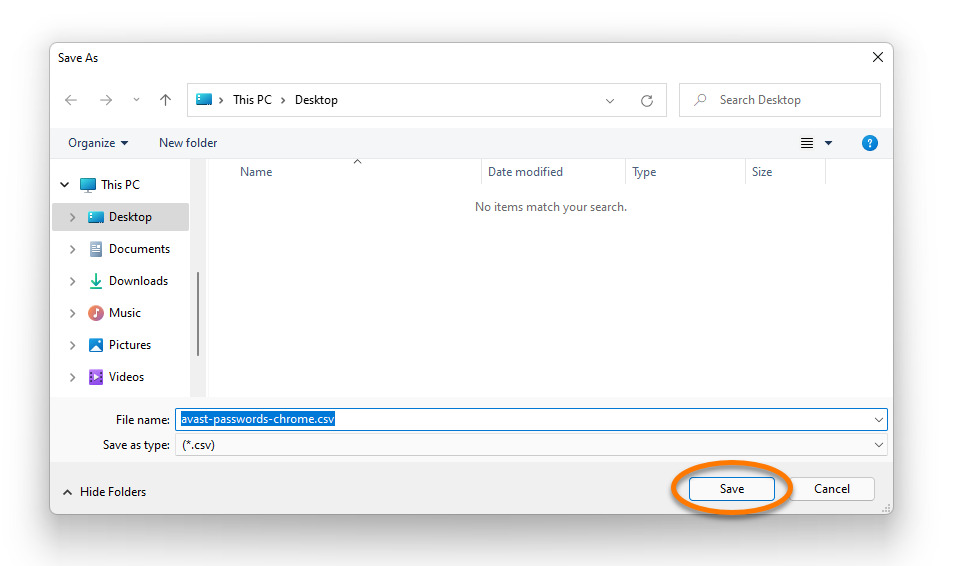
  5. Choose a familiar location to save the avast-passwords-chrome.csv file (for example, your desktop) and click Save.

Your passwords data is now exported to a .CSV file and is ready for importing to your Google Account or into the Google Chrome browser.

To check the export was successful and formatted correctly, open the .CSV file and check that the first line of the file contains the following column names:

  • url
  • username
  • password
If any data is missing, follow the steps above to repeat the export and update your .CSV file.

Import data

Refer to the steps in the relevant tab below according to your preference.

To import your passwords data to your Google Account:

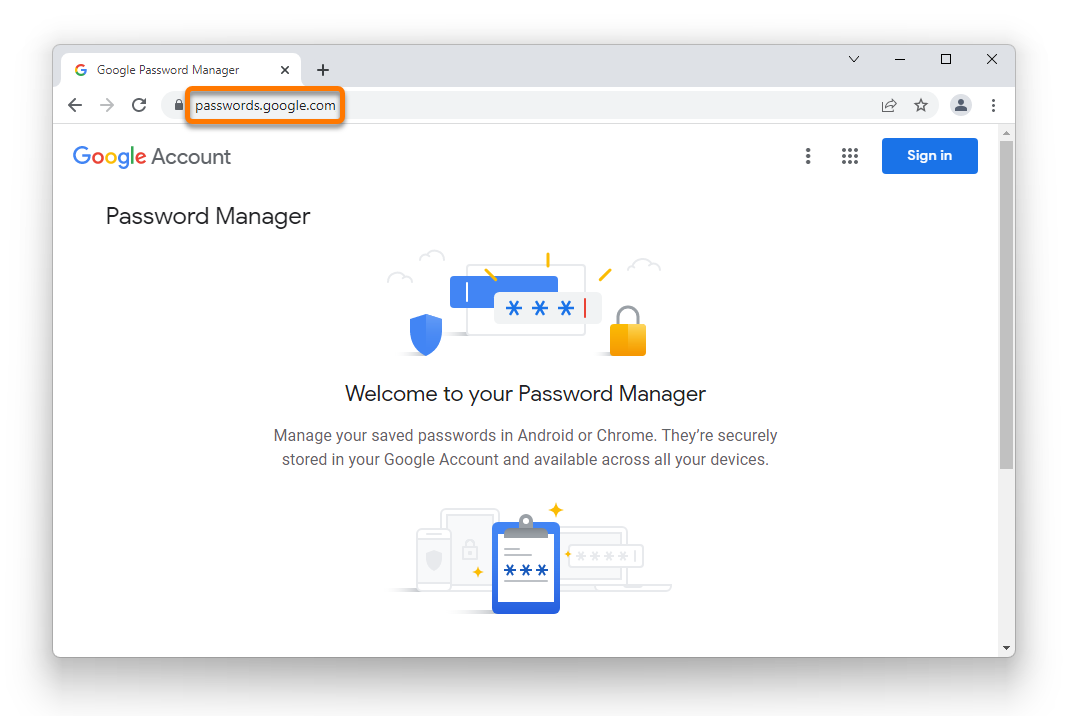
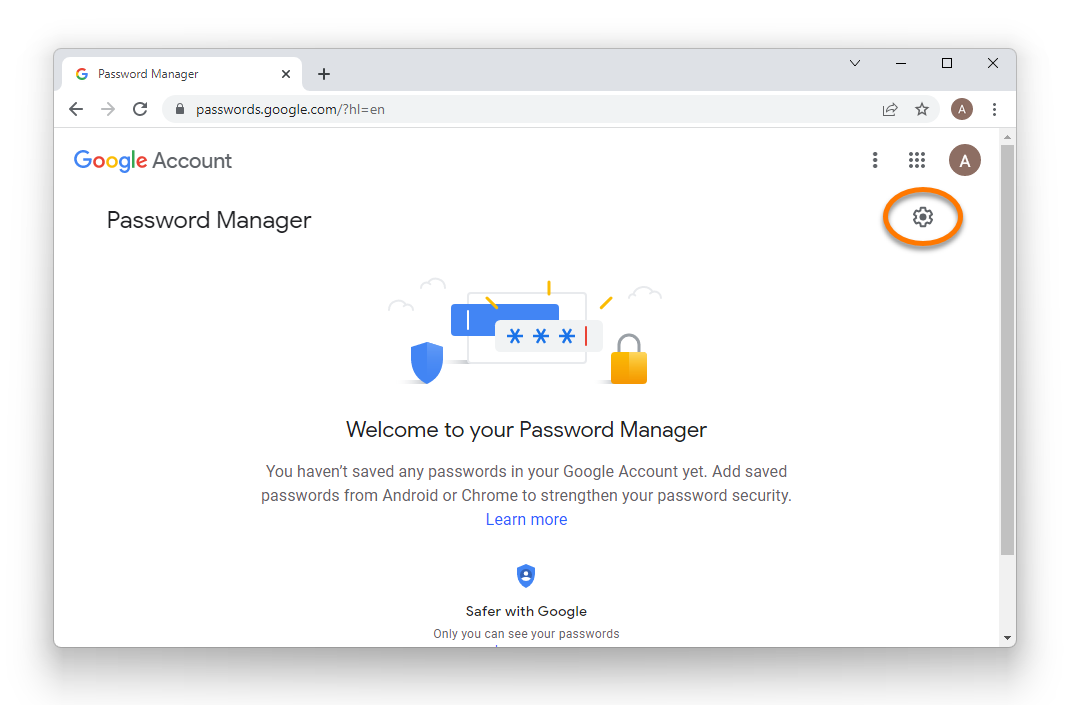
  1. Open your Google Chrome browser and go to passwords.google.com.
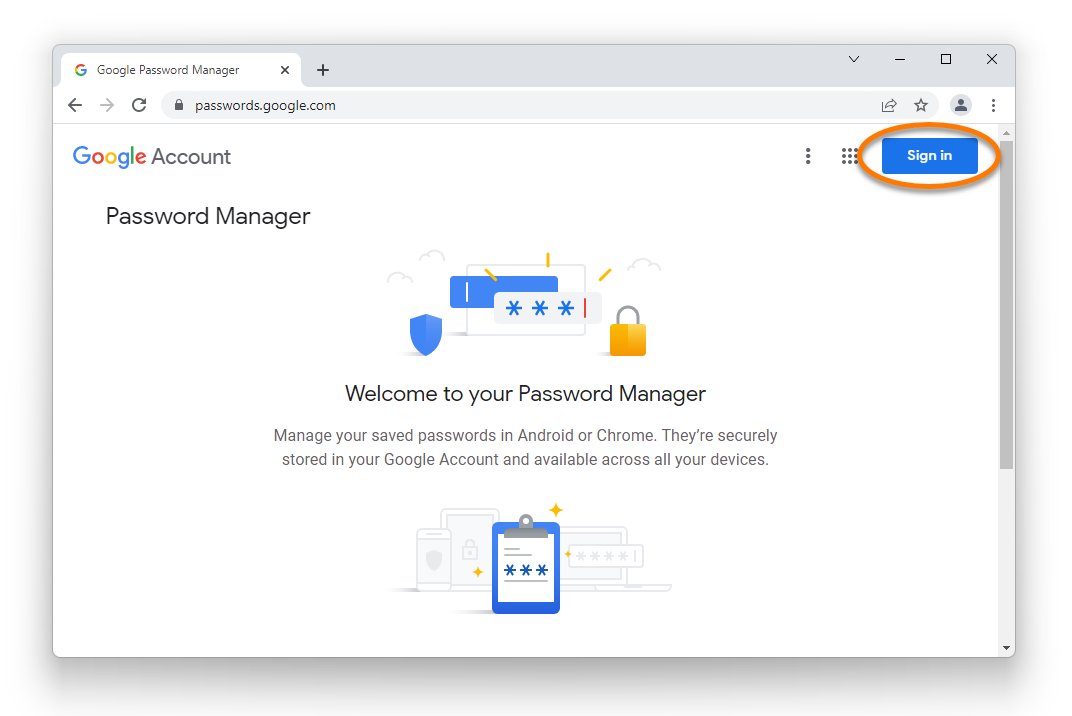
  2. Ensure you are signed in to your Google Account. If you are not already signed in, click Sign in and follow the on-screen instructions to sign in to your Google Account.
  3. Click Settings (the gear icon) in the top right corner.
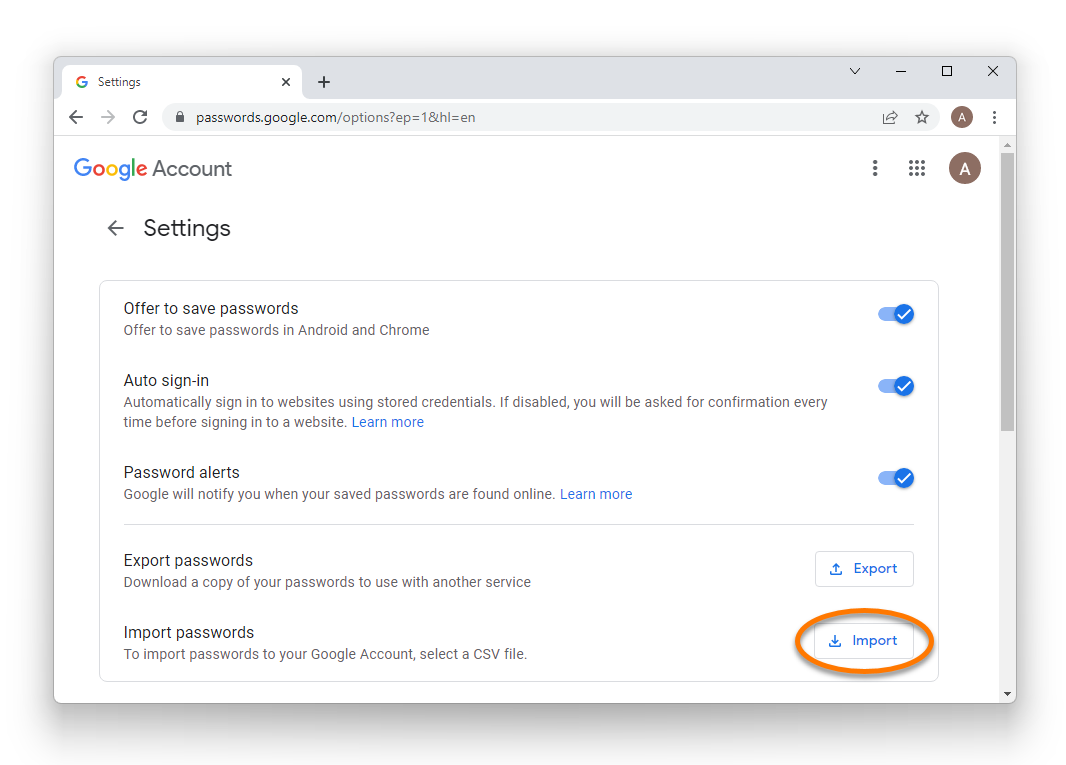
  4. Click Import next to Import passwords.
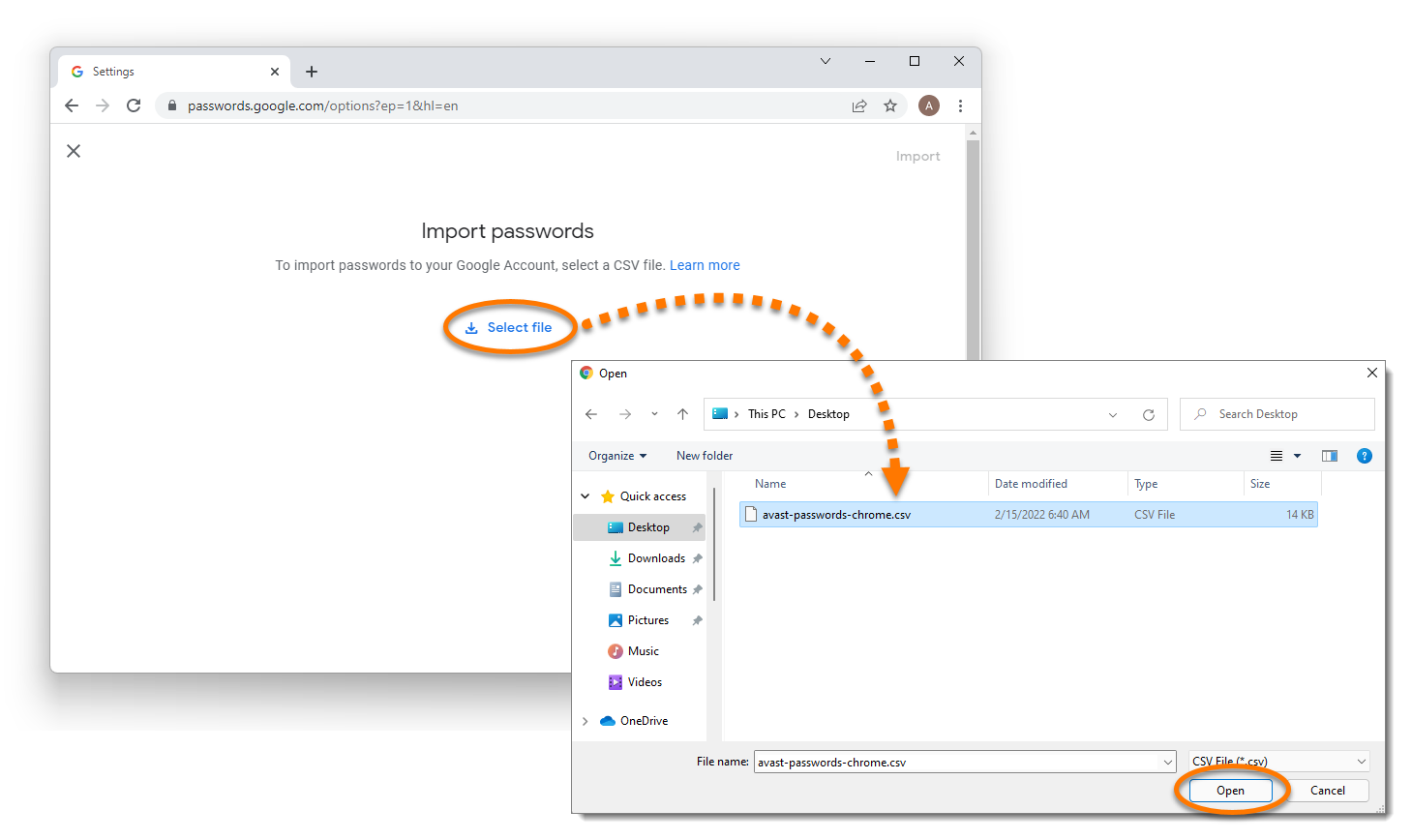
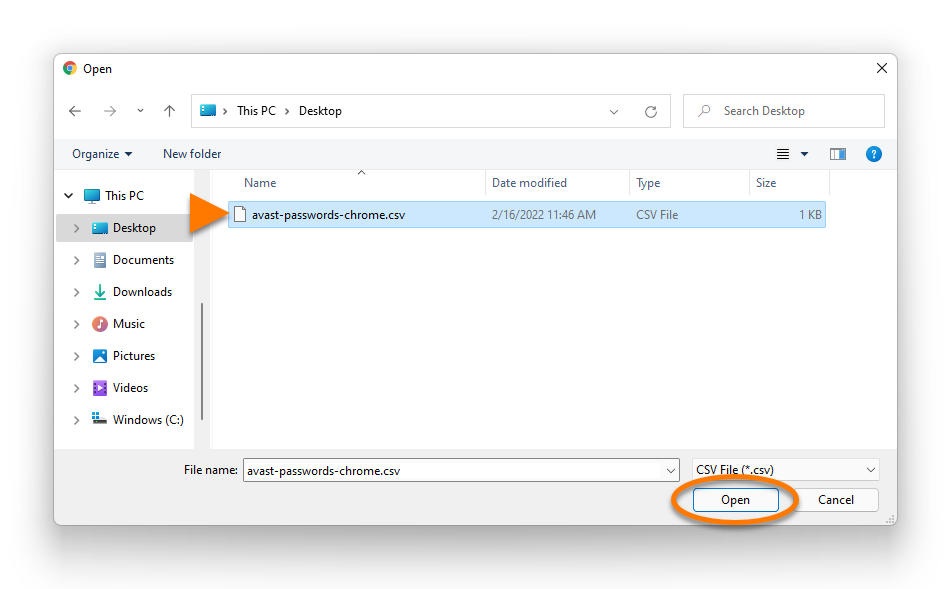
  5. Click Select file, then locate the .CSV file and click Open.
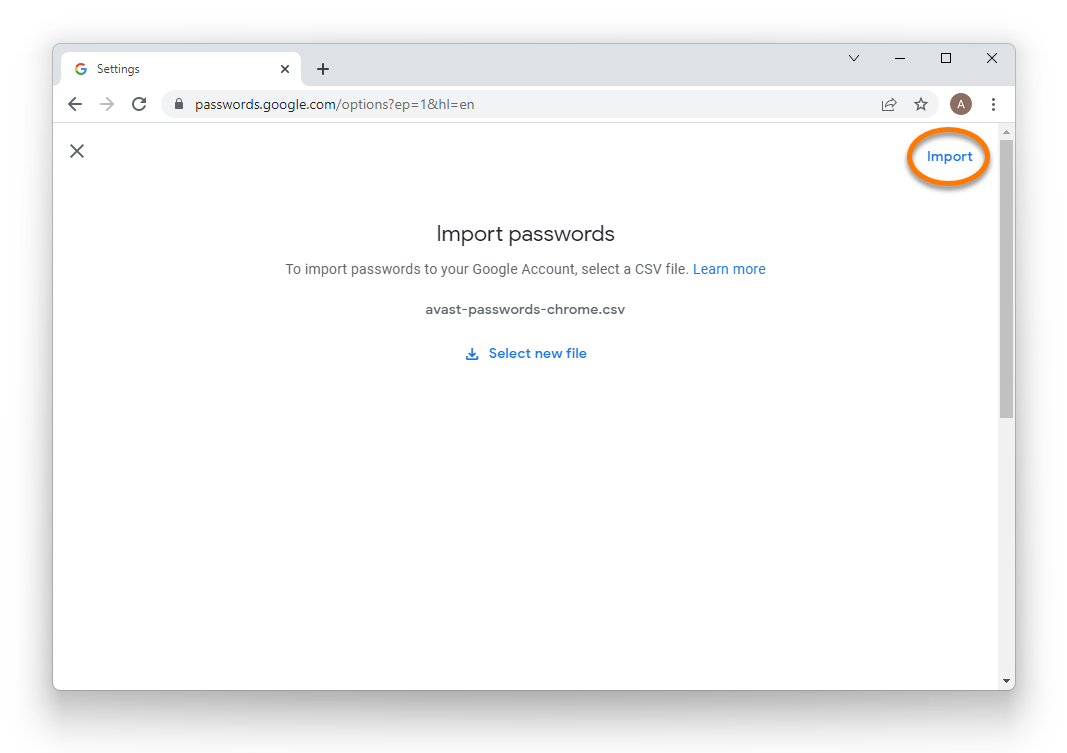
  6. Click Import in the top right corner.

Your passwords data is now imported to your Google Account.

There is no official way to import passwords data into Google Chrome, as this option was removed by Google. The steps below are an unofficial workaround.

To import your passwords data to your Google Chrome browser:

  1. Close your Google Chrome browser if it is open.
  2. Right-click the Google Chrome icon on your desktop and select Properties from the context menu.
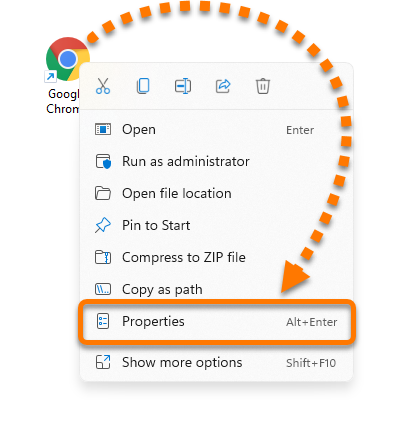
  3. In Google Chrome Properties, select the Shortcut tab.
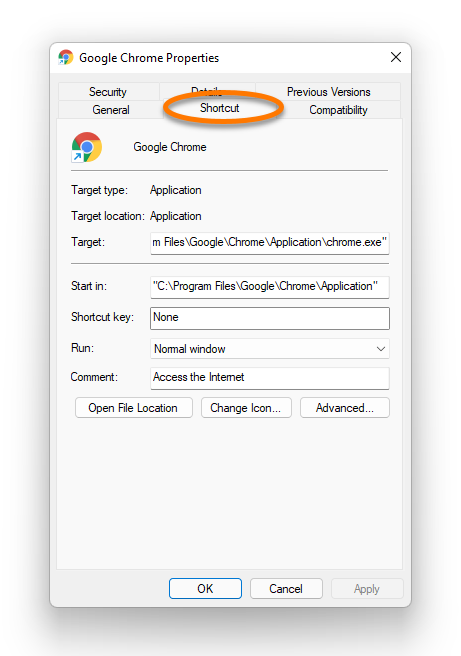
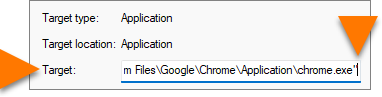
  4. Click in the Target text box, then hold down the → right arrow key on your keyboard to move the cursor to the end of the current Target location.
  5. Press the Space key on your keyboard, then add --enable-features=PasswordImport to the end of the existing Target location.
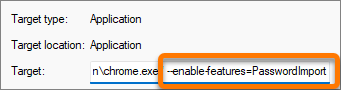
  6. Click OK to confirm the change.

    If you see the error message 'The name specified in the Target box is not valid', ensure that you correctly entered the text from step 5 above. It is essential to have a space after the existing Target location.

  7. Double-click the Google Chrome icon on your desktop to open the browser.
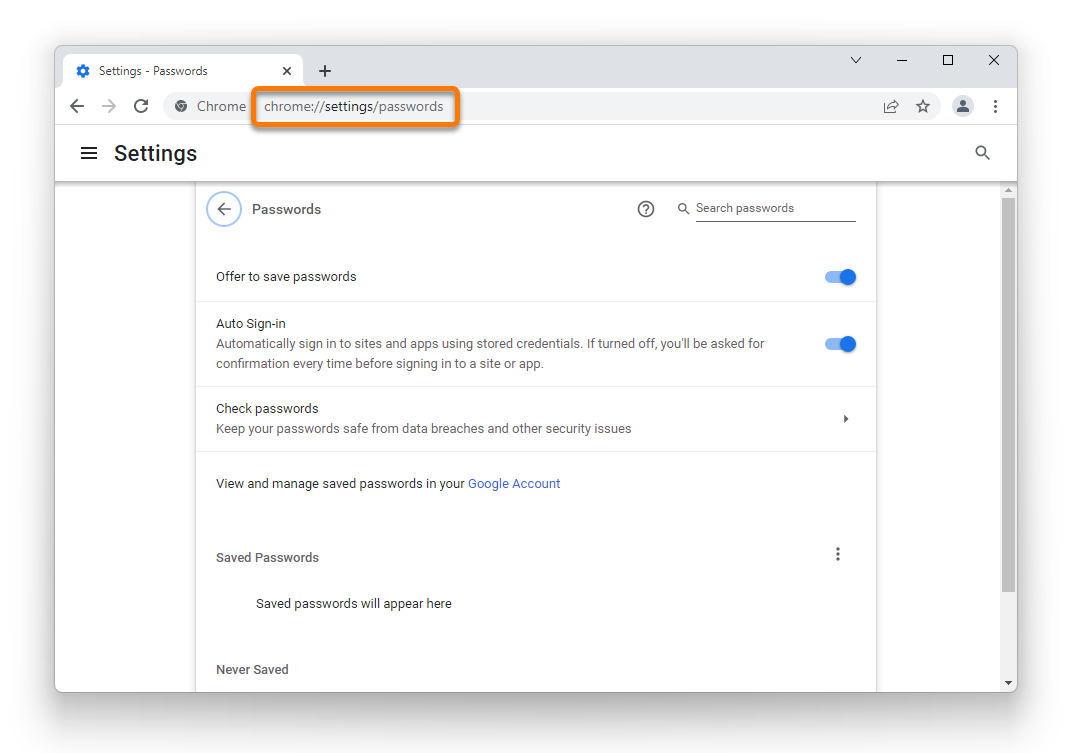
  8. Enter chrome://settings/passwords into the address bar, then press the Enter key on your keyboard to load the webpage.
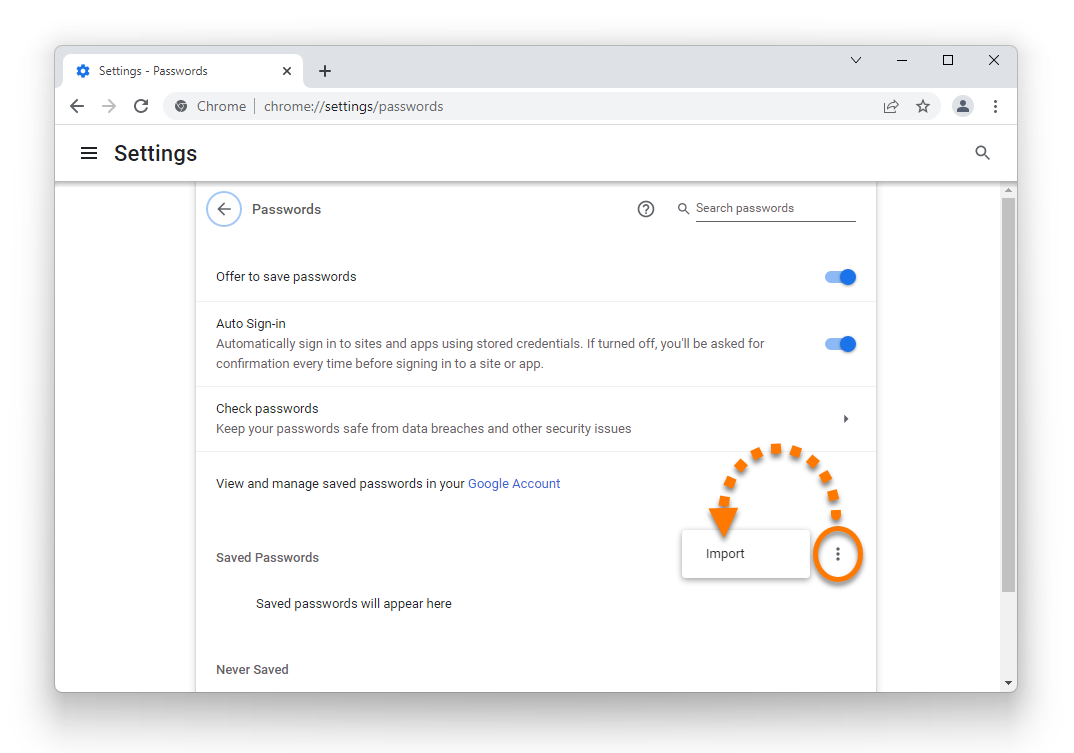
  9. Click ⋮ More actions (three dots) next to Saved Passwords and select Import.
  10. Locate the previously saved avast-passwords-chrome.csv file and click Open.

Your passwords data is now imported to Google Chrome.

DocID: export-google-chrome-passwords-dataLast modified: 09/03/2026

Was this article helpful?

Promotional banner image

Keep your online identity private!

Browse like no one’s watching with Avast anti-tracking software.

Need more help?

Contact us
Avast account
Visit our forums
Visit academy