
IS YOUR COMPUTER SLOW? RUN LIKE NEW
If they are not maintained, computers lose performance over time. Avast Cleanup Premium can help significantly improve the performance of your computer.
Enabling Ad Blocker in Avast VPN browser extension
Windows
If you have not installed the Avast VPN browser extension, refer to the following article: Using the Avast VPN browser extension.
You can use the browser extension only if Avast VPN is installed and activated on your device, either as a standalone application or as part of Avast One.
The Ad Blocker feature is a part of the Avast VPN browser extension, which is supported on Google Chrome, Microsoft Edge, and Mozilla Firefox. It enhances your browsing experience by blocking unwanted ads in your desktop browser. Blocking ads can help make browsing the internet safer, as some ads may carry malware or redirect you to phishing websites.
Enable Ad Blocker
To enable Ad Blocker in your Avast VPN browser extension, follow the steps below:
- Open your browser with the Avast VPN browser extension.
- In the top-right corner of the screen, click the Avast VPN browser extension icon.
- On the Ad Blocker panel, switch the slider from gray (OFF) to green (ON) to turn on Ad Blocker.
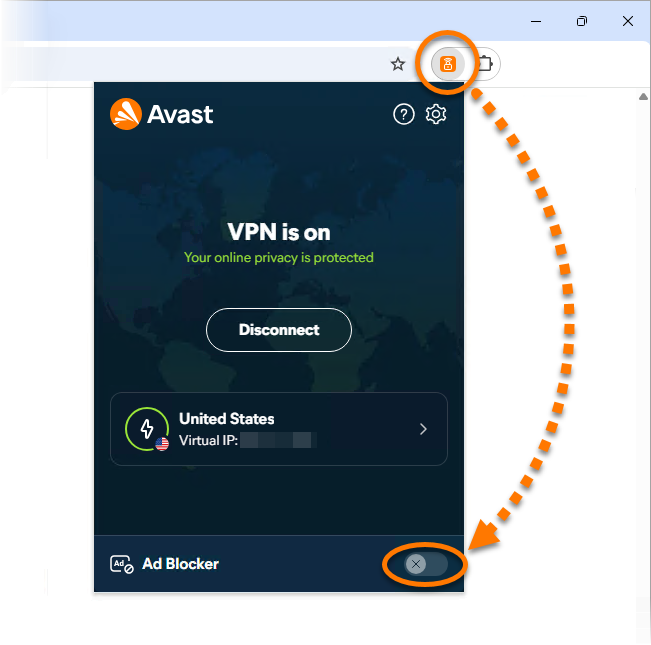
Ad Blocker is now enabled.
Was this article helpful?

Keep your online identity private!
Browse like no one’s watching with Avast anti-tracking software.