Add the screenshot as an attachment to your email for Avast Support. For instructions on how to attach an image to an email, refer to your email service provider's support documentation.
- Navigate to the area of the program you want to capture.
- Simultaneously press these three keys on your keyboard: Shift + ⌘ Command + 3.
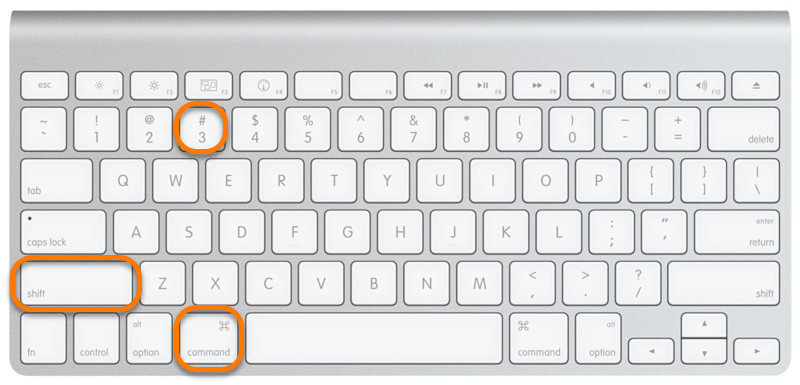
The screenshot is automatically saved on your desktop as a .png file.
Add the screenshot as an attachment to your email for Avast Support. For instructions on how to attach an image to an email, refer to your email service provider's support documentation.
- Navigate to the area of the app you want to capture.
-
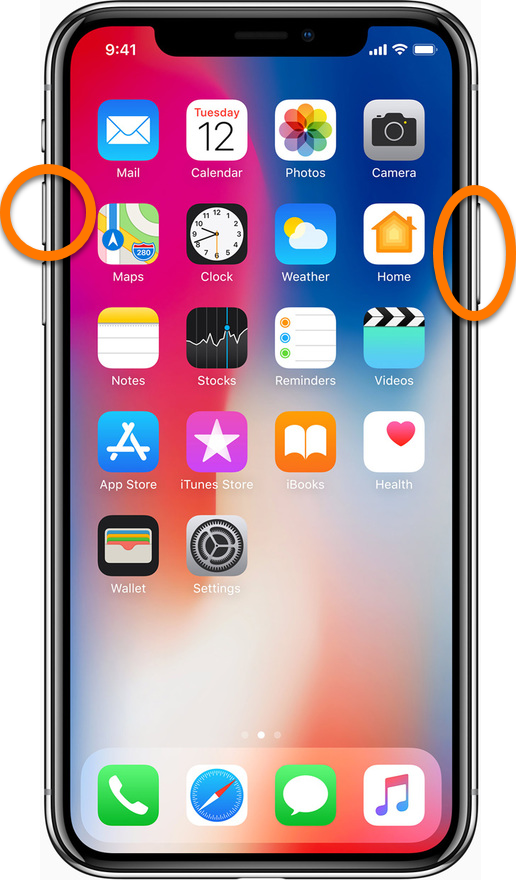
- iPhone X and higher: simultaneously press and hold the right-side button and volume-up button.
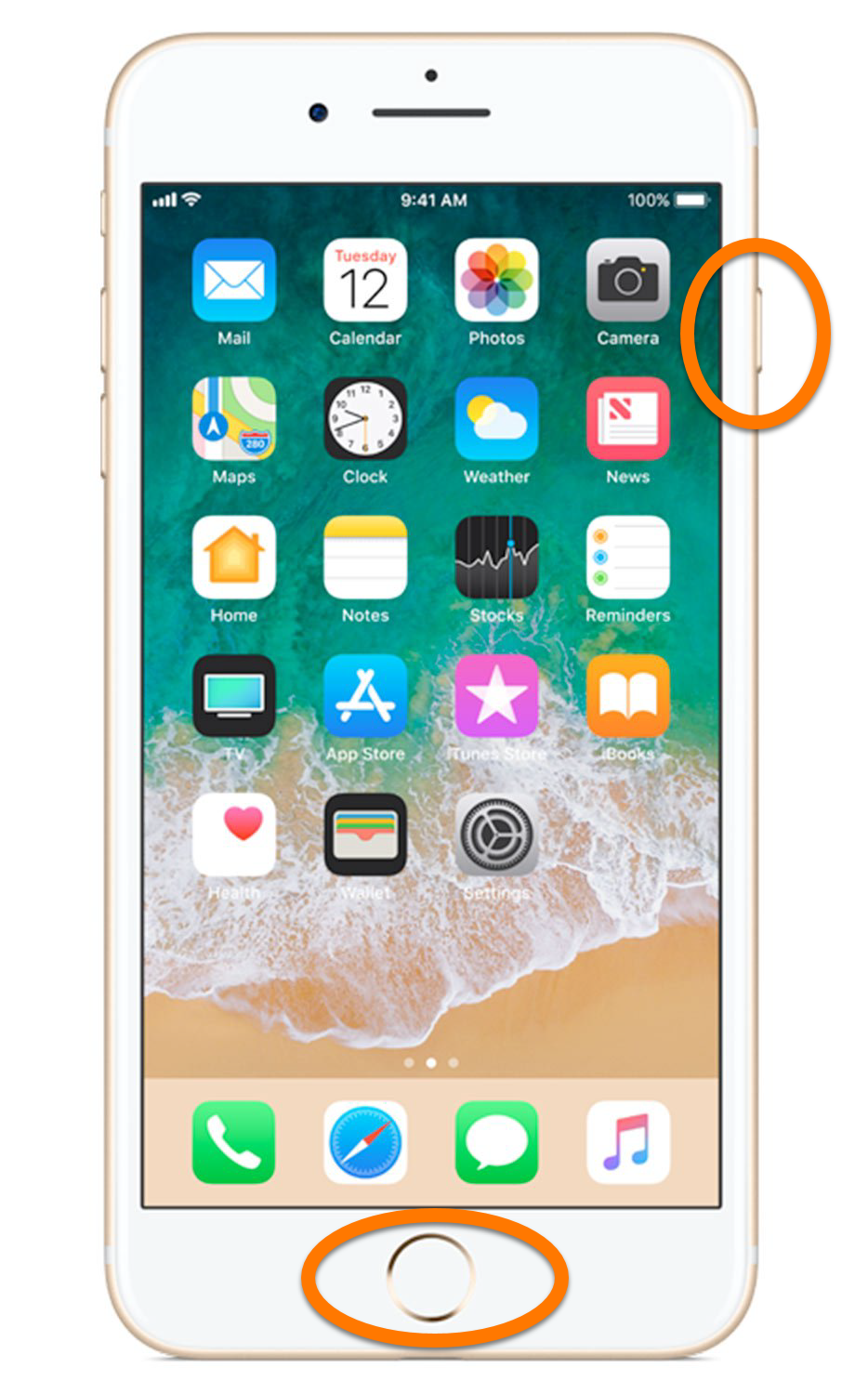
- iPhone 8 and lower: simultaneously press and hold the right-side button and the home button.
- To find your screenshot, go to Photos ▸ Albums ▸ Screenshots.
Add the screenshot as an attachment to your email for Avast Support. For instructions on how to attach an image to an email, refer to your email service provider's support documentation.


 Windows key on your keyboard, or opening the Windows Start menu in your Task bar.


