
IS YOUR COMPUTER SLOW? RUN LIKE NEW
If they are not maintained, computers lose performance over time. Avast Cleanup Premium can help significantly improve the performance of your computer.
Changing the language in your Avast product
This article provides instructions for how to change the language of Avast applications for Windows. The language of Avast applications for Mac, Android, and iOS is automatically set to the same language (if available) as your device's operating system.
Avast Free Antivirus & Avast Premium Security
Avast Free Antivirus and Avast Premium Security are available in more than 40 languages. To change the application to your preferred language, follow the instructions below to install a new language, then change the language.
You need to be connected to the internet to download and install additional languages.
Install a new language
- Open Avast Antivirus and go to
☰Menu ▸ Settings.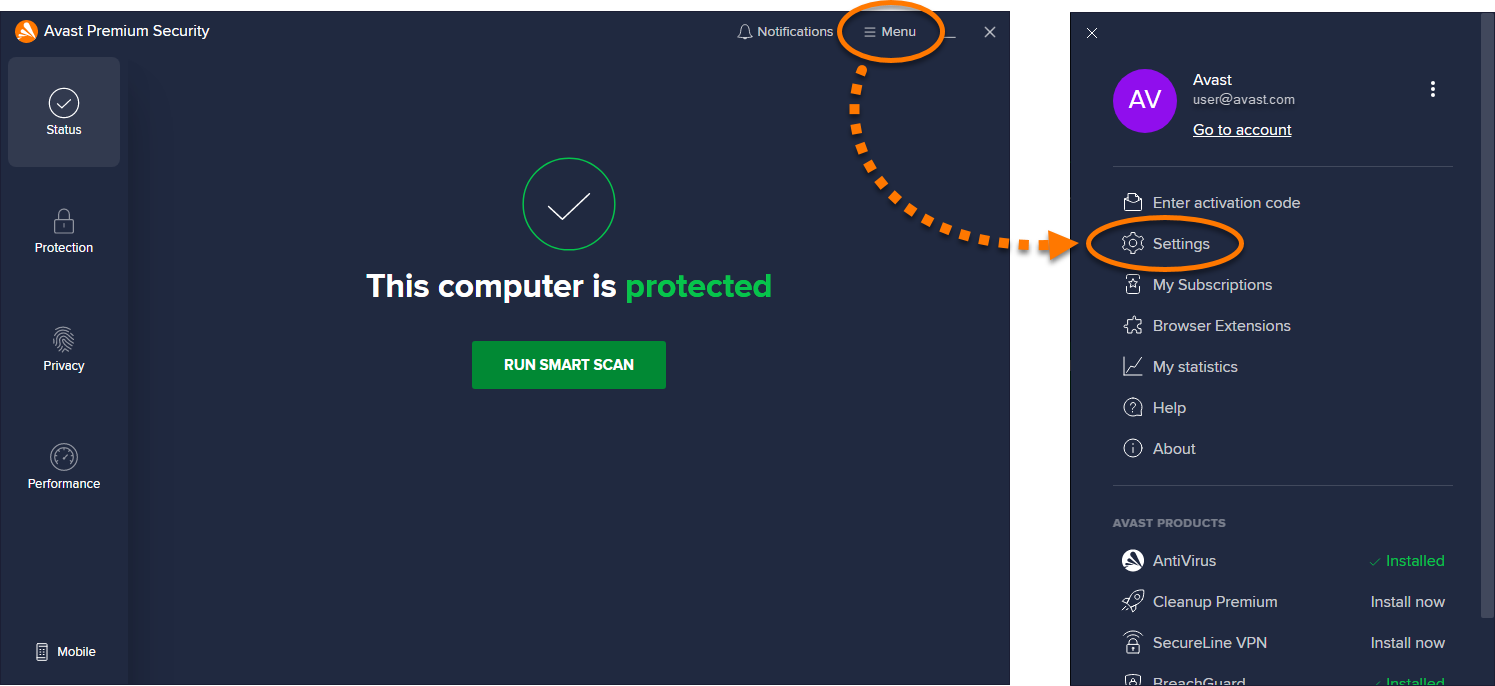
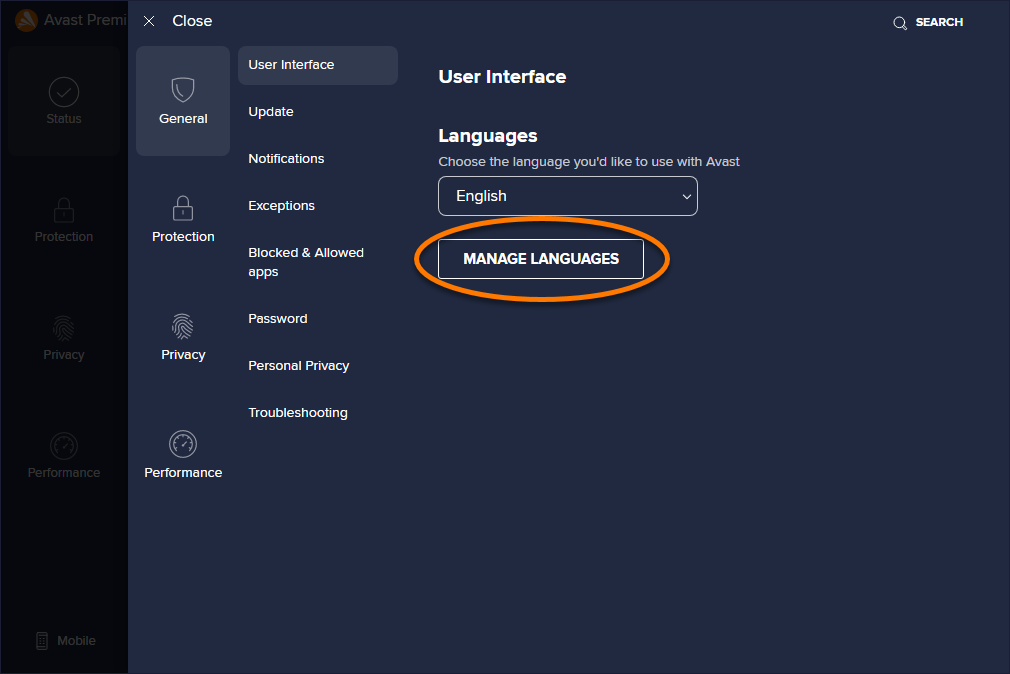
- Click Manage languages.
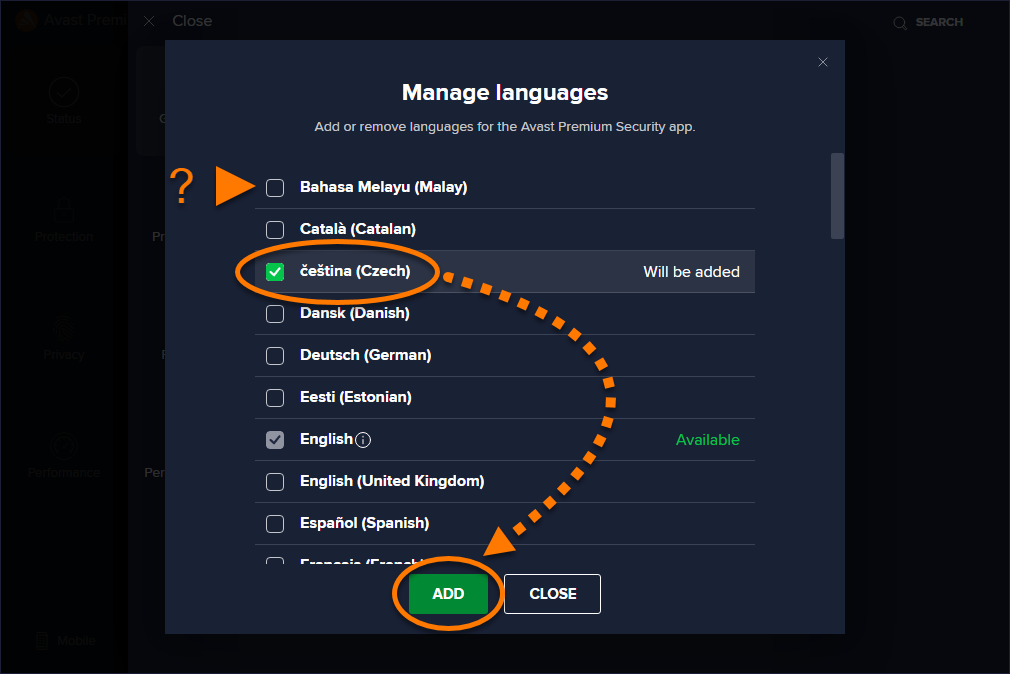
- Tick the box next to each language you want to install, then click Add.
- Click Restart now to immediately reboot your PC.
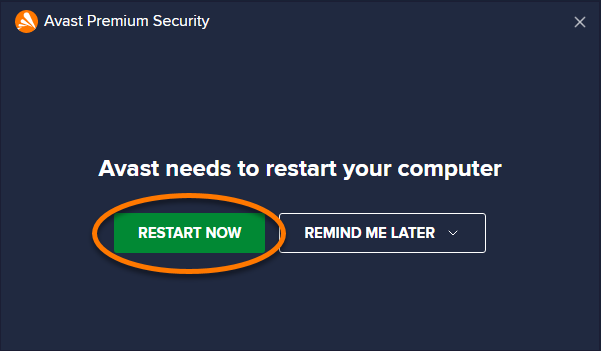
When the restart completes, the new language is installed in Avast Antivirus. Follow the steps in the section below to change the language in Avast Antivirus.
Change the language
- Open Avast Antivirus and go to
☰Menu ▸ Settings. - Click the down arrow under Languages and use the drop-down menu to select your preferred language.
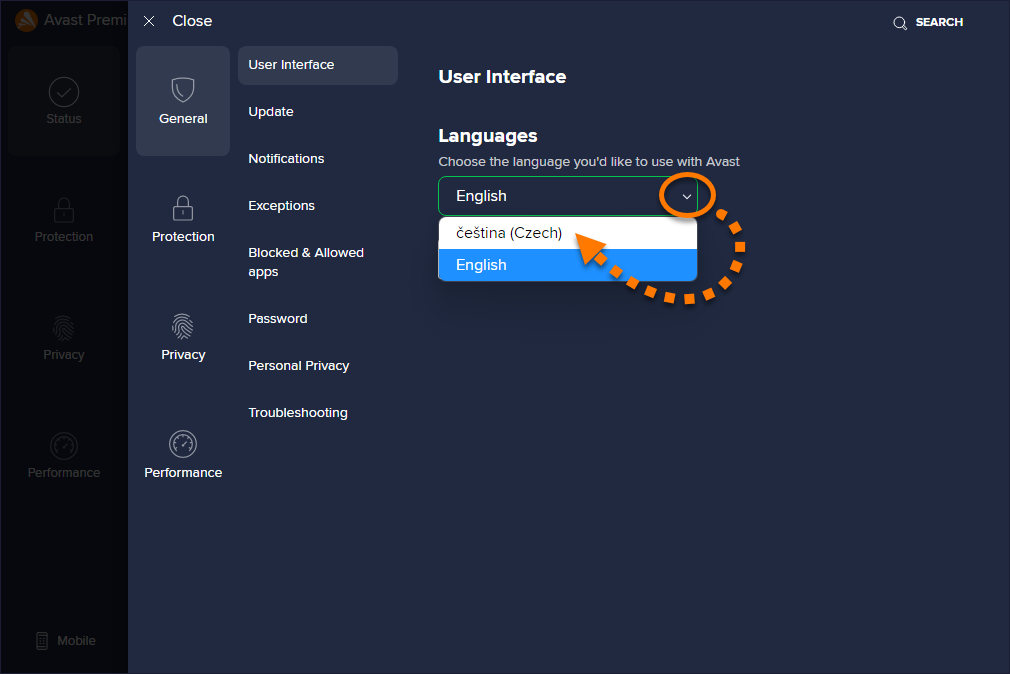
Avast Antivirus now appears in your chosen language. If it does not change immediately, close and reopen Avast Antivirus.
Avast One
Avast One is currently available in German, Spanish, and French. To change the application to your preferred language, follow the instructions below to install a new language, then change the language.
You need to be connected to the internet to download and install additional languages.
Install a new language
- Open Avast One and go to Account ▸ Settings.
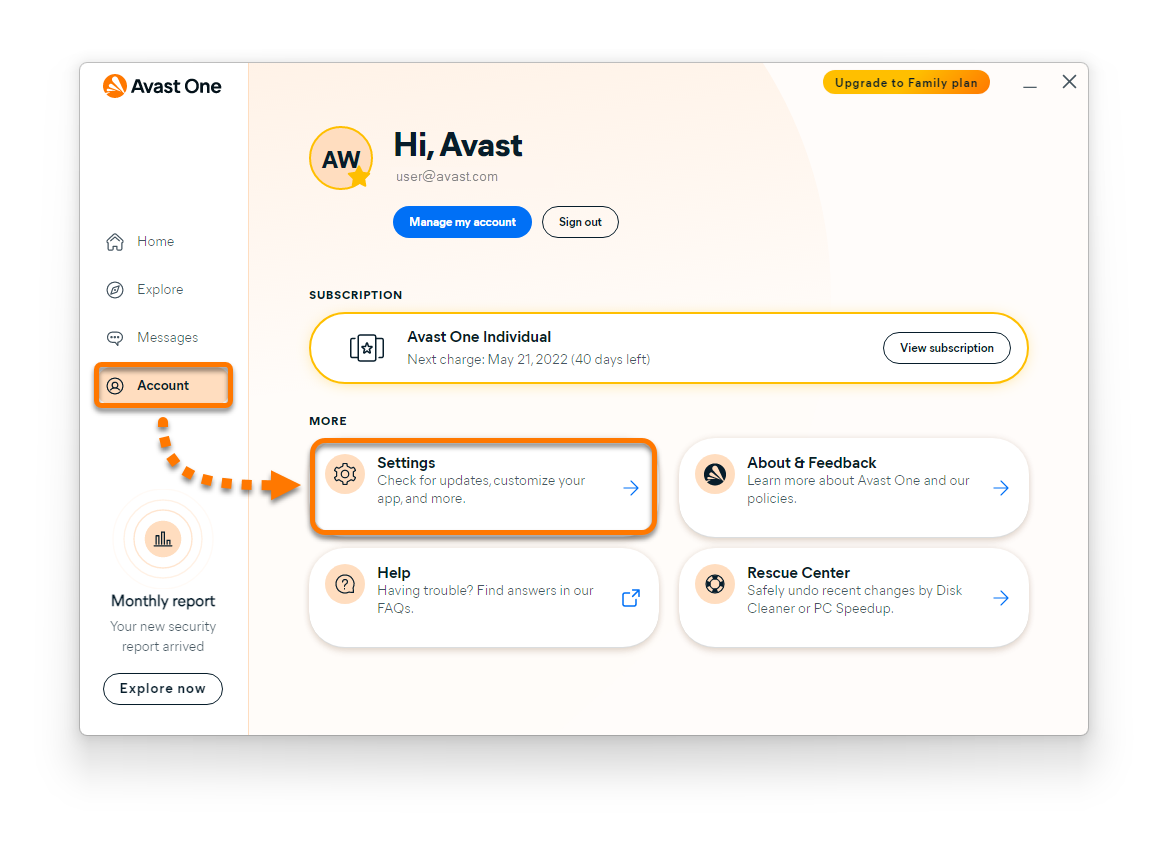
- Click Manage languages.
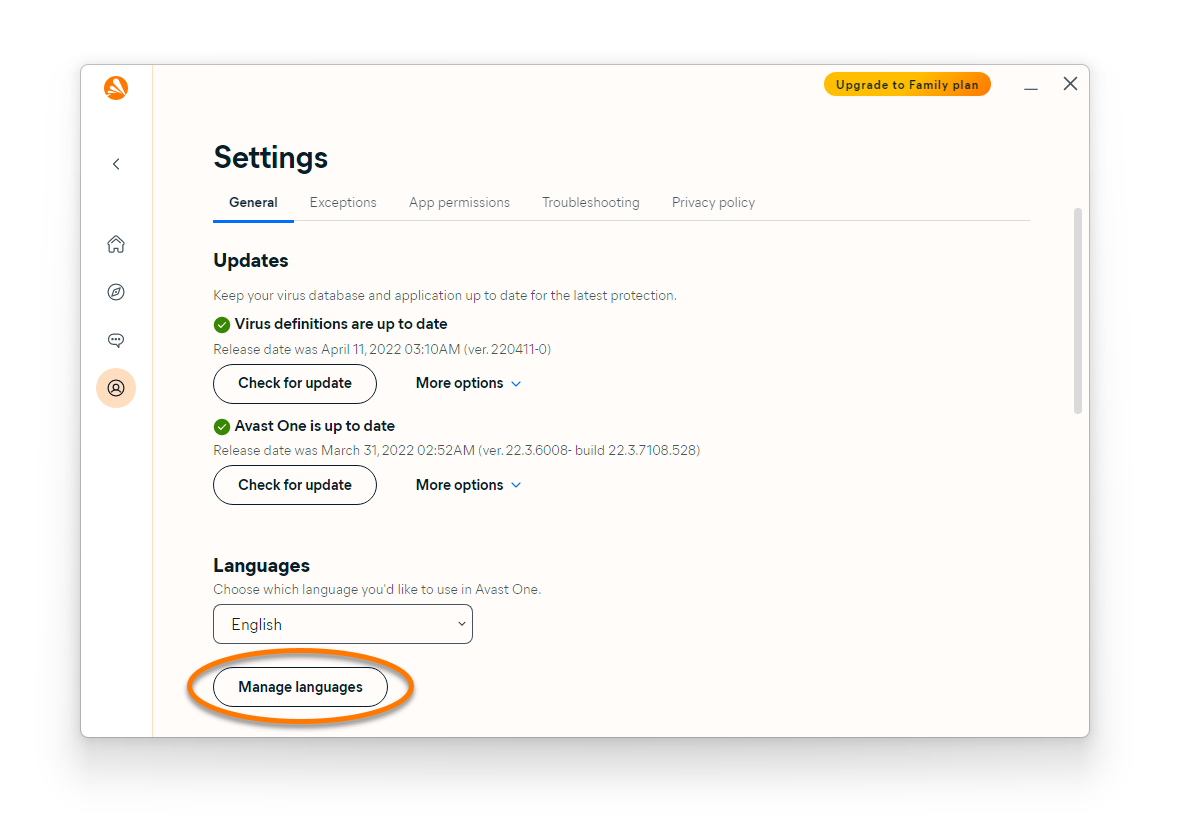
- Tick the box next to each language you want to install, then click Add.
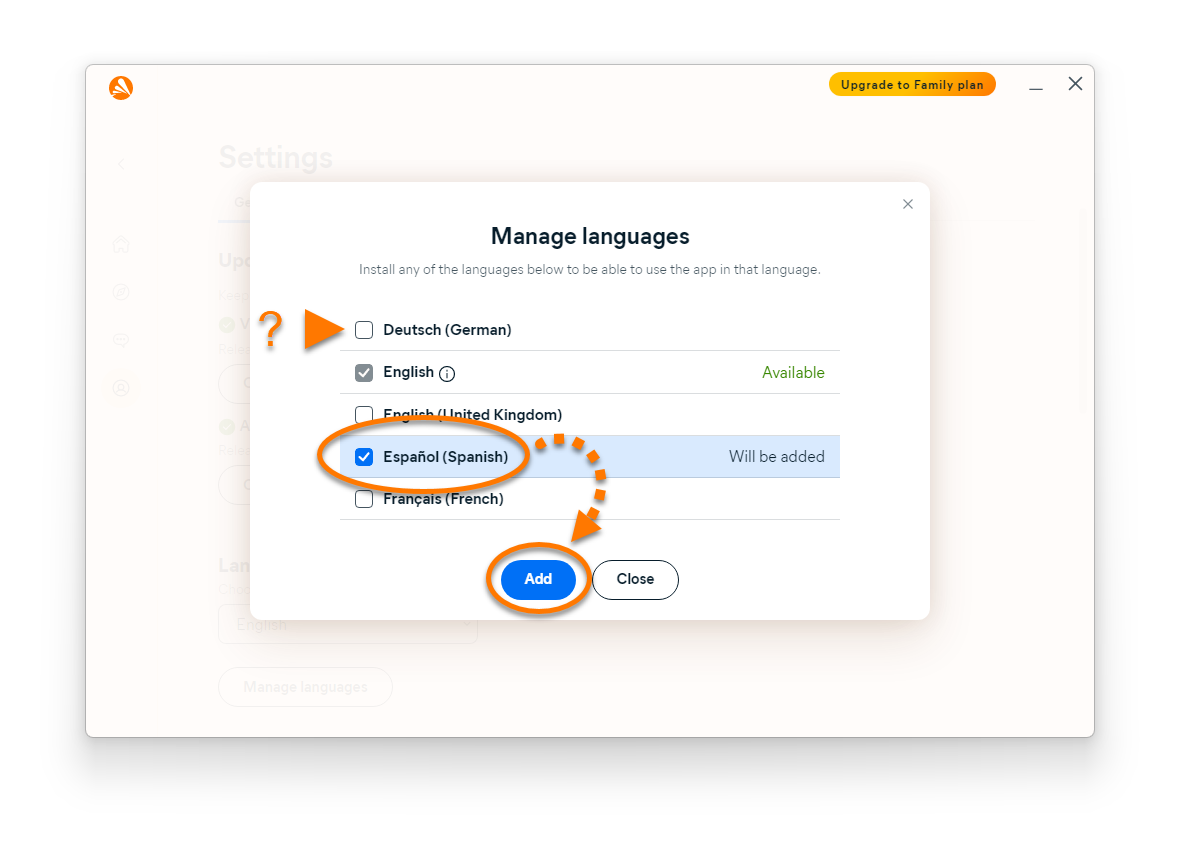
- Wait for the language to be added. When the status changes to Available, click Close.
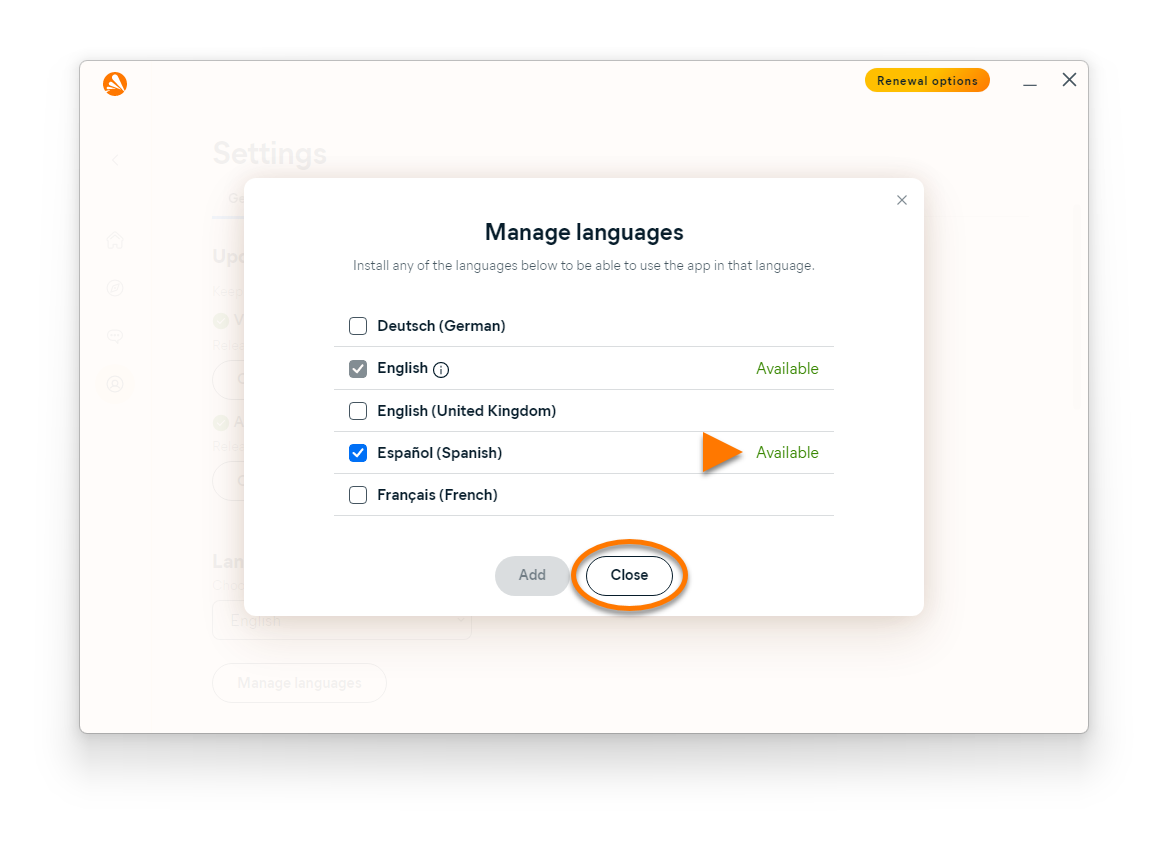
The new language is now installed in Avast One. Follow the steps in the section below to change the language in Avast One.
Change the language
- Open Avast One and go to Account ▸ Settings.
- Click the down arrow under Languages and use the drop-down menu to select your preferred language.
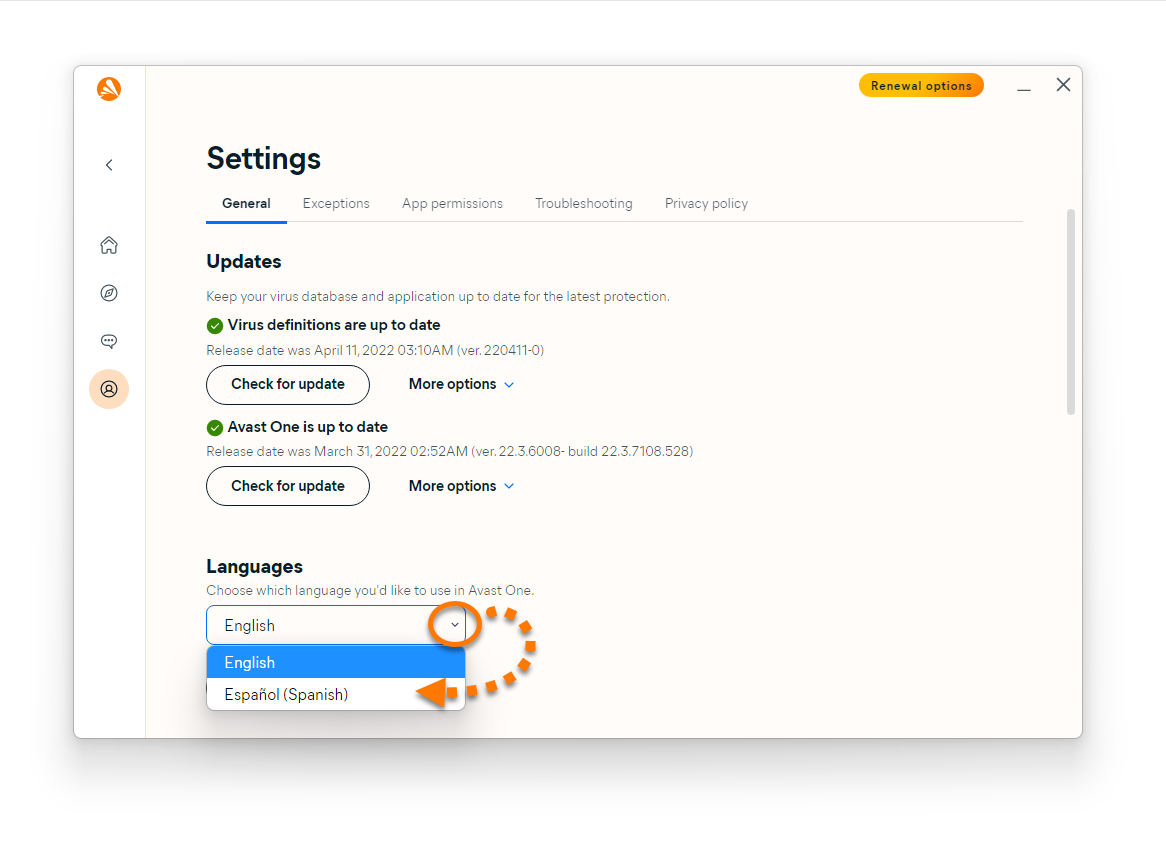
Avast One now appears in your chosen language. If it does not change immediately, close and reopen Avast One.
Avast BreachGuard
- Open Avast BreachGuard and go to
☰Menu ▸ Settings.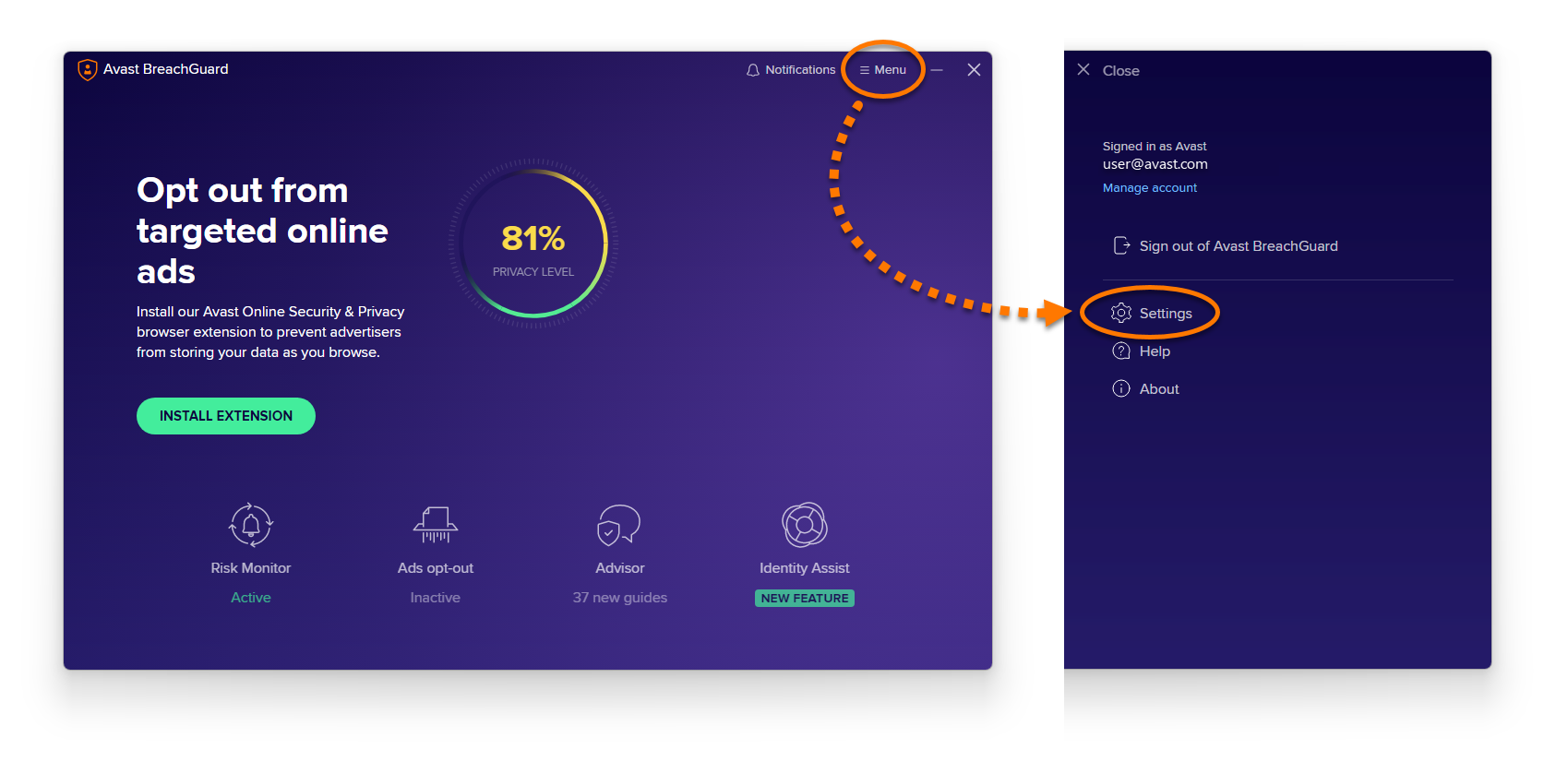
- Click the down arrow under Language and use the drop-down menu to select your preferred language.
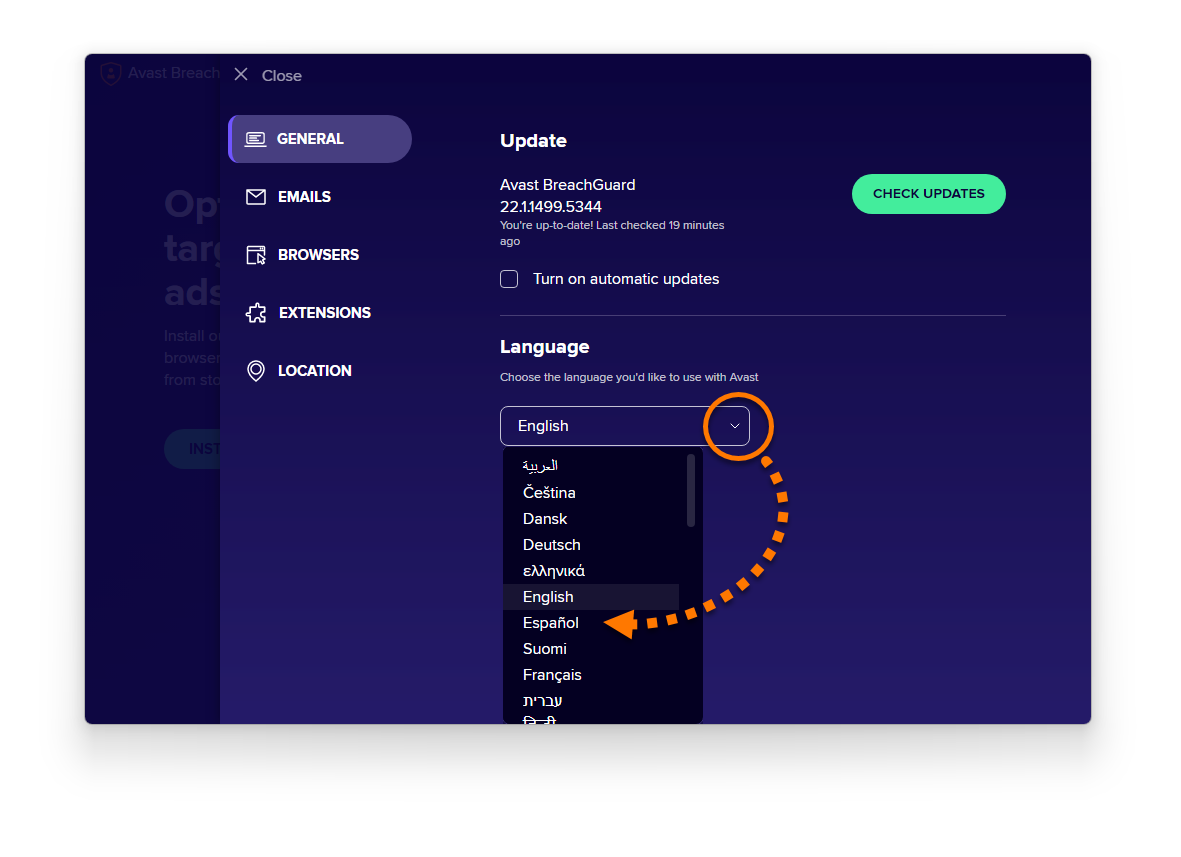
Avast BreachGuard now appears in your chosen language. If it does not change immediately, close and reopen Avast BreachGuard.
Avast Cleanup Premium
- Open Avast Cleanup Premium and go to
☰Menu ▸ Settings.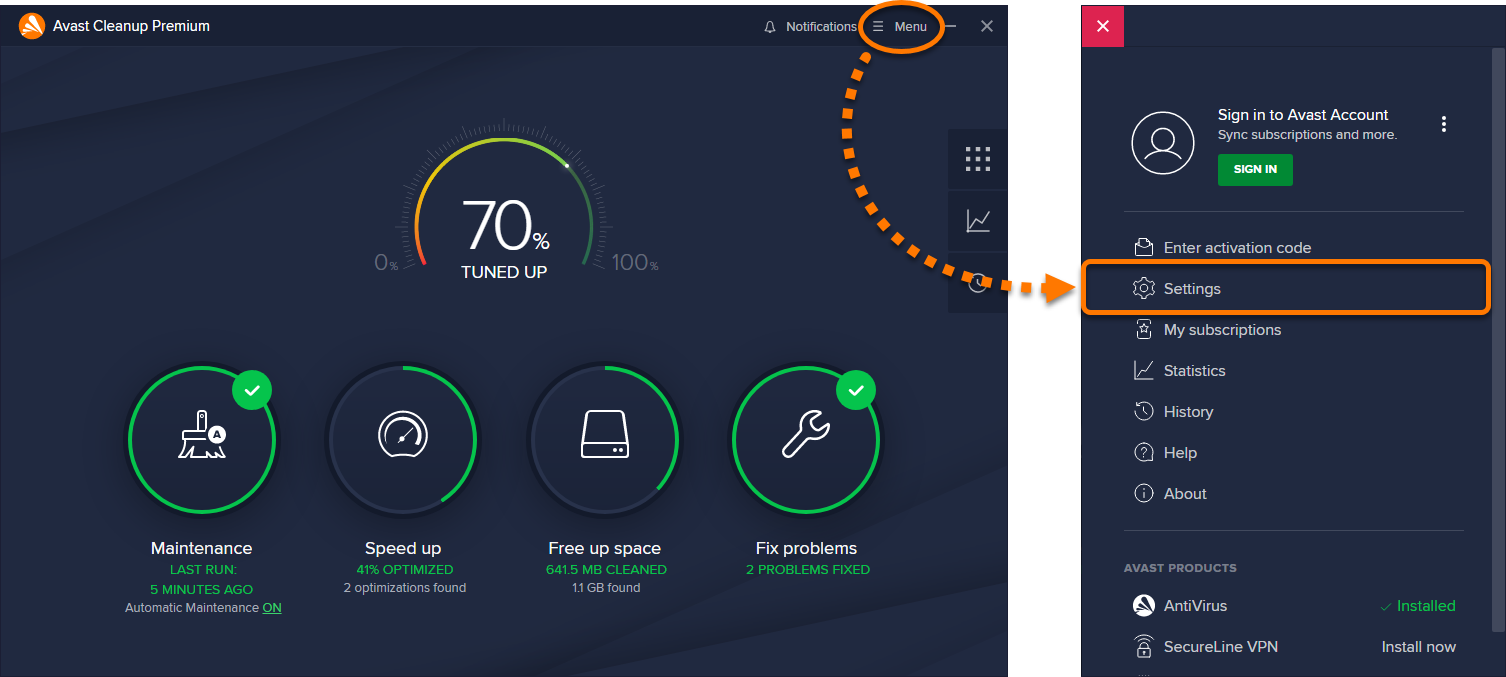
- Click the down arrow under Language and use the drop-down menu to select your preferred language.
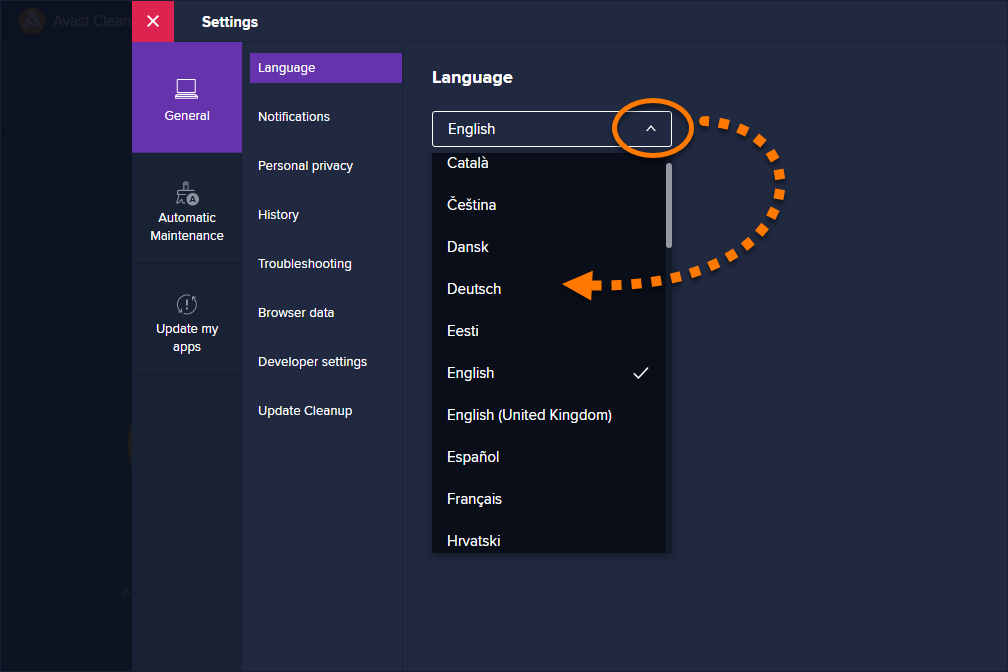
Avast Cleanup Premium now appears in your chosen language. If it does not change immediately, close and reopen Avast Cleanup Premium.
Avast SecureLine VPN
- Open Avast SecureLine VPN and go to
☰Menu ▸ Settings.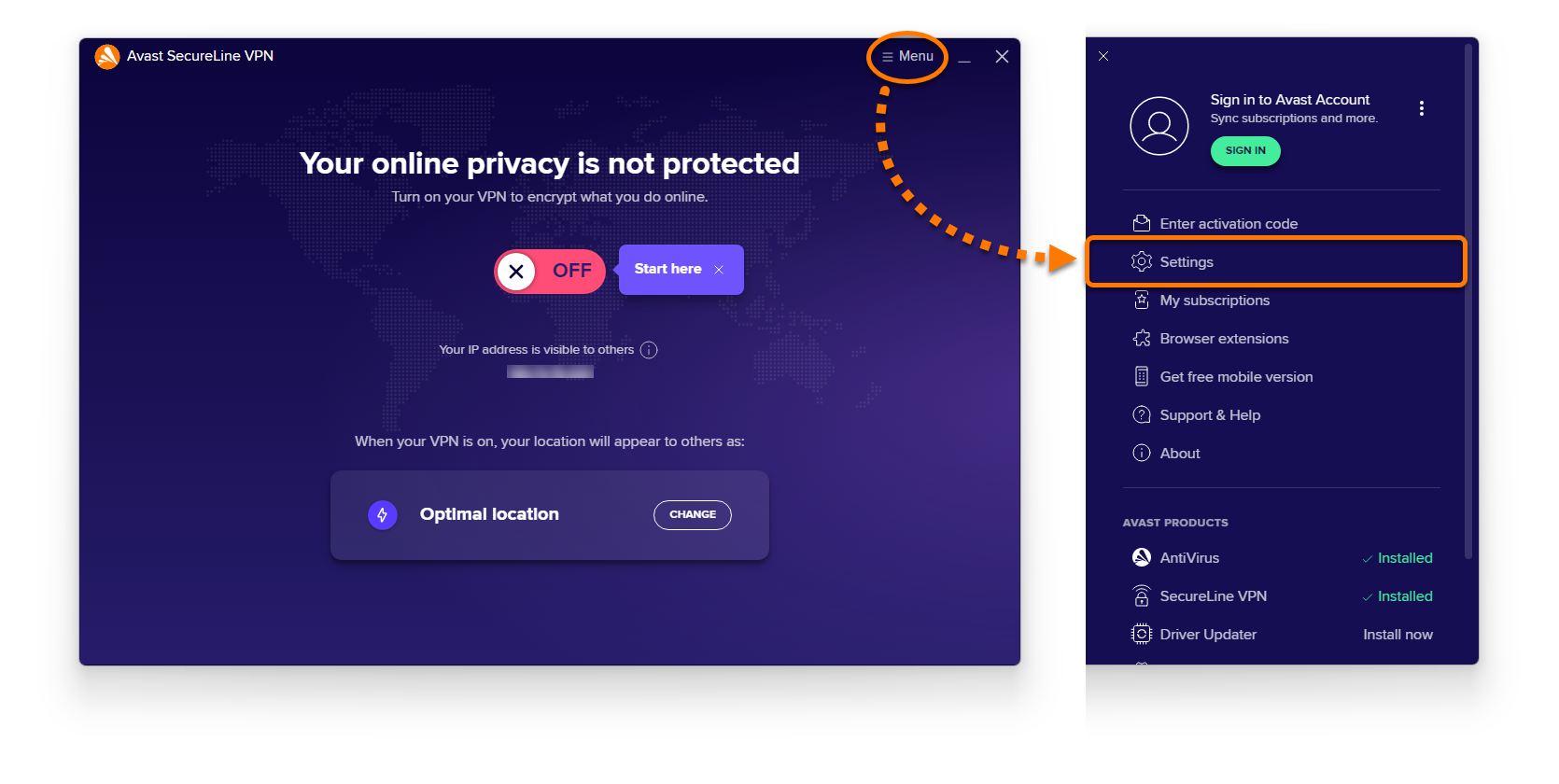
- Select General in the left-side menu, then click the current language and select your preferred language from the drop-down menu.
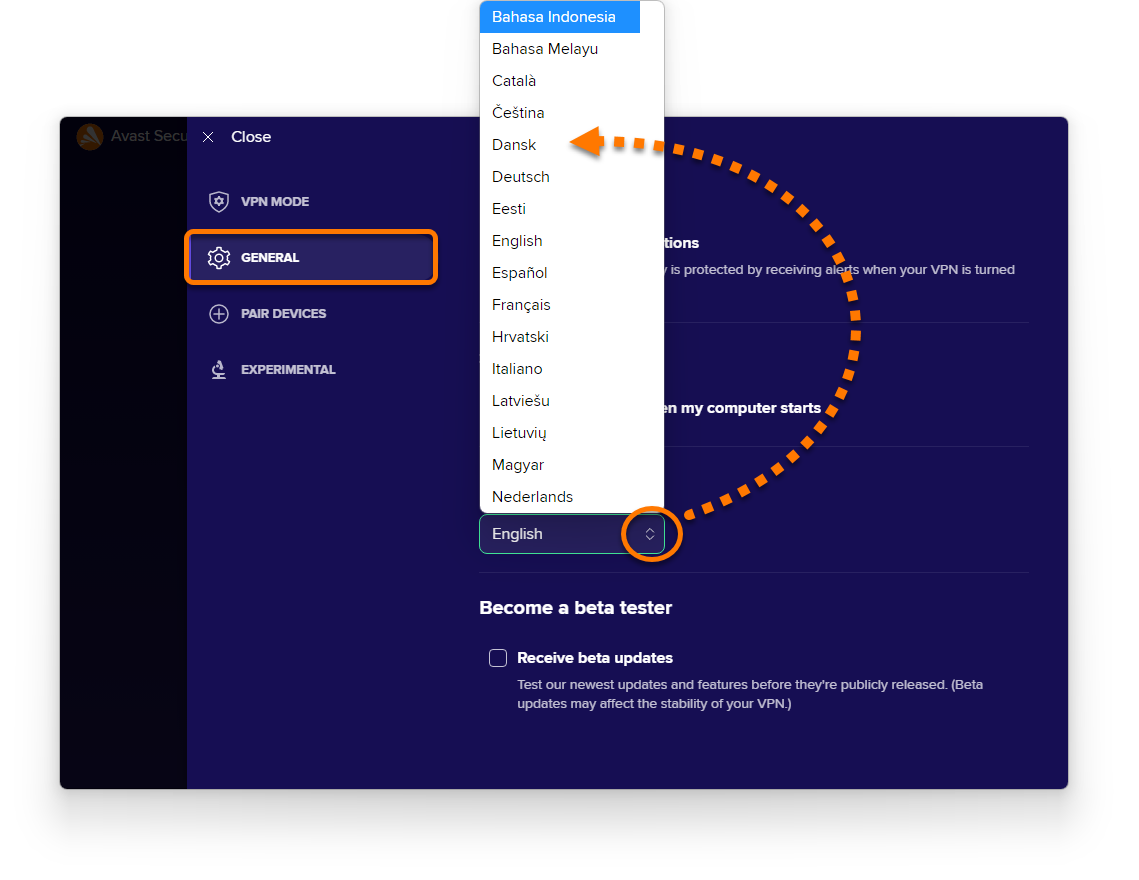
- Confirm your selection by clicking Change to....
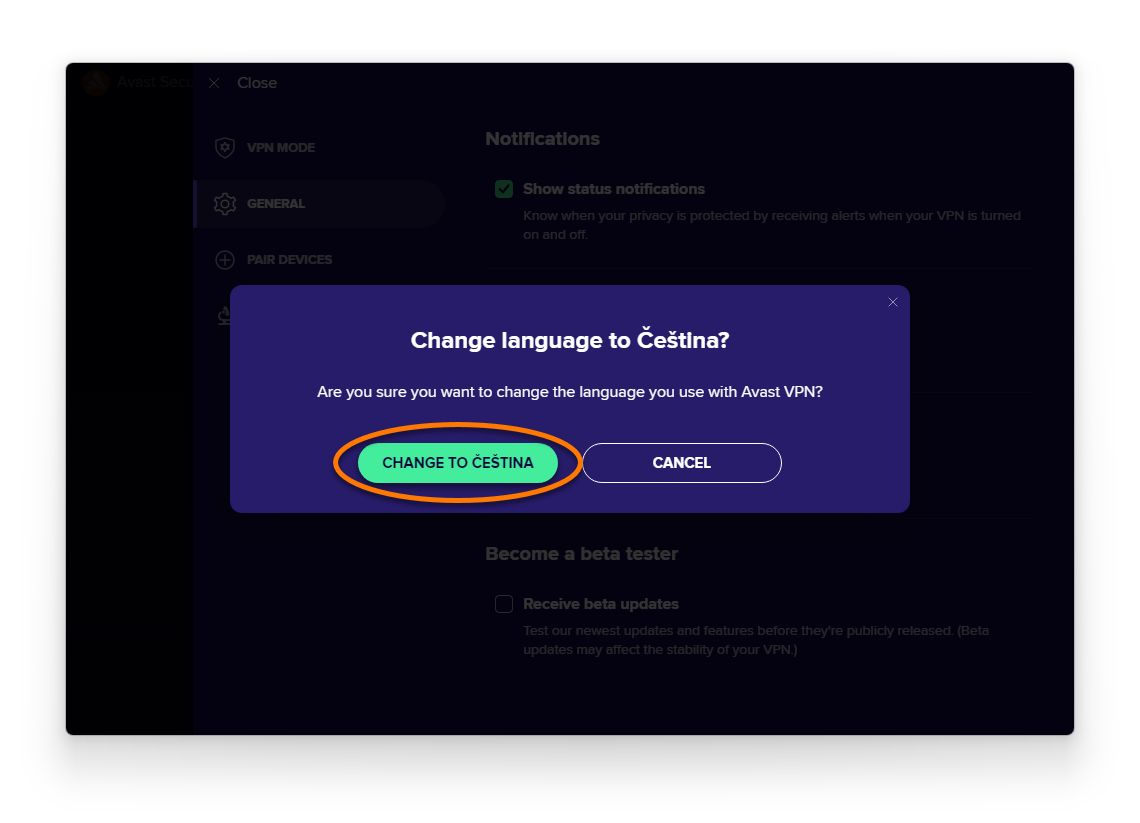
Avast SecureLine VPN now appears in your chosen language. If it does not change immediately, close and reopen Avast SecureLine VPN.
Avast AntiTrack
- Open Avast AntiTrack and go to
☰Menu ▸ Settings.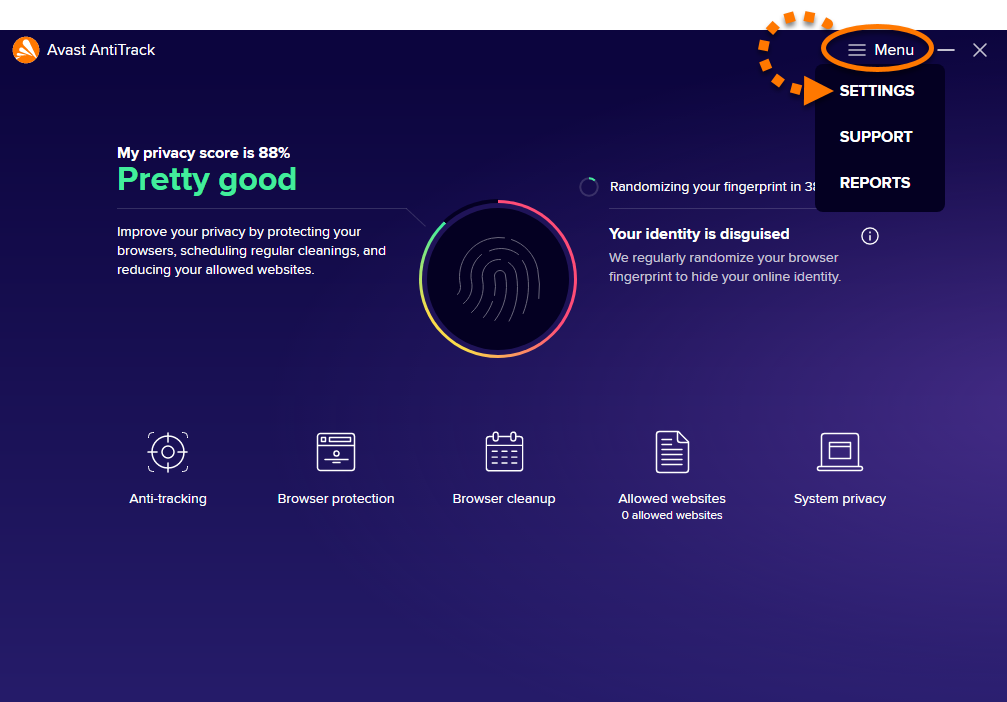
- Under Select language, click the current language, then select your preferred language from the drop-down menu.
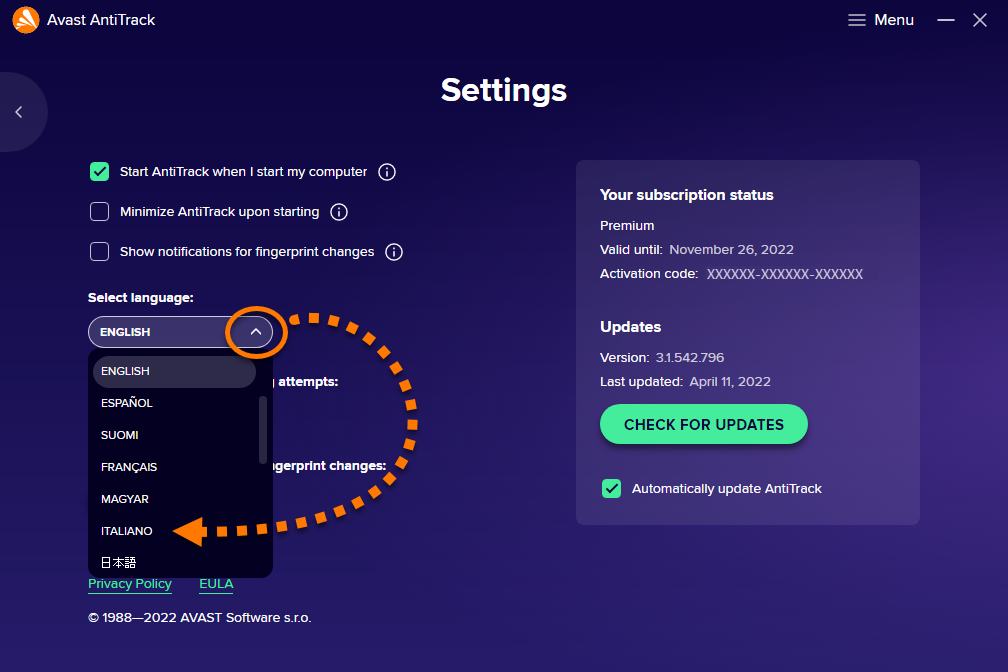
Avast AntiTrack now appears in your chosen language. If it does not change immediately, close and reopen Avast AntiTrack.
Avast Driver Updater
- Open Avast Driver Updater and go to
☰Menu ▸ Settings.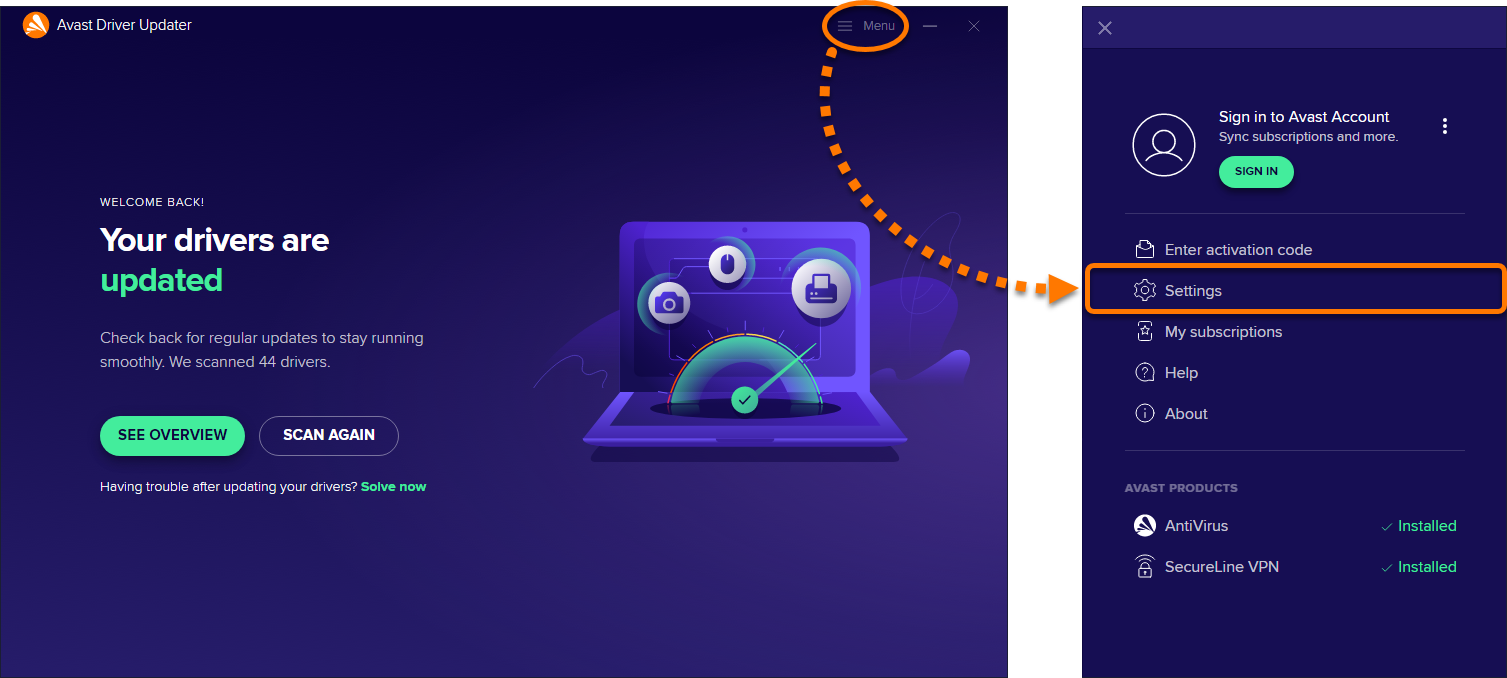
- Click the current language, then select your preferred language from the drop-down menu.
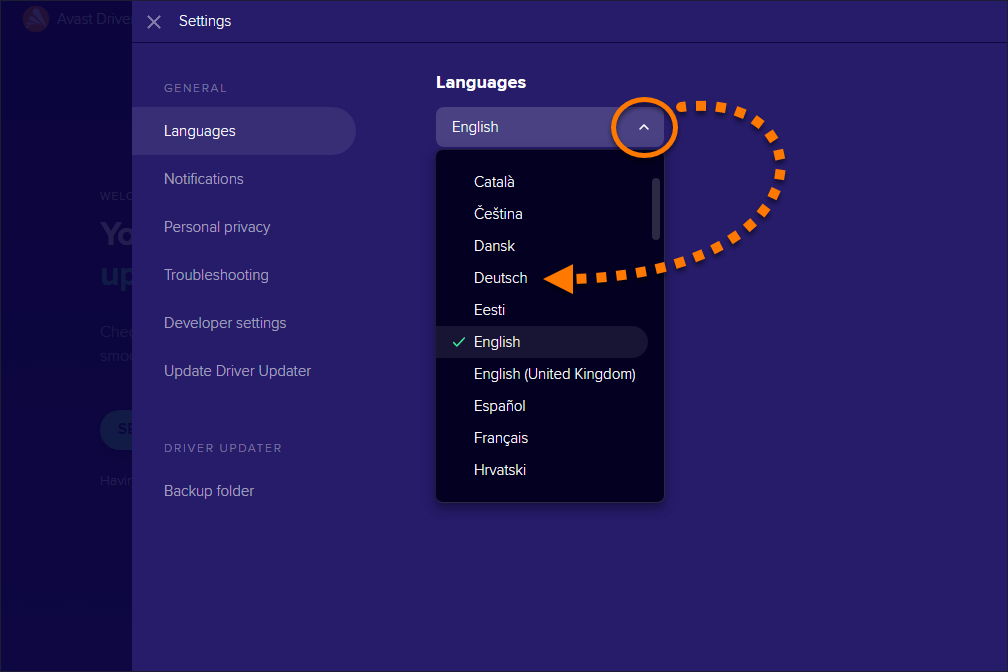
Avast Driver Updater now appears in your chosen language. If it does not change immediately, close and reopen Avast Driver Updater.
Avast Battery Saver
- Open Avast Battery Saver and go to
☰Menu ▸ Settings.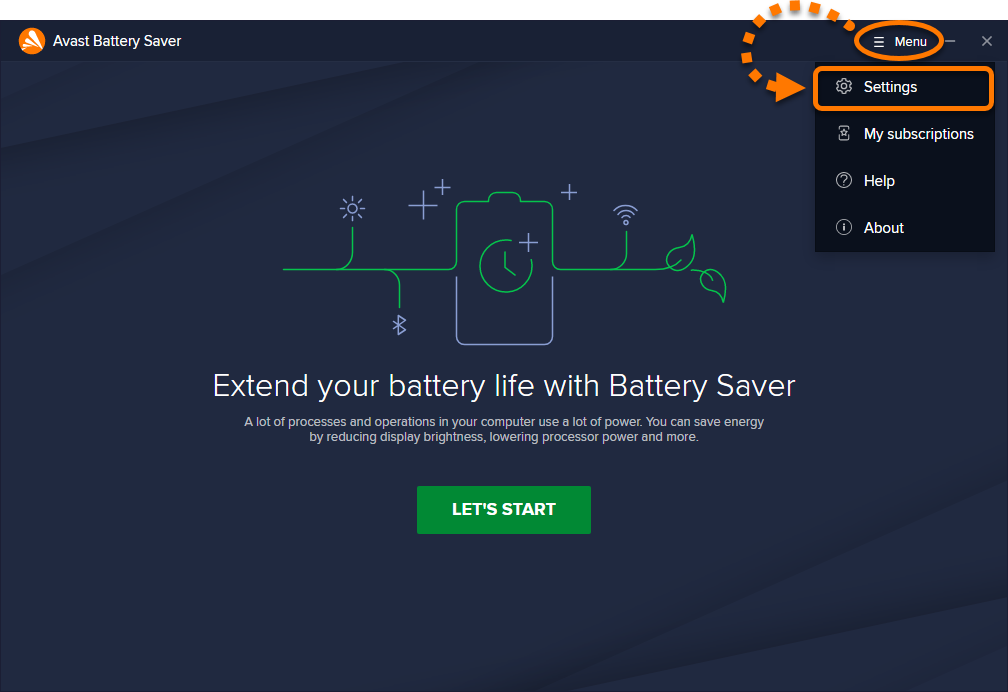
- Select General ▸ Languages in the left-side menu, then click the current language and select your preferred language from the drop-down menu.
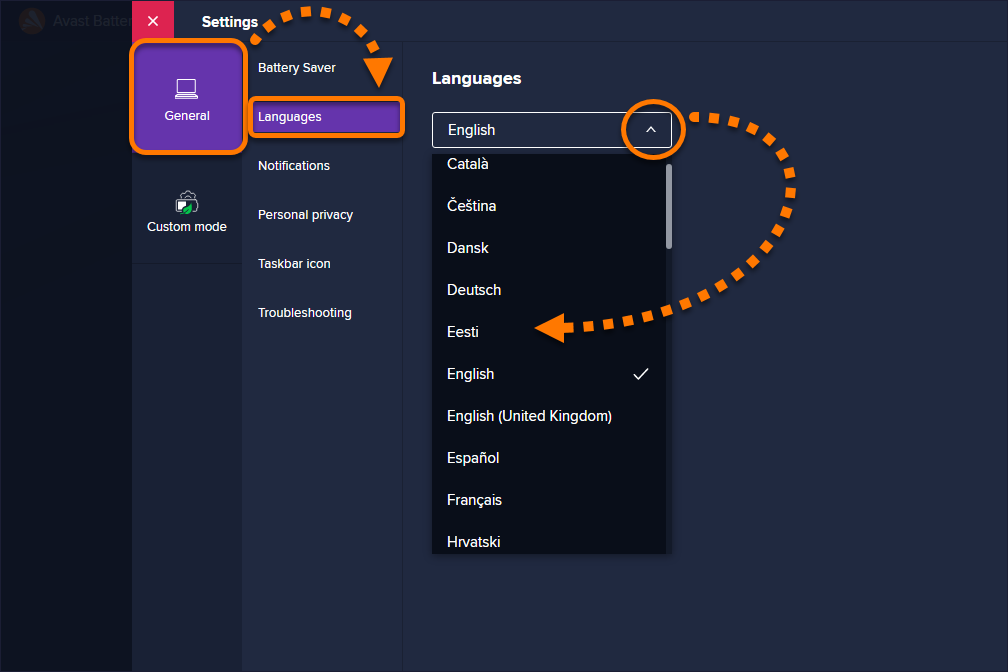
Avast Battery Saver now appears in your chosen language. If it does not change immediately, close and reopen Avast Battery Saver.
Was this article helpful?

Keep your online identity private!
Browse like no one’s watching with Avast anti-tracking software.