Troubleshooting invalid server certificate warnings after installing Avast One
After installing Avast One, some third-party email clients, such as Mozilla Thunderbird, SeaMonkey, The Bat!, or Microsoft Outlook, may show that the mail server certificate is invalid when you send and receive emails.
Mail Shield in Avast One uses an advanced scanning method for incoming and outgoing emails over SSL/TLS secured connections. Mozilla Thunderbird, Sea Monkey, The Bat!, and Microsoft Outlook have their own certificate stores and may require extra configuration to avoid warnings about invalid mail server certificates.
For Mozilla Thunderbird, SeaMonkey, and The Bat!, follow the steps below to stop warnings about invalid mail server certificates by exporting the Mail Shield certificate, then importing it into your email client's certificate store.
For Microsoft Outlook, follow the steps in the Troubleshoot Microsoft Outlook errors section to reinstall Avast One.
Export the Email Guardian certificate
-
On your keyboard, press the  Win
E key simultaneously to open File Explorer. 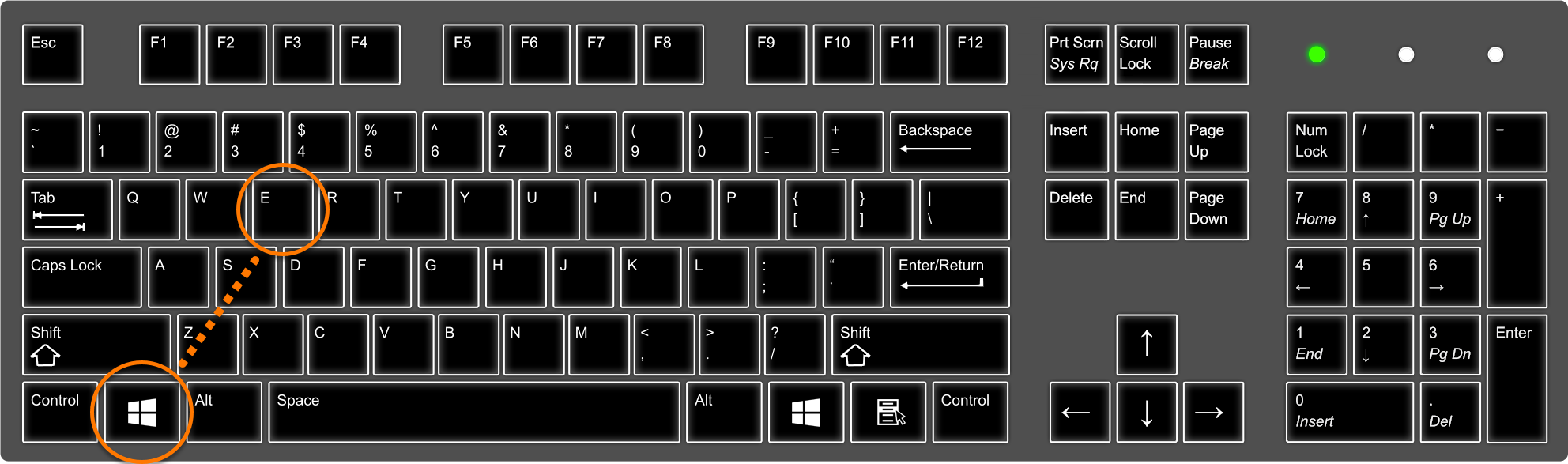
-
Copy and paste C:\ProgramData\Avast Software\Avast into the address bar and press the Enter key on your keyboard. 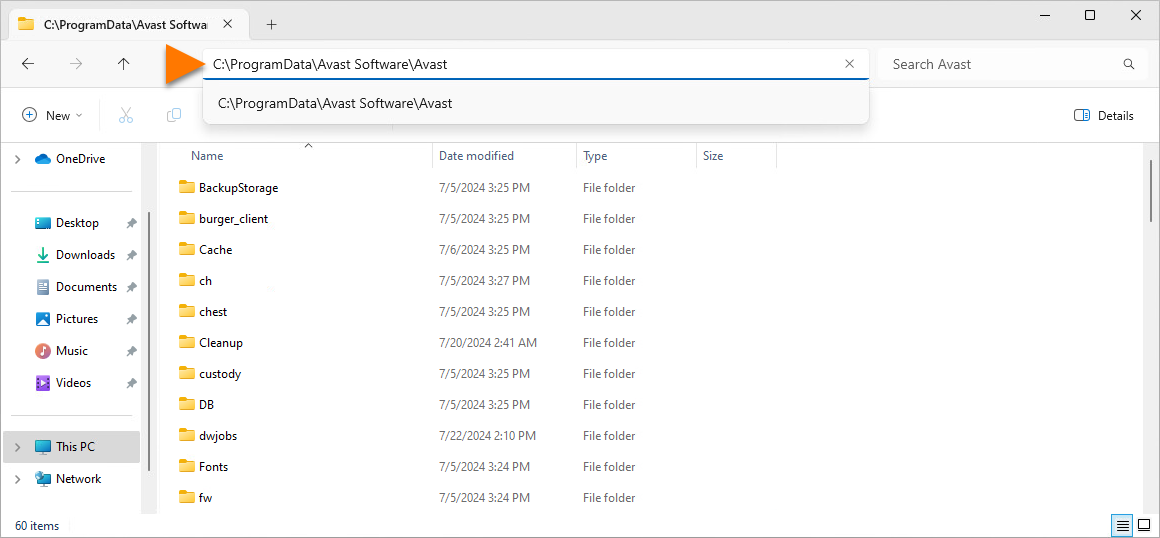
-
Locate the wscert.der file in the Avast folder, and copy and paste it to your desktop. 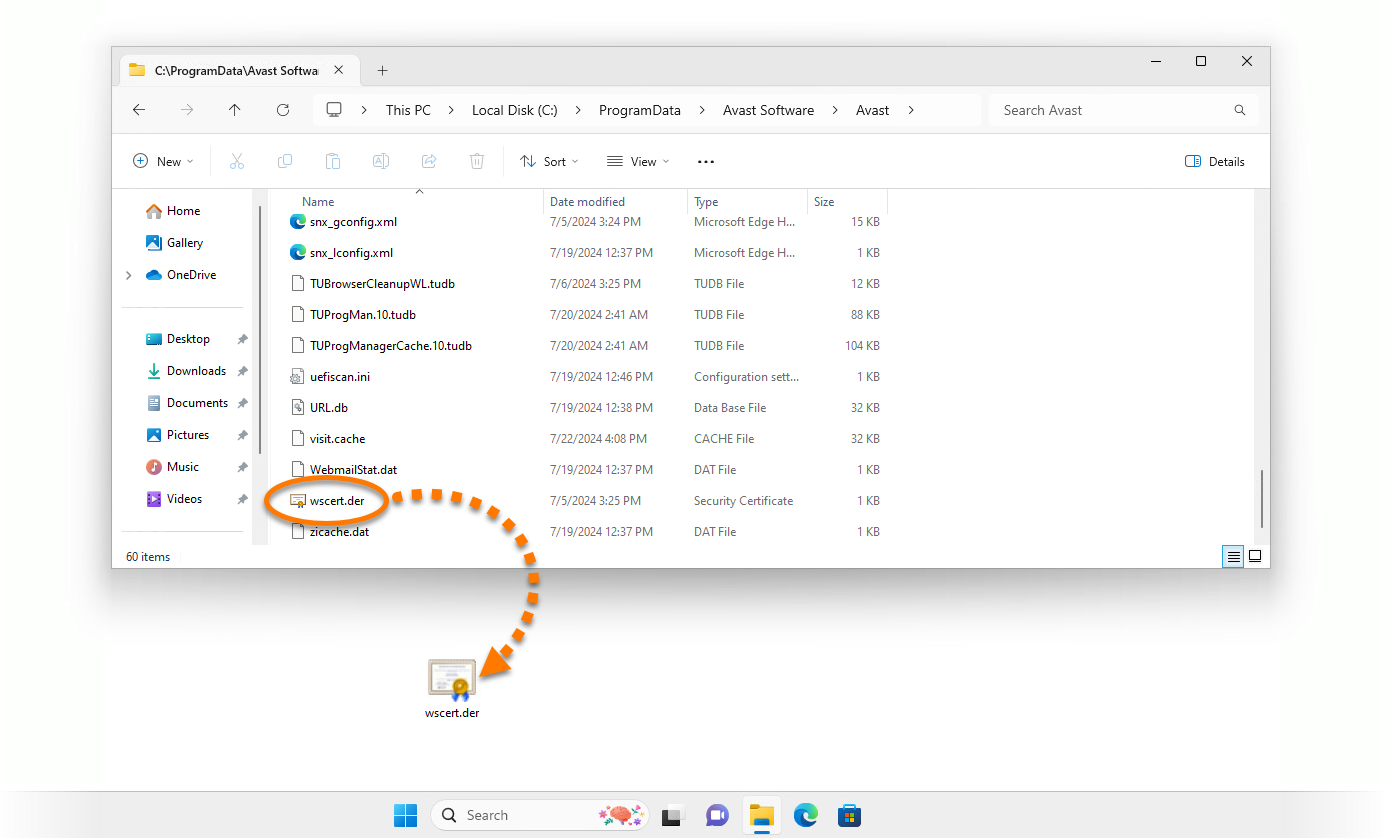
-
If prompted to provide administrator permission, select Continue. 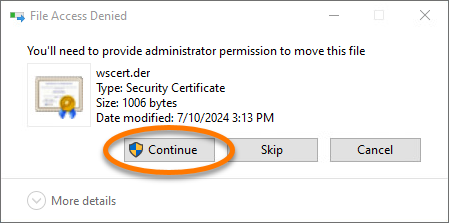
The Email Guardian certificate is exported. Continue following the steps below to import the Mail Shield certificate into your mail client.
Each individual email account in your mail client needs to be configured as required by your mail provider. Refer to your mail client's and mail provider's documentation for instructions.
Import the Email Guardian certificate
Your email client:
-
In Mozilla Thunderbird, click ☰ Menu (the three lines) ▸ Settings. 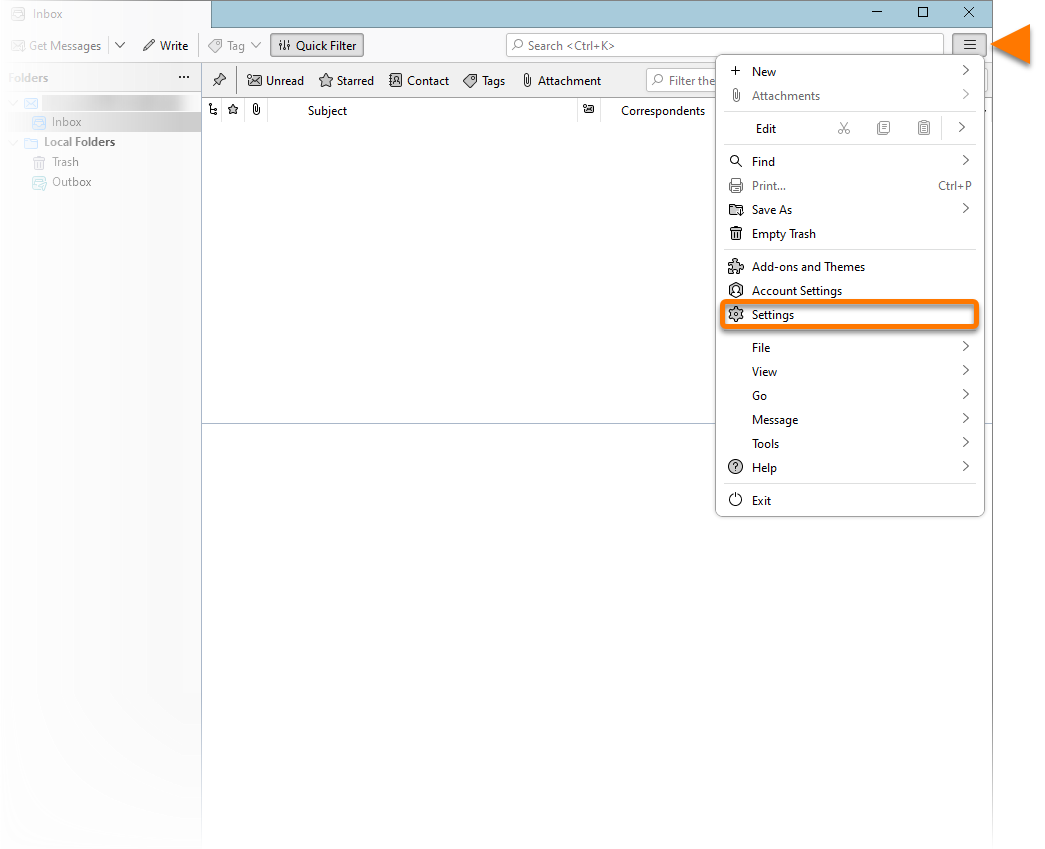
-
Select the Privacy & Security in the left panel. 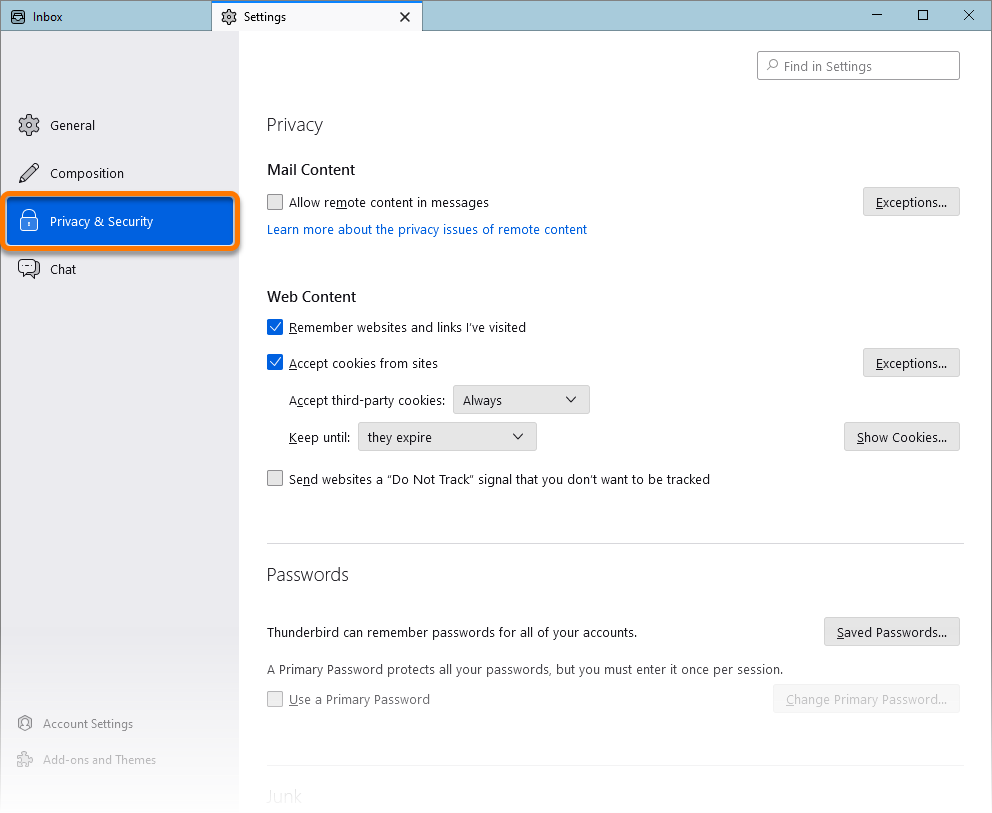
-
Scroll to the Certificates section, then click Manage Certificates.... 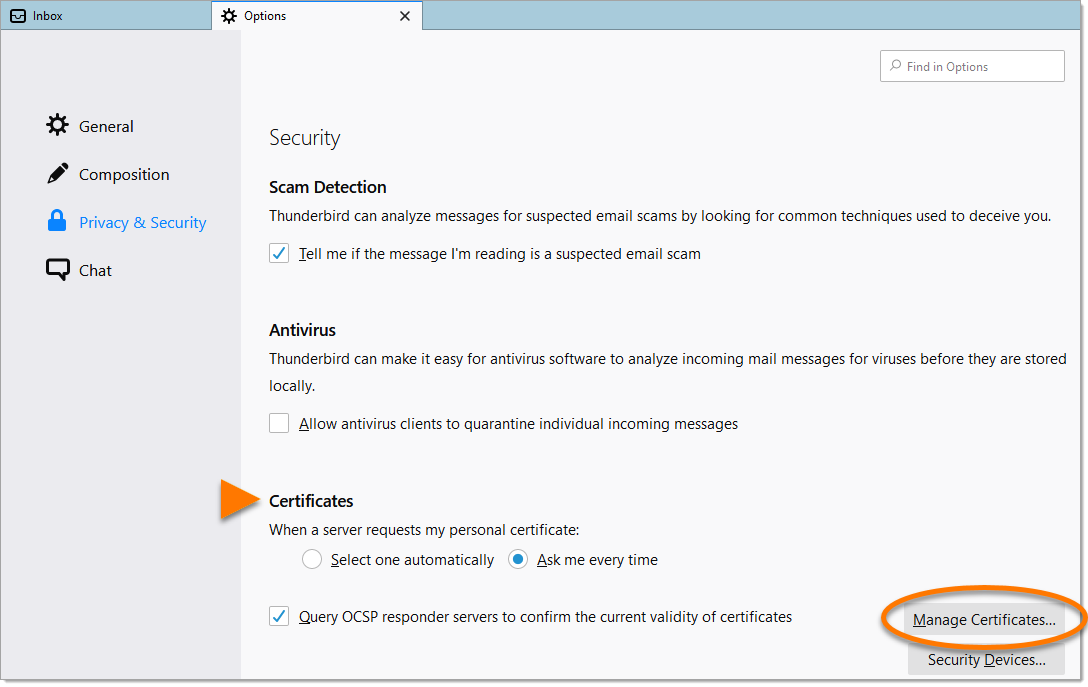
-
Select the Authorities tab, then click Import.... 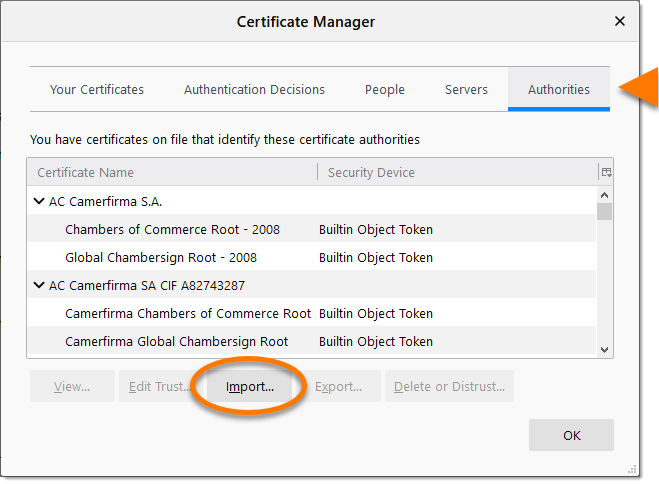
-
Locate the Email Guardian certificate you previously exported to your desktop, select the file, and click Open. 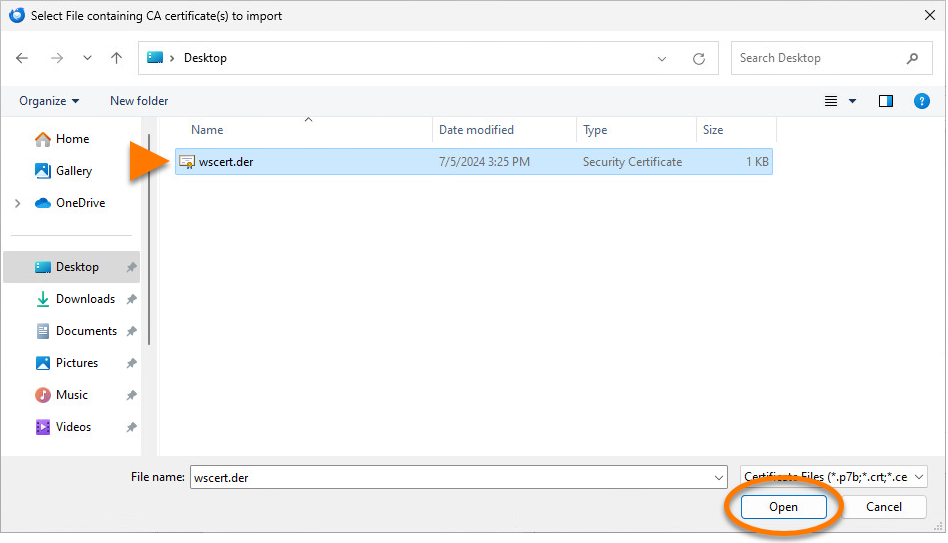
-
Tick Trust this CA to identify websites, then click OK. 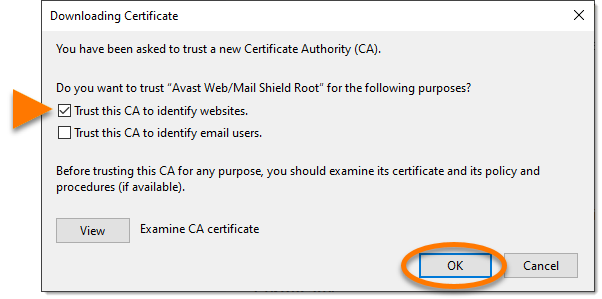
-
When the Certificate Manager screen appears again, click the Servers tab. 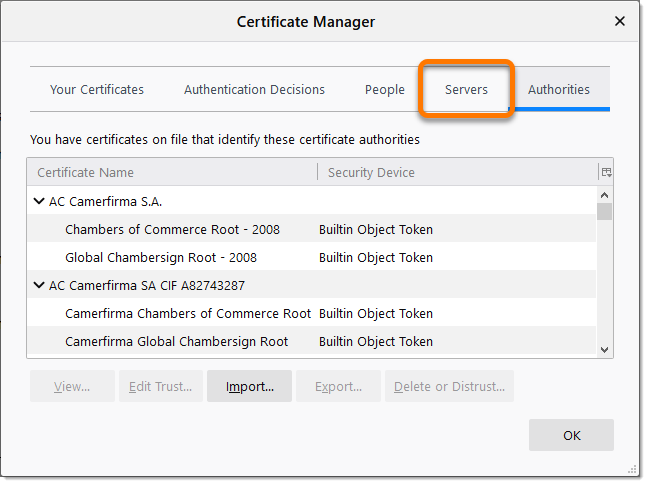
-
Ensure that there is no entry for Avast Mail Scanner. If an entry exists, delete all certificates connected to Avast Mail Scanner in the Servers tab. Then, click OK to save the changes. 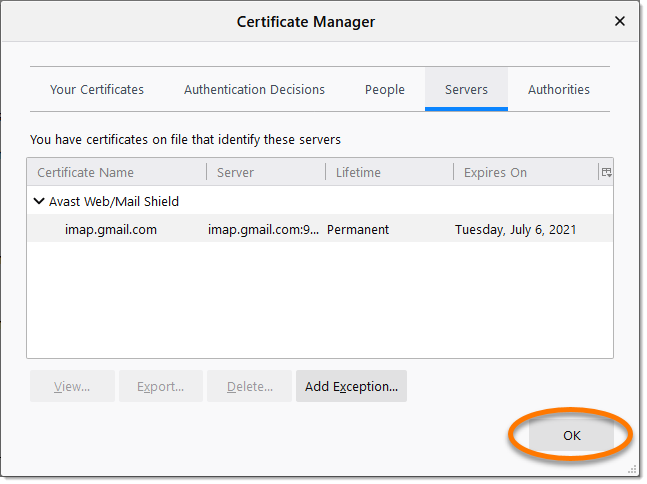
The Avast Email Guardian certificate is now imported to Mozilla Thunderbird.
-
In SeaMonkey, click Edit ▸ Preferences.... 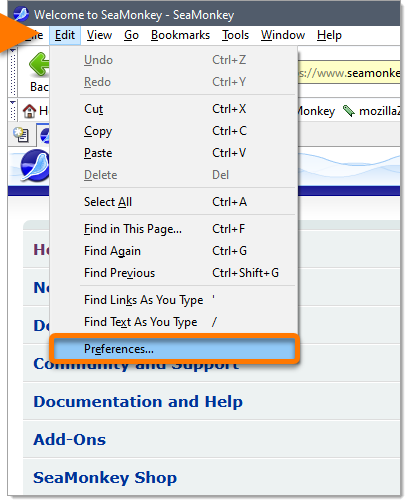
-
Click the arrow next to Privacy & Security to expand the section. 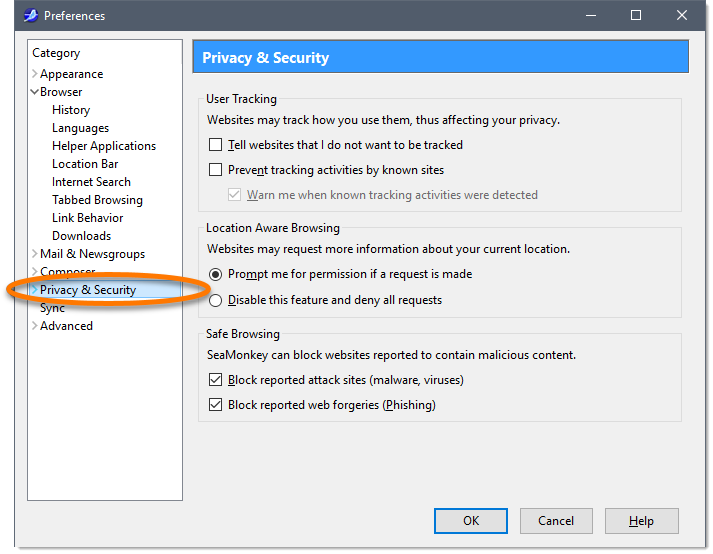
-
Select Certificates, then click Manage Certificates.... 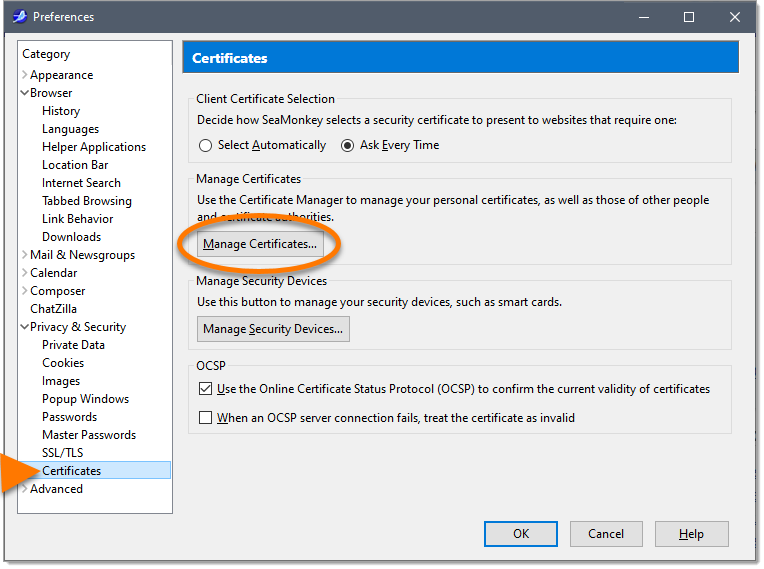
-
Select the Authorities tab, then click Import.... 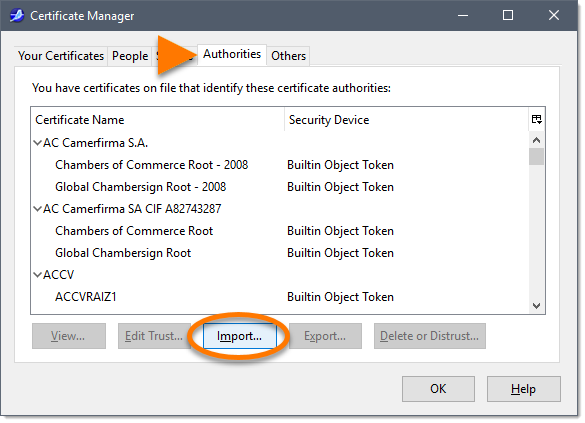
-
Locate the Email Guardian certificate you previously exported to your desktop, select the file, and click Open. 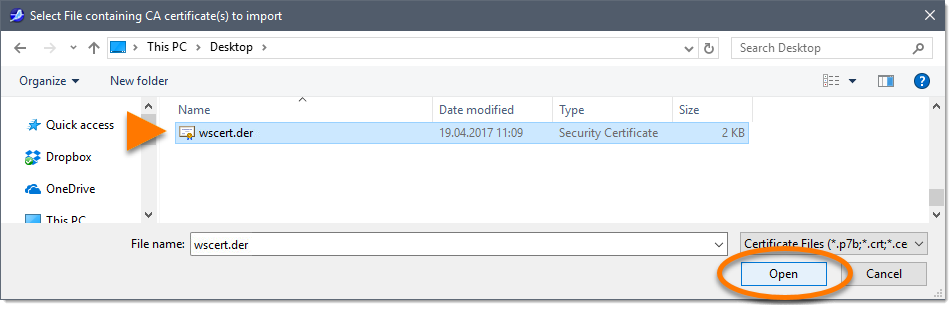
-
Tick Trust this CA to identify websites and click OK. 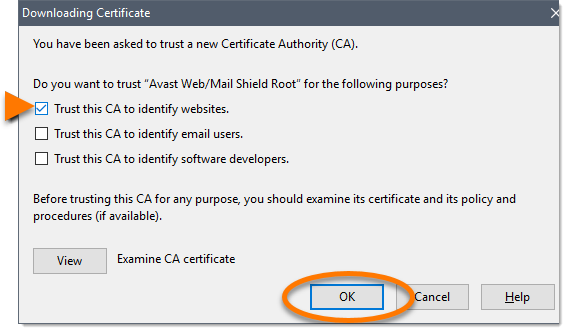
-
When the Certificate Manager screen appears again, click the Servers tab. 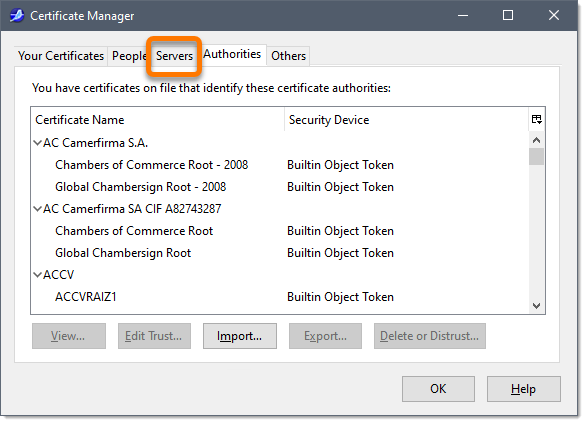
-
Ensure that there is no entry for Avast Mail Scanner. If an entry exists, delete all certificates connected to Avast Mail Scanner in the Servers tab. Then, click OK to close the Certificate Manager. 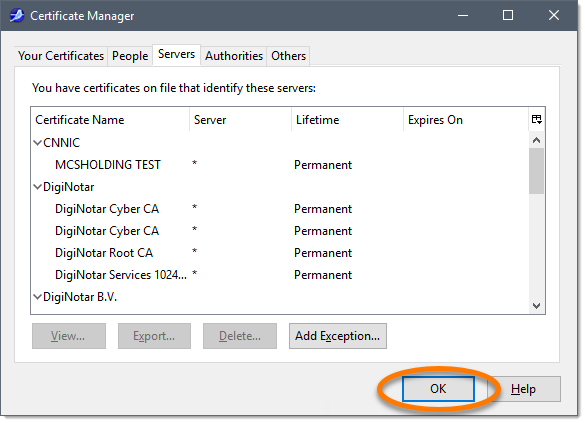
-
Click OK in the Preferences window to apply the changes. 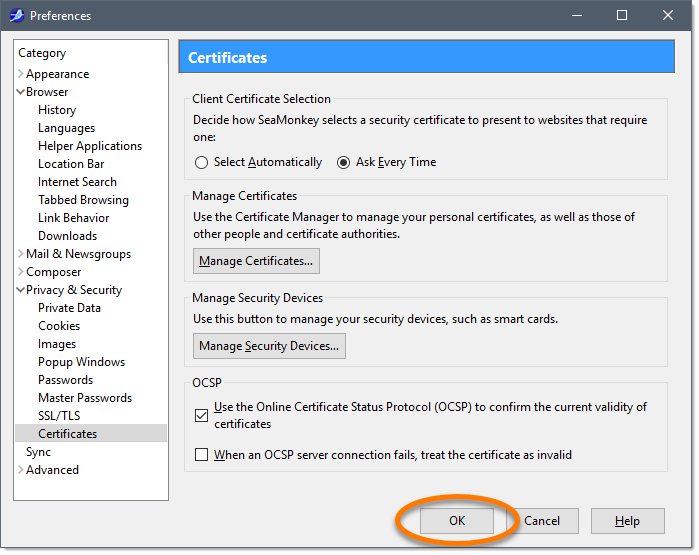
The Avast Email Guardian certificate is now imported to SeaMonkey.
-
In The Bat!, click Tools and select Address Book. 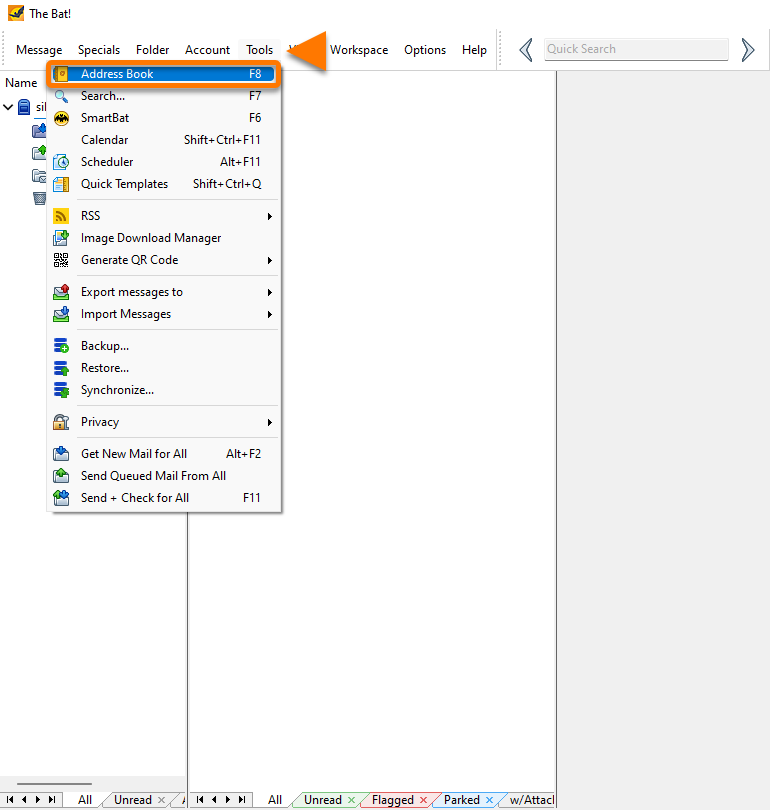
-
Beside Trusted Root CA, click the vertical ellipses (⋮) and select New Contact from the context menu. 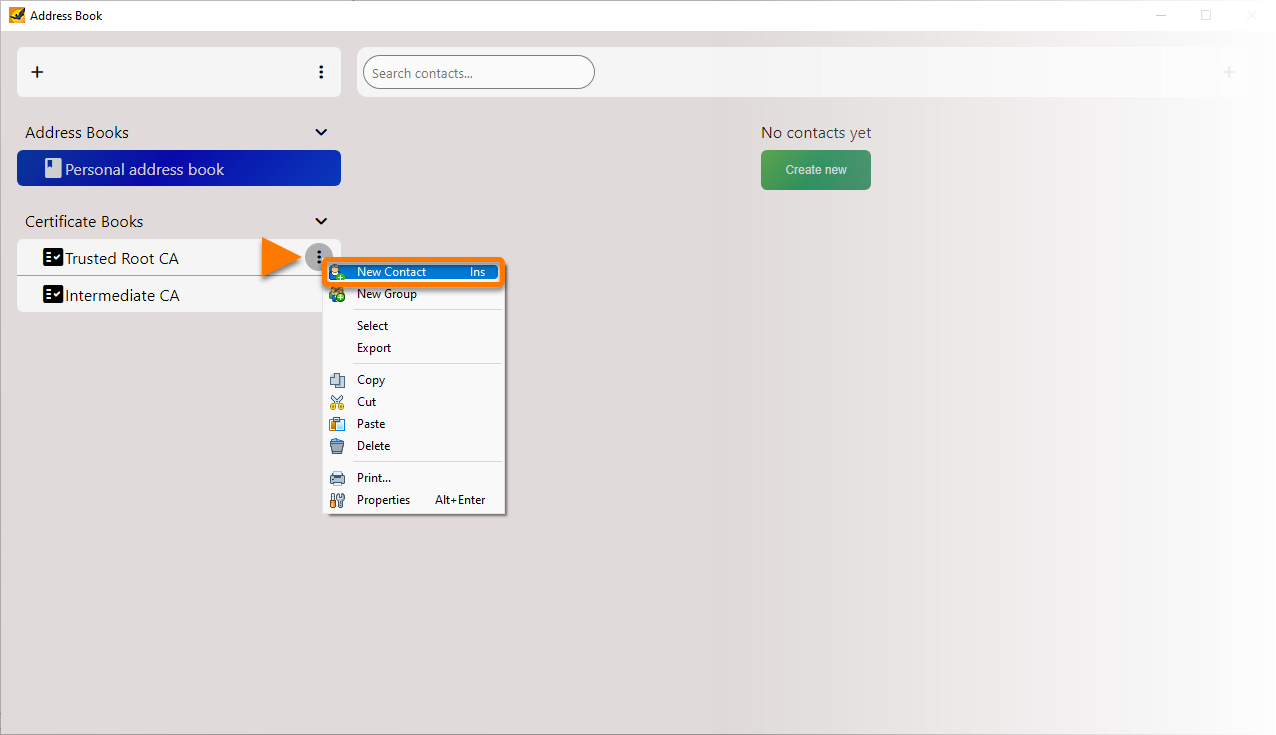
-
Type Avast Email Guardian in the Name field and click the green tick sign in the New Certificate panel above. 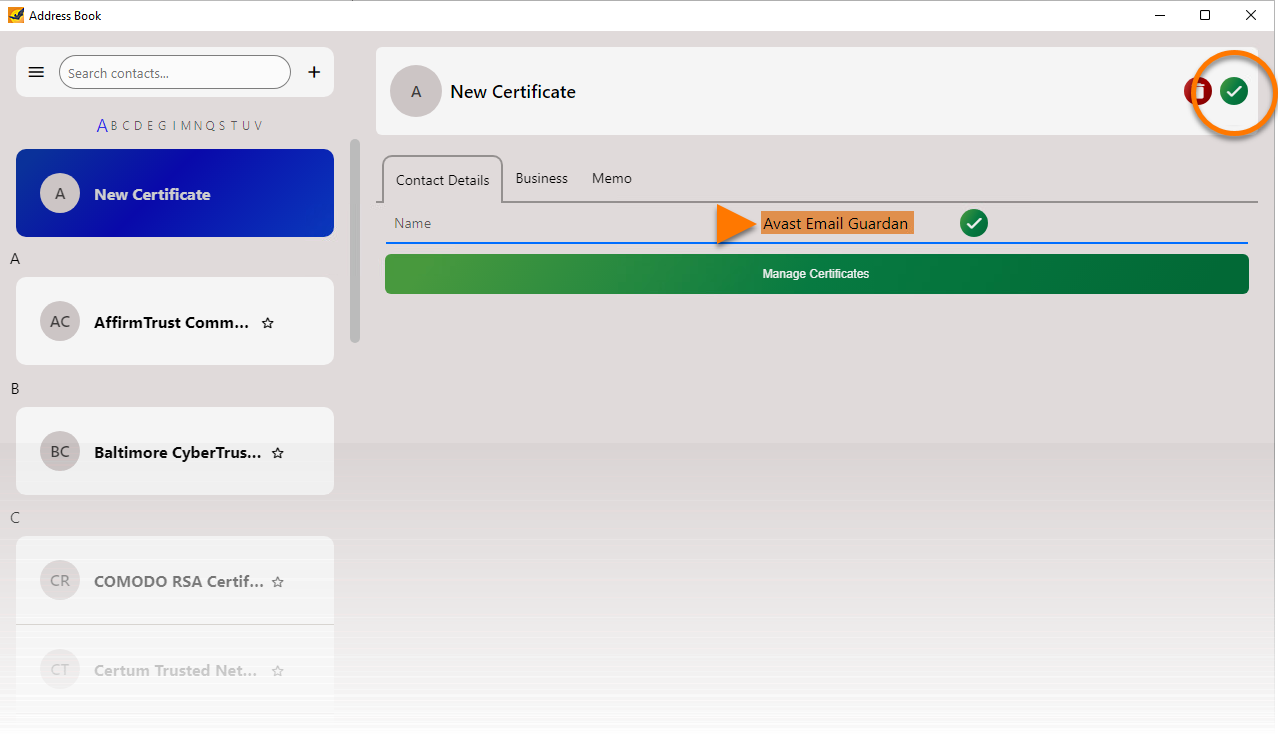
-
Ensure that Avast Email Guardian is selected and click the green Manage Certificates button. 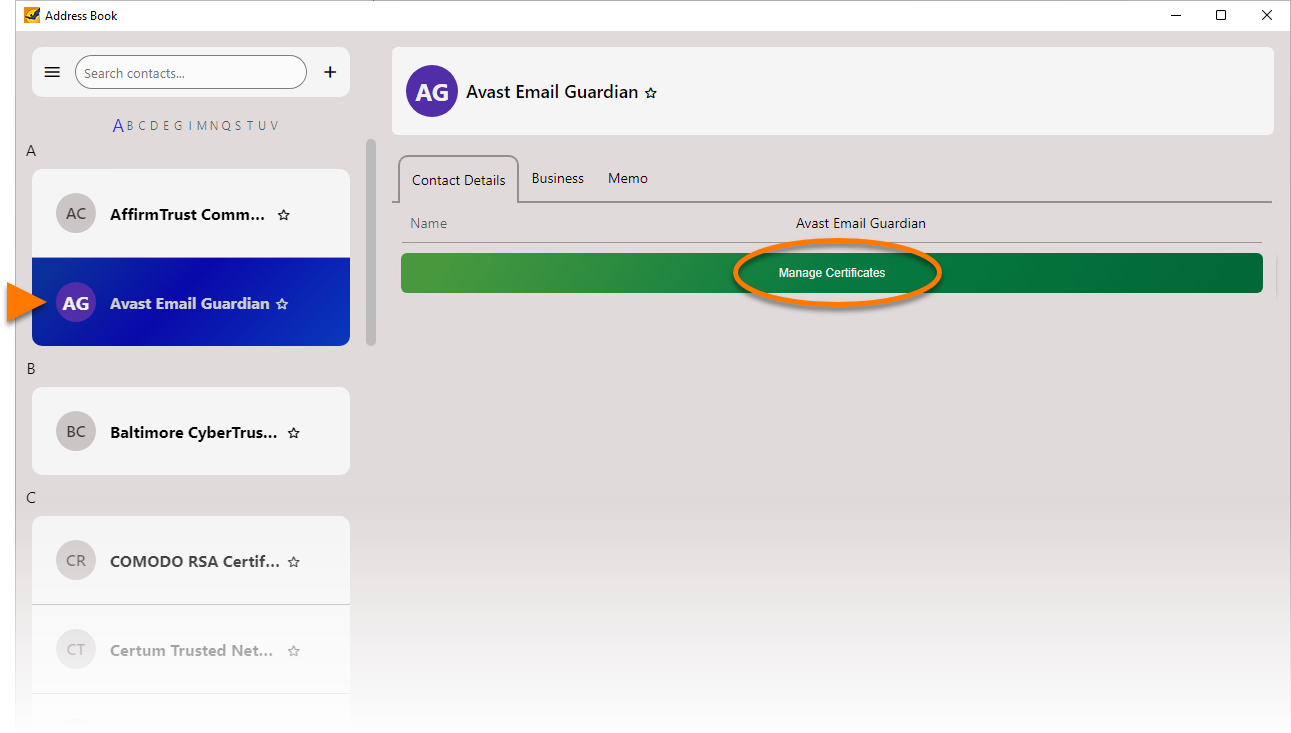
-
Click Import.... 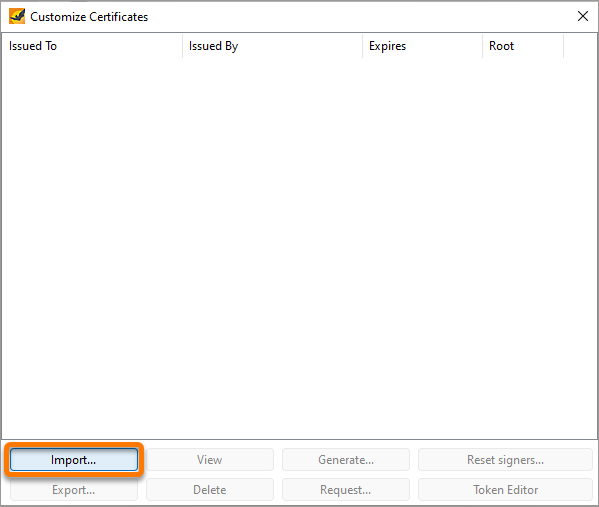
-
Locate the Email Guardian certificate you previously exported to your desktop, select the file, then click Open. 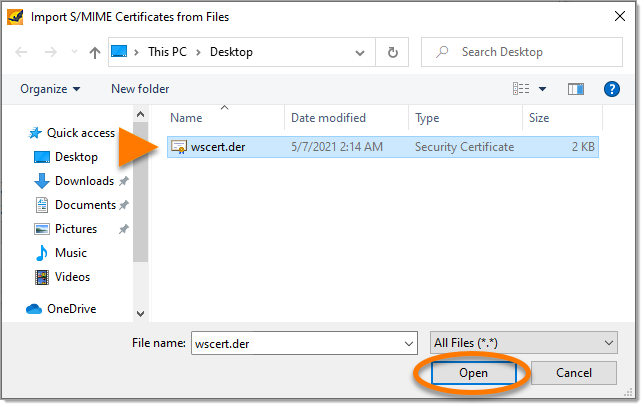
-
When the Email Guardian certificate appears in the Certificates tab, click OK to apply the changes. 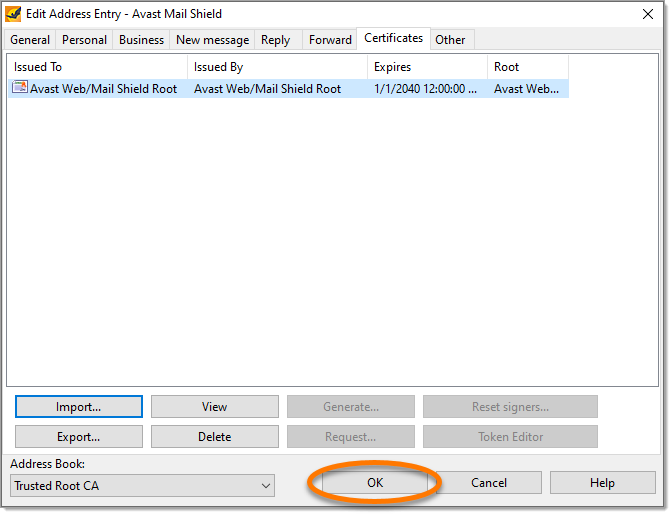
The Avast Email Guardian certificate is now imported to The Bat!.
Troubleshoot Microsoft Outlook errors
If you are seeing certificate warnings or errors in Microsoft Outlook, we recommend you reinstall Avast One. For detailed instructions, follow the steps below:
-
Uninstall Avast One.
-
Restart your Windows device.
-
After your version of Avast One is completely removed from your device, reinstall Avast One.
-
Restart your Windows device again.
Once Avast One is reinstalled, open Microsoft Outlook and check if the issue persists.

