
To change the primary or secondary email addresses connected to your Avast Account, refer to the relevant section below:
Update primary email
To update your primary email address, follow the steps below:
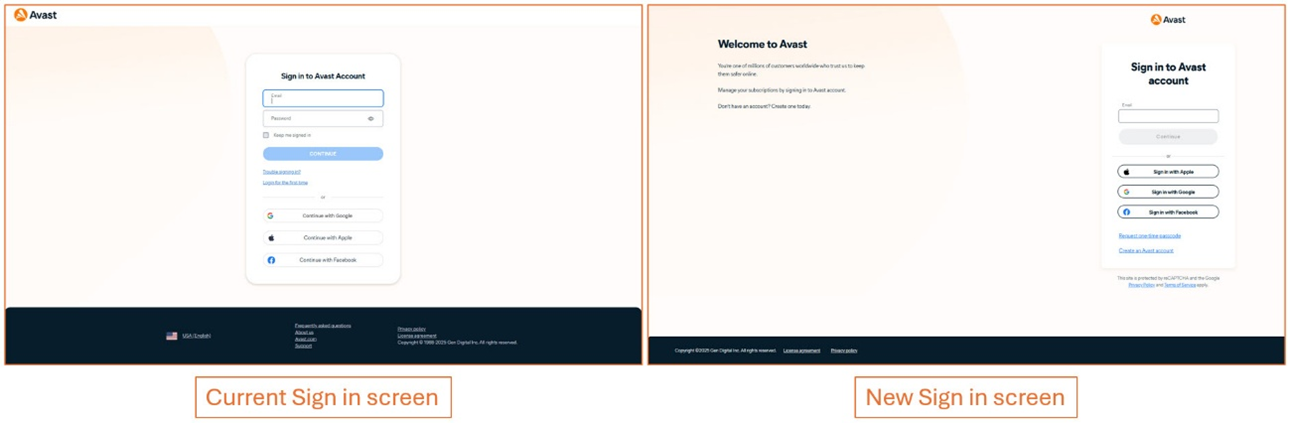
- Sign in to your Avast account using the link: https://login.avast.com/sso/embedded/update
- In the top-right corner of the page, click on the My Account and select Account Settings from the pull-down menu.
- Under Contact Information and Password, click the edit icon next to Email.

- Enter your password and type the New email and Confirm new email, then click Update email.
- Review the details and click Continue. You will receive an email with verification code to finish updating your email address.

- Check your email and enter the 6-digit verification code, then click Done.
Your new email address is now verified and updated for your Avast account.
Update secondary email
To set a secondary as your primary address or remove a secondary email, follow the relevant steps below:
- Sign in to your Avast Account using the link: https://login.avast.com/sso/embedded/update
- In the top-right corner of the page, click on the My Account and select Account Settings from the pull-down menu.
- Next to the relevant Secondary email address, select your preferred option.
- Set as primary: Click to change to your primary email address, your previously linked primary email will be a secondary email.

- Remove: Click to remove or disconnect an email address, then select the relevant options.
- Remove email: All your subscriptions connected to the secondary email will be transferred to the primary email.
- Disconnect email: Any subscriptions associated with this email will no longer be listed in your account. You can restore them in your Avast Account under My subscriptions.
- Set as primary: Click to change to your primary email address, your previously linked primary email will be a secondary email.
Your email address change is complete.
