
IS YOUR COMPUTER SLOW? RUN LIKE NEW
If they are not maintained, computers lose performance over time. Avast Cleanup Premium can help significantly improve the performance of your computer.
Managing the Avast email signature
Windows
If you use an email client (such as Microsoft Outlook or Mozilla Thunderbird), Avast Antivirus may include a Virus-free message (previously an email signature) at the bottom of your outgoing emails to let your recipients know that the email has been scanned for malware. This setting is enabled by default.

Refer to the sections below to manage Mail Shield settings in the latest version of Avast Premium Security and Avast Free Antivirus.
Enable / Disable the Avast signature
To enable or disable the Avast signature in outgoing emails:
- Open Avast Antivirus, and go to
☰Menu ▸ Settings.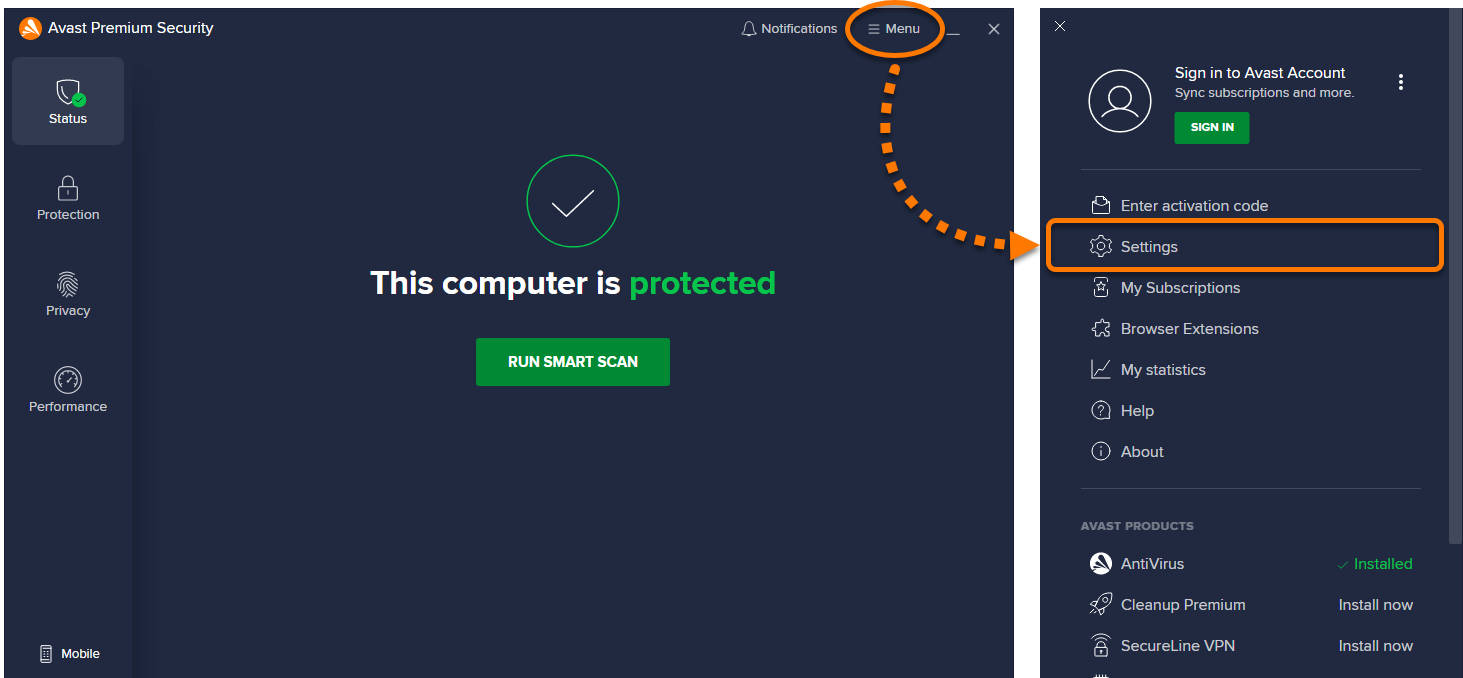
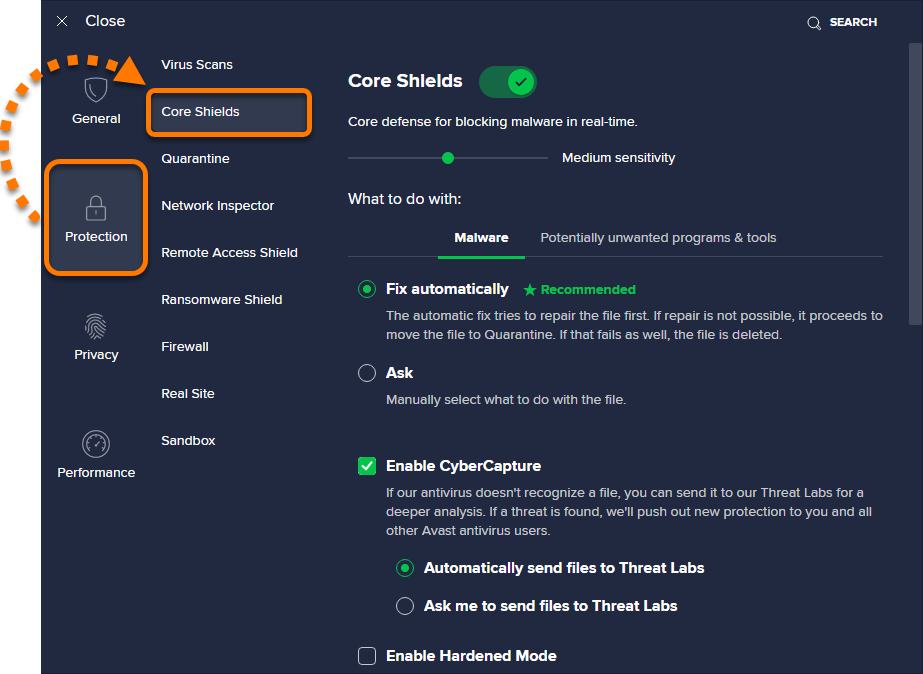
- Select Protection ▸ Core Shields.
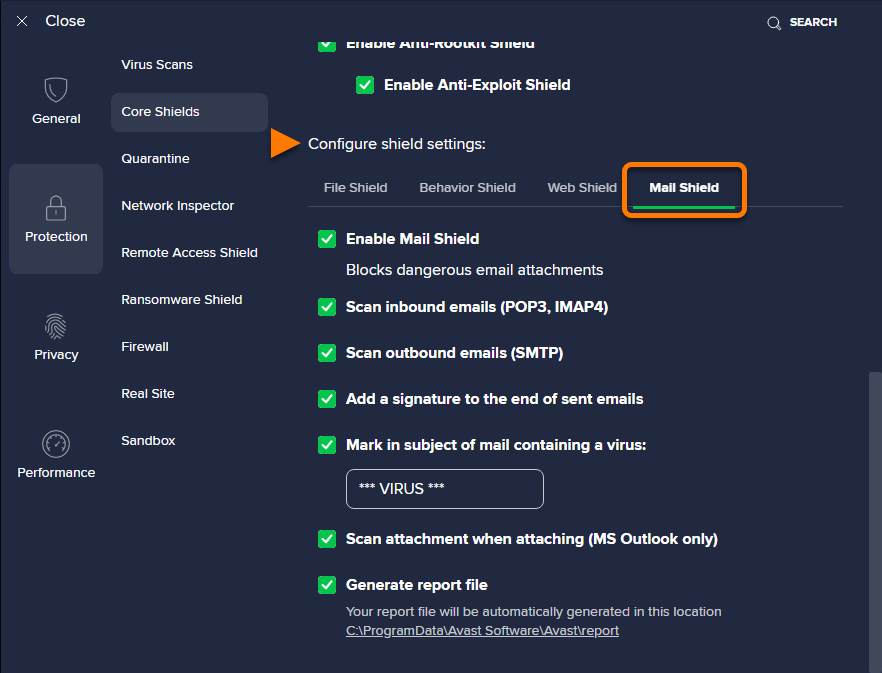
- Scroll down to Configure shield settings and click the Mail Shield tab.
- Tick or untick the box next to Add a signature to the end of sent emails.
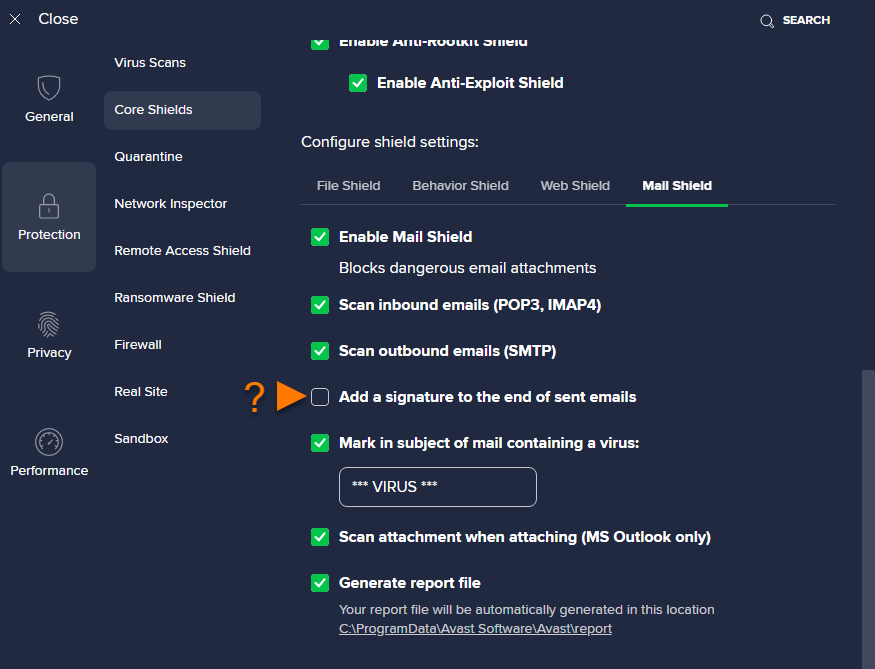
Your outgoing emails will not include a signature from Avast if this option is unticked. You can change this setting at any time.
Customize Mail Shield settings
Mail Shield scans for threats in your incoming and outgoing email messages. Scanning applies only to messages sent or received using mail management software, such as Microsoft Outlook or Mozilla Thunderbird.
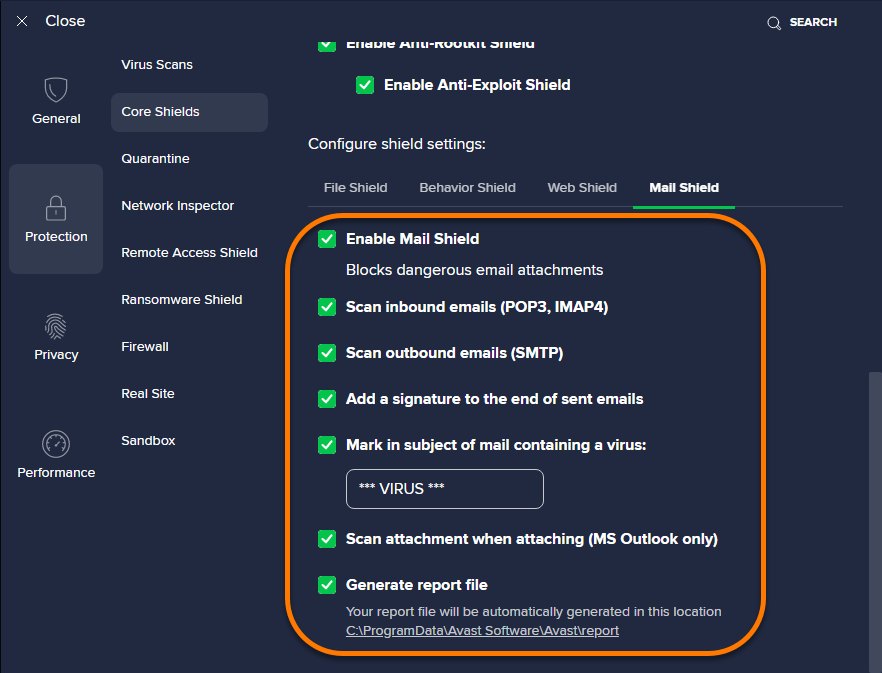
Open Avast Antivirus and go to ☰ Menu ▸ Settings ▸ Protection ▸ Core Shields, then scroll down to Configure shield settings and click the Mail Shield tab to configure the following settings:
- Enable Mail Shield: Tick or untick the box to enable or disable the shield.
- Scan inbound emails (POP3, IMAP4): Specify if Mail Shield scans all incoming emails sent using an SSL/TLS encrypted connection.
- Scan outbound emails (SMTP): Specify if Mail Shield scans all outbound emails sent using an SSL/TLS encrypted connection.
- Add a signature to the end of sent emails: Includes a message for the recipient in an outgoing email confirming the email has been scanned for malware and is clean.
- Mark in subject of mail containing a virus: Specify a word or phrase that will automatically be added to the subject of any email containing a virus.
- Scan attachment when attaching (MS Outlook only): Enable Mail Shield to scan outgoing email attachments sent with Microsoft Outlook.
- Generate report file: Creates a report file automatically.
Further recommendations
For more information about managing shield settings, refer to the following article:
Was this article helpful?

Keep your online identity private!
Browse like no one’s watching with Avast anti-tracking software.