
 Explore ▸ Ransomware Protection.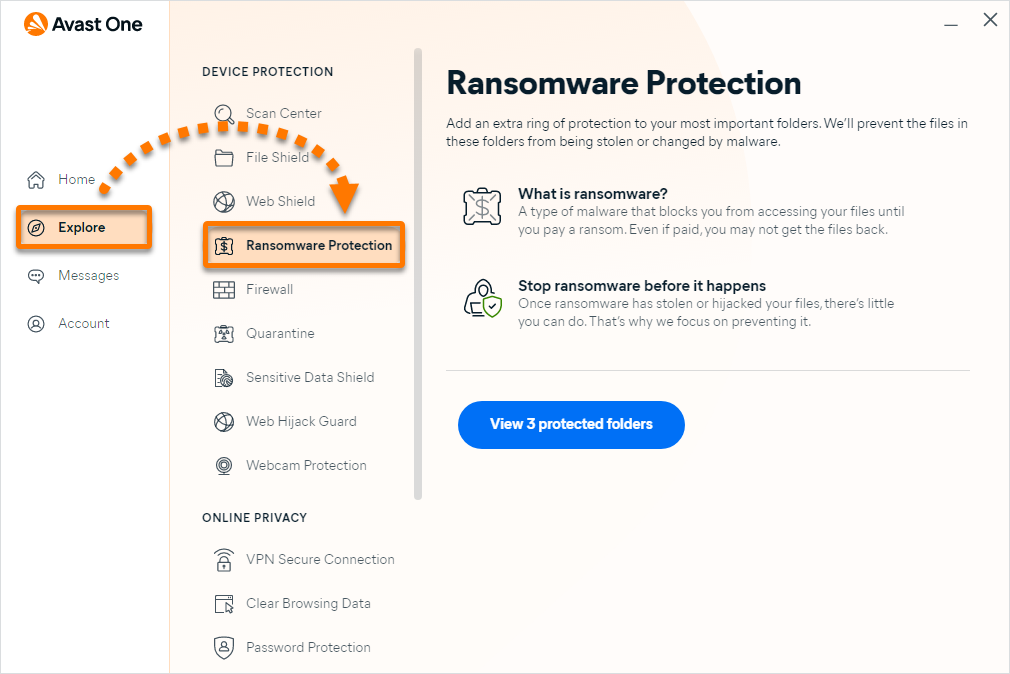

Modify your protected folders
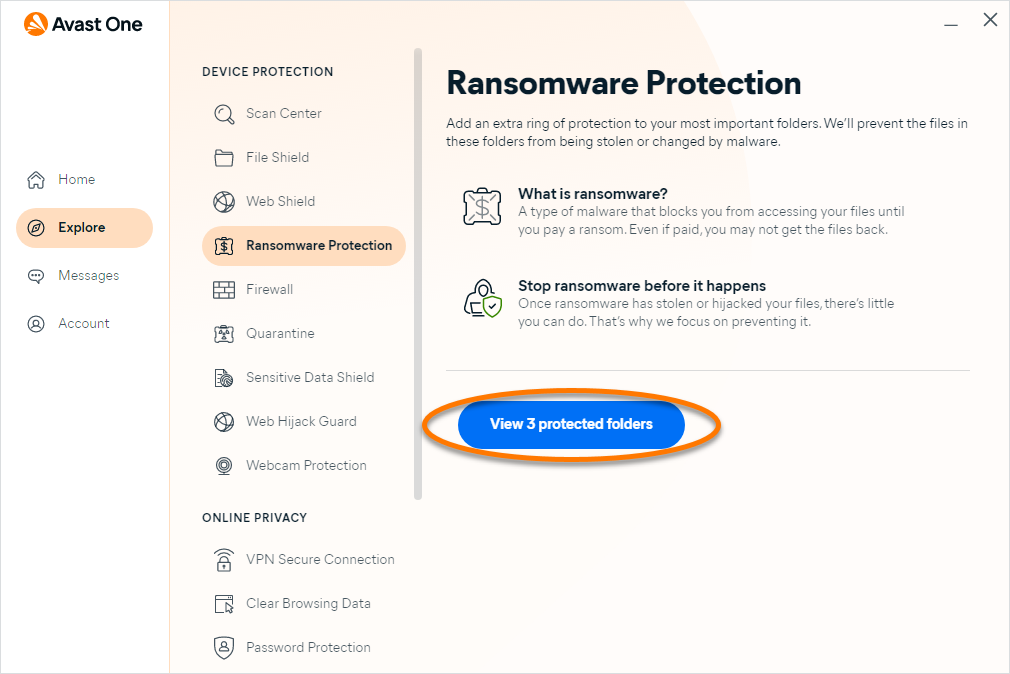
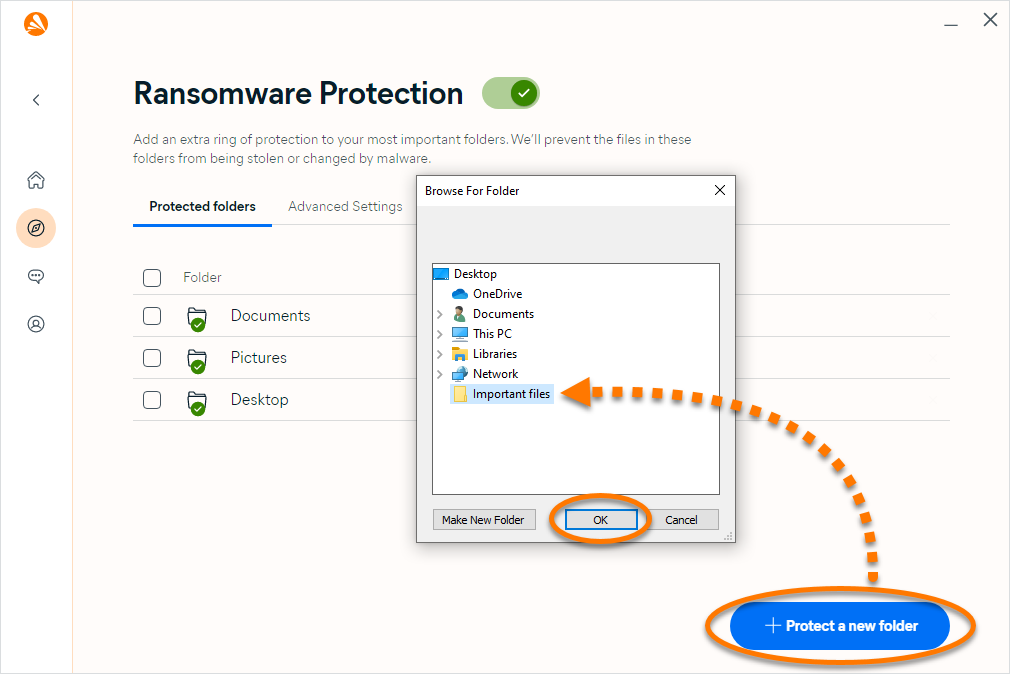
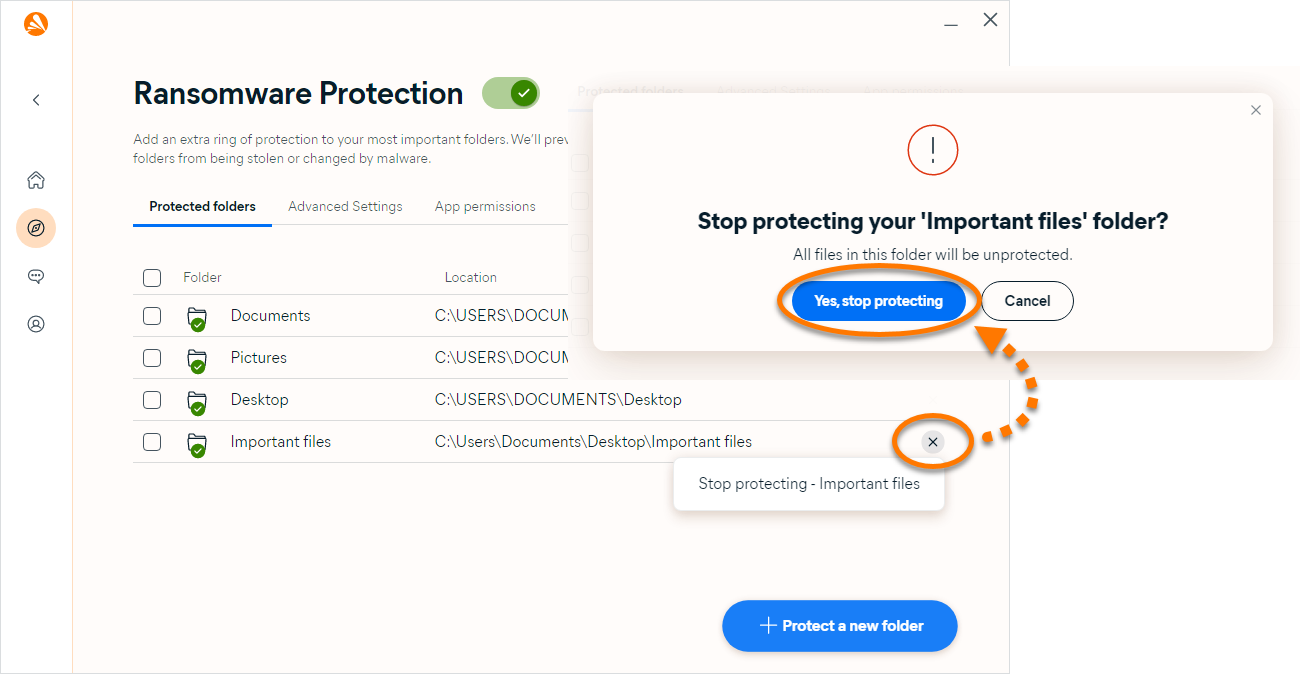
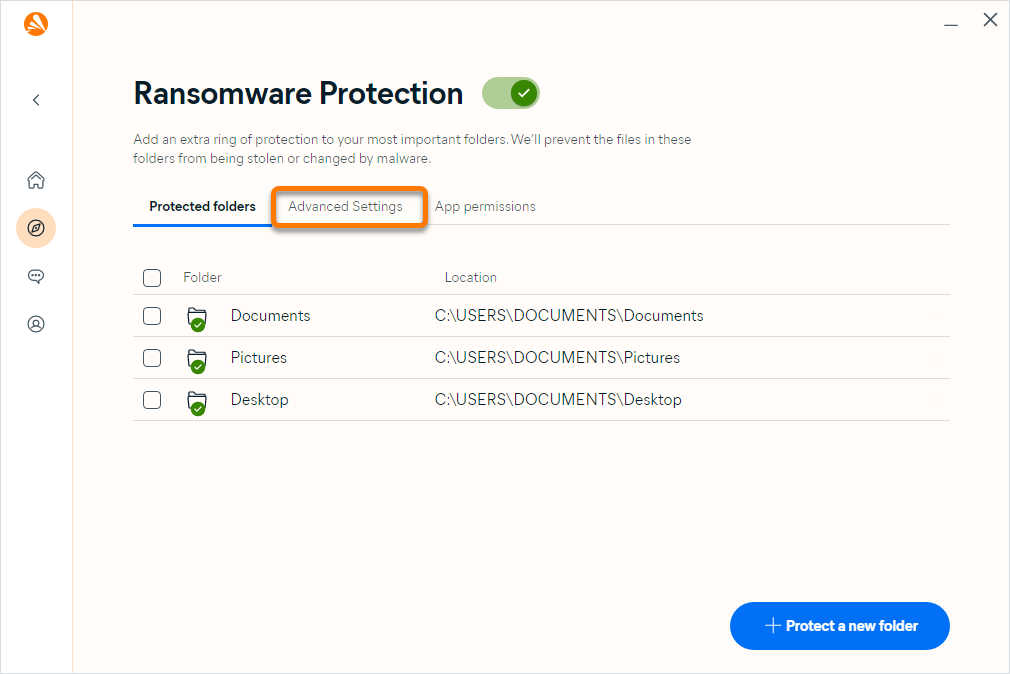
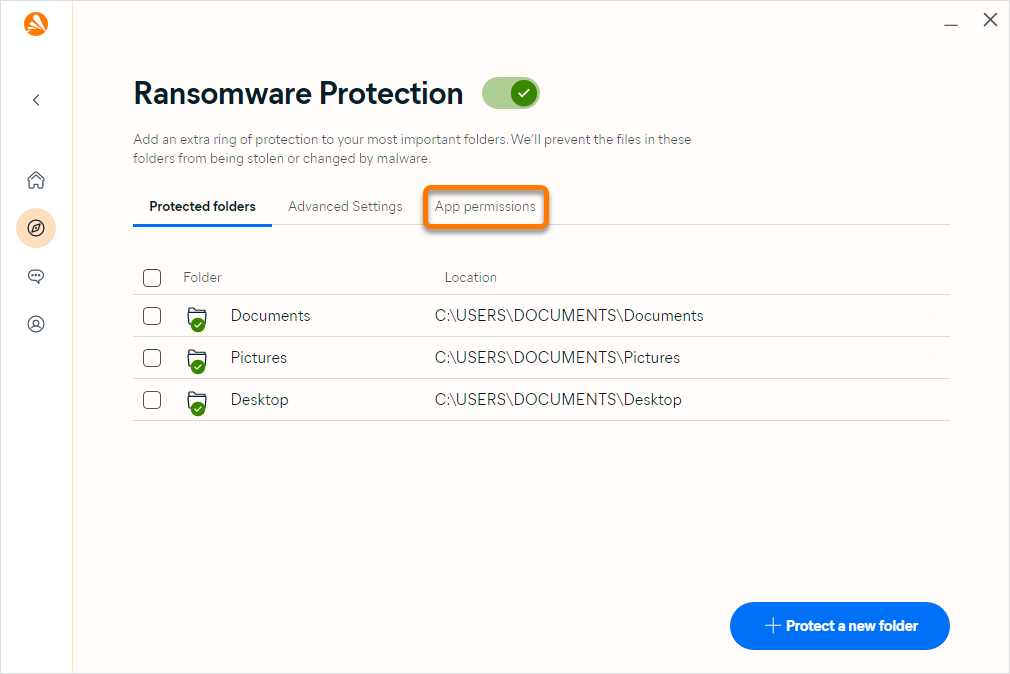
By default, Ransomware Protection secures your Documents and Pictures folders where your personal data might be stored. These folders are added to the protected folders list. You can also specify other folders you want to protect from untrusted applications or remove an automatically secured folder from the list.
To add or remove folders from the protected folders list:
- Open Avast One, then select
 Explore ▸ Ransomware Protection.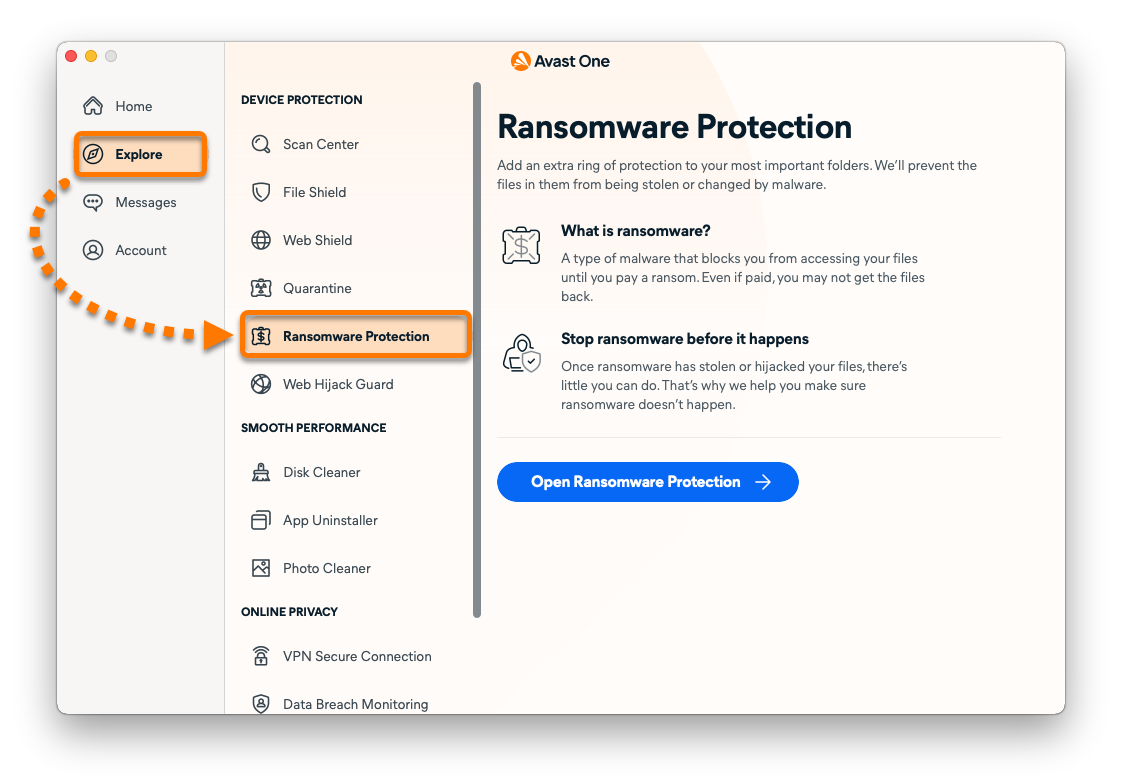
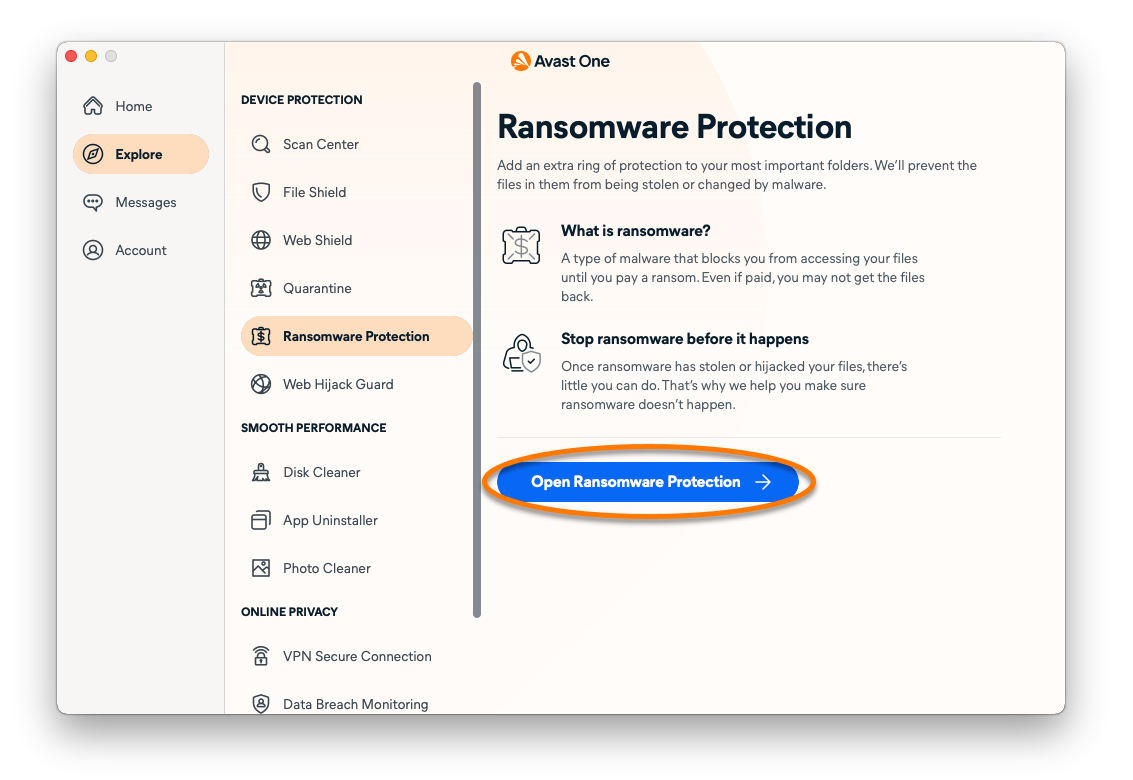
- Click Open Ransomware Protection.
- Add or remove a selected folder:
- To add a folder: Click Protect a new folder, select the folder you want to protect, then click Open.
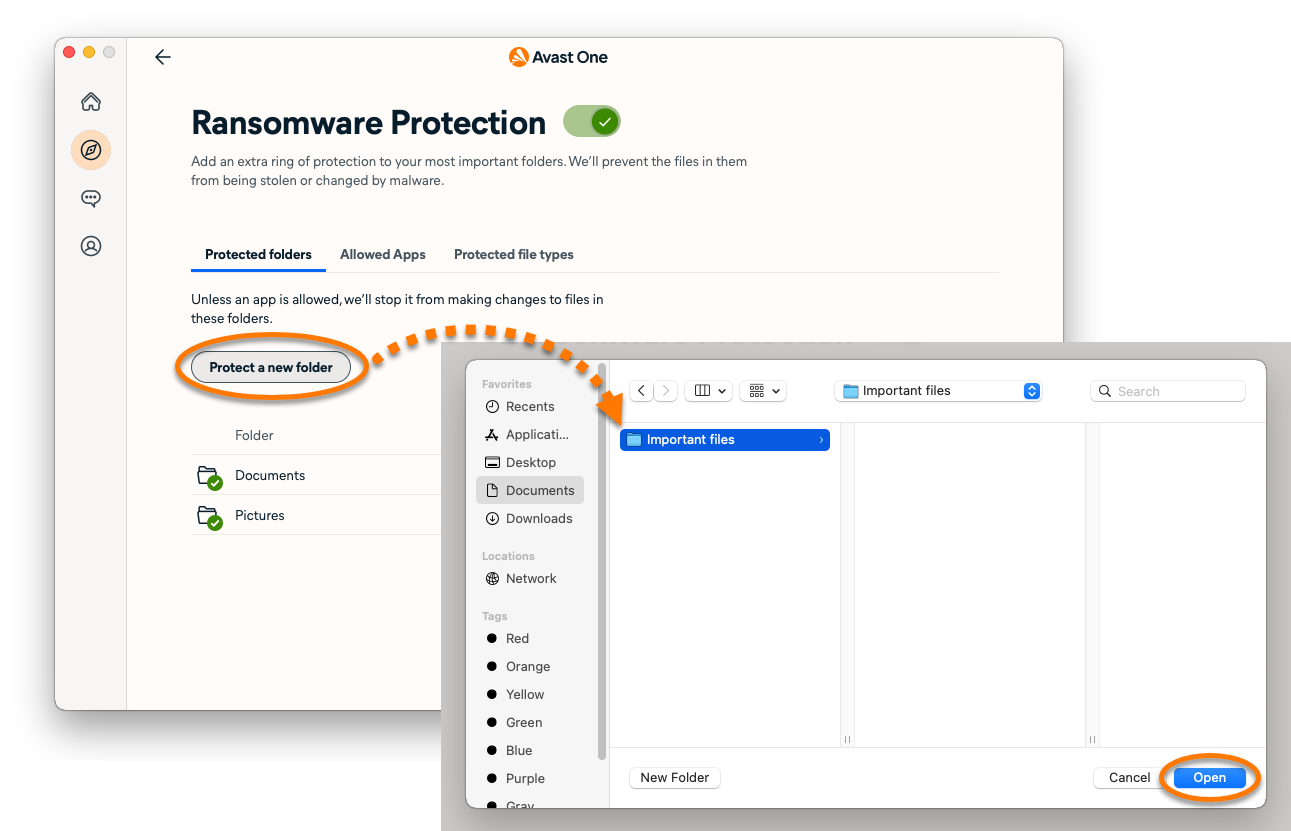
- To remove a folder: Hover your cursor over the folder's panel, then click the X icon that appears.
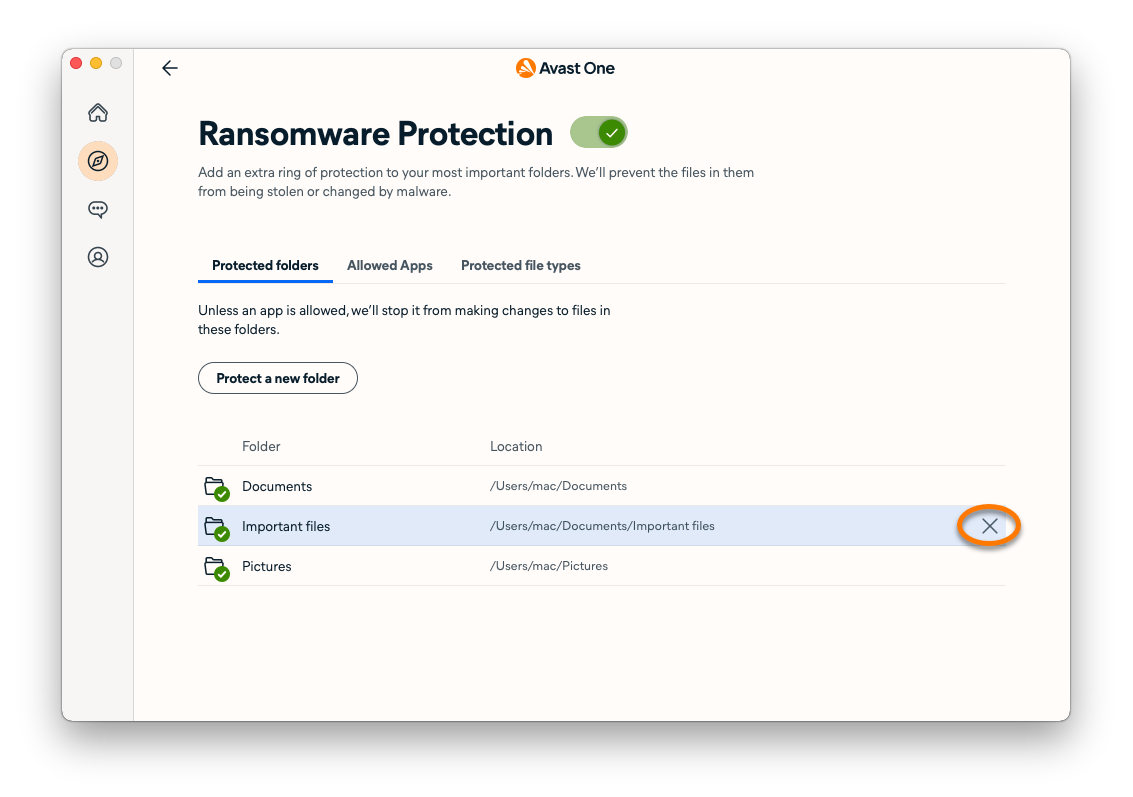
- To add a folder: Click Protect a new folder, select the folder you want to protect, then click Open.
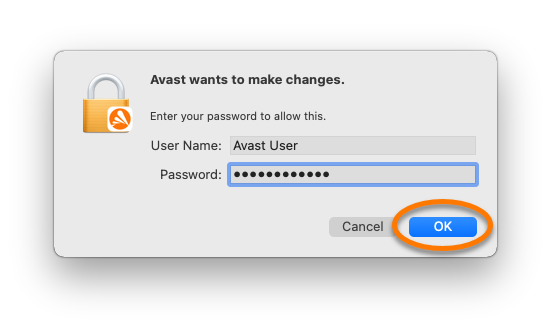
- If prompted, enter the password that you use when you start your Mac, then click OK.
Manage app permissions
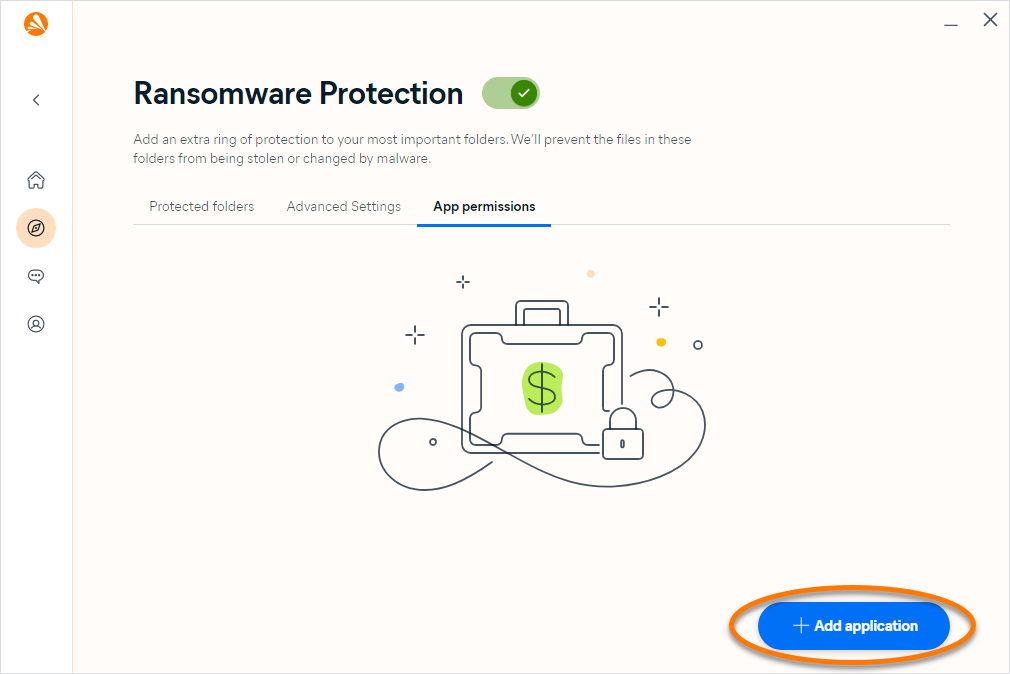
On the Allowed Apps tab, you can specify applications that are always allowed access to the files in your protected folders.
- Open Avast One, then select Explore ▸ Ransomware Protection.
- Click Open Ransomware Protection.
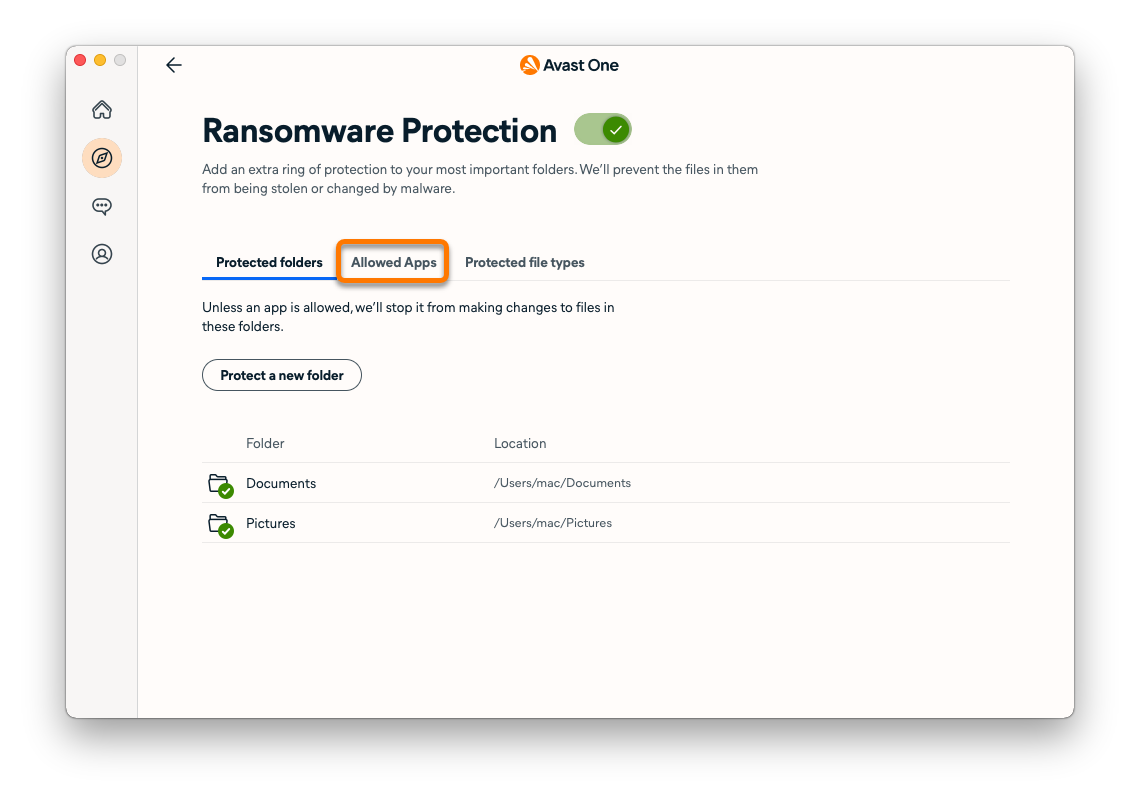
- Select the Allowed Apps tab.
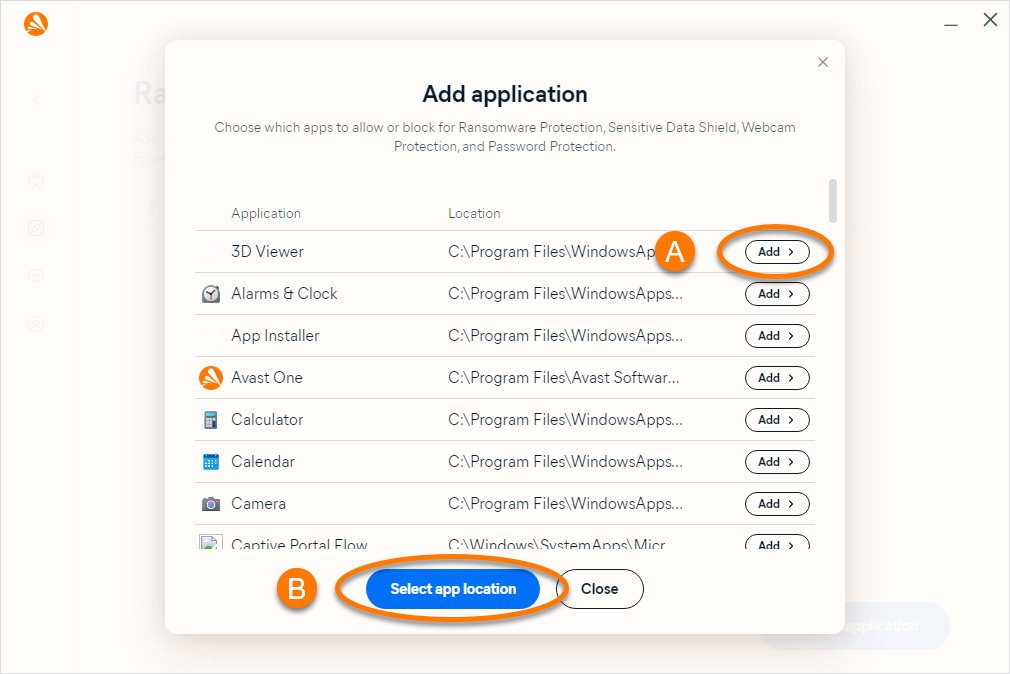
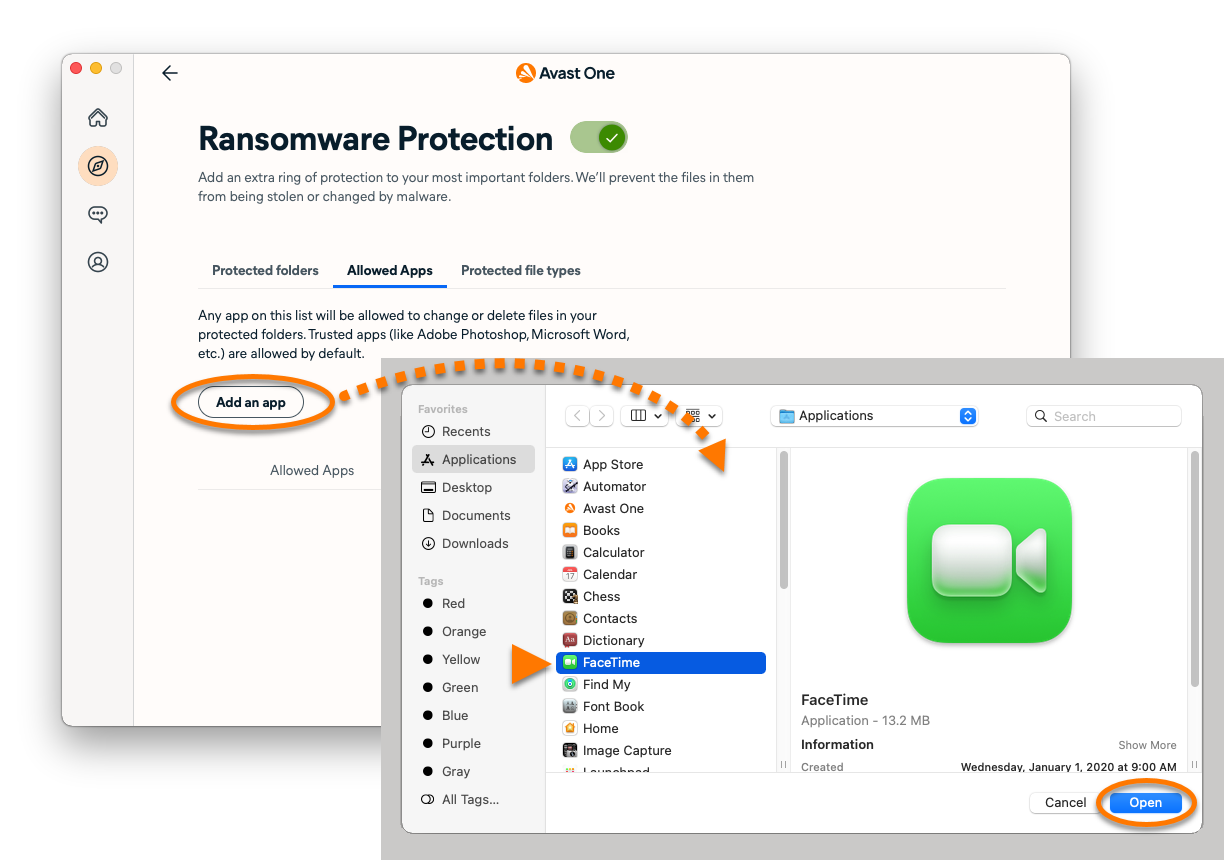
- Click Add an app, then select the application and click Open.
- If prompted, enter the password that you use when you start your Mac, then click OK.
The application is added to the Allowed Apps list. To remove an application from this list, hover your cursor over the application's panel, then click the X icon that appears.
Specify protected file types
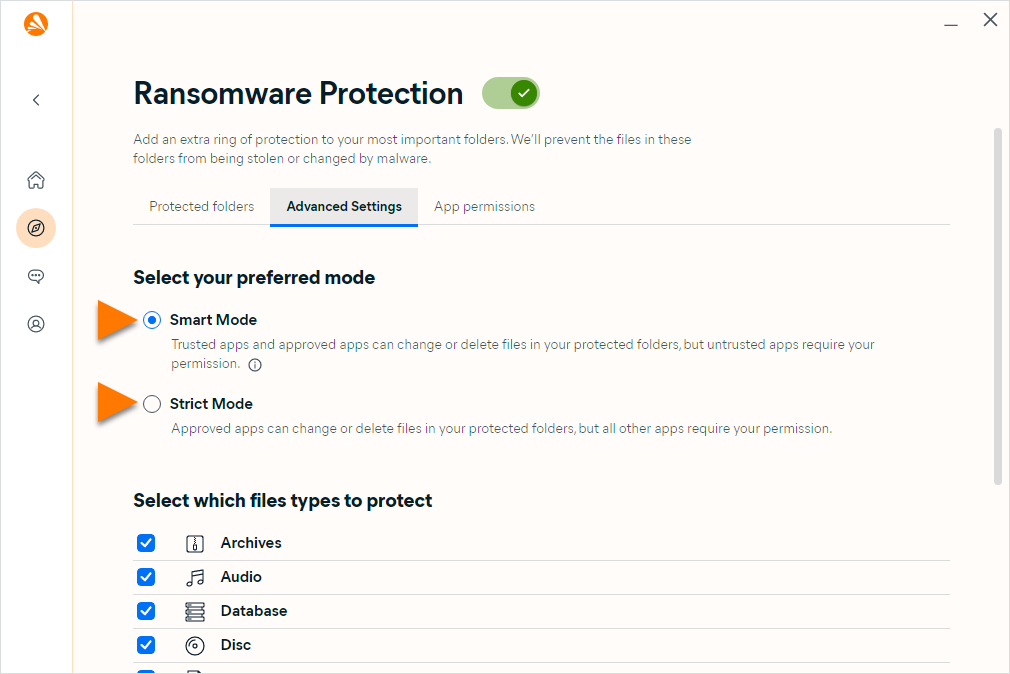
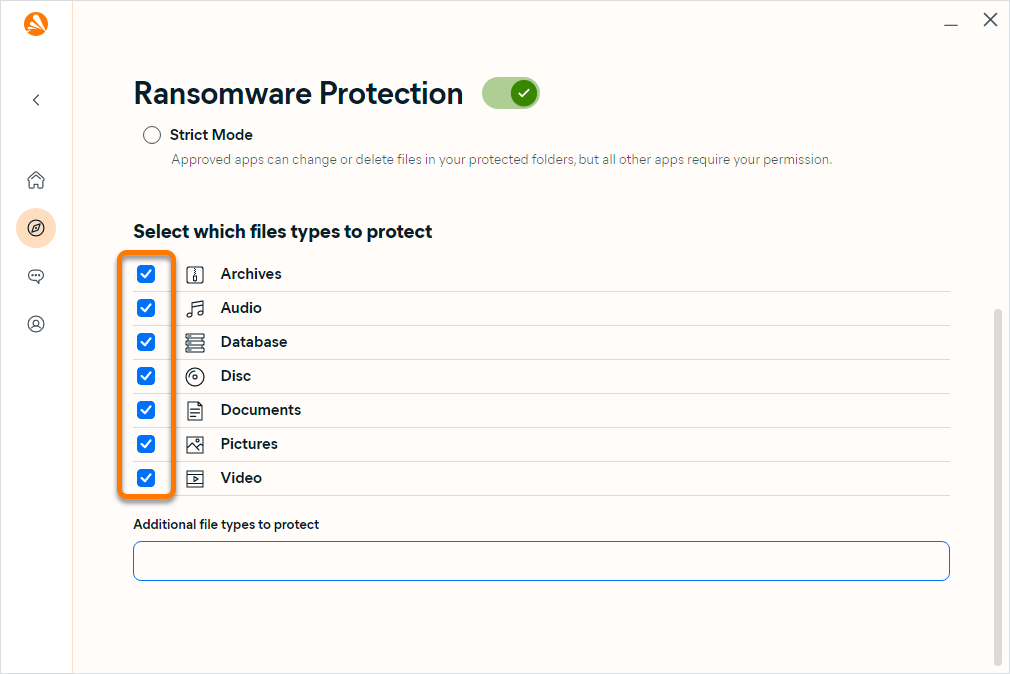
Select which file types to secure in your protected folders:
- Open Avast One, then select Explore ▸ Ransomware Protection.
- Click Open Ransomware Protection.
- Select the Protected file types tab.
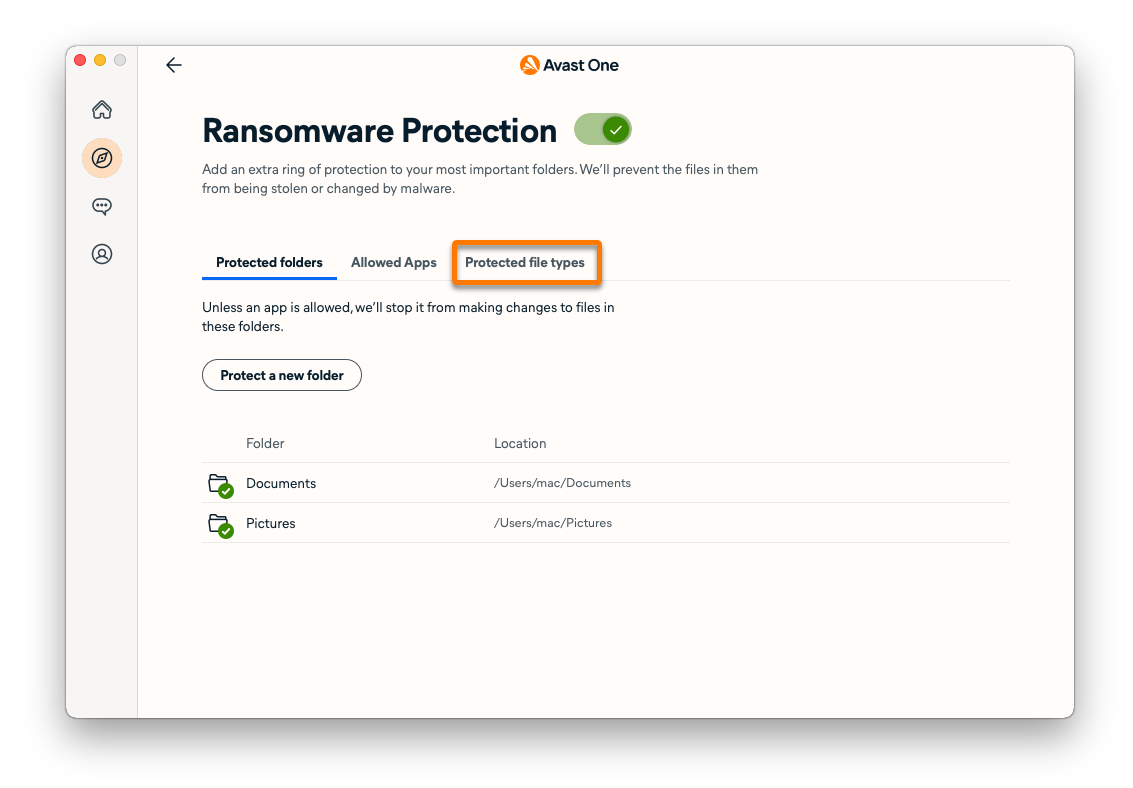
- All listed file types are selected by default. Untick the box next to a file type to deselect it.
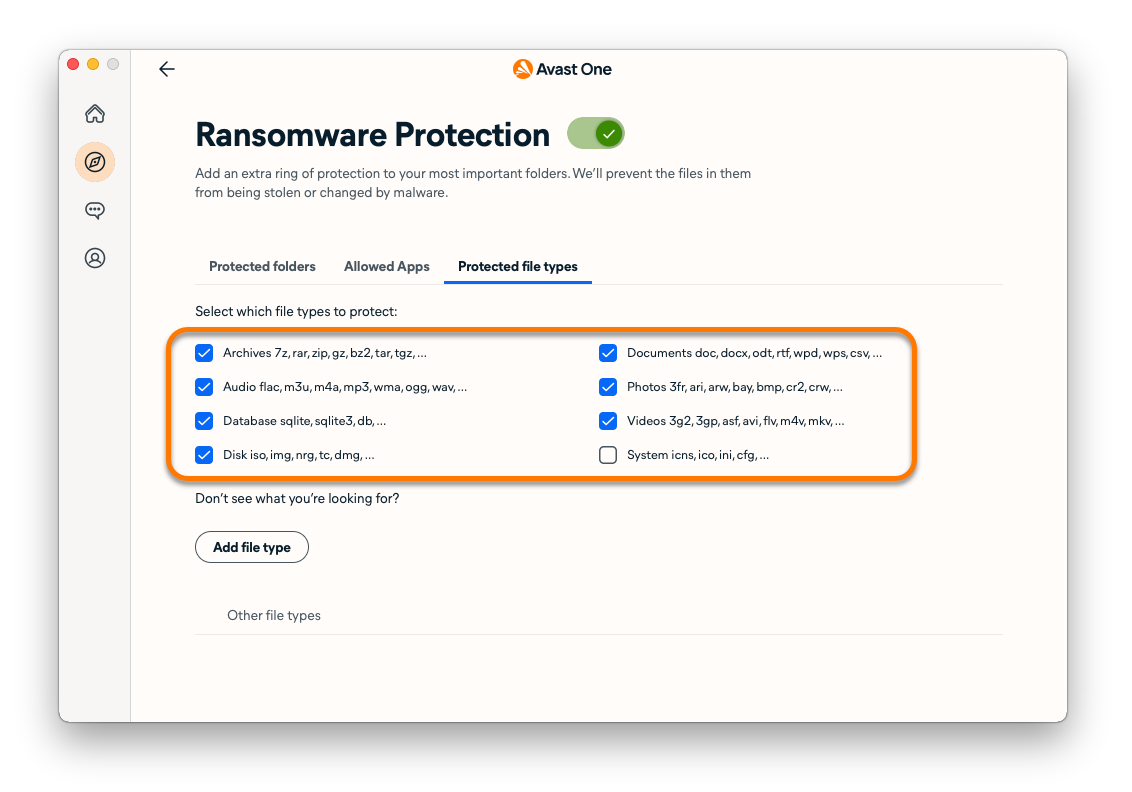
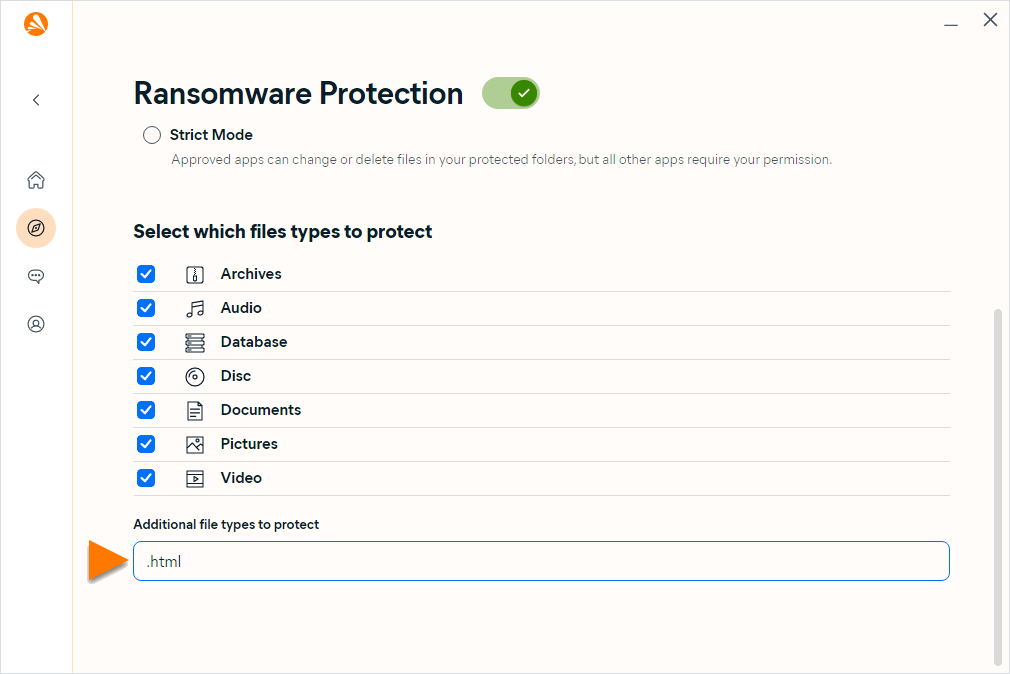
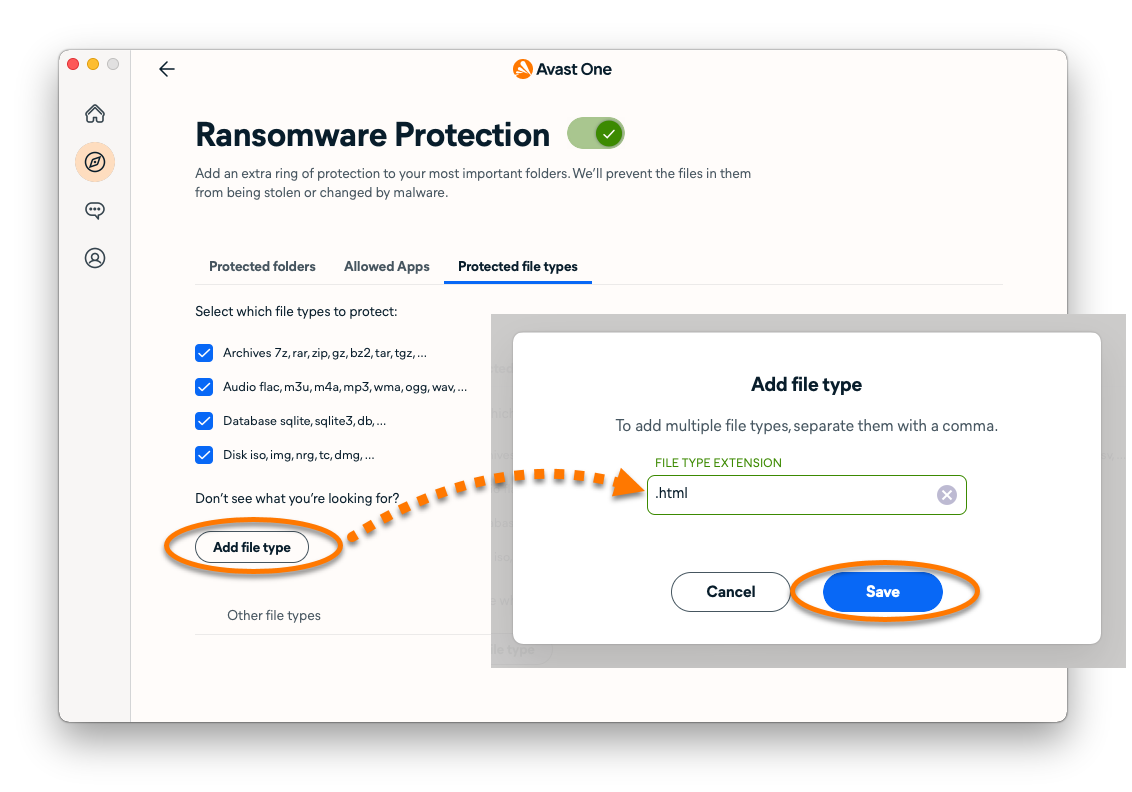
- To add additional file types, click Add file type, then type the file extension (for example, .html) into the text box and click Save.
- If prompted, enter the password that you use when you start your Mac, then click OK.
Disable Ransomware Protection
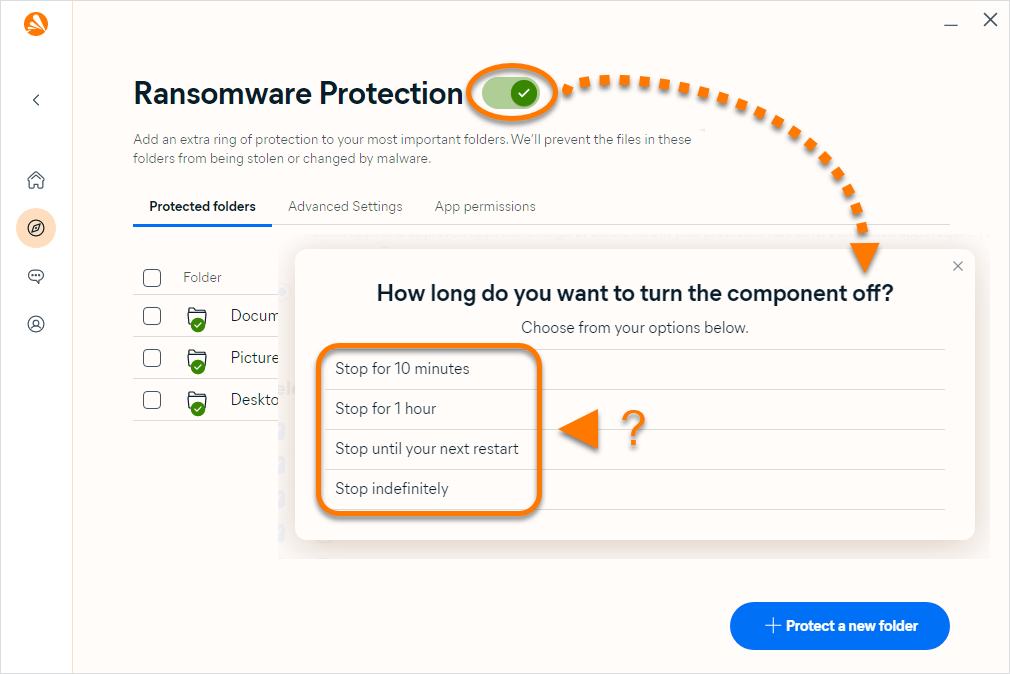
Ransomware Protection is enabled by default, but can be disabled for troubleshooting purposes by following the steps below:
- Open Avast One, then select Explore ▸ Ransomware Protection.
- Click Open Ransomware Protection.
- Click the green (ON) slider.
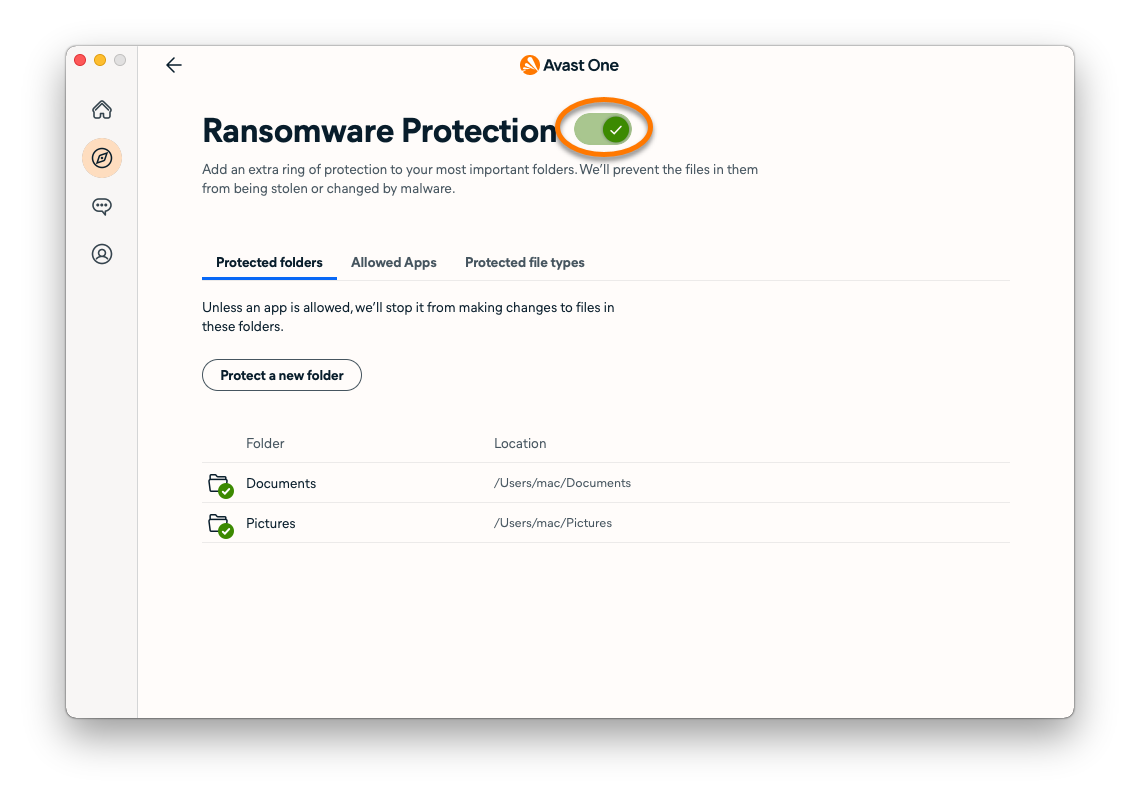
- If prompted, enter the password that you use when you start your Mac, then click OK.
Ransomware Protection is now disabled. To enable it again, click the red (OFF) slider. If prompted, enter the password that you use when you start your Mac, and click OK.
